MCTRL660 and MCTRL660 PRO are NovaStar LED sending controllers for compatible receiving-card systems. Select the standard or PRO model by input formats, required outputs, optical routing and synchronisation. They are not substitutes for every video-processing or scaling task; define the required source and native wall resolution before ordering.
This guide helps integrators and rental companies compare the two models, plan the cabinet map and retain a tested configuration for operation and service.
- Standard MCTRL660 and MCTRL660 PRO have different connectors and control workflows.
- Confirm the allowed input timing at the chosen bit depth.
- Check total device limits and the actual load on each Ethernet output.
- Specify optical conversion, backup and synchronisation as a complete tested design.
On this page
What Is the NovaStar MCTRL660 Series?
01 What Is the MCTRL660 Controller?
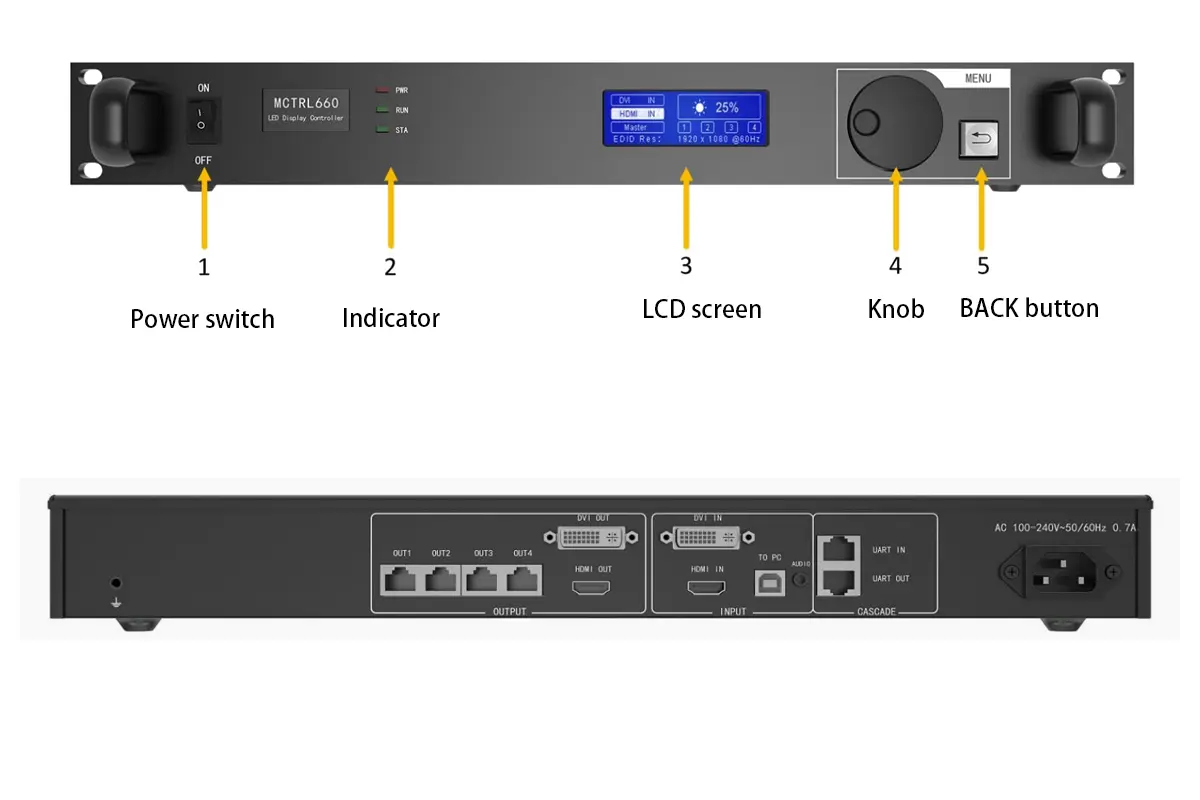
The NovaStar MCTRL660 (also written MCTRL 660 or MCTRL-660) is a rack-mountable, independent LED display controller. It accepts SL-DVI and HDMI 1.3 input, processes the signal internally, and distributes it to NovaStar receiving cards through four Gigabit Ethernet ports. Because the sending-card function is built in, one MCTRL660 replaces a traditional sending card plus control box.
02 What Is the MCTRL660 PRO?
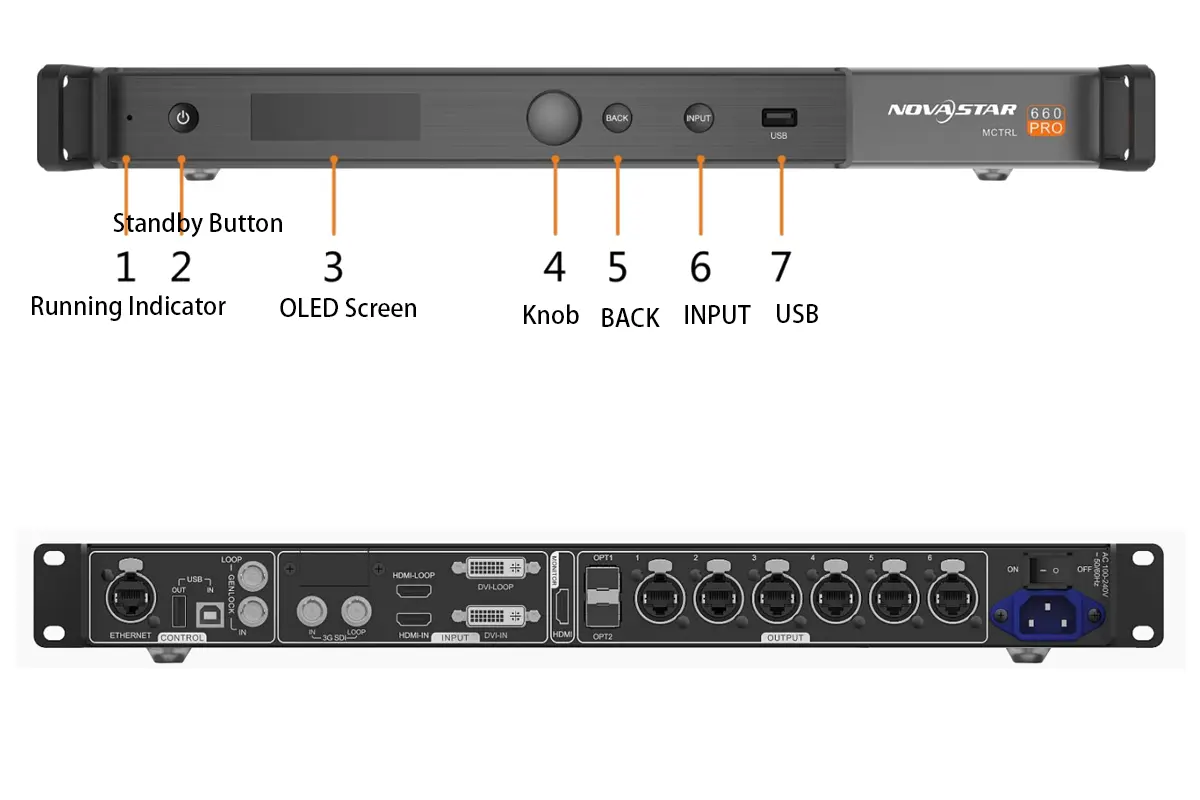
The MCTRL660 PRO keeps the same 1920×1200@60Hz processing core but adds native 3G-SDI input, HDMI 1.4a, six Gigabit Ethernet ports, two optical fiber ports, configurable low latency and GENLOCK synchronization for multi-controller rigs. It is the model broadcast and rental crews specify when signal distance and latency matter.
03 MCTRL660 vs MCTRL660 PRO at a Glance
Table 1: MCTRL660 vs MCTRL660 PRO at a glance
| Decision factor | MCTRL660 | MCTRL660 PRO |
|---|---|---|
| Positioning | Copper-based workhorse for large fixed screens | Flagship unit for rental, broadcast and long runs |
| Inputs | SL-DVI, HDMI 1.3, audio | SL-DVI, HDMI 1.4a, 3G-SDI, audio |
| Outputs | 4x Gigabit Ethernet | 6x Gigabit Ethernet plus 2x optical |
| Latency | Not specified | One frame under documented conditions |
| Cascading | Up to 20 units | Up to 8 units |
| Typical projects | Stadium ribbons, control rooms, billboards | Touring stages, OB vans, broadcast studios |
MCTRL660 and MCTRL660 PRO Specifications
01 Full Specification Table
Table 2: MCTRL660 and MCTRL660 PRO technical specifications
| Specification | MCTRL660 | MCTRL660 PRO |
|---|---|---|
| Input connectors | SL-DVI, HDMI 1.3, audio in/out | SL-DVI, HDMI 1.4a, 3G-SDI, audio in/out |
| Output ports | 4x Gigabit Ethernet | 6x Gigabit Ethernet, 2x optical (OPT1/OPT2) |
| Max input resolution | 1920×1200@60Hz | 1920×1200@60Hz |
| Color depth | 8-bit, 10-bit, 12-bit | 8-bit, 10-bit, 12-bit |
| Image mirroring | Supported | Supported |
| Low latency | Not specified | One frame under documented conditions |
| Cascading | Up to 20 units via UART IN/OUT, HDMI/DVI OUT | Up to 8 units via USB IN/OUT, GENLOCK IN/LOOP |
| Optical output | No | 2 ports, up to 10 km over single-mode fiber |
| Control software | NovaLCT, SmartLCT | NovaLCT, SmartLCT |
02 What the Specifications Mean in Practice
1920×1200@60Hz is the ceiling for both units, so 4K sources must be scaled down by a media server or scaler before they reach the controller. Deep color up to 12-bit keeps gradients smooth; set the bit depth to match the source, not the receiving cards, to avoid banding. Four versus six Ethernet ports decides how many cabinet chains one controller drives, and 20 versus 8 cascaded units decides how many controllers a very large screen needs. Those two numbers are usually what separates the models in a tender.
Core Features Shared by the MCTRL660 Series
Whichever model you deploy, these capabilities are why the MCTRL660 series is a common choice for professional LED work.
01 High-Resolution Real-Time Processing
Both controllers process full-frame-rate video at up to 1920×1200@60Hz, and the MCTRL660 PRO adds a documented low-latency configuration for live camera and IMAG feeds.
02 Flexible Input Compatibility
Cameras, media servers and playback devices connect over HDMI or DVI without adapters; the MCTRL660 PRO also takes 3G-SDI directly, removing external conversion from broadcast signal chains.
03 Advanced Color Fidelity
Deep-color input up to 12-bit produces smoother gradients and richer tonal detail, which matters on large dark or graduated areas where banding is most visible.
04 Image Mirroring
Built-in mirroring flips and mirrors content inside the controller, enabling symmetrical effects, reflective floors and multi-surface stages without extra processing hardware or added latency.
05 Pixel-Level Calibration and Cascading
Integrated calibration keeps brightness and color uniform across large multi-panel walls and speeds up module replacement later. Cascading lets several controllers drive one logical display, with redundancy available for live shows.
Where the MCTRL660 Series Is Used in LED Display Systems
01 The Role of the Controller in the Signal Chain
In an LED display system the MCTRL660 series is the central video processing and distribution unit, sitting between the signal source and the receiving cards that drive the panels. It converts incoming video into data streams optimized for NovaStar receiving cards and distributes them over Ethernet or fiber. That position determines how far signals travel and how many cabinets one device drives.
02 Front-of-House Video Walls
Live events, broadcast studios and corporate lobbies prioritize image quality, low latency and real-time reliability. Here an MCTRL660 PRO takes camera and switcher feeds over 3G-SDI and drives the wall over fiber while staying in sync with audio and presenters.
03 Large-Scale Fixed Installations
Control rooms, sports venues and digital signage networks care about long-term stability and simple maintenance. The MCTRL660’s 20-unit cascading capacity covers a very large screen with far fewer controllers, and copper cabling suits controlled indoor and outdoor cabinets.
Table 3: Deployment scenario and recommended controller
| Deployment scenario | Recommended | Why |
|---|---|---|
| Touring stage or rental wall | MCTRL660 PRO | configurable low latency, 3G-SDI, fiber output and GENLOCK sync |
| Broadcast studio or OB van | MCTRL660 PRO | Native SDI integration and frame-accurate sync |
| Stadium scoreboard or ribbon | MCTRL660 | 20 cascaded units reduce device count and cabling |
| Security control room wall | MCTRL660 | Stable copper architecture and straightforward maintenance |
| Outdoor billboard or retail wall | MCTRL660 | Cost-efficient for fixed cabinets with short cable runs |
MCTRL660 vs MCTRL660 PRO: Key Differences
Both controllers share a core feature set, but the MCTRL660 PRO changes five things that matter on site.
01 Signal Integration
The MCTRL660 accepts HDMI and DVI only, so SDI broadcast equipment needs external converters. The MCTRL660 PRO adds native 3G-SDI, connecting directly to switchers, PTZ cameras and OB vans – one less converter, power supply and failure point.
02 Long-Distance Transmission
The MCTRL660 relies on copper Gigabit Ethernet, limiting each link to roughly 100 meters, and can suffer interference in noisy venues. The MCTRL660 PRO adds two optical outputs supporting runs of hundreds of meters, up to 10 km with single-mode fiber, immune to electromagnetic interference.
03 Scalability and Topology
The MCTRL660 cascades up to 20 units, ideal for massive fixed installations where minimizing controller count simplifies management. The MCTRL660 PRO limits cascading to 8 units but drives higher-bandwidth loads and synchronizes frame-accurately over GENLOCK, suiting high-refresh rental panels.
04 Field Deployment and Maintenance
Copper-only cabling keeps MCTRL660 spares simple: one controller model, standard Cat5e or Cat6, no optical transceivers to stock. The MCTRL660 PRO adds transceivers and SDI cabling to the inventory, but can be hot-swapped into a redundant pair without the audience noticing.
05 Use-Case Alignment
The MCTRL660 suits fixed installations where the screen is large, sources are local and cable runs are predictable. The MCTRL660 PRO suits rental and broadcast work where the signal arrives over SDI, travels far, and must not be delayed.
Table 4: MCTRL660 vs MCTRL660 PRO difference matrix
| Aspect | MCTRL660 | MCTRL660 PRO | Practical impact |
|---|---|---|---|
| Signal integration | HDMI 1.3 and DVI | HDMI 1.4a, DVI and 3G-SDI | Converters needed versus direct broadcast connection |
| Transmission | Copper, about 100 m per link | Fiber, hundreds of meters to 10 km | Decides long control-room-to-screen runs and EMI-heavy sites |
| Cascading | Up to 20 controllers | Up to 8 controllers | Fewer devices on huge screens versus more bandwidth per unit |
| Latency | Not specified | One frame under documented conditions | Keeps IMAG and live camera content in sync on stage |
| Synchronization | UART, HDMI/DVI cascade | GENLOCK IN/LOOP, USB cascade | Frame-accurate sync across controllers in one wall |
| Maintenance profile | Ethernet and Cat cable spares only | Adds transceivers and SDI cabling | Simpler spares versus faster live redundancy |
Input Sources and Output Interfaces
01 Input Sources
Both models accept DVI and HDMI sources up to 1920×1200@60Hz and pass embedded audio through to the audio output. Preset resolutions cover common broadcast and computer standards, and custom timings can be entered from the front panel or from NovaLCT. The MCTRL660 PRO adds 3G-SDI, which carries 1080p60 over a single BNC cable and matches the rest of a broadcast infrastructure.
02 Output Interfaces
The standard MCTRL660 provides four Gigabit Ethernet ports, each driving a chain of NovaStar receiving cards. The MCTRL660 PRO provides six Gigabit Ethernet ports plus two optical ports whose modes – fiber converter, sending card and dual output – are explained in section 7.
Table 5: Input and output interface reference
| Interface | MCTRL660 | MCTRL660 PRO | Notes |
|---|---|---|---|
| SL-DVI IN | Yes | Yes | Primary computer and media server input |
| HDMI IN | HDMI 1.3 | HDMI 1.4a | Carries embedded audio, 1920×1200@60Hz maximum |
| 3G-SDI IN | No | Yes | Direct connection to switchers, PTZ cameras, OB vans |
| Audio IN/OUT | Yes | Yes | Routes embedded or external audio with the video |
| Gigabit Ethernet OUT | 4 ports | 6 ports | Each port drives one chain of receiving cards |
| Optical OUT (OPT1/OPT2) | No | 2 ports | Long-distance, interference-immune transmission |
| Cascade ports | UART IN/OUT, HDMI/DVI OUT | USB IN/OUT, GENLOCK IN/LOOP | Synchronizes multiple controllers across one display |
How to Connect MCTRL660 Series Controllers in Large LED Screens
When a display exceeds the output capacity of one controller, two or more units are cascaded so each drives a section of the screen. This uses network coordination and synchronization between controllers, not a physical daisy-chain through every cabinet. Five connection modes cover almost every deployment.
01 Cascading Connection
The MCTRL660 PRO cascades up to 8 units over USB IN/OUT or GENLOCK IN/LOOP. The standard MCTRL660 cascades up to 20 units over UART IN/OUT or HDMI/DVI OUT. Both deliver synchronized output for ultra-wide or ultra-tall displays such as a stadium fascia or a continuous ribbon screen.
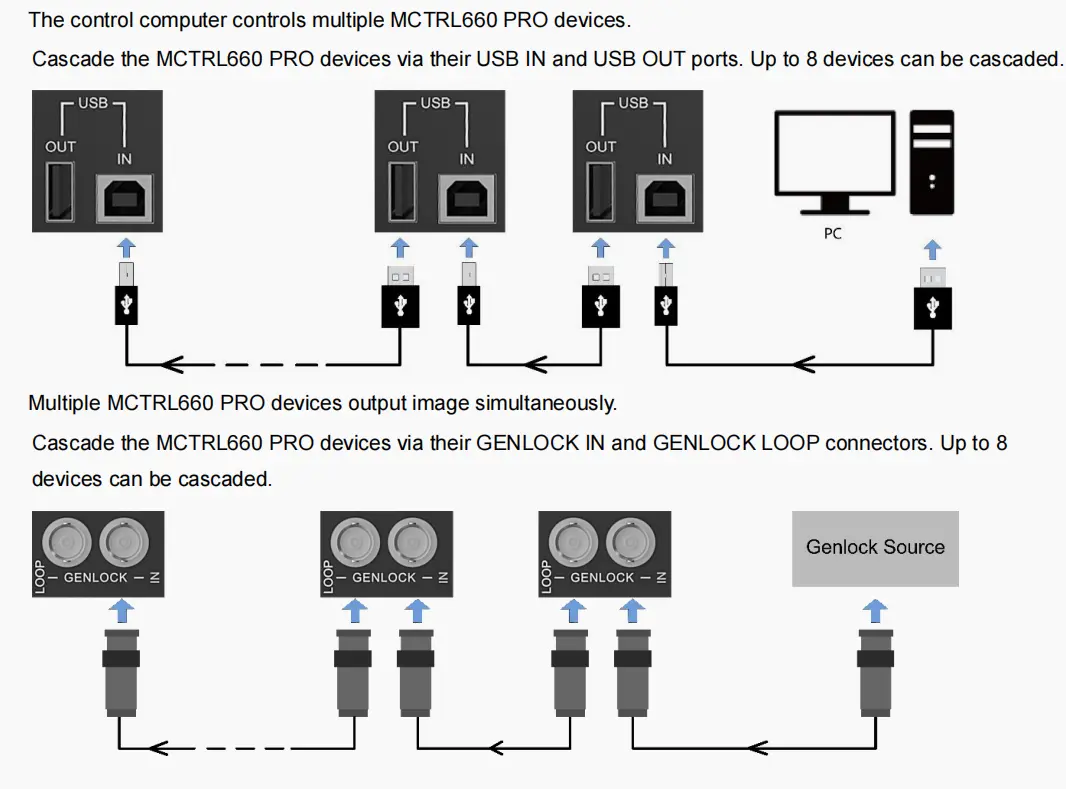
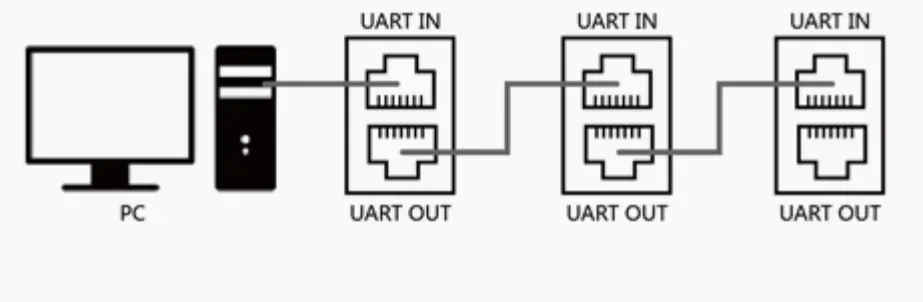
Cascade topologies for the MCTRL660 PRO (upper diagram) and the standard MCTRL660 (lower diagram).
02 Redundancy Backup Connection
A primary and a backup controller are paired over Ethernet or optical ports, and the backup takes over automatically if the primary fails. The switchover needs no operator intervention, so the audience never sees a black screen – standard practice for live events and sports broadcasts.
03 Fiber Converter Mode
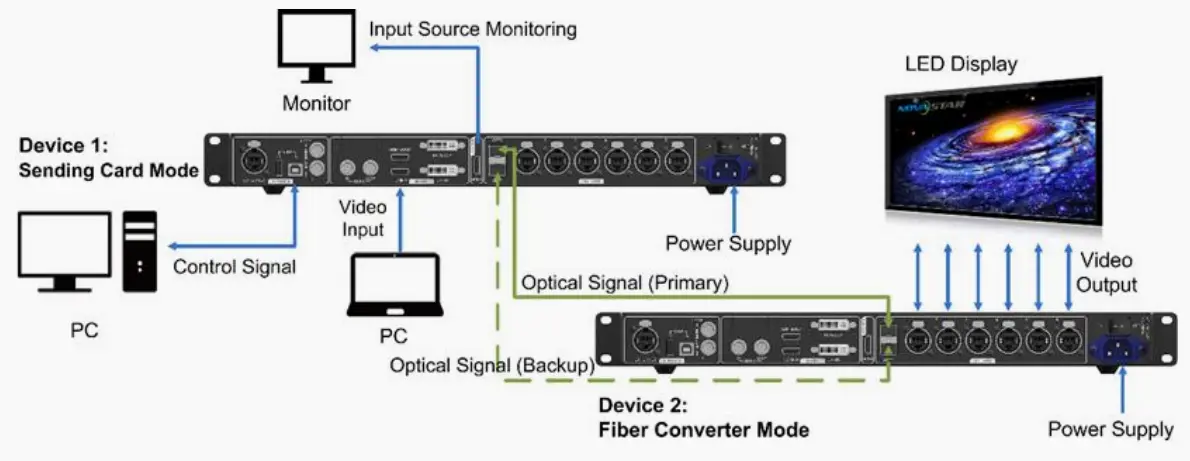
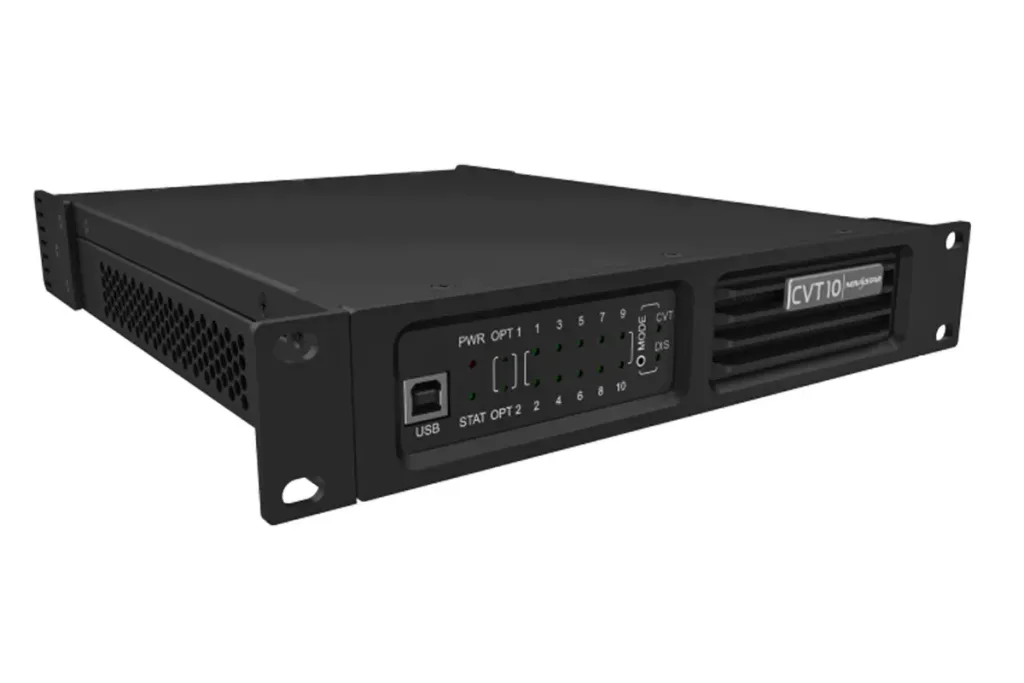
In fiber converter mode the MCTRL660 PRO uses OPT1 and OPT2 with its six Ethernet ports to convert optical input back to electrical output, supporting transmission up to 10 km with single-mode fiber. This is how a control room drives a screen on the far side of a stadium. For extending a single link rather than a whole controller, a dedicated converter such as the NovaStar CVT10 is often more economical.
04 Sending Card Mode
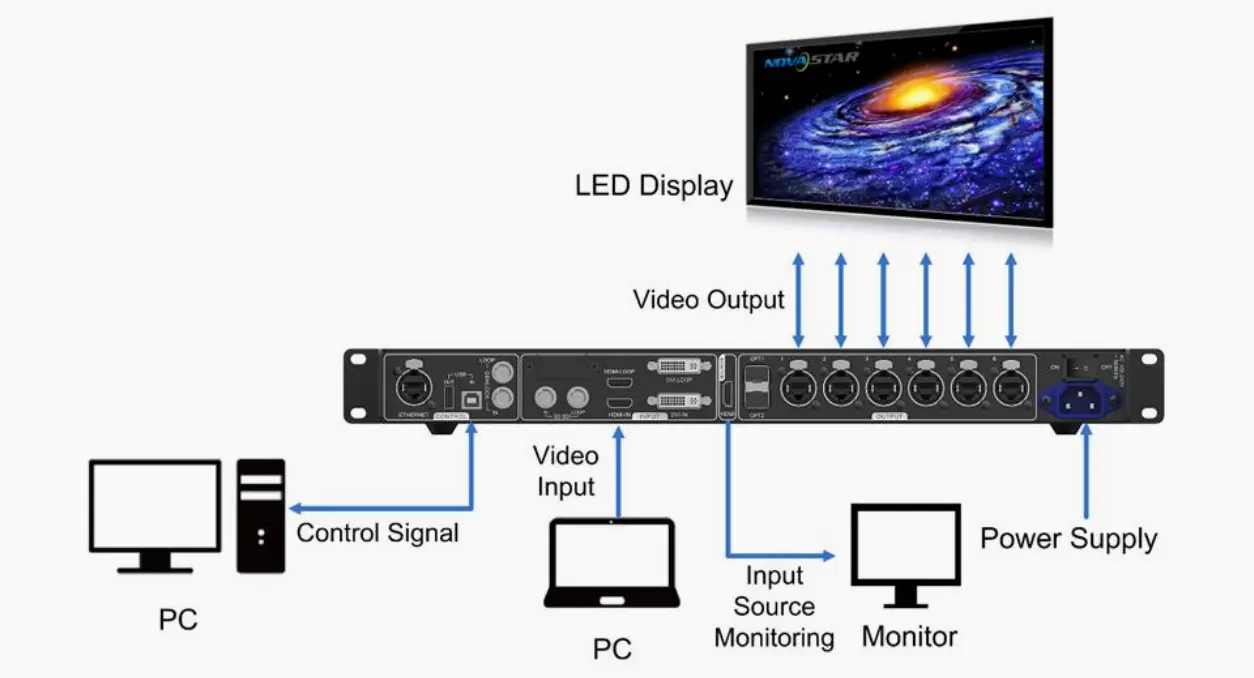
Here the controller outputs video directly to receiving cards through its optical or Ethernet ports, exactly like an internal sending card. Image mirroring, configurable low latency and quick configuration remain available, making this the default mode for standard LED control that needs real-time adjustment.
05 Dual Output Mode
One controller sends the same image simultaneously through its optical and Ethernet ports. This suits two display systems fed from a single source – for example a main stage screen and a delay screen, or an indoor wall and an outdoor fascia.
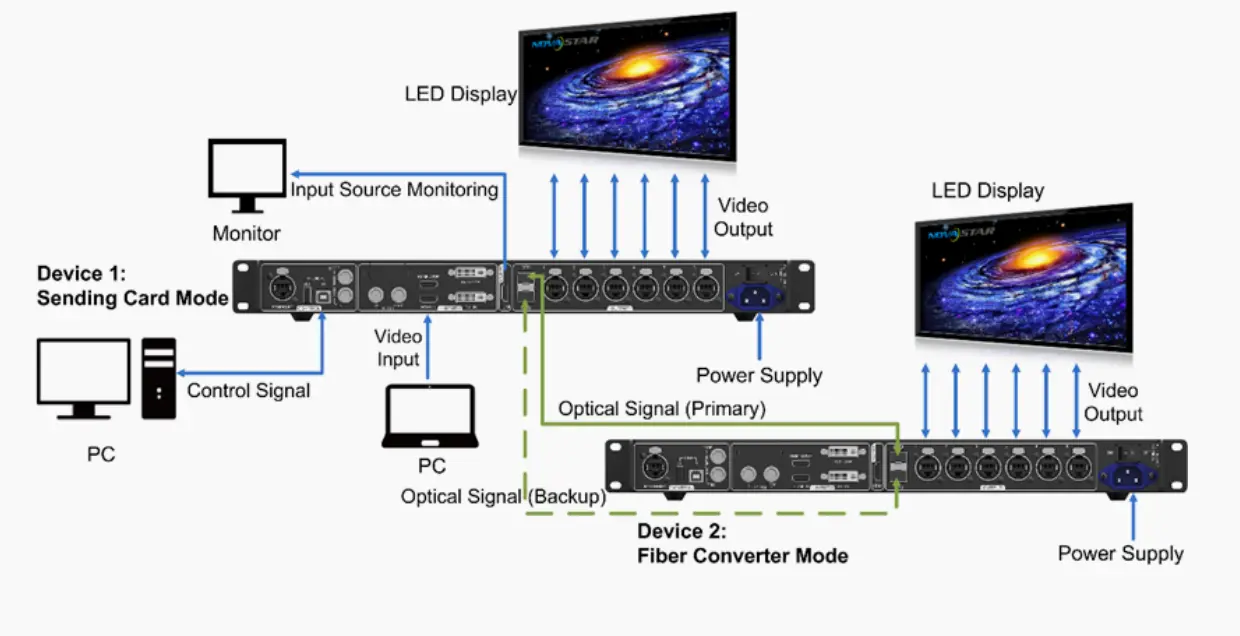
Table 6: Connection mode selection guide
| Connection mode | What it does | Typical application | Model support |
|---|---|---|---|
| Cascading connection | Synchronizes multiple controllers driving one display | Ultra-wide or ultra-tall screens | Both – 20 units on the MCTRL660, 8 on the MCTRL660 PRO |
| Redundancy backup | Backup takes over automatically if the primary fails | Live events and sports broadcasts | Both, over Ethernet or optical ports |
| Fiber converter mode | Converts optical input to electrical Ethernet output | Runs up to 10 km between control room and screen | MCTRL660 PRO only |
| Sending card mode | Outputs straight to receiving cards | Standard LED control with real-time adjustment | MCTRL660 PRO optical, MCTRL660 Ethernet |
| Dual output mode | Sends one image over optical and Ethernet at once | Two display systems from a single source | MCTRL660 PRO only |
How to Configure an LED Screen Without a PC
The controller can be set up in minutes using only the front-panel knob and buttons, with no computer attached. The menu path differs slightly between the two models.
01 Four-Step Setup on the MCTRL660 PRO
Input source: press the knob, go to Input Settings – Input Source, then select HDMI, DVI or 3G-SDI. Input resolution: Input Settings – Preset Resolution, or Custom Resolution to enter width, height and refresh rate. Bit depth: Input Settings – Color Depth, selecting 8-bit, 10-bit or 12-bit to match the source. Quick screen configuration: Screen Settings – Quick Config, then set cabinet row quantity, cabinet column quantity, cabinets loaded by Ethernet port 1 and data flow direction, previewing the flow in real time as you rotate the knob. Press the knob to save and the screen lights up.

02 Two-Step Setup on the Standard MCTRL660
Input resolution: go to Advanced Setting – EDID Resolution and choose a preset or define a custom one. Quick screen configuration: enter the Screen Setting submenu, set cabinet rows, cabinet columns, cabinets loaded by port 1 and data flow direction, then save to light up the screen.
Managing the MCTRL660 with NovaLCT and SmartLCT
Once the screen is lit, the controllers are managed from a PC. NovaStar provides two applications, and they are not interchangeable.
01 What Is NovaLCT?
NovaLCT is the established configuration and calibration tool for NovaStar controllers and receiving cards: cabinet mapping, brightness and color calibration, firmware updates and diagnostics. On a large fixed installation this is where the calibration file for the whole screen is built and stored.
02 What Is SmartLCT?
SmartLCT is the newer, screen-oriented application that builds the layout visually. It is faster for complex arrangements and supports large canvases and high resolutions, so for irregular or high-density screens it usually shortens commissioning time significantly.
03 Which Software Should You Use?
Use both in sequence: build the physical layout in SmartLCT, then calibrate, update firmware and diagnose in NovaLCT. Simple rectangular screens can be commissioned with NovaLCT alone.
Table 7: NovaLCT vs SmartLCT
| Capability | NovaLCT | SmartLCT |
|---|---|---|
| Primary purpose | Configuration, calibration and diagnostics | Visual screen layout and canvas mapping |
| Best suited to | Rectangular screens and calibration work | Complex, large or non-rectangular screens |
| Cabinet mapping | Detailed per-port and per-cabinet settings | Faster visual workflow |
| Calibration and diagnostics | Core strength | Supported, not the primary focus |
| Workflow position | Second step – calibrate, update, verify | First step – build and map the screen |
MCTRL660 Manual, Datasheet and Firmware
01 What the Manual Covers
The official manual documents the front-panel menu tree, specifications, cascade and redundancy wiring, power requirements and quick configuration. The MCTRL660 PRO manual follows the same structure and adds the 3G-SDI section, optical port modes and GENLOCK settings. Keep the correct manual for the model you are installing – the menus are not identical, and following the wrong one is a common reason a screen will not light.
02 Firmware and Software Compatibility
Firmware and NovaLCT versions must match the controller and its receiving cards. Confirm the installed firmware from the front-panel menu or NovaLCT before updating, and update every unit in a cascaded group to the same version – mismatched versions are a frequent cause of synchronization faults.
Table 8: Manual, datasheet and software quick reference
| Resource | What you get | Where to find it |
|---|---|---|
| MCTRL660 manual | Menus, specifications, wiring and quick configuration | NovaStar official site – novastar.tech |
| MCTRL660 PRO manual | Adds 3G-SDI, optical modes and GENLOCK setup | NovaStar official site – novastar.tech |
| Datasheet | Confirmed port counts, resolution and color depth for tenders | NovaStar and authorized distributors |
| Controller firmware | Bug fixes and compatibility updates | NovaStar official site – match all cascaded units |
| NovaLCT and SmartLCT | Configuration, calibration, layout and diagnostics | Novastar software guides and official download page |
When specifying a controller, our guides to the best LED display controllers and to video wall processors versus controllers show how the MCTRL660 series fits alongside the VX, H and MG families. Projects needing 4K should also review the NovaStar MCTRL4K.
Choosing Between MCTRL660 and MCTRL660 PRO: Use-Case Guide
01 Concerts and Live Events – MCTRL660 PRO
Rental work demands configurable low latency, 3G-SDI for live camera feeds and fiber outputs to span a large stage. Image mirroring enables creative effects on curved or multi-surface screens, and hot backup must be wired and tested for the intended failure scenario.
02 Sports Arenas and Stadiums – MCTRL660
Fixed venue screens are often extremely wide. With up to 20 cascaded units, the MCTRL660 drives a massive scoreboard or ribbon display using fewer controllers and less cabling than any alternative in the series. Ethernet-only architecture suits controlled indoor and outdoor enclosures.
03 Broadcast Studios and OB Vans – MCTRL660 PRO
Native 3G-SDI integrates with production switchers and cameras without conversion gear, GENLOCK eliminates tearing in multi-camera setups, and fiber outputs keep control-room-to-studio runs clean and interference-free.
04 Security and Control Rooms – MCTRL660
Control rooms display dozens of camera feeds over HDMI and DVI and run unattended for years. Here simple copper architecture, reliability and easy maintenance outweigh the PRO model’s extra features, while cascading supports room-wide video walls.
Table 9: Use-case selection matrix
| Use case | Recommended model | Deciding specification | Secondary benefit |
|---|---|---|---|
| Concerts and touring stages | MCTRL660 PRO | configurable low latency and 3G-SDI input | Fiber output and hot backup |
| Sports arenas and stadiums | MCTRL660 | Cascading up to 20 controllers | Fewer devices and simpler cabling |
| Broadcast studios and OB vans | MCTRL660 PRO | 3G-SDI and GENLOCK frame-accurate sync | Interference-free fiber runs |
| Security and control rooms | MCTRL660 | Stable copper architecture, easy maintenance | Cascading supports room-wide walls |
| Outdoor advertising and billboards | MCTRL660 | Cost-efficient fixed installation control | Ethernet-only cabling is easy to service |
| Rental house standardizing on one model | MCTRL660 PRO | Covers SDI, fiber and Ethernet workflows | One spares pool and one training path |
Troubleshooting Common MCTRL660 Issues
01 No Image or No Signal
Check the input source and preset resolution first: if the controller is set to a resolution the source does not output, it reports no signal even though the cable is fine. Then confirm the source does not exceed 1920×1200@60Hz, and verify that the selected input matches the physical connector – selecting HDMI while the camera is cabled to SDI is a frequent cause of a black screen.
02 Flicker, Tearing or Rolling Image
These usually trace back to a mismatch between controller refresh rate, source frame rate and receiving card configuration. Confirm that all cascaded units run the same firmware and refresh setting, and that GENLOCK is enabled where multiple controllers drive one display. On very long copper runs, interference is also a candidate – moving that link to fiber normally resolves it.
03 Cascading and Synchronization Problems
If part of the screen lags behind the rest, check the cascade cabling, the controller order and the total cascade count against the model limit: 20 units for the MCTRL660, 8 for the MCTRL660 PRO. Exceeding the limit produces partial-screen faults that are easily misdiagnosed as receiving card failures.
Table 10: Troubleshooting quick reference
| Symptom | Likely cause | Fix |
|---|---|---|
| Screen stays black, no signal | Wrong input or preset resolution mismatch | Match the input source and EDID or preset resolution to the source |
| Image scaled or cropped | Incorrect custom resolution or canvas size | Reset resolution and rebuild the layout in SmartLCT or NovaLCT |
| Tearing or rolling lines | Refresh or frame rate mismatch, GENLOCK disabled | Synchronize refresh settings and enable GENLOCK across cascaded units |
| Part of a cascaded wall lags | Cascade cabling fault or limit exceeded | Check cabling and stay within 20 units (MCTRL660) or 8 (PRO) |
| Banding in dark gradients | Color depth set lower than the source | Set color depth to 10-bit or 12-bit to match the source |
| Unstable long-distance signal | Copper length limit or interference | Move the link to fiber using an optical output |
| Backup does not take over | Redundancy not configured on both units | Configure primary and backup identically over Ethernet or optical |
Procurement and acceptance checks
Do not combine the largest resolution, deepest colour setting and highest port-load figure into one assumed configuration. For example, the PRO specification distinguishes 8-bit loading from 10/12-bit loading and gives connector-specific input timing limits. Ask the supplier to validate the intended source format and cabinet map together.
| Project requirement | Check before ordering |
|---|---|
| Source and processing | Input connector, timing, bit depth and whether a separate scaler or switcher is required. |
| LED cabinet map | Sender/receiver compatibility, cabinet pixels, total load and per-port assignments. |
| PRO low latency | The official one-frame condition requires low latency, input source sync and vertical cabinet connection. Measure the full system separately. |
| Optical route or backup | Supported mode, matched endpoint equipment, optical modules, cable route and the failure test. |
| Handover | Configuration and cabinet files, firmware record, port diagram, tested presets and recovery instructions. |
The standard and PRO models should be compared as complete signal chains. A lower controller-only price can exclude processing, optical conversion, spare cabling, a backup unit or commissioning needed for your project. Ask which accessories and configuration work are included, and compare quotations against the same source and display requirements.
Before acceptance, display a numbered grid and normal content, check every cabinet chain, confirm the agreed restart state and test any backup arrangement. For camera use, measure the actual camera-to-screen path. A controller delay specification does not include every source, switcher, receiving-card or LED-scanning delay.
FAQs
This guide was compiled from NovaStar published specifications for the MCTRL660 and MCTRL660 PRO and from documented product information. Always confirm port counts, resolution limits and firmware requirements against the manual for your specific unit before commissioning.
 Novastar CVT10: Specs, Setup & CVT10 Pro Comparison
 NovaStar MG Series Distributed Processors: 2K vs 4K Complete Guide