NovaLCT configures supported NovaStar LED control systems; it does not create playlists or replace the display hardware. This guide helps installers download a suitable release, check drivers and login, map cabinets, and preserve a working configuration. Match the software and receiving-card file to the actual controller and LED cabinet before changing a live screen.
- Record the sender, receiving card, firmware and cabinet pixel dimensions.
- Keep the commissioned software version and original configuration files.
- Test one cabinet before applying a changed receiving-card file to the wall.
- Verify the saved configuration after a controlled restart.
Quick answer: NovaLCT is the free Windows configuration software from NovaStar. Download the current release from the official NovaStar download centre, install it on Windows 10 or 11, connect the sending card by USB or Ethernet, log in with the default password admin for advanced settings, then configure the input source, receiving cards, and screen connection before saving to hardware. NovaLCT configures a screen — it does not play content.
On this page
What Is NovaLCT and What Is It Used for in LED Display Systems?
NovaLCT is the official configuration and maintenance software from NovaStar. If your screen is driven by NovaStar hardware — a sending card such as an MCTRL600 or VX4S, a receiving card, or a Taurus-series multimedia player — Novastar software NovaLCT is what defines how that screen is built and how it behaves.
Novastar software NovaLCT is not a playback tool: it is not used to play content or schedule advertising. It is the software you run before the screen goes live, and any time you change a setting, to define the display’s physical build and the parameters that control image quality.
With Novastar software NovaLCT you can:
- Define the physical layout of the screen: cabinet arrangement, module orientation, and data flow.
- Detect and configure the NovaStar sending cards, receiving cards, and players connected to your PC.
- Set brightness, gamma, colour temperature, and colour space for consistent image quality.
- Load receiving-card configuration files (.rcfgx and .rcfg) to commission a screen quickly.
- Diagnose signal problems, monitor hardware status, and update firmware.
- Save the whole setup as a configuration file so it can be backed up or applied to another screen.
01. Where NovaLCT Fits in an LED Display System
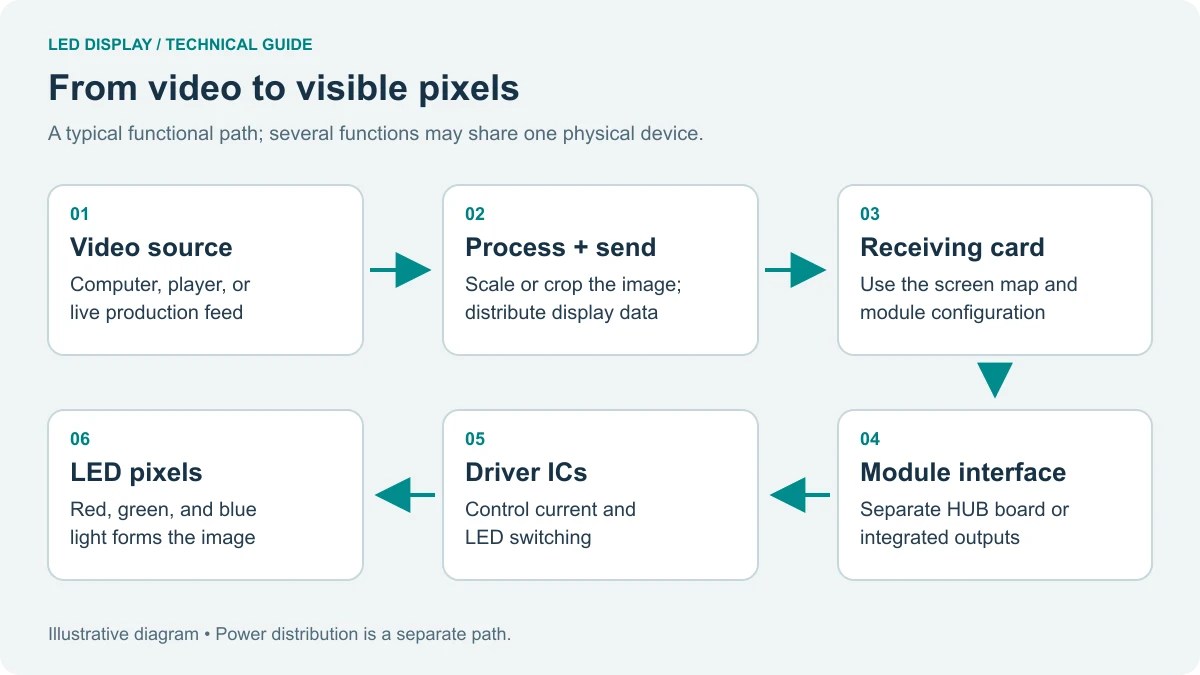
An LED display system has three layers: the content layer that feeds the screen, the control layer of sending and receiving cards, and the display layer of LED modules. Novastar software NovaLCT programs the control layer, telling the sending card which resolution and timing to expect and each receiving card which part of the image it owns, then storing those decisions in the hardware so the screen behaves correctly after a power cycle.
02. Synchronous vs Asynchronous Control Systems
Novastar software NovaLCT supports both major NovaStar architectures, and knowing which one you have changes almost everything about the way you work in the software.
In a synchronous system, a PC or video processor sends live video to the screen through a sending card. NovaLCT configures the output resolution, refresh rate, timing, and the mapping between the video source and the physical screen. This is the architecture used in studios, control rooms, live events, and fixed installations where low latency matters.
In an asynchronous system, a standalone NovaStar multimedia player stores content and runs it without a PC attached. NovaLCT defines the screen geometry, playback parameters, network settings, and brightness schedules — which is why this architecture suits advertising screens, retail displays, and remote signage.
| Aspect | Synchronous control | Asynchronous control |
|---|---|---|
| Typical hardware | Sending card or processor: MCTRL600, MCTRL4K, VX4S, VX6S, VX1000, A8s, A9s | Multimedia player: TB6, TB7, TB8, SMP100–SMP400, UHD Jr, UHD Pro |
| Video source | Live feed from a PC, media server, or processor | Content stored on the player itself |
| PC required at run time | Yes — the PC stays in the signal chain | No — the player runs independently |
| What NovaLCT configures | Output resolution, refresh rate, timing, port-to-cabinet mapping | Screen geometry, network settings, playlists, brightness schedules |
| Best suited to | Studios, control rooms, live events, low-latency installations | Advertising screens, retail displays, remote signage |
| Where to log in | User > Advanced Synchronous System User Login | Player login screen — see the multimedia-player manual |
03. What NovaLCT Is Not
Because it carries the NovaStar name, NovaLCT is sometimes expected to do more than it was designed for. It is not a media scheduler, not a replacement for controller firmware, and not a universal repair utility: Novastar software NovaLCT changes how the hardware is configured, not what the screen plays.
Nor does it update every connected device. Installing the newest software on your PC does not update the firmware inside a sending card or receiving card, and mismatches between the two are a common reason a screen misbehaves after an upgrade.
NovaLCT Compatibility: Which NovaStar Hardware Works?
Novastar software NovaLCT works with a wide range of NovaStar control hardware, covering both real-time and standalone systems. As long as your system uses official NovaStar sending cards, receiving cards, or multimedia players, NovaLCT can recognise and configure them.
01. Synchronous Sending Cards and Video Processors
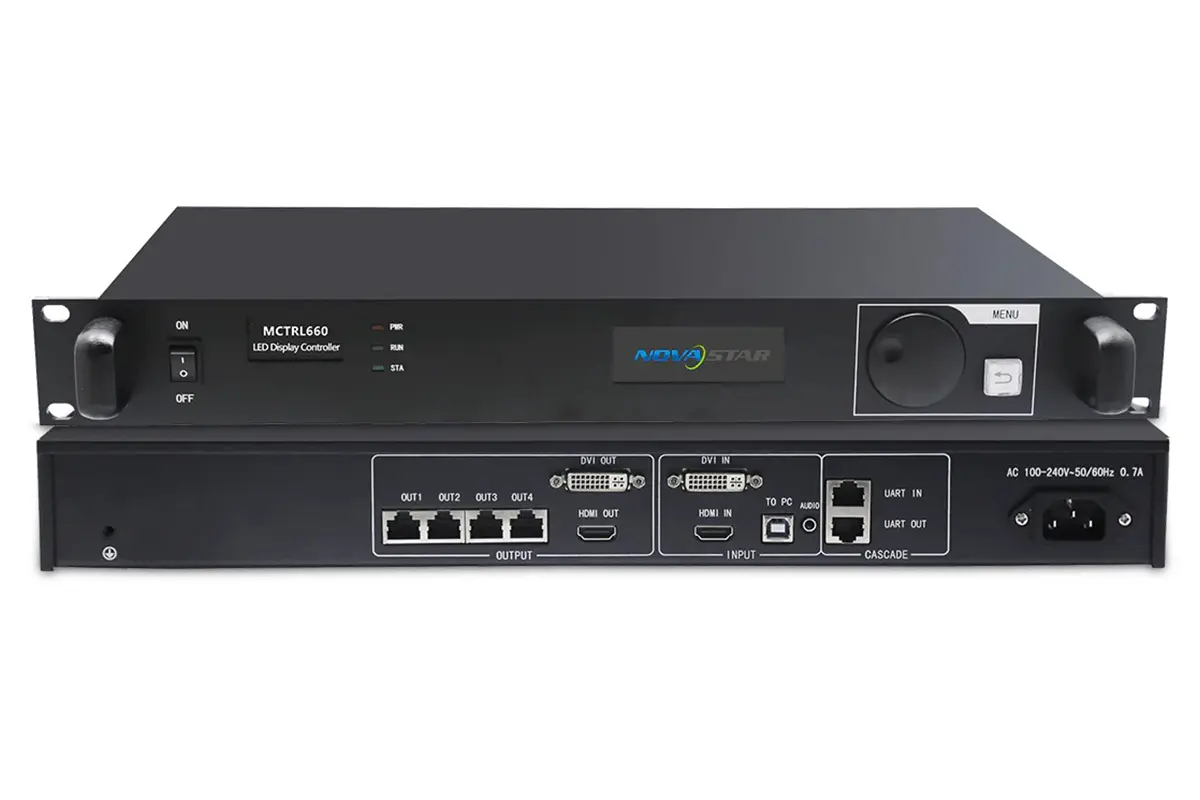
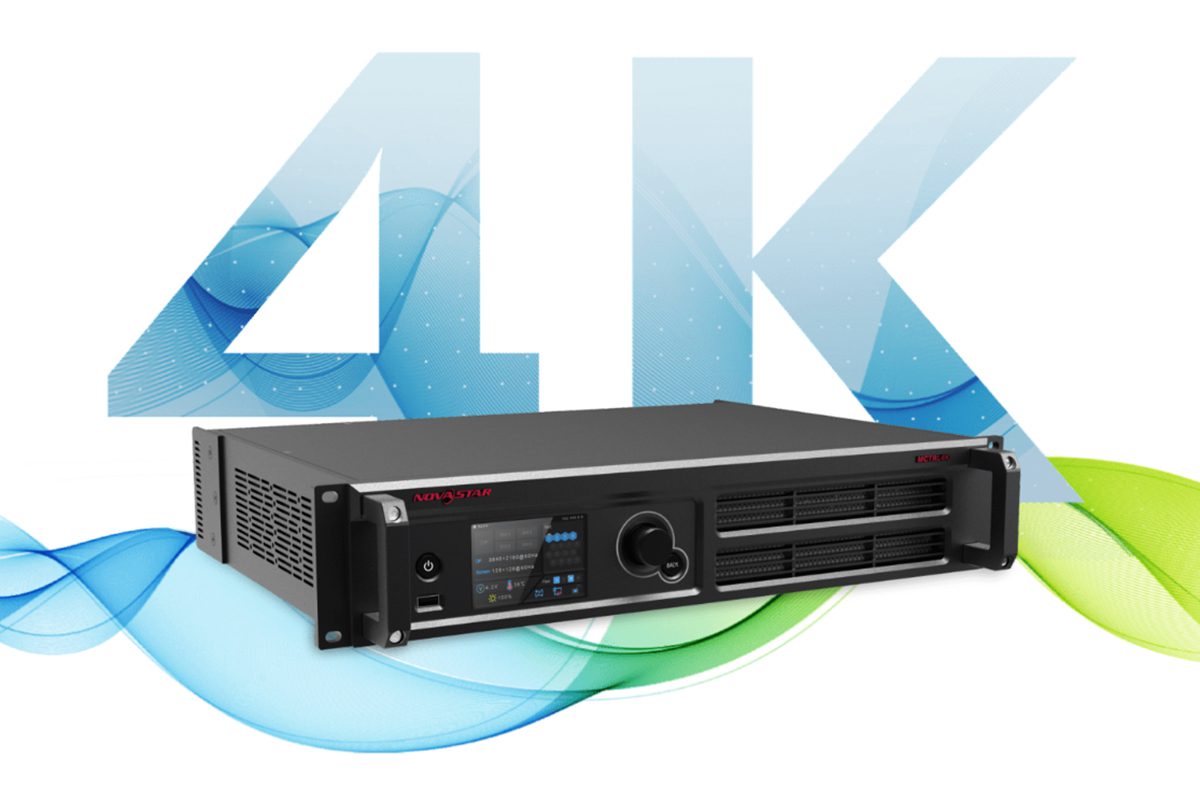
Novastar software NovaLCT supports the MCTRL family (MCTRL300, MCTRL600, MCTRL660, MCTRL4K), the VX series of video processors (VX4S, VX6S, VX400 Pro, VX600 Pro, VX1000, VX2000 Pro), and advanced controllers such as the A8s and A9s. With these devices you can set screen resolution, map output ports to cabinets, adjust timing, and verify signal integrity before going live.
02. Asynchronous Multimedia Players
Asynchronous systems run pre-loaded content with no constant PC connection. Novastar software NovaLCT supports the TB6, TB7, TB8, TB30, TB40 and TB50 players, the SMP100 to SMP400 range, and the UHD Jr and UHD Pro. For these devices NovaLCT defines screen layout, schedules brightness changes, configures network settings, manages playlists remotely, and updates firmware over LAN or Wi-Fi.
03. Receiving Cards and Module Chips
Novastar software NovaLCT also works with the standard NovaStar receiving-card range, including the MRV328, MRV412, RV908 and DH7512-S. It detects each card’s position in the screen and applies calibration data through RCFG and RCFGX files. Some colour features depend on the card and module chip fitted — the Image Booster Engine supports colorimeter-based calibration, while 18bit+ and 22bit+ modes extend grayscale performance.
04. PC and Operating System Requirements
Novastar software NovaLCT runs on Windows, and NovaStar does not publish a native macOS or Linux build. Windows 7 is no longer supported, so use a native Windows 10 or 11 64-bit PC with a spare USB port and a wired Ethernet port.
Running NovaLCT in a virtual machine or emulator is not recommended: the USB driver that talks to a sending card often fails to pass through, producing the “hardware not detected” error that sends technicians hunting for a fault in the screen rather than the PC.
| Hardware family | Typical models | What NovaLCT does with it |
|---|---|---|
| Sending cards | MCTRL300, MCTRL600, MCTRL660, MCTRL4K | Detects the card, sets input resolution, refresh rate and bit depth, maps output ports to cabinets |
| Video processors | VX4S, VX6S, VX400 Pro, VX600 Pro, VX1000, VX2000 Pro | Screen configuration, input source setup and output mapping |
| Advanced controllers | A8s, A9s and comparable professional controllers | Full screen configuration, calibration and monitoring |
| Multimedia players | TB6, TB7, TB8, TB30, TB40, TB50, SMP100–SMP400, UHD Jr, UHD Pro | Screen layout, network settings, playlists, brightness schedules, firmware |
| Receiving cards | MRV328, MRV412, RV908, DH7512-S and similar | Module parameters, smart settings, RCFG and RCFGX calibration data |
| Operator PC | Windows 10 / Windows 11, 64-bit | Hosts NovaLCT; connects to hardware over USB or Ethernet |
NovaLCT Download and Installation on Windows (Software and Driver Setup)
To start using NovaLCT you need to download and install the correct version of the Novastar software on a Windows PC. The download itself is straightforward; choosing the right version causes the most support tickets.
01. Which NovaLCT Version Should You Download?
The current release in NovaStar’s official download centre is NovaLCT V5.9.2, supplied with a matching synchronous-control manual, a multimedia-player manual, and release notes. For most new projects on supported hardware, that is the right starting point.
“Newest” is not always “correct”, however. A screen commissioned with an earlier release, whose receiving-card firmware has not been updated, may behave better on the version it was originally configured with. Before changing software on a working display, export the receiving-card parameters and screen-connection data, and record the software and firmware versions you are leaving behind.
If your screen uses a sending card connected to a PC, read the synchronous manual; if it uses a player that stores its own content, install the same package but follow the multimedia-player manual — the login steps differ.
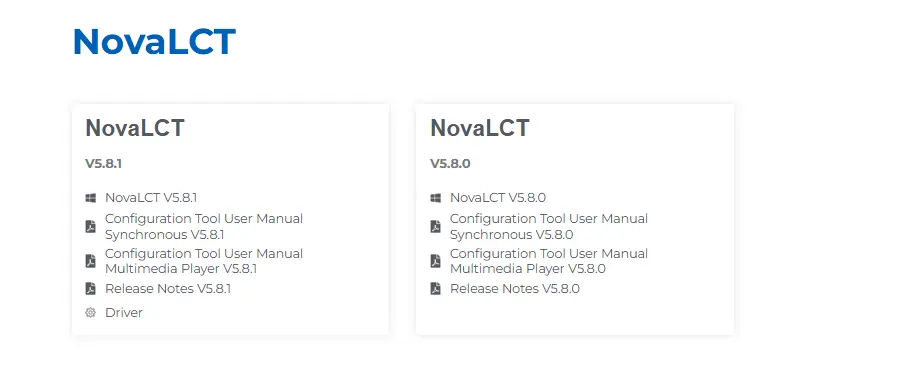
| Version | Status | Best for | Notes |
|---|---|---|---|
| NovaLCT V5.9.2 | Current release | New installations and supported current hardware | Ships with matching synchronous and multimedia-player manuals plus release notes |
| NovaLCT V5.9.1 and V5.9.0 | Superseded | Screens already commissioned on the 5.9 branch | Use only when a project file or device firmware requires that exact build |
| NovaLCT V5.8.x | Superseded | Older installations previously set up with 5.8 | Matches the version many legacy project files were created in |
| NovaLCT V5.6.1 and earlier | Archive | Maintaining legacy hardware or rolling back | Keep the archived installer with the project documentation |
| SmartLCT | Separate tool | Platforms whose documentation names SmartLCT as the configuration tool | Not a drop-in replacement for NovaLCT in standard synchronous workflows |
02. Installing NovaLCT on Windows 10 and Windows 11
Installing Novastar software NovaLCT takes a few minutes, and no licence key or activation step is required.
- Go to the NovaStar support or download page and select Software for your product series, such as LED Control System or Multimedia Player.
- Download the NovaLCT package — normally a ZIP archive.
- Extract it to a local folder such as C:\NovaLCT, then right-click Setup.exe and choose Run as administrator.
- Follow the prompts. If Windows Firewall asks about network access, allow only the network profile your LED control environment uses.
- Keep the original ZIP until installation completes successfully, so you can reinstall if a driver step fails.
03. Driver Setup and Hardware Recognition
After installation, connect your NovaStar device to the computer by USB or Ethernet. Windows should recognise it using the drivers supplied with NovaLCT. If the device is not detected:
- Open Device Manager and look for unknown devices under “Other devices”.
- Reinstall the drivers manually from the Driver folder inside the NovaLCT installation directory.
- Confirm Windows is fully up to date and that you are not running the software in a virtual machine.
- Disconnect other controllers and test with a single device first — duplicate IP addresses are a frequent cause of detection failures.
04. Can You Run NovaLCT on macOS or Linux?
No. NovaLCT is officially supported on Windows only, with Windows 10 or Windows 11 64-bit recommended. There is no native macOS or Linux build from NovaStar, and running Novastar software NovaLCT through a virtual machine or emulator commonly breaks the USB driver the sending card depends on.
If you work on a Mac, keep a dedicated Windows PC or partition for commissioning. Where a screen must be configured from a Linux server room, the player-based workflow — configure once from Windows, then manage content through the player or cloud — avoids the problem entirely.
NovaLCT Login and Default Password: Unlocking Advanced Settings
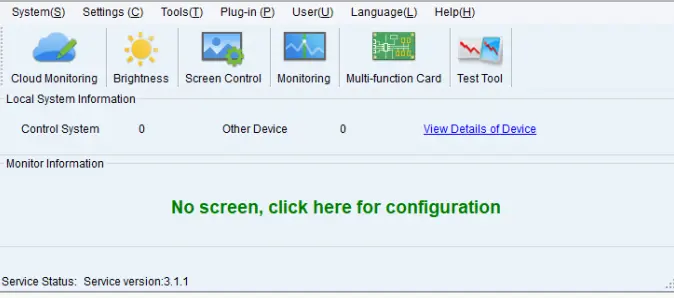
A very common question about Novastar software NovaLCT is why the screen configuration options are greyed out. In most cases the software is waiting for you to log in: basic monitoring works without credentials, but screen configuration, calibration, and advanced settings sit behind a user login.
01. Synchronous System User Login
Open NovaLCT, then go to User > Advanced Synchronous System User Login. Enter the default password admin and click Login — the advanced menu items for screen configuration, calibration and colour tools then become available. If you only need to check whether a sending card is online, skip the login: NovaLCT shows its quantity and status as soon as the hardware is connected.
02. Multimedia Player Login
Multimedia players use a different login path. The credentials belong to the player rather than to the NovaLCT software, so the default depends on the model and its configuration. Check the multimedia-player manual for the model you are working with, and confirm whether the integrator set a custom password.
03. What to Do If You Forgot the NovaLCT Password
If the default password does not work, it has been changed. There is no universal reset code for Novastar software NovaLCT, because the credential protects the screen’s configuration rather than the software. Ask the integrator who commissioned the display, check the project documentation, or follow the reset procedure in the manual for your model.
Carry this into the next project: record the working password, software version, and receiving-card firmware version with the project files. That removes the most common cause of a maintenance visit that starts with a locked-out technician rather than a broken screen.
| Situation | Where to log in | Default credential | Notes |
|---|---|---|---|
| Advanced synchronous configuration | User > Advanced Synchronous System User Login | admin | Required for screen configuration, calibration and advanced settings |
| Basic monitoring only | No login required | None | NovaLCT shows sending-card quantity and basic status without logging in |
| Multimedia player | Player login screen | Model dependent — see the manual | Credentials belong to the player, not to the NovaLCT software |
| Password no longer accepted | Project documentation or integrator | No universal reset code | Confirm the procedure for your controller or player model before resetting |
How to Connect and Configure LED Sending Cards in NovaLCT (Step by Step)
01. Step 1: Hardware Connection
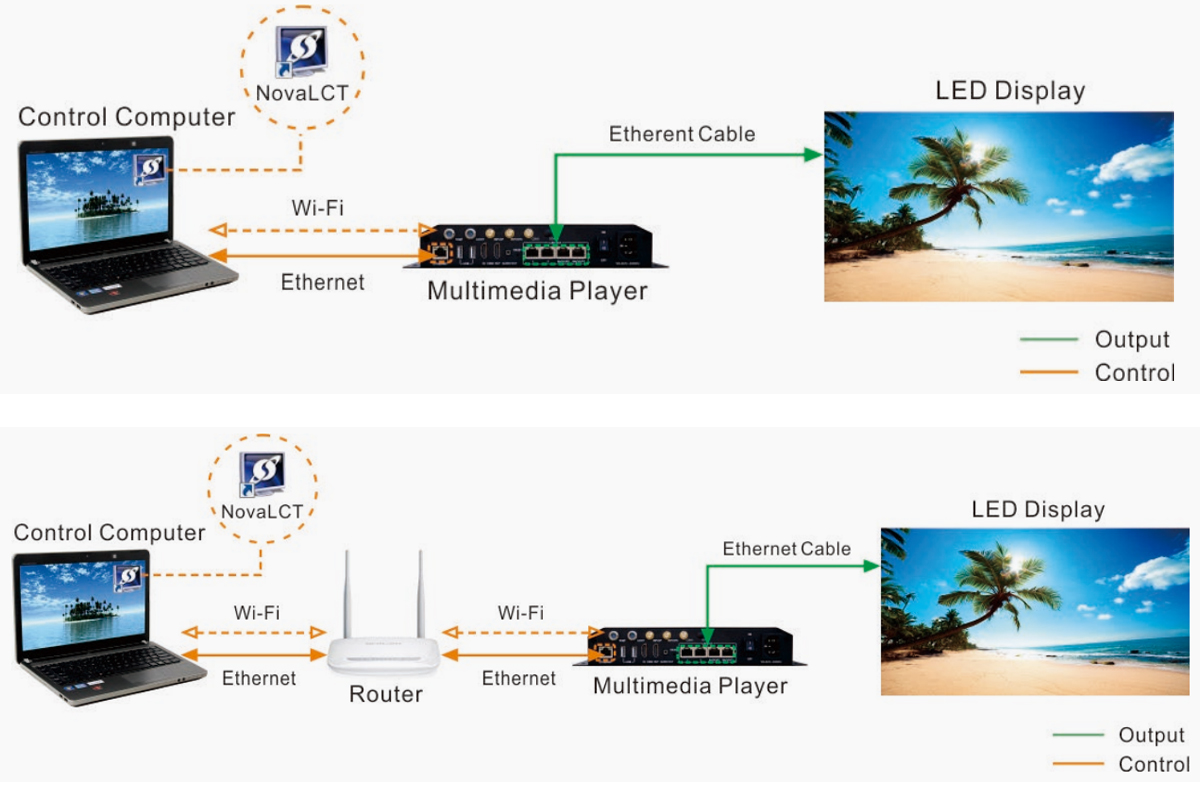
Connect your PC to the sending card using a USB or Ethernet cable and confirm every device in the chain is powered. Novastar software NovaLCT detects the sending card automatically once the link is up. On a screen already in service, photograph the existing configuration before changing anything — restoring a working setup from a photo beats rebuilding it from memory.
02. Step 2: Log In to the Advanced Synchronous System
Open the LED display software NovaLCT and go to User > Advanced Synchronous System User Login. Enter the password — the default is admin — and click Login. Basic monitoring can skip this step; screen configuration cannot.
03. Step 3: Configure the Input Source
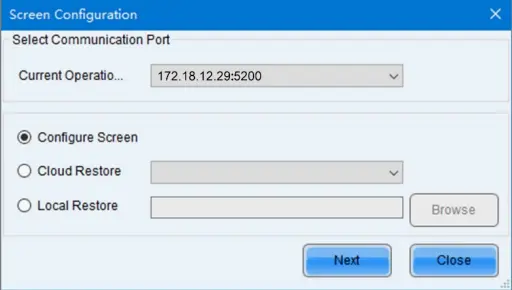
Navigate to Settings > Screen Configuration, select the communication port connected to your sending card, then set the input source type, resolution, refresh rate, and bit depth.
- An 8-bit input source bit depth is the recommended starting point.
- Match the sending card resolution to the screen resolution so the image maps pixel for pixel.
- Click Send to apply the settings, then verify the result on screen before continuing.
Receiving Card Configuration in NovaLCT: RCFG Files and Smart Settings
Once the sending card is configured, the receiving cards decide what the screen actually shows. Novastar software NovaLCT offers two ways to configure them, depending on whether a known-good file already exists for your modules.
01. Option 1: Load a Pre-Saved RCFG or RCFGX File
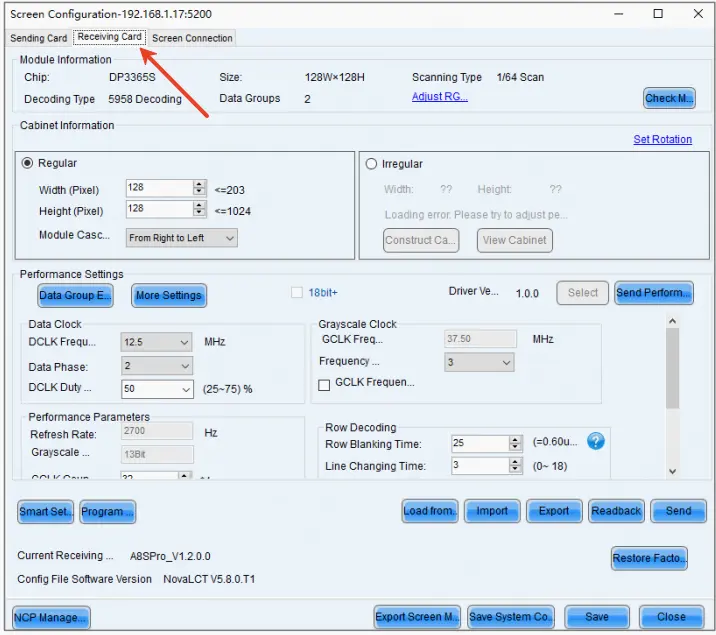
If the module type has been commissioned before, loading the saved file is much faster. On the Receiving Card tab, click Load from Cloud or Import, select the .rcfgx or .rcfg file matching your module specification, then send it to the hardware over Ethernet or by physical address.
Keep the original file for every module type — mixing files between different modules quickly produces uneven brightness and colour that no adjustment will fix.
02. Option 2: Manual Configuration Using Smart Settings
When no saved file exists, click Smart Settings on the Receiving Card tab and follow the guided steps:
- Set the module chip, data type, and pixel quantity.
- Configure the row decoding type and hub mode.
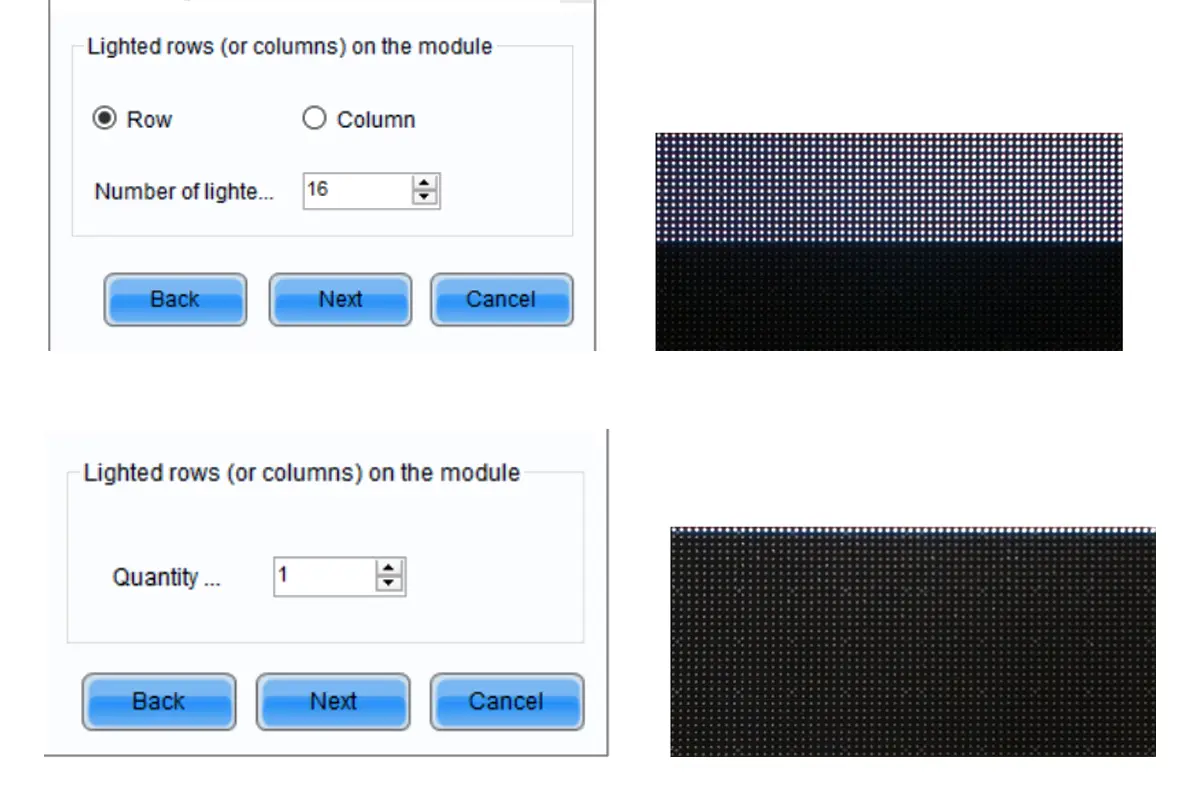
- Use the grid to map the flashing pixels until the outline matches the physical module, then send the configuration to the hardware.
Work on one cabinet at a time: when a parameter is wrong the flashing-pixel display shows it immediately.
03. Screen Connection and Cabinet Mapping
With the receiving cards configured, open the Screen Connection tab and describe the physical screen: choose a standard or complex screen, set the cabinet layout, then connect the cards and cabinets logically so NovaLCT knows which data port feeds which part of the display. If one cabinet shows the wrong part of the image, check the screen connection before the receiving-card parameters.
| File type | What it stores | When to use it |
|---|---|---|
| .rcfgx / .rcfg | Receiving-card parameters, module settings and calibration coefficients | Commissioning a screen whose module type has been configured before |
| Screen connection file | Cabinet layout and data-flow mapping | Rebuilding a screen with an identical cabinet arrangement |
| Full screen configuration | Sending card settings together with the screen connection | Backing up or cloning a complete working screen setup |
| Firmware packages | Device firmware images for cards and players | Updating hardware — always separately from configuration changes |
Saving, Sending, and Managing NovaLCT Configuration Files
01. Send vs Save to Hardware: Why It Matters
Sending a configuration and saving it are two different operations, and confusing them is one of the most avoidable mistakes in Novastar software NovaLCT.
Send pushes the current settings to the hardware so you can see the result immediately. Save writes them into the sending card’s memory so they survive a power cycle. A configuration that is sent but not saved can look perfect during the session and revert the next time the screen is switched on. After configuring the input source, click Save, then accept the prompt to store a backup file.
02. Backing Up and Restoring a Working Configuration
A complete backup — receiving-card parameters, screen connection, and sending card settings — turns a serious fault into a short maintenance visit. Store it with the project documentation, not only on the laptop that commissioned the screen, and record the Novastar software NovaLCT version that created it. Confirm the file opens in NovaLCT before filing it away.
Common Daily Operations in NovaLCT for LED Display Maintenance
01. Basic Screen Configuration
Day-to-day work in Novastar software NovaLCT usually means checking the screen configuration rather than rebuilding it. Open Settings > Screen Configuration to confirm the input source resolution, refresh rate and bit depth, and check the cabinet layout still matches what is installed.
02. Brightness and Colour Adjustment
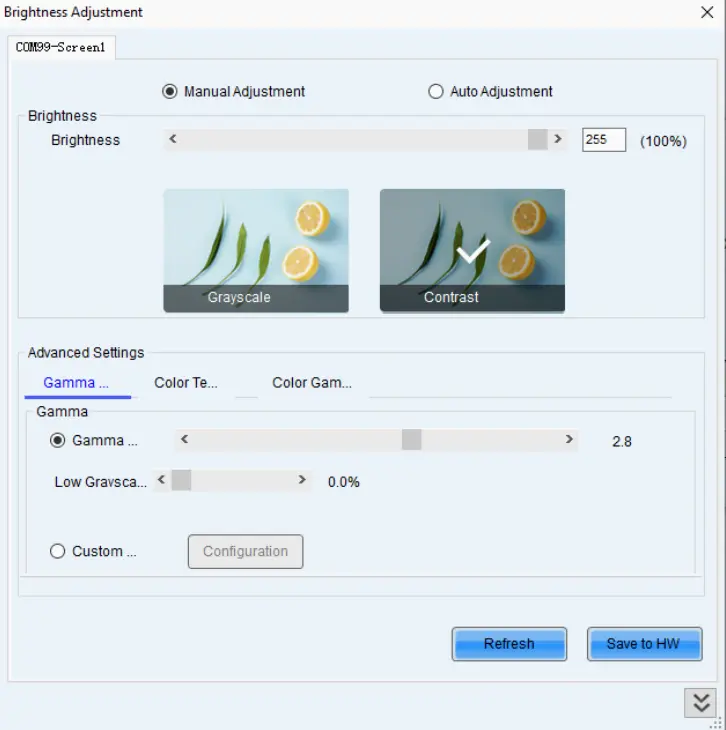
Go to Settings > Brightness in the menu bar, or click the Brightness icon on the toolbar. From here you can adjust:
- Brightness — the overall output level of the screen.
- Gamma — the grayscale curve, which controls detail in shadows and highlights.
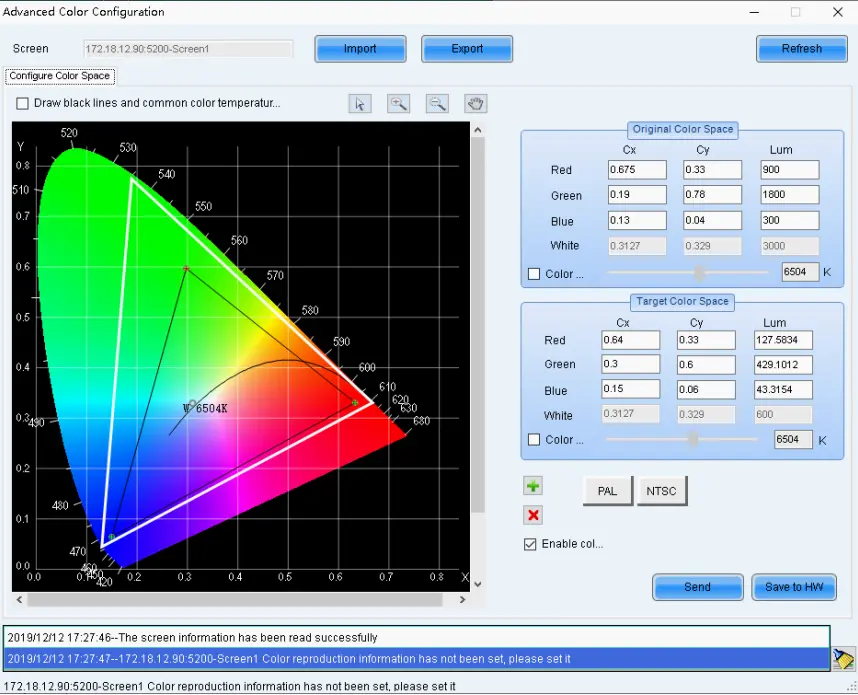
- Colour temperature — choose a preset or set a custom value.
- Colour space — select PAL or NTSC, or define a custom space.
Click Save to HW when satisfied, or the change disappears at the next power cycle.
03. Automatic Brightness Based on Ambient Light
On the Brightness page, select Auto Adjustment and click Wizard Settings. Build a rule that changes brightness by time of day, or connect a light sensor and set a brightness mapping table so the screen responds to its surroundings. Choose Software mode if a PC stays connected, or Hardware mode if the sending card should run the schedule independently — the better choice for an unattended installation.
04. Monitoring Screen Status and Alerts
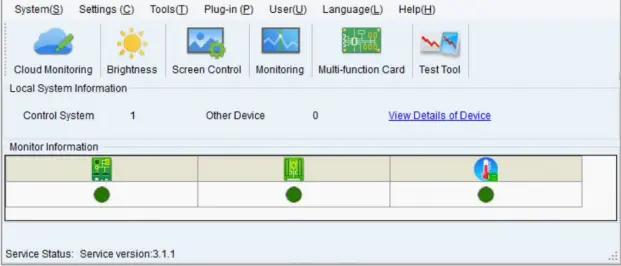
Open Tools > Monitoring in the menu bar, or right-click the taskbar icon and select Open MonitorSite. The interface shows sending and receiving card status, temperature, voltage and fan speed, module abnormalities such as dead pixels or communication errors, and network state. A topology diagram shows how devices connect, and abnormal items are highlighted.
Use Configuration to set the refresh period, define alarm thresholds for temperature and voltage, and configure email notifications. On modules fitted with a supported monitoring chip, module-level temperature, voltage and bit error rate can be tracked against their own thresholds.
NovaLCT Not Detecting Hardware? A Troubleshooting Checklist
Most problems that send people searching for help with Novastar software NovaLCT fall into a few categories. Work through them in order — changing several parameters at once is the fastest way to lose track of what actually fixed the fault.
01. NovaLCT Cannot Find the Sending Card
Check the USB or Ethernet cable and confirm the device is powered, then check the driver, the Windows network adapter, and the IP configuration. Duplicate IP addresses are a common cause, so test with one controller first — a successful physical link does not prove the software, driver, and firmware are compatible.
02. The Screen Flickers or the Mapping Is Wrong
Verify the cabinet dimensions, receiving-card parameters, scan settings, data-flow order, refresh configuration, and cable path. Test one cabinet at a time and document the result before applying it to the rest of the display.
03. Brightness Differs Between Cabinets
Confirm every cabinet uses the intended receiving-card file and the same approved brightness, gamma and colour settings, and keep the original calibration coefficients before applying new ones.
04. A Firmware Update Fails
Verify the exact hardware model, firmware package, communication path and power stability, and never disconnect power during an update. Schedule firmware work in a maintenance window with a known-good backup.
| Symptom | Likely cause | What to check first |
|---|---|---|
| NovaLCT reports no hardware detected | Cable, driver, or duplicate IP address | Reinstall the NovaLCT driver, remove duplicate IPs, test with one controller |
| Screen flickers or shows incorrect mapping | Wrong cabinet or receiving-card parameters | Cabinet size, receiving-card file, scan settings, data-flow order, cable path |
| Brightness differs between cabinets | Mixed brightness, gamma or calibration settings | Apply one approved profile to all cabinets and compare calibration coefficients |
| Colour is uneven across modules | Module batch differences or missing calibration | Re-apply calibration data and keep a copy of the original coefficients |
| Screen is dim even at 100% brightness | PWM or grayscale settings, or a limited content signal | Enable high grayscale mode and check the source outputs full-range 0–255 |
| A firmware update fails | Wrong package, unstable link, or unstable power | Confirm the model and package, then keep power stable and do not disconnect |
NovaLCT vs Other NovaStar Software
NovaStar publishes several tools, and knowing which to open first saves time. Novastar software NovaLCT is the configuration and maintenance layer; content publishing, cloud management, and simplified processor control are handled by other applications.
| Software | Primary purpose | Use it when |
|---|---|---|
| NovaLCT | Hardware configuration, cabinet mapping, calibration, monitoring | You are commissioning, adjusting, or servicing a NovaStar-driven screen |
| Viplex / Viplex Express | Content publishing and playback control for players | You are publishing or scheduling content to a player or cloud account |
| SmartLCT | Configuration for platforms that document it as their tool | Your hardware documentation names SmartLCT rather than NovaLCT |
| VMP / VNNOX | Central and cloud-based multi-screen management | You manage several screens across locations |
| LED Studio / VX Assistant | Real-time video processing and simplified VX-series control | You need quick, basic control of a VX processor during an event |
Project handover and quotation checklist
A software download alone does not establish that a new LED wall or a replacement receiving card will work with an existing installation. Ask the supplier to identify the exact cabinet revision and control hardware. Two cabinets with the same pixel pitch can require different receiving-card files because their driver IC, scan mode or wiring differs.
| Record to request | What to verify before acceptance |
|---|---|
| Hardware and firmware | Sender and receiver model numbers, cabinet revision, firmware versions, and the tested NovaLCT release. |
| Receiving-card configuration | The correct RCFG/RCFGX or NCP workflow for the hardware; identify which cabinet revision each file belongs to. |
| Screen connection | A labelled cabinet layout, output-port assignments and physical cable direction that match the installed wall. |
| Recovery package | Local copies of configuration files and a written restore sequence, kept separately from the operating computer. |
| Acceptance test | Confirm mapping, test patterns, normal content and settings after a planned power cycle; record the result. |
For rental fleets, keep a configuration package for each cabinet family and the actual show layout. For permanent advertising displays, name the person responsible for approved changes and retain a recovery copy on site. Do not send an unverified file to every receiver simply because the first cabinet lights up.
When requesting an LED screen or control-system quotation, provide the installation environment, wall dimensions in pixels, cabinet model, existing controller, source formats and cable distances. Ask which configuration files, commissioning work and replacement parts are included. This makes competing quotations comparable and gives your installer a usable handover.
Frequently asked questions
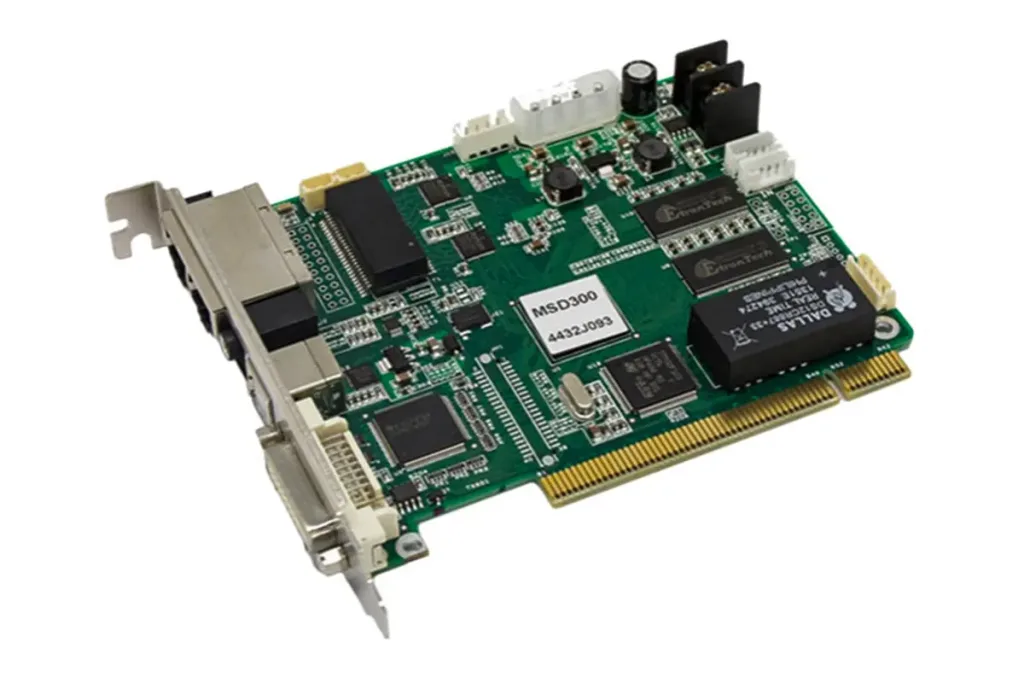 NovaStar MSD300 Sending Card Technical Guide For LED Display Systems
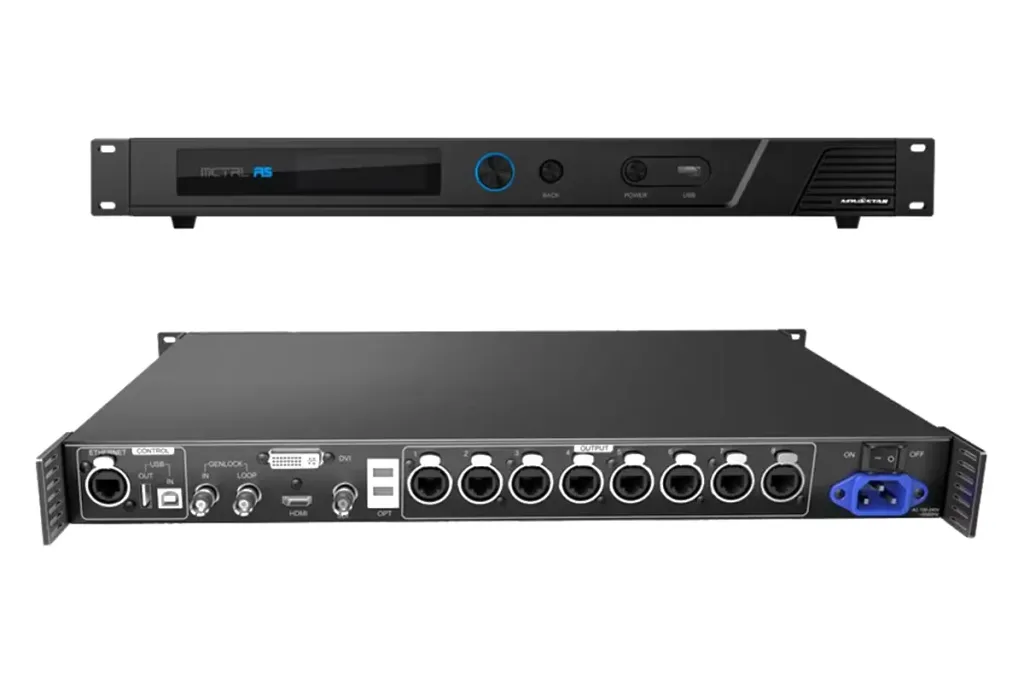 Complete Guide To The MCTRL R5 LED Display Controller – Features, Setup & Configuration