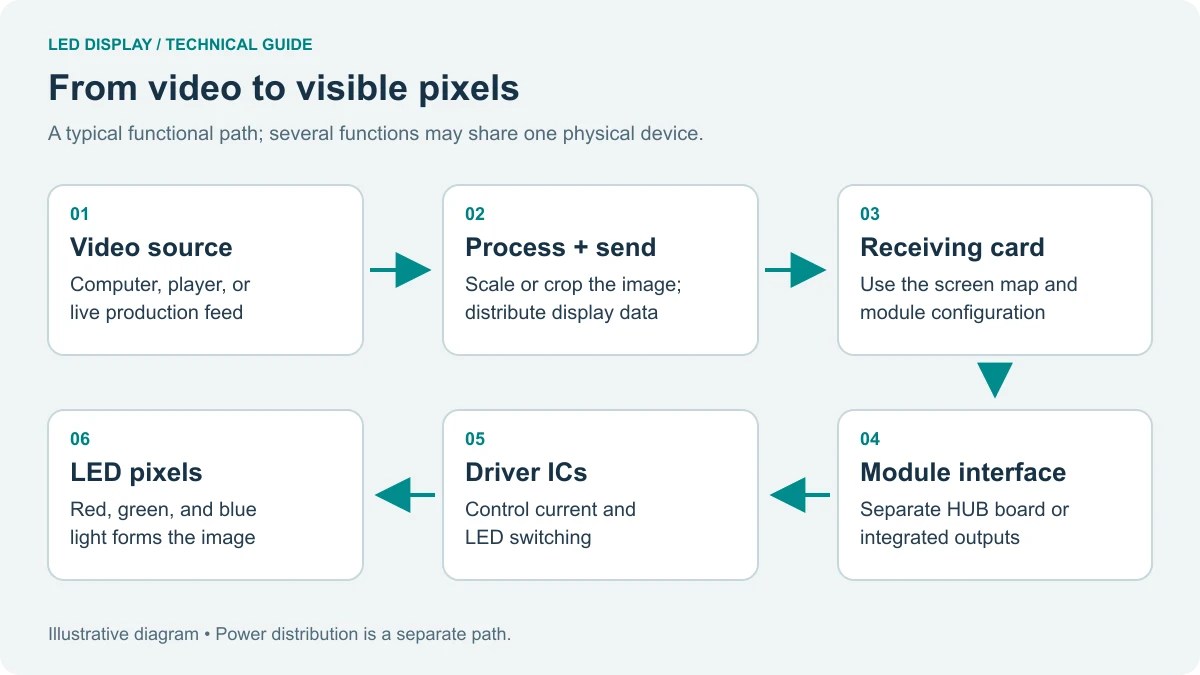
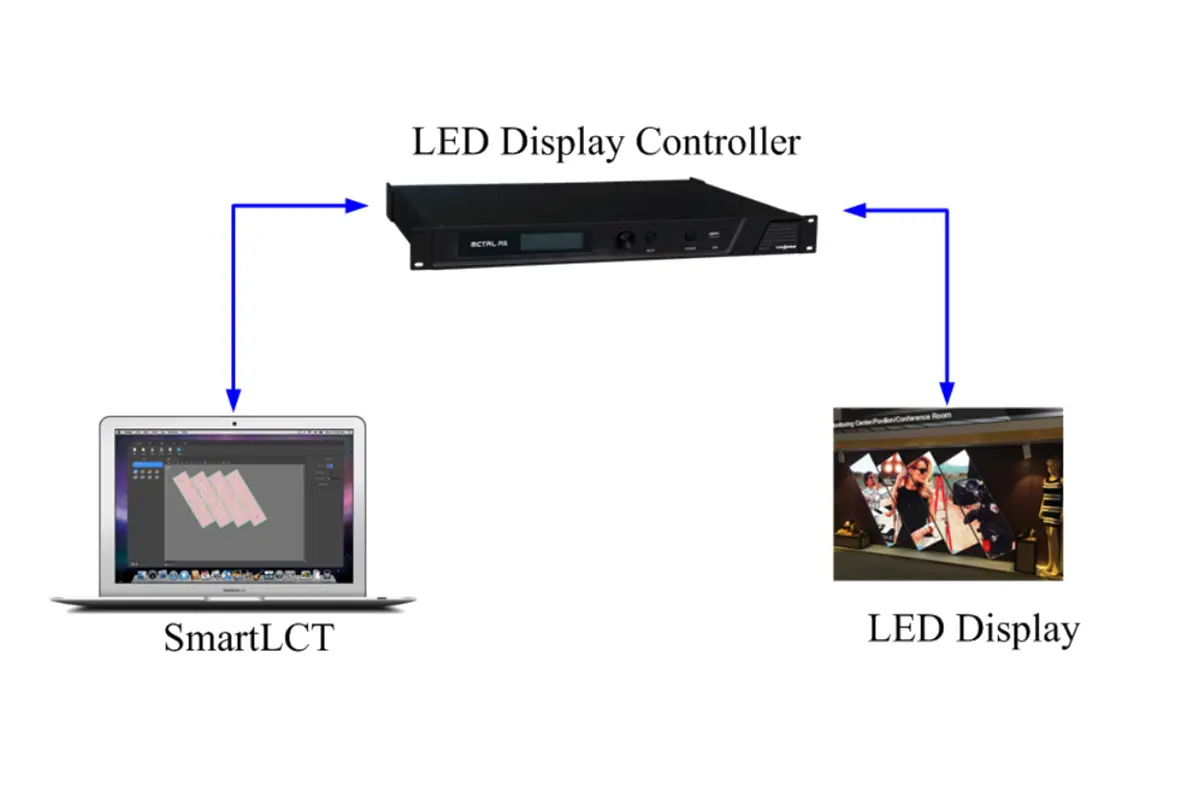
NovaStar software SmartLCT configures LED cabinet layouts, receiving-card connections, screen rotation and compatible controller settings. Use offline design to prepare a project, then connect to the hardware, verify the wiring and save the configuration to hardware. It is an LED screen configuration tool, not a video playlist editor.
For a SmartLCT download, NovaStar’s official NovaPro UHD Jr Downloads tab lists Windows and Mac packages named 3.5.14. The linked user manual is version 3.5.13. Check both documents against your controller and firmware before commissioning.
Quick answer: confirm compatibility, import the correct cabinet file, build the physical layout, map each output port, test the image, then complete Save to HW. Keep a separate project backup on your computer.
- Check the exact controller and firmware against its documented software workflow.
- Separate a visual layout project from the receiving-card parameters and saved hardware settings.
- Confirm rotation and backup support on the installed equipment; a software control alone does not add hardware capability.
- Keep the original project and cabinet file before testing any change.
On this page
1. What Is NovaStar Software SmartLCT and When Should You Use It?
NovaStar software SmartLCT provides a visual canvas for arranging cabinets and assigning their data connections. A sending device distributes the video signal; receiving cards drive the LED modules. The software defines which image area belongs to each cabinet.
Searches for Smart LCT and NovaStar Smart LCT refer to this same application. Do not confuse it with NovaLCT. Compare the tools in our NovaStar software download guide, then verify the required hardware in manual sections 1.2 and 1.3.
01. You need to use Novastar SmartLCT in the following situations:
First time installation
For a first installation, NovaStar software SmartLCT needs the real cabinet pixel dimensions, controller model and cable route. Obtain the manufacturer’s receiving-card file before sending parameters. A cabinet measuring 500 by 500 mm does not identify its pixel resolution or scanning configuration; those depend on the module design and pixel pitch.
Configuring non‑rectangular screens
Use NovaStar software SmartLCT for staggered or rotated cabinets when the hardware supports the intended arrangement. Rotation in 90-degree steps and arbitrary-angle rotation have different requirements. A physically curved wall may still use ordinary rectangular pixel mapping; do not rotate image data simply because the cabinets curve around a stage.
Adjusting image uniformity
NovaStar software SmartLCT includes seam and batch adjustment for supported systems. These tools can reduce visible differences, but they cannot repair a physical gap, damaged LED or incorrect module alignment. Verify cabinet assembly and the calibration baseline before compensating with brightness or color settings.
Setting up redundancy
Port or device backup can provide an alternate signal path in NovaStar software SmartLCT. Redundancy must match the actual cabling and available loading capacity. It is not a guarantee against every interruption: a shared power fault or missing source can affect both paths. Test the planned failure scenario before handover.
Accessing advanced controller features
For compatible controllers, NovaStar software SmartLCT opens V-Sender to manage device functions. Available controls vary by model and firmware. The 3.5.14 release notes add NovaPro UHD Jr free wiring and require controller firmware V1.9.2.0; installing the software alone does not enable that feature on another controller.
| Task | Starting point | Compatibility check |
|---|---|---|
| Visual cabinet mapping | SmartLCT | Match the sending device, receiving card and software version. |
| Receiving-card parameter work | NovaLCT | Follow the cabinet manufacturer’s documented workflow. |
| COEX controller configuration | VMP | Use the model’s prescribed software; do not assume SmartLCT support. |
| Mac installation | SmartLCT Mac package | The 3.5.13 manual excludes MCTRL500, MCTRL700, V800, V900 and V900S. |
| UHD Jr free wiring | SmartLCT 3.5.14 | Release notes require NovaPro UHD Jr V1.9.2.0. |
2. SmartLCT Offline Mode vs Online Mode: How to Choose?
Choose the NovaStar software SmartLCT project mode according to whether you are designing a layout or commissioning connected hardware. Offline work is useful for preparation; online work lets you identify devices and inspect actual results. Neither mode removes the need to check the physical cable sequence.
| Check | Offline design | Online design |
|---|---|---|
| Hardware connection | Not required for planning | Required for device communication |
| Device selection | Choose a virtual controller | Confirm detected hardware |
| Main purpose | Prepare layouts and templates | Commission and inspect the actual system |
| Physical image verification | Unavailable | Required after applying changes |
| Handover requirement | Match every device before sending | Complete hardware save prompts and test |
01. Offline Mode
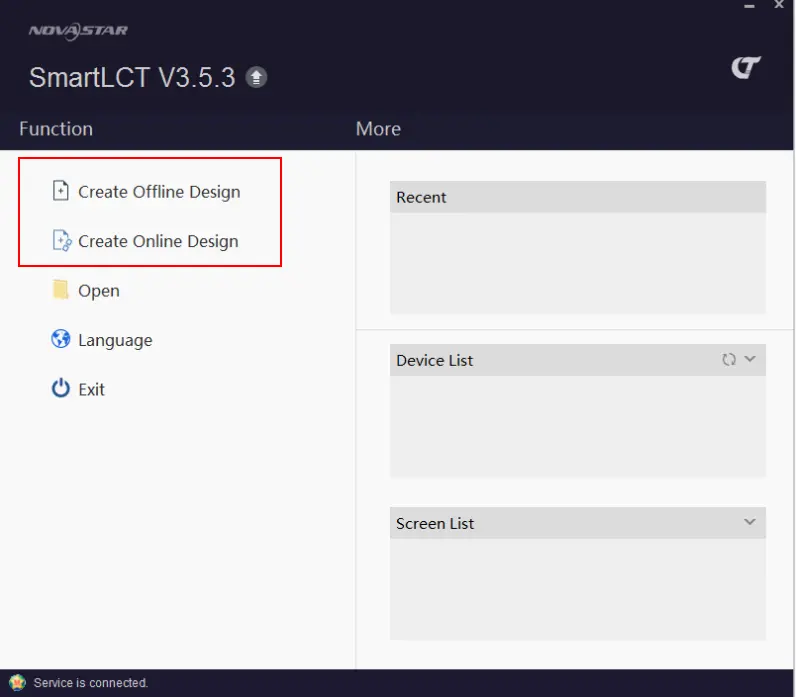
In offline mode, NovaStar software SmartLCT uses virtual devices and cabinets. Choose Create Offline Design, select the intended controller and build the layout. Save the project with a recognizable venue, screen and revision name.
Use this mode for office preparation, training and repeatable layouts. An offline design is not proof that the hardware is compatible or that the screen works. Confirm those conditions after connecting the actual system.
02. Online Mode
In online mode, NovaStar software SmartLCT works with detected hardware. Connect the computer using the controller’s documented control connection, which may involve USB or supported network control. LED data output ports are not automatically equivalent to a general-purpose LAN control port.
Read back the existing configuration before changing an operating screen. Preserve the original project as well: the manual notes that some offset and redundancy information may require separate configuration after readback. Use Device > Reconnect if a stable connection is not detected.
3. How to Create a New Screen Project in NovaStar Software SmartLCT
Before creating a NovaStar software SmartLCT project, record the cabinet grid, pixels per cabinet, receiving-card model, controller firmware and source format. These five details prevent common errors that look like software faults. Keep the cabinet specification beside the wiring drawing so the project matches the equipment on site.
01. Creating a New Offline Project
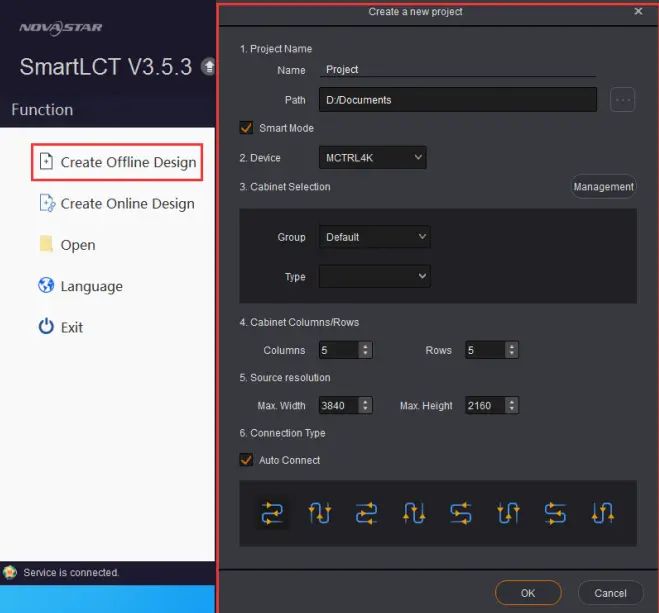
- Open NovaStar software SmartLCT and select Create Offline Design.
- Name the project and choose a local save location.
- Select the actual controller model and cabinet definition.
- Enter cabinet columns and rows, then check the source resolution.
- Select a connection pattern only when it matches your planned cabling.
- Create the project and inspect the canvas before assigning further cabinets.
02. Creating a New Online Project
- Power the intended controller and establish its supported control connection.
- Refresh the device list in NovaStar software SmartLCT and confirm the detected model.
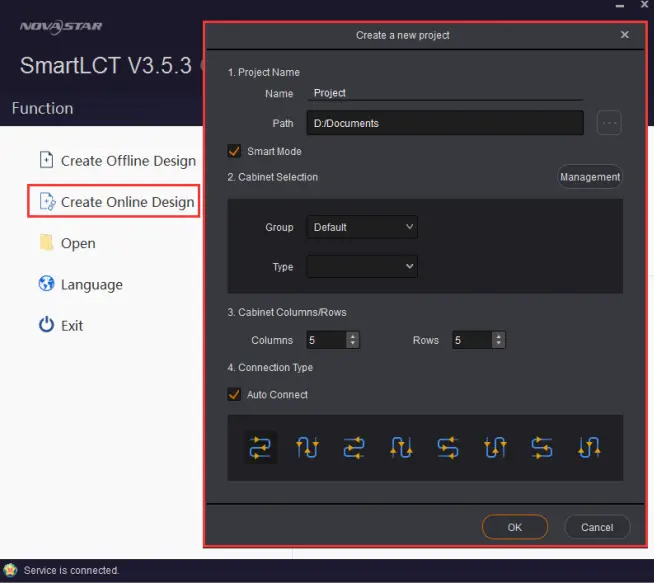
- Select Create Online Design, name the project and choose the cabinet definition.
- Enter the grid and connection settings.
- Check which physical controller each software device represents before sending anything.
On systems with several controllers, label devices and cables first. A correct layout sent to the wrong device still produces the wrong screen.
03. Key Options at Project Creation
Cabinet Management in NovaStar software SmartLCT imports and exports .rcfgx cabinet files. The manual specifies files exported from or converted by NovaLCT V4.6.0 or later. Use a file for the exact module, receiving card and wiring design, not merely a similar cabinet size.
Our RCFG and RCFGX file guide explains this distinction. Archive the known-working file before replacement. A project backup, a receiving-card configuration and a firmware package serve different purposes.
4. Adding Cabinets and Configuring Screen Layout
Build the NovaStar software SmartLCT canvas from the physical wiring plan. Cabinet position describes where image content appears; connection order describes how data travels. Treat those as separate checks. A neat rectangular canvas can still have incorrect port routing, reversed rows or missing receiving cards.
01. Adding Cabinets
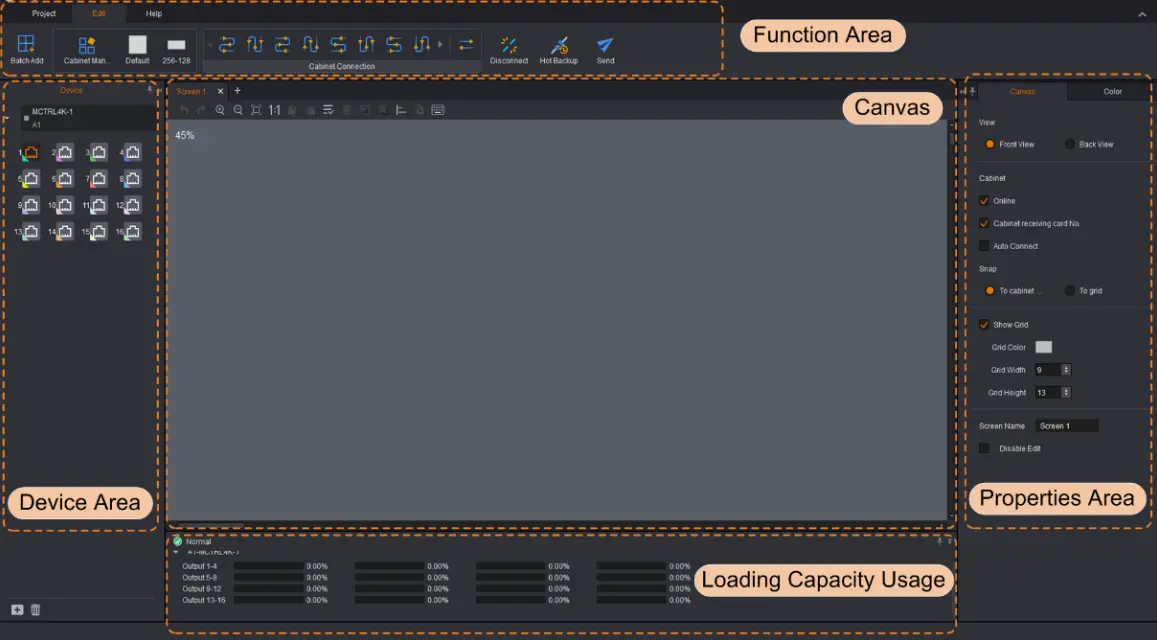
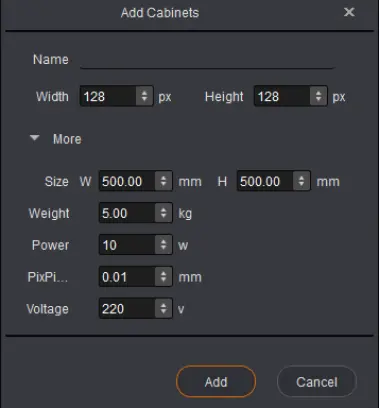
Select the device and output port before adding cabinets in NovaStar software SmartLCT. Use Batch Add for a regular grid, or place individual cabinets for mixed arrangements. Confirm the cabinet definition and count, then inspect receiving-card numbering.
For mixed cabinet sizes, calculate each cabinet’s pixel area separately. Keep its orientation and receiving-card arrangement explicit; copying one cabinet definition across unlike hardware can create a plausible drawing with incorrect parameters.
02. Configuring Screen Layout
Auto Connect in NovaStar software SmartLCT is useful when the chosen pattern matches the installed route. For manual mapping, trace the controller output to the first cabinet and continue in cable order. Use cabinet identification or test patterns to check the physical position.
If the second row appears reversed, compare the real serpentine route with the software connection pattern. Rebuild the incorrect connection rather than moving unrelated image areas to disguise it. Repeat this check separately for every active port.
03. Adjust Positions
Use cabinet offsets in NovaStar software SmartLCT to match staggered image positions. Set X and Y coordinates from a common origin and verify the total loading rectangle. An offset changes image placement; it does not increase the controller’s capacity. After readback, check offsets against the saved project and the installation drawing.
04. Rotate If Needed
Apply rotation in NovaStar software SmartLCT only after confirming receiving-card and controller support. Test with an asymmetric image, such as labeled corners, so a reversed or rotated cabinet is obvious. Review section 5 before combining rotated cabinets, groups and offsets in one project.
05. Check Loading
The NovaStar software SmartLCT loading indicators show normal usage in blue, overload in red and unused ports in gray. The manual warns that manual connection methods can permit an overloaded arrangement. Always inspect every port, even when the software allows the connection.
Worked example: a hypothetical 6-column by 4-row wall using 192 by 192-pixel cabinets has 24 cabinets, a 1,152 by 768-pixel canvas and 884,736 pixels. Two equal groups of 12 cabinets each contain 442,368 pixels. These calculations do not certify a controller or port rating.
| Item | Calculation | Result |
|---|---|---|
| Pixels per cabinet | 192 × 192 | 36,864 pixels |
| Cabinet count | 6 × 4 | 24 cabinets |
| Canvas dimensions | 6 × 192; 4 × 192 | 1,152 × 768 pixels |
| Total active pixels | 24 × 36,864 | 884,736 pixels |
| One hypothetical group | 12 × 36,864 | 442,368 pixels |
| Capacity approval | Check model, bit depth, frame rate and width/height limits | Use the controller specification; no universal port allowance |
5. Novastar SmartLCT Screen Rotation and Irregular Layout Setup
NovaStar software SmartLCT separates ordinary positioning from supported image rotation. Establish the screen coordinate system before adjusting unusual shapes. Use the manual’s sections 5.5 and 5.6 for the two rotation workflows, then confirm the exact receiving-card and controller combination.
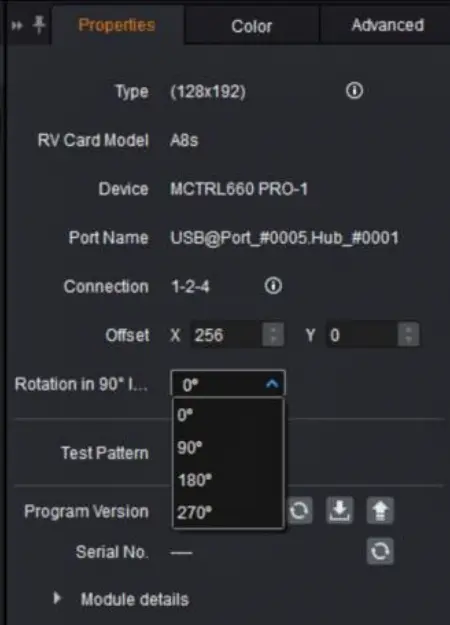
01. Rotation in 90° Increments
The manual documents 90-degree image rotation with compatible Armor-series receiving cards. In NovaStar software SmartLCT, choose a supported cabinet, set the required orientation and verify the displayed result. Do not assume every MRV or newer A-series model implements the same feature.
At 90 or 270 degrees, a non-square cabinet swaps its horizontal and vertical image dimensions. Recheck neighboring edges, offsets and the overall canvas after changing orientation.
02. Full 360° Rotation
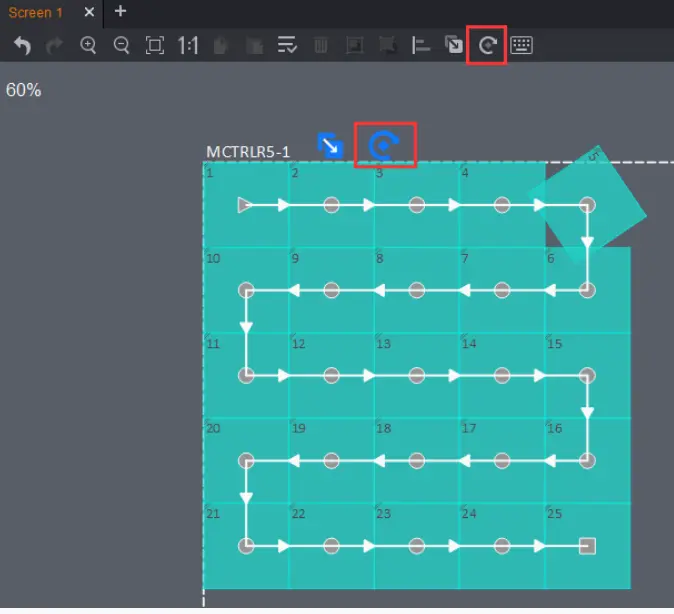
For arbitrary-angle rotation, the documented NovaStar software SmartLCT workflow uses MCTRL R5. Select the cabinet and move its rotation handle, or enter an angle and rotation center in Properties.
Test the intended angle before building a large repeated group. Confirm the image boundary and source coverage; rotating a cabinet can enlarge the required bounding area even when its own pixel count stays unchanged.
03. Irregular Layouts
For irregular layouts in NovaStar software SmartLCT, group repeated cabinet arrangements and position them using measured offsets. Keep a drawing that links cabinet IDs, output ports and physical locations. This is especially useful when the screen includes empty spaces between active sections.
Use a labeled grid as the source and inspect corners, gaps and transitions. The canvas is a configuration aid; the installed display remains the final check for alignment, routing and usable image coverage.
6. Image Adjustment: Brightness, Gamma, Color Temperature
Complete mapping before adjusting image quality in NovaStar software SmartLCT. Start with a stable source, confirmed calibration settings and representative content. Check white, gray ramps and the three primary colors. Record the baseline so each adjustment can be compared or reversed without guessing.
01. Brightness Adjustment
Adjust overall brightness in the Color panel of NovaStar software SmartLCT. Begin at a comfortable level for the room, then inspect bright and dark content. A software percentage is not a measured luminance value in nits; the relationship depends on the panel and operating conditions.
Change one setting at a time. A cabinet that remains unusually dark may have a hardware or calibration problem rather than a global brightness problem.
02. Gamma Adjustment
Gamma in NovaStar software SmartLCT affects tonal reproduction. Use a grayscale ramp and low-brightness content to judge shadow detail and transitions. Avoid presenting a single gamma value as correct for every display: the source, receiving-card settings and viewing conditions must agree. Record the chosen value alongside the calibration state.
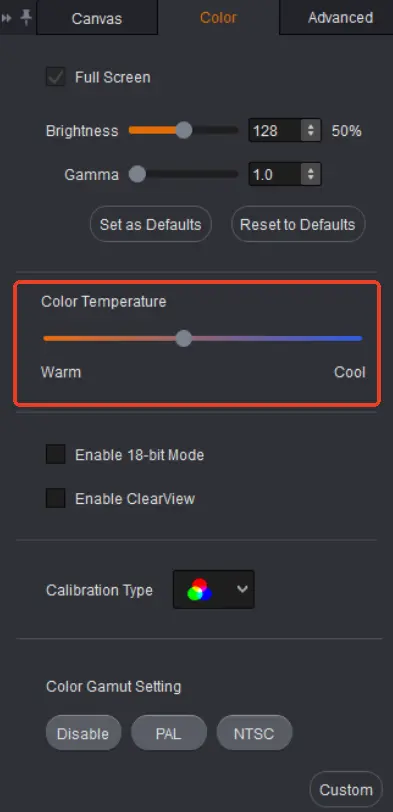
03. Color Temperature Adjustment
Use the color-temperature controls in NovaStar software SmartLCT to align white balance across the screen. Evaluate a neutral white patch and gray ramp instead of judging from a colorful video. Keep the source white point and calibration requirements in view; changing RGB balance can also change perceived brightness.
04. Seam Brightness Adjustment
Seam adjustment in NovaStar software SmartLCT targets bright or dark lines at cabinet boundaries. Confirm mechanical alignment first, then select the relevant seam and make small changes while viewing a uniform pattern.
Follow section 4.5.2 for the installed version’s save workflow. The manual distinguishes user and factory areas, and its change history removes an older Save button. Preserve factory calibration data; do not assume every screenshot has an identical Save to HW control.
05. Batch Adjustment
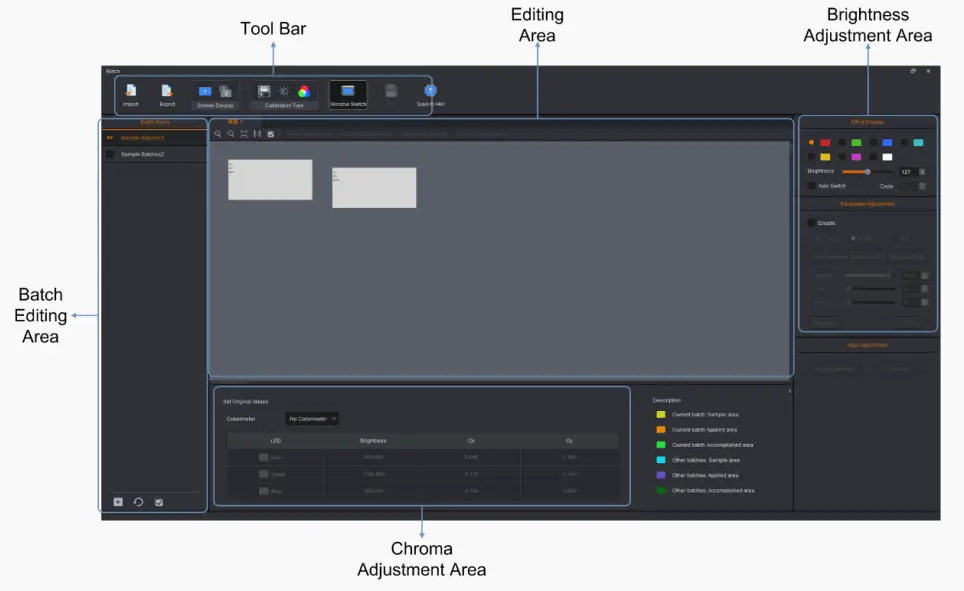
For cabinets from different batches, NovaStar software SmartLCT provides batch brightness and chroma adjustment. Configure the display and save its baseline first. Select each batch, define its sample area, adjust the values and choose Apply Adjustment, followed by Save to HW.
Each batch needs sample-area information. Compare several gray levels after correction: matching one white patch alone can leave differences visible in shadows or midtones.
06. Additional Options
Options such as 18bit+ and ClearView in NovaStar software SmartLCT require compatible hardware. Their presence in a software feature list does not establish support for every receiving card or driver IC. Keep the manufacturer’s recommended baseline and compare results before enabling additional processing.
7. Hot Backup, Sending Configuration and Saving to Hardware
Successful commissioning in NovaStar software SmartLCT requires three separate records: the computer project, parameters applied to the intended hardware, and the tested backup arrangement. Finish the save prompts and confirm the result. Seeing a correct live image by itself does not prove the settings will survive a restart.
01. Hot Backup
Port backup in NovaStar software SmartLCT pairs primary and backup signal paths within a compatible device. Open Hot Backup, inspect the proposed port relationships and match them to the physical wiring. Do not assume automatic pairing is appropriate for the installation.
Check the load of both paths and verify that the backup cable reaches the intended receiving-card chain. Document the pairings before applying them, then test failover during a planned commissioning window.
02. Backup Between Devices
For backup between devices, NovaStar software SmartLCT must map the corresponding primary and backup outputs. Confirm compatible controller operation, matching source content and the correct cable route before pairing devices.
A second controller is not a complete backup plan by itself. Establish how the source, power and output paths behave during the particular failure you intend to cover, then record the observed result.
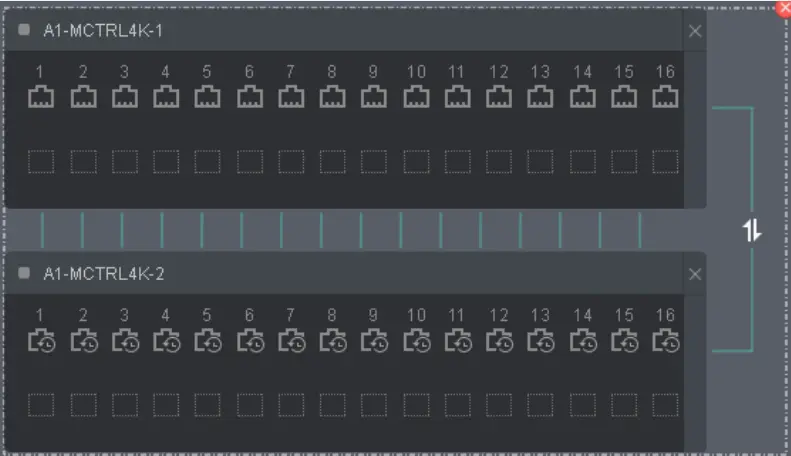
03. Switching Master and Slave
Inspect primary and backup roles in NovaStar software SmartLCT before switching them. Test with a stable image and confirm the displayed content stays correct. The manual includes an online backup verification workflow, but visual confirmation on the installed wall is still necessary. Restore the intended normal roles after testing.
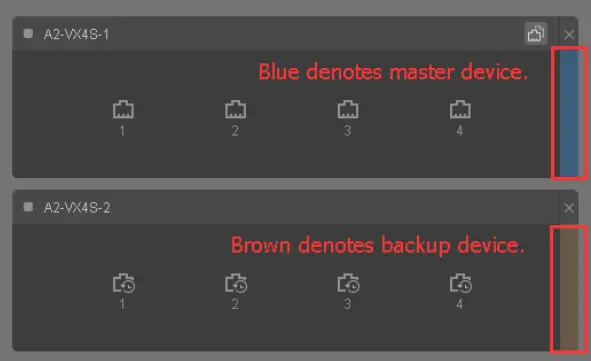
04. Sending Configuration Information
Before sending from NovaStar software SmartLCT, confirm controller identity, active ports, cabinet order and receiving-card files. Keep the last working configuration available. Sending is a hardware-changing action and belongs in a commissioning or maintenance window, especially when the screen is already in use.
From Offline Mode:
In an offline project, choose Send and match each virtual device to its intended online controller. The NovaStar software SmartLCT manual states that unmatched online devices do not receive the configuration. Check every match on a multi-controller wall, then inspect each screen section after transmission.
From Online Mode:
For the online workflow, manual section 4.8 instructs you to send, confirm Save to HW, and acknowledge successful saving. In NovaStar software SmartLCT, complete these prompts before declaring the configuration finished. If a device becomes unavailable, restore communication and verify its state before retrying.
05. Saving to Hardware
Save the NovaStar software SmartLCT project locally as well as completing the relevant hardware save actions. These are different tasks. Record the filename, software version, controller firmware and final cable map in the handover package.
During an authorized maintenance window, restart the equipment and verify mapping, image settings and backup behavior again. If a setting disappears, review its specific save workflow instead of assuming that saving the computer project should have stored it in hardware.
| Record or setting | Required action | Verification |
|---|---|---|
| Computer project | Save a local project copy | Reopen the correct revision |
| Online screen configuration | Send and complete Save to HW | Confirm success and inspect every screen section |
| Batch adjustment | Apply Adjustment, then Save to HW | Compare representative gray levels |
| Seam correction | Follow the version-specific user-area and device save workflow | Preserve factory data and recheck seams |
| Controller functions | Use the model’s Apply/Save controls | Test after an authorized restart |
8. Using V-Sender in Novastar SmartLCT for Advanced Device Control
V-Sender is the device-control module in NovaStar software SmartLCT. It manages supported controller settings such as input selection and output processing. Cabinet layout remains a separate task. The manual’s sections 4.9 and 4.10 describe these functions and their model-specific limits.
01. How to Access V-Sender
Open V-Sender from the device list on the start page or the device area of the Edit page. Confirm the selected controller before changing settings. If the control is unavailable, consult the compatibility notes rather than assuming the installation is faulty.
02. What You Can Do in V-Sender
Control Input and Display
Choose the connected input and confirm that a valid video signal is present. Check the source resolution, frame rate and output placement. Use a test grid to distinguish a source-scaling problem from a cabinet-mapping problem; the two require different corrections.
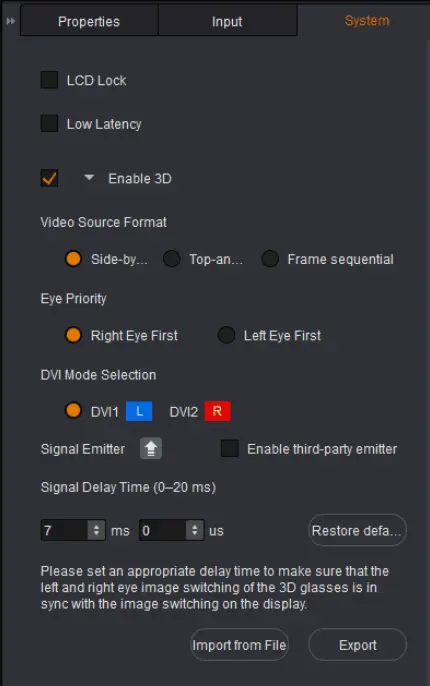
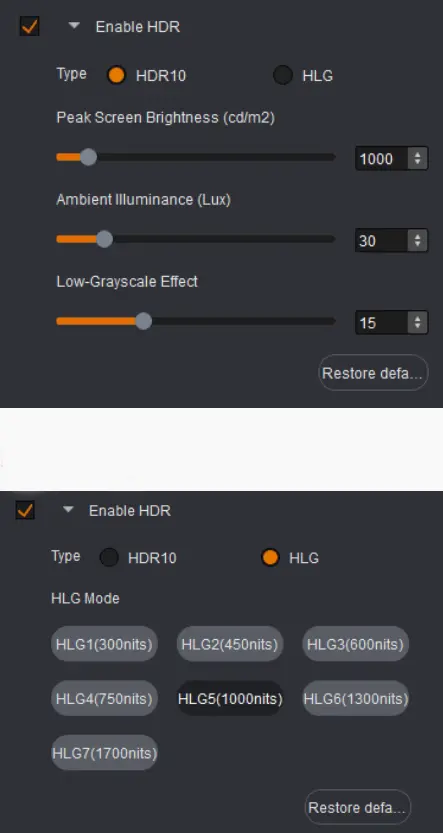
Configure 3D, HDR, and Advanced Modes
Advanced functions are hardware-dependent. The cited SmartLCT manual documents 3D and HDR for MCTRL4K, low latency for MCTRL4K and MCTRL660 PRO, and fiber-converter operation for MCTRL660 PRO. Verify the source format, accessories and firmware for the selected function in the MCTRL4K setup guide and the controller documentation.
Adjust Input, Output, and Color
Input bit depth, scaling and mosaic settings must fit the controller’s documented limits. A cabinet layout cannot add scaling capability to a sender that lacks it. When using several controllers, check source capture regions and output boundaries so adjacent sections display a continuous image without overlaps or gaps.
Set Up Picture-in-Picture
Where the controller supports picture-in-picture, set each window’s source, crop and output position, then test them together. Confirm which window should remain visible when an input disappears. Save the intended arrangement using that model’s documented controls rather than relying on the current on-screen appearance.
Save Configurations as Templates
On supported devices, store a tested input and display arrangement as a template. Use clear names or a recorded slot list so operators know which setup they are recalling. Keep a separate cabinet project backup because a controller template is not necessarily a full replacement for screen configuration records.
Monitor System Status
Inspect available device and port information in V-Sender. Status indications help localize a problem, but they do not replace a physical display check. The manual’s change history removed an earlier monitoring function, so avoid assuming every version provides the same monitoring interface.
For support, prepare the controller model, firmware, receiving-card model, cabinet pixel dimensions, software version and a photograph of the cable route. Contact EagerLED with those details and the fault symptoms to make configuration troubleshooting more specific.
| Symptom | Check first | Next action |
|---|---|---|
| Controller remains offline | Power, control cable and driver | Use Device > Reconnect; confirm the supported interface. |
| MCTRL600/660 not detected on Mac | Connection stability | Consult manual section 6.5 and its Serial Driver procedure. |
| Cabinet shows red after Mapping | Test pattern selection | Choose Edit > Test Pattern > Normal. |
| Offsets missing after readback | Original project and drawing | Re-enter verified offsets; see manual section 6.3. |
| Red port-loading indicator | Cabinet pixels assigned to that port | Redistribute within the actual device limits. |
| Settings lost after restart | Hardware save confirmation | Repeat the setting-specific save and acceptance check. |
Project compatibility and acceptance checks
Use the required hardware workflow as the starting point for a new screen or controller replacement. A SmartLCT project can help communicate cabinet placement, but it does not prove that a different processor supports the same rotation, port backup or receiving-card parameters. Ask for written confirmation against the exact equipment list before ordering.
| Project need | Check before committing | Acceptance evidence |
|---|---|---|
| Ordinary rectangular wall | Controller support, cabinet pixel dimensions and physical cable order. | Grid and normal content map to every cabinet correctly. |
| Rotated or irregular layout | Supported rotation mode on the controller and receiving system; required extra processing. | A test layout with the intended angles and source image. |
| Redundant signal path | Supported port or device backup, spare loading capacity and independent cabling. | A planned primary-path failure test and documented recovery. |
| Operating computer | Installer, driver and operating-system compatibility for the selected release. | The actual site computer connects to the actual hardware. |
| System handover | Project file, cabinet parameters, hardware-save procedure and restore instructions. | Configuration survives an agreed restart and can be restored from the retained files. |
For stage rental, document the cabinet family and show layout separately so the next crew can rebuild the intended port map. For fixed installations, keep the accepted configuration with the equipment record and agree who may approve changes. Neither a local project backup nor an offline simulation replaces an online commissioning test.
Share the screen pixel dimensions, cabinet and receiving-card models, controller, source formats, cable distances and proposed backup arrangement when requesting an LED wall quotation. Ask the supplier to identify the configuration software, included files and commissioning scope. This is more useful than comparing controller prices without checking whether each system can deliver the same layout.
9. FAQs
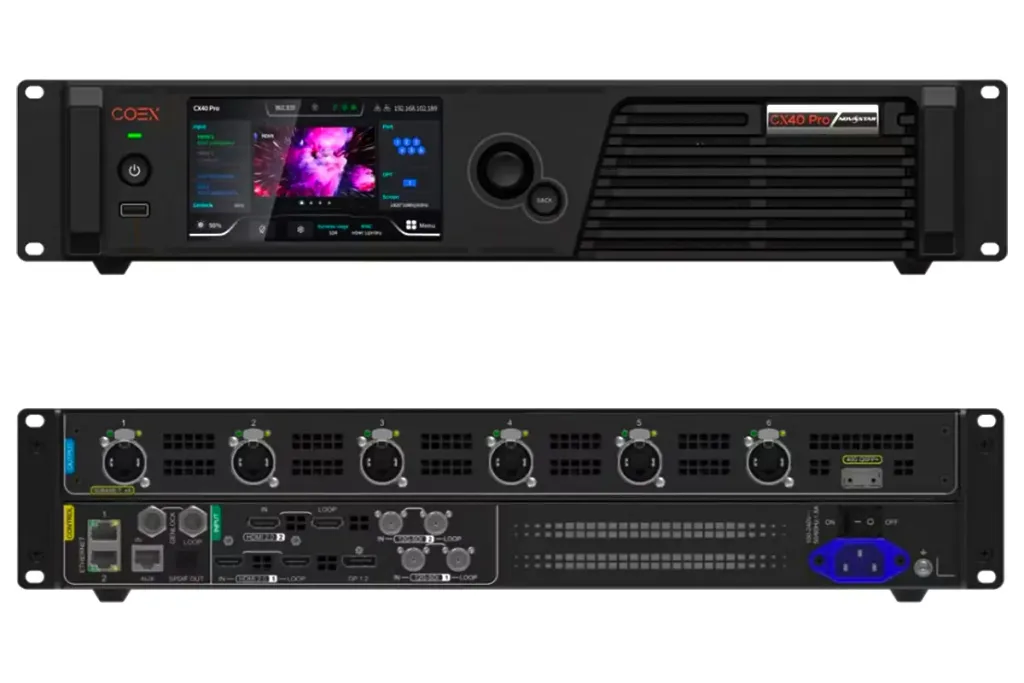 NovaStar CX40 Pro LED Controller: Specifications and Setup Guide
 20 LED Screen Suppliers in the USA (2026 Buyer Guide)