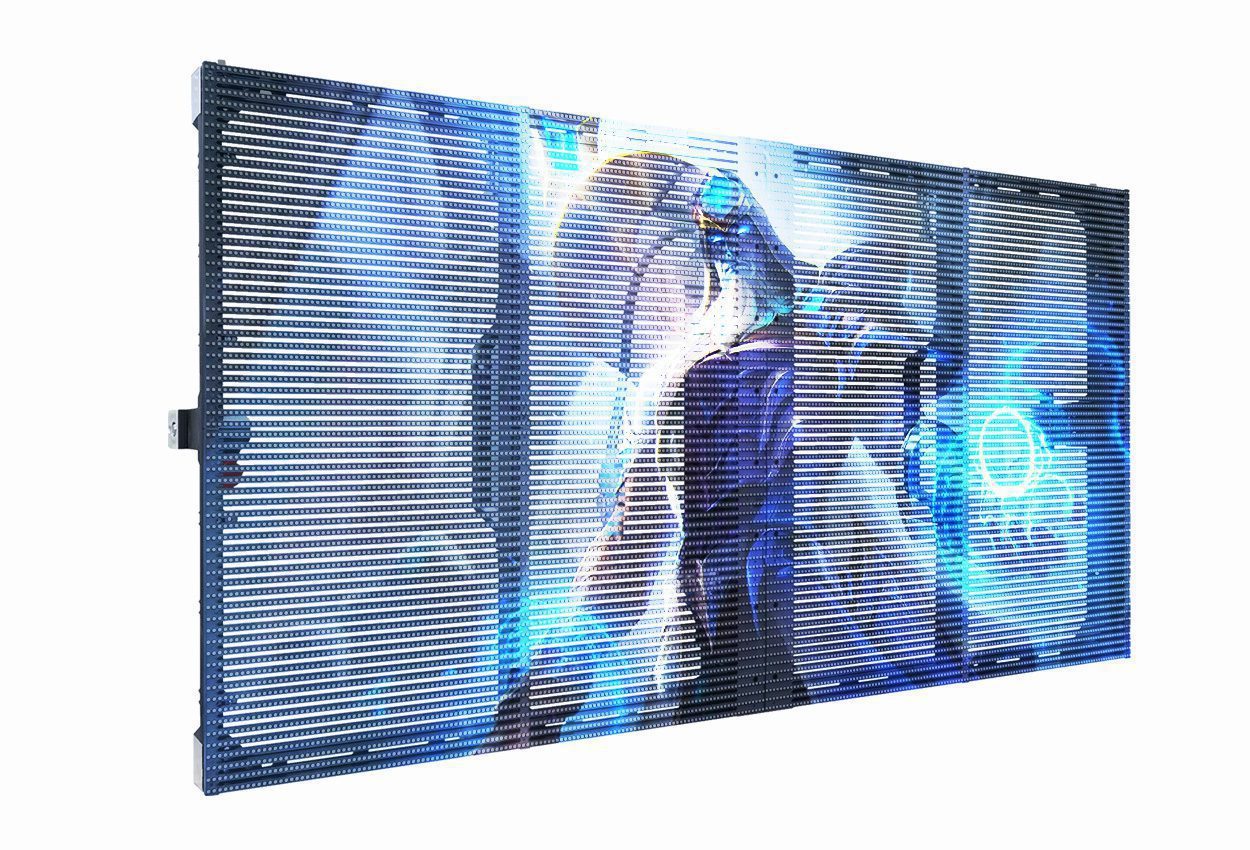
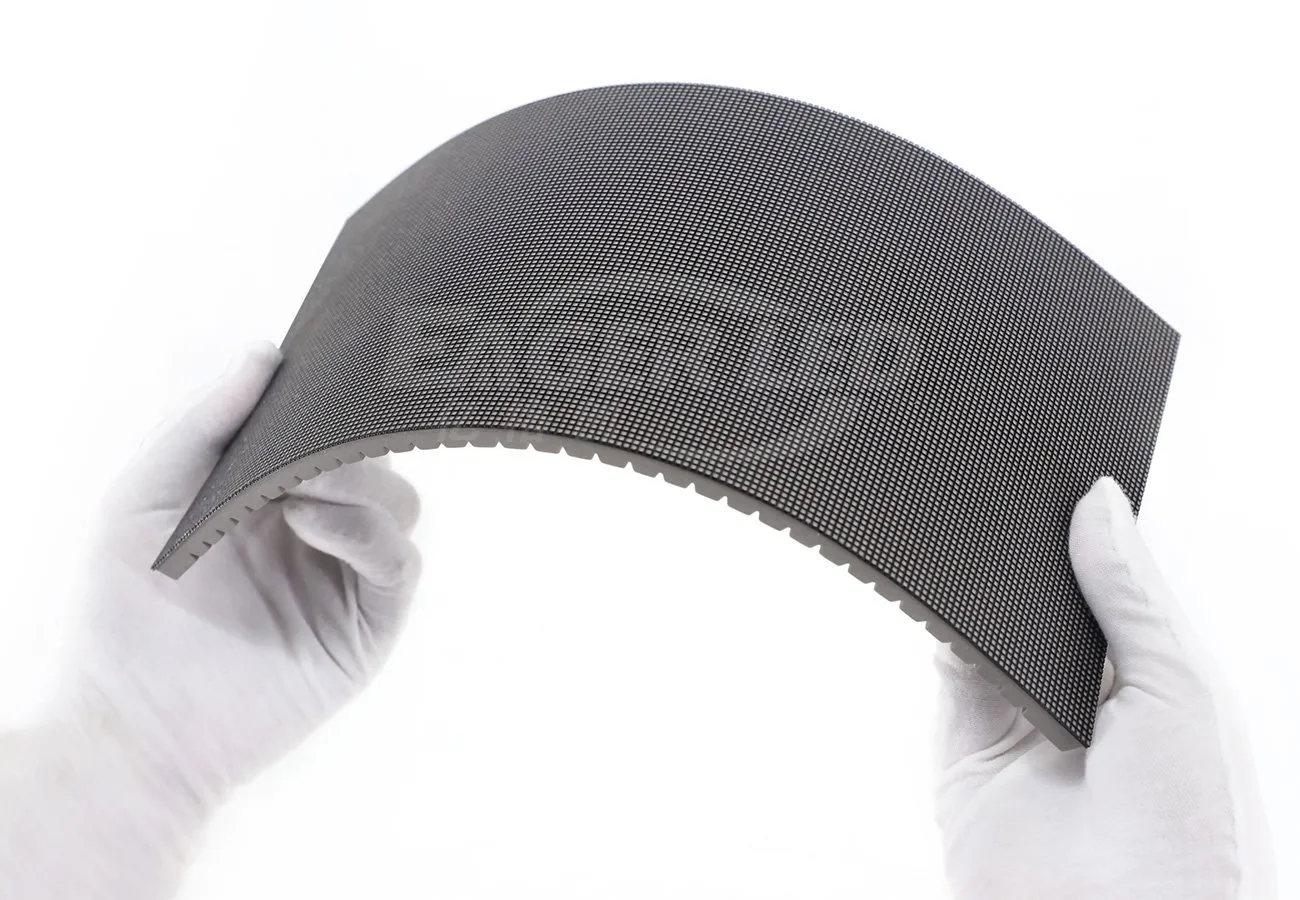
The MCTRL R5 LED Display Controller is a professional LED display controller developed by NovaStar Tech Co., Ltd. for creative, rental and large-format LED installations. This guide explains what the MCTRL R5 LED Display Controller does, lists its full technical specifications, walks through front-panel setup step by step, and shows how to configure, calibrate and troubleshoot any screen driven by the MCTRL R5.
If you are commissioning an ultra-wide stage backdrop, a rotating retail column or a fixed video wall, everything you need to get the MCTRL R5 running is below. Use the catalogue to jump straight to the section you need.
catalogue
1. What Is the MCTRL R5 LED Display Controller?
The MCTRL R5 LED Display Controller is a high-performance, professional-grade Novastar controller engineered for demanding visual applications. It sits between your video sources and your NovaStar receiving cards, converting HDMI 1.4, Dual-Link DVI and 6G-SDI signals into the data streams that drive the LED cabinets.
As NovaStar’s first controller to support image rotation at any angle, the MCTRL R5 delivers exceptional flexibility for creative LED installations. At its core, the MCTRL R5 supports a maximum output resolution of 3840×1080@60Hz, enabling seamless handling of both ultra-long and ultra-tall LED configurations. It works in tandem with NovaStar’s advanced A8s or A10s Pro receiving cards to unlock powerful features such as arbitrary-angle screen rotation via SmartLCT software.
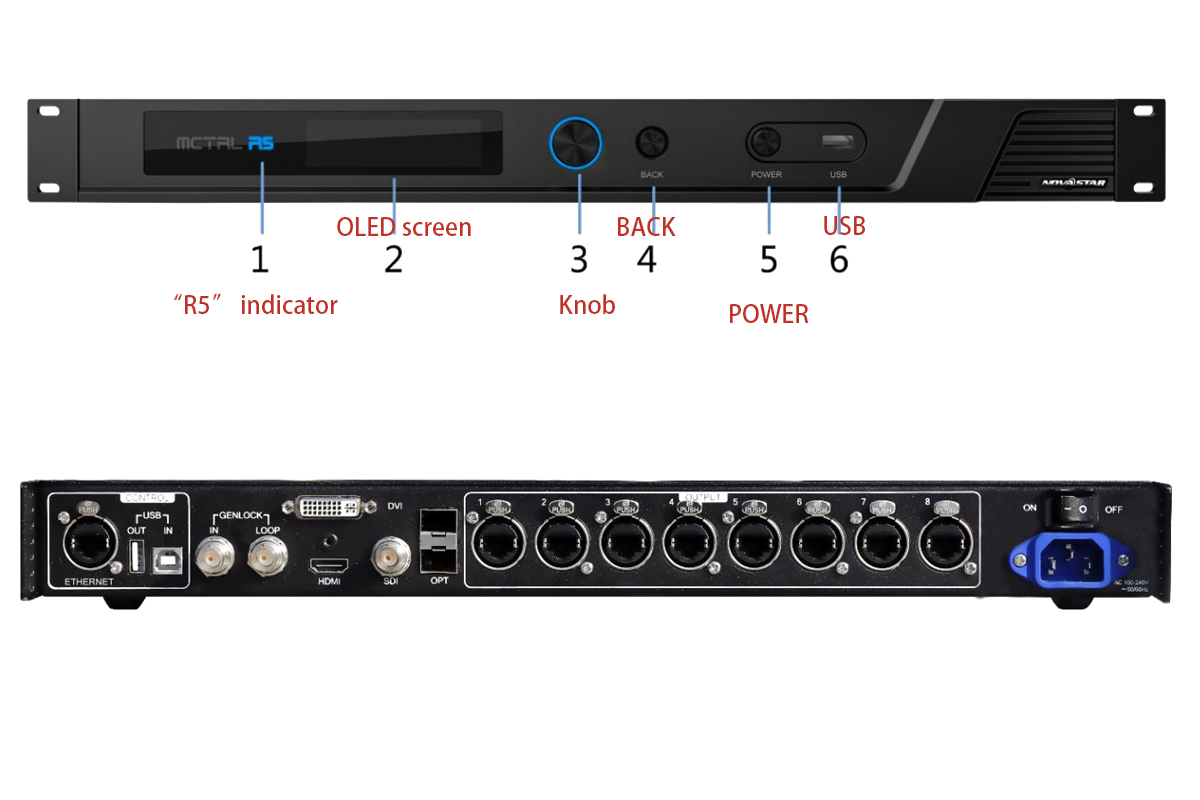
01. MCTRL R5 LED Display Controller Key Highlights
- Custom resolution support: define any resolution inside the 3840×1080@60Hz envelope of the MCTRL R5 to match a unique screen layout.
- Pixel-level calibration: achieve uniform brightness and colour accuracy across the whole display through high-precision chroma and brightness calibration when the MCTRL R5 is used with NovaLCT and NovaCLB.
- Robust connectivity: with 8 Gigabit Ethernet outputs and 2 × 10G optical ports, the MCTRL R5 distributes signal reliably even in large-scale setups.
- User-friendly operation: configure the MCTRL R5 on-device using an OLED interface and front-panel knob, or from a PC through NovaLCT or SmartLCT.
- Redundancy ready: Ethernet port redundancy and controller-level backup keep the MCTRL R5 on air when a single cable or a single unit fails.
02. Who Should Use the MCTRL R5?
The MCTRL R5 LED Display Controller is built for both fixed installations and rental environments. It combines reliability, versatility and cutting-edge image processing, which makes it a trusted choice among system integrators and AV professionals who need a true LED display controller that performs under pressure.
Choose the MCTRL R5 LED Display Controller when:
- the screen is wider or taller than a standard 16:9 canvas and must still be driven by one controller;
- content has to be rotated diagonally, or shown on columns, corners and curved structures;
- a high pixel count must be spread across eight Gigabit Ethernet ports;
- a live show has to survive a cable failure, so port redundancy and controller backup matter;
For broadcast workflows where sub-millisecond latency and native SDI dominate, a NovaStar MCTRL660 series controller may fit better (see section 9).
2. MCTRL R5 LED Display Controller Specifications
Before you deploy the MCTRL R5 it helps to see every headline figure in one place. The table below summarises the specifications of the MCTRL R5; each item is explained in more detail in the sections that follow.
| Specification | MCTRL R5 |
|---|---|
| Product category | Professional LED display controller (video controller for LED screens) |
| Manufacturer | NovaStar Tech Co., Ltd. (NovaStar) |
| Maximum output capacity | 3840×1080@60Hz |
| Screen shapes supported | Ultra-wide, ultra-tall and standard-ratio canvases |
| Video inputs | HDMI 1.4, Dual-Link DVI (DL-DVI), 6G-SDI |
| Active inputs | One input source at a time |
| Ethernet outputs | 8 × Gigabit Ethernet ports |
| Optical outputs | 2 × 10G optical ports (mirror the data of Ethernet ports 1–8) |
| Image rotation | Arbitrary-angle image rotation — a NovaStar first for this controller class |
| Recommended receiving cards | NovaStar A8s / A10s Pro |
| On-device control | OLED display plus front-panel knob |
| Control software | NovaLCT (configuration, calibration), SmartLCT (building-block layouts, rotation) |
| Cascading | Up to 8 MCTRL R5 units over USB IN / USB OUT |
| Redundancy | Ethernet port redundancy and controller-level backup |
| Calibration | Pixel-level brightness and chroma calibration (NovaLCT with NovaCLB) |
| Typical deployments | Rental stages, creative installations, retail columns, advertising boards, fixed video walls |
3. MCTRL R5 LED Display Controller Inputs, Outputs and Image Rotation
As a next-generation LED display controller, the MCTRL R5 from NovaStar excels not only in raw performance but also in its intelligent handling of signal input, output distribution and creative image manipulation — most notably, arbitrary-angle image rotation. These capabilities make the MCTRL R5 LED Display Controller a standout choice among professional Novastar controllers for both fixed and touring LED installations.
01. Flexible Input Options
The MCTRL R5 LED Display Controller accepts several high-bandwidth video signals, so it fits almost any source rack. Only one input can be active at a time, and each connector behaves slightly differently:

| Connector Type | Resolution Behaviour | Best Used For |
|---|---|---|
| 6G-SDI | Maximum resolution 3840×1080@60Hz. Interlaced signals are not supported. | Broadcast cameras, switchers and OB vans |
| HDMI 1.4 | Resolutions up to 3840×1080@60Hz, plus custom resolutions. | Media players, laptops and playback servers |
| DL-DVI | Matches HDMI 1.4 specifications for maximum flexibility. | Legacy control rooms and DVI-only sources |
All inputs are processed internally with low latency and high fidelity, so the MCTRL R5 delivers crisp, synchronised visuals across large-format displays.
02. High-Density Output Architecture
The MCTRL R5 LED Display Controller features 8 Gigabit Ethernet ports plus dual 10G optical outputs, enabling efficient signal distribution to hundreds of receiving cards. This robust output design keeps data transmission stable even in complex, high-pixel-count setups.
03. True Arbitrary-Angle Image Rotation
One of the most innovative features of the Novastar controller MCTRL R5 is its ability to rotate the entire display image at any angle — a genuine advantage for vertical signage, circular LED columns and diagonal stage backdrops.
To enable rotation on the MCTRL R5:
- Use NovaStar’s SmartLCT software (v3.0 or later).
- Pair the controller with compatible receiving cards such as the A8s or A10s Pro.
- Complete your screen layout configuration first, then apply the desired rotation angle.
Because the rotation is configured in software and applied by the MCTRL R5 together with its companion receiving cards, source content does not have to be pre-rotated — which keeps the playback chain short.

4. How to Set Up the Novastar Controller MCTRL R5 for Your LED Display
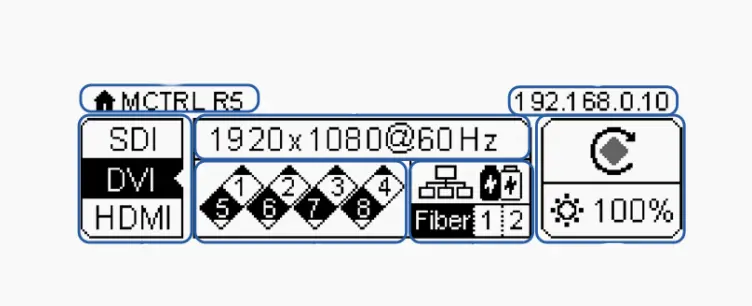
Setting up the NovaStar controller MCTRL R5 is a straightforward process. The basic setup is completed directly on the controller using the front panel, without connecting to a PC first — which is exactly what makes the MCTRL R5 LED Display Controller popular with touring crews and field technicians.
01. Step 1: Select the Input Source
- After powering on the MCTRL R5, connect your video source using HDMI, DVI or 6G-SDI.
- From the home screen, enter the menu and select the corresponding input source. Only one input source can be enabled at a time.
- For SDI input, resolution settings are not available; HDMI and DVI inputs allow resolution configuration in the next step.
02. Step 2: Set the Input Resolution
- For HDMI or DVI sources, the input resolution can be set using preset resolutions or custom resolution settings.
- Preset resolutions cover most common LED display configurations, while custom resolution lets you define the exact width, height and refresh rate based on the real screen size.
- Once the resolution is applied, the MCTRL R5 outputs the full image to the LED screen loading area.

03. Step 3: Quickly Configure the LED Screen
- After the input signal is confirmed, use Quick Configuration to set up the LED screen layout.
- In this step you define the number of cabinet rows and columns, as well as the cabinet quantity loaded by each Ethernet port. The MCTRL R5 LED Display Controller automatically calculates data flow from these parameters, so the LED screen displays the complete image correctly.
- Quick Configuration suits regular LED screens. For irregular layouts or complex cabinet arrangements, software configuration with Advanced Configuration is required.
04. Step 4: Adjust Screen Brightness
- Once the LED display is lit, screen brightness can be adjusted directly from the front panel.
- Brightness changes take effect in real time on the MCTRL R5 LED Display Controller, so a practical level can be set without touching colour balance.
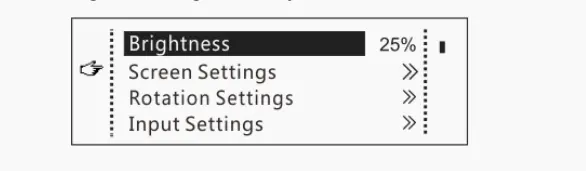
The four steps above cover the whole on-site workflow. The table below is a quick reference you can keep next to the MCTRL R5 during commissioning.
| Step | What You Do | Where | Result |
|---|---|---|---|
| 01 | Select the input source | Front panel → Input Settings | The MCTRL R5 LED Display Controller locks onto one video input |
| 02 | Set the input resolution | Front panel → Input Resolution | A preset or custom resolution matches the screen canvas |
| 03 | Run Quick Configuration | Front panel → Screen Configuration | Cabinet rows, columns and port loading are mapped automatically |
| 04 | Adjust screen brightness | Front panel → Brightness | A practical brightness level is set without changing colour balance |
If the screen still does not light up after these four steps, the most common cause is a cabinet layout that does not match the configuration stored in the 3840×1080@60Hz envelope of the MCTRL R5 LED Display Controller.
5. Novastar Controller MCTRL R5 Device Connections and Cascade Setup
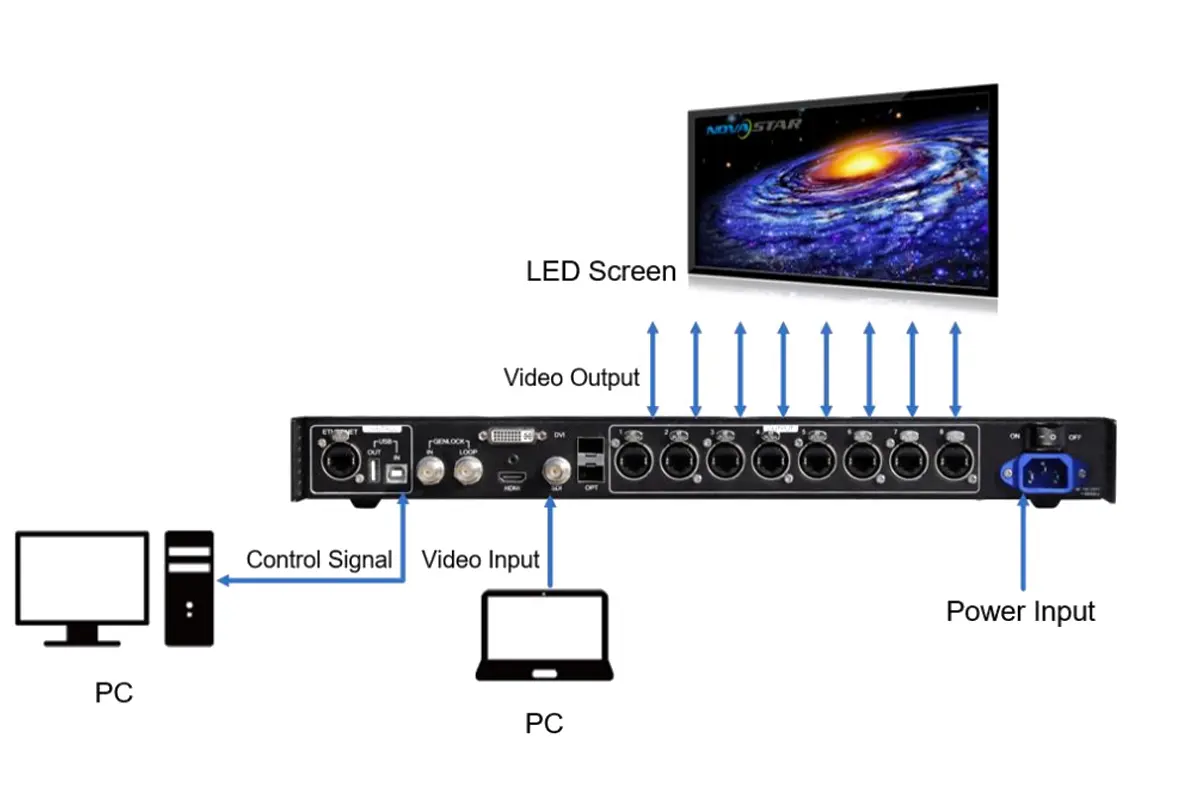
The NovaStar controller MCTRL R5 provides flexible connection options for both signal input and LED screen output, making it suitable for single-screen and multi-controller LED display systems. Plan the wiring before you mount the cabinets — the MCTRL R5 LED Display Controller is far easier to cable on a bench than inside a truss.
01. Signal Input Connections
The MCTRL R5 LED Display Controller supports three common video input types: HDMI 1.4, Dual-Link DVI and 6G-SDI. Only one input source can be active at a time. After connecting the video source, select the matching input from the front-panel menu or through software.
HDMI and DVI inputs accept preset or custom resolutions; SDI input uses a fixed resolution, so the format is set on the camera or switcher instead.
02. LED Screen Output Connections
For LED screen output, the MCTRL R5 is equipped with 8 Gigabit Ethernet ports, each capable of loading LED cabinets according to the input bit depth. These ports connect directly to receiving cards such as A8s or A10s Pro, forming the basic LED control system.
The MCTRL R5 LED Display Controller also supports Ethernet port redundancy, which improves system stability in both fixed installations and rental applications.
03. Optical Fiber Output for Long-Distance Transmission
In addition to Ethernet ports, the MCTRL R5 LED Display Controller includes 2 × 10G optical ports. The optical ports mirror the data of Ethernet ports 1–8 and are typically used for long-distance signal transmission or complex installation environments where copper cables are not practical.
Fiber also removes the ground-loop and interference problems that appear when a control position and a screen are fed from different power phases.
04. Cascade Setup for Multiple Controllers
When a single MCTRL R5 LED Display Controller cannot cover the required resolution or screen size, multiple controllers can be cascaded.
Cascade connection is done using the USB IN and USB OUT ports on the rear panel. Up to 8 MCTRL R5 units can be cascaded together. After cascading, all units can be managed and configured from a single control PC using NovaLCT or SmartLCT, which simplifies system control for large LED displays.
6. MCTRL R5 LED Display Controller Advanced Configuration
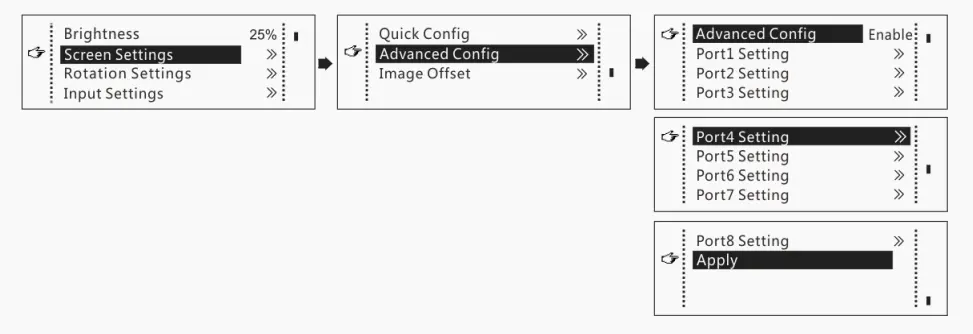
Advanced Configuration on the MCTRL R5 LED Display Controller is used when Quick Configuration cannot meet the actual layout or wiring of an LED display. This mode allows users to control each Ethernet port independently, making it suitable for complex cabinet arrangements and non-standard screen layouts.
01. When Advanced Configuration Is Required
Advanced Configuration is commonly used in the following situations:
- The LED screen uses uneven cabinet distribution across Ethernet ports.
- The physical cabinet wiring does not follow a simple left-to-right or top-to-bottom pattern.
- Precise control of port loading areas and image position is needed.
- The screen is assembled from several differently sized blocks, or forms an L-shaped structure.
Once Advanced Configuration is enabled on the MCTRL R5, Quick Configuration is automatically disabled — the two methods cannot run side by side.
02. Per-Port Screen Configuration
In Advanced Configuration, each Ethernet port of the MCTRL R5 LED Display Controller can be configured separately. For every port you can define:
- Cabinet row quantity
- Cabinet column quantity
- Horizontal offset (Start X)
- Vertical offset (Start Y)
- Data flow direction
This lets the controller map the input image accurately onto the physical cabinet layout, ensuring the LED display shows a complete and correctly positioned image.
03. Image Offset Adjustment
- After the screen layout is configured, image offset can be adjusted to fine-tune the display position.
- By modifying the horizontal and vertical offsets, you can move the displayed image without changing the physical wiring or cabinet layout — especially useful when the image appears slightly shifted after initial configuration.

04. Important Configuration Notes
- Advanced Configuration and Quick Configuration cannot be used at the same time on the MCTRL R5 LED Display Controller.
- If the screen has already been configured with NovaLCT, on-device configuration should not be used again.
- For irregular LED screens, software configuration is recommended instead of front-panel setup.
| Item | Quick Configuration | Advanced Configuration |
|---|---|---|
| Best for | Regular screens with even cabinet distribution | Irregular layouts and non-standard cabinet wiring |
| Port control | All Ethernet ports treated as one block | Each Ethernet port configured independently |
| Parameters you enter | Cabinet rows, cabinet columns, cabinets per port | Rows, columns, Start X, Start Y and data flow direction per port |
| Configuration order | One guided sequence for the whole screen | Port by port, in any order |
| Availability | Disabled as soon as Advanced Configuration is enabled | Disabled as soon as Quick Configuration is enabled |
| Recommended for beginners | Yes — the fastest way to light up a screen | No — use NovaLCT or SmartLCT software instead |
7. How to Calibrate and Adjust Image Quality on the MCTRL R5
The Novastar controller MCTRL R5 provides several image adjustment and calibration options that improve visual consistency. Most of them take effect instantly, so the result can be judged on the live screen, and they are reached either from the front panel or through control software.
01. Pixel-Level Brightness and Chroma Calibration
- The MCTRL R5 LED Display Controller supports pixel-level brightness and chroma calibration when working with compatible receiving cards and calibration systems.
- Calibration reduces visible brightness and colour differences between cabinets, which commonly appear after long-term use or after a cabinet is replaced.
- When calibration is enabled on the MCTRL R5 LED Display Controller, some image adjustment functions are temporarily unavailable to protect calibration accuracy.
02. Image Settings Adjustment
For daily image optimisation, the MCTRL R5 LED Display Controller allows users to adjust key image parameters, including:
- Colour temperature
- Red, green and blue brightness levels
- Gamma value
These settings help fine-tune the displayed image to match the viewing environment and the content type.
03. Screen Brightness Control
- Screen brightness can be adjusted directly from the front panel of the MCTRL R5.
- This function is typically used after the LED screen is fully configured, letting you set an appropriate brightness level without affecting colour balance or screen layout.
04. Image Offset and Display Control
- If the displayed image appears slightly misaligned, horizontal and vertical image offset settings can reposition it without modifying the cabinet configuration.
- The MCTRL R5 LED Display Controller also supports basic display control modes such as normal display, freeze, blackout and test patterns, which are useful for checking image uniformity and screen status during setup or maintenance.
8. Understanding the MCTRL R5’s Compatibility with Different Video Sources
The Novastar controller MCTRL R5 supports a wide range of video sources. The table below summarises the supported formats of the MCTRL R5 LED Display Controller:
| Video Source | Bit Depth | Sampling Format | Max Resolution |
|---|---|---|---|
| HDMI 1.4 | 8-bit | RGB 4:4:4 | 3840×1080@60Hz |
| HDMI 1.4 | 10-bit | YCbCr 4:2:2 | 2048×1152@60Hz |
| DL-DVI | 8-bit | RGB 4:4:4 | 3840×1080@60Hz |
| 6G-SDI | N/A | N/A | 3840×1080@60Hz |
01. Choosing the Right Input for Your LED Display
In most fixed installations the source is a media player or a signage PC connected over HDMI 1.4 at 8-bit RGB — that combination gives the MCTRL R5 LED Display Controller the full 3840×1080@60Hz canvas. Choose 10-bit YCbCr 4:2:2 only when colour gradients matter more than canvas width, because the maximum resolution drops to 2048×1152@60Hz.
Pick DL-DVI for legacy DVI control rooms, and 6G-SDI when the screen is fed from a broadcast switcher, camera chain or OB van.
9. MCTRL R5 vs MCTRL660 PRO: Which NovaStar Controller Do You Need?
Buyers often compare the MCTRL R5 LED Display Controller with the MCTRL660 series. Both are professional controllers, but they are aimed at different jobs: the MCTRL R5 is built for very wide or very tall canvases and rotated content, while the MCTRL660 PRO targets broadcast and low-latency production.
| Feature | MCTRL R5 | MCTRL660 PRO |
|---|---|---|
| Maximum resolution | 3840×1080@60Hz | 1920×1200@60Hz |
| Video inputs | HDMI 1.4, Dual-Link DVI, 6G-SDI | SL-DVI, HDMI 1.4a, 3G-SDI |
| Gigabit Ethernet outputs | 8 ports | 6 ports |
| Optical outputs | 2 × 10G | 2 × 10G (SFP+) |
| Arbitrary-angle image rotation | Yes — the signature feature of the MCTRL R5 | Image mirroring only |
| Cascading | Up to 8 units (USB IN / USB OUT) | Up to 8 units (USB IN / USB OUT or GENLOCK IN / LOOP) |
| Low-latency mode | Not specified | Under 1 ms |
| Best suited to | Ultra-wide and ultra-tall screens, creative and rotated content, high pixel counts | Live production, broadcast studios, esports and video walls where latency is critical |
01. When the MCTRL R5 LED Display Controller Is the Better Choice
Choose the MCTRL R5 when the canvas itself is unusual: a 3840×1080 ribbon across a stage, a portrait column in a shopping centre, or a screen where the content rotates at any angle. The MCTRL R5 LED Display Controller also wins on raw port count, because eight Gigabit Ethernet outputs plus two 10G optical ports carry more cabinets than a six-port controller.
02. When a MCTRL660 Series Controller Fits Better
Choose the MCTRL660 PRO when the screen sits inside a broadcast or live-production chain. Native 3G-SDI input, sub-millisecond latency and mirroring make it the safer choice there, and its 1920×1200@60Hz canvas is enough for a standard-ratio video wall. In many rental fleets the two families work side by side: MCTRL660 PRO for the broadcast feed, the MCTRL R5 for the creative, oversized elements.
10. MCTRL R5 LED Display Controller Troubleshooting Guide
Most problems reported with the MCTRL R5 LED Display Controller come from configuration rather than hardware: a mismatch between the layout stored in the controller and the cabinets actually on site. Work through the table below before replacing a unit.
| Symptom | Likely Cause | What To Do |
|---|---|---|
| No image on the LED screen | Wrong input source selected | Re-select the active input in the front-panel Input Settings menu — only one input can be enabled at a time |
| Only part of the screen shows an image | Wrong cabinet rows, columns or cabinets-per-port values | Re-run Quick Configuration, or define each port individually in Advanced Configuration |
| Image is shifted horizontally or vertically | Correct layout, but the image position needs fine-tuning | Adjust the horizontal and vertical image offset — no wiring change is required |
| Screen never lights up at all | Quick Configuration and Advanced Configuration both partially applied | Reset the screen configuration and configure the screen with one method only |
| Colours differ between cabinets | Brightness and chroma drift after long-term use or cabinet replacement | Run pixel-level brightness and chroma calibration with NovaLCT and NovaCLB |
| Colour changes look wrong after calibration | Calibration mode is active and locks some image settings | Finish calibration first, then adjust colour temperature, RGB levels and gamma |
| Display goes blank during a show | A cable or a controller has failed | Enable Ethernet port redundancy and controller-level backup before the event |
| One controller cannot cover the screen | Pixel count exceeds 3840×1080@60Hz | Cascade up to 8 MCTRL R5 units over USB IN / USB OUT and manage them from one PC |
| No resolution options when SDI is selected | SDI input runs at a fixed resolution | Set the format on the source device, or switch to HDMI / DL-DVI if a custom resolution is required |
| Long cable runs cause dropouts | Copper Ethernet distance limit reached | Move the run to the 2 × 10G optical ports of the MCTRL R5 |
01. Preventive Checks Before You Go On Site
- Confirm the total pixel count of the screen and check that it fits the 3840×1080@60Hz envelope of the MCTRL R5.
- Photograph the cabinet wiring before you disconnect anything, so the port map can be rebuilt quickly.
- Install the matching version of NovaLCT or SmartLCT on the control laptop and test the connection on the bench.
- Label every Ethernet run with its port number.
11. Frequently Asked Questions About the MCTRL R5 LED Display Controller
These are the questions buyers, integrators and technicians ask most often about the MCTRL R5. Expand any answer below.
 NovaLCT Guide: Novastar Software Download, Setup & Basic Operation
 Huidu HD-H8 vs HD-H6 LED Multimedia Players: Complete 4K Guide