An LED receiving card sits inside the display cabinet and converts data from a compatible sending system into signals for the LED modules. Choose it by the cabinet electronics and required operating conditions, not by pixel capacity or brand alone. A cabinet may contain one or more receiving cards; one card can serve multiple modules.
This guide helps LED wall engineers, rental companies and installers compare specifications, identify a compatible replacement, and prepare the information needed for a quotation.
- Exact sender, receiving-card model and hardware revision.
- Cabinet pixel dimensions, driver IC and scan mode.
- HUB board or connector pinout, supply voltage and mounting fit.
- Original configuration, firmware and any calibration data.
On this page
What Is an LED Receiving Card and Why Does Your Display Need One?
An LED receiving card (also written receiver card or receiving board) is the driver board mounted inside an LED cabinet. It receives processed video data over Ethernet from the sending card, applies the configuration stored for that part of the screen, and drives the LED modules through HUB75 ribbon cables. One card normally controls a single cabinet or a small group of modules; a large video wall may contain hundreds.
Think of the display as an orchestra: the sending card is the conductor reading the score, and the receiving card is the section leader telling every musician when and how loudly to play.
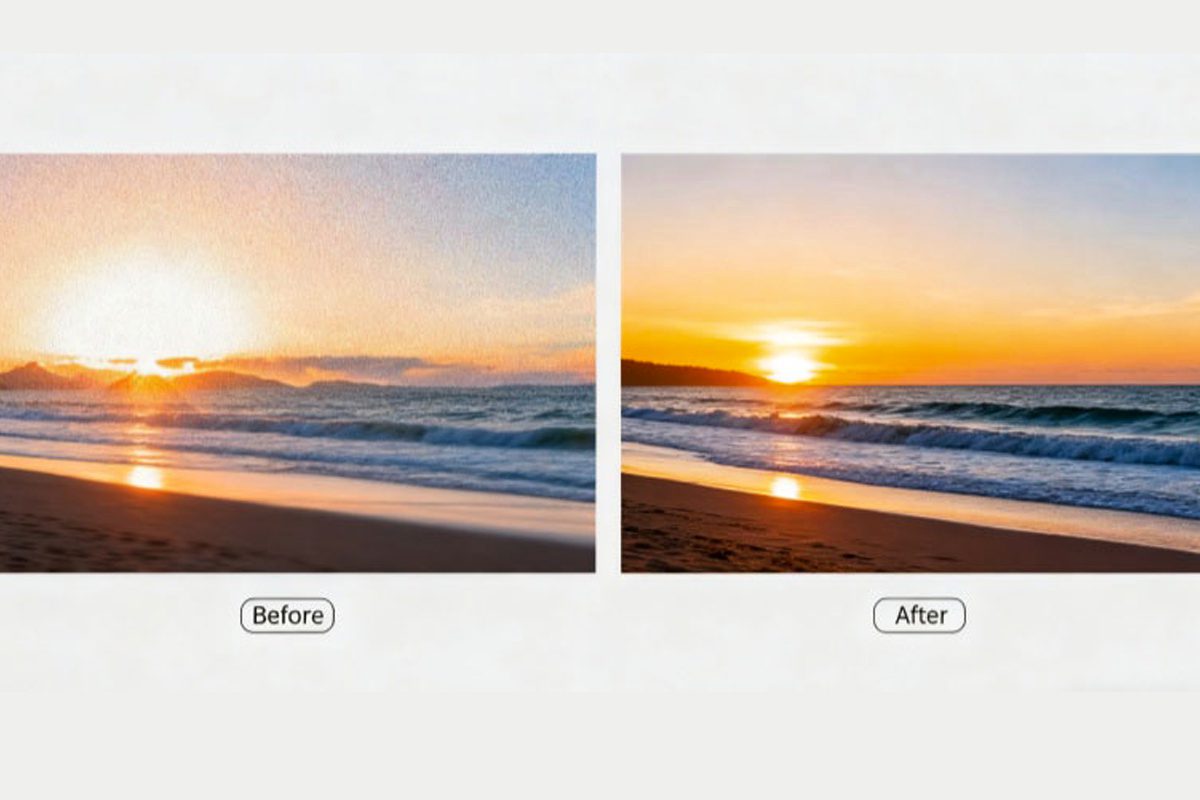
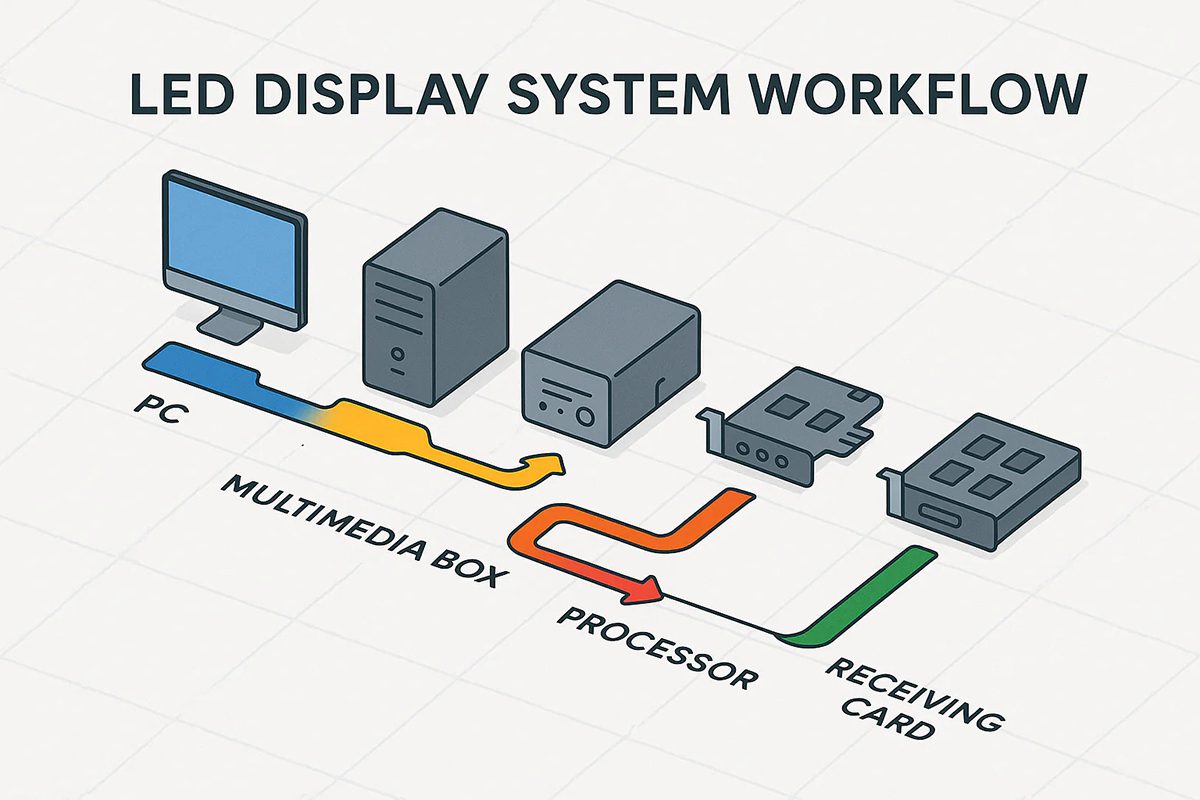
01. The Role of an LED Receiving Card in the Signal Chain
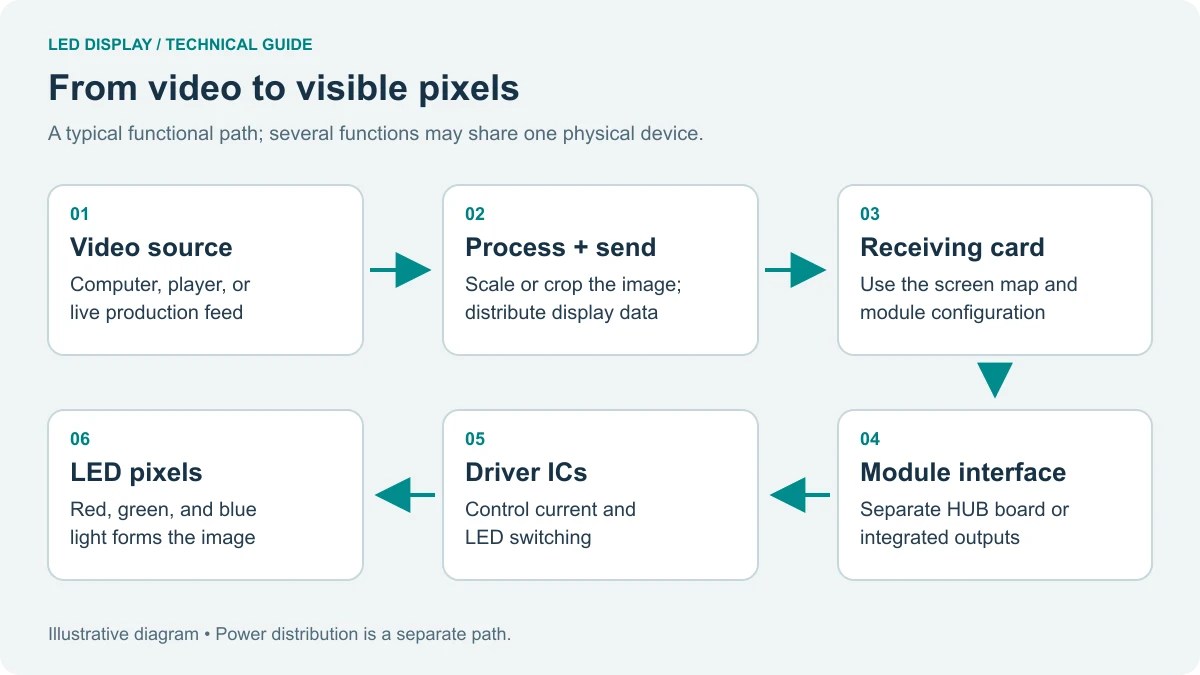
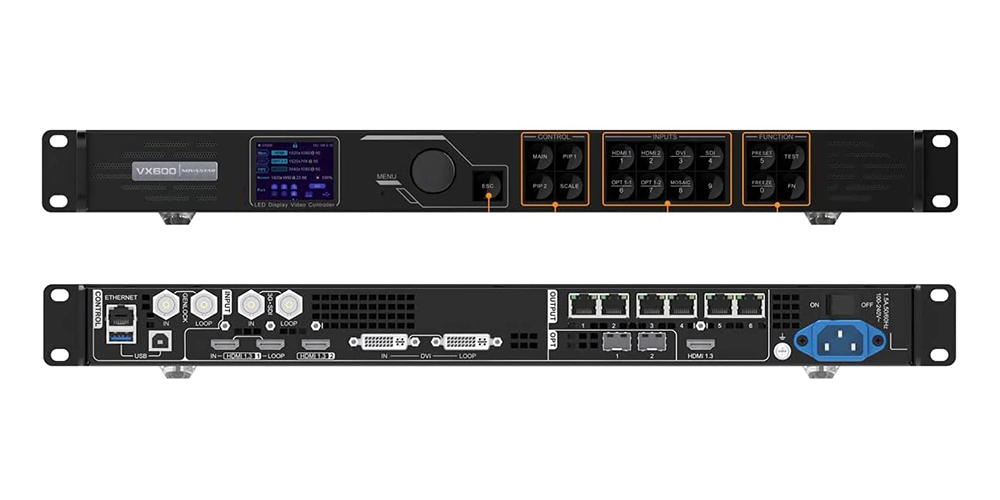
Signal flows from the media player to the LED display control systems, then to the sending card, then over Gigabit Ethernet to each receiving card, and finally through HUB75 cables to the modules. It is the last intelligent device in that chain, so it decides how faithfully the data reaches the pixels.
Because it stores the cabinet’s own configuration – data group order, scan mode, rotation and calibration coefficients – a wrong setting shows up as a scrambled image rather than a simple loss of signal.
02. Why a Quality LED Receiving Card Changes Display Performance
Four things depend on the card you choose:
- Signal translation – converting digital video into panel-compatible drive signals.
- Panel management – how many modules and pixels one card can address.
- Image quality – refresh rate, grayscale, colour depth and low-brightness uniformity.
- System reliability – monitoring, loop backup and firmware recovery.
A weak card caps the performance of everything upstream: no processor can rescue a receiving card that cannot hold a high refresh rate or spread calibration data across its data groups.
| Task | Sending card | LED receiving card |
|---|---|---|
| Position in the system | In the controller or a box near the player | Inside each cabinet, behind the LED module |
| Main job | Receives or accepts the source and distributes display data; scaling depends on the controller | Receives processed data and drives the LED modules |
| Outputs | Gigabit Ethernet ports to the receiving cards | HUB75/HUB75E, a HUB board or another documented module interface |
| Capacity | Handles the pixel count of the whole screen | Model- and setting-dependent; check width, height and total-pixel limits |
| Typical failure | The entire display loses signal | One cabinet or data group goes dark or shows wrong content |
How Does an LED Receiving Card Work?
An LED receiving card is a dedicated signal processor built around an FPGA. It listens on its Ethernet ports, decodes the packets addressed to it, reads its stored configuration, and drives the module electronics line by line – thousands of times per second.
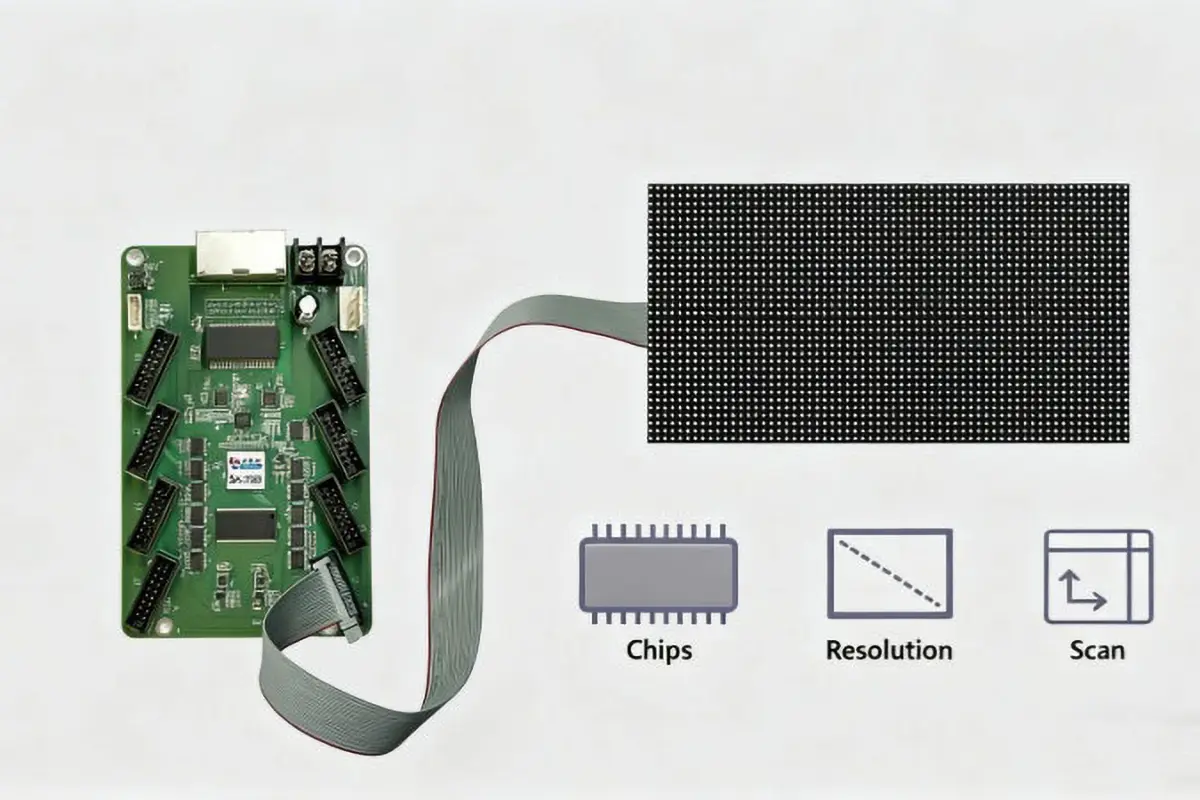
01. From the Video Source to the Pixel: The Signal Path
Signal reception. The card connects to the sending card by Gigabit Ethernet and receives the part of the frame allocated to it.
Data processing. It interprets that data according to its stored configuration – resolution, module arrangement, scan mode, data group mapping and rotation – and rearranges it for the physical layout of the cabinet.
Panel driving. Through HUB75 connectors it sends RGB data, clock, latch, output-enable and line-decoding signals to the modules, setting brightness, colour and timing on every pixel.
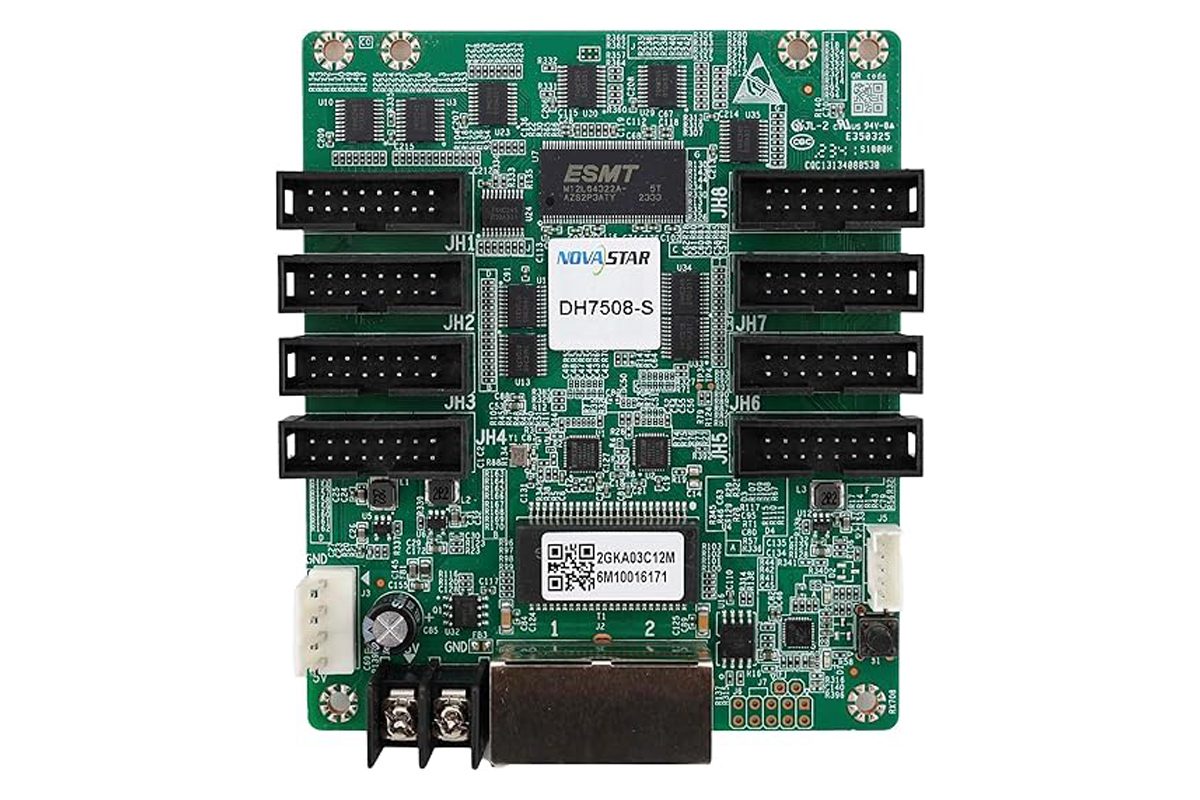
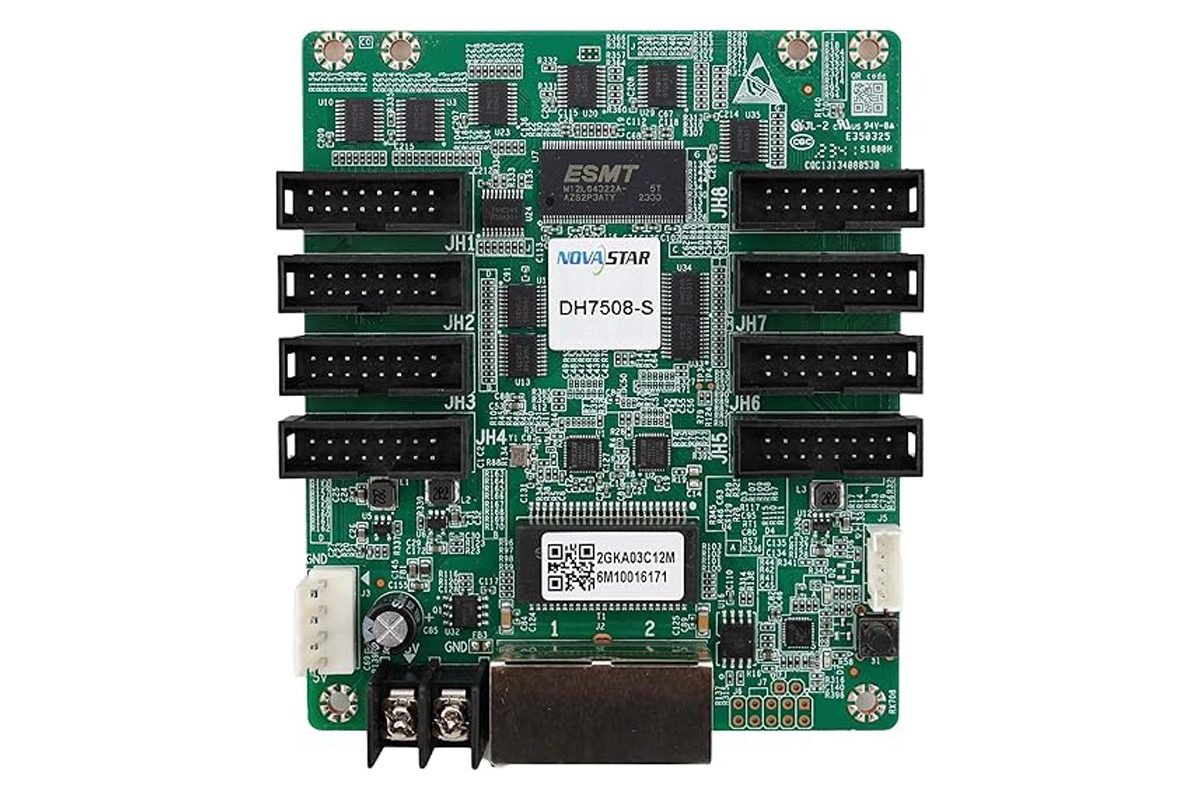
Monitoring. Advanced cards measure temperature, voltage and signal quality. A DH7508-S, for example, drives up to 512×512 pixels with PWM driver ICs across eight HUB75E connectors while reporting temperature, voltage and bit-error statistics.
02. HUB75 Outputs, Data Groups and Scan Modes Explained
HUB75 ports are the ribbon-cable connectors feeding the modules: a 16-pin interface carrying R, G, B, clock, latch, output-enable and four line-decoding signals. Higher-grade boards such as the DH7508-S use eight HUB75E ports and up to 16 parallel RGB data groups.
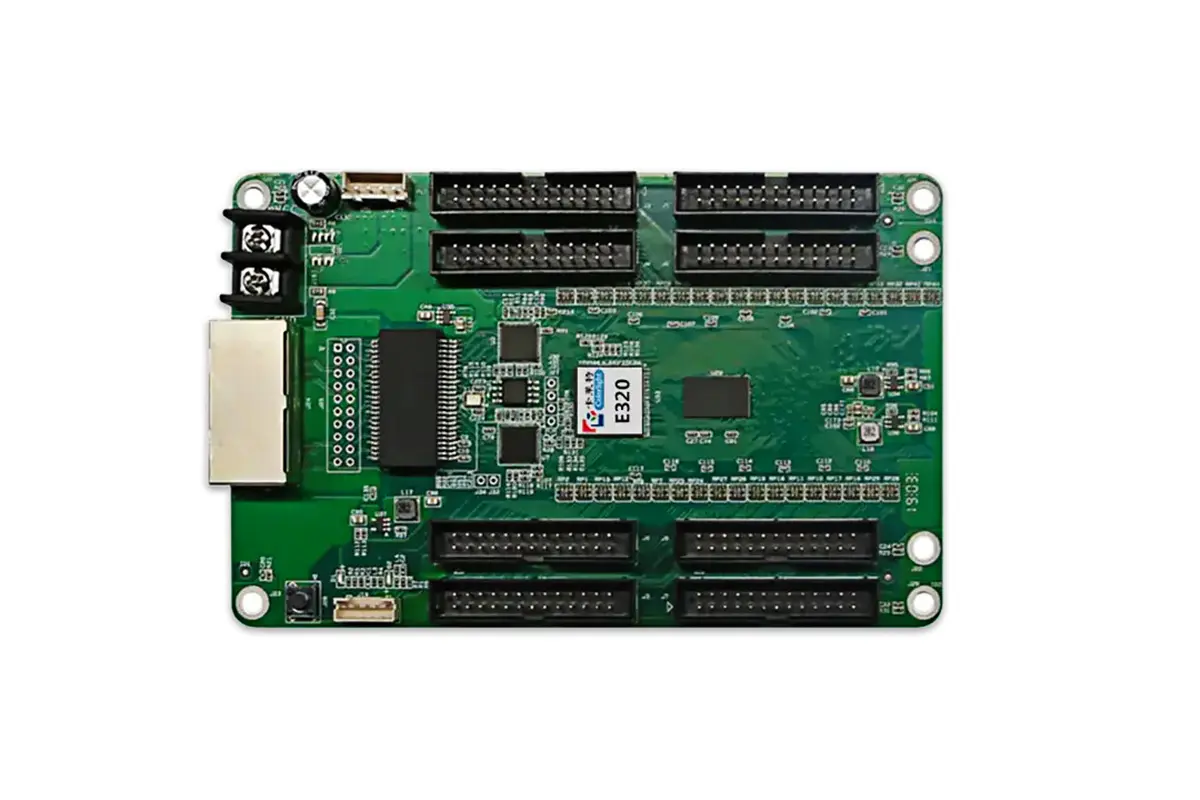
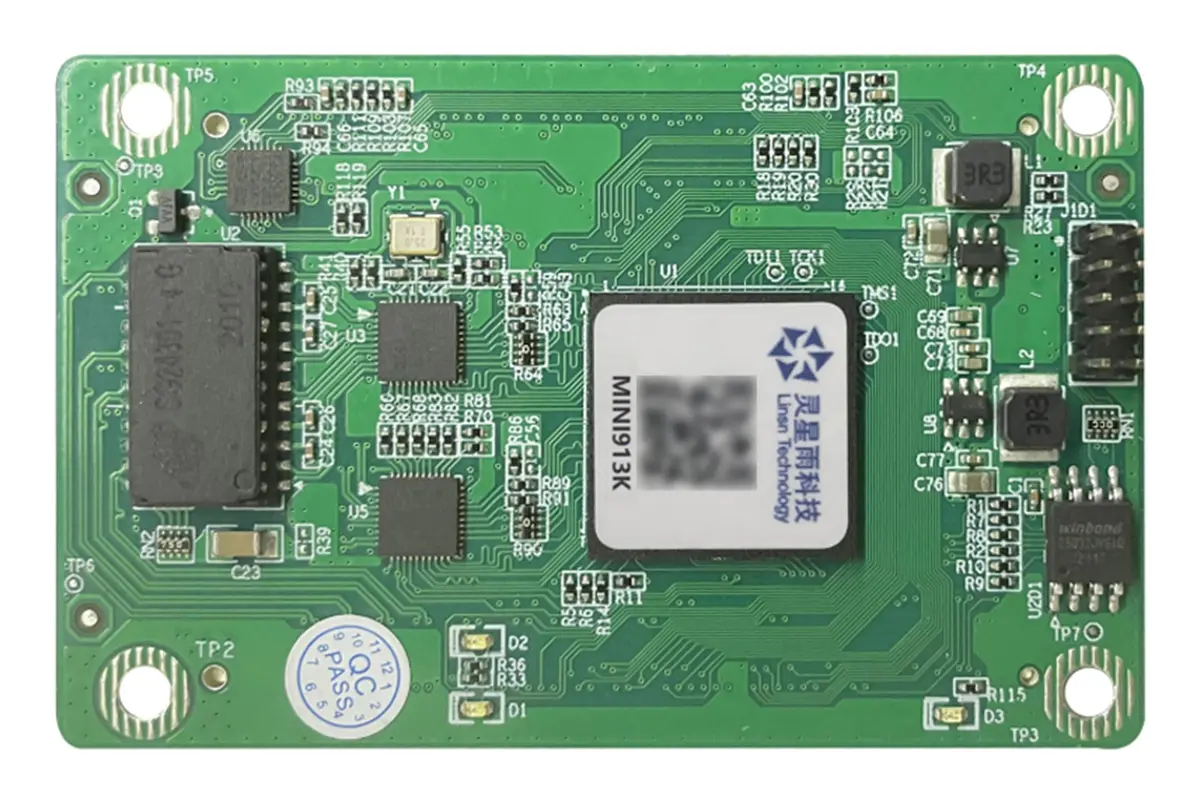
Data groups are the parallel RGB channels the card drives. More groups means each group scans fewer pixels, which usually raises the achievable refresh rate. The Colorlight E320 and Linsn Mini913K drive 32 RGB data groups; the Mini913K can also run 64 serial groups.
Scan mode describes how many rows are lit at once – a 1/16-scan module lights one row in sixteen at any instant. Always match the card to the module rather than assuming compatibility.
| Interface | What it connects | What to check before you power up |
|---|---|---|
| Gigabit Ethernet ports | Sending card, and cascaded receiving cards | Input/output order; whether loop backup is wired |
| HUB75 / HUB75E outputs | LED modules (RGB data, clock, latch, OE, line decode) | Correct data group, scan mode, ribbon orientation |
| Power connector | DC power supply | Follow the exact model wiring, connector, polarity and supply instructions |
| Test / self-test button | On-board diagnostics, no PC needed | Follow the card manual; button actions differ by model |
| LCD and sensor ports | Cabinet LCD, temperature, humidity or smoke sensors | Optional; availability differs by model |
| Firmware / parameter port | PC running the control software | Keep firmware and configuration read-back available |
Key Features of a High-Quality LED Receiving Card
Two LED receiving cards can carry identical pixel ratings and still behave very differently on site. The difference lies in refresh rate, grayscale handling, build quality and monitoring.
01. Display Performance Features That Shape Image Quality
Refresh performance. Evaluate the complete cabinet at the required brightness and pixel load. For filmed stages or broadcast work, include a camera test in acceptance rather than treating one refresh specification as a guarantee.
Grayscale and bit depth. Ask which processing modes the controller, receiving card and module driver support together. Inspect dark gradients at the intended brightness; a processing-bit specification does not by itself describe the finished screen.
Calibration. Pixel-level brightness and chroma calibration removes the bright and dark spots that appear across large screens, and multi-batch adjustment reconciles cabinets from different production runs.
02. Reliability, Monitoring and Maintenance Features
Loop backup. The LED receiving card and the controller form a ring through primary and backup lines, so a single cable fault does not blank the screen. Dual program backup keeps a second copy of firmware on board so a failed update cannot brick the card.
Monitoring. Temperature and voltage monitoring, bit-error detection and cable-status reporting turn guesswork into measurable data. The Linsn Mini913K also supports smoke detection, humidity monitoring, cabinet door status and fan speed.
Serviceability. Mapping shows the controller, card and port number on the cabinet, and firmware and configuration read-back let you clone a known-good card instead of rebuilding settings by hand.
| Requirement | Evidence to request |
|---|---|
| Pixel loading | Permitted width, height and total pixels at the intended frame rate, driver IC and scan configuration. |
| Module interface | Connector or HUB-board type, pinout and available data groups. |
| Power and environment | Exact input-voltage range, current, polarity and operating temperature and humidity for this model. |
| Image quality | Test patterns, low-brightness gradients and camera results under the actual operating settings. |
| Service features | Supported monitoring, calibration readback, configuration backup and tested redundancy arrangement. |
How to Choose the Right LED Receiving Card for Your Display
There is no single best LED receiving card, only the one that matches your pixel count, environment and service expectations. Work through the five checks below in order; each narrows the shortlist before you compare price.
01. Step 1: Calculate the Pixel Capacity Your Card Must Drive
Multiply the pixel width by the pixel height of the area assigned to one receiving card. For example, a 128 × 128 pixel cabinet contains 16,384 pixels. Check width, height, data groups, scan mode, frame rate and driver-IC limitations as well as total pixels. A capacity quoted for one IC type or refresh setting may not apply to another.
Use the manufacturer-approved load for the intended operating settings and agree any design margin with the screen supplier. There is no universal percentage that proves compatibility. Verify the complete cabinet on a test setup before ordering a fleet of replacement cards.
02. Step 2: Match the Card to Your Environment
Indoor or outdoor. Outdoor displays need a wide temperature range and sealed cabinets. The Colorlight E320 is specified from –25 °C to +75 °C, while NovaStar and Linsn cards typically operate from –20 °C to +70 °C.
Fixed or touring. Rental screens are handled constantly, so prioritise light, compact cards with reliable connectors. The Linsn Mini913K, at 70.0 × 45.0 × 7.6 mm and 18 g, is built for space-limited cabinets.
Humidity. Coastal sites need 10–90% RH non-condensing at minimum, and some cards reach 0–95% RH. Industrial sites benefit from smoke and voltage detection.
03. Step 3: Evaluate Critical Performance Factors
For camera work, test the actual screen with the intended camera frame rate and shutter settings. LED refresh rate, scan mode, driver IC, source timing and brightness interact; a headline refresh figure alone does not guarantee a clean recorded image. Compare low-brightness grayscale with representative content.
Verify driver IC compatibility too. PWM and common driver ICs have different load limits on the same card: the DH7508-S reaches 512×512 with PWM ICs but 512×384 with common ICs.
04. Step 4: Assess Reliability and Serviceability
Ask how much downtime your screen can afford. Venues that sell advertising, control rooms and stadium displays should insist on loop backup and dual program backup. Consider access as well: a card inside a hard-to-reach facade needs the strongest monitoring, while an indoor wall at eye level can trade diagnostics for cost.
Confirm your team can use the features: mapping and calibration only pay off if someone on site can run NovaStar or Colorlight software.
05. Step 5: Calculate Total Cost of Ownership
The cheapest LED receiving card is rarely the cheapest decision. Add up installation labour (mapping and read-back save hours), expected service calls (monitoring reduces truck rolls), a realistic service life of five to seven years, and the upgrade path. Staying inside one ecosystem keeps cards, sending devices and calibration files compatible.
| Situation | Priority checks | Acceptance evidence |
|---|---|---|
| Like-for-like replacement | Same model and revision, approved firmware, module interface and original cabinet file. | Test the spare with the intended cabinet and confirm saved settings. |
| New indoor or outdoor wall | Cabinet pixel load, supply and thermal design, operating environment and service access. | A complete cabinet test under agreed conditions. |
| Rental fleet | Consistent cabinet revisions, interchangeable tested spares and labelled configuration packages. | Repeatable mapping and replacement procedure for the crew. |
| Filmed stage or broadcast | Complete signal chain, scan mode, brightness and camera timing. | Recorded test using representative content and camera settings. |
| Controller upgrade | Supported sender/receiver combination, firmware and feature dependencies. | Written compatibility confirmation and commissioning test. |
Popular LED Receiving Card Brands Compared: NovaStar, Colorlight and Linsn
Brand choice matters less for the sticker price than for ecosystem fit. Sending cards, LED receiving cards, firmware and calibration files must agree, and standardising on one family simplifies spares and training. Three brands dominate.
01. NovaStar LED Receiving Cards
NovaStar offers several receiving-card families. Compare the exact model and revision with its specification and supported controller workflow. The DH7508 handles 256×256@60Hz and the DH7508-S reaches 512×512@60Hz with PWM driver ICs. Both use eight HUB75E connectors, support up to 16 groups of parallel RGB data, and add loop backup, dual program backup, temperature and voltage monitoring and mapping 1.1.
The strongest argument is the ecosystem: senders, processors and cards share one toolchain. Details are in the DH7508 specification and the DH7508-S specification.
02. Colorlight LED Receiving Cards
The Colorlight E320 is an option within a supported Colorlight control system. Check the current specification for point-by-point brightness and chroma calibration, low-brightness grayscale control, seam compensation, hot backup and network cable monitoring. It drives 32 groups of RGB data, runs on a wide DC 3.3–6 V input and operates from –25 °C to +75 °C.
Published Colorlight documents list a 512×384 pixel load for the original specification, while later revisions document up to 256×1024 pixels, so confirm the figure for the exact revision you buy.
03. Linsn LED Receiving Cards
Linsn occupies the ultra-compact niche. The Mini913K is a full-featured mini receiver card built on a high-density BTB connector, measuring only 70.0 × 45.0 × 7.6 mm and weighing 18 g, yet it still supports 512×512 pixels, 32 RGB data groups or 64 serial groups, and an 18-bit signal processor with up to 260,000 gray levels per colour.
Its monitoring list is unusually deep for the size: temperature, humidity, voltage, smoke, door status and fan speed, plus faulty-pixel detection, cable BER testing and hot backup. See the Mini913K specification for the full pinout.
| Specification | NovaStar DH7508-S | Colorlight E320 | Linsn Mini913K |
|---|---|---|---|
| Maximum load | 512×512@60Hz (PWM IC) 512×384@60Hz (common IC) |
512×384 px (V2.1); 256×1024 px later revisions |
512×512 px |
| Data output | 8 × HUB75E, up to 16 parallel RGB groups | 32 parallel or 32 serial RGB groups | 32 RGB or 64 serial groups |
| Grayscale | Individual RGB gamma adjustment | Up to 65,536 levels | 18-bit, up to 260,000 levels per colour |
| Input voltage | DC 3.8 – 5.5 V | DC 3.3 – 6 V | DC 4.5 – 5.5 V |
| Rated power | 0.5 A / 2.5 W | 0.6 A / 3 W | 2.5 W |
| Operating temperature | –20 to +70 °C | –25 to +75 °C | –20 to +70 °C |
| Size / weight | 95.5 × 109.0 × 19.4 mm / 72.4 g | 143.64 × 91.69 mm / 100 g | 70.0 × 45.0 × 7.6 mm / 18.0 g |
| Standout features | Calibration, mapping 1.1, loop and dual program backup | Calibration on a budget, hot backup, wide voltage | Smoke, humidity, voltage and door monitoring |
| Best suited to | High-end indoor and broadcast | Cost-driven fixed installation | Fine pitch and space-limited cabinets |
How to Install and Configure an LED Receiving Card
Most installation failures come down to power and cabling, not the card itself. Follow these steps in order and the first power-up is usually uneventful.
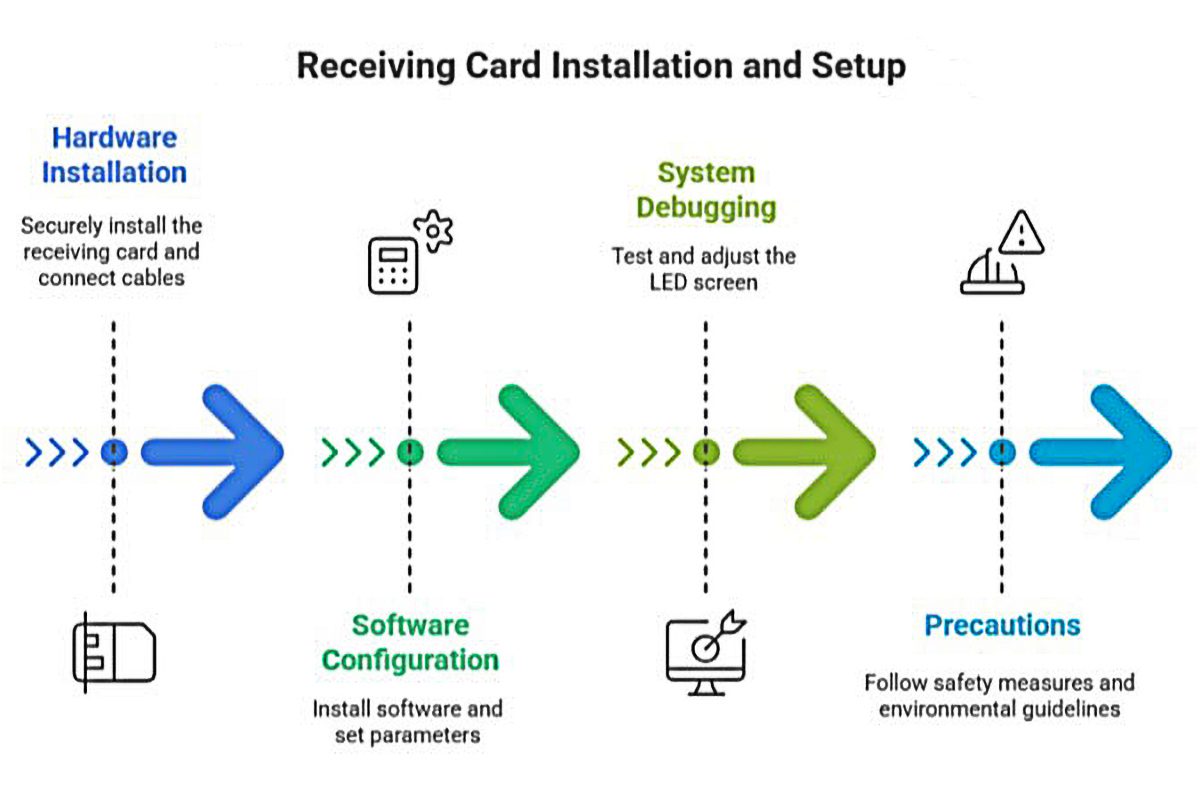
01. Pre-Installation Checklist
Confirm the card suits your module type and driver IC (PWM or common), and that its load capacity covers the cabinet with headroom. Photograph the wiring before you unplug anything, then gather small screwdrivers, cable ties, a multimeter and the correct DC supply. Note the input voltage range: DC 3.8–5.5 V for a DH7508-S, 3.3–6 V for a Colorlight E320 and 4.5–5.5 V for a Linsn Mini913K.
02. Installation Process
Mount the card. Secure it behind the module using the mounting holes. Do not overtighten, and keep the board clear of metalwork.
Connect power. Attach the DC supply and use only one power connector, even when the card offers two; bridging power sources is a common and avoidable cause of failure.
Connect the network. Run Ethernet from the sending card to the input port, then cascade output to the next card. Where loop backup is available, wire the return path too.
Connect the panels. Attach the HUB75 ribbon cables, matching each data group and the orientation in the datasheet, then fit the cabinet LCD or any sensors your model supports.
03. Configuration Steps
Power the LED receiving card first, then apply signal. On NovaStar cards, a green LED flashing once per second means the card is running normally with a valid source, and the red power indicator should stay lit.
Launch the control software, let it detect the cards, then set the screen layout, cabinet size, data group mapping and scan mode. Run a test pattern, upload calibration coefficients and save the configuration so you can read it back later. Record each cabinet’s card number and Ethernet port so future service calls start from a known baseline.
Troubleshooting an LED Receiving Card: Symptoms, Causes and Fixes
The LED receiving card is the easiest part of the system to diagnose, because most failures announce themselves through the indicator LEDs or a clearly bounded area of the screen. Work from symptom to cause before replacing hardware.
01. Reading the Indicator Lights
The running indicator follows the same convention across the NovaStar DH7508 family. Green flashing once every second means the card is healthy with a valid video source. Flashing every three seconds points to an abnormal Ethernet connection. Three flashes every half second means the cable is fine but no video source is present. Flashing every 0.2 seconds means the card fell back to its backup program. Eight flashes every half second confirms a redundancy switchover, so loop backup is holding the screen.
| Symptom | Likely cause | What to do |
|---|---|---|
| One cabinet or data group stays dark | Loose HUB75 ribbon cable or wrong data group | Reseat the ribbon and verify data group mapping |
| Green indicator flashes every 3 seconds | Ethernet connection abnormal | Re-terminate or reseat the RJ45 cable, check the port |
| Green indicator flashes 3 times every 0.5 s | Cable fine, no video source | Check the sending card, source and processor output |
| Green indicator flashes every 0.2 s | Application program failed to load | Use the backup program and re-flash the firmware |
| Green indicator flashes 8 times every 0.5 s | Redundancy switchover, loop backup active | Find and repair the fault on the primary line |
| Screen flickers on camera | Refresh rate too low for the capture device | Test refresh, scan mode, brightness and camera shutter together; confirm supported settings before changing them |
| Brightness varies between cabinets | Calibration coefficients missing or stale | Re-upload calibration coefficients to the affected cards |
| Bright or dark line at cabinet seams | Splice differences between modules | Apply quick adjustment of dark or bright lines |
| Pixel errors on long cables | Signal integrity or cable length | Check the permitted cable type and distance for the exact sender/receiver system; test the installed link or specify a supported optical path |
02. Preventive Maintenance That Extends Card Life
Back up configurations and calibration files after every commissioning, and keep a spare card of the same model and firmware on site. Clean cabinet filters, check ribbon cables for chafing, and review temperature and voltage logs each quarter. Devices on the same screen should always run matching firmware, because mixed versions cause intermittent faults that are hard to trace.
Frequently Asked Questions About LED Receiving Cards
These are the questions buyers ask most often when specifying a card.
Replacement checks and quotation details
Before replacing a card, isolate cabinet power according to the equipment procedure and record the wiring, model and hardware revision. Retain the original receiving-card configuration and calibration information. Confirm the replacement with the cabinet supplier; a connector that physically fits does not establish electrical or protocol compatibility.
Test an approved spare in one cabinet, check normal content and test patterns, then save the correct configuration and verify it after an agreed restart. Record the accepted firmware and file names with the cabinet revision so the next service visit can repeat the process.
Keep the existing sending and receiving system compatible. Compare exact models and revisions rather than assigning one brand to a price or quality category. Check the current manufacturer document, the module interface and the configuration workflow for each quotation.
For a receiving-card or LED wall quotation, send the card label and both sides of the board, cabinet and module model, driver IC, scan mode, pixel dimensions, sender model and original configuration file if available. State whether you need a like-for-like spare or a new control-system design. Ask the supplier to identify the exact model, revision, included configuration and support scope.
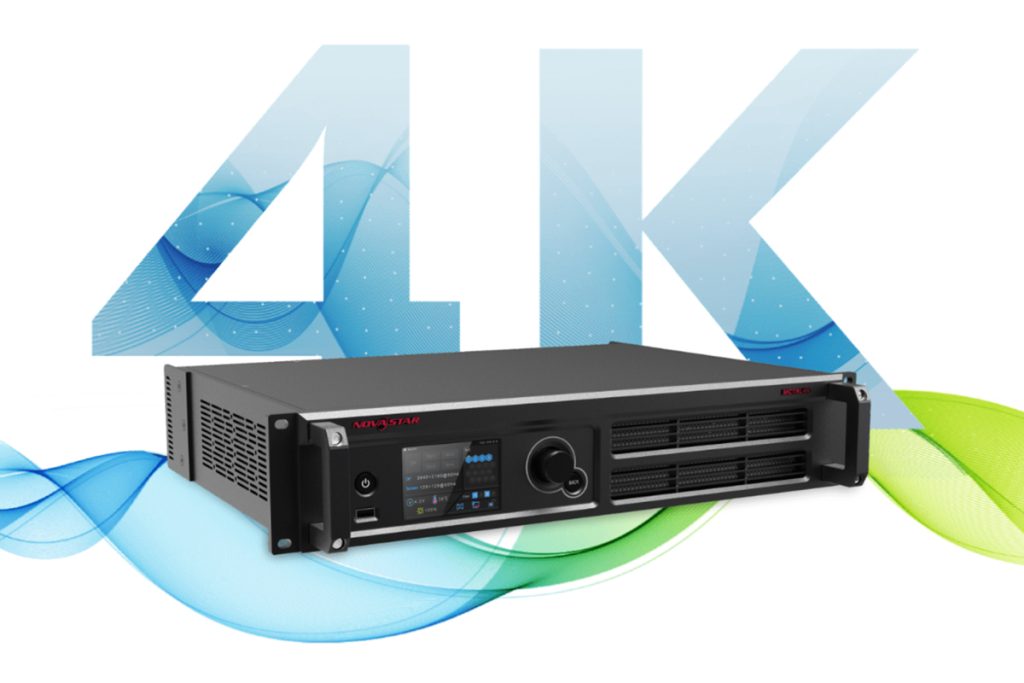 Novastar MCTRL4K LED Controller - Ultimate Guide & Setup Tips
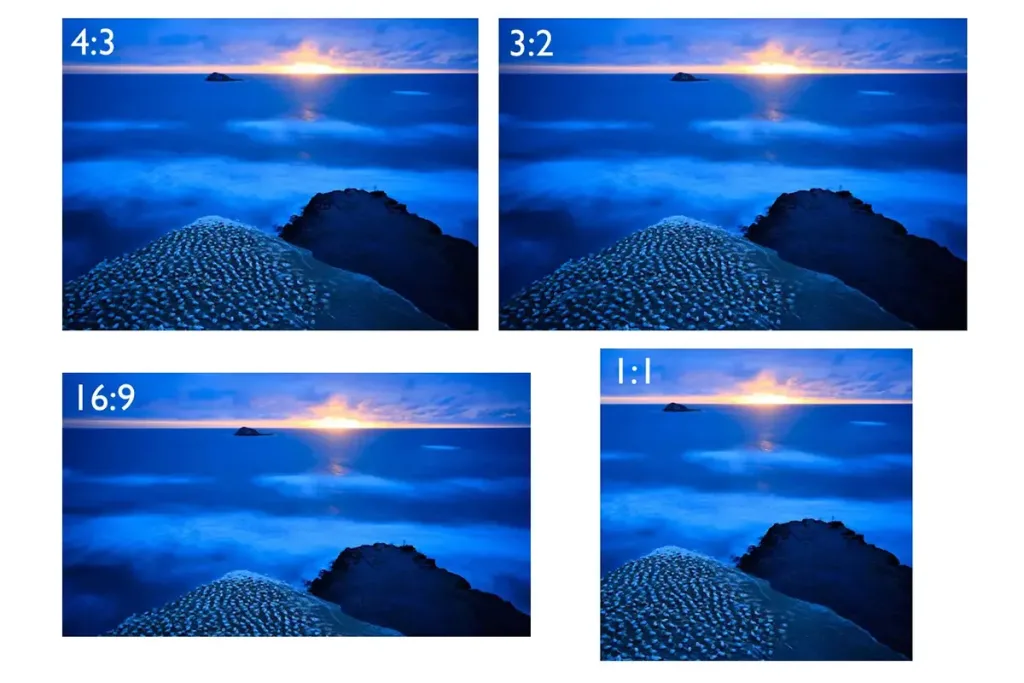 Why 16:9 Aspect Ratio Is the Global Standard For Every Screen?