An LED video processor is the signal-processing device that sits between your video sources and your LED display. It accepts HDMI, DisplayPort, DVI, SDI or IP video, scales and de-interlaces it, corrects color and brightness, positions the picture in one or more windows, and hands the finished frame to the LED controller or sending card that drives the cabinets.
LED walls are built from cabinets and modules, so the picture must be mapped onto a pixel grid that never matches a broadcast standard – and that mapping is the core job of the LED video processor. When a screen shows black frames, a stretched picture, a heavy color cast or flicker on camera, the processor and its settings are the first things to check.
Quick answer: choose an LED video processor by matching four numbers and one workflow – total pixels on the wall, the input formats you must support, the refresh rate your content requires, the layers or windows you need, and the control software your team already uses. Brand, price and form factor follow from those five decisions.
1. What Is an LED Video Processor?
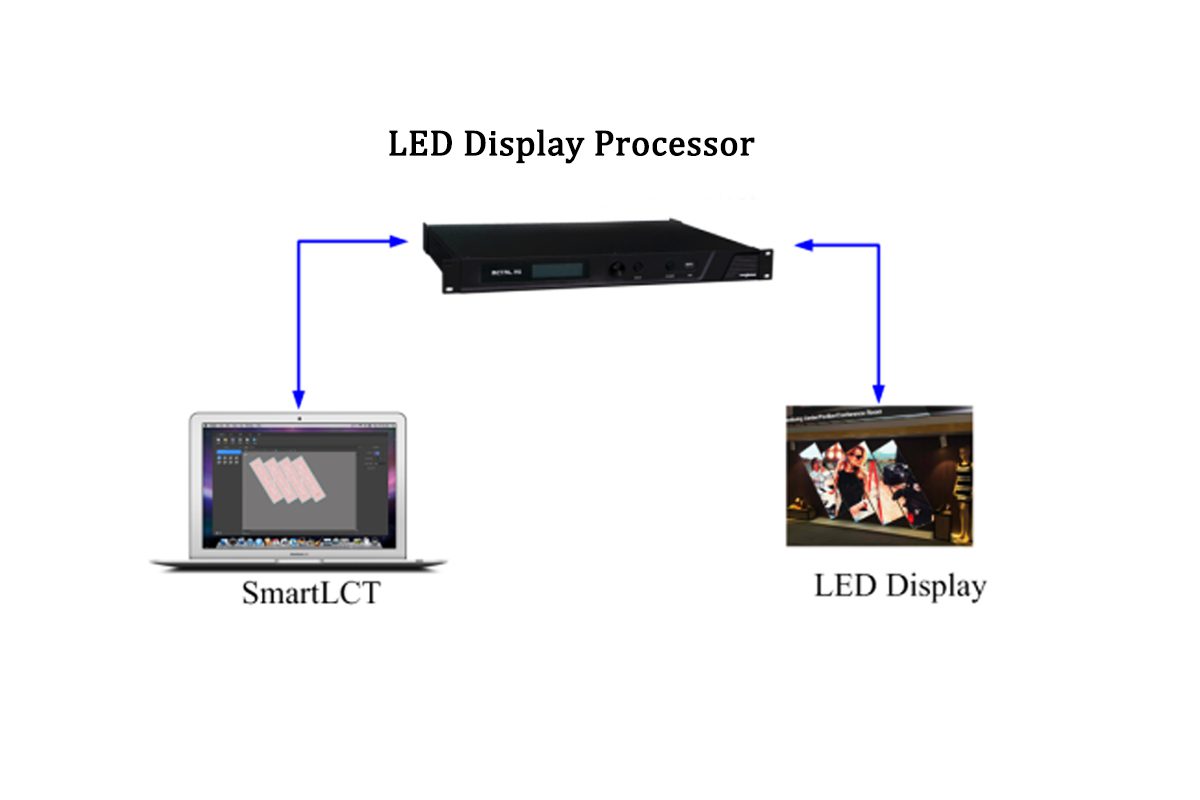
An LED video processor – also sold as an LED video wall processor, video wall processor or LED wall processor – is a dedicated signal-conversion and image-processing device for LED displays. It converts standard video into pixel-accurate data an LED screen can display, and maps the incoming image onto the physical pixel grid of the wall. In a typical system it is the brain, the LED controller or sending card is the translator, and the receiving cards inside the cabinets are the muscle.
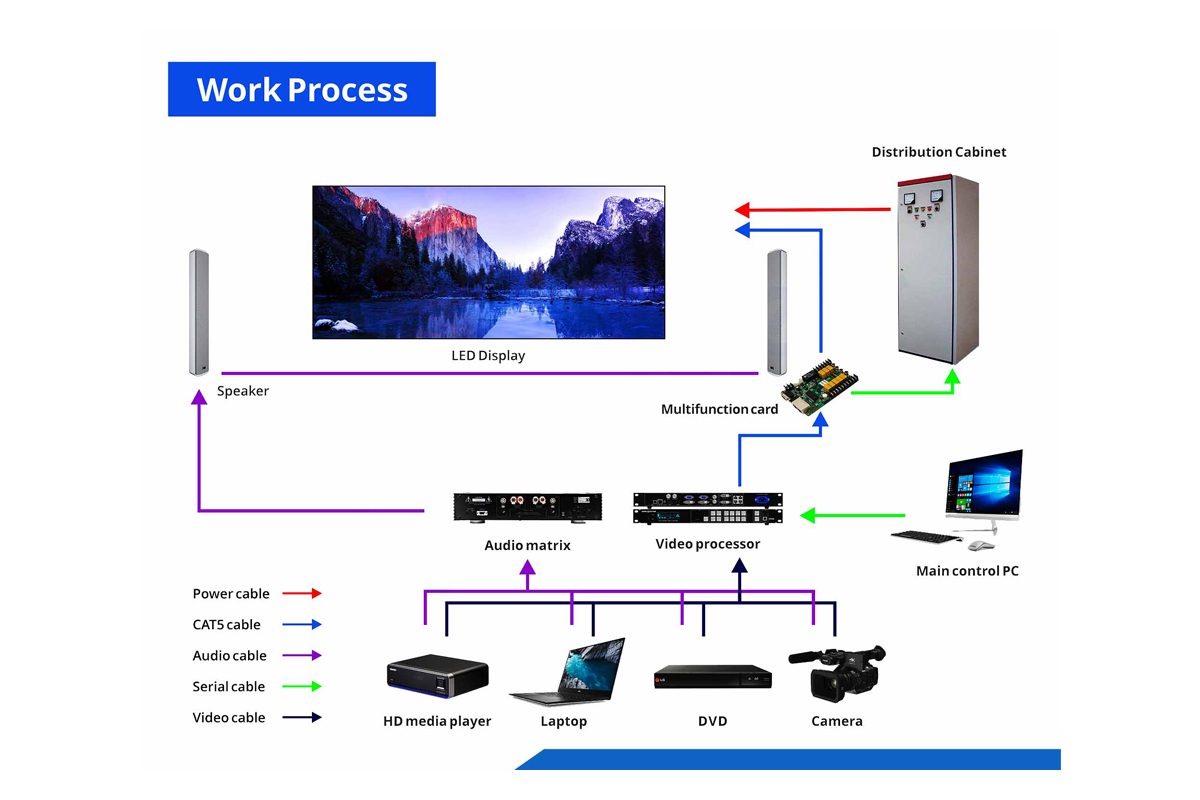
01. How an LED Video Processor Processes a Signal
Every LED video processor works through the same five stages, whatever the brand or price:
- Input capture and handshake. The processor locks onto the incoming timing and negotiates HDCP where protected content is used; a failed handshake is the usual cause of a no-signal message.
- Scaling and de-interlacing. The source is resized to the native resolution of the wall, upscaled from 1080p or downscaled without cropping content.
- Color, gamma and bit-depth processing. Brightness, contrast, saturation, hue and gamma are corrected here, removing the cast cameras produce under mixed lighting.
- Layer and window management. Inputs are placed in layers such as main layer, PIP or PBP windows, then sized and positioned to cabinet boundaries.
- Output to the LED control system. The finished frame is sent over Gigabit Ethernet, fiber or a direct output to the sending card or receiving cards.
02. LED Video Processor vs LED Controller vs Sending Card
These devices are routinely confused, and buying the wrong one is an expensive mistake.
| Device | What it does | Typical examples | What to check before buying |
|---|---|---|---|
| LED video processor | Captures, scales, corrects and layers video, then outputs a mapped image | NovaStar VX600 Pro, VX1000 Pro, Colorlight X8m, Huidu HD-VP1240A | Pixel capacity, inputs, layers, scaling |
| LED controller or sending card | Distributes the processed image to receiving cards in the cabinets | NovaStar MCTRL660 Pro, MSD300 | Loading per port, output count, redundancy |
| Receiving card | Drives the LEDs in each cabinet and stores its calibration data | NovaStar DH7512, A8s series | Scan modes, cabinet size, firmware version |
| All-in-one controller | Combines processing and sending in one chassis | NovaStar VX400 Pro, TU4K Pro | Pixel budget, output type, backup options |
The short version: the LED video processor decides what the picture looks like, and the controller decides how it reaches the screen. Our comparison of a video wall processor and a controller covers that boundary in more detail.
03. Which Display Problems an LED Video Processor Fixes
- A soft or cropped picture. Native LED resolutions such as 2048 x 512 or 2560 x 1440 cannot be fed directly by a 1080p or UHD source.
- Wrong colors on camera. Gamma and bit-depth correction make the wall look right on broadcast.
- Flicker and banding. A refresh rate matched to the camera removes dark scan bands.
- Black screens after a source change. Stable EDID handling keeps the wall alive when a laptop or switcher is swapped mid-event.
- No way to show two sources at once. Only a processor with layers or PIP windows can place a camera feed and a slide deck on the same wall.
2. How to Choose the Right LED Video Processor
Work through the five decisions below in order, and the shortlist becomes small enough to compare on paper.
01. Step 1: Calculate the Pixel Load and Output Resolution
| Display resolution | Total pixels | Typical use | Selection note |
|---|---|---|---|
| 1280 x 384 | 0.49 MP | Banner or fascia display | Entry processors handle this on one output port |
| 1024 x 768 | 0.79 MP | Small indoor wall or meeting room | Check aspect-ratio handling for 4:3 sources |
| 1920 x 1080 | 2.07 MP | Retail or conference wall | One 1080p output path is usually enough |
| 2048 x 512 | 1.05 MP | Two-cabinet-high stage wall | Used in the walkthrough below |
| 2560 x 1440 | 3.69 MP | Large indoor wall, control room | Check the total pixel budget, not the input |
| 3840 x 2160 | 8.29 MP | 4K wall or dual 4K system | Needs a 4K-capable pixel budget |
Add up every pixel on the wall and keep at least 20 percent headroom. Input capability and output loading capacity are separate budgets: a processor that accepts a 4K input does not automatically drive a native 4K wall, which is the most common specification error in LED projects.
02. Step 2: Match Input Ports to the Sources You Really Have
Count the devices that must reach the wall, then check bandwidth rather than connector shape.
| Port | Practical 60 Hz limit | Best used for | Watch out for |
|---|---|---|---|
| HDMI 1.4 | 1080p, or 4K at reduced frame rates | Media players, laptops, legacy switchers | Not a true 4K 60 Hz path |
| HDMI 2.0 | 4K 60 Hz at 8-bit | Modern players and computers | HDR and 10-bit reduce bandwidth |
| HDMI 2.1 | 4K 120 Hz and 8K formats | High frame rate rigs | Confirm the device accepts the full timing |
| DisplayPort 1.2 | 4K 60 Hz | Workstations and control room PCs | Not offered on every model |
| 3G-SDI | 1080p 60 Hz | Broadcast and long camera runs | Plan 12G-SDI for UHD |
| 12G-SDI | 4K 60 Hz | Studio and live event UHD | Needs matched cable grade |
| Optical or 10G | Device dependent | Long-distance and redundant links | Confirm whether it sends, receives or both |
03. Step 3: Set Refresh Rate, Bit Depth and HDR Targets
Refresh rate is a content decision, not a specification race.
| Application | Target refresh rate | Why it matters |
|---|---|---|
| Advertising and signage | 1920 Hz and above | Stable to the eye at normal viewing distance |
| Stage, studio and broadcast | 3840 Hz and above | Removes dark scan bands on camera |
| HDR and high frame rate production | 7680 Hz and above | Keeps HDR highlights stable at high shutter speeds |
Bit depth matters as much as refresh rate: an 8-bit path shows banding in gradients, while 10-bit or 12-bit processing keeps slow fades smooth. For HDR work, confirm that the source, the LED video processor and the screen support the same standard.
04. Step 4: Confirm Software, Backup and Remote Management
Software decides how quickly your team can set up and recover the system. Confirm which LED video processor software handles configuration and calibration, that it runs on your operating system, and whether these features are present:
- Presets and scene recall to restore a show in seconds.
- Backup and hot-swap paths – dual inputs, outputs or power – for a failure mid-event.
- Monitoring of input status, temperature and cabinet health.
- Remote access where screens are scattered or unmanned.
05. Step 5: Match the LED Video Processor to the Project
| Project type | What the processor must do | Indicative market range |
|---|---|---|
| Meeting room, small indoor wall | Reliable scaling and simple operation | Roughly 300 to 800 USD |
| Stage and rental events | Fast switching, presets, multiple layers, rugged chassis | Roughly 1500 to 4000 USD |
| Broadcast and control room | Low latency, SDI inputs, redundancy, 4K paths | Roughly 3000 USD and above |
These bands are for planning, not quotations: port count, redundancy and software licensing move the price more than pixel capacity.
3. LED Video Processor Brands and Models Compared
Once the requirements are clear, the shortlist usually falls to three or four brands. NovaStar dominates LED-specific processing, Colorlight competes strongly on value and rental workflows, and Huidu, Linsn and Vunit fill specific niches.
01. NovaStar: All-in-One and Distributed LED Video Processors
NovaStar builds processors specifically for LED displays rather than adapting broadcast hardware. The range covers the compact NovaStar VX600 Pro class for smaller walls, the NovaStar VX1000 Pro video wall controller for mid-size events, the NovaStar TU4K Pro LED processor for 4K workflows, and the NovaStar MG Series distributed processors for installations that spread processing across nodes.
For splicing and control rooms, the NovaStar H20 video wall splicer and NovaStar H2 video processor handle multi-input, multi-window work, while the NovaStar HDR Master 4K video processor is the HDR specialist. All share one software family – NovaLCT, V-Can or Unico – so one technician can support the whole fleet. See our NovaStar processors overview.
02. Colorlight, Huidu, Linsn and Vunit Alternatives
Colorlight models such as the Colorlight Z5 controller and the Colorlight X8m and X12m family deliver strong pixel capacity for the price in rental and commercial projects. Huidu covers budget and signage work with devices such as the HD-VP1240A LED video processor, and Vunit targets command-center projects with the Vunit 3000 control processor. The practical difference is ecosystem depth: NovaStar has the widest coverage and documentation, while Colorlight often wins on value per pixel.
03. How to Compare Two Shortlisted Models
| Check | Requirement for this project | Why it decides the purchase |
|---|---|---|
| Output pixel budget | Total wall pixels plus 20 percent headroom | Prevents the most common specification error |
| Input formats | Every source in the show, plus spares | A missing port means an extra converter on site |
| Layer and window resources | Peak number of simultaneous windows | Determines whether the layout is possible at all |
| Refresh and bit depth | Matched to camera or HDR needs | Controls flicker and banding in filmed content |
| Redundancy | Dual input, output or power where downtime is unacceptable | Turns a failure into a switchover, not a blackout |
| Software and firmware | Known to your team, with an update path | Setup speed and long-term supportability |
Any model that fails a mandatory row is out, regardless of price.
4. How to Install an LED Video Processor
Installation is mostly about connections and sequence. The device itself is rarely the problem; the cable path and the order of operations usually are.
01. Pre-Installation Checklist
- The native resolution of the display. Record the exact cabinet grid in pixels, for example 2048 x 512, not just the size in meters. Our LED screen resolution guide explains how to derive it.
- The input devices and cable types that will feed the processor, including any laptop connected during the event.
- The control software installed and tested on the technician’s laptop before travel.
- A network plan for the control path between processor, sending card and receiving cards.
- Spare cables of the correct grade – 18 Gbps HDMI, 12G-SDI or Gigabit Ethernet as required.
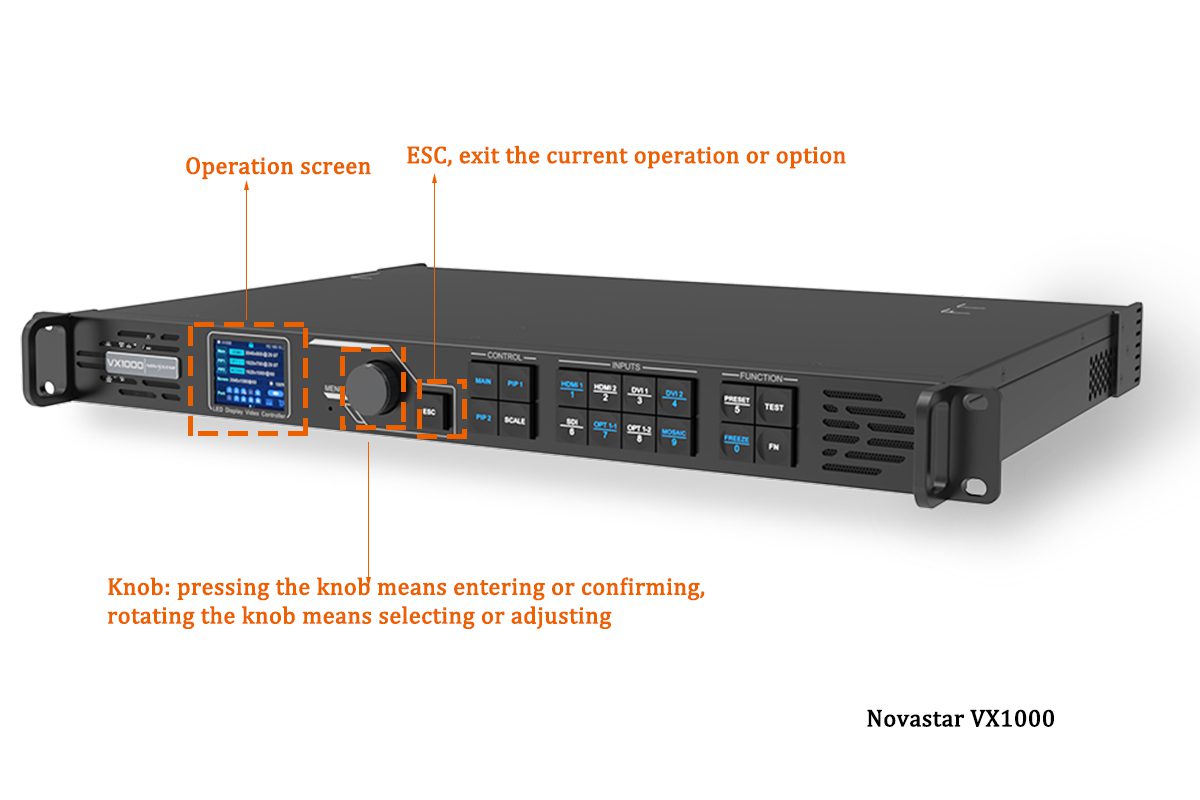
02. The Four Connections That Must Be Correct
1. Video input. Connect the source by HDMI, DVI, DP or SDI using a cable rated for the bandwidth: a 4K 60 Hz signal on an under-rated HDMI cable drops out intermittently instead of failing cleanly.
2. Output to the LED control system. The processor output feeds the LED controller or sending card. If the processor has a built-in sending card, connect it straight to the receiving cards over Gigabit Ethernet; if not, the signal must pass through an external sending card first. Our guide to the LED control system explains the chain, and the LED receiving card article covers what happens inside the cabinet.
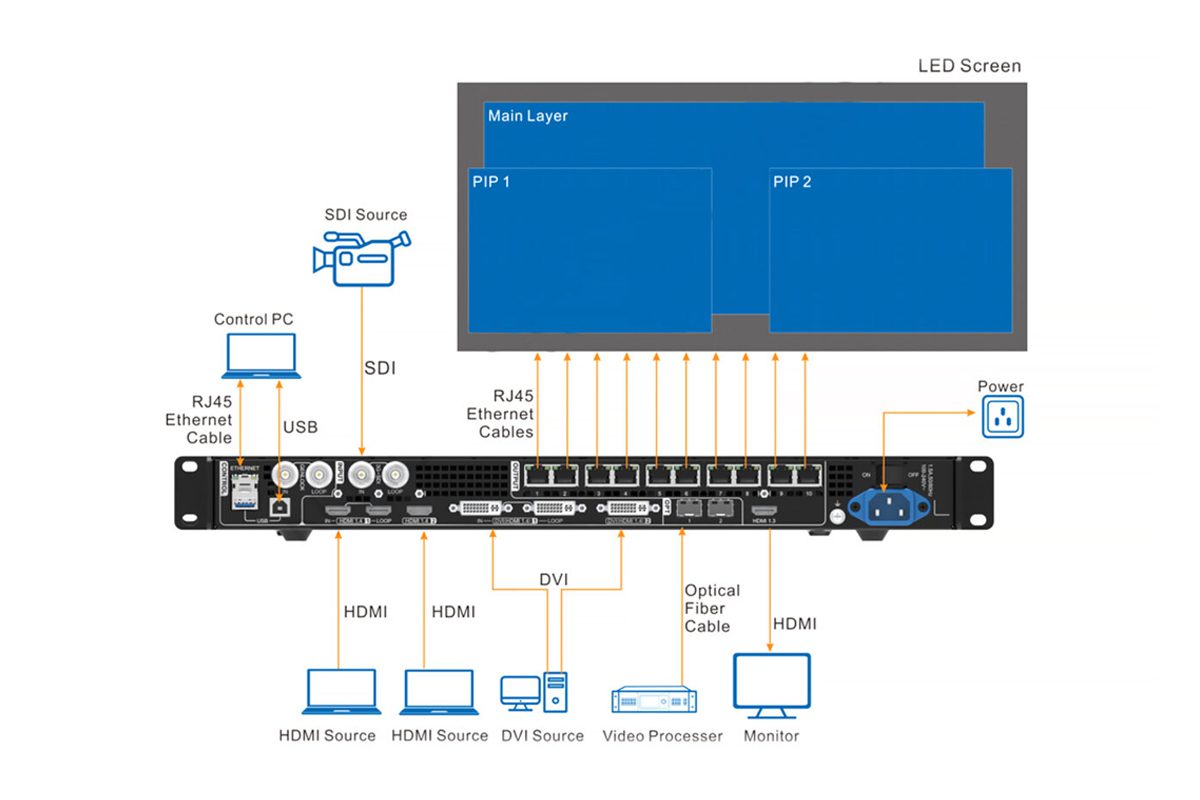
3. Power. Feed the processor, sending card, receiving cards and screen from a stable supply, and switch on in that order – processor first, controller second, display last. Feeding cabinets before the control system produces random black modules.
4. Control and network. Connect the laptop running the LED video processor software over USB, Ethernet or Wi-Fi. In a permanent installation, put the processor on the site network so operators can reach it remotely.
03. Wiring Rules That Prevent Black Screens
- Keep runs within specification. Copper HDMI is reliable to roughly 10 to 15 meters; beyond that use active optical HDMI, fiber or SDI.
- Match the sending card to the load. Spread cabinets across output ports and leave headroom on each one; a card such as the NovaStar MCTRL660 Pro should never run at its theoretical maximum.
- Label both ends of every network run. Most supposed output failures are mis-plugged Ethernet connections.
- Test with a known-good 1080p source before introducing the show computer.
- Record the working configuration – port assignments, cabinet map and presets – before the screen leaves the workshop.
5. How to Configure and Control a Video Wall Processor
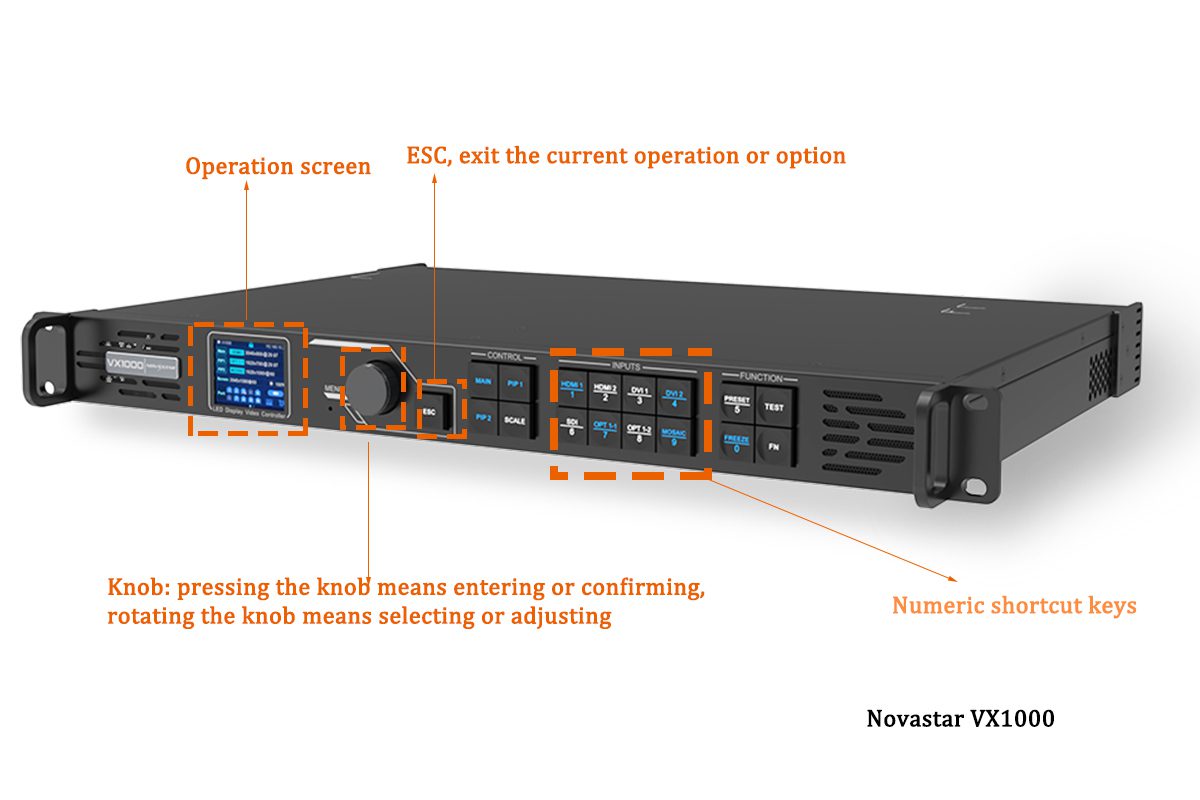
Configuration follows a fixed order: output first, then input, then layers, then color. Whether you work from the panel, from PC software such as NovaLCT, or in auto-play mode, changing that order is why systems get configured twice. The walkthrough below uses a NovaStar VX1000-class unit, but the logic is the same on any video wall processor.
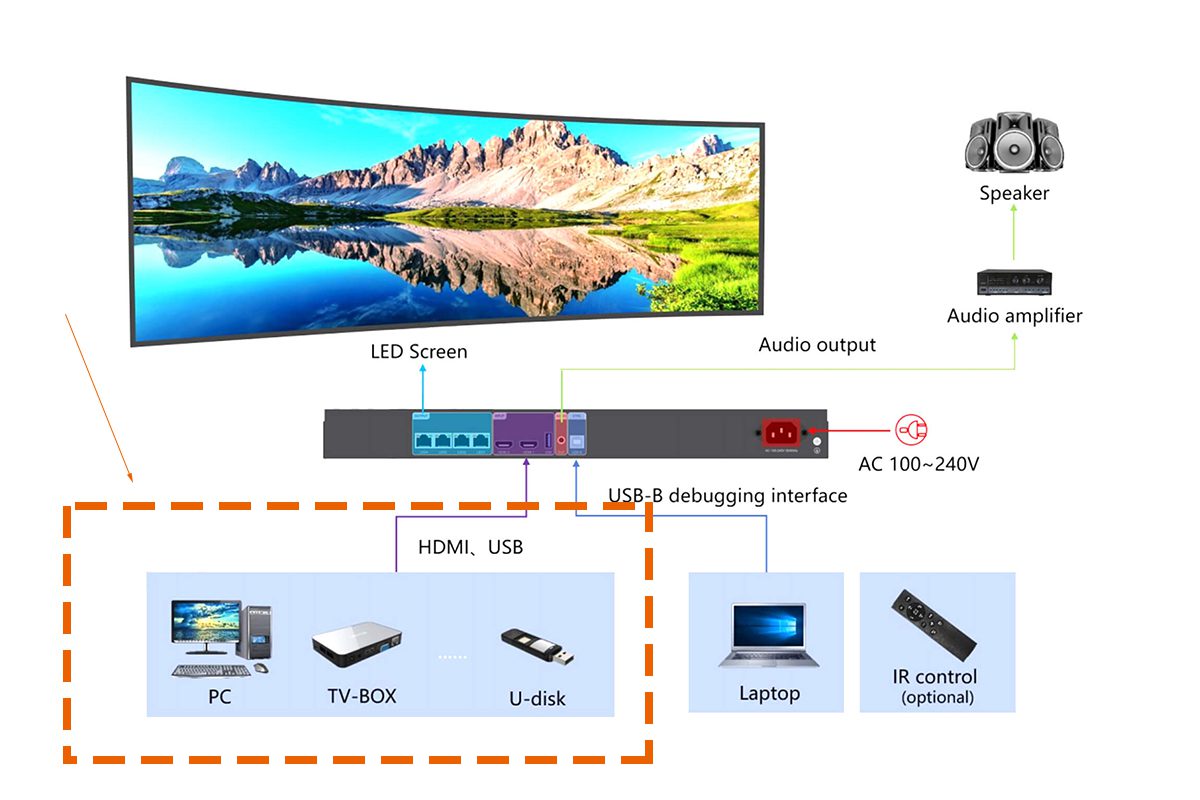
01. Set the Output Resolution and Pixel Mapping
For a wall with a real resolution of 2048 x 512 pixels:
- Set the language in the main menu so menu items are unambiguous.
- Set the output width and height. Enter the main layer and set the horizontal width to 2048 and the vertical height to 512, using the shortcut keys to move between digits.
- Verify against the cabinet map. The value you enter is the physical pixel grid, not the source resolution. Map each section separately on multi-section walls.
- Save the resolution as a preset so the show can be recalled instantly.
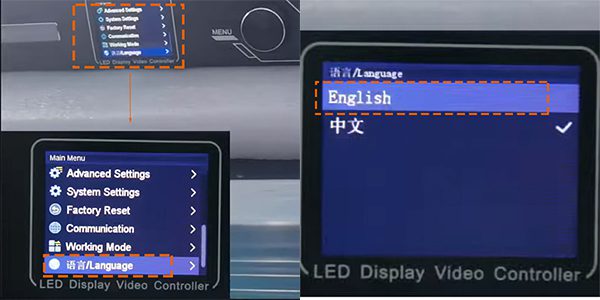
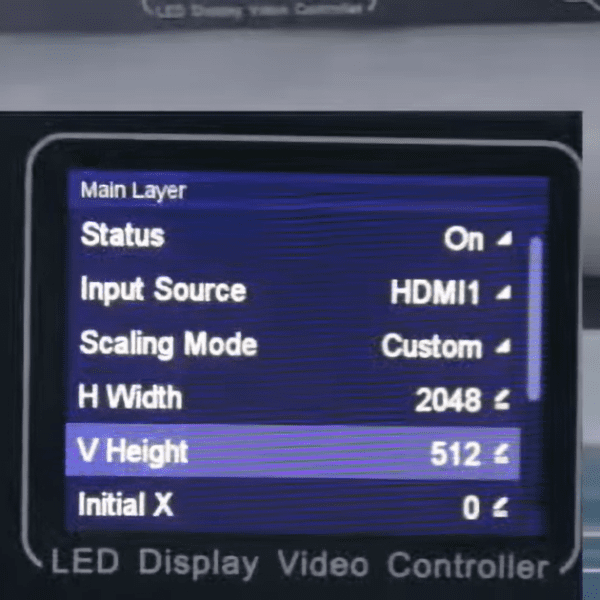
If the picture is complete but slightly soft, the source is being scaled: move the source resolution closer to the wall resolution and compensate with the processor’s scaling controls rather than inflating the wall resolution.
02. Build a Two-Window Layout
To place two 1024 x 512 sections side by side on one wall:
- Set the main layer window to 1024 x 512.
- Create a second window, select PIP1, set width 1024 and height 512, then set the initial X position to 1024 so it sits to the right of the main layer.
- Assign different inputs to each window – HDMI for the main layer, DVI for PIP1 – if they must show different content.
- Save the layout as a preset for recall during the event.
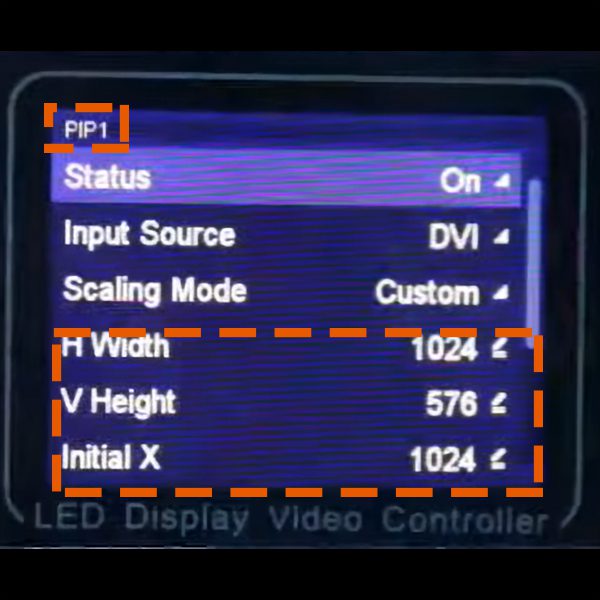
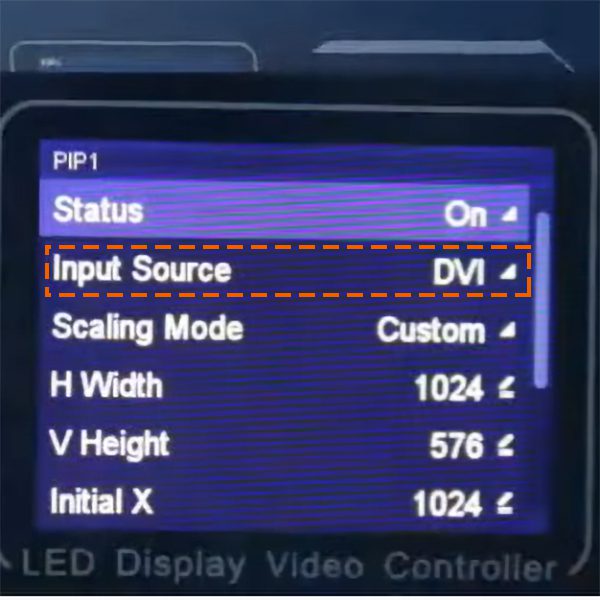
Each window consumes layer resources. A processor with six layer resources cannot deliver six unrestricted 4K windows, so check how the budget is consumed at your working resolution before promising a layout.
03. Adjust Brightness, Color and Calibration
Color work comes after geometry: if you calibrate first and then change the resolution or window layout, you will usually start again.
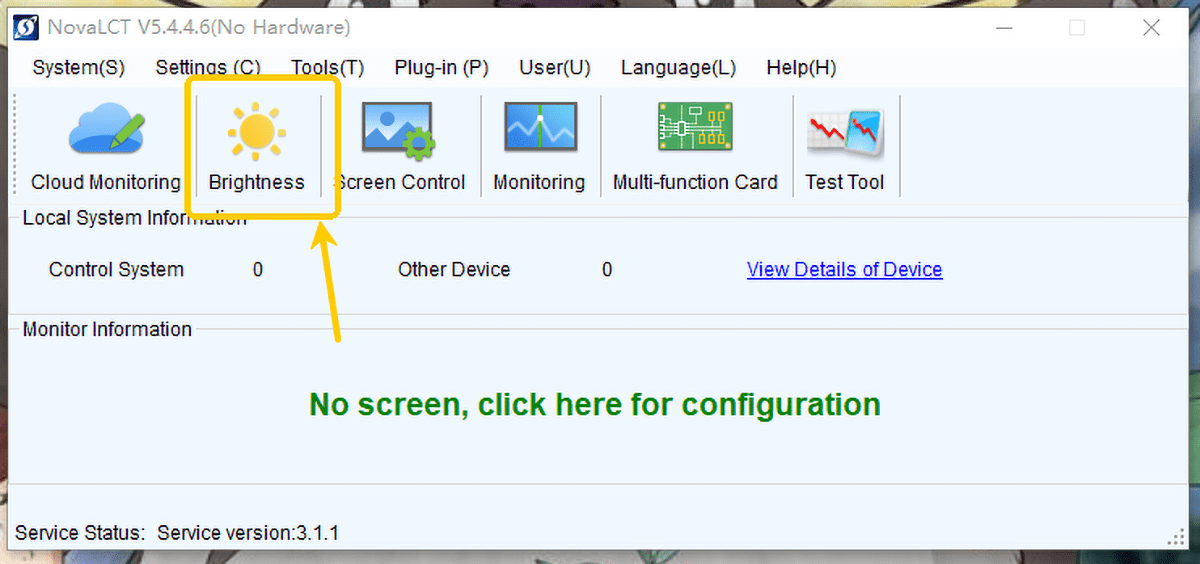
- Enter the main menu and open the input settings, then select the input source to tune – HDMI, DVI or SDI.
- Set brightness, contrast and saturation between 0 and 100 with 50 as the working default, and hue between -180 and +180 with 0 as the default.
- Limit screen brightness to the ambient light level; an over-bright wall loses contrast and ages faster.
- Record every value in the commissioning sheet so a replacement unit can be matched.
04. Compare Control Methods
Most sites use more than one control method. Choose the primary method by who operates the screen daily.
| Method | Best for | Strengths | Limits |
|---|---|---|---|
| Panel buttons and knobs | Small stage, temporary exhibitions | No computer needed, fast on-site changes | Slow for complex layouts, no record of changes |
| PC software | Events, control rooms, signage networks | Precise parameters and batch configuration | Needs a trained operator and a compatible laptop |
| Auto-play mode | Unattended signage and fixed installations | Runs content without an operator | Not suitable for live switching |
| Network and remote control | Distributed or unmanned screens | Remote monitoring, maintenance, cluster control | Depends on network security and stability |
NovaLCT and V-Can are the standard PC tools for NovaStar hardware; the workflow is documented in our NovaLCT guide, and the tools are listed in the LED software library, and the official NovaLCT user manual documents the software itself. Practise on the bench – software is where most first-event delays happen.
6. LED Video Processor Troubleshooting
Most faults fall into three families: no signal, geometry problems and color problems. Work through them in that order and change one variable at a time.
01. No Signal or Black Screen
Check the input resolution against the accepted range, the cable grade and connector seating, the selected input, and the EDID or HDCP handshake with the source. A laptop outputting 4K 60 Hz to a processor limited to 1080p shows nothing until the resolution is forced down. If the input is valid but the wall stays dark, verify the sending card, port assignment and receiving cards.
02. Splicing Misalignment and Sync Problems
Misalignment is almost always a mapping error, not a hardware failure. Compare the cabinet layout in the LED video processor software with the physical build, confirm each cabinet’s pixel position in the map, and check that network runs to cascaded processors are terminated.In multi-processor systems, a lost sync signal appears as tearing between sections – check the genlock path before replacing hardware.
03. Color Cast and Image Quality Faults
A green, magenta or washed-out image points to a pipeline mismatch: calibration, processor color settings, source color space or bit depth. Load the cabinet calibration data, verify the color space against the source, and check whether a long or low-grade cable is dropping color depth. If footage shows banding, raise the refresh rate and match the content frame rate.
| Symptom | Most likely cause | First fix to try | If it persists |
|---|---|---|---|
| No signal, black wall | Input resolution above range or faulty cable | Force the source to 1080p and reseat the cable | Test a known-good source and cable |
| Cropped or stretched image | Wall resolution entered incorrectly | Re-enter width and height from the cabinet map | Verify scaling and aspect-ratio settings |
| Flicker or dark bands on camera | Refresh rate too low for the shutter speed | Raise the refresh rate to 3840 Hz or above | Match the content frame rate to the screen |
| Color cast | Color space or calibration mismatch | Load cabinet calibration and check color space | Shorten or upgrade the signal cable |
| Tearing between sections | Lost sync between processors | Check the sync or genlock cabling | Verify each cabinet’s position in the map |
| Random black modules | Power sequencing or network fault | Re-run the power-on order | Check the dedicated network link and receiving cards |
7. Maintenance, Firmware and Long-Term Reliability
01. Firmware and Software Version Discipline
Record the firmware version of the processor, sending card and receiving cards in the commissioning file, and update them as a matched set. Read the release notes for features you actually need, test on a spare or a single cabinet first, and never update the day before a show.
02. Backups, Presets and Spare Parts
Export the screen configuration, cabinet map, calibration data and presets after every significant change. For critical installations, keep a spare processor and cables of the correct grade: a one-hour cable swap is an inconvenience, a three-day wait for a replacement cancels an event.
8. FAQs
01. What is an LED video processor used for?
It converts HDMI, DisplayPort, SDI or IP video into pixel-accurate data for an LED wall: scaling the picture to the screen’s native resolution, correcting color and brightness, placing inputs in layers or windows, and sending the result to the LED controller or sending card.
02. How much pixel capacity does my LED video processor need?
Add up every pixel on the wall and keep at least 20 percent headroom. Check the output pixel budget and per-port limits separately, because a processor that accepts a 4K input does not necessarily drive a native 4K wall.
03. What is the difference between a video wall processor and an LED video processor?
A video wall processor generally combines multiple sources onto one large canvas, while an LED video processor is optimized for LED pixel mapping, refresh rate and cabinet-level control. Many current devices, including all-in-one controllers, do both, so an LED video wall processor is often the same hardware under a different name.
04. Can one LED video processor drive more than one screen?
Yes, if the total pixel load stays inside the output budget and the device has enough ports or windows. Large multi-screen projects usually use distributed processing instead, with synchronization handled across the network.
05. Which software do I need to configure an LED video processor?
It depends on the brand: NovaStar uses NovaLCT, V-Can or Unico depending on model, while Colorlight, Huidu and Linsn supply their own tools. Install and test the software before travelling to site.
06. Why does my LED screen show no signal or a black screen?
The usual causes are an input resolution above the processor’s range, an under-rated or damaged cable, a wrong input selection, or a failed HDCP handshake. Force the source to 1080p and reseat the cable before assuming a hardware fault.
07. How do I remove flicker and scan lines when filming an LED wall?
Raise the screen refresh rate, typically to 3840 Hz or higher for broadcast, and match the content frame rate to the screen. Test with the actual camera before the shoot rather than on the day.
08. Is an all-in-one controller better than a separate processor and sending card?
All-in-one units reduce cabling, save rack space and simplify support, which suits rental and mid-size installations. Separate components give more flexibility in large distributed systems.
09. How often should LED video processor firmware be updated?
Update when a release fixes a fault you are seeing, adds a format you need, or is required for new receiving cards. Test on a spare cabinet first and never update immediately before an event.
10. Where can I check screen specifications before buying a processor?
Start with the cabinet and module data to derive the exact pixel grid, then confirm port counts, power and receiving card type. Our LED display specifications library collects the technical data for common models.
9. Conclusion
The LED video processor decides whether an LED wall looks professional or merely works. It reconciles sources never designed for LED pixel grids, corrects color and flicker before they reach the screen, and makes multi-window shows possible without rebuilding hardware.
Choose it by the numbers: pixel load with headroom, the input formats you must support, the refresh rate and bit depth your content needs, the layer and window budget, and the software your team can operate. An all-in-one controller suits most rental and mid-size projects; a distributed LED video wall processor pays off on large or spread installations.
If you are planning a wall and want to confirm which LED video processor matches the pixel load, source list and viewing environment, send us the screen details, or start from our LED display products range. Commercial and rental projects such as advertising LED displays and rental LED screens benefit most from choosing the processing first and the cabinet second.
 EagerLED 2025 Labor Day Holiday Notice
 LED Control System: Types, Software, Sizing and Setup