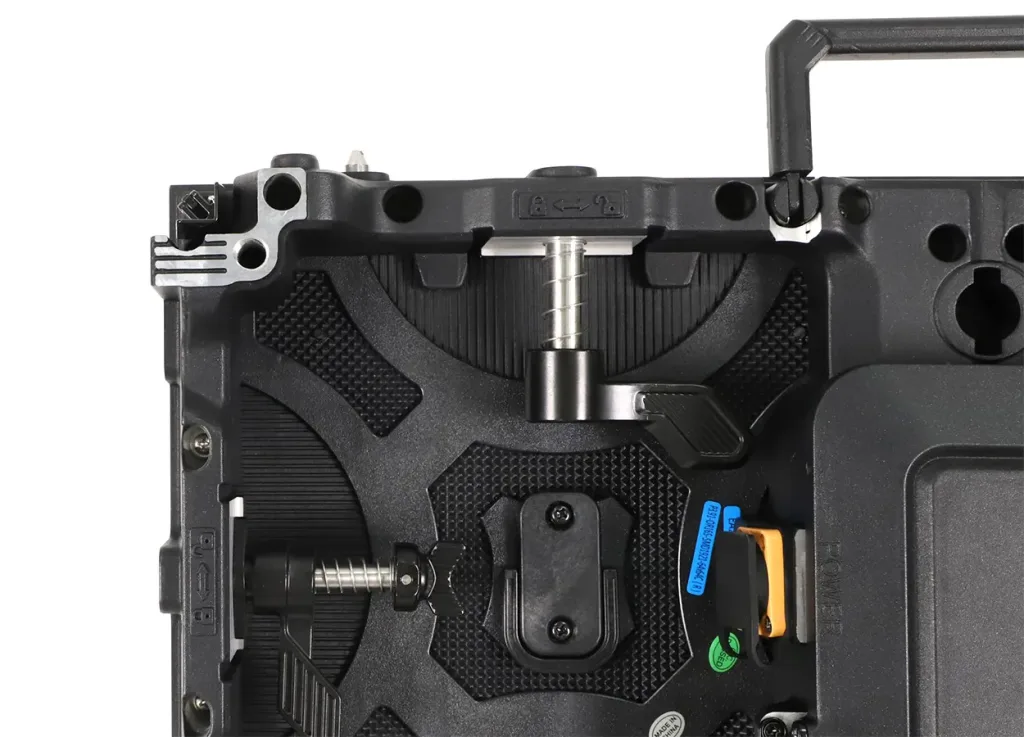
The Huidu HD-A8 is a dual-mode 4K LED display controller for projects that need live video input and stored, scheduled content in one device. The correct workflow is to verify the pixel load, connect the receiving-card network in the right order, configure the screen in HDPlayer, and then choose synchronous or asynchronous playback. This Huidu HD-A8 guide covers those steps, the HDPlayer administrator passwords, control methods, and the faults that most often delay commissioning.
Quick answer
- Official Huidu data lists an asynchronous load of 3840 x 2160 pixels and a synchronous load of 10.4 million pixels.
- The Huidu HD-A8 provides five HDMI inputs, one DP input, 16GB internal memory, dual-band 2.4GHz/5GHz Wi-Fi, 4K decoding, and optional 4G/5G.
- HDPlayer commonly uses 168 or 888 for Hardware Settings; the controller Wi-Fi password is a separate credential and commonly defaults to 88888888.
- Use synchronous mode for a live HDMI or DP source. Use asynchronous mode for content stored on the Huidu HD-A8 and played without a connected source computer.
1. What Is the Huidu HD-A8 Super Controller?
The Huidu HD-A8 is a dual-mode multimedia player and sending controller made by Shenzhen Huidu Technology Co., Ltd. It receives live HDMI or DisplayPort sources in synchronous mode, but it can also decode and play media saved in its internal memory in asynchronous mode. That combination makes the Huidu HD-A8 useful where an LED screen must alternate between live events, presentations, advertising loops, information pages, and scheduled playback.
Huidu describes the product as a 4K super controller for large-resolution LED displays. Its official product page states, “Async mode maximum loading capacity 3840*2160 pixels,” and separately lists “Sync mode maximum loading capacity 10.4 million pixels.” These are different limits: a project must satisfy the limit for the playback mode actually being used. See the official Huidu HD-A8/A7 product page and the linked HD-A8 Specification V2.0 before final engineering approval.
The Huidu HD-A8 does not replace receiving cards. Its Ethernet outputs carry display data to the receiving-card chains, whose configuration determines scan mode, color channels, and cabinet mapping. A reliable setup needs both correct controller settings and a verified receiving-card file.
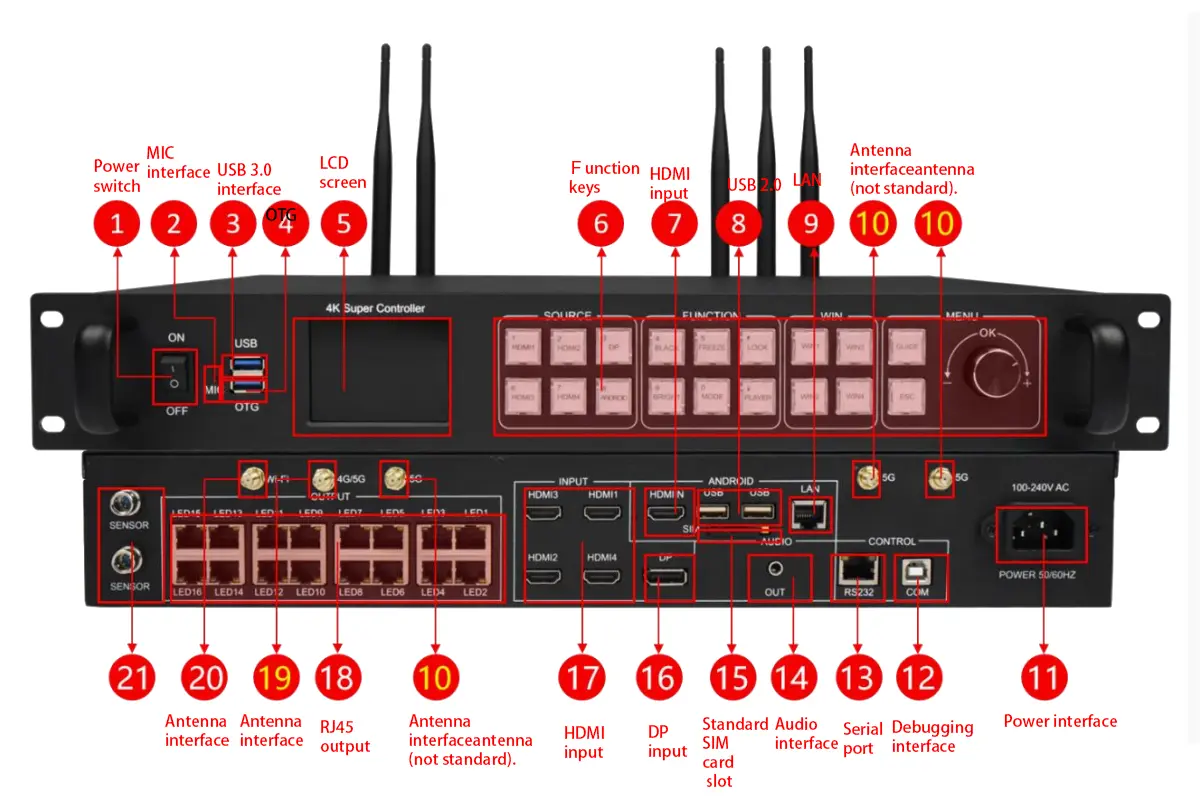
2. Huidu HD-A8 Specifications and Interface Map
Use the official specifications as the boundary for design, not as a target that every project should reach. Leave practical headroom for irregular cabinet maps, redundant signal planning, multi-window layouts, unusually high refresh settings, and future screen expansion. The following Huidu HD-A8 values are taken from Huidu’s current product page and Specification V2.0; confirm the label and firmware on the physical unit because revisions can change bundled accessories or software behavior.
| Specification | Huidu HD-A8 value | What it means in a project |
|---|---|---|
| Asynchronous loading | 3840 x 2160 pixels (8,294,400 pixels) | Maximum stored-content canvas; total pixel count and dimensional limits still apply. |
| Synchronous loading | 10.4 million pixels | Maximum live-input load; calculate the actual mapped LED pixels before assigning ports. |
| Maximum width / height | Widest 15,360; highest 2,160 | These are separate dimensional ceilings, not a promise that both maxima can be used together. |
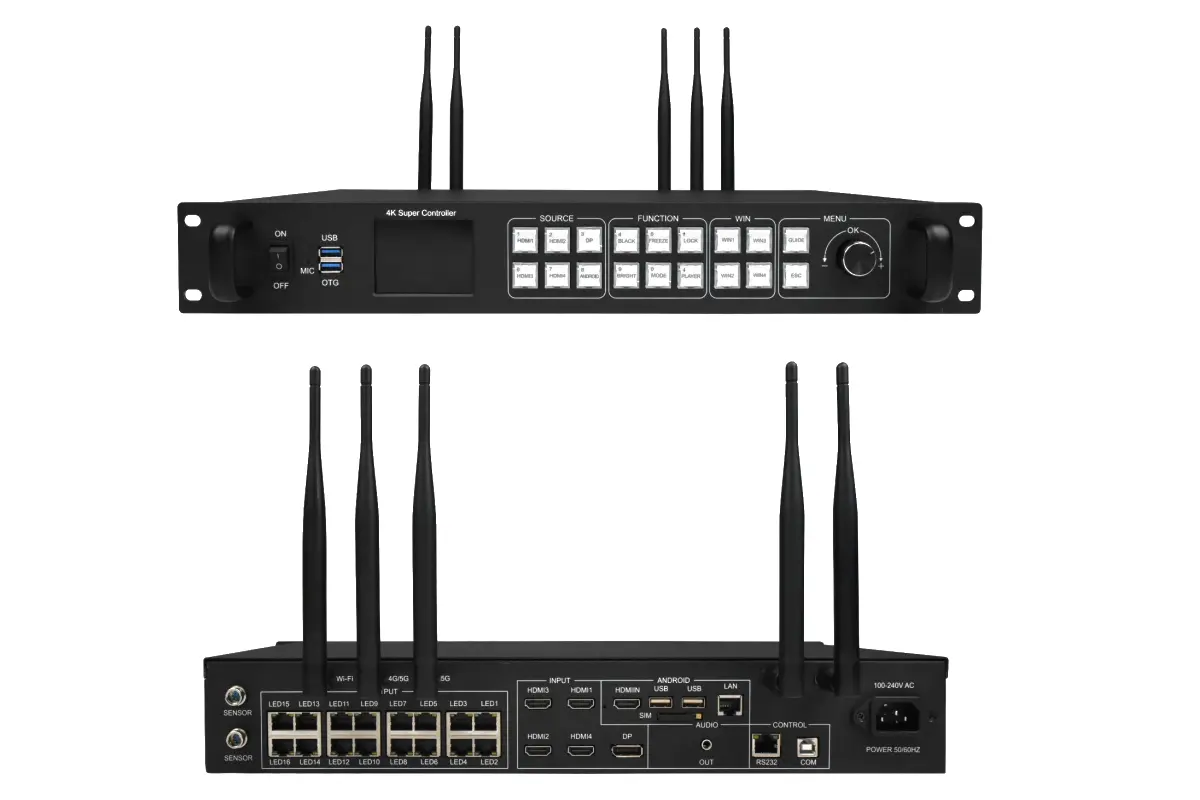
| Video inputs | 5 x HDMI, 1 x DP | Supports source switching and live synchronous workflows. |
| Ethernet outputs | 16 x Gigabit Ethernet | Distributes LED data to receiving-card chains; balance mapped pixels across active outputs. |
| Internal memory | 16GB | Stores asynchronous programs and media; available space is lower after system files. |
| Wi-Fi | 2.4GHz + 5GHz | Supports local wireless control and screen casting where network conditions permit. |
| Cellular | Optional 4G/5G | Requires the correct optional module, SIM service, antenna, and site coverage. |
| Decoding | 4K | Decode capability does not override LED pixel-load or output-mapping limits. |
01. Understand the signal path
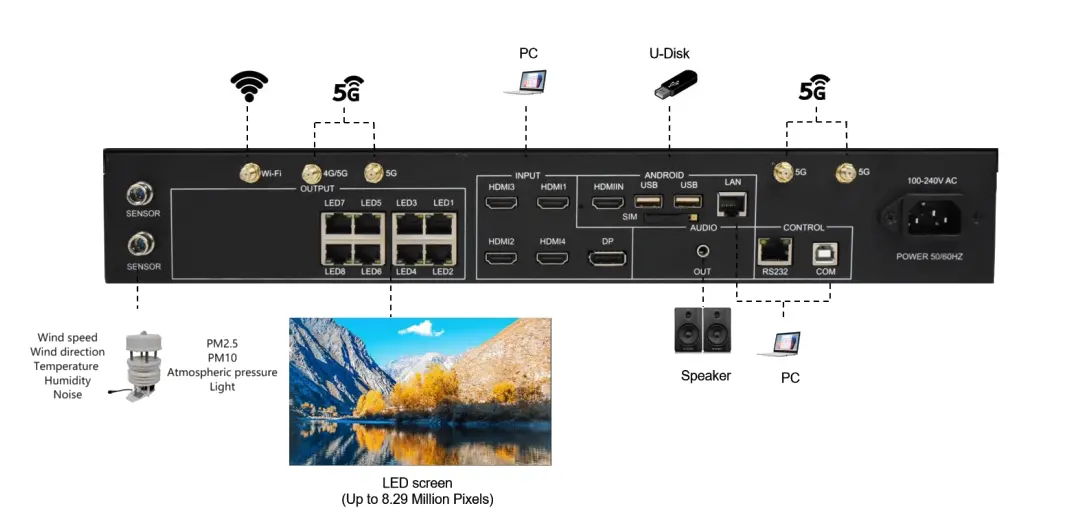
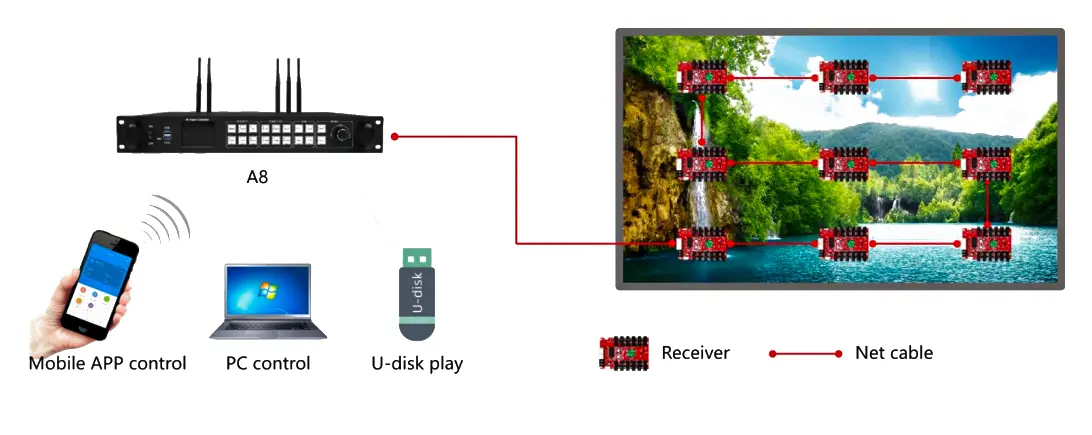
A typical Huidu HD-A8 signal path is source device to controller input, controller output to the first receiving card, and then receiving card to receiving card through each cabinet. In asynchronous mode, the source device is needed only when publishing or managing content; playback continues from the Huidu HD-A8 after the computer disconnects. In synchronous mode, the HDMI or DP source must remain active because the screen is showing the live input.
| Interface | Primary purpose | Commissioning check |
|---|---|---|
| HDMI inputs | Live video and computer sources | Confirm source resolution, refresh rate, cable integrity, and selected input. |
| DP input | Alternative live DisplayPort source | Use a known-good cable and avoid unverified adapters during first setup. |
| Gigabit Ethernet outputs | LED data to receiving cards | Map cabinets by port and keep every output within its assigned pixel load. |
| LAN / network connection | HDPlayer discovery and local management | Place the computer and Huidu HD-A8 on the same network segment. |
| USB | Offline program transfer and service tasks | Export through HDPlayer and eject the drive safely before moving it. |
| Wi-Fi | AP connection, station mode, or wireless control | Keep Wi-Fi credentials separate from HDPlayer administrator credentials. |
02. Calculate pixel load before cabling
Multiply the full screen width in pixels by the full screen height in pixels. For example, a 3840 x 2160 LED canvas contains 8,294,400 pixels, which matches the published asynchronous ceiling. A 4096 x 2160 canvas contains 8,847,360 pixels, so it is already above that asynchronous figure even though both dimensions may look “4K.” For help choosing the physical pixel dimensions, use our LED screen resolution guide and check the intended screen aspect ratio.
Split the mapped cabinets across the Huidu HD-A8 outputs. Both controller-wide load and per-port mapping must be valid. Document cabinet rows, columns, receiver order, and output ownership before sending the final map.
3. How to Set Up the Huidu HD-A8
Start with a bench test or a small screen section. Commission in four gates: verified hardware, stable cabling, controller discovery, and a known-good receiving-card configuration. This order prevents software settings from masking physical faults.
01. Prepare the files and record the baseline
Download HDPlayer only from the Huidu LED software download area or another source approved by your supplier. Save the Huidu HD-A8 firmware version, device ID, screen dimensions, module pixel size, scan type, driver IC, receiving-card model, and cabinet connection diagram. Obtain the correct receiving-card configuration file from the LED display manufacturer whenever possible; Smart Setting should be a recovery workflow, not the first choice for a commissioned screen.
| Preflight item | Required information | Why it matters |
|---|---|---|
| LED canvas | Total width and height in pixels | Confirms the Huidu HD-A8 load is not exceeded. |
| Cabinet map | Cabinet rows, columns, orientation, and data direction | Prevents mirrored, wrapped, or displaced sections. |
| Module data | Module resolution, scan mode, driver IC, HUB layout | Required for receiving-card parameters or Smart Setting. |
| Network plan | Controller IP method, PC IP, gateway, and cloud path | Separates local discovery faults from internet-access faults. |
| Recovery package | Known-good .rcfg/.ssx file, current firmware, and backup program | Provides a rollback point before configuration changes. |
| Source plan | HDMI/DP resolution and playback mode | Ensures the chosen Huidu HD-A8 mode matches the content source. |
02. Make the hardware connections
With equipment powered down, connect the Huidu HD-A8 output port to the first receiving card in the documented chain. Continue the daisy chain in the planned cabinet order. Connect the management network and, for synchronous testing, one known-good HDMI or DP source. Power the screen system according to the cabinet manufacturer’s procedure, then power and observe the controller and receiving-card indicators.
Use factory-made Cat5e or Cat6 patch cables for initial commissioning and replace any cable with damaged locking tabs or uncertain termination. Standard copper Ethernet segments should normally remain within 100 metres; use the project’s approved fiber conversion method for longer paths. Keep data cables away from high-current power runs where practical, and label both ends with the Huidu HD-A8 port number and destination cabinet.
03. Install HDPlayer and find the controller
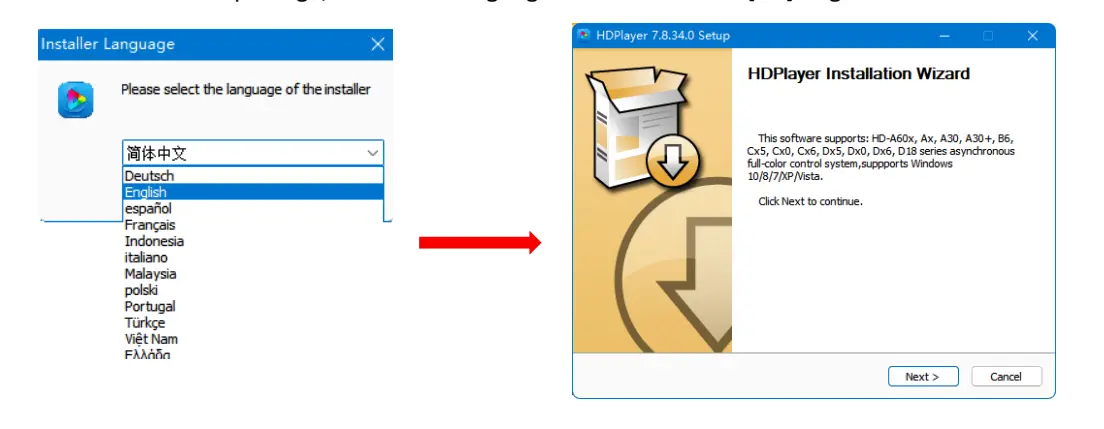
Install the current HDPlayer release, open it with the permissions required by your Windows environment, and wait for automatic discovery. A direct network connection can use automatic addressing during a basic test. On a managed LAN, confirm that the computer and Huidu HD-A8 are in the same subnet and that no duplicate IP address exists. The HDPlayer operating manual documents automatic discovery, manual IP configuration, device network information, and direct search across network segments.
If the device does not appear, check link lights, replace the patch cable, temporarily disable extra network adapters, and test a direct PC-to-controller connection. Do not update firmware merely because discovery failed. Firmware changes add another variable; prove the physical link and IP path first.
4. Configure an LED Screen in HDPlayer
Configuration has two layers. Screen parameters define the Huidu HD-A8 device, canvas, and sending layout; receiving-card parameters define how each LED module is driven. Back up both layers before changing a working screen. A program can be rebuilt, but an undocumented receiving-card configuration can take much longer to recover.
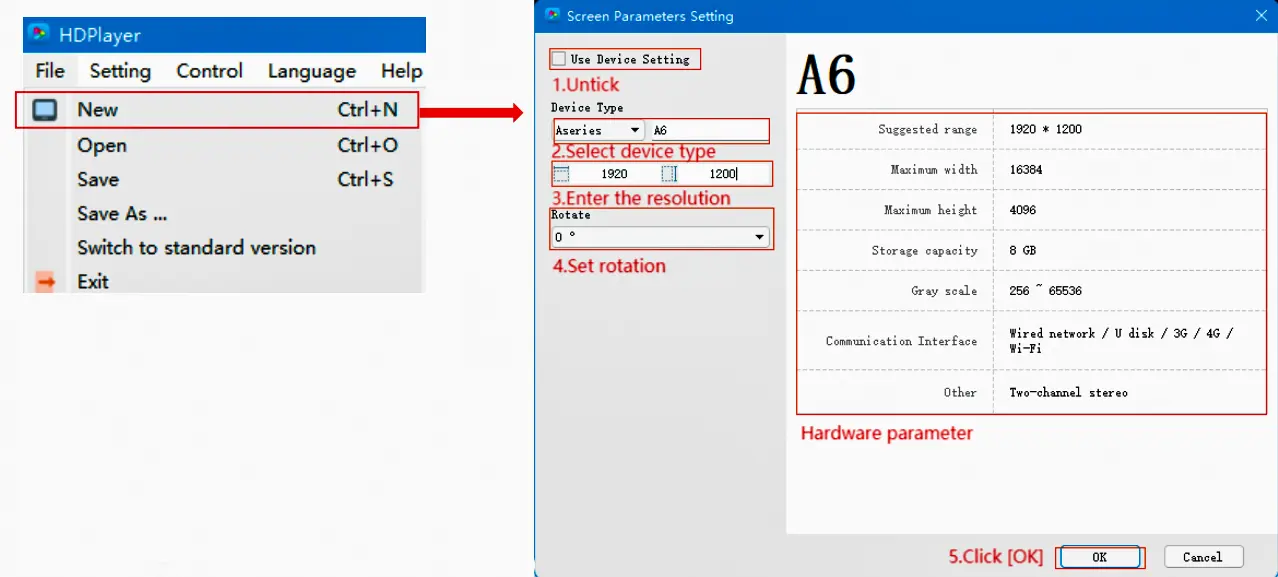
01. Create the screen and enter pixel dimensions
In HDPlayer, create a new screen, select the detected Huidu HD-A8, and enter the total LED width and height in pixels. These are LED pixels, not millimetres and not the desktop monitor resolution. If a display uses 12 cabinets across and each cabinet is 160 pixels wide, the screen width is 1,920 pixels. Repeat the same calculation vertically.
Set the canvas to the real mapped size before designing program areas. A mismatch may crop content, leave an unused strip, or force scaling that makes text and logos look soft. For unusual canvases, keep the source artwork at the same aspect ratio instead of stretching a standard 16:9 design.
02. Load or verify receiving-card parameters
Open Hardware Settings and read back the current configuration before sending anything. HDPlayer commonly requests the administrator password 168; some releases or installations use 888. These credentials are documented by the HDPlayer operating manual and are not the same as the Huidu HD-A8 Wi-Fi password. If both fail, the integrator may have changed the software password. Contact the screen supplier or authorized administrator rather than repeatedly resetting a working installation.
Load the known-good receiving-card file supplied for the exact module batch, or compare the readback with the manufacturer’s record. The receiving-card file controls scan type, data polarity, OE polarity, color order, driver IC behavior, refresh-related registers, and mapping. Sending a convenient but incorrect file can produce black modules, ghosting, wrong colors, duplicated rows, or unstable brightness.
03. Map cabinets and output ports
Build the connection map in the same order as the physical Huidu HD-A8 cable path. Start at output 1, identify the first receiving card, and follow the real cable direction cabinet by cabinet. Use a test pattern with distinct corners, row numbers, or colors to verify orientation. If the image wraps at a cabinet boundary, inspect the mapping and receiver order before changing source resolution.
For large displays, distribute load across multiple Huidu HD-A8 outputs and keep a port schedule in the cabinet or control rack. The schedule should state port number, first cabinet, last cabinet, mapped width, mapped height, and spare path. This turns later maintenance into a traceable task instead of trial and error.
04. Build, schedule, and send a test program
Create one simple full-screen program before importing the final playlist. Use a still image with known dimensions, a short H.264 test video, a clock, and large text. Send it to the Huidu HD-A8, confirm that transfer reaches 100%, then restart playback and inspect every cabinet. Only after the baseline passes should you add layered areas, office documents, GIFs, multiple videos, time windows, sensor data, or remote schedules.
For unconventional video codecs, the HDPlayer manual recommends transcoding before sending. Test audio routing separately if the installation includes external sound. A successful program transfer proves storage and communication; it does not prove the receiving-card file, brightness policy, or physical mapping.
5. Huidu HD-A8 Synchronous vs Asynchronous Mode
The best mode depends on where the content originates. Synchronous mode treats the Huidu HD-A8 like a live sending controller: the LED display follows the selected HDMI or DP input. Asynchronous mode treats it like a standalone media player: HDPlayer or XiaoHui Cloud publishes content to internal storage, and the Huidu HD-A8 plays it later without the source computer.
| Decision point | Synchronous mode | Asynchronous mode |
|---|---|---|
| Content source | Live HDMI or DP input | Files and programs stored on the Huidu HD-A8 |
| Published load | Up to 10.4 million pixels | 3840 x 2160 pixels |
| Source computer | Must remain connected and active | Not required after a successful publish |
| Typical latency need | Live events, cameras, presentations, production feeds | Digital signage, menus, notices, timed advertising |
| Scheduling | Normally controlled by the live source workflow | Native program schedules, loops, and time periods |
| Failure behavior | Loss of source or cable interrupts the live image | Stored program can continue if network management is offline |
| Best test | Check input selection, source EDID/resolution, and cable path | Check storage, publish completion, clock, and schedule |
Use synchronous mode for a conference camera, live sports feed, stage processor, or presenter laptop. Use asynchronous mode for a retail promotion that must start at 09:00 every day, a hotel welcome loop, a transport notice, or a menu board. A mixed operation can keep a stored fallback program on the Huidu HD-A8 while staff switch to live input for an event.
6. Control and Publish Content to the Huidu HD-A8
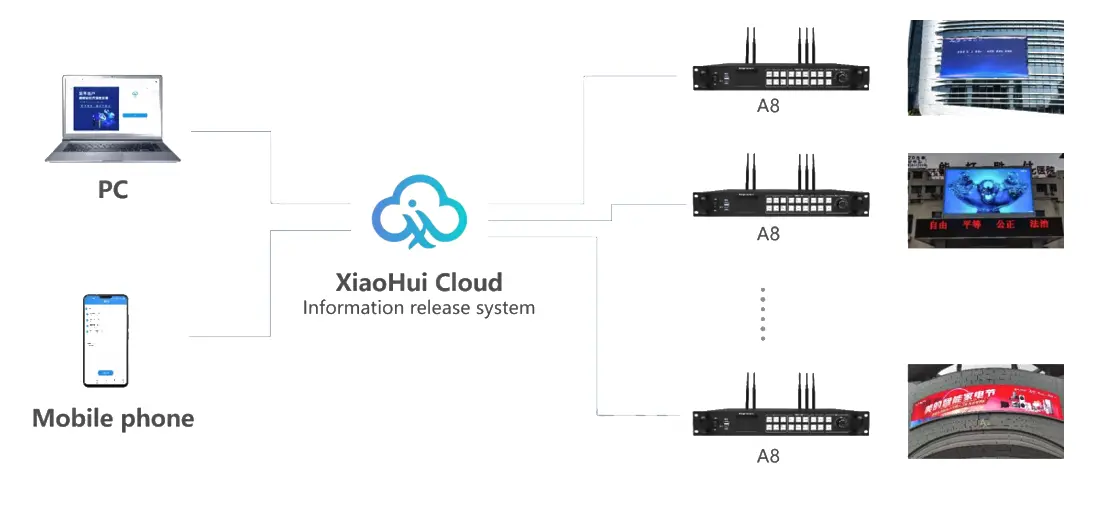
The Huidu HD-A8 supports local wired management, Wi-Fi, USB transfer, and optional internet-connected cloud management. Choose the method that matches site access and operational risk. A fixed control room normally benefits from wired LAN; an isolated screen may use USB; a multi-site signage network may justify XiaoHui Cloud and optional cellular connectivity.
| Method | Best use | Advantages | Main checks |
|---|---|---|---|
| Direct Ethernet | Bench setup and local service | Simple path with fewer network variables | Link lights, adapter state, IP/subnet, firewall |
| LAN through router/switch | Permanent local management | Stable access from authorized workstations | DHCP reservation or static IP, VLAN, duplicate IP |
| Wi-Fi AP mode | Nearby mobile or laptop access | No site network required | SSID, Wi-Fi password, radio interference, range |
| Wi-Fi station mode | Join an existing wireless network | Convenient management without a new cable | Correct band, signal level, gateway, client isolation |
| USB transfer | Offline sites and controlled updates | No network credentials or internet required | Export from HDPlayer, supported format, safe eject, device lock |
| XiaoHui Cloud | Remote multi-screen operation | Central publishing, monitoring, and scheduling | Account binding, internet path, permissions, device time |
| Optional 4G/5G | Sites without reliable wired internet | Independent remote connection | Correct module, SIM plan, antenna, coverage, data usage |
01. Keep the three passwords separate
Three different credentials are often confused during Huidu HD-A8 service. The first is the HDPlayer Hardware Settings or firmware password, commonly 168 or 888. The second is the controller’s Wi-Fi password, commonly 88888888 before an installer changes it. The third is an optional device-lock or cloud-account credential. A password that opens Hardware Settings will not necessarily join Wi-Fi, and a Wi-Fi password will not unlock a protected USB export.
Document changed credentials in the project handover and limit access to authorized operators. Avoid publishing a site-specific password in a public maintenance note. If a Huidu HD-A8 was commissioned by another integrator, request the credential record before attempting a reset because a reset may also affect network or playback settings.
02. Use USB as a controlled offline workflow
Build and validate the program in HDPlayer, use the software’s export function, and allow the process to finish before removing the drive. At the display, insert the drive and wait for the Huidu HD-A8 to acknowledge and complete the update. Do not cut controller power during firmware or program transfer. If the device is locked, use the matching device-lock value in the export workflow rather than changing unrelated administrator settings.
03. Treat cloud management as an IT deployment
For XiaoHui Cloud, confirm internet access, DNS, gateway, controller time, account ownership, and permissions. Name every Huidu HD-A8 by location and purpose. Group screens only after each passes local playback and network tests.
7. Troubleshoot Common Huidu HD-A8 Problems
Troubleshoot from the first failed layer: power, link, network discovery, receiving-card configuration, mapping, source, or schedule. Record the current Huidu HD-A8 value, make one change, test, and keep or reverse it.
| Symptom | Likely layer | First checks | Avoid |
|---|---|---|---|
| HDPlayer cannot find the Huidu HD-A8 | Network or cable | Link lights, direct cable test, active adapter, same subnet, manual search | Firmware upgrade before proving connectivity |
| Controller found, screen black | Output path or receiver setup | Port indicators, first receiving card, screen test, brightness, valid configuration file | Random Smart Setting selections |
| Image appears but cabinets are out of order | Connection map | Physical cable direction, cabinet coordinates, port boundaries | Changing video resolution to hide mapping errors |
| Wrong colors, ghosting, or repeated rows | Receiving-card parameters | Module batch, driver IC, scan mode, polarity, known-good file | Sending a file from a visually similar module |
| No live image in synchronous mode | Input source | Selected HDMI/DP input, known-good source, cable, supported resolution | Editing the asynchronous playlist |
| Scheduled content starts at the wrong time | Clock or schedule | Time zone, controller time, NTP/manual correction, program validity window | Rebuilding the receiving-card map |
| Hardware Settings rejects the password | Credential | Try documented defaults 168 or 888, then check handover records | Confusing the Wi-Fi password with the admin password |
| USB update says device locked | Device-lock policy | Use the correct lock password in HDPlayer export and verify the target device | Formatting or resetting the controller without a backup |
01. Device not discovered in HDPlayer
Connect one computer directly to the Huidu HD-A8 with a known-good cable. Disable unused VPN and secondary adapters for the test, wait for Windows to establish the link, then reopen HDPlayer. If direct discovery works, the original problem is in the switch, router, VLAN, firewall, or IP plan. If direct discovery fails but link indicators are active, use HDPlayer’s direct-search function with the recorded device IP.
02. Black screen or incomplete screen
Confirm that the Huidu HD-A8 is playing the expected mode and that brightness is not set to zero by a schedule. Use the built-in screen test to determine whether receiving cards can drive the modules without a content source. If the first cabinet on a port is dark, test the port cable and receiver power. If a later cabinet is the first dark cabinet, inspect the data jumper immediately before it.
03. Wrong layout, color, or scan behavior
A correct image in the wrong physical order indicates mapping. Wrong colors, duplicated scan lines, flicker, or ghosting usually indicate receiving-card parameters. Restore the known-good file for the exact LED module. Use Smart Setting only when the module information is known and no valid file exists, following each visible test response carefully.
04. Program will not play as scheduled
Check the Huidu HD-A8 system time, time zone, program start and end dates, daily time window, and play mode. Publish a simple always-valid test program to separate schedule logic from codec or file problems. If the test works, add the original media one item at a time and transcode any unsupported video through HDPlayer.
8. Huidu HD-A8 Project Selection and Deployment Checklist
Choose the Huidu HD-A8 when a project genuinely benefits from its dual-mode operation, large pixel capacity, multiple live inputs, 16 Ethernet outputs, or centralized management options. A smaller asynchronous controller may be more economical for a simple sign that never needs live input. Conversely, a production environment that requires genlock, seamless switching, advanced scaling, or redundant processing may need a dedicated video processor alongside or instead of this controller.
| Project requirement | Huidu HD-A8 fit | Decision note |
|---|---|---|
| Live HDMI/DP plus scheduled media | Strong fit | Dual-mode playback is the central advantage. |
| Asynchronous canvas up to 3840 x 2160 | Strong fit | Verify total pixels, width, height, and mapping headroom. |
| Large synchronous LED canvas | Potential fit | Stay within 10.4 million pixels and validate every output load. |
| Remote fleet management | Fit with network planning | Use XiaoHui Cloud with clear account ownership and site connectivity. |
| Small, simple advertising sign | May be oversized | Compare a lower-cost Huidu controller with no unnecessary live inputs. |
| Broadcast-grade switching or redundancy | Needs system review | Assess a dedicated processor, backup controller, and signal redundancy. |
Before handover, save the final Huidu HD-A8 screen parameters, receiving-card file, connection map, firmware version, HDPlayer version, IP configuration, program source files, administrator record, Wi-Fi record, cloud ownership, and rollback instructions. Photograph port labels and the first receiving card on each chain. Run a power-cycle test, source-loss test, network-loss test, and scheduled-playback test while the installer is still on site.
If you are comparing related Huidu controllers for smaller asynchronous projects, review our Huidu B6L vs B8L vs B8H comparison. For projects that need dedicated video processing, the Huidu HD-VP1240A LED video processor guide explains a different product category and workflow.
9. Huidu HD-A8 FAQ
These answers address the setup questions that operators most often need during Huidu HD-A8 commissioning and maintenance.
Final takeaway: a reliable Huidu HD-A8 installation comes from verified pixel math, documented receiving-card parameters, a port-by-port connection map, and separate records for administrator, Wi-Fi, device-lock, and cloud credentials. Validate a simple local program first, then add live sources, schedules, wireless control, or cloud management one layer at a time.
Sources and scope: Product limits are based on Shenzhen Huidu Technology Co., Ltd.’s official HD-A8/A7 product page and HD-A8 Specification V2.0. HDPlayer procedures and default software passwords are cross-checked against the cited HDPlayer operating manual. Firmware, accessories, and interface behavior can vary by hardware revision and software release; verify the label, current official downloads, and supplier handover before service work.
 Top 10 LED Display Manufacturers in China (2026 Guide)
 Top 10 LED Display Suppliers in France (2026 Guide)