To set up the NovaStar VX600 Pro, confirm your cabinet pixel dimensions, connect the video source and LED output cables, configure the receiving cards and screen connections, then assign and scale a layer. Save the working configuration and test it after restarting. Use Unico for device and presentation control, and NovaLCT for supported screen configuration and calibration tasks.
This guide covers the NovaStar VX600 Pro, also searched as VX600Pro. It follows NovaStar’s model-specific specifications and VX Pro series documentation. Menu names and available features depend on firmware; do not apply instructions for the VX600, VX1000 Pro or VX2000 Pro without checking model support.
- Confirm the nameplate says VX600 Pro; keep VX600 and other VX Pro model instructions separate.
- Have the cabinet pixel dimensions, receiving-card file and output-port plan ready before configuration.
- Identify whether the task needs device control, screen mapping or calibration before choosing software.
- For a new screen, agree the supplied controller, cables, configuration files, backup arrangement and commissioning scope before ordering.
Contents: setup, software and purchasing checks
1. What Is the VX600 Pro and Why Does It Matter for LED Video Walls?
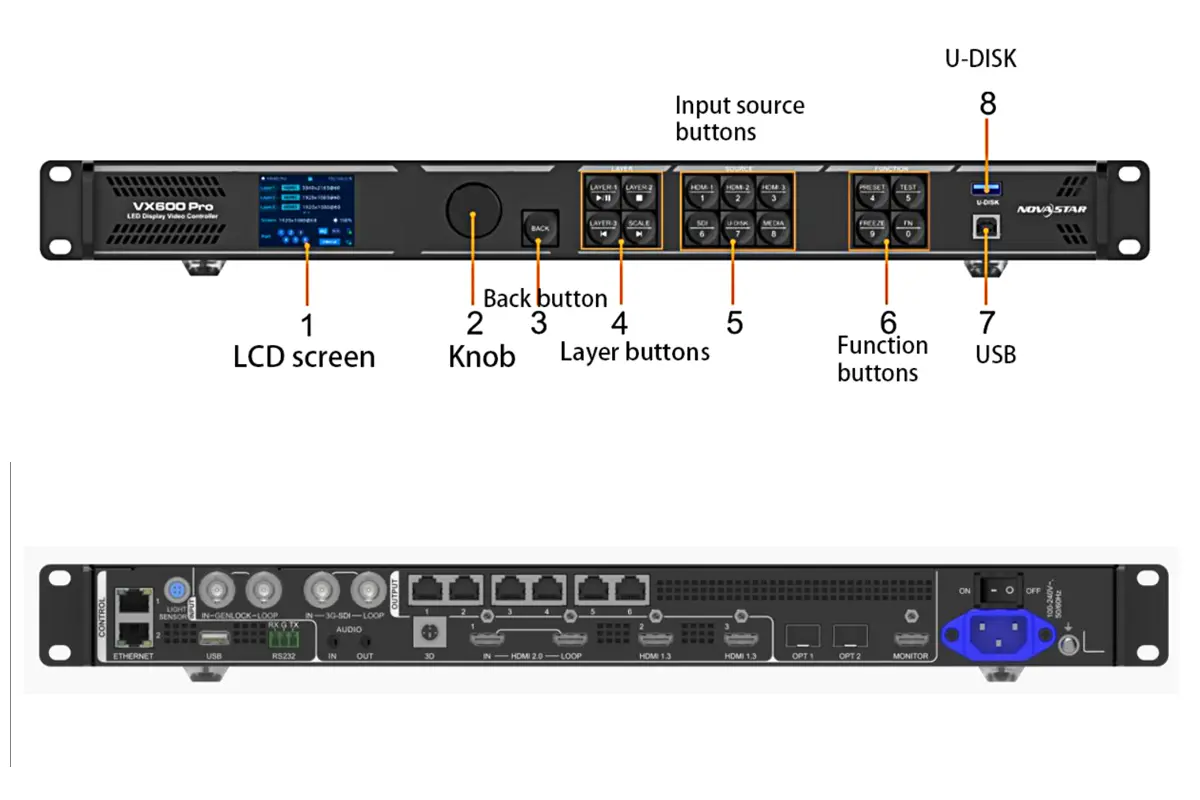
The NovaStar VX600 Pro combines video processing and LED sending functions in one device. It accepts a source, prepares its position and size, and sends the resulting image to receiving cards inside the cabinets. Those cards translate the screen data into the signals needed by the LED modules.
01. Choose the working mode for the job
Use Video Controller mode for ordinary setup with scaling and multiple layers. ByPass mode removes video processing and is intended for a source already prepared for the screen. Fiber Converter mode serves a different transmission role. Selecting the wrong mode can make expected controls unavailable even when the hardware works correctly.
For a rental stage or an indoor LED video wall, commission one source and one layer first. Add composition, backup and other features only after the basic image is correct. This order makes faults easier to isolate and gives the operator a dependable starting preset.
02. Find the right manual and software
The safest NovaStar VX600 Pro manual download is the official VX Pro product page, under Downloads. Select the VX600 Pro specifications and the shared VX Pro Series User Manual. The series manual covers several devices, so check every model qualification before following an advanced procedure.
For NovaStar VX600 Pro software, use the Unico client or supported web control for device management, layers and presets. Use NovaLCT where the screen configuration or calibration procedure requires it. Our NovaStar software download guide explains the broader tool selection; obtain installers and matching firmware from NovaStar.
Record the installed firmware, receiving-card model and software version before making changes. Export an existing working configuration when available. A firmware upgrade should be a planned maintenance action with a recovery route, not the first troubleshooting step during an event.
2. Key Specifications and Capabilities of the NovaStar VX600 Pro
The NovaStar VX600 Pro specifications distinguish input resolution, output loading and layer resources. These are separate budgets. A controller that accepts a 4K source does not automatically drive a native 4K LED wall, and six available layer resources do not mean six unrestricted 4K windows.
01. Specifications that affect system design
| Item | Official specification | Practical implication |
|---|---|---|
| LED outputs | 6 Gigabit Ethernet ports; up to 3.9 million pixels | Check the whole wall and every individual port. |
| Single-port capacity | Up to 650,000 pixels at 8-bit | Confirm the applicable timing and operating conditions before using the maximum. |
| Output dimensions | Maximum width 10,240 pixels; maximum height 8,192 pixels | Both dimensions remain subject to the total pixel budget. |
| HDMI inputs | 1 HDMI 2.0 input with loop; 2 HDMI 1.3 inputs | Use HDMI 2.0 for supported 4K input formats. |
| SDI input | 1 3G-SDI input with loop; up to 1920 × 1080 at 60 Hz | Do not confuse the loop connector with a second independent input. |
| Optical ports | 2 × 10G; OPT 1 can receive or send; OPT 2 provides output or loop functions | Configure the intended optical operating mode. |
| Monitor output | HDMI 1.3; fixed 1920 × 1080 at 60 Hz | Monitoring does not validate physical cabinet mapping. |
| Layer resources | 6 × 2K × 1K resources | Larger layer specifications consume multiple resources. |
| AC supply | 100–240 V, 50/60 Hz; rated consumption 43 W | Use the correct supply and follow the installation requirements. |
Source: NovaStar VX600 Pro Specifications V1.4.0, connector descriptions, layer resources and electrical parameters. Higher frame rates, special display modes and receiving-card constraints require their own checks.
02. Calculate the wall before assigning ports
For the NovaStar VX600 Pro, calculate wall width as cabinet columns multiplied by cabinet pixel width, and wall height as cabinet rows multiplied by cabinet pixel height. Multiply those two results for total pixels. Use pixel dimensions from the cabinet supplier, not physical cabinet size in millimeters.
Worked planning example: ten columns and five rows of 256 × 256-pixel cabinets produce a 2560 × 1280 wall, or 3,276,800 pixels. A ten-cabinet chain contains 655,360 pixels, which exceeds the quoted 650,000-pixel port limit. The wall fits the device’s total budget, but that chain does not.
One possible arithmetic split is nine, nine, eight, eight, eight and eight cabinets across six ports. That gives 589,824 or 524,288 pixels per port. It is a planning calculation, not an approved wiring diagram: actual geometry, topology mode and receiving-card compatibility must also pass. In non-free topology, the circumscribed rectangle can affect loading; free topology requires specific receiving cards.
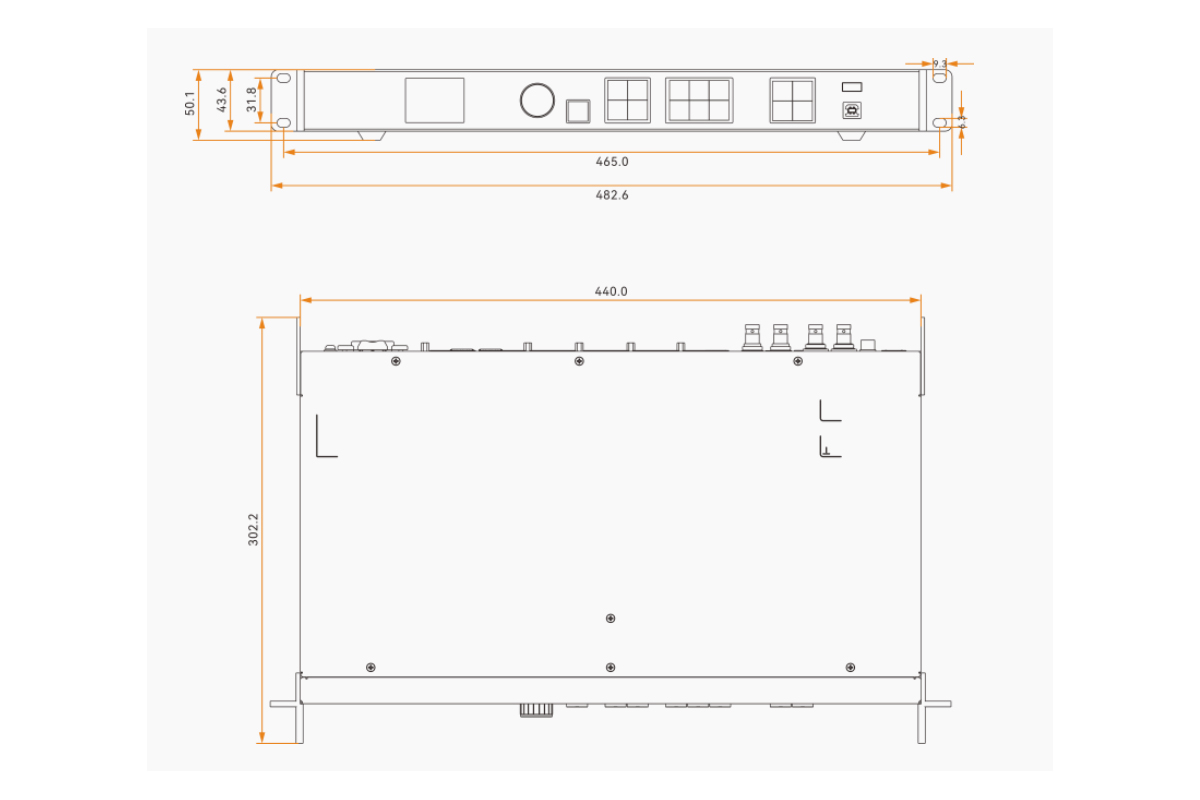
3. How to Connect the VX600 Pro to Your LED Video Wall
Before powering the NovaStar VX600 Pro, label source cables, cabinet chains and control connections. Keep a drawing showing which output reaches the first cabinet of each chain. Separate video, control and LED data paths on the drawing so a later operator can trace them quickly.
01. Prepare power, cabinets and signal cables
- Follow NovaStar’s installation and grounding instructions. Keep ventilation clear and use a suitable rack and supply.
- Connect each numbered LED output to its assigned receiving-card chain with suitable, tested data cable.
- Connect the playback computer or switcher to the required HDMI input, or use the 3G-SDI input for a compatible SDI source.
- Connect the control computer through the documented control connection. The dedicated control Ethernet connectors and numbered LED output connectors serve different purposes.
- Power the system in the installation’s approved sequence and inspect device status before displaying content.
The NovaStar VX600 Pro LED output chain should follow the manufacturer’s supported topology. Do not insert an ordinary office network switch merely because the connectors look like Ethernet. Check receiving-card port orientation and chain order against the LED receiving-card configuration guide and the cabinet documentation.
02. Connect monitoring, optical links and USB correctly
| Connection | Use | Check before proceeding |
|---|---|---|
| HDMI 2.0 input | Supported high-resolution source | Source timing, cable capability and connector capacity match. |
| Numbered outputs 1–6 | LED receiving-card chains | Labels, chain order and loading match the port plan. |
| Control Ethernet | Unico communication | Computer and device network settings permit communication. |
| HDMI monitor output | Local monitoring display | Monitor accepts fixed 1080p60 output. |
| OPT 1 / OPT 2 | Compatible optical transport | Role, modules, fiber type and remote equipment match. |
| Front U-DISK | USB media playback | Drive filesystem, codec and actual file are supported. |
On the NovaStar VX600 Pro, OPT 1 is adaptive for input or output; OPT 2 is not a second interchangeable optical video input. NovaStar lists input-plus-output, input-plus-loop and output modes. Select the mode that matches the connected equipment, and confirm the optical modules separately because they are not installed at the factory.
USB playback also has two different resolution concepts. The official specifications list decoding up to 3840 × 2160, including H.265 at 60 fps, while the USB source resolution is fixed at 1920 × 1080 at 60 Hz. Test the real media file; its extension alone does not establish compatibility.
4. Configuring Display Settings: Resolution, Pixel Mapping and Layers
Configure the NovaStar VX600 Pro screen geometry before compensating with image scaling. Mapping defines where pixels go in the physical wall; layer scaling defines how content fits inside that mapped area. Fixing one by changing the other usually creates a fragile setup.
01. Load cabinet parameters and map the screen
Use the cabinet manufacturer’s verified receiving-card configuration. A file from a different module, scan arrangement or driver IC can produce incorrect output even when the cabinet dimensions match. Back up the current parameters before sending replacements, and commission a small representative section before applying changes across the wall.
In the supported NovaLCT or device screen-configuration workflow, enter cabinet dimensions, row and column counts, and each port’s connection order. Follow the actual cable path, including any serpentine turns. Use identification or mapping patterns to locate the first and last cabinets and confirm the direction of every chain.
For a regular NovaStar VX600 Pro wall meeting the manual’s prerequisites, open Screen Configuration > Quick Configuration. Set Cabinet Row Qty, Cabinet Column Qty, Port 1 Cabinet Qty and Data Flow (Front View). Quick Configuration has specific port-order and cabinet-count rules; use a detailed screen-connection workflow for layouts that do not satisfy them. After checking the image, use Screen Configuration > Save to RV Card to retain the receiving-card configuration through power loss.
For the NovaStar VX600 Pro, verify a border, grid and numbered pattern before opening show content. A straight border checks the canvas edges; numbered blocks reveal swapped cabinets; a grid exposes rotation or displacement. Save the receiving-card and screen connection settings using the relevant software procedure, then restart during commissioning to confirm retention.
02. Allocate layers within the resource budget
The NovaStar VX600 Pro provides six 2K-equivalent layer resources. According to the multiple-layer specification, 2K × 1K, 4K × 1K and 4K × 2K layer specifications consume one, two and four resources respectively. The input connector capacity used to open a layer matters; shrinking its displayed window does not necessarily reduce resource use.
| Proposed composition | Resources used | Budget result |
|---|---|---|
| Six 2K × 1K layers | 6 × 1 = 6 | Within the six-resource budget. |
| One 4K × 2K plus two 2K × 1K layers | 4 + 1 + 1 = 6 | Within budget; confirm source availability. |
| Three 4K × 1K layers | 3 × 2 = 6 | Within the resource budget. |
| Two 4K × 2K layers | 4 + 4 = 8 | Exceeds the budget; simplify the composition. |
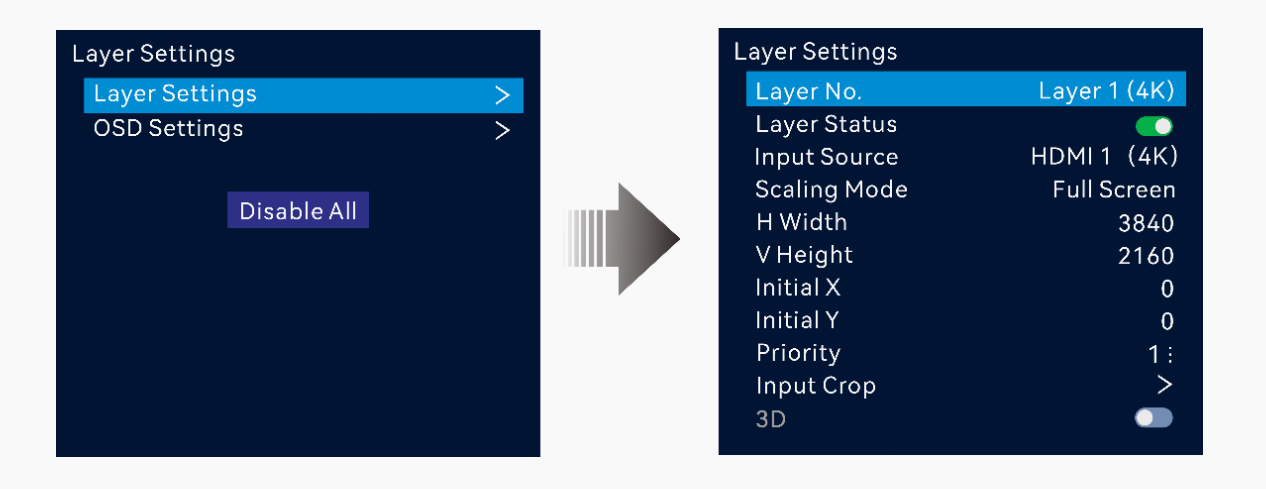
Start with one NovaStar VX600 Pro layer: choose its source, position, width, height and priority. Use pixel-to-pixel when the source is prepared at the required size. Use proportional scaling for ordinary video, and crop deliberately when filling a different aspect ratio. Check circles, faces and text for distortion.
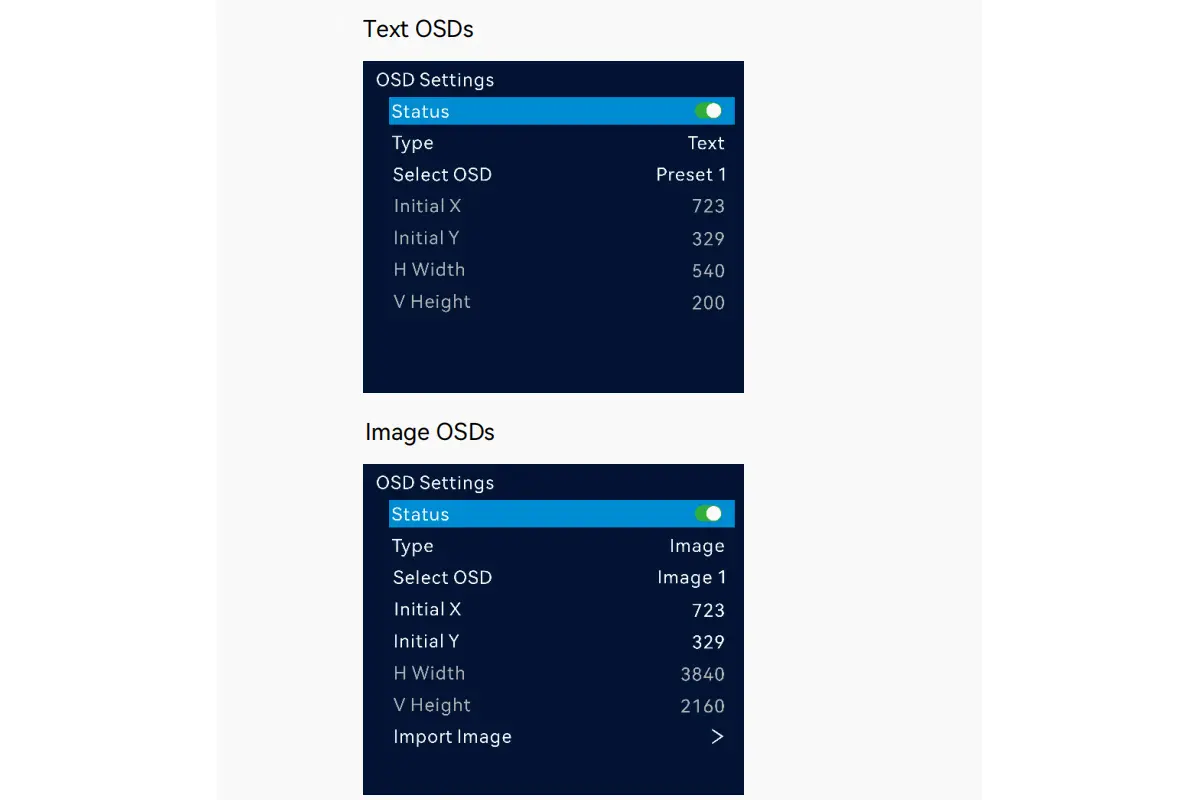
OSD can add supported text or image elements. The documented limitations include text OSD and image OSD being mutually exclusive. Test OSD alongside the actual composition and remote-control workflow, then save a named preset. Do not assume an overlay behaves identically to another video layer.
5. Setting Up NovaStar VX600 Pro Input Sources and Signal Routing
For NovaStar VX600 Pro input setup, first confirm the device detects the expected signal, then route that source into a visible layer. A detected input can still produce a black wall if the wrong layer is selected, the layer is outside the canvas, or output is frozen or blacked out.
01. Match resolution, frame rate and EDID
EDID describes display capabilities to the source computer. Choose a supported timing, configure the input EDID when necessary, and then confirm the computer’s actual output. Avoid treating the desktop’s apparent resolution as proof of the signal being transmitted through a dock, adapter or switcher.
The NovaStar VX600 Pro HDMI 2.0 input supports up to 4096 × 2160 at 60 Hz under the documented format conditions. That is an input limit, not the LED output size. The source can be scaled to a smaller wall, but a 3840 × 2160 LED canvas contains 8,294,400 pixels and exceeds the 3.9-million-pixel output budget.
Use the source-format table in the specifications when combining resolution, bit depth and chroma sampling. Do not assume every supported value can be selected simultaneously. If the image disappears after a format change, return to a known working timing, verify the cable path and then change one setting at a time.
02. Build layouts and presets predictably
In Unico, build the intended NovaStar VX600 Pro presentation from supported sources and layer resources. Give presets operational names such as “Slides,” “Camera and Slides” and “Holding Screen.” Verify which parameters each preset restores before relying on it to recover an entire system configuration.
For multi-source layouts, align source frame rates where practical and document crop coordinates. A layer positioned correctly in the control interface can still show the wrong portion of a source. The VX Pro Series User Manual is the reference for connector capacity, programming and model-specific routing options.
6. Optimizing Image Quality With VX600 Pro: Brightness, Color and HDR
Commission the NovaStar VX600 Pro with a stable SDR source before attempting advanced color workflows. Evaluate image quality on the LED wall at the intended viewing distance and ambient brightness. A monitoring display is useful for signal checks but cannot reveal cabinet seams, module uniformity or physical LED brightness.
01. Set brightness and assess grayscale
Adjust screen brightness for the venue, then inspect grayscale ramps, dark details, skin tones and solid colors. Avoid increasing contrast to conceal incorrect signal range: this can crush shadows or clip highlights. Keep a record of the source’s output range and the receiving system’s expected settings.
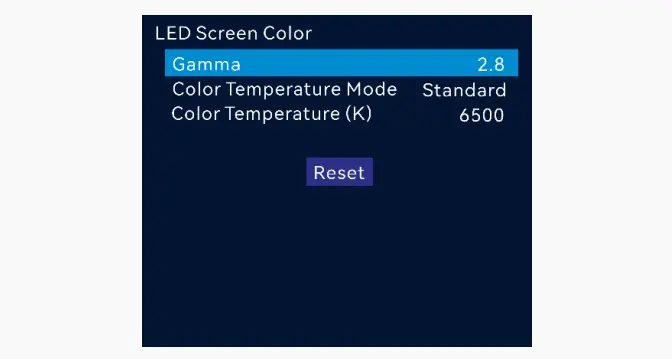
On the NovaStar VX600 Pro system, global color adjustments and pixel calibration solve different problems. Global controls change the whole image; calibration compensates for differences between LEDs or cabinets. Use NovaLCT with the appropriate NovaStar calibration workflow and the cabinet supplier’s validated data for uniformity corrections.
02. Verify HDR support before promising an HDR workflow
The NovaStar VX600 Pro should not be specified as an HDR processor on the basis of the shared series manual. Section 5.12.5 of the VX Pro Series User Manual V1.4.1 explicitly states: Only the VX2000 Pro supports the HDR function.
There is also no DisplayPort connector on this model.
For a NovaStar VX600 Pro installation, prepare a suitable SDR signal upstream. If native HDR processing is required, review a controller explicitly documented for that function and verify its receiving-card and panel requirements. A high-bit-depth input specification alone is not proof of HDR decoding or tone mapping.
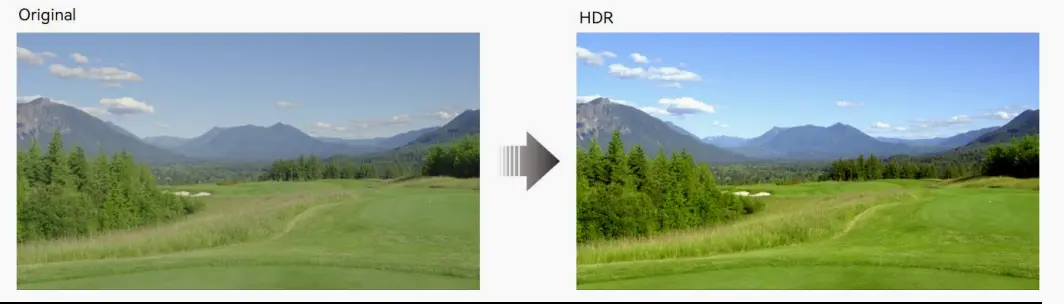
The retained HDR illustration is a visual reference; it does not establish HDR support on this model.
Likewise, check 3D separately: NovaStar documents an emitter-and-glasses workflow and states that Side-by-Side or Top-and-Bottom 3D halves output capacity. Do not enable a special display mode on a near-capacity wall without recalculating its load and testing the complete system.
7. Enabling NovaStar VX600 Pro Sync and Backup Features
The NovaStar VX600 Pro supports documented backup arrangements between devices, input sources, Ethernet ports, and optical/Ethernet paths, plus dual receiving-card backup. Each protects a particular failure path. Merely connecting an extra cable does not demonstrate that the required failover has been configured.
01. Configure synchronization and understand latency
Connect an external reference to the dedicated GENLOCK IN connector when the installation requires it, and select the intended synchronization source. The official connector specification lists bi-level and tri-level signals at 24–60 Hz. Do not use an SDI video input as a substitute for the documented reference connector.
NovaStar VX600 Pro latency depends on mode. The specification lists 1–2 frames in Video Controller low-latency operation and 0 frames in low-latency ByPass operation. These are device figures, not camera-to-screen guarantees. Cameras, upstream processors and receiving hardware add their own delays; ByPass also removes video processing.
02. Configure and prove the required backup
For NovaStar VX600 Pro redundancy, follow the matching backup chapter in the manual and confirm receiving-card compatibility. Device backup, port backup and dual receiving-card backup are distinct arrangements. Recalculate available capacity when ports are reserved for standby service, and avoid shared cables or power paths that defeat the intended protection.
For device backup, the manual requires the same device model and version on the same LAN. Configure the relationship through one method only: NovaLCT, Unico or the LCD menu. These methods do not synchronize their backup setup with each other. The documented LCD path is Advanced Settings > End-to-End Backup > Device Backup; match cabinet quantities and the specified reversed data flow.
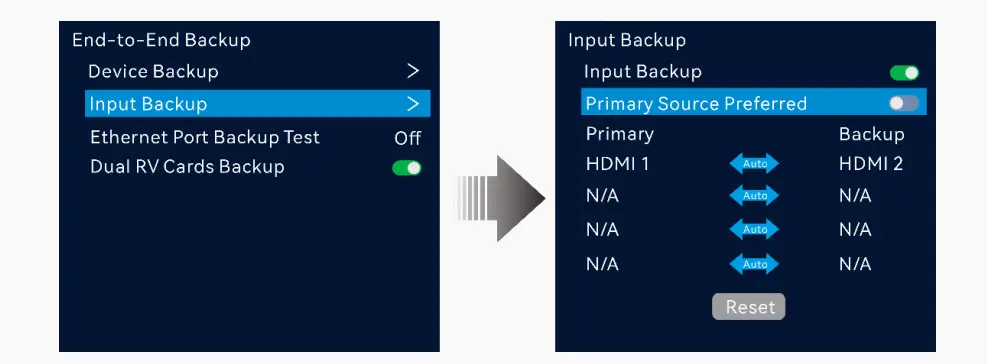
Use the documented Ethernet port backup test where appropriate, followed by an agreed commissioning test for the actual failure scenario. Check the visible wall, recovery behavior and return to normal operation. Record what was tested; do not describe a system as fully redundant after testing only input loss.
03. Troubleshoot by symptom
| Symptom | Check first | Next controlled action |
|---|---|---|
| Entire wall black | Power, detected input, visible layer, blackout and freeze status | Try an internal pattern to separate source problems from downstream output problems. |
| One chain missing | Assigned output, first cable, first receiving card and port load | Test a known good cable and compare the saved port map. |
| Cabinets swapped or scrambled | Physical cable order versus screen connections | Run mapping identification and correct the connection sequence. |
| Image cropped or stretched | Source timing, canvas dimensions, crop and aspect ratio | Display a grid and restore proportional or pixel-to-pixel sizing. |
| Cannot add a layer | Remaining resources and connector capacity | Reduce the source/layer specification or simplify the layout. |
| Backup does not take over | Configured roles, supported topology and standby signal | Repeat the relevant manual procedure and test that exact failure path. |
After resolving a NovaStar VX600 Pro fault, save the corrected configuration and repeat the affected acceptance test. Preserve the known working preset and exported files so that a later operator can recover without recreating the screen from memory.
8. Purchasing and Handover Checklist
If you are sourcing an LED screen with a VX600 Pro, ask for a system quotation rather than a controller-only box price. The screen’s receiving cards, cabinet configuration and output-port allocation need to be approved together. Verify which software each task needs and which documents accompany the system; a download by itself does not confirm compatibility.
| Supply item | Ask the supplier to identify | Acceptance evidence |
|---|---|---|
| Controller and receivers | Exact VX600 Pro revision, receiving-card models and cabinet configuration | Approved cabinet-to-port plan for the actual wall |
| Source and control | Video source format, control software and required cables | Live source, mapping and saved-preset demonstration |
| Backup | Named failure path, standby equipment and connection arrangement | Agreed failover test with the visible wall operating |
| Handover | Configuration exports, cabinet files, version record and operator notes | Restart and recovery using the delivered files |
| Quote exclusions | Spare hardware, fiber modules, local installation and commissioning responsibilities | Itemized written scope; do not assume accessories or local labor are included |
For an existing rental fleet, include photographs of the controller and receiving-card labels, current firmware and the known working configuration. For a new installation, send the project country, wall dimensions, cabinet pixel dimensions and intended video sources. A current quotation should state the supplied configuration; this guide does not assert a universal selling price.
Send the wall layout for a configuration and quotation review
9. FAQs
01. Where can I download the NovaStar VX600 Pro manual?
Use the official NovaStar VX Pro product page and open Downloads. Select the VX600 Pro specifications and the VX Pro Series User Manual. Check the document version and model notes: a shared manual can include features available only on another controller.
02. Which NovaStar VX600 Pro software should I use?
Use Unico for supported device control, source and layer management, presets and firmware operations. Use NovaLCT for the screen configuration and calibration procedures that specify it. Match software and firmware versions, and keep the cabinet supplier's verified configuration files.
03. Does the NovaStar VX600 Pro have HDMI 2.0 or DisplayPort?
It has one HDMI 2.0 input with loop output and two HDMI 1.3 inputs. It does not have DisplayPort. The HDMI 2.0 input accepts up to 4096 × 2160 at 60 Hz under the documented signal-format conditions; the LED output still has its own pixel limit.
04. Can the NovaStar VX600 Pro drive a full 4K LED wall?
A native 3840 × 2160 LED wall contains 8,294,400 pixels, exceeding the 3.9-million-pixel output capacity. The controller can accept a supported 4K input and scale it to a smaller mapped wall. Input resolution and output pixel capacity must be checked separately.
05. How many NovaStar VX600 Pro layers can run together?
The budget is six 2K × 1K-equivalent resources. A 4K × 2K layer consumes four resources and a 4K × 1K layer consumes two. Plan the source connector capacities and layer specifications, rather than assuming six arbitrary video windows will fit.
06. Does the NovaStar VX600 Pro support HDR10?
The VX Pro Series User Manual V1.4.1 limits the documented HDR function to VX2000 Pro. Do not promise HDR10 processing on VX600 Pro based on that series feature. Prepare an SDR source or choose hardware explicitly documented for the required HDR workflow.
07. Does the NovaStar VX600 Pro support automatic device backup?
The manual describes a primary and backup device relationship in which the backup takes over when the primary device or its Ethernet cable fails. Matching device models and versions, supported wiring and correct configuration are required. Test the intended failure scenario during commissioning.
08. Why does the NovaStar VX600 Pro show the wrong cabinet order?
The saved screen connection sequence may differ from the physical wiring. Check the first cabinet, output assignment and serpentine direction for each chain. Use Mapping with compatible receiving cards, correct the connection sequence and save the receiving-card configuration before repeating the test.
How should I compare NovaStar VX600 Pro prices?
Compare a current itemized quotation for the exact controller revision and complete screen configuration. Check receivers, cables, optical modules, backup equipment, software or service scope, spares and commissioning. A controller-only price does not establish the cost of a working LED system.
What should I send for a VX600 Pro screen quotation?
Send the project country, wall and cabinet pixel dimensions, layout, receiving-card model if known, input sources and required backup behavior. For an existing wall, include model-label photographs and a saved working configuration.
10. Conclusion
A dependable NovaStar VX600 Pro setup begins with a valid pixel and port plan, then progresses through wiring, receiving-card configuration, mapping, source routing and testing. Prove the basic image first. Add advanced features only after confirming their model, firmware and hardware requirements.
Before handover, archive the NovaStar VX600 Pro configuration, cabinet files, source timings, port diagram and tested backup procedure. Label the operating presets and explain how to restore the normal show state. If you need help sizing a controller for your wall, send EagerLED the cabinet pixel dimensions, wall layout and source requirements for a configuration review.