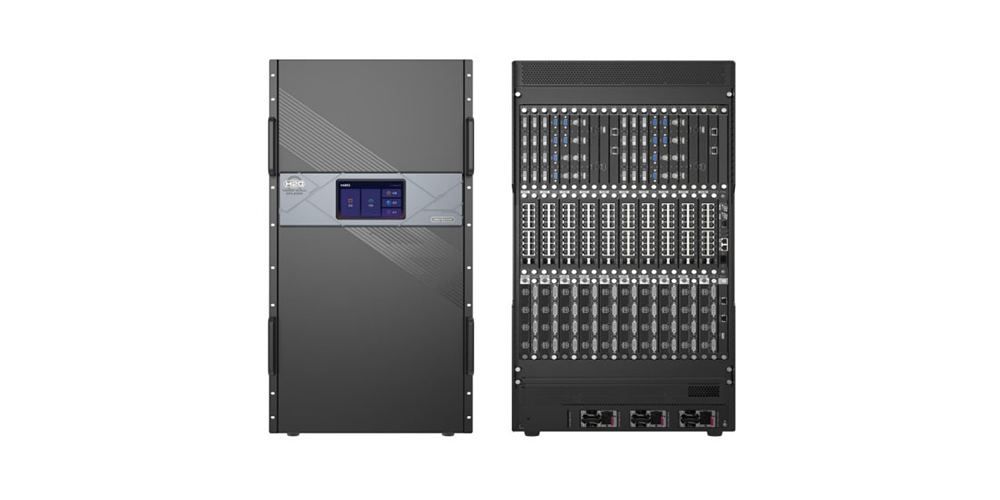
NovaStar VX600 is an all-in-one LED video processor and controller with six Gigabit Ethernet outputs and a total loading capacity of 3.9 million pixels. Use NovaLCT for LED screen configuration and V-Can for device control and firmware updates. This guide covers the standard VX600, its manual, software, setup, price enquiries and differences from the VX600 Pro.
Key takeaways: Calculate the wall’s native pixels before choosing a controller; 10,240 pixels wide and 8,192 pixels high are separate dimensional limits, not a combined supported resolution. HDMI/DVI standard input reaches 1920 × 1200 at 60 Hz. The VX600 Pro adds HDMI 2.0 input, while the standard VX1000 increases output capacity to 6.5 million pixels.
Published by EagerLED. Reviewed and updated . Technical references: NovaStar VX600 Specifications V1.7.1 and User Manual V1.5.0. Calculations below are planning examples, not hardware test results.
Table of Contents
1. What Is the NovaStar VX600?
01. A Processor and a Sending Card in One Device
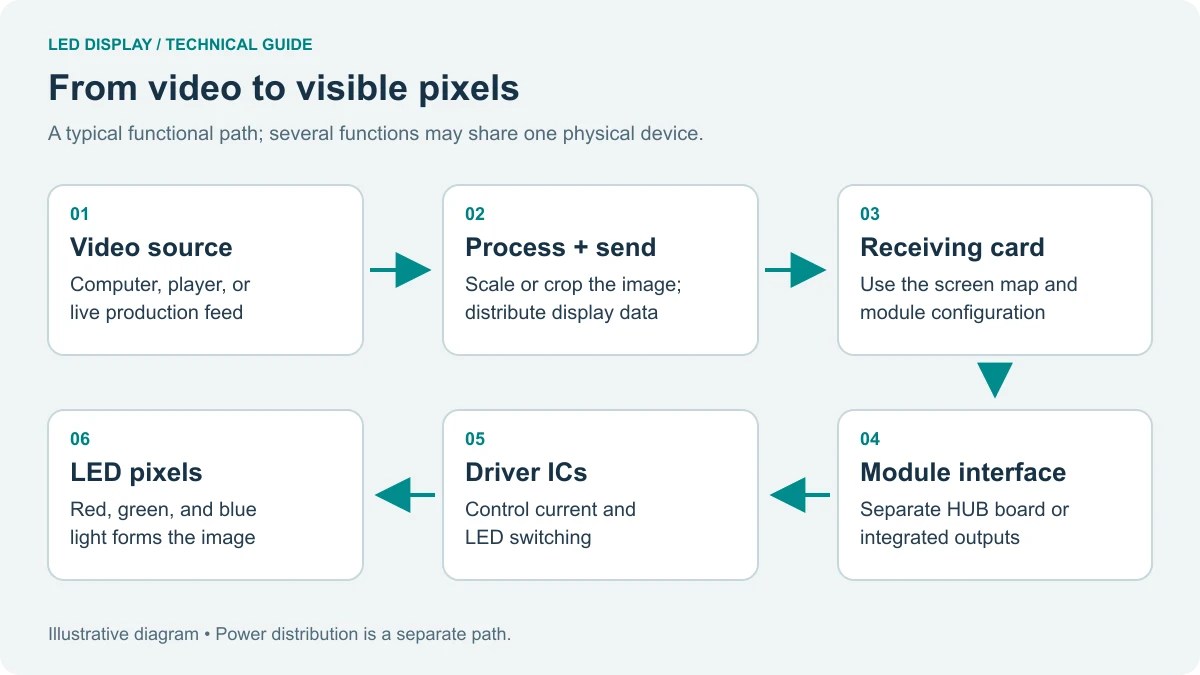
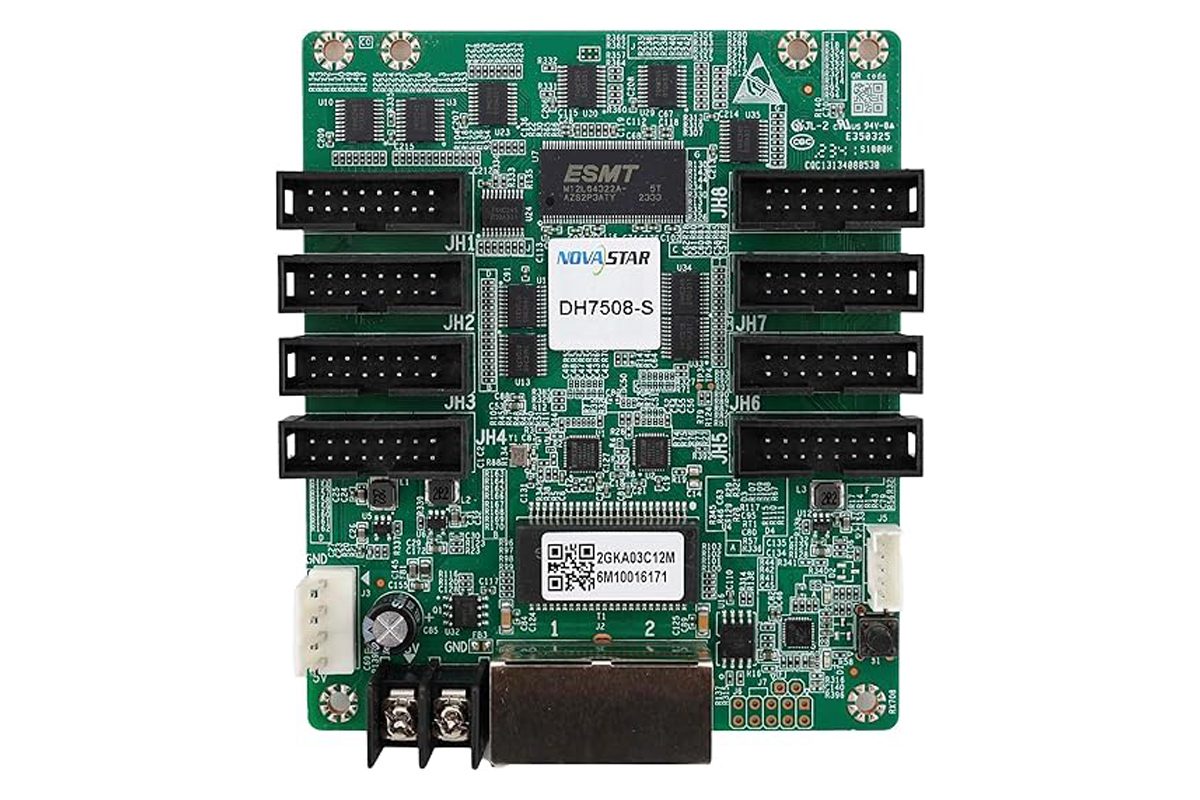
The VX600 combines video processing with the sending function that distributes image data to LED receiving cards. A video source connects to a supported input, and dedicated output cables connect to the cabinet chains. A separate sending card is unnecessary for this signal path; the cabinet receiving cards are still required. The six display outputs are not an ordinary network switch.
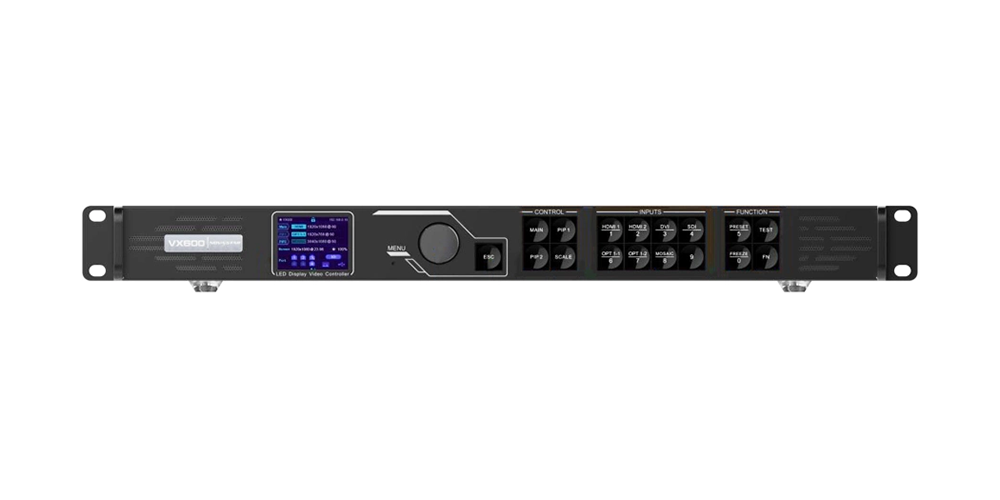
The standard VX600 and VX600 Pro are different models. Check the rear-panel connectors and model label before downloading firmware or following a setup guide. The Pro adds HDMI 2.0, USB playback and a larger layer resource budget; it does not increase the 3.9-million-pixel output capacity.
02. What the NovaStar VX600 Cannot Do
The standard model has no USB media playback: its USB ports serve control and cascading. HDMI and DVI do not accept interlaced video, but the 3G-SDI input supports deinterlacing. Check the bit depth, resolution and connector-specific input limits before connecting a broadcast source. Its HDMI output supports monitoring or video output; it is not a general-purpose multi-output LCD wall controller.
03. Who the Controller Is Built For
NovaStar positions the NovaStar VX600 for medium and high-end rental, stage control systems and fine-pitch LED screens. In practice that means event companies who re-rig a screen every week, integrators short of rack space, and anyone driving an ultra-wide or ultra-tall display.
2. NovaStar VX600 Specifications
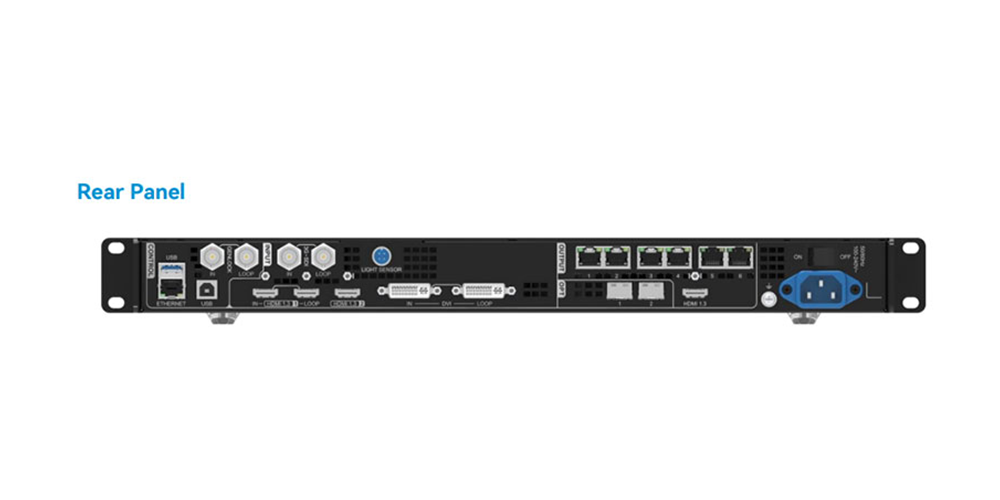
Use the NovaStar VX600 specifications PDF, V1.7.1 for connector and electrical data, and the VX600 user manual PDF, V1.5.0 for operation. These NovaStar documents are hosted on our own resource website. The width and height limits below must always be checked alongside the total pixel budget.
| Category | Item | Specification |
|---|---|---|
| Loading capacity | Max pixels and output size | 3.9 million pixels total; maximum width 10,240 pixels; maximum height 8,192 pixels (independent limits) |
| Video input | HDMI 1.3 × 2, DVI × 1 | Max 1920 × 1200 @ 60Hz; loop-through on HDMI 1.3-1 and DVI |
| Video input | 3G-SDI × 1 | Max 1920 × 1080 @ 60Hz; ST-424, ST-292, ST-259 only |
| Video input | OPT 1 fiber | 1 × 10G, self-adaptive video input or output |
| Output | Gigabit Ethernet | 6 ports, each with status LEDs |
| Output | Fiber OPT 1 / OPT 2 | OPT 1 copies the 6 Ethernet outputs; OPT 2 copies or backs up |
| Output | HDMI 1.3 monitor | Monitor or Video Output mode; configurable resolution and frame rate; check the manual for Ethernet-output effects |
| Processing | SuperView III engine | Stepless scaling, free input cropping, one-click full screen |
| Layers | 3 total (1 main + 2 PIP) | Adjustable size, position, priority, cropping, opacity, input color |
| Redundancy | Hot backup | Between devices, Ethernet ports and input sources |
| Calibration | Pixel-level brightness and chroma | With NovaLCT and NovaStar calibration software |
| Control ports | ETHERNET, USB, GENLOCK, LIGHT SENSOR | 1 control Ethernet, 1 USB-B input, 1 USB-A cascading output, Genlock IN/LOOP, light sensor |
| Power | 100–240V~, 1.5A, 50/60Hz | Rated power consumption 35W |
| Environment | −10°C to 45°C, 20–90% RH | Storage −20°C to +70°C |
| Physical | 483.6 × 351.2 × 50.1 mm, 4 kg | Noise level 45 dB(A) at 25°C; CE, UL, FCC, RCM, UKCA certified |
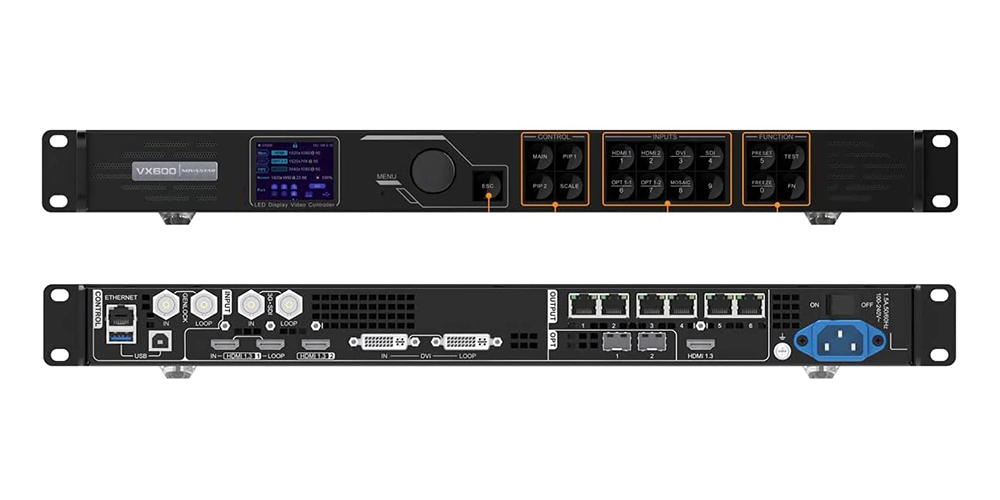
01. Input and Output Connectors Explained
The video inputs include two HDMI 1.3 connectors, one DVI and one 3G-SDI. HDMI 1.3-1, DVI and SDI provide loop-through outputs. Use the separate HDMI output for monitoring or video output, and verify its settings in the manual.
The OPT 1 fiber port is the unusual one: self-adaptive, so it acts as an output when connected to a fiber converter and as an input when connected to a video processor such as a Pixelhue unit. You never configure this manually — the NovaStar VX600 detects the downstream device and switches. OPT 2 is output only and can copy or back up the six Ethernet outputs.
02. Video Signal Support and Custom Resolutions
HDMI and DVI are rated 8-bit with RGB 4:4:4 and YCbCr 4:4:4 or 4:2:2 sampling, and standard input resolution tops out at 1920 × 1200 @ 60Hz. Custom modes reach further in one direction — up to 3840 pixels wide or 2784 pixels high — because very wide and very tall screens are this controller’s home ground. The 3G-SDI input accepts standard SDI signals only, with no custom resolution settings.
03. Function Limitations to Know Before You Buy
This table is from the “Function limitations” section of the official specification — a useful check before selecting the operating mode.
| Function | Limitation | Conflicts with |
|---|---|---|
| Low latency | All cabinets on the Ethernet ports must align at the top of the circumscribed rectangle. | Genlock, in ByPass mode only |
| Mosaic input source | Only the main layer can use it, and PIP 1 and PIP 2 cannot be opened while it does. | PIP layers |
| Image mosaic | Full screen scaling and pixel-to-pixel display become unavailable on that layer. | Full screen scaling, pixel-to-pixel |
| Main layer transition | The fade effect is unavailable when a PIP layer is open or a mosaic source is used. | PIP layers, mosaic source |
| ByPass mode | Video processing is unavailable when the device acts as a standalone LED controller. | Video processing |
The practical reading: need a fade transition on the main layer? Do not open a PIP layer. Need two picture-in-picture windows? The main layer cannot use a mosaic source. Switching to ByPass for the lowest latency? You give up video processing entirely.
3. NovaStar VX600 Software Download and Manual PDF
For NovaStar VX600 software, start with NovaLCT for receiving-card and screen configuration, then use V-Can for controller operation and updates. The front panel also handles daily input switching, scaling and presets. Unico and VICP instructions for the VX600 Pro should not be assumed to apply to the standard model.
| Software | What it does | Platform | Required? |
|---|---|---|---|
| NovaLCT | Receiving-card parameters, screen configuration, cabinet files, calibration and port backup | Windows | Primary receiving-card configuration tool |
| V-Can | Device management, firmware updates, remote control | Check the selected package | Documented update path; NovaLCT is an alternative |
| Front panel | Input switching, layers, scaling, brightness, presets | On device | Built in |
01. NovaLCT: Where the Controller Gets Configured
Use NovaLCT for screen configuration, cabinet files and receiving-card parameters. Back up a working configuration before making changes. If you need a file, our RCFG and RCFGX download library explains how to match it to the receiving card, scan mode, driver IC and cabinet hardware; pixel pitch alone is insufficient.
02. V-Can: Firmware and Device Management
V-Can handles device-level operation and provides a documented firmware update path through System > Firmware Update. The VX600 User Manual V1.5.0 also documents updating through NovaLCT V5.4.2 or later. Choose the workflow that matches your installed software and the exact controller model.
03. Front Panel Control and Model Compatibility
The front panel lets operators select inputs, enable the main and PIP layers, scale the image, change brightness and load presets. Hold the knob and ESC together for at least three seconds to lock or unlock the controls. For web or mobile workflows, confirm support for the exact model and firmware before installation; the VX600 Pro setup guide covers that separate product.
04. How to Download NovaLCT and V-Can
Open the NovaStar software download page and choose the tool by its role, rather than looking for an application named “VX600 software.” NovaLCT is a Windows configuration tool. Check the operating-system requirements stated beside the V-Can package you select. Connect the control PC through the supported USB or control Ethernet connection and confirm that the device is detected.
Software, cabinet files and firmware are different downloads. A PDF manual cannot update the controller, and an RCFGX file configures receiving cards rather than controller firmware. Confirm the model, package version and compatibility before loading any file.
4. NovaStar VX600 Setup: Step-by-Step Configuration
Setup follows a fixed order, and skipping a step is the usual reason a screen stays black. This sequence follows the VX600 user manual.
01. What to Prepare
Gather the controller and power cord, a video source, the matching HDMI, DVI or SDI cable, one CAT5e or CAT6 cable per cabinet chain, a USB Type-B cable for the control PC, and a Windows PC with NovaLCT installed. For long runs you also need LC fiber and modules: OS1 or OS2 single-mode reaches 10 km, OM3 or OM4 multi-mode reaches 300 m.
02. Connect the Hardware in the Right Order
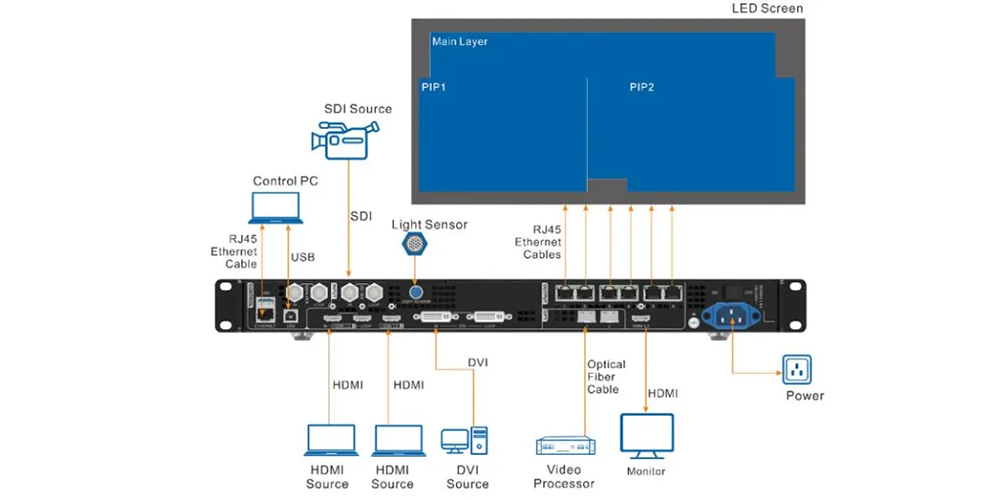
Work from the rear panel: video source into an HDMI, DVI or SDI input; Ethernet cables from the output ports to the receiving cards, starting at port 1; USB Type-B to the control PC; HDMI output to a monitor if needed; then power. Switch on in this order: LED display, NovaStar VX600, video source.
Start each cabinet chain from its assigned VX600 output port and record the physical cable order. Quick Configuration expects the cabinet quantities and front-view data flow to match this wiring. Repeated or overlapping images can result from a mismatch between the configured layout and the actual cabinet chain.
03. Choose the Working Mode
Press the knob, go to Working Mode, and choose deliberately rather than defaulting out of habit.
- Video Controller — the default and most capable; processing and display control are both active.
- Fiber Converter — OPT 1 and OPT 2 become inputs and the Ethernet ports output OPT 1 data, with seamless failover; only a limited menu set is available.
- ByPass — a pure LED controller with processing off; with low latency also enabled, input-to-receiving-card delay drops to about 20 lines.
04. Configure the Screen with Quick Configuration
If every cabinet is the same model and the screen is a regular grid, go to Screen Configuration > Quick Configuration. Set Cabinet Row Qty and Cabinet Column Qty to match the screen, set Port 1 Cabinet Qty to the cabinets on Ethernet port 1, then set Data Flow (Front View) to match the cabling. Press the knob to save once the screen displays correctly with no overlap or repetition.
Three constraints catch people out. The cabinet count on Ethernet port 1 must be greater than or equal to port 2, which must be greater than or equal to port 3, and so on. Each port’s count must be an integer multiple of the screen’s cabinet row or column quantity. And the total pixels loaded by Ethernet port 1 cannot exceed 650,000.
05. Advanced Configuration, Configuration Files and Presets
Irregular layouts and mixed cabinet types need Screen Configuration > More Settings > Advanced Configuration. Switch it on, then work through one Ethernet port at a time: row and column quantities, the horizontal and vertical offset of the first cabinet, and the data flow direction. Offsets are measured in pixels from the cabinet’s top-left to the screen’s top-left. Mapping overlays the port number and cabinet index on the screen so you can read off which cabinet is where.
A dark cabinet does not by itself prove that its configuration file is missing. First check cabinet power, input signal, output cabling and receiving-card communication. If the file is incorrect or absent, back up the working settings and load the supplier-approved file in NovaLCT. The manual describes Tools > Controller Cabinet Configuration File Import, followed by saving the change to hardware and sending the file from the device. Use Save to RV Card after verifying the display, then test a restart.
Finally, build your layers. Press MAIN, PIP 1 or PIP 2 in the CONTROL area, then a source button in INPUTS to assign it. When the layout is right, save it as a preset: the NovaStar VX600 supports 10, and a preset stores layer status, input source, size, position, priority, cropping and opacity.
5. How Much LED Screen Can One NovaStar VX600 Drive?
This decides whether you buy one NovaStar VX600 or two, so do the arithmetic before ordering.
01. The 3.9 Million Pixel Rule
Multiply native screen width by native screen height. A result below 3.9 million pixels passes the total-capacity check, but you must also verify per-port loading, cabinet routing, maximum dimensions and input timing. A larger wall needs a higher-capacity controller or a designed multi-unit system. The specification supports image mosaic with up to four units; each unit must use the same sync source.
02. The 650,000 Pixel Port Limit
The Quick Configuration procedure limits the cabinets loaded by port 1 to 650,000 pixels and requires a non-increasing cabinet count across the configured ports. Do not apply the simple cabinet-count rules to an irregular layout without checking the advanced configuration procedure. The table shows arithmetic minimums, not a guaranteed wiring or source-processing plan.
| Screen resolution | Total pixels | Arithmetic minimum units | Why |
|---|---|---|---|
| 1920 × 1080 (Full HD) | 2.07 million | 1 | Comfortably inside the 3.9 million budget |
| 2560 × 1440 | 3.69 million | 1 | Within total capacity; verify ports and source scaling |
| 3840 × 1080 (ultra-wide) | 4.15 million | 2 | At least 2 by pixel count; verify source and routing plan |
| 3840 × 2160 (4K UHD) | 8.29 million | 3 | At least 3 by pixel count; design input partitioning, port mapping and shared sync |
| 10240 × 768 | 7.86 million | 3 | At least 3 by pixel count; divide the wall and verify each unit |
For a cabinet-based calculation, suppose a wall has 12 columns and 8 rows of cabinets, each with 192 × 192 pixels. Its native resolution is 2304 × 1536, or 3,538,944 pixels. Six chains of 16 cabinets each load 589,824 pixels per port. That passes the basic total and port-1 arithmetic checks; confirm the receiving-card mapping, input timing and feature limitations before commissioning.
6. NovaStar VX600 Firmware Update
Firmware runs inside the controller; NovaLCT and V-Can run on the control PC. The standard VX600 User Manual V1.5.0 documents firmware updates in V-Can and NovaLCT V5.4.2 or later. Do not install VX600 Pro firmware on a standard VX600.
01. Before You Update
Back up the controller and receiving-card configuration, record the installed firmware version and obtain a package confirmed for your model. Our NovaStar download library lists software, manuals and firmware separately. Confirm compatibility with support before updating, keep power and communication stable, and allow maintenance time for a restart and display checks.
02. Update Steps and Post-Update Checks
- Decompress the firmware package.
- Open V-Can and go to System > Firmware Update.
- In the Update Program area click Browse and select the firmware file.
- Updating more than one controller? Tick each device in the Device List.
- Click OK to add the package, then Update to begin.
- The device restarts automatically when the update completes.
- Check the Device List to confirm the version matches the package.
After updating, check the reported hardware version, run a test pattern and moving content, and test each source. Restore or correct configuration only after identifying what changed. For the alternative NovaLCT workflow, follow Chapter 6 of the VX600 manual; it describes the program-loading window, firmware selection, update and version refresh.
7. NovaStar VX600 vs VX600 Pro vs VX1000
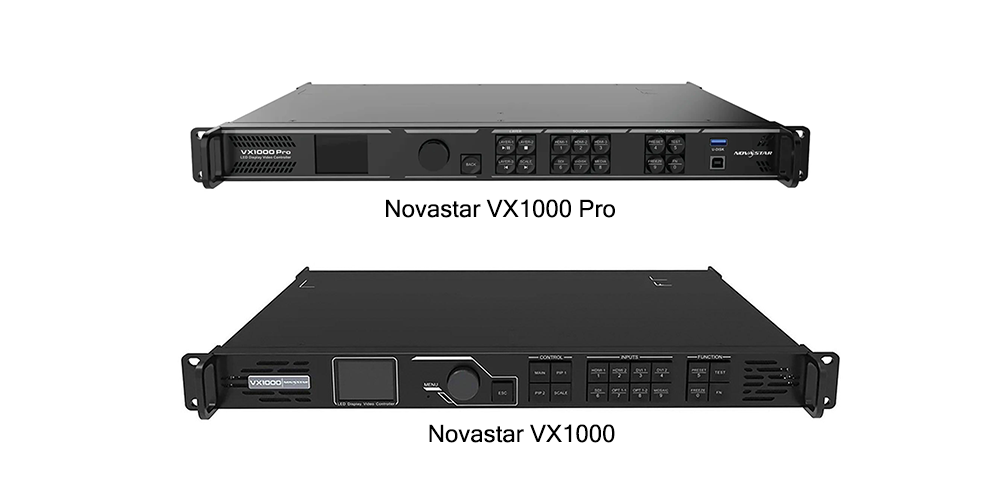
The VX600 and VX600 Pro both load 3.9 million pixels through six Ethernet outputs. The standard VX1000 loads 6.5 million pixels through ten outputs. Input processing and output loading are separate specifications: a Pro model’s higher input resolution does not automatically mean a higher pixel capacity.
| Feature | VX600 | VX600 Pro | VX1000 |
|---|---|---|---|
| Total output capacity | 3.9 million pixels | 3.9 million pixels | 6.5 million pixels |
| Gigabit display outputs | 6 | 6 | 10 |
| Video input connectors | 2 HDMI 1.3, 1 DVI, 1 3G-SDI, OPT 1 | 1 HDMI 2.0, 2 HDMI 1.3, 1 3G-SDI, OPT 1, USB 3.0 | 2 HDMI 1.4, 2 DVI, 1 3G-SDI, OPT 1 |
| Layer resources | 1 main + 2 PIP | 6 × 2K × 1K resources; higher-resolution layers use more resources | 1 main + 2 PIP |
| User presets | 10 | 256 | 10 |
| USB media playback | No | Yes | No |
| Selection priority | Standard input and three-layer operation | HDMI 2.0 input and more flexible operation | Higher total output capacity |
01. Which Model Fits Your Project
Choose the standard VX600 when its input timings, three-layer layout and pixel budget match the project. A 1080p source and a wall below 3.9 million native pixels are a useful starting point, but they do not replace checks of per-port capacity and cabinet routing.
Choose the VX600 Pro for HDMI 2.0 input, USB playback or its more flexible layer resources. Choose the standard VX1000 when more output capacity is the priority: 6.5 million pixels across ten ports. See the VX600 Pro setup guide and VX1000 family comparison, and verify the exact model before ordering.
8. NovaStar VX600 Price and Buying Guide
NovaStar VX600 price needs a current, itemized quotation. This page does not publish a fixed price because controller condition, quantity, destination, shipping, taxes and support terms change the delivered cost. Compare quotes for the standard VX600 separately from the VX600 Pro.
| Item | Ask the supplier to specify |
|---|---|
| Model and condition | Standard VX600 or VX600 Pro; new or used; included accessories |
| Delivered cost | Currency, quantity, shipping, tax and delivery terms |
| Compatibility | Native pixels, receiving cards, source timings and required backup connections |
| Support | Configuration service, firmware guidance, warranty provider and terms |
01. What Drives the Price, and How to Avoid a Refurbished Unit
Ask the supplier to state whether the unit is new or used, the exact model, included accessories, availability, delivery terms and warranty. Confirm receiving-card compatibility and whether configuration support is included. Do not assume NovaLCT requires a separately purchased licence or that a low advertised price includes shipping and tax.
Request a VX600 quote and compatibility check from EagerLED. Include your destination, quantity, cabinet model, native screen resolution, receiving-card model and video sources. Ask for the hardware, shipping, taxes and support terms to be itemized so competing quotations are comparable.
9. Troubleshooting NovaStar VX600 Problems
| Symptom | Most likely cause | Fix |
|---|---|---|
| “No Signal” on the screen | Wrong input selected, or the source is asleep | Match the input to the port in use, wake the source, re-seat the cable |
| Screen completely dark | Power, cabling, mapping or receiving-card parameters | Check power and communication; load a verified matching file only if required, then save and test |
| Image repeats or overlaps | Quick Configuration does not match the cabling | Confirm port 1 starts the chain, then re-check row, column and port cabinet quantities |
| Low latency will not switch on | Cabinets are not aligned to the top of the circumscribed rectangle | Realign the cabinet layout or accept the small extra delay |
| PIP layer refuses to open | The main layer is using a mosaic source | Close the mosaic source or accept a single-layer layout |
01. Working Through Faults Systematically
For “No Signal,” check that the source is awake, the chosen input matches the physical connector, and the source timing is supported. Try a known-good cable and a supported 1080p timing. Test the controller’s internal pattern: if the LED wall displays it correctly, focus next on the input path. If the test pattern also fails, check power, output wiring and receiving-card configuration.
A repeated image points toward cabinet mapping, quantities or data flow. Color errors can come from source settings, receiving-card parameters or calibration. Change one setting at a time and keep a backup of the working file. The receiving-card wiring checklist helps trace the output path before replacing hardware.
10. Where the NovaStar VX600 Performs Best
01. Rental, Stage and Live Events
For rental and stage work, the useful features are presets, configurable layers and backup options. Save a verified setup for each layout and test the backup path before a show. Redundancy must be configured and connected; it does not protect every cable or source automatically. Low-latency behavior also depends on the working mode and cabinet alignment.
02. Fixed Installation, Conference and Fine Pitch
For fixed and fine-pitch installations, confirm the cabinet configuration and calibration data, preserve a working backup and document the input timing. A compatible light sensor can support brightness control. Pixel-level calibration helps address display uniformity when the receiving cards and calibration workflow support it. Use NovaLCT, V-Can or the device controls documented for the standard model.
03. Outdoor and Long-Distance Transmission
Fiber can move the signal between the control equipment and display-side converters. Select matched optical modules and LC fiber for the intended single-mode or multi-mode route, and verify the link budget. OPT 2 supports output copy or backup modes; configure and test the chosen mode instead of assuming it provides automatic protection for any topology.
Install the controller in a protected, ventilated location within its specified temperature and non-condensing humidity range. An outdoor LED wall does not make the controller weatherproof. Keep the control-room design and enclosure ventilation separate from the display’s outdoor protection rating.
11. Frequently Asked Questions About the NovaStar VX600
Tap any question to expand the answer.
12. Choose Your VX600 Configuration
Start with the native cabinet resolution and cabling plan, then check source timings, layers and backup requirements. The standard VX600 is a six-output controller for projects within its 3.9-million-pixel budget; the Pro changes input and operating features, while the VX1000 changes output capacity.
Need help choosing the controller? Send EagerLED your screen resolution and cabinet details for a compatibility check and current quotation. For broader selection guidance, read our NovaStar processor overview and video wall processor versus controller comparison.
 SMD LED Modules vs COB LED Modules: Which Should You Choose?
 NovaStar ViPlex Express Download: Free Software & User Guide