If you are looking for a NovaStar ViPlex Express download and a user guide that matches the software you actually installed, this page is for you. ViPlex Express is the free Windows tool NovaStar provides for Taurus (TB) and TU series multimedia players, and it is the fastest way to publish content to an LED screen without leaving a PC running on site. Below you will find the official download links for ViPlex Express V4.1.1.0201 and ViPlex Express V3.0.5.1501, the PC requirements for each edition, connection and login steps, a complete playlist workflow, and the answers to the questions installers ask most often.
catalogue
1. What Is NovaStar ViPlex Express?
NovaStar ViPlex Express is free Windows software for Taurus (TB) and TU series multimedia players, the compact controllers mounted behind an LED screen that store and play content on their own. Instead of leaving a laptop plugged into the display, you build a playlist on your PC, publish it to the player once, and the screen keeps running after you disconnect. That is why ViPlex Express has become the standard configuration tool for storefront screens, hotel lobbies, transport signage, factory dashboards and rental LED screens that must play unattended.
01. What ViPlex Express Does on an LED Screen
Once ViPlex Express is logged in to a player it exposes the whole device rather than one single feature. NovaStar groups this toolset under the name All-round Control, and it covers the following:
- Network configuration – set the player IP address, subnet mask and gateway.
- Playlist management – create, import, export and publish playlists.
- Input source management – switch between the internal source, HDMI IN and other inputs.
- Display control – brightness, colour temperature and volume.
- Time management – synchronise the player clock or use it as an NTP server.
- Playback management – start, stop and monitor what is currently on screen.
- Power control – scheduled power on and power off.
- Screen topology – describe how cabinets and receiving cards are wired together.
- Cloud server configuration – point the player at a cloud or local server.
- Peripheral management – firmware, sensors and add-on modules.
In daily work most people open ViPlex Express for one of four jobs: publish a new playlist, bring an offline screen back online, adjust brightness for the time of day, or update the firmware on a player. All four are covered below.
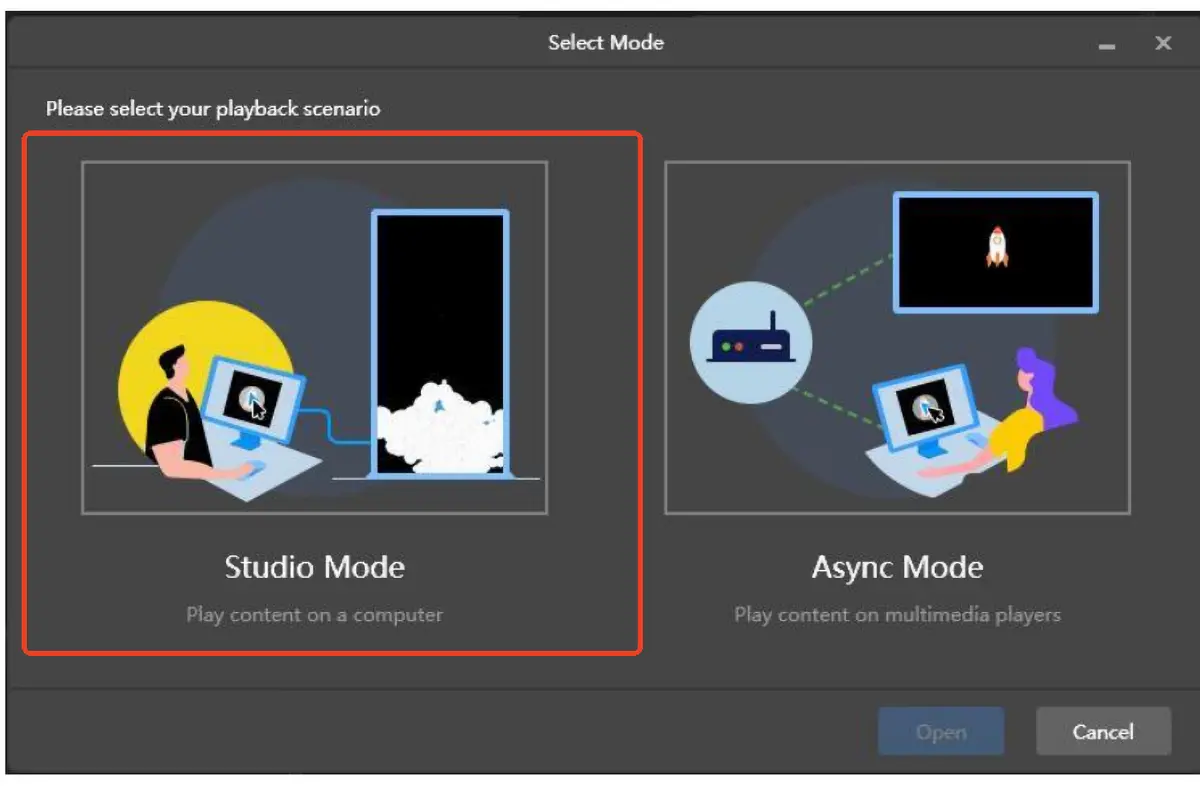
02. Two Working Modes: Async Mode and Studio Mode
ViPlex Express has shipped with two different playback architectures, and this difference explains almost every confusing instruction you will find online.
- Async Mode – the player stores the playlist and plays it by itself. No PC is required after publishing. Async Mode exists in every ViPlex Express version, including the current V4.1.1.
- Studio Mode – the PC renders the content and drives the screen in real time. Studio Mode only exists in the V3.0.5 branch. The V4.1.1 user manual states plainly that “the current version does not support studio mode”.
A common mistake is to install the newest ViPlex Express build and then hunt for Studio Mode inside it. You will not find it. If your workflow depends on Studio Mode, install ViPlex Express V3.0.5 on Windows 7 SP1 64-bit. If you only need scheduled playback on the player, use ViPlex Express V4.1.1.
| Aspect | Async Mode | Studio Mode |
|---|---|---|
| Where the content is played | Stored on the multimedia player and played by the player itself | Rendered on the PC and sent to the screen in real time |
| PC needed after publishing | No – the screen runs unattended | Yes – the PC must stay connected |
| ViPlex Express versions | All versions, including ViPlex Express V4.1.1 | ViPlex Express V3.0.5 branch only |
| Operating system | Windows 10 64-bit, version 1809 or later | Windows 7 SP1 64-bit (Windows 10 also works) |
| Best suited to | Scheduled, unattended LED screens | Live events, virtual screens and testing |
| Login credentials | Device password printed on the SSID label | Device password printed on the SSID label |
03. What Is New in ViPlex Express V4.1.1
The current release is ViPlex Express V4.1.1.0201, built for Taurus players running firmware TB V4.7.4 and above on Windows 10 64-bit. The headline changes are:
- Only two modes remain – Async Mode and Demo Mode. Studio Mode has been removed from the V4 line.
- Demo Mode lets you add virtual devices, so you can build and rehearse a playlist on the desk with no hardware connected.
- Better detection when a solution exceeds the load capacity of the player, so oversized screens are flagged before publishing instead of failing on site.
- The maintained V3.0.5 branch for Windows 7 users added support for a 50 Hz internal source on TB series players, an offline fallback image for web pages, and using a TB player as an NTP server.
If you are already running ViPlex Express V4.0 or V3.0.5, the upgrade is a straight installer replacement; your playlists live on the player and are not affected.
2. ViPlex Express Download: Official Links and Versions
ViPlex Express is free of charge. NovaStar publishes it on the official download centre, and every release is distributed as a ZIP archive containing the setup program. Download ViPlex Express only from NovaStar or from the verified links below – third-party mirrors frequently redistribute an older build with a repackaged installer, which is the usual cause of a failed installation or a driver conflict.
01. ViPlex Express Free Download
The two builds below are the ones NovaStar currently maintains. Pick the row that matches your operating system and the firmware on your player.
| Version | Download | Documentation | Notes |
|---|---|---|---|
| ViPlex Express V4.1.1.0201 (latest) |
ViPlex Express V4.1.1.0201 Update (X64) | ViPlex Express User Manual V4.1.1 | For Taurus players with firmware TB V4.7.4 and above, Windows 10 64-bit. Async Mode and Demo Mode only. |
| ViPlex Express V3.0.5.1501 | ViPlex Express V3.0.5.1501 Update (X64) | Async Mode User Manual V3.0.5 · Studio Mode User Manual V3.0.5 · Release Note V3.0.5 | The last ViPlex Express build with Studio Mode. Windows 7 SP1 64-bit; Windows 10 also works. |
| Official download centre | novastar.tech/download | – | Always the authoritative source. Check here first if a newer ViPlex Express build has been released. |
02. Which ViPlex Express Version Should You Download?
Use this rule of thumb before you click anything:
- Choose ViPlex Express V4.1.1.0201 if your player runs Taurus firmware TB V4.7.4 or newer and your control PC runs Windows 10 64-bit. This is the version to use for scheduled asynchronous playback.
- Choose ViPlex Express V3.0.5.1501 if you are still on Windows 7, or if your workflow genuinely needs Studio Mode and live playback from a PC.
- Avoid the old 64-bit builds such as ViPlex Express V2.3.0.0701 that still circulate on download mirrors. They predate the current player firmware, lack the present screen-topology and cloud features, and are no longer documented by NovaStar.
- Never install two ViPlex Express versions side by side on the same PC. Uninstall the old build first, then run the new installer.
3. ViPlex Express System Requirements and Installation
ViPlex Express is not demanding, but the two branches have different baselines, and Studio Mode adds a list of Windows settings that must be correct before playback. Check both before you install.
01. PC Requirements for ViPlex Express
| Requirement | ViPlex Express V4.1.1 (async) | ViPlex Express V3.0.5 (studio) |
|---|---|---|
| Operating system | Windows 10 64-bit, version 1809 or later | Windows 7 SP1 64-bit (Windows 10 supported) |
| CPU | i5 or better | i5 or better |
| Memory | 4 GB RAM | 4 GB RAM |
| Storage | 60 GB HDD | 60 GB HDD |
| Integrated graphics | Intel HD Graphics 4000 or a comparable integrated GPU | Intel HD Graphics 4000 or a comparable integrated GPU |
| Dedicated graphics | NVIDIA GeForce 8 series / AMD Radeon HD 5000 series or higher | NVIDIA GeForce 8 series / AMD Radeon HD 5000 series or higher |
| Video memory | 512 MB or more | 512 MB or more |
| OpenGL | Support for OpenGL 2.1 or later | Support for OpenGL 2.1 or later |
| Extra prerequisites | None beyond the operating system | .NET Framework 4.6.x and the official Visual C++ 2017 runtime components |
If your PC runs Windows 10 64-bit on a build older than version 1809, update the operating system first; the ViPlex Express V4.1.1 manual includes a dedicated update guide for that case.
02. How to Install ViPlex Express
- Download the ViPlex Express ZIP that matches your version and extract it to a local folder. Do not run the installer from inside the compressed archive.
- On Windows 7, install .NET Framework 4.6.x and the Visual C++ 2017 runtime components before you continue.
- Double-click the installer and follow the on-screen instructions. The default installation path is fine.
- On first launch, choose your working mode – Async Mode or Demo Mode in ViPlex Express V4.1.1, and Studio Mode or Async Mode in ViPlex Express V3.0.5.
- If you want to change the mode later, open the menu in the top-right corner, select Work Mode, choose the new mode, and restart the software for the change to take effect.
The mode is chosen at first run, and switching it always requires a restart. That is the usual reason a tutorial screenshot does not match what you see on your own screen: the author was in the other ViPlex Express mode.
03. Windows Settings to Check Before Playback
Studio Mode is sensitive to background Windows behaviour, so NovaStar documents a configuration checklist that should be applied before a live session. Async playback is more forgiving, but scaling at 100% and disabling sleep still prevent interrupted uploads on long transfers.
| Windows configuration option | Target status |
|---|---|
| Windows automatic update | Off |
| Firewall | Off, or allow the program to connect |
| Turn off screen | Never |
| Sleep | Never |
| Scaling size | 100% |
| Multiple displays | Duplicate these displays |
| UAC (User Account Control) | Never notify |
| Antimalware Service Executable | Disabled |
| Superfetch | Manual |
Set these options before you connect the player. Changing them mid-session can drop the connection between ViPlex Express and the screen.
4. How to Connect ViPlex Express to an LED Screen
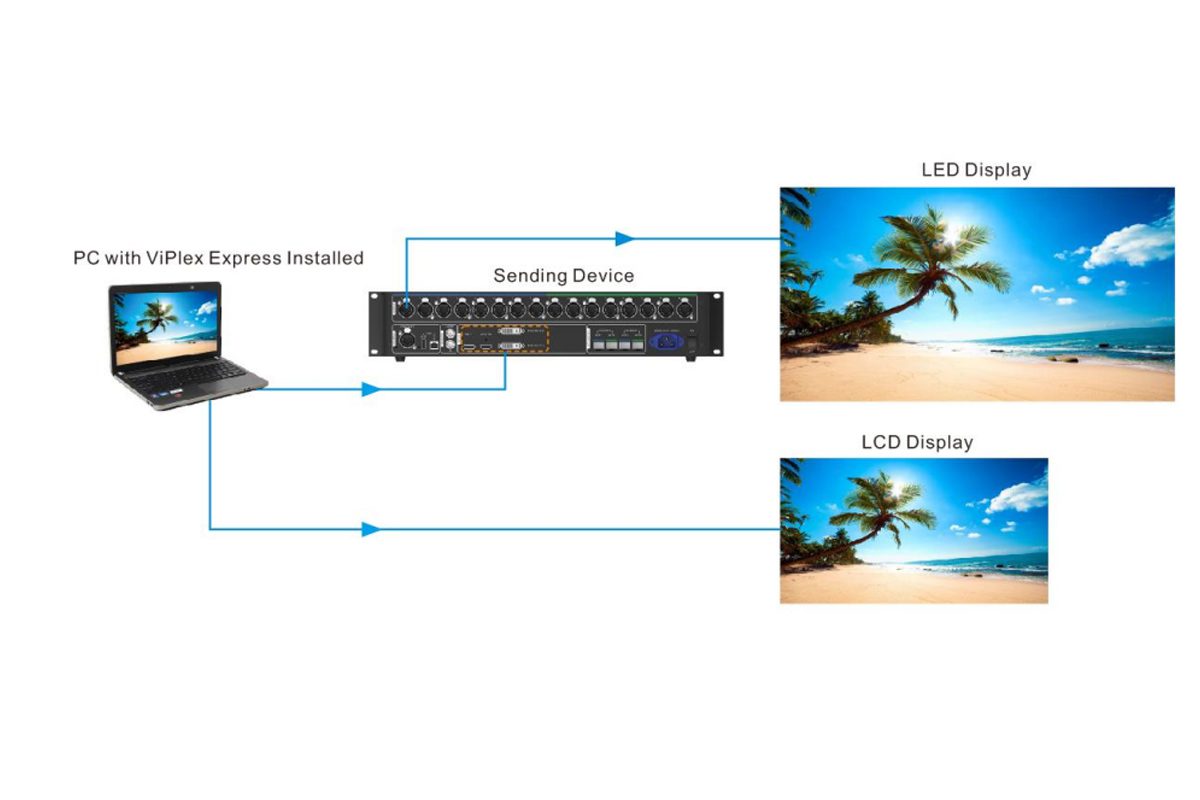
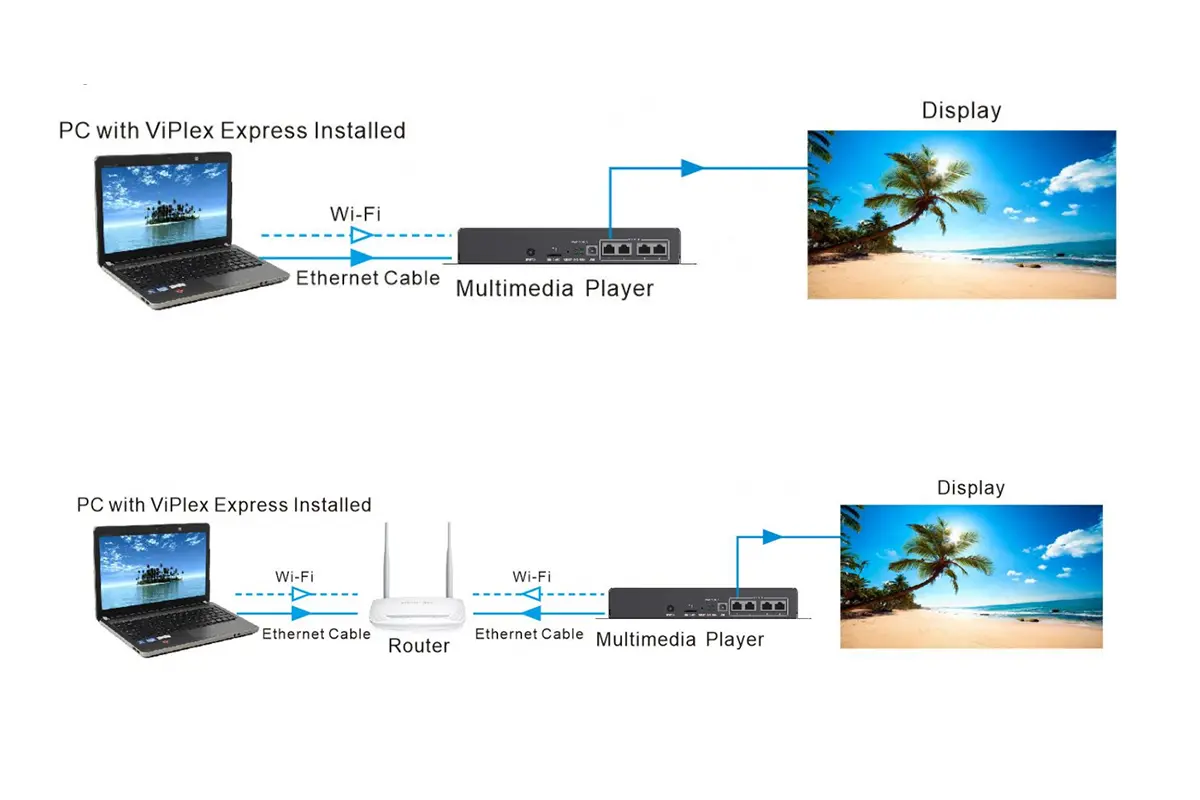
ViPlex Express talks to a multimedia player, not directly to receiving cards. That single fact resolves most connection confusion: the PC must be able to reach the player over Ethernet or Wi-Fi, and the player then drives the screen on its own.
01. Direct Connection: PC to Player
Connect the PC to the Ethernet port of the player with a standard network cable. Players leave the factory with the static IP address 192.168.0.10, so set your PC network adapter to an address in the same subnet – for example 192.168.0.50 with a subnet mask of 255.255.255.0. Open ViPlex Express and the player will be discovered within a few seconds.
On Taurus V5.1.0 and ViPlex Express V4.1.0 or later, this manual step is usually unnecessary: if the player and the control PC are on different network segments, ViPlex Express automatically assigns the player a valid address in the PC subnet the first time the two are connected. On older firmware you must change the PC address yourself.
02. LAN and Wi-Fi Connection Options
There are four practical ways to bring a screen under management. Choose the one that matches the site, not the one that is fastest on the bench.
| Connection method | How it works | When to use it |
|---|---|---|
| Direct Ethernet connection | Network cable from the PC to the player, PC set to an address in 192.168.0.x | A single screen on the bench, or a quick on-site check |
| Wired LAN | PC and players connected to the same wired local network | Several screens in the same building or campus |
| Wi-Fi access point on the player | Connect the PC to the player’s built-in hotspot. The default SSID is the model name plus the last 8 digits of the serial number, and the password is printed on the SSID label | Screens with no network cable available |
| USB playback | Export the playlist to a USB drive and insert it into the player | Remote screens with no network at all |
03. Add a Screen by IP Address
- Open ViPlex Express. Under My Screens on the left it searches the local network automatically.
- Use the All, Online and Offline tabs to see how many players answered.
- If your screen is missing, choose My Screens > Add Screen.
- In the Add Screen window, select the IP address method and enter a single address, or switch to IP Range to sweep a whole range of addresses.
- Click Search, select the screen you want in the results, and click OK.
04. Troubleshooting: No Screen Found or Screen Offline
- Check that the device is powered on and that the Wi-Fi antenna is installed if the player uses one.
- Check the network environment: connect your computer to the Wi-Fi access point of the device, or make sure both the computer and the player are on the same LAN, and confirm that any VPN is switched off.
- Check the firewall settings. Windows Defender Firewall must be off, or ViPlex Express must be allowed to connect.
- Confirm that the PC address is in the same subnet as the player – 192.168.0.x for a factory-fresh device.
- If a screen is listed but stays offline, the player firmware may be older than the ViPlex Express version expects. Update the player firmware, then search again.
When the screen shows as online, right-click it and select Log In. The default password is printed on the SSID label of the device. Tick Auto Login during the first login and ViPlex Express will log in automatically the next time it detects that screen.
5. How to Create and Publish a Playlist in ViPlex Express
Playlist management is supported by Taurus and TU series devices. The workflow is the same whether you publish to one screen or to a group of screens.
01. Step 1 – Log In and Prepare the Screen
- Select the target screen under My Screens.
- Select Playlists to open the playlist interface.
- Check the output resolution of the player. The default is 1080p, and it must be greater than or equal to the total resolution of the mosaicked screen.
- Respect the load capacity of the player. TU40 Pro and TU4K Pro support up to 8,800,000 pixels, with a maximum width of 23,040 pixels and a maximum height of 4,096 pixels.
- NovaStar recommends aligning the content resolution with the screen resolution so that playback stays pixel-to-pixel.
02. Step 2 – Add Pages and Media to the Playlist
A playlist in ViPlex Express is a stack of pages. Each page uses a system layout or a custom layout in which you set the number, coordinates, width and height of the windows yourself. You then drop media into each window and fine tune its properties until the page looks right on the screen.
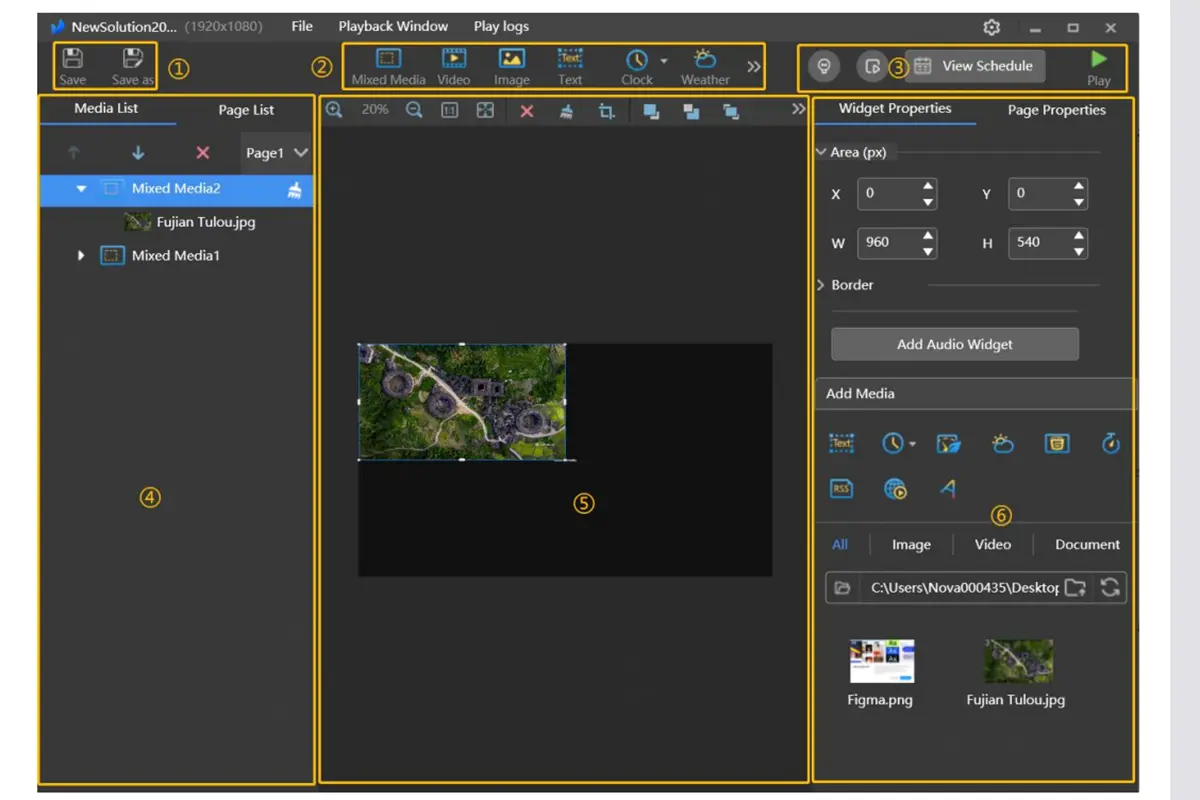
Every media type carries its own properties, which is what makes a well-built ViPlex Express playlist adaptable to different screens and schedules. The supported types are:
| Media type | What it is used for | Key limits |
|---|---|---|
| Videos | Promotions, event loops, background footage | Common video formats; check the player manual for the full codec list |
| Images | Posters, logos and still advertising | JPG, JPEG, PNG and BMP, up to 1920 × 1080 pixels |
| Text and colorful text | Messages, prices and notices | Rendered as live text, so it stays sharp at any size |
| Documents | Menus, schedules and notices | Simple page-based layout |
| Analog and digital clocks | Time displays in lobbies and transport hubs | Synchronised with the player clock or an NTP server |
| Count-up and countdown timers | Openings, events and deadlines | Target date and time are configurable |
| Weather | Outdoor and transport signage | City is selectable |
| Environmental monitoring | Sensor readouts for factories and labs | Requires a compatible sensor module |
| Tables | Data and dashboards | Built from the values you enter |
| RSS | News tickers | Feed URL based |
| Streaming media | Live streams | Network dependent |
| Web pages | Dashboards and web content | An offline fallback image in JPG or PNG can be uploaded |
| HDMI IN | Live external source | Supported only by TU40 Pro and TU4K Pro |
03. Step 3 – Publish, Schedule and Control Playback
With the pages built, the rest of the job happens in the playlist and monitoring views:
- Fine-tune the page order. Where pages overlap, ViPlex Express plays them in order from top to bottom.
- Hover over a playlist name to see its properties: resolution, size, creation time and update time.
- Filter the playlist list by Current Resolution or Other Resolutions so that you never publish a playlist that does not match the screen.
- Right-click a playlist to rename, copy, export, run USB playback or delete it.
- Use Quick Preview to check a page before it goes live; the preview window refreshes as you move between pages.
- Set the playback date and time range in the calendar view to schedule the loop precisely.
- After publishing, use the monitor and control interface to watch playback, switch video sources, adjust brightness and colour temperature, control power and read the screen status.
Two recovery features are worth remembering. If a local playlist is lost, use Import from Computer to restore an exported file, or Read from Player to pull the published playlist back from the device. If a screen has no network at all, export the playlist to a USB drive and use USB playback; only one playlist can be exported to a USB drive at a time, and the playlist must contain media.
Once the playlist is running, an occasional check of the play log is enough to confirm that every page ran when it should have.
6. ViPlex Express FAQ
7. Related NovaStar Software and Next Steps
ViPlex Express is one tool in a larger NovaStar software family, and it is easy to install the wrong one. The table below shows which application does what.
01. ViPlex Express vs ViPlex Handy vs NovaLCT vs SmartLCT
| Software | Platform | What it is used for |
|---|---|---|
| ViPlex Express | Windows PC | Free control and playlist software for Taurus and TU series multimedia players. Content creation, publishing, scheduling and device control. |
| ViPlex Handy | iOS and Android | Mobile app for creating and publishing playlists, logging in to controllers remotely, and monitoring screens from a phone |
| NovaLCT | Windows PC | LED screen debugging and configuration. Sets the parameters of sending cards and receiving cards, and performs screen calibration. |
| SmartLCT | Windows and macOS | Smart configuration for large or complex splicing screens. Detects the connection route automatically and builds the screen map for you. |
The division of labour is simple: NovaLCT and SmartLCT set the screen up, ViPlex Express puts content on it. Most projects need both.
02. Where to Get Help and Updates
- Download the latest ViPlex Express build and the matching manuals from the official NovaStar download centre.
- ViPlex Express handles content; the rest of the NovaStar software download covers screen setup, debugging and calibration.
- Keep the documentation that matches your version: the ViPlex Express User Manual V4.1.1 for the V4 line, and the Async Mode and Studio Mode manuals for V3.0.5. Both are linked in the download table above.
- Use Check for Updates inside the software rather than a third-party mirror, so that the player firmware and the control software stay in step.
- When you report a problem to your supplier, include the ViPlex Express version, the player model, the player firmware version and the screen resolution – that combination answers most diagnostics in one reply.
With the right build installed and the connection method matched to the site, ViPlex Express turns a screen into a self-contained player: you publish once, and the display keeps running without a PC attached.
 NovaStar VX600: Software, Manual, Setup & Specs
 How An Exhibition Screen Turns Heads And Steals The Show?