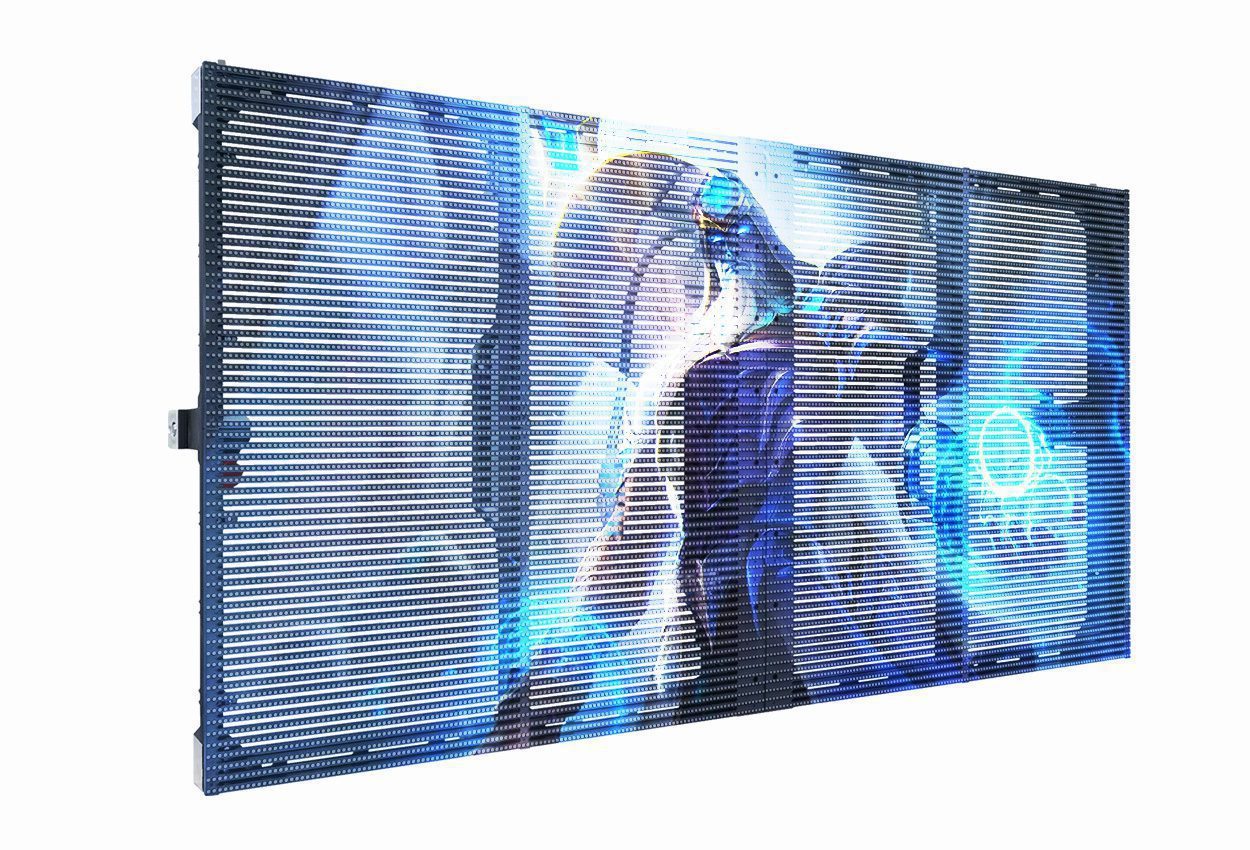
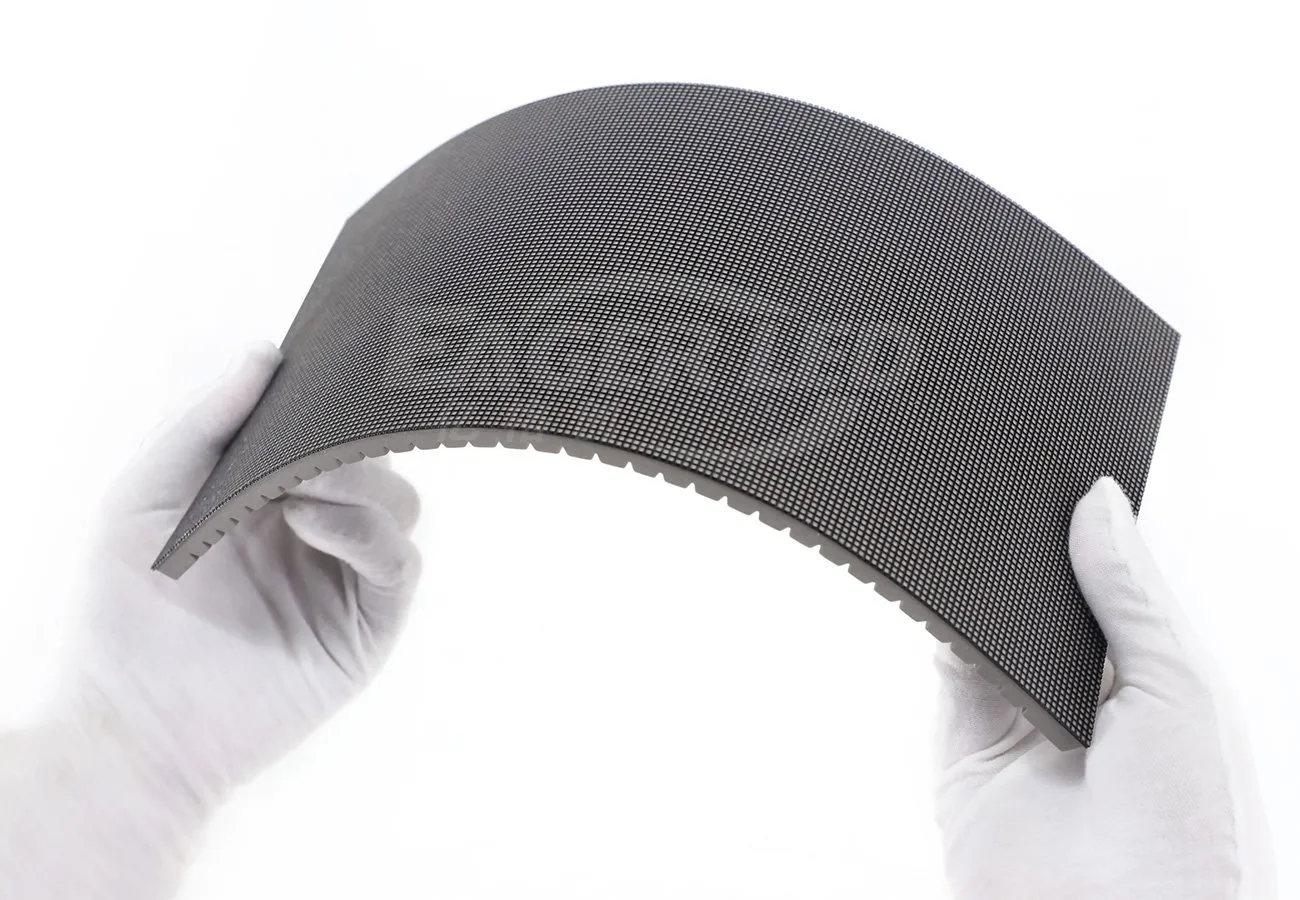
The NovaStar VX400 Pro is an all-in-one LED video controller for a wall that fits its 2.6-million-pixel loading limit and four Ethernet outputs. Start with cabinet pixel dimensions, the receiving-card model and source connections, then confirm port loading before configuring the screen. This guide covers the Pro model; do not apply instructions for the older VX400 without checking the exact hardware.
On this page: setup, specifications and buying checks
1. What Is the Novastar VX400 Pro?
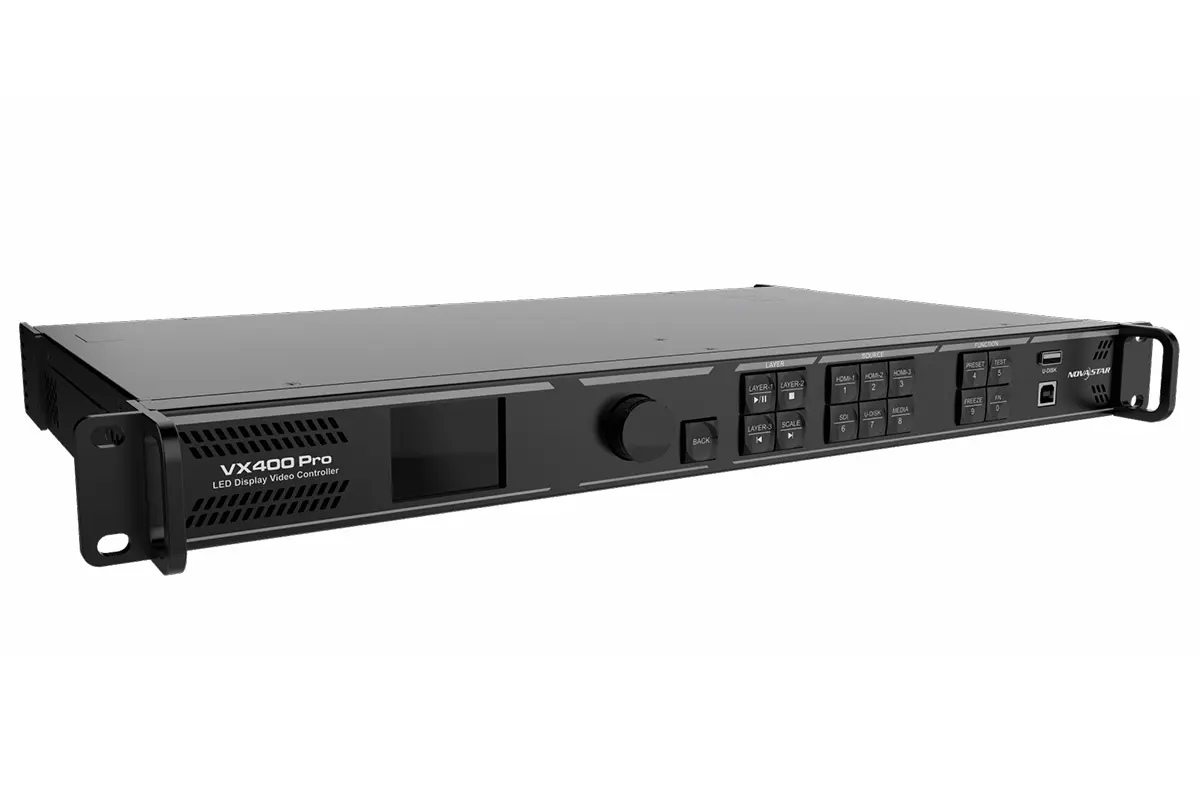
The VX400 Pro combines video processing and LED control in one device. It receives the selected video source, scales or positions the image and sends LED display data to compatible receiving cards. Confirm the complete controller, receiving-card and cabinet combination rather than treating an Ethernet connector as proof of compatibility.
It is used in rental, stage and fixed-installation workflows that need multiple sources and repeatable layouts. Compare its actual capacity with the proposed wall; an all-in-one unit does not remove the need for mapping, calibration, cabling or a tested recovery procedure.
2. Key Features and Technical Specifications
2.1. Input Connections and Calibration
Multi-source inputs: 1× HDMI 2.0 (with loop-out), 2× HDMI 1.3, 1× 3G-SDI (with loop-out), 1× 10G optical fiber input (OPT 1), and 1× USB 3.0 for media playback.
Pixel-level calibration: Works with NovaLCT software to ensure uniform brightness and color across every LED module.
2.2. Core Specifications
| Feature | Specification |
|---|---|
| LED output loading | Up to 2.6 million pixels across 4 Ethernet ports; maximum width 10,240 pixels or height 8,192 pixels. These are separate limits, not a 10,240 × 8,192 canvas. |
| Max Input Resolution | 4K×2K@60Hz |
| Layers Supported | Up to 6 layers |
| Scan Support | Confirm the exact receiving card, scan configuration and cabinet file. |
| Latency | Device delay can reach 0 frames with ByPass and low-latency enabled; this is not an end-to-end camera-to-screen latency guarantee. |
| Control Interfaces | Front panel, NovaLCT, Unico Web, VICP App |
| Media Playback | USB playback with playlist support |
| Certifications | Check the documentation for the exact supplied unit and destination market. |
| Fiber Ports | 2 × 10G optical ports: OPT 1 and OPT 2; confirm the input/output role and required optical modules. |
3. Deployment Planning and Application Checks
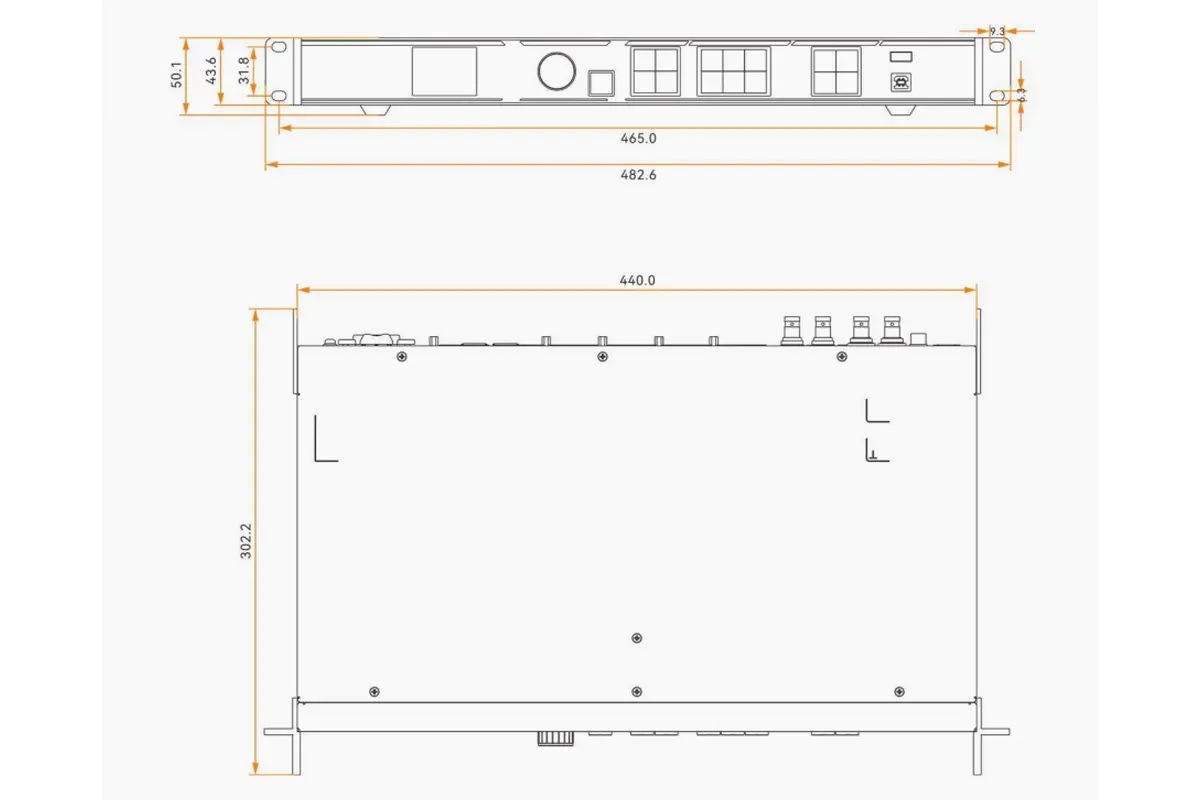
Before installation, confirm cabinet pixel pitch, receiving-card model, total width, total height, and the signal path. The Novastar VX400 Pro should be sized from the actual canvas rather than the source label. A 4K source does not automatically mean a 4K LED wall, and the Novastar VX400 Pro can scale the input to the mapped canvas.
3.1. Pre-installation Checklist
- Calculate the wall dimensions from the cabinet pixel dimensions and check total pixels and port loading.
- Check HDMI cable certification and EDID compatibility.
- Reserve layer resources for logos or monitoring and name presets by show and input.
- For fiber connections, verify the SFP+ wavelength and optical budget.
During commissioning, the Novastar VX400 Pro should be connected to a stable power source and grounded according to the venue plan. Label every HDMI, SDI, Ethernet, and optical cable. On the Novastar VX400 Pro, save a baseline preset before changing brightness or color. This gives the operator a known recovery point.
3.2. Application and Purchase Checks
| Requirement | Why Novastar VX400 Pro fits | Confirm before purchase |
|---|---|---|
| Corporate AV | Fast source switching and layered layouts | Input connector mix and room workflow |
| Concert or broadcast | SDI, low-latency Bypass, and presets | Camera timing and redundancy plan |
| Large LED wall | Large canvas and optical transport | Total pixels and port loading |
| Fixed installation | Web control and repeatable scenes | Network VLAN and service access |
4. Choose the Operating Mode
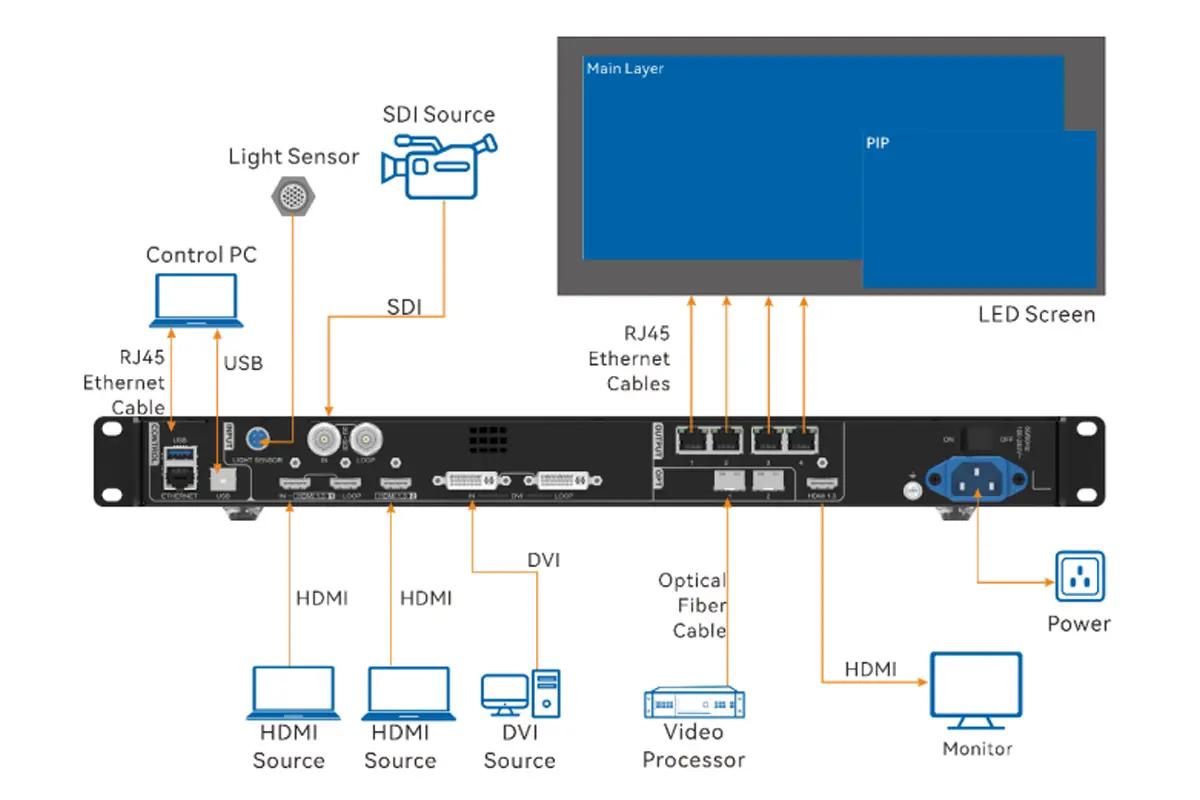
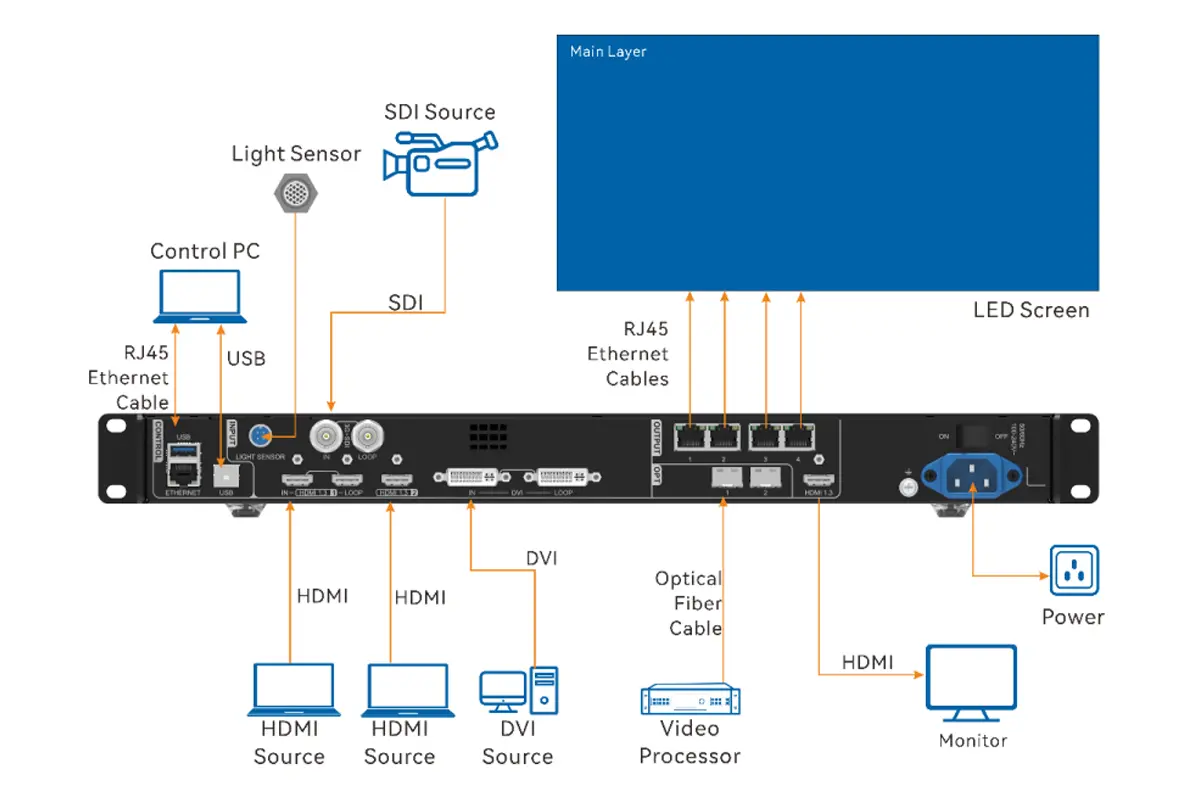
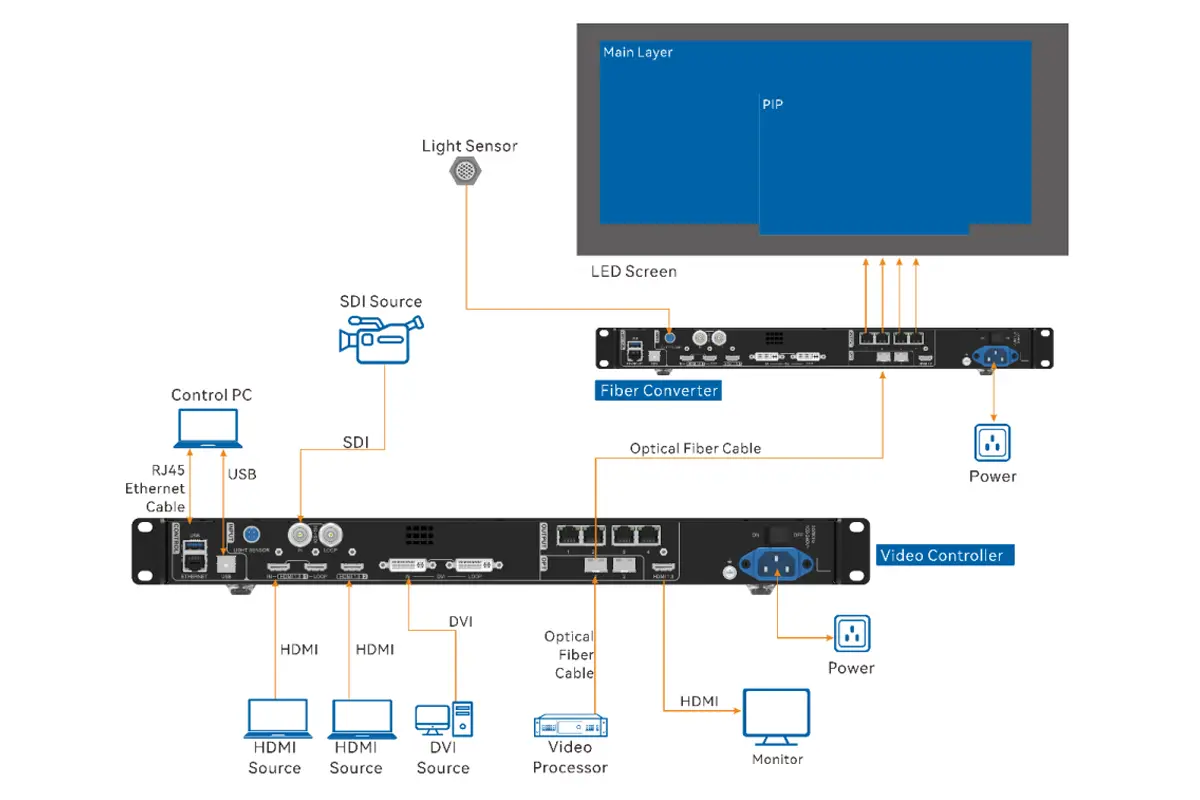
The VX400 Pro offers three operating modes, selectable via the front panel or Unico:
- Video Controller (Default): Full processing mode. Handles scaling, layering, color correction, and output to LED screens. Use this for most applications.
- Bypass Mode: Bypasses video processing; verify the low-latency setting and the complete signal path. Best for pixel-perfect passthrough (e.g., camera monitoring). Use the shortest valid signal path and confirm that the display itself is not adding processing delay.
- Fiber Converter Mode: Converts electrical signals to optical for long-distance transmission. The Ethernet ports become outputs, while fiber ports relay the signal—useful for extending control over hundreds of meters.
4.1. Video Controller Mode
4.2. Bypass Mode
4.3. Fiber Converter Mode
5. Connect Video Sources and Check Compatibility
5.1. HDMI, SDI, Fiber, and USB Connections
Connecting video sources to the VX400 Pro is straightforward thanks to its comprehensive range of input connectors. Here’s how to get started:
HDMI: Plug your laptop, media player, or switcher into any HDMI port. The HDMI 2.0 port supports 4K@60Hz and includes a loop-out for daisy-chaining.
3G-SDI: Ideal for broadcast cameras. Connect directly to the SDI IN port; the loop-out allows signal distribution to other devices.
Optical Fiber (OPT 1): Use this for long-distance transmission (up to 10 km with single-mode fiber). Insert a compatible SFP+ module, then connect to a fiber extender or another Novastar device.
USB Media Playback: Insert a USB drive with supported files. The controller will auto-detect content and allow playlist creation via the front menu.
Always verify signal format compatibility—especially for SDI (max 1920×1080@60Hz)—to avoid blank screens.
5.2. Mac, HDR, and 4K Compatibility
Mac sources: Check the source timing and EDID handshake. Use the model-specific Compatible with Mac setting only where supported by the installed firmware.
Bit depth and HDR: A supported input bit depth alone does not establish an end-to-end HDR workflow. Confirm the source format, controller mode, receiving cards and display settings together.
4K sources: Match the input to the HDMI 2.0 connector and its configured capacity. Save the original EDID before making changes and test the actual laptop or media server intended for the project.
6. Configure the LED Screen Layout
6.1. Front Panel Quick Setup
Power on the device, press the knob to enter the menu, go to Screen Configuration > Quick Configuration, and enter:
- Number of cabinet rows and columns
- Cabinets per Ethernet port (Port 1 must handle the most)
- Data flow direction (e.g., left-to-right, top-to-bottom)
- The screen updates in real time—adjust until the image appears correctly, check all edges with a pixel test pattern, then save.
6.2. Unico Web Interface
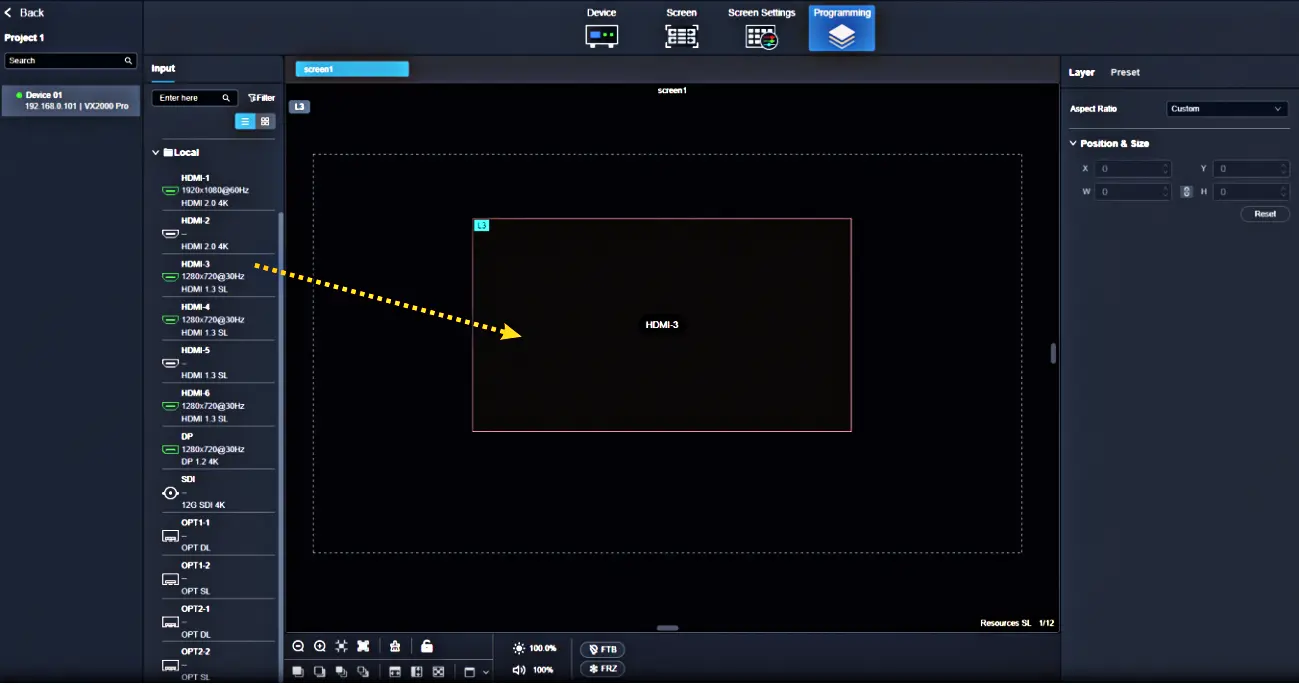
Connect the control computer to the appropriate control network and open the supported Unico interface for the device. Keep the control connection separate from the LED data-output cabling. Use the model-matched manual and installed software version for the available mapping and layer controls.
6.3. Which software should I use?
Unico supports device operation and available layer or preset controls. NovaLCT is used for supported screen configuration and calibration tasks. Record both the software and firmware versions before commissioning, and preserve the known-good receiving-card file.
Our NovaStar software resource page helps locate the relevant software family. Check the exact model and version before installing or upgrading; a download alone does not establish compatibility.
7. Set Up Layers and Picture-in-Picture
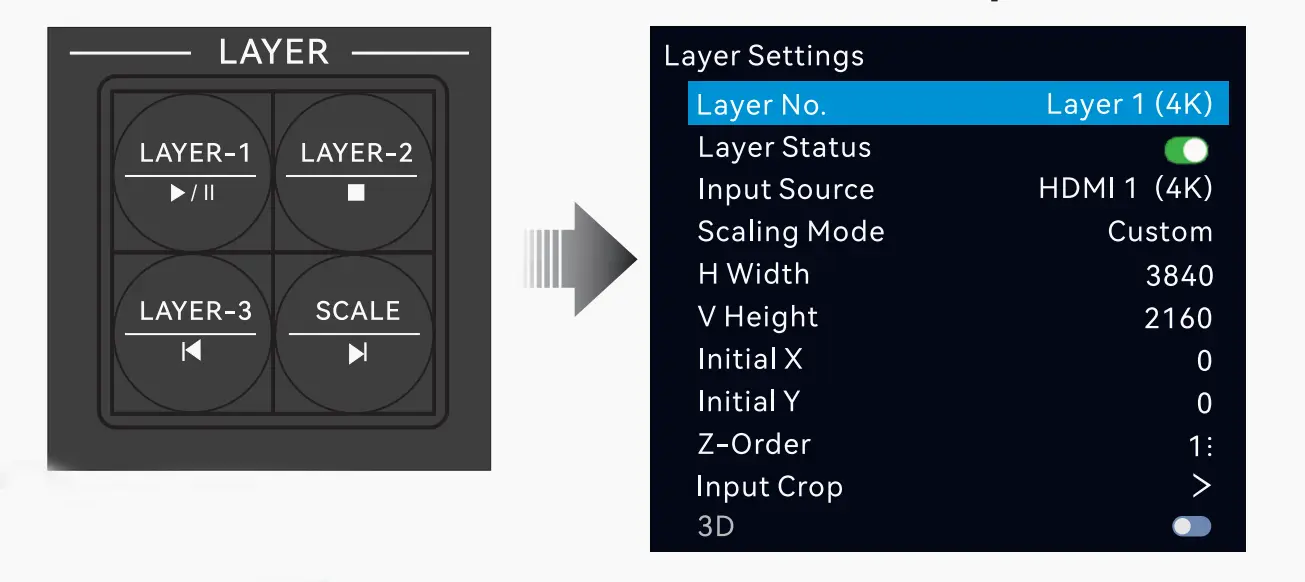
You can overlay up to six independent video layers, each with its own source, size, position, and priority. Using 4K sources consumes more layer resources—for example, one 4K×2K layer uses the equivalent of four 2K×1K layers.
7.1. Add and Adjust a Layer
- Press the LAYER button on the front panel (or go to Layer Settings in the menu).
- Select “Add Layer” and choose an input (e.g., HDMI 1, USB, or fiber).
- Set the layer dimensions, X/Y coordinates, and scaling mode using the ranges in the table below.
- Adjust Priority to control which layer appears on top.
This is perfect for adding logos, lower-thirds, or live camera insets over a background video.
7.2. Layer Properties
| Property | Description | Range/Options |
|---|---|---|
| Size (W/H) | Dimensions of the layer | Use the allowed range shown by the installed firmware; stay within the planned output canvas. |
| Position (X/Y) | Starting coordinates of the layer | Check the displayed bounds and verify that the layer lands on the intended canvas. |
| Priority | Z-order of the layer | 1 (lowest) to 6 (highest) |
| Scaling Mode | Adjusts how the layer fits on the screen | Full Screen, Pixel-to-Pixel, Custom |
8. Save and Recall Presets
The VX400 Pro lets you save up to 256 user-defined presets, each storing layer layouts, input sources, and screen settings.
- To save: Go to Preset Settings, select an empty slot (e.g., Preset 1), and choose “Save.”
- To recall: Open the preset menu, choose the saved preset and confirm the selection using the available front-panel controls or supported software. Rehearse the transition before using it during a show.
- To manage: Rename or delete presets via the menu to keep your library organized.
9. Troubleshoot Signal and Image Problems
Most Novastar VX400 Pro issues are caused by a mismatch between source timing, EDID, cable quality, or cabinet mapping. Start with the simplest test: connect one known-good source directly to the Novastar VX400 Pro, use one output path, and display a test pattern. If the image is stable, add devices one at a time.
| Symptom | Likely cause | Novastar VX400 Pro action |
|---|---|---|
| Black screen | EDID or unsupported timing | Read input status, set a standard 60 Hz mode, then reload EDID |
| Image shifted | Cabinet order or data direction | Redo Quick Configuration and verify Port 1 |
| Visible delay | Processing path or conversion | Test Bypass mode on the Novastar VX400 Pro |
| Uneven color | Calibration mismatch | Use NovaLCT and reload the correct receiving-card file |
| Fiber link down | SFP mismatch or dirty connector | Check optical budget, polarity, and SFP compatibility |
For live events, keep a second signal path ready. The Novastar VX400 Pro can store a clean fallback preset containing a tested laptop input and a neutral background. Operators should rehearse recalling that preset without looking away from the audience display.
10. Daily Operation and Maintenance
10.1. Daily Operation
At the start of each show, inspect the Novastar VX400 Pro status page, confirm the active input, and check that all layers are intentional. Avoid changing several parameters at once. Record brightness, gamma, and color temperature values so the Novastar VX400 Pro can be restored consistently.
10.2. Firmware and Documentation
Use firmware and manuals from Novastar or an authorized integrator. Record the installed version before updating the Novastar VX400 Pro, export presets, and schedule updates outside show hours. Keep the controller manual, cabinet mapping file, and receiving-card configuration in the same project folder.
11. Frequently Asked Questions
12. Conclusion
Before handover, recall the saved setup, check every cabinet with test patterns, test the intended video sources and confirm the agreed recovery procedure. Save the project files and give the operator a clear input and cabling map.
Need a quotation? Send the wall width and height in pixels, cabinet quantity and receiving-card model, source formats, cable distances and backup requirements. Ask for separate line items for the controller, optical accessories, receiving cards, cabling and commissioning. Confirm which items are included before comparing prices.
 NovaStar H5 Video Wall Splicer: Specs & Setup Guide
 Novastar H9 Video Wall Splicer Guide: Setup and Operation