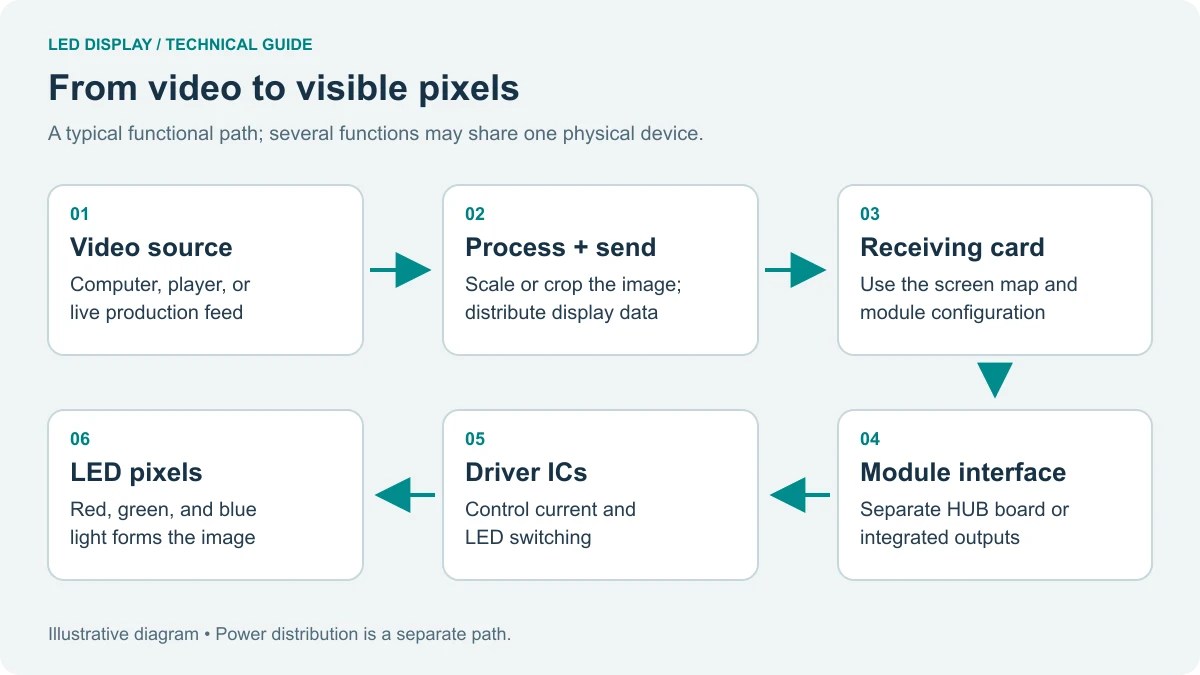
The NovaStar H9 is a modular video wall splicer for integrators building LED, LCD or mixed-display systems. Select the chassis and input/output cards for the actual sources and screen pixel map. Configure logical screens and composition in the H9 interface; use the supported NovaLCT workflow for the LED sending and receiving system. A chassis name alone does not define the installed capacity.
Request an H9 and LED wall configuration quote
On this page: H9 selection, setup and troubleshooting
1. Novastar H9 Video Wall Splicer Overview
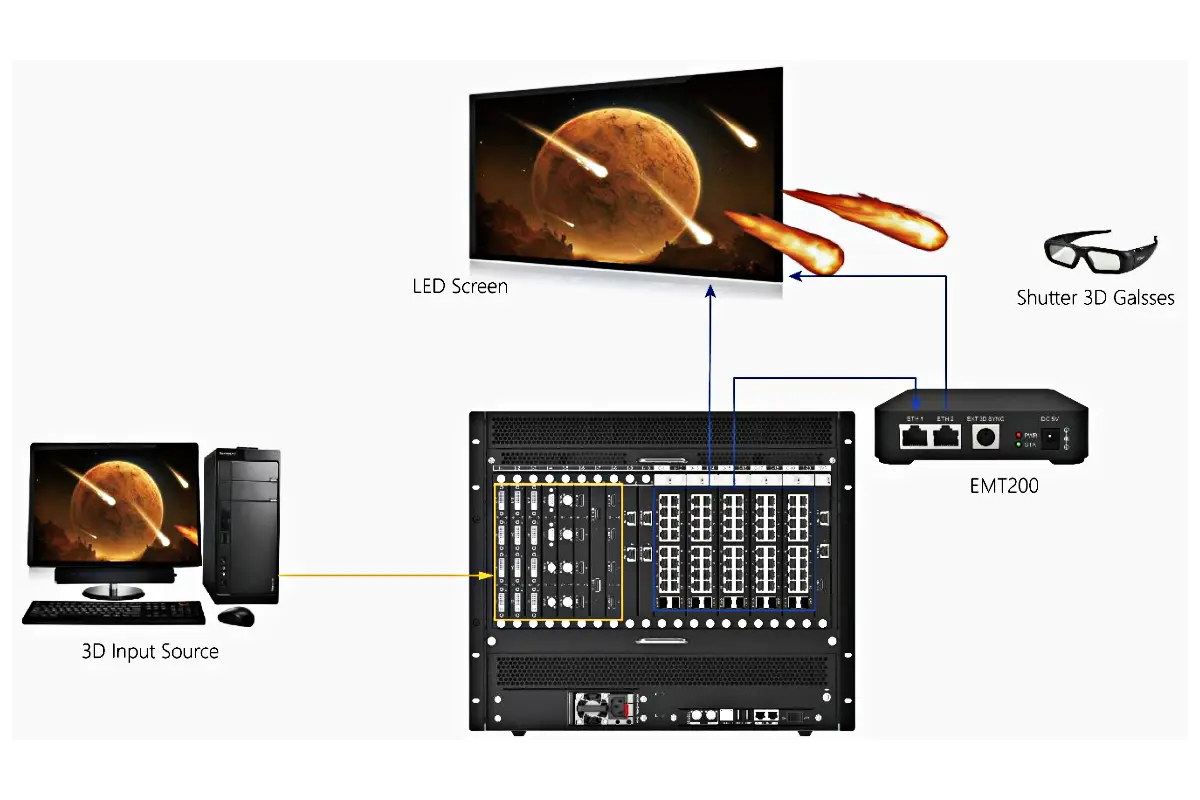
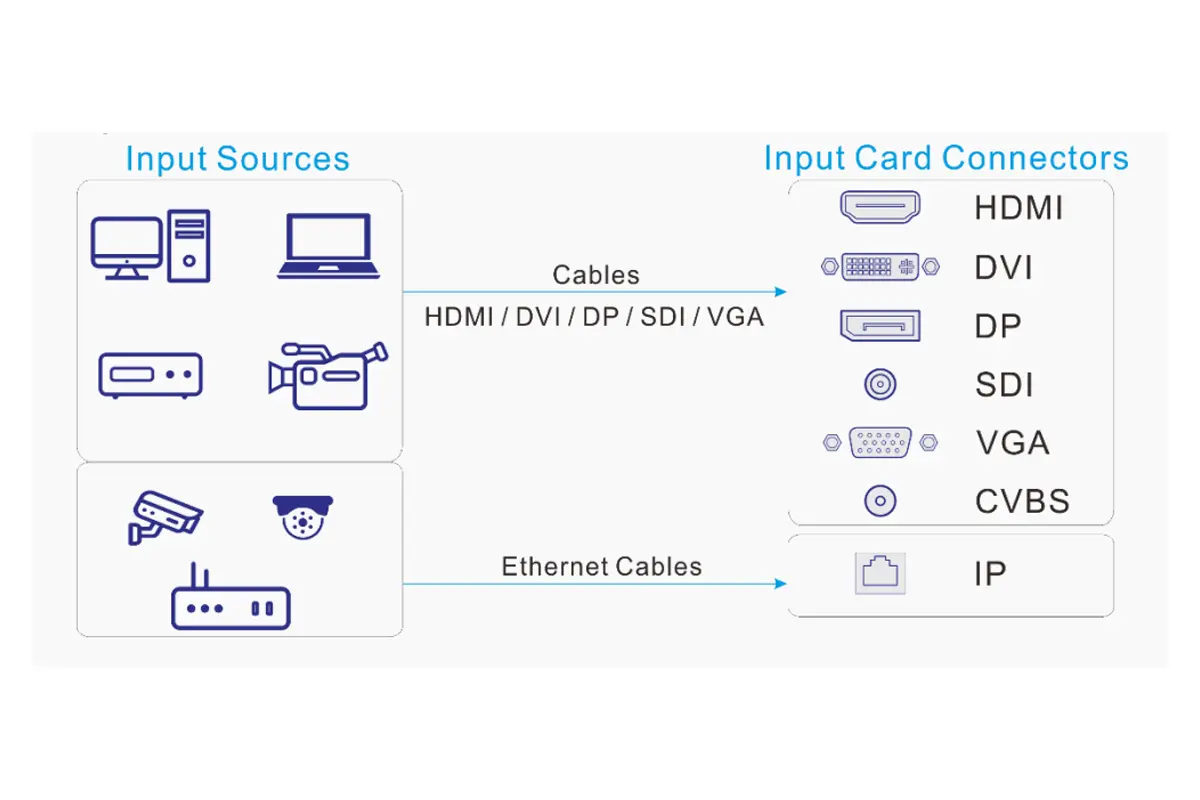
The H9 combines input switching, scaling, window composition, screen management, and monitoring in one chassis. Its modular slots let an integrator match the card mix to the project rather than buying a fixed processor. Typical sources include HDMI, DisplayPort, DVI, SDI, fiber, NDI, and IP cameras; outputs can feed LED sending cards or LCD panels. Always confirm the installed card model and firmware against the current NovaStar documentation before final commissioning.
01. What the H9 does in a real installation
Think of the H9 as two coordinated layers. The first layer is signal processing: selecting a source, scaling it, cropping it, and placing it in one or more windows. The second layer is display routing: associating an output card with a logical screen and defining the screen geometry. Keeping those layers separate makes fault finding faster. A source can be healthy while the screen connection map is wrong, and a correct map cannot fix a missing or incompatible input signal.
| Area | What to verify | Why it matters |
|---|---|---|
| Inputs | Card type, connector, resolution, frame rate | Prevents black windows and unsupported timing |
| Outputs | Card model, connector assignment, fiber or copper path | Ensures the intended wall receives data |
| Processing | Layers, scaling, crop, HDR mode | Keeps image composition predictable |
| Control | LAN IP, browser access, user permissions | Allows repeatable operation and support |
02. Chassis and card selection for a quotation
Match the specification to the chassis generation and card configuration. Published H9 and H9 Enhanced figures differ; do not treat an Enhanced configuration as the capacity of every H9. Ask for a configuration drawing and a bill of materials that identify the input and output paths used by your project.
| Selection decision | Evidence to request | Purchase check |
|---|---|---|
| Chassis and generation | Exact model and model-matched specification revision | Distinguish standard H9 from Enhanced options |
| Input cards | Connector type, source timing and required simultaneous inputs | Count usable signals with the proposed card mix |
| LED output cards | Sending-card model, receiving-card model, per-port pixel map and converter requirements | Verify total loading under the intended settings |
| LCD output cards | Panel quantity, timing, connector assignment and bezel plan | Confirm the number of independent outputs |
| Backup and monitoring | Power-supply option, signal path and operator monitor plan | List optional hardware separately; test the agreed recovery workflow |
03. What affects the H9 price?
An H9 quotation should identify the chassis, every input and output card, optical accessories, backup hardware and commissioning scope. A chassis-only price cannot be compared directly with a complete system price. Provide source formats, simultaneous windows, screen dimensions in pixels and the delivery market so the supplier can propose a relevant configuration.
For an LED wall package, also specify the cabinet layout, receiving cards, signal distances and required service access. Ask which configuration files and operator instructions will be included at handover. These details make the offer easier to compare without assuming that every optional function is already installed.
2. Novastar H9 Functions for LED and LCD Screens
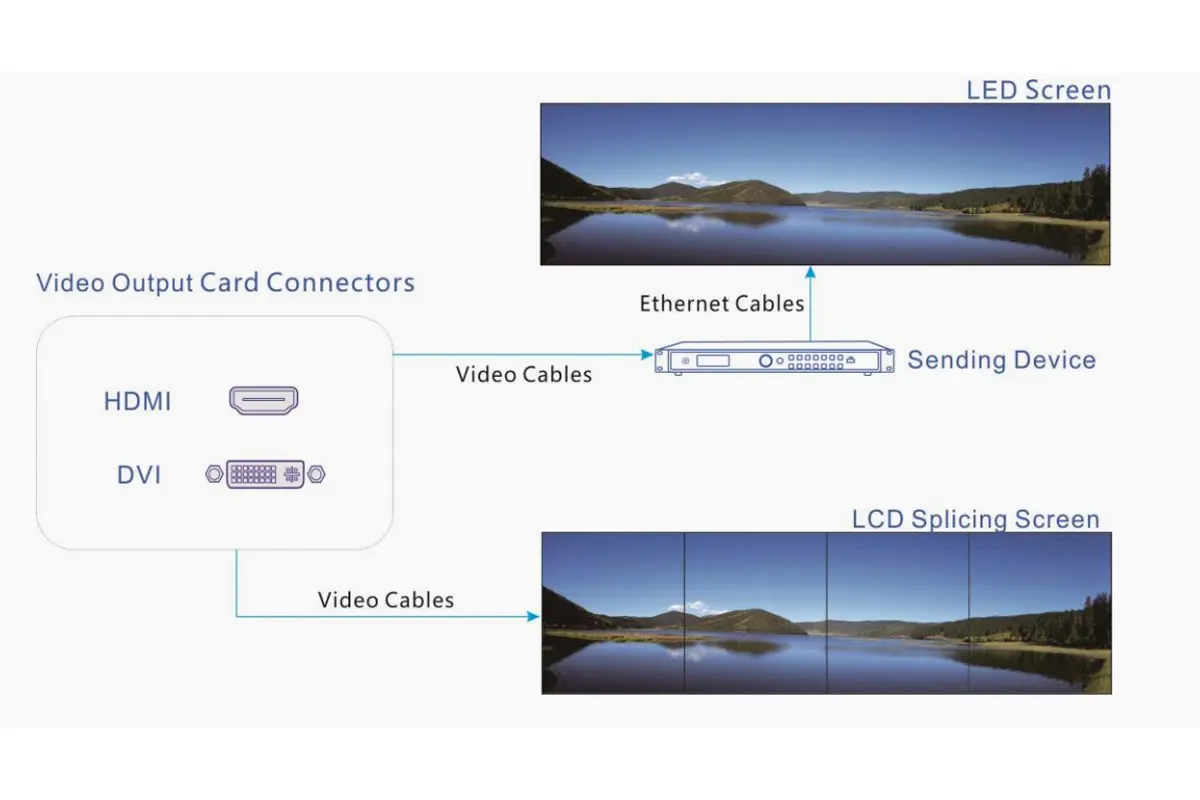
The same H9 can serve two very different display technologies. LED projects need a sending-card and receiving-card map; LCD projects need output assignment, timing, and bezel correction. the H9 stores the logical layout, while the LED receiving system stores cabinet-level wiring details.
01. LED wall workflow
For an LED wall, connect a H9 output to a compatible Novastar sending card such as H_16xRJ45+2xfiber, H_20xRJ45, or H_4xfiber. Build the logical rows and columns in the H9, then complete physical mapping in NovaLCT. The receiving-card size, cabinet order, Ethernet port path, scan mode, and module data group must match the actual wall. A single reversed cabinet chain can create a repeating error pattern even when the H9 preview looks correct.
02. LCD wall workflow
LCD walls usually connect directly to HDMI or DVI output cards. Create a screen with the panel rows and columns, drag outputs to the matching cells, and enable bezel compensation. Measure the visible gap in pixels at the chosen output timing. Enter horizontal and vertical spacing separately; do not copy a value from another wall because panel bezels and mounting gaps vary.
| Decision | LED wall | LCD wall |
|---|---|---|
| Logical layout | H9 Configuration screen | H9 Configuration screen |
| Physical pixel map | NovaLCT and sending card | Usually unnecessary |
| Key alignment task | Cabinet and receiving-card chain | Bezel compensation |
| Typical symptom of error | Shifted pixels, scan faults, repeating tiles | Visible seams or wrong panel order |
3. How to Install and Log In to the Novastar H9
Installation quality affects every later H9 setting. Record the card inventory, cable labels, source timings, and front-panel IP before changing software. Follow the model-specific ventilation and rack instructions, confirm whether the optional redundant supply is actually installed, and use an approved management-network connection during setup.
01. Rack, power, and signal checklist
- Mount the chassis horizontally in a standard 19-inch rack.
- Install input and output cards in the documented slot positions.
- Connect both power cables to independent protected circuits when the project requires redundancy.
- Connect LAN to the management network and label the port.
- Connect LED outputs to the sending card or LCD outputs to the panel chain.
- Power on and photograph the front-panel IP and alarm indicators.
02. Browser login and network checks
Connect a laptop to the same subnet, open the IP shown on the H9 display, and sign in with the credentials supplied by the project administrator. A factory-default password should be changed during handover; never leave a shared production controller using a public default. If the page does not load, test the laptop address, subnet mask, cable link, and VLAN policy before replacing cards. Avoid changing IP settings until you have recorded the current address.
| Check | Expected result | Action if it fails |
|---|---|---|
| Link LEDs | LAN port shows link and activity | Replace cable or check switch port |
| Subnet | PC and H9 share a reachable subnet | Assign a temporary service address |
| Browser | H9 login page opens in a current browser | Try another browser and clear cached credentials |
| Credentials | Authorized account signs in | Use the project password process |
4. How to Configure an LED Video Wall with the Novastar H9
Configure an LED wall in two passes. First define what the wall means to the H9; then define how pixels travel through the sending and receiving cards. This separation is the most important operating principle in a H9 installation.
01. Web Configuration: logical screen
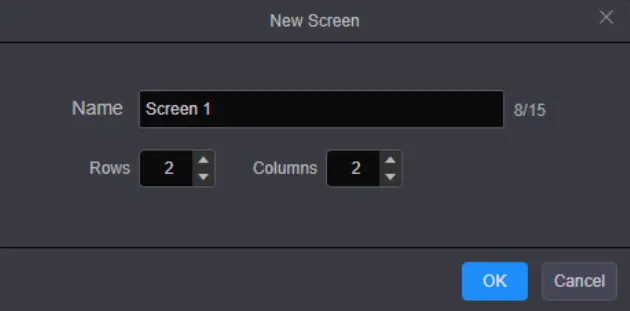
- Open Configuration and select New Screen.
- Name the screen with a location and purpose, such as Main_Lobby_LED.
- Enter rows and columns that match the physical wall layout.
- Drag the installed output card onto the screen grid.
- Assign connectors in the same left-to-right order used by the cable schedule.
- Save, then verify that occupied connectors show as in use.
02. NovaLCT: physical screen connection
Open NovaLCT, use the advanced synchronous-system login, and choose Settings > Screen Configuration. Select the communication port for the H9 or sending card, define the sending-card number, set receiving-card rows and columns, enter the receiving-card pixel size, and draw the Ethernet port path. Review the preview against the cabinet labels before clicking Send to HW. Sending an incorrect map can immediately alter the connected wall, so keep a known-good backup file.
03. LED commissioning checks
Display a full-white test, black test, gray ramp, color bars, and a moving grid. Look for swapped RGB order, scan-line artifacts, seams, one-port failures, and different brightness between cabinets. Record the final H9 preset, NovaLCT configuration, firmware versions, and measured output timing in the handover document.

5. How to Configure an LCD Video Wall with the Novastar H9
LCD configuration is usually faster because there is no cabinet-level receiving-card map. In the H9 web interface create the logical grid, drag each physical output to the corresponding panel, select the correct timing, and apply bezel compensation. Use a single test image that crosses every seam so the operator can confirm order and spacing.
01. Output assignment
For a 3×3 wall, create three rows and three columns, then assign outputs in a documented order. If the picture appears mirrored or rotated, fix the output assignment before changing the source. Keep source aspect ratio consistent so scaling does not hide a routing error.
02. Bezel compensation
Measure the horizontal and vertical visible gap at the installed resolution. Enter those values in the screen properties, apply, and inspect text crossing a seam. Too little compensation leaves objects hidden under the bezel; too much creates visible breaks in straight lines. Store the corrected layout as an LCD preset.
6. How to Switch Between LED and LCD Layouts with One Preset
Presets turn a complex H9 changeover into a controlled operator action. Build and test each layout independently, use descriptive names such as LED_Main and LCD_Conference, and document the sources, window positions and output routing stored in each preset. Keep the verified receiving-card map and LCD bezel configuration separately backed up; test which settings the installed firmware actually recalls.
01. Preset creation
- Arrange the complete LED or LCD layout.
- Confirm output test patterns and source lock.
- Save a preset with the display type and room name.
- Repeat for the alternate layout.
- Recall each preset twice and record switching time and any black frame.
02. Operator handover
Limit the operator view to approved presets where possible. Add a one-page recovery note: select the last known-good preset, confirm source lock, inspect the multiview, and escalate if the physical wall remains abnormal. This makes the H9 useful during events without exposing risky engineering controls.
7. How to Monitor LED and LCD Outputs Using Multiview
The H9 Multiviewer provides an operational view of inputs and screen sections. Place the most important source, program output, preview output, and alarm-prone screen areas in a 2×2 or 3×3 monitoring layout. A multiview image proves signal presence, but it does not prove cabinet wiring; pair it with the wall test pattern when troubleshooting.
01. Monitoring routine
- Check source lock icons before an event.
- Watch for frozen frames, dropped inputs, or unexpected black windows.
- Confirm the preview monitor and the physical wall show the same preset.
- Record the time and source name when a fault occurs.
8. Novastar H9 Troubleshooting and Maintenance
Use a layered diagnosis: source, H9 processing, output card, sending card, receiving system, then display hardware. Change one variable at a time and save the current configuration before applying firmware or mapping changes.
| Symptom | Likely layer | Fast diagnostic |
|---|---|---|
| H9 page unreachable | Network or power | Check front-panel IP, link LEDs, subnet, and power alarms |
| Preview works, LED wall is wrong | NovaLCT map or sending card | Run grid pattern and compare port order |
| LCD seams hide content | Bezel settings | Measure gap again at current timing |
| One input is black | Source or input card | Test known-good cable and timing |
| Preset recalls wrong source | Preset state | Re-save after confirming every window |
01. Maintenance record
Keep a dated backup after every accepted change. Record firmware, card serials, IP address, source timings, output timing, preset names, NovaLCT file, and photos of cable labels. Schedule a dry-run before major events and verify that the standby path, if installed, is actually reachable and correctly mapped.
9. FAQs
10. Conclusion
A dependable H9 project comes from disciplined separation: the H9 defines logical screens and signal composition, while NovaLCT defines the LED pixel path. Record the card inventory, protect the configuration with backups, verify test patterns on the real wall, and use named presets for daily operation. These steps make mixed LED and LCD deployments easier to commission, explain, and support.
 Novastar VX400 Pro Controller Setup: Complete 2026 Guide
 Merry Christmas From EagerLED 2025