NovaStar H5 is a modular 5U video wall splicer that combines video processing with LED sending when fitted with compatible sending cards. It can also feed external display systems through video output cards. The right configuration depends on source formats, wall pixel count, output topology and simultaneous layers—not simply whether a quotation says “4K.”
This NovaStar H5 guide explains specifications, card selection, installation, screen mapping and everyday operation. It references NovaStar’s H5 Specifications V1.17.0, released May 30, 2026, and H Series User Manual V1.15.0. Existing installations may use earlier hardware or firmware, so compare the exact card names before applying a feature or capacity figure.
Quick buying answer: Select the output card family first, calculate the wall and per-port load, then choose input cards and layer resources. Published chassis maxima range from 31.2 million to 78 million pixels across four sending-card configurations. These are alternative configurations, not capacities you can add together.
1. NovaStar H5 Overview and Specifications
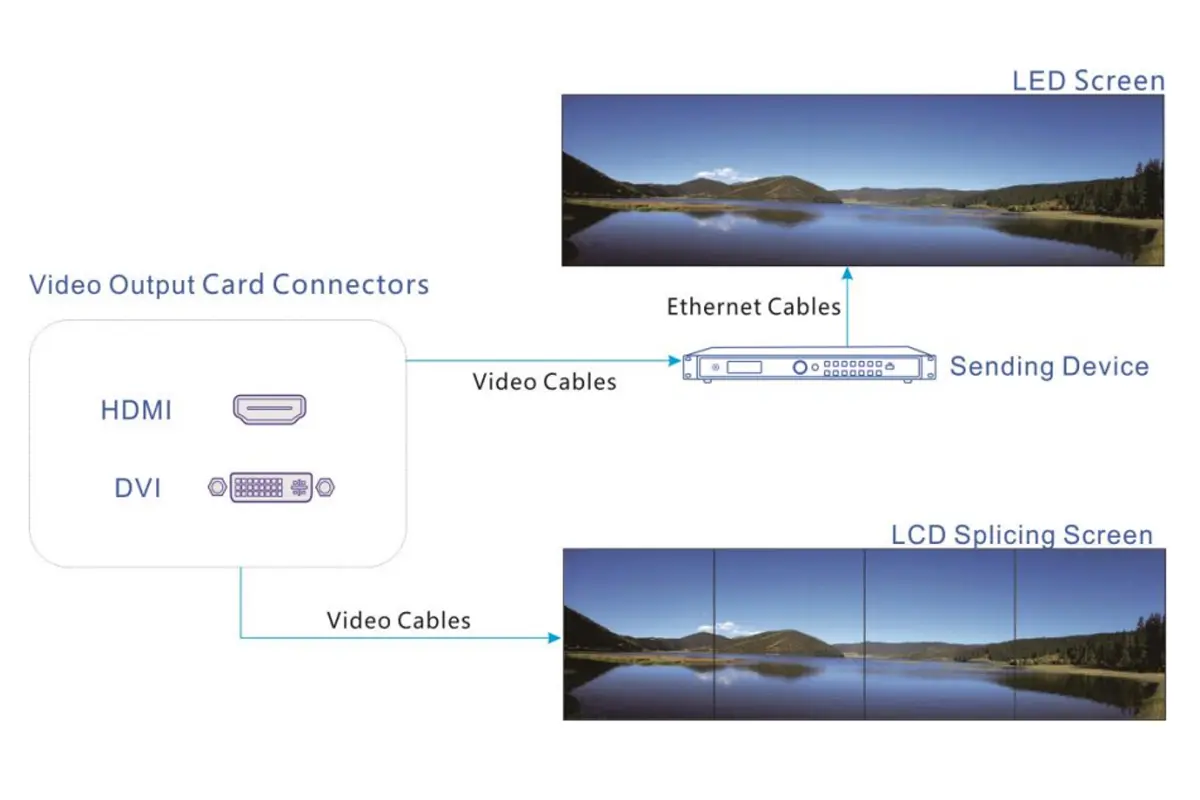
The NovaStar H5 sits between your video sources and display system. It accepts selected inputs, scales and arranges them into windows, and distributes the resulting canvas across outputs. An LED sending card additionally transmits display data to compatible receiving hardware; a conventional HDMI or DVI output follows a different signal path.
A modular NovaStar H5 is useful when an installation needs several source types or independent display areas. The chassis name alone does not identify the installed connectors. Ask for a rear-panel photograph and a complete card list when evaluating an existing unit or comparing supplier quotations.
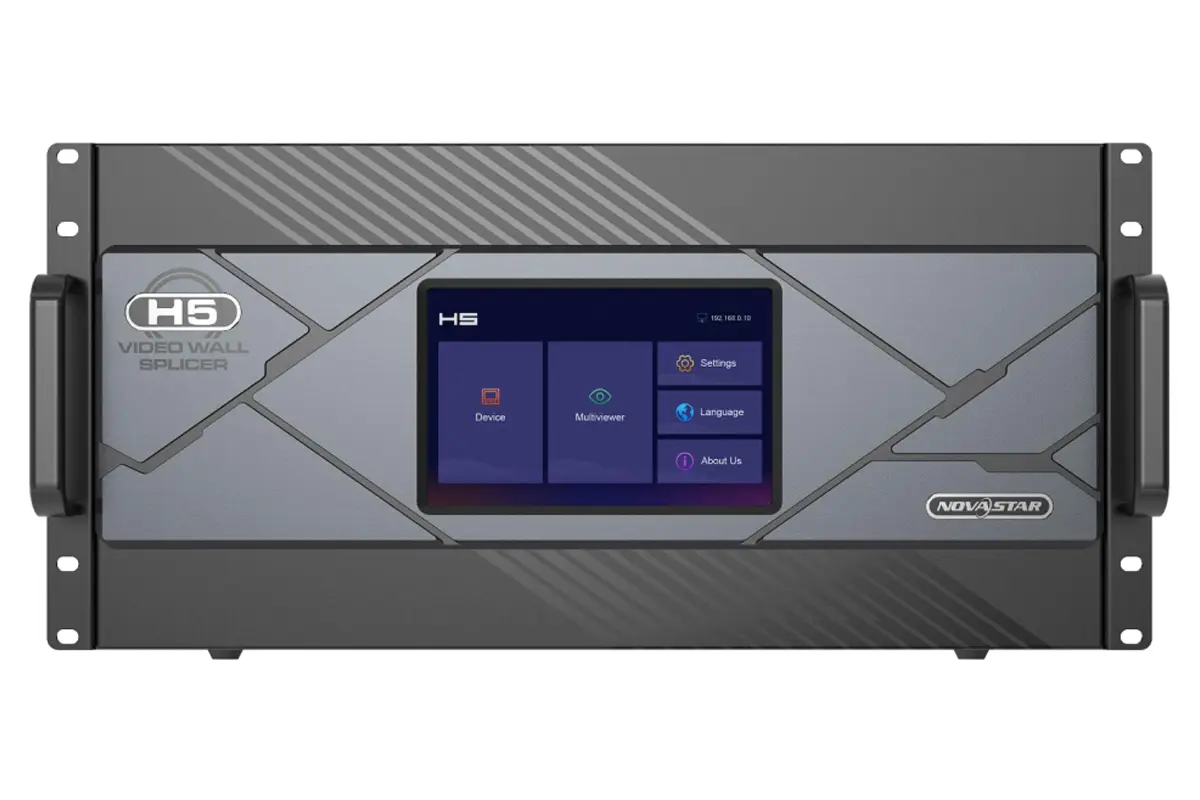
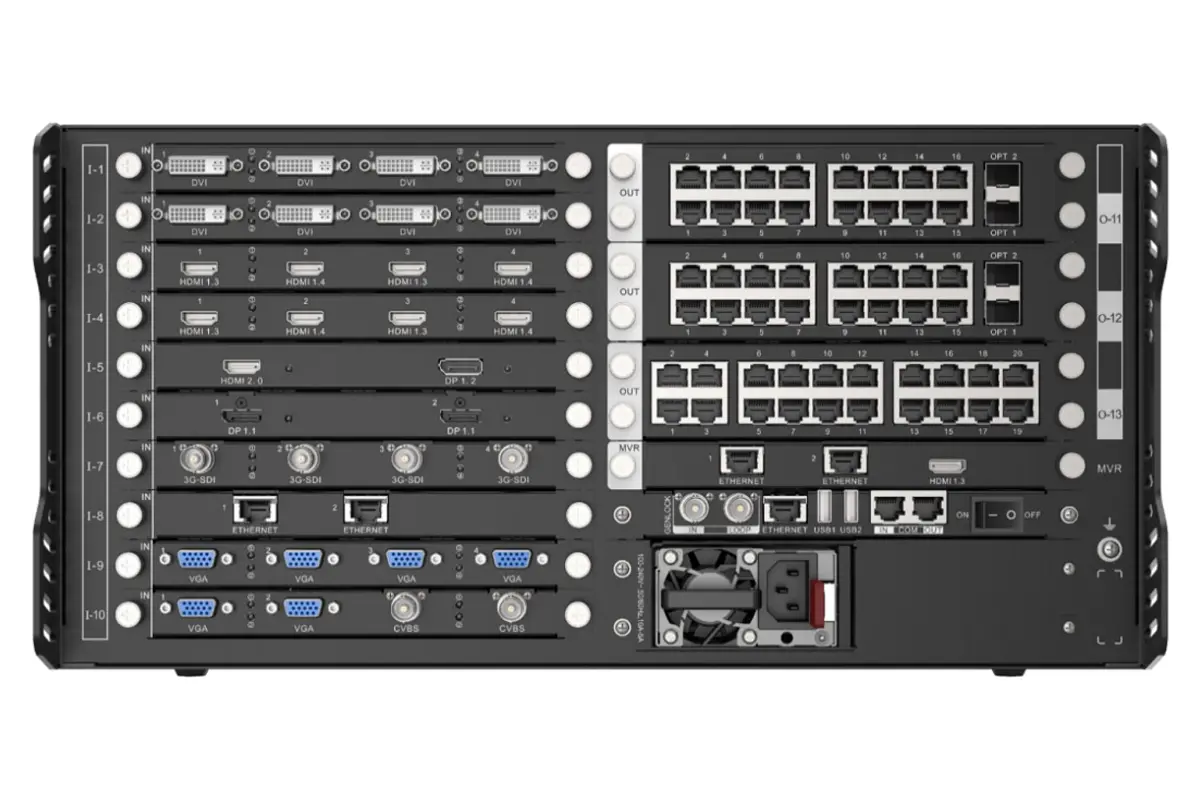
01. Chassis specifications that matter
| Item | Official specification | What to check |
|---|---|---|
| Rack format | 5U; standard 19-inch rack | Horizontal installation, rack support and ventilation |
| Input expansion | Up to 10 input cards; 40 input channels | Actual channel count depends on selected card types |
| Output expansion | Up to 3 output cards; 12 output channels in the chassis summary | Use the specific sending-card port list for LED cabling |
| Layer ceiling | 48 maximum; per card up to 16 × 2K, 8 × DL, 4 × 4K or 2 × 8K layers | Source connector capacity and operating mode affect resources |
| Dimensions | 482.6 × 532.8 × 228.2 mm | Allow additional rear clearance for cables |
| Net weight | 17 kg, chassis | Confirm the weight of the fully populated assembly |
| Power | 100–240 V AC, 50/60 Hz; listed consumption 400 W | Single supply supplied; redundant supply optional |
| Operating environment | 0–45°C; 0–80% RH, non-condensing | Check rack temperature under sustained load |
Source: NovaStar H5 Specifications V1.17.0, chassis specification and feature sections. Maximum channel, layer and pixel figures describe different limits; they should not be interpreted as a promise that every maximum is available simultaneously.
02. Input resolution versus output capacity
“4K input” describes an incoming signal format. “39 million pixels” describes a loading limit for a particular output configuration. A wide canvas can span several outputs even when each input has a lower resolution. Conversely, accepting a high-resolution source does not guarantee that every output can reproduce it at every frame rate.
The current NovaStar H5 specification includes selected input paths up to 4K at 120 Hz or 8K at 30 Hz. These require the appropriate card and supported signal format. Avoid a generic “8K supported” promise without the connector, frame rate, bit depth and chroma format.
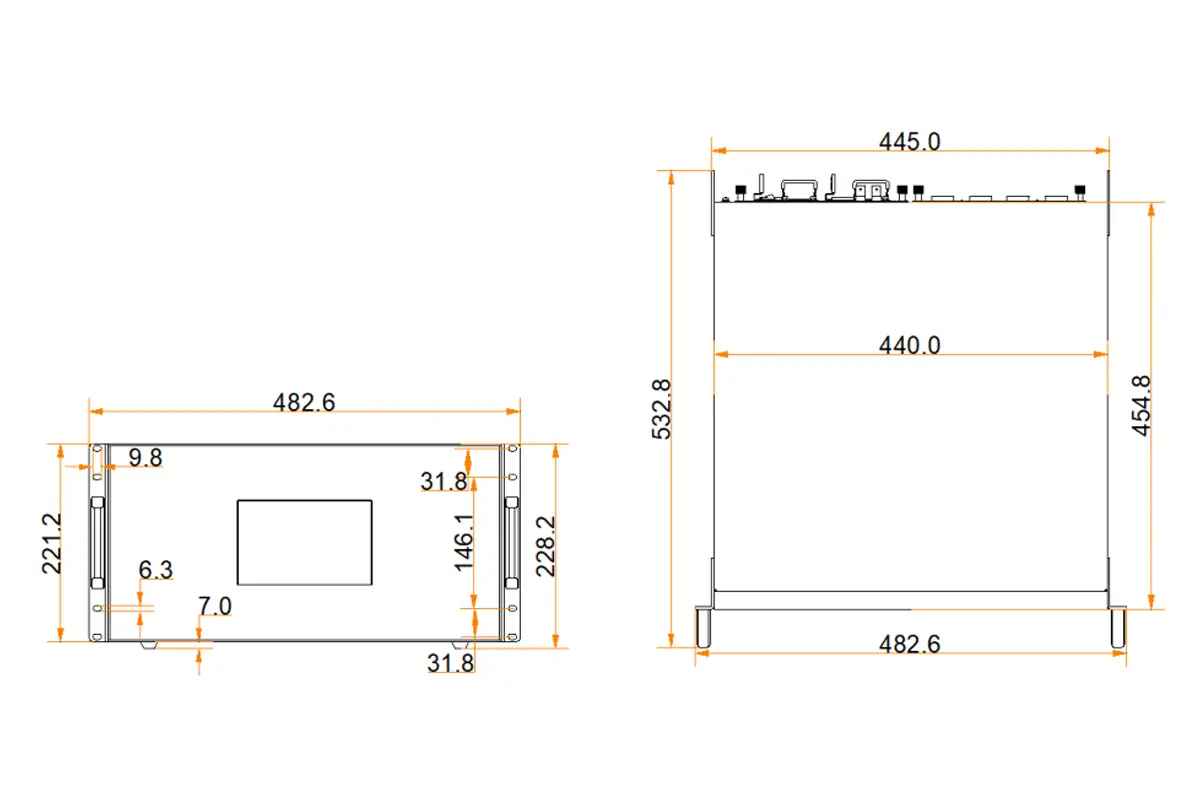
2. Input and Output Card Selection
Choose NovaStar H5 cards from the actual signal inventory. Record each source’s connector, resolution, refresh rate, audio requirement and whether it must remain visible alongside other sources. A connector adapter cannot add processing capabilities that the installed card lacks.
01. Match inputs to the source
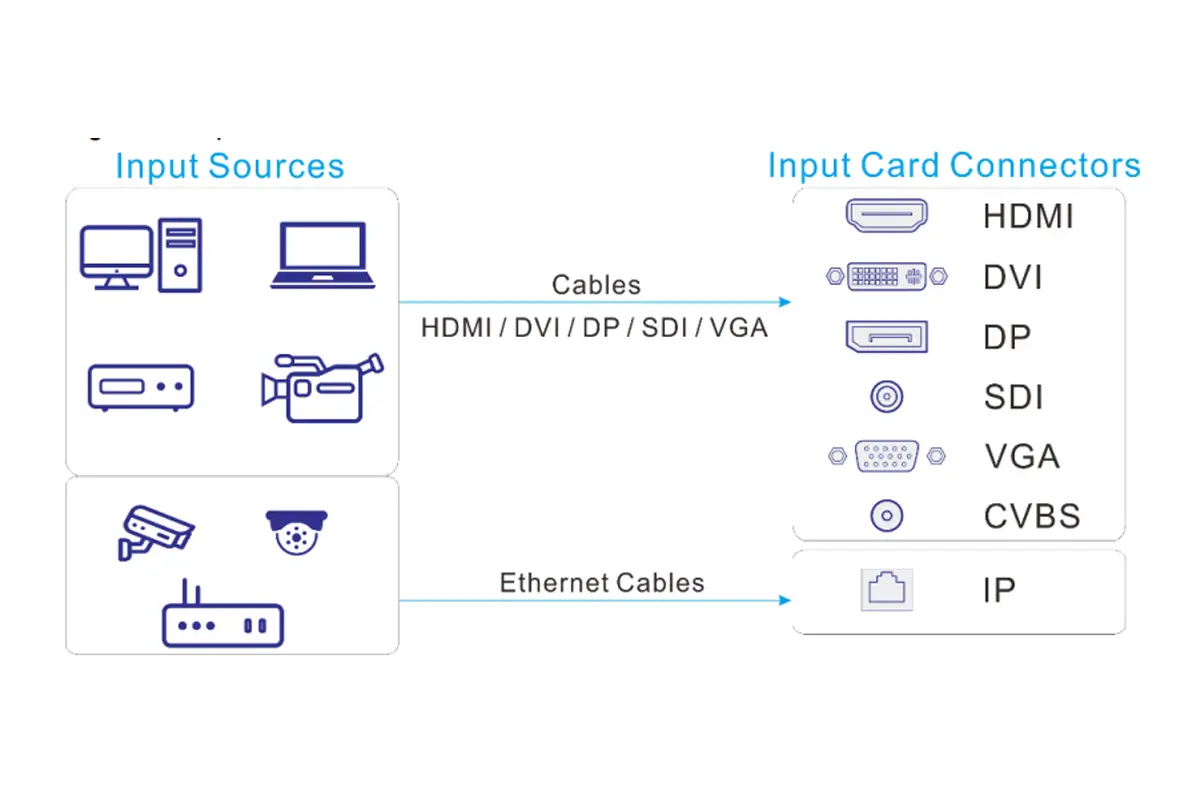
The NovaStar H5 card catalogue includes HDMI, DisplayPort, DVI, SDI, VGA, CVBS, IP, NDI and ST 2110 options. NDI and ST 2110 are specific card-based workflows, not features provided by the ordinary control Ethernet connection. For network video, verify the encoder format, network bandwidth and decoding requirements before purchase.
For presentation laptops, confirm the exact HDMI or DisplayPort mode, including any required audio. For broadcast sources, identify SDI format and level compatibility. For camera monitoring, distinguish the number of cameras registered in the system from the number decoded and displayed simultaneously. NovaStar lists up to 512 IP camera inputs for the relevant IP card, but that is not a promise of 512 simultaneous full-resolution windows.
02. Compare the sending-card families
| Sending card | Maximum per card | Published H5 maximum | Important distinction |
|---|---|---|---|
| H_16xRJ45+2xfiber | 10.4 million pixels | 31.2 million pixels | Two optical ports copy Ethernet outputs; they do not add independent capacity |
| H_20xRJ45 | 13 million pixels | 39 million pixels | 20 Gigabit Ethernet outputs per card; confirm per-port loading |
| H_4xfiber | 20.8 million pixels | 62.4 million pixels | Independent, copy and backup modes; mode changes available independent outputs |
| H_4xfiber sending card (enhanced) | 26 million pixels | 78 million pixels | Four primary and four backup/copy optical ports; supports 8-bit and 10-bit output |
These NovaStar H5 figures come from the official chassis and sending-card specifications. They are upper limits, not a substitute for a configuration calculation. Confirm frame rate, output bit depth, receiving cards and redundancy before assigning a wall to a particular configuration.
Do not mix the standard fiber card with RJ45 sending cards on the same screen. The enhanced fiber card also cannot share one screen with the other three families. For the enhanced card, NovaStar specifies up to 6.5 million pixels per primary optical port at 8-bit; at 10-bit, the documented limits are 3.25 million with common receiving cards or 4.8 million with specified receiving cards.
For NovaStar H5 fiber projects, include compatible converters, optical modules and the required single-mode or multimode cable in the bill of materials. A chassis-only price omits components that may determine whether the proposed connection works.
3. Installation and First Login
Prepare the NovaStar H5 network and cabling plan before commissioning. Name every source and output, record card locations and label cable ends. This makes it possible to distinguish a physical connection error from a software mapping error when a section of the wall remains black.
01. Mount and connect the equipment
NovaStar specifies horizontal installation in a standard 19-inch rack, using eight M5 screws and a rack capable of supporting at least four times the total mounted equipment weight. Follow the supplied safety instructions and provide grounding, support and clear ventilation. Do not use the chassis dimensions as the complete cable-clearance envelope.
On the NovaStar H5 rear panel, “I-x” identifies an input slot, “O-x” an output slot and “MVR” the preview-card position. Connect the control computer through the control card’s Ethernet port. Keep that management connection distinct from LED output cabling and network-video inputs.
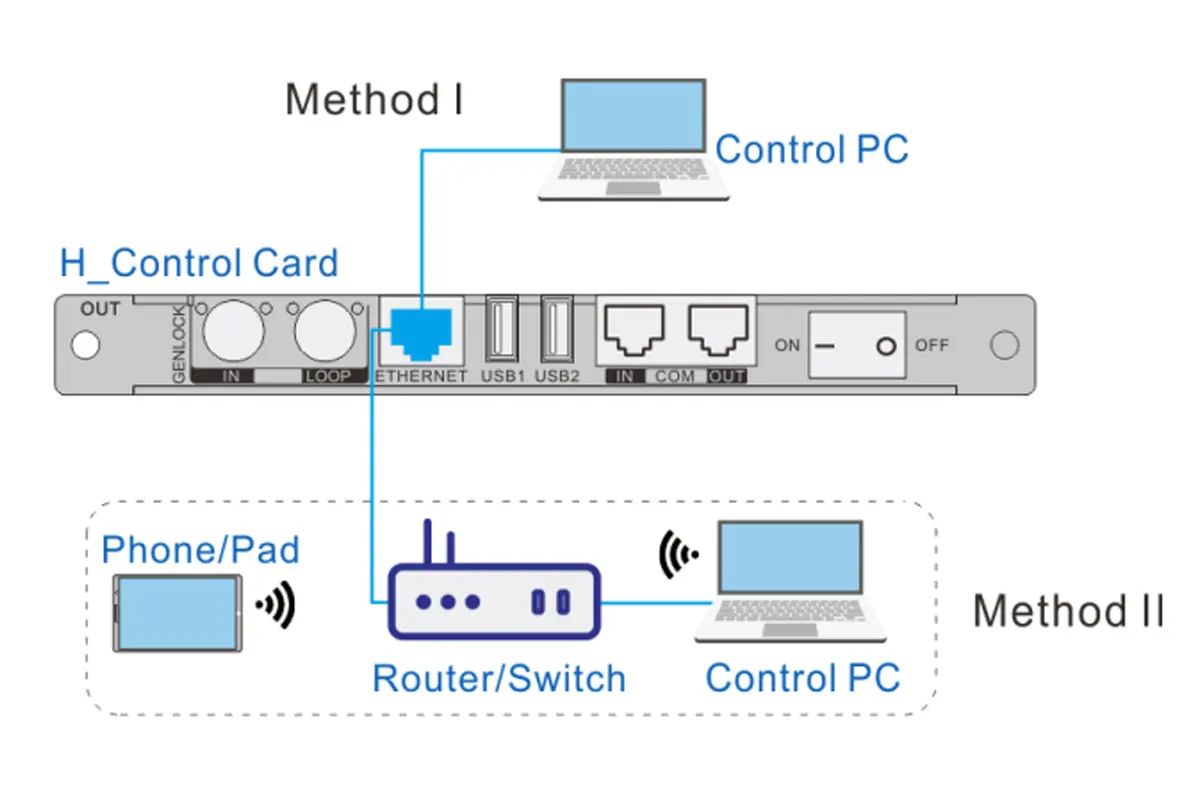
02. Reach the web interface
- Power on the NovaStar H5 and read the address shown on its front touchscreen.
- For a direct connection, place the computer on the same network segment with a different address. The manual’s default device address is 192.168.0.10.
- Enter the device address in a browser. The manual documents admin as the default username and password; an existing installation may have changed them.
- After access is established, change default credentials and assign appropriate operator permissions.
- Document the final network settings and verify that the intended control computers can reconnect.
The H Series User Manual describes network settings under Settings > Communication. If using automatic addressing, confirm that a DHCP service is available and read the assigned address from the device. Connecting through a switch alone does not create a DHCP service.
Web access handles NovaStar H5 source and layout operations, while LED receiving-card mapping may require NovaLCT. For standard H_4xfiber screen configuration, the specification calls for NovaLCT V5.4.8 or later; the enhanced fiber card requires V5.8.0 or later. Match software to the installed hardware.
4. Video Wall Configuration and Pixel Planning
Configure the NovaStar H5 from the physical display inward: cabinet arrangement, pixel dimensions, receiving-card connections, output assignments and finally source windows. If cabinet order is wrong, moving a video layer will not repair the underlying wiring map.
01. Calculate the real pixel load
As a planning example, a wall of 12 cabinets across and 6 high, each containing 320 × 180 pixels, has a canvas of 3840 × 1080 pixels. Multiplying width by height gives 4,147,200 pixels. This is an illustrative calculation, not a tested H5 installation or a complete port assignment.
That total is below several published NovaStar H5 card limits, but it does not prove a valid configuration. You must also check per-port capacity, maximum supported width and height, cabinet data order, frame rate and receiving-card compatibility. Reserve the required backup connections before allocating all available ports to the primary path.
| Step | Action | Acceptance check |
|---|---|---|
| 1. Canvas | Calculate cabinet columns × cabinet width, and rows × cabinet height | Canvas matches the physical wall in pixels |
| 2. Output mode | Set fiber working mode where applicable | Independent, copy or backup wiring matches the plan |
| 3. Output timing | Set supported output resolution and frame rate | Every connected display path accepts the timing |
| 4. Screen map | Create the screen and configure LED receiving-card connections | Test patterns cross cabinet boundaries in the correct order |
| 5. Sources | Check input EDID and identify every feed | No unexpected scaling, clipping or unsupported signal |
| 6. Handover | Save configuration and test the planned fallback | Another operator can recover the agreed working layout |
02. Build the screen before the layout
For NovaStar H5 RJ45 sending cards, the manual recommends setting output resolution and frame rate under Settings > EDID Management > Output first. For fiber sending cards, set connector working mode on the Device page before output timing. Then use Configuration to create the screen and associate its outputs.
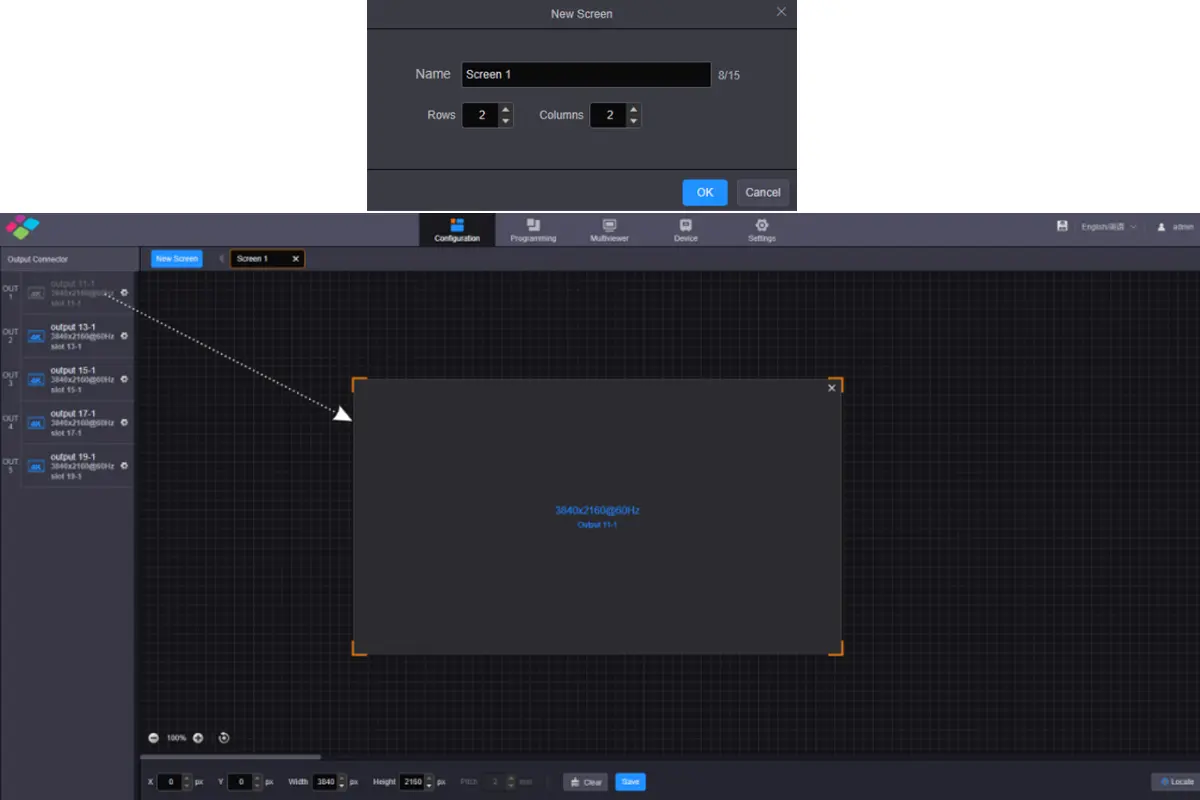
Complete the required NovaLCT screen configuration and verify receiver order with test patterns. For LCD walls, use bezel compensation to account for physical panel borders. For irregular LED arrangements, calculate the active pixel regions and check compatible topology support; “irregular” does not remove hardware limits.
EDID, or Extended Display Identification Data, tells a source which display formats are available. On NovaStar H5, match EDID to the intended signal path rather than simply selecting the largest number. Test fine text, gradients and motion after timing changes. Our LED screen resolution guide explains how cabinet pixels determine the final canvas.
5. Layers, Presets and Advanced Control
Once the wall is mapped, NovaStar H5 operation centers on source windows and stored layouts. Give inputs practical names such as “Presentation PC” or “Camera Overview,” group related feeds, and keep the default operating layout easy to identify. Operators should not have to decode rear-panel port numbers during an event.
01. Budget layers and save useful presets
In the Programming workspace, select the screen, add a source, and set the window’s size, position and stacking order. The NovaStar H5 per-card maximum is expressed in source classes: up to 16 × 2K, 8 × DL, 4 × 4K or 2 × 8K layers. It is not 16 unrestricted 4K windows.
Layer usage follows input connector capacity. NovaStar gives the example of a 1080p source on an HDMI 2.0 connector consuming a 4K layer allocation unless connector capacity is adjusted. This detail can explain why a seemingly modest layout exhausts resources. Check the Device page rather than relying only on the source’s resolution.
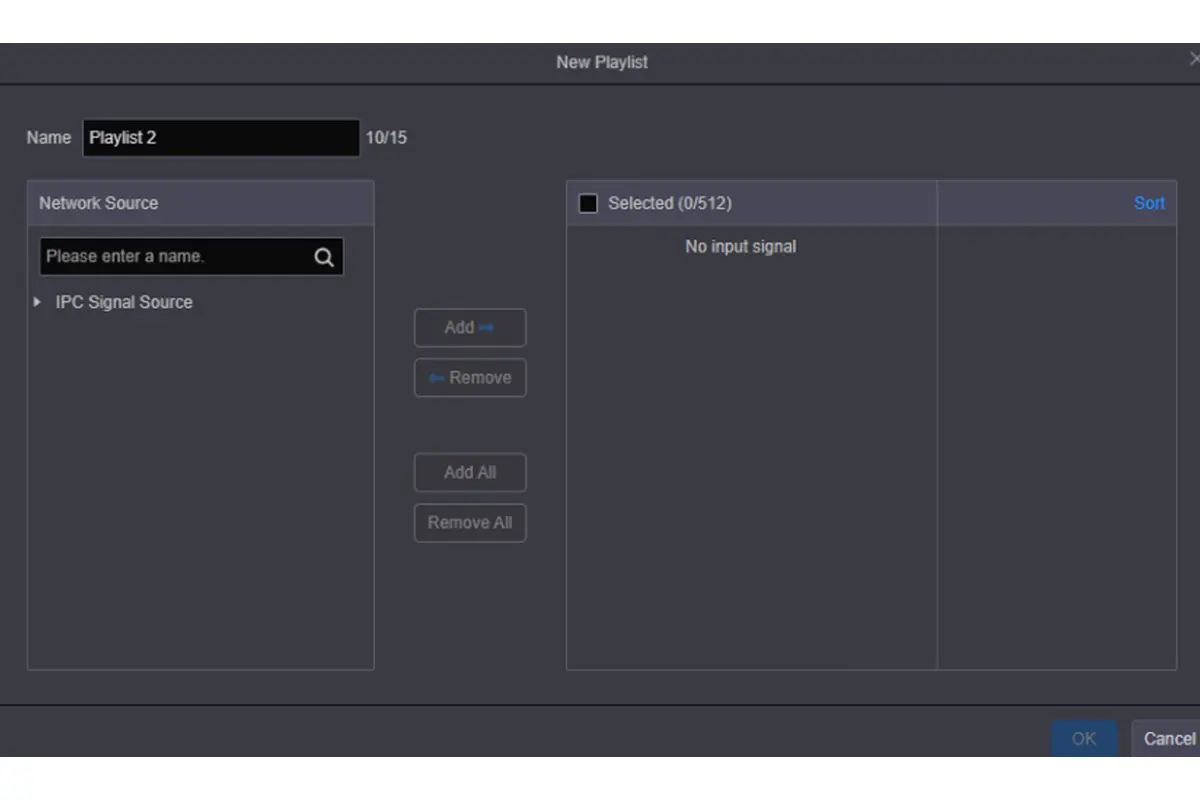
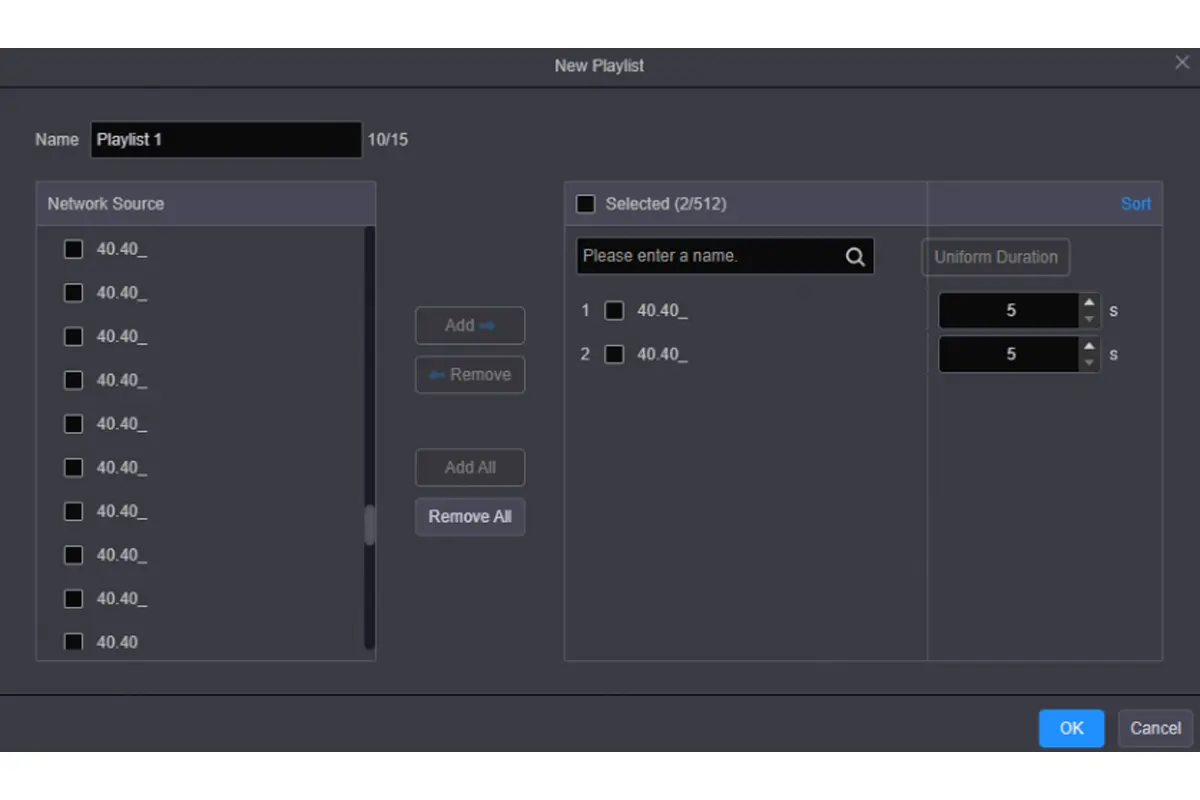
Save NovaStar H5 presets for real operating states: presentation, multi-source monitoring, announcement and a fallback layout. Preset groups coordinate multiple screens, while playlists schedule changes. Test every transition with the final source set. The standard fiber sending card does not support fade transitions on its screen, whereas the enhanced version supports fade subject to applicable resource limits.
02. Verify optional features end to end
NovaStar H5 supports HDR10 and HLG processing, but useful HDR output requires a compatible source, input card, output configuration and display. Check bit depth and receiving-card capability throughout the path. Selecting HDR in one menu cannot restore highlight detail that the source never supplied.
Audio routing requires the appropriate audio-capable inputs and output configuration; the dedicated audio card is an option. Reverse control similarly needs the supported connection and setup. Treat both as items to demonstrate with the proposed configuration, not assumptions based on the chassis model.
For 3D, the official manual describes EMT200 Pro and compatible glasses, and states that enabling 3D halves device output capacity. NovaStar H5 projects requiring 3D therefore need a separate capacity calculation. For third-party integration, consult the H Series OpenAPI documentation and test the required controls against the installed firmware.
6. Troubleshooting and Maintenance
Troubleshoot NovaStar H5 in signal-path order. First establish that the source is valid, then confirm input recognition, layer visibility, output status and receiving-card mapping. Changing several settings together makes it harder to identify the original fault and may break a previously correct part of the system.
| Symptom | Check first | Next action |
|---|---|---|
| Browser cannot connect | Actual device address, subnet and management cable | Read the front-panel address and test a direct same-subnet connection |
| Input is missing | Source output mode, cable and card compatibility | Use a supported timing and a known-working source/cable combination |
| Whole wall is black | Freeze/blackout state, active preset and output path | Check a test pattern before rebuilding the source layout |
| Cabinets appear out of order | Receiver mapping and cable sequence | Compare the physical chain with the NovaLCT map |
| Cannot add expected windows | Connector capacity and layer allocation | Review the source class assigned to each input connector |
| Fade is unavailable | Sending-card type, rotation and layer limits | Use a supported cut transition or revise the configuration |
NovaStar H5 supports online firmware updates, but schedule these outside operating hours. Record current versions, export the configuration where supported, obtain the correct package through official channels and review release notes. After an update, retest source recognition, screen mapping, preset recall and any backup behavior relied on by the installation.
Hot-swappable cards simplify service but do not guarantee uninterrupted content on the affected path. Plan maintenance around the actual backup arrangement and follow the hardware procedure. Keep the NovaStar H5 configuration record with card models, cable labels, firmware versions and recovery instructions. A reproducible recovery process is more useful than an undocumented “working” preset.
7. Applications, Pricing and Buying Checklist
NovaStar H5 is suited to installations that need flexible source handling and multi-window composition: control rooms, corporate presentation walls, exhibition displays and stage applications. Each use case puts different pressure on the configuration. A camera-heavy control room needs decoding and operator workflow checks; an event system needs predictable source changes and rehearsed fallback behavior.
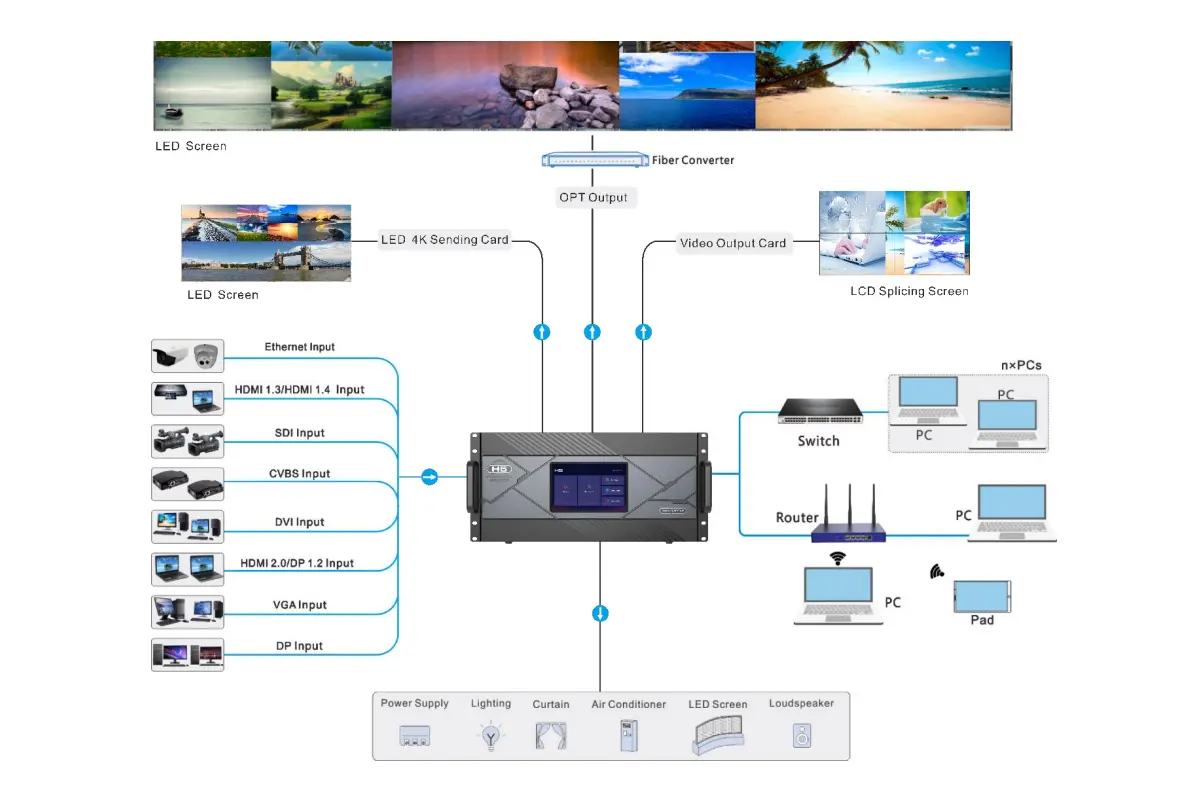
For a NovaStar H5 quote, provide wall dimensions in pixels, cabinet resolution, source count, simultaneous window count, signal formats and cable distances. Also specify frame rate, bit depth, audio, 3D, optical conversion and redundancy requirements. Ask the supplier to return an itemized card list and a proposed output map.
There is no single meaningful NovaStar H5 price without that configuration. Compare the chassis, cards, converters, optical modules, power options, commissioning and support on the same basis. Request confirmation of firmware compatibility and which features will be demonstrated during acceptance. An inexpensive quote that excludes necessary fiber conversion is not equivalent to a complete system.
If the design exceeds the available expansion or layer resources, compare a larger chassis using an equally detailed card plan. The NovaStar H9 setup guide provides a related starting point. For a simpler wall, evaluate whether a smaller processor can meet the actual source and output requirements without unnecessary expansion hardware.
8. Frequently Asked Questions
01. What is NovaStar H5 used for?
NovaStar H5 combines multiple video sources into layouts for video walls. With compatible LED sending cards, it also sends display data to LED receiving hardware. With conventional video output cards, it operates as a splicing processor feeding another display path. The installed cards determine the available connections.
02. What is the maximum NovaStar H5 pixel capacity?
The current specification lists 31.2 million, 39 million, 62.4 million or 78 million pixels for different fully configured sending-card families. These are alternative chassis maxima. Actual usable capacity depends on card type, output mode, bit depth, frame rate and receiving hardware; backup ports must not be counted as additional independent canvas.
03. Does NovaStar H5 support 4K and 8K inputs?
Compatible cards support 4K inputs, and the current specification includes selected 4K at 120 Hz and 8K at 30 Hz input modes. Confirm the exact connector, card revision and video format. High-resolution input support and the total number of output pixels are separate specifications.
04. Can NovaStar H5 be controlled without installing software?
Its browser-based interface supports source, layout and other device operations without a dedicated desktop control application. However, LED screen and receiving-card configuration may require NovaLCT. Use the software version specified for the selected sending card rather than assuming the browser replaces every commissioning tool.
05. Can NovaStar H5 handle irregular screens and 3D?
Irregular screen layouts are supported within the relevant card, topology and loading limits. The documented 3D workflow uses NovaStar EMT200 Pro and compatible glasses. Enabling 3D halves output capacity, so a layout that fits in standard operation needs to be checked again for 3D.
06. Where can I get the NovaStar H5 manual and firmware?
Use the downloads attached to NovaStar's official H Series product page. Match the manual, firmware package and release notes to the installed hardware. Keep a copy of the working configuration and test essential presets after an update before returning the video wall to normal service.
9. Final Selection Checklist and Official Resources
A well-specified NovaStar H5 system starts with the wall's actual pixels and the sources that must appear together. Confirm card families, per-port load, software versions, operating modes and backup paths before ordering. During commissioning, validate cabinet mapping before creating production layouts, then test those layouts with the real sources.
For the latest compatible options, use the official NovaStar H Series product and downloads page, the H5 specification and the H Series manual. Send your pixel dimensions, source inventory and cable distances through this page's inquiry form to request a configuration-specific quotation.
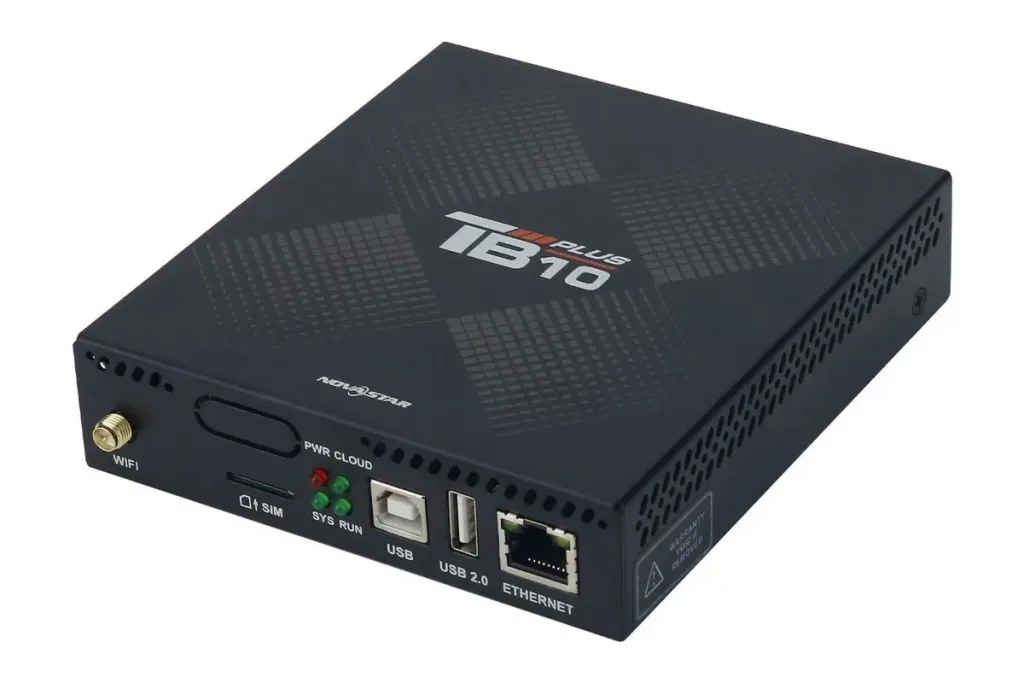 NovaStar TB10 Plus: Specs, HDMI Limits & Setup Guide
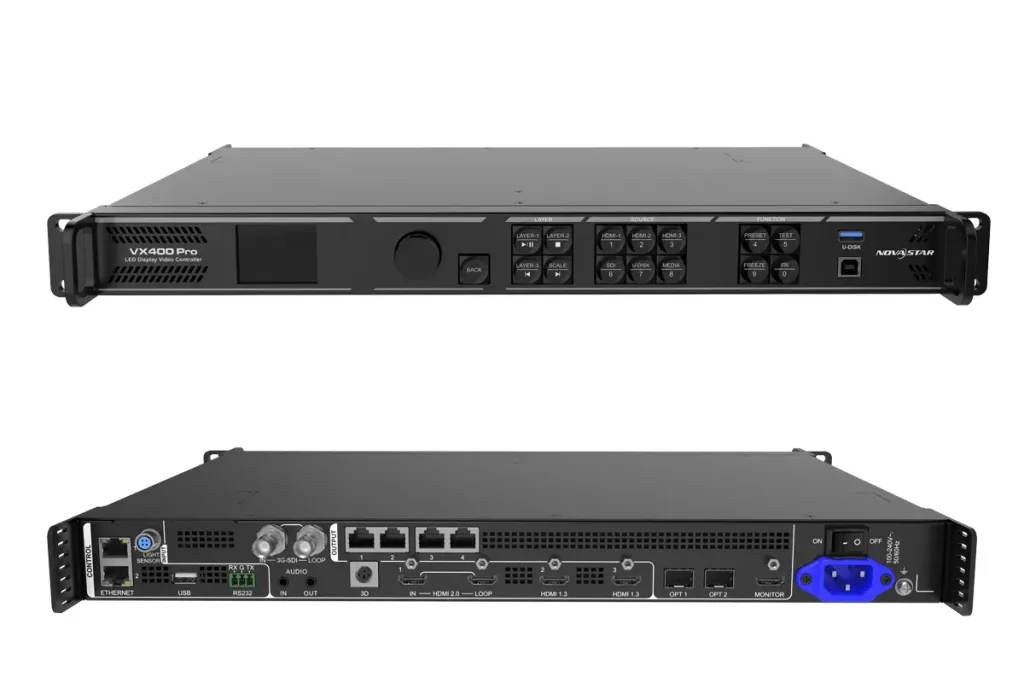 Novastar VX400 Pro Controller Setup: Complete 2026 Guide