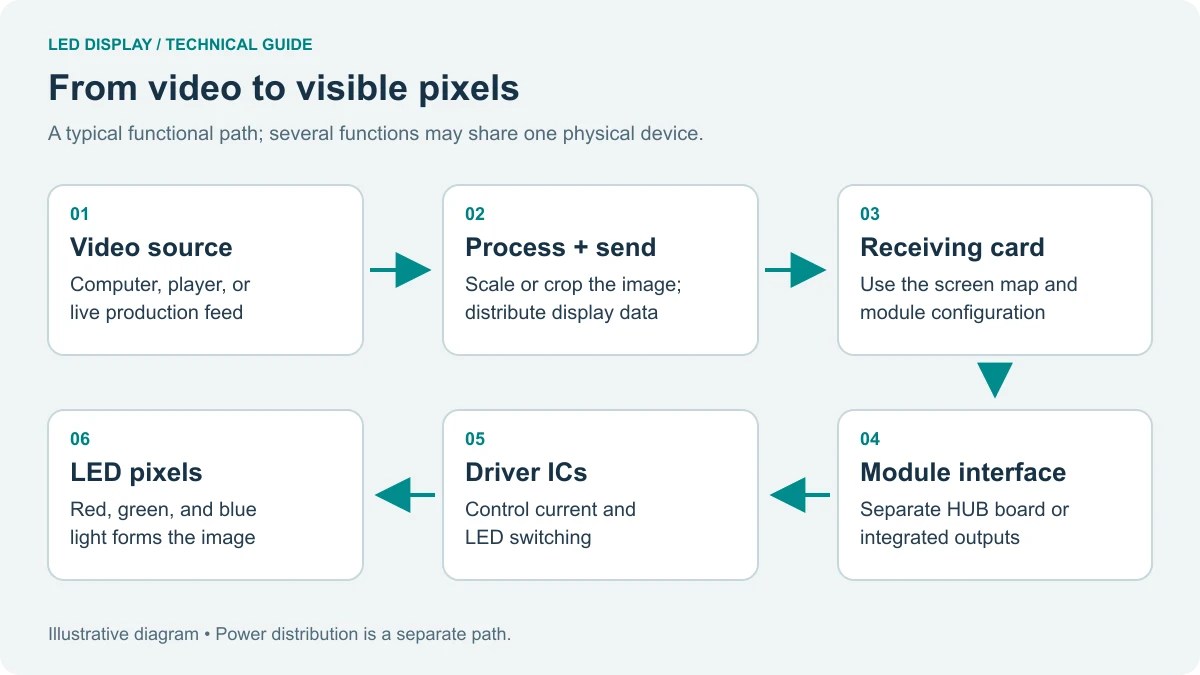
The NovaStar CX40 Pro is a COEX-series 4K LED display controller with six 5Gbps Ethernet outputs, one 40Gbps optical port and a maximum device load of 9 million pixels. It combines video processing, sending and VMP control. Choose its operating mode, receiving cards and output configuration together: headline pixel capacity alone does not establish whether an LED wall will work.
At a glance: The NovaStar CX40 Pro accepts HDMI 2.0, DisplayPort 1.2 and 12G-SDI sources, supports HDR10 and HLG, and provides three independent layers in All-In-One mode. Published low-latency figures describe processing inside the controller, not the complete camera-to-screen delay.
This specification and setup guide is published by EagerLED for LED-wall buyers and integrators. It uses NovaStar’s CX40 Pro Specifications V1.0.1, dated July 4, 2023, reproduced by Manuals+ as an explicit reference baseline. It is a document-based guide, not a hands-on benchmark; verify newer firmware and receiving-card combinations against their matching documentation.
Contents
1. What Is the CX40 Pro LED Display Controller?
The NovaStar CX40 Pro belongs to the COEX control platform from Xi’an NovaStar Tech Co., Ltd. Its All-In-One mode combines source processing, scaling and cabinet data transmission. Send-Only mode suits installations where an upstream system already prepares the final canvas and the operator prioritizes a shorter processing path.
For an indoor LED screen, start with the actual cabinet resolution and receiving-card model. For a rental fleet, also document the available cable routes and source formats. The NovaStar CX40 Pro can serve either workflow, but an existing screen should not be assumed compatible merely because it already uses NovaStar hardware.
01. Key Specifications and System Boundaries
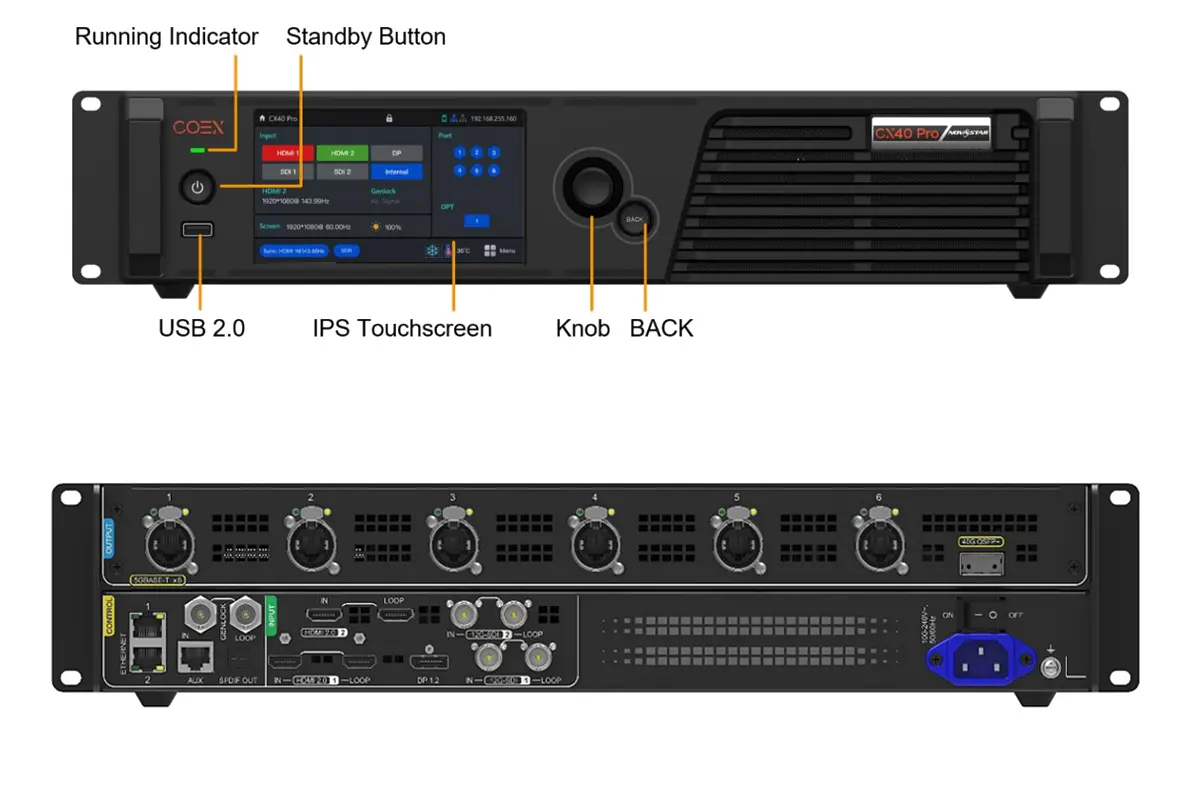
The NovaStar CX40 Pro has five video input connectors across three interface types. HDMI and SDI loop connections distribute the incoming source onward; they do not create additional processing capacity. Likewise, the two Gigabit Ethernet control ports carry management traffic and must be distinguished from the six 5Gbps cabinet outputs.
| Item | Documented specification | What to verify |
|---|---|---|
| Device capacity | Up to 9,000,000 pixels | Total load plus every output-port limit |
| Video inputs | 2 HDMI 2.0; 1 DP 1.2; 2 12G-SDI | Source timing, bit depth and sampling |
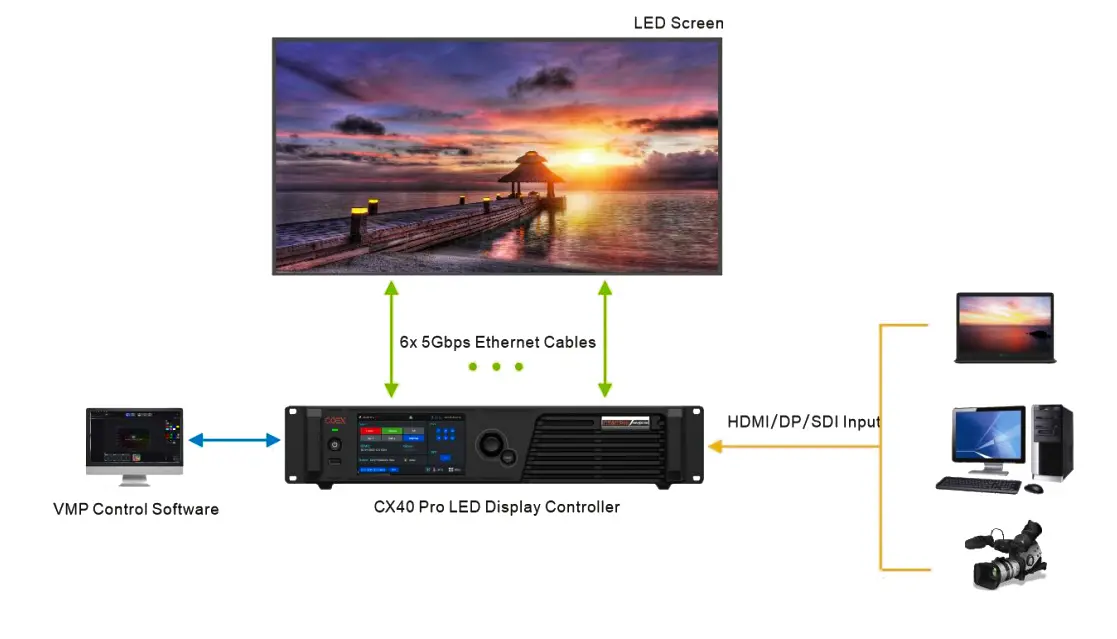
| Cabinet outputs | 6 Ethernet ports at 5Gbps | Receiving-card compatibility and cabinet map |
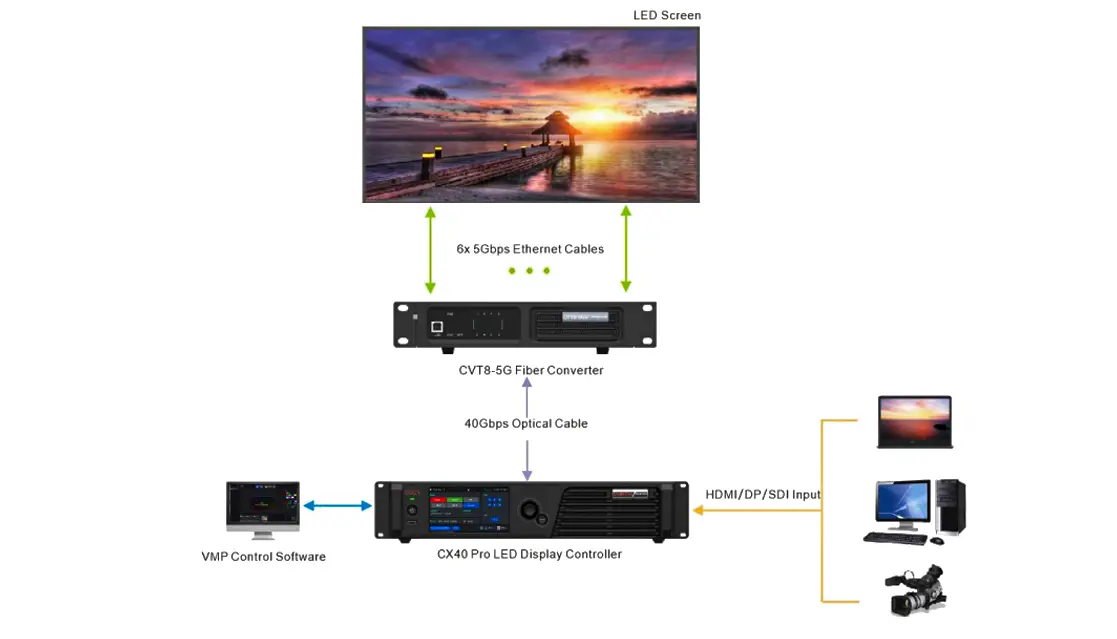
| Optical output | 1 optical port at 40Gbps | Matching modules, fiber and downstream equipment |
| Local control | 5.5-inch 1080p touch LCD | Access to status and configuration at the rack |
| Software control | VMP over Gigabit Ethernet | Compatible software and device firmware |
These NovaStar CX40 Pro specifications describe separate capabilities. They are not a guarantee that maximum input resolution, maximum frame rate, maximum bit depth and all processing features can be enabled simultaneously. Use the manufacturer specification tables to check the exact combination before finalizing the bill of materials.
2. NovaStar LED Controller CX40 Pro 4K HDR Processing Performance
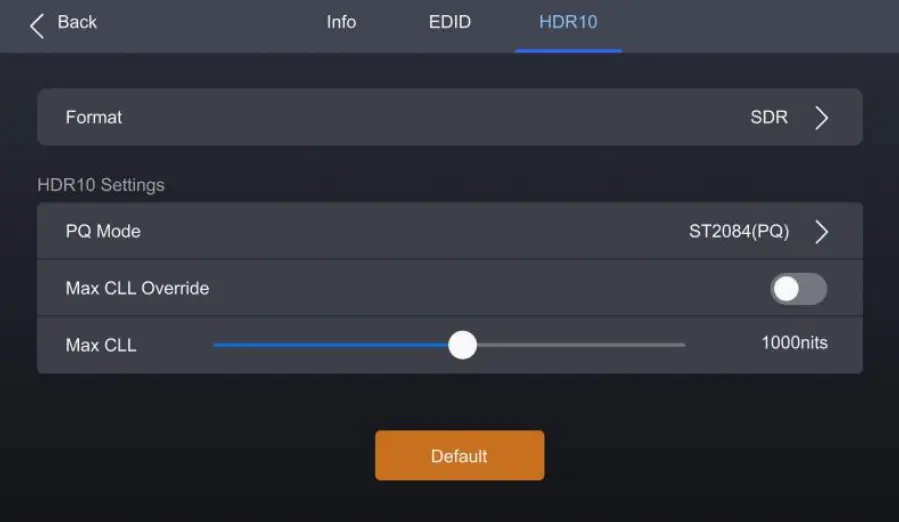
The NovaStar CX40 Pro supports HDR10 and HLG, but successful HDR reproduction depends on the source, processor settings, receiving cards and calibrated LED cabinets. HDR10 uses PQ signaling associated with SMPTE ST 2084, while ST 2086 describes mastering-display metadata. They are not two interchangeable transfer curves.
First establish the intended output format in the player or graphics card. Then check how the NovaStar CX40 Pro identifies that input. If an SDR image is interpreted as HDR, or HDR is interpreted as SDR, brightness and color can look wrong even though the source remains visible.
HDR setup sequence: Confirm the source format, check automatic detection, select the appropriate HDR properties when manual configuration is required, and inspect highlight detail and shadow separation on the actual screen. The reference document allows manual HDR settings for DP, SDI and non-standard sources.
For the NovaStar CX40 Pro, HDR can reduce available load with the CA50E, CA50C and XA50 receiving-card combinations described in V1.0.1. Do not budget the screen from the 9-million-pixel headline without checking that condition. Our LED display HDR guide explains the display-side factors behind the result.
Input resolution, frame rate and chroma sampling must be treated as one specification. The NovaStar CX40 Pro supports 4096 x 2160 at 60Hz in listed formats, including 8-bit RGB 4:4:4 over HDMI and DP. The same baseline lists lower timing limits for 10-bit or 12-bit RGB 4:4:4; 4K60 cannot be generalized to every format.
Forced 8192 x 1080 at 60Hz is an ultra-wide input option under supported conditions. The source graphics card must produce that timing, and HDMI/DP input width must be a multiple of eight. A frame-rate list reaching 240Hz does not establish 4K240 support. Check the NovaStar CX40 Pro Video Source Specifications before choosing a media-server output.
| Input and format | Listed timing | Practical implication |
|---|---|---|
| HDMI/DP, 8-bit RGB 4:4:4 | 4096 x 2160 at 60Hz | Suitable baseline for detailed computer graphics |
| HDMI 2.0-1/DP, 10/12-bit RGB 4:4:4 | 4096 x 2160 at 30Hz | Higher precision changes the timing budget |
| HDMI 2.0-1/DP, 10/12-bit YCbCr 4:2:2 | 4096 x 2160 at 60Hz | Chroma subsampling trades color detail for bandwidth |
| 12G-SDI, 10-bit YCbCr 4:2:2 | 4096 x 2160 at 60Hz | Check source SDI format and cable rating |
| HDMI/DP, forced ultra-wide input | 8192 x 1080 at 60Hz in listed formats | Requires graphics-card timing configuration |
3. Ultra-Low Latency Architecture of the NovaStar COEX CX40 Pro
NovaStar CX40 Pro low latency is a conditional processing specification. With the documented low-latency setup, Send-Only mode achieves zero frames, described as less than 1ms inside the controller; All-In-One mode is one frame. Source capture, rendering, transmission and LED scan behavior add their own delay.
At 60Hz, one frame lasts approximately 16.67ms, calculated as 1,000 divided by 60. That conversion helps compare a frame-based specification with a millisecond requirement, but it is not a measurement of a complete NovaStar CX40 Pro installation.
01. Latency Controls and Cabinet Loading
The V1.0.1 function-limitations table states that low latency and Genlock are mutually exclusive. It also requires Ethernet ports to load cabinets vertically and share the same Y coordinate for low latency. Establish that topology before installation; changing only the menu setting may not produce the expected result.
The NovaStar CX40 Pro also supports zero to two additional frames of controller delay. Add delay only when a measured synchronization requirement calls for it. For camera work, compare the full signal chain under the final shooting format, and record whether Genlock or low latency was selected.
| Requirement | Configuration to investigate | Acceptance check |
|---|---|---|
| Shortest controller processing path | Send-Only with valid low-latency topology | Measure the complete source-to-screen chain |
| Layers and source scaling | All-In-One mode | Confirm composition and account for processing delay |
| Reference-based synchronization | Genlock with low latency disabled | Check reference lock and camera timing |
| Matching another delayed path | Additional controller delay, 0-2 frames | Measure the offset before and after adjustment |
A NovaStar CX40 Pro used for virtual production therefore needs a camera test, not only a low-latency checkbox. Inspect the recorded image at the intended shutter setting and frame rate. Document any banding, phase adjustments and cabinet behavior before approving the configuration for a shoot.
4. Advanced Layer and Image Processing Capabilities
The NovaStar CX40 Pro provides tools for composition and color management, but each tool solves a different problem. Scaling changes geometry, a LUT maps colors, and cabinet calibration addresses panel uniformity. A repeatable workflow establishes the cabinet baseline first, then adjusts the source image.
01. Three Independent Layers
In All-In-One mode, the NovaStar CX40 Pro supports up to three independent 4K layers and Z-order adjustment. A presentation might use a full-screen background, a live camera window and a graphic overlay. Test all three sources together because a successful single-source test does not validate the final composition.
Use pixel-to-pixel mapping for detailed text where possible. Custom scaling and snap-to-canvas help fit content, but stretching a source changes its geometry. Set the media-server canvas from the intended LED pixel layout and review LED screen resolution planning before creating show graphics.
02. 3D LUT Support
The NovaStar CX40 Pro reference specification explicitly lists 17 x 17 x 17 .cube LUT files. Treat larger LUT grids as version-dependent capabilities that require matching current documentation. A LUT made for a different display target can introduce errors even when its file imports successfully.
Record the source color space, display target and LUT filename. Compare a neutral grayscale and known color patches before and after enabling it. The NovaStar CX40 Pro should be evaluated through the final camera or viewing chain, especially when the LED wall forms part of a photographed background.
03. 14-Channel Color Correction
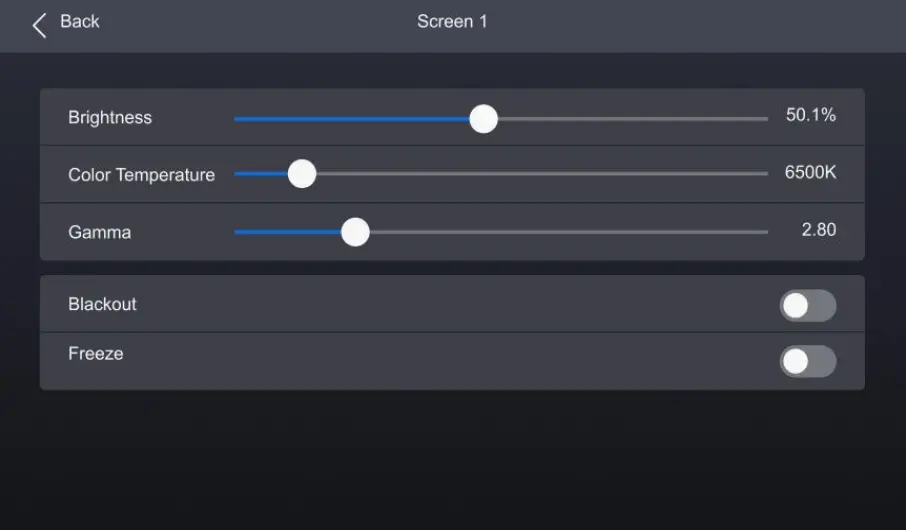
The NovaStar CX40 Pro offers hue, saturation and brightness adjustment for black, white and twelve derived standard colors. Use this for targeted corrections after the broad calibration is stable. Correcting a brand red should not become a substitute for checking white balance, gamut or source interpretation.
Save a baseline preset before changes and compare skin tones as well as saturated graphics. After replacing cabinets, inspect uniformity again; a processor-level adjustment can mask one problem while creating another across the rest of the wall.
04. Dynamic Booster and Full Grayscale Calibration
Dynamic Booster analyzes frames to adjust contrast and image detail. In the NovaStar CX40 Pro V1.0.1 baseline, supported receiving cards and prior brightness/gamut correction are prerequisites. The documentation names CA50E, CA50C and XA50 cards with suitable color-analysis equipment for this workflow.
Full grayscale calibration additionally requires the NovaStar C3200 camera. Do not promise a fixed energy-saving percentage or guaranteed service-life increase without project measurements. Check the advanced-function requirements for the complete NovaStar CX40 Pro system, then retain the calibration files with the project handover.
5. How to Set Up the NovaStar COEX CX40 Pro for Your LED Display System
Commission the NovaStar CX40 Pro in stages: document the hardware, establish a known source, map the cabinets, validate loading, set processing, then save and test recovery. Keep the receiving-card configuration, VMP project and cable map together. The steps below are a planning workflow; installation must follow the supplied hardware manual.
01. Hardware Installation
The NovaStar CX40 Pro reference dimensions are 482.6 x 94.4 x 472.0mm and its net weight is 8.1kg. Use the mechanical drawing for rack fit; describing a 94.4mm-high enclosure as a standard 1U device would be misleading. The reference specifies at least four M5 x 12 mounting screws and a rack bearing at least 32.4kg.
Its listed supply is AC 100-240V, 50/60Hz, with 105W specified consumption; actual consumption varies with use. The operating range is -10 to +45 degrees Celsius. The NovaStar CX40 Pro has an IP20 rating and must be protected from water. Maintain airflow, grounding and horizontal mounting as required by the installation and electrical instructions.
02. Connecting Inputs and Outputs
Connect a known progressive video source to the NovaStar CX40 Pro using the appropriate HDMI, DP or SDI input. Test the direct connection before adding adapters and loop-through devices. The reference allows up to eight devices in HDMI or SDI loop arrangements; verify signal stability across the complete route.
Next identify the receiving-card family and load each cabinet output deliberately. A physical Ethernet connector does not establish protocol compatibility. Our LED receiving-card guide explains why the card, driver IC and cabinet configuration belong in the same compatibility check.
The following NovaStar CX40 Pro port values apply to the CA50E, CA50C and XA50 baseline documented in V1.0.1. Apply the device’s 9-million-pixel ceiling as well as individual port limits, and check HDR-specific restrictions separately.
| Frame rate | 8-bit | 10-bit | 12-bit |
|---|---|---|---|
| 30Hz | 5,184,000 | 4,146,000 | 3,456,000 |
| 60Hz | 2,592,000 | 2,073,000 | 1,728,000 |
| 120Hz | 1,296,000 | 1,036,500 | 864,000 |
| 240Hz | 648,000 | 518,250 | 432,000 |
Calculated planning example: A 3840 x 2160 wall contains 8,294,400 pixels. Dividing it evenly across six ports gives 1,382,400 pixels per port. At 60Hz that is below the listed 12-bit port ceiling, but it does not validate HDR operation, cabinet scan settings or the physical connection map. At 120Hz the listed 12-bit port ceiling is 864,000 pixels, so the same six-port plan fails.
Ethernet Output Connection Diagram
Optical Transmission Connection Diagram
03. Initial Power-On and Basic Setup
After checking power and cabling, start the NovaStar CX40 Pro and inspect the running indicator. In the reference, solid red means standby, solid blue means starting, solid green means normal operation and flashing red indicates abnormal operation. Check reported faults before applying a complex show configuration.
Use the home screen to confirm source detection and output connections. Establish a modest brightness setting suitable for the room, then display identification patterns and grayscale. Check each cabinet’s location and orientation before enabling the final media-server composition. This isolates mapping faults from processing faults on the NovaStar CX40 Pro.
04. Configuring Through the Front Panel
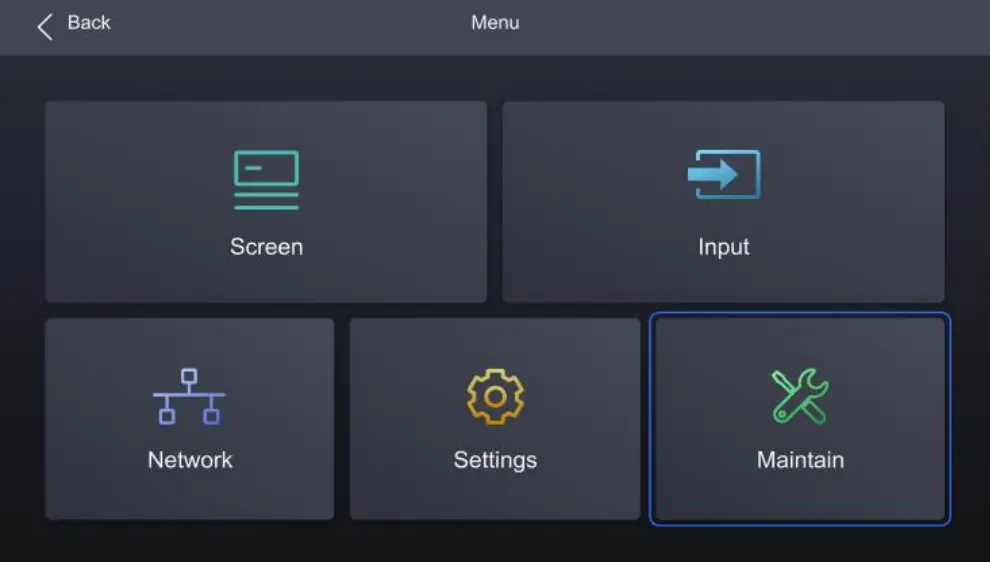
Press the knob from the home screen to enter the menu, rotate to choose a setting and press to confirm. Hold the knob and BACK together for five seconds or longer to lock or unlock the touch screen and buttons. Record that procedure in the operator handover.
For the NovaStar CX40 Pro, treat EDID as the format agreement presented to the source. Start with a supported standard timing, then configure a custom timing when required by the actual canvas. Recheck the source output after changes; a menu selection alone does not prove the graphics card adopted it.
05. Advanced Configuration with VMP
VMP means Vision Management Platform, the software identified for managing the NovaStar CX40 Pro. Connect the control computer through the Gigabit management network. Use the compatible VMP release to configure the screen, arrange sources, manage presets and inspect device or cabinet status.
Save a known-good project before experimenting with advanced image functions. For a NovaStar CX40 Pro handover, retain the software version, controller firmware, receiving-card model, cabinet file and source timing. Test a restart and preset recall in an appropriate commissioning window so recovery is demonstrated rather than assumed.
| Check | Pass condition | If it fails |
|---|---|---|
| Source detection | Expected timing and color format are reported | Try a known source and direct cable; check EDID |
| Cabinet map | Identification pattern matches physical positions | Check output order, cabinet file and orientation |
| Port loading | Every port and total device remain within limits | Recalculate using actual bit depth and frame rate |
| Color and grayscale | Neutral ramp and reference colors are consistent | Check HDR interpretation, calibration and LUT |
| Timing | Recorded or interactive output meets project criteria | Check Genlock choice and complete-chain delay |
| Recovery | Saved configuration restores the intended wall | Review project files, startup settings and presets |
06. Network and Protocol Configuration
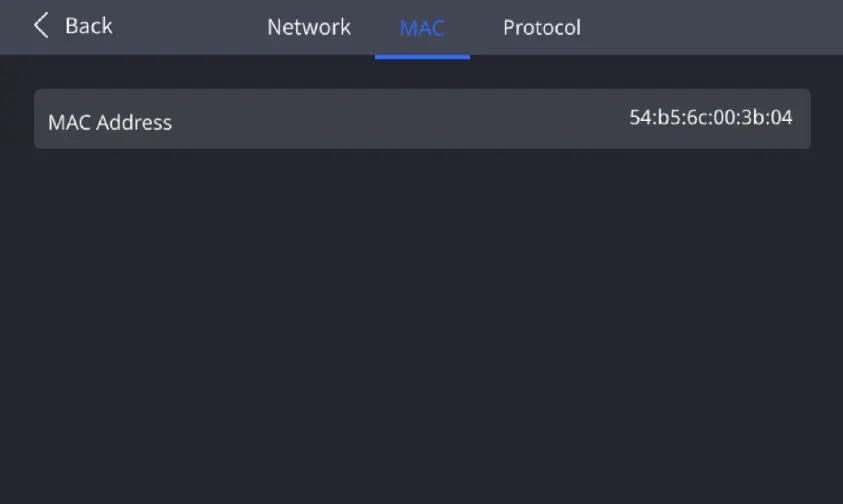
Assign the NovaStar CX40 Pro and control computer compatible IP settings. DHCP can simplify a temporary setup; documented static addresses are useful for fixed installations. Avoid duplicate IP addresses and label management cables separately from cabinet-output cables.
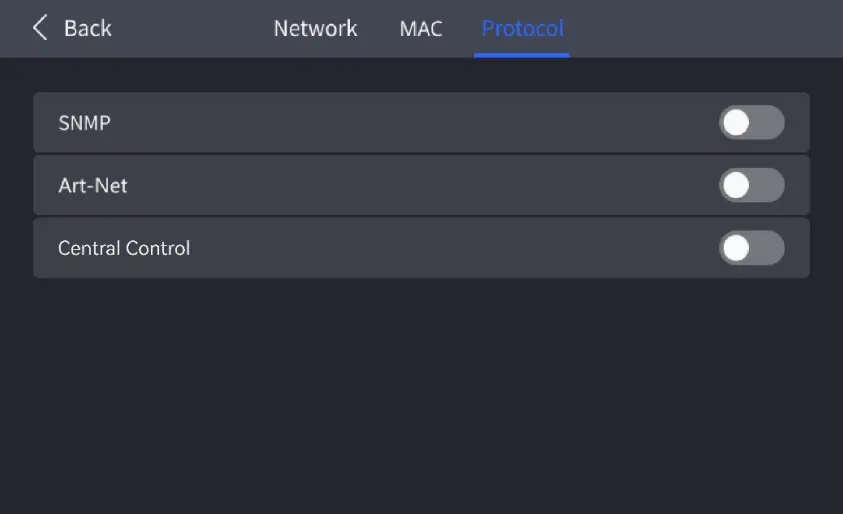
The reference describes built-in switching for management cascading of up to twenty devices. This does not merge their pixel capacity into a single controller. Confirm any SNMP, Art-Net or central-control requirements in the exact firmware documentation before integrating the NovaStar CX40 Pro with a venue control system.
6. Typical Application Scenarios of the NovaStar CX40 Pro
The NovaStar CX40 Pro is worth considering when a project needs several source interfaces, local monitoring and integrated composition. Match those functions to the show requirement, rather than assuming every large screen needs this model. Small straightforward displays may need fewer capabilities; larger canvases may require additional processors and coordinated timing.
| Application | Relevant capability | Decision before purchase |
|---|---|---|
| Virtual production | HDR, color tools and selectable timing workflow | Camera tests, receiving cards and synchronization plan |
| Live events and concerts | Layers plus HDMI/SDI source connections | Source routing, fallback content and operator presets |
| Broadcast studios | 12G-SDI and HLG support | Exact broadcast format and color workflow |
| Large or remote LED walls | Six 5Gbps outputs and a 40Gbps optical interface | Pixel map, optical modules and downstream compatibility |
| Corporate AV | Touch-panel operation and VMP management | Network design and repeatable startup behavior |
For a NovaStar CX40 Pro quotation, provide cabinet resolution, quantity, receiving-card model, target frame rate, bit depth, HDR requirement and cable distances. Specify the required accessories and support scope. Without that information, comparing prices may compare incomplete packages.
A NovaStar CX40 Pro system price should distinguish the controller from optical modules, receiving hardware, cabling, calibration and commissioning. No verified current selling price is stated here. Contact EagerLED with the screen specification to request a configuration-specific quotation and confirm availability.
7. FAQs
 Vunit 3000 Control Processor Guide: 4K LED Display Control Systems
 NovaStar Software SmartLCT: Download & Setup Guide