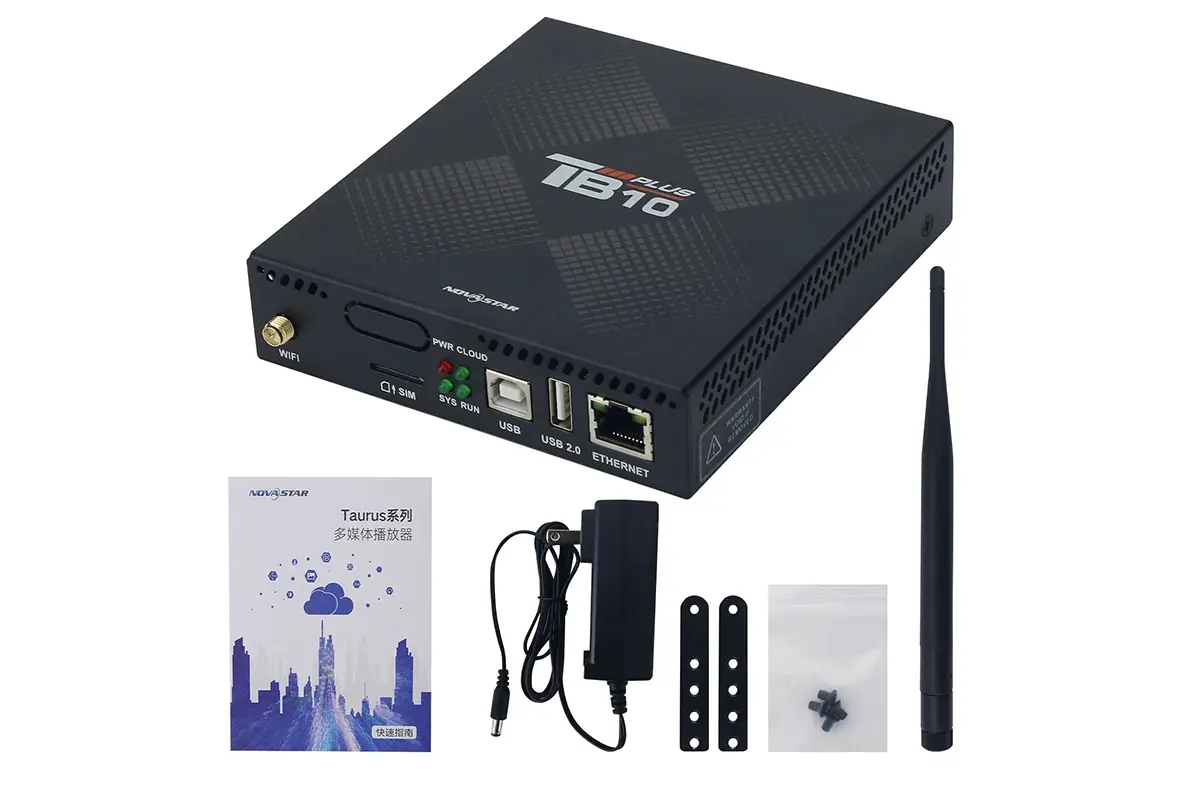
The NovaStar TB10 Plus is an asynchronous multimedia player that combines stored-content playback and LED sending, with a maximum load of 650,000 pixels. It supports 4K video decoding, local publishing and remote management, but it does not provide a physical HDMI input. Its screen capacity, media decoding limits and network connections must be checked separately before purchase.
Quick answer for buyers: Choose this player for scheduled advertising, shop signs and other compatible LED screens within its pixel budget. For a live laptop or camera feed, select equipment with a documented video input. A USB-to-HDMI adapter is not a documented upgrade path for this model.
This guide uses NovaStar’s TB10 Plus Specifications V1.0.3, dated July 31, 2026. The calculations below are planning examples, not installation test results. Confirm the exact model and firmware before applying settings, especially when comparing an older TB10 or a regional variant.
1. What Is the NovaStar TB10 Plus Multimedia Player?
The NovaStar TB10 Plus combines two jobs: playing an uploaded program and sending the resulting image to compatible LED receiving cards. An asynchronous player stores content and follows a schedule, so an operator does not need to keep a presentation computer connected for routine playback. Network access is used for functions such as publishing, monitoring and time synchronization.
The NovaStar TB10 Plus is therefore useful when the display should repeat approved material throughout the day. A retailer can prepare a morning promotion, a daytime product loop and an evening message. The operational advantage is predictable scheduling and centralized updates; actual performance still depends on the media, screen configuration and installation.
The NovaStar TB10 Plus is not a general-purpose HDMI monitor controller. Its LED OUT connector sends data to an LED receiving system, while its ETHERNET connector handles management networking. Neither connection should be interpreted as a conventional HDMI video input. The NovaStar multimedia player guide provides broader context for comparing playback workflows.
01. Can You Add an HDMI Port?
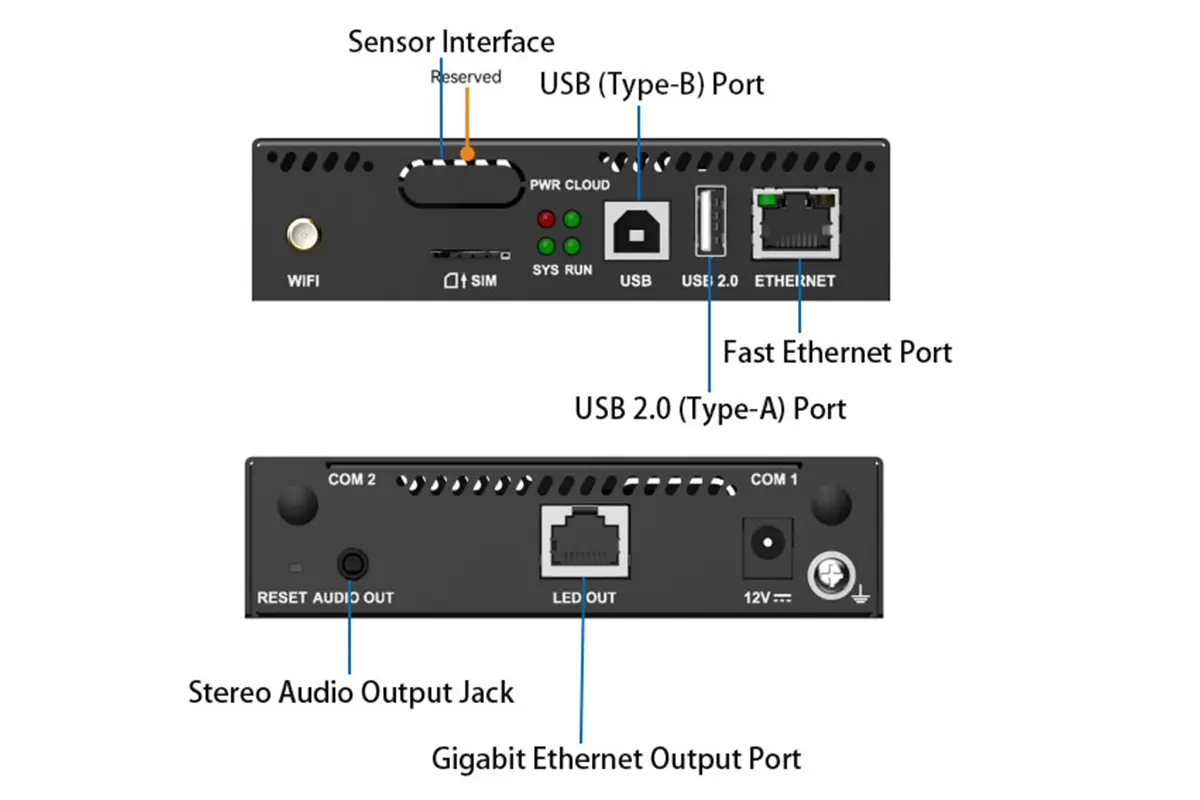
The NovaStar TB10 Plus has no physical HDMI connector in the manufacturer’s front- and rear-panel interface lists. USB Type-A supports media playback, firmware upgrades and storage expansion; USB Type-B connects a control computer for publishing and screen control. These functions do not document support for generic USB video capture or USB graphics adapters.
If you need to show a laptop desktop, a camera or live presentation switching, specify a controller or player with a documented HDMI input. Ask the supplier to verify input resolution, latency, scaling and LED output capacity. One audio note in the specification mentions embedded HDMI audio, but that does not establish an HDMI port on this model. The hardware interface list is the relevant evidence.
2. Core Technical Specifications of the NovaStar TB10 Plus
The NovaStar TB10 Plus specification separates output capacity from decoding performance. Read the figures together: maximum width and maximum height are individual limits, and their product must still fit the total pixel budget. The same distinction applies when comparing a source video resolution with the physical resolution of the LED screen.
| Item | Documented specification | Meaning for the project |
|---|---|---|
| LED load | Up to 650,000 pixels; one Gigabit LED output | Count all pixels assigned to the player. |
| Normal dimensions | Maximum width 2048 px; maximum height 2048 px | These are separate limits, not a 2048 × 2048 capacity. |
| Ultra-long layout | Maximum width 8192 px; maximum height 2048 px | Requires the ultra-long-screen configuration workflow; retain the total load limit. |
| Processor and memory | Quad-core ARM A53 at 1.4 GHz; 2 GB RAM; 32 GB storage | Storage holds programs; RAM and decoding capacity are separate constraints. |
| Management | Fast Ethernet, USB Type-B and 2.4 GHz Wi-Fi | Choose a practical local or network publishing method. |
| Power | DC 5–12 V; maximum consumption 15 W | This is player power, not the LED cabinet power requirement. |
| Environment | −20°C to +60°C; 5–85% RH, non-condensing; IP20 | Provide protection against water and condensation. |
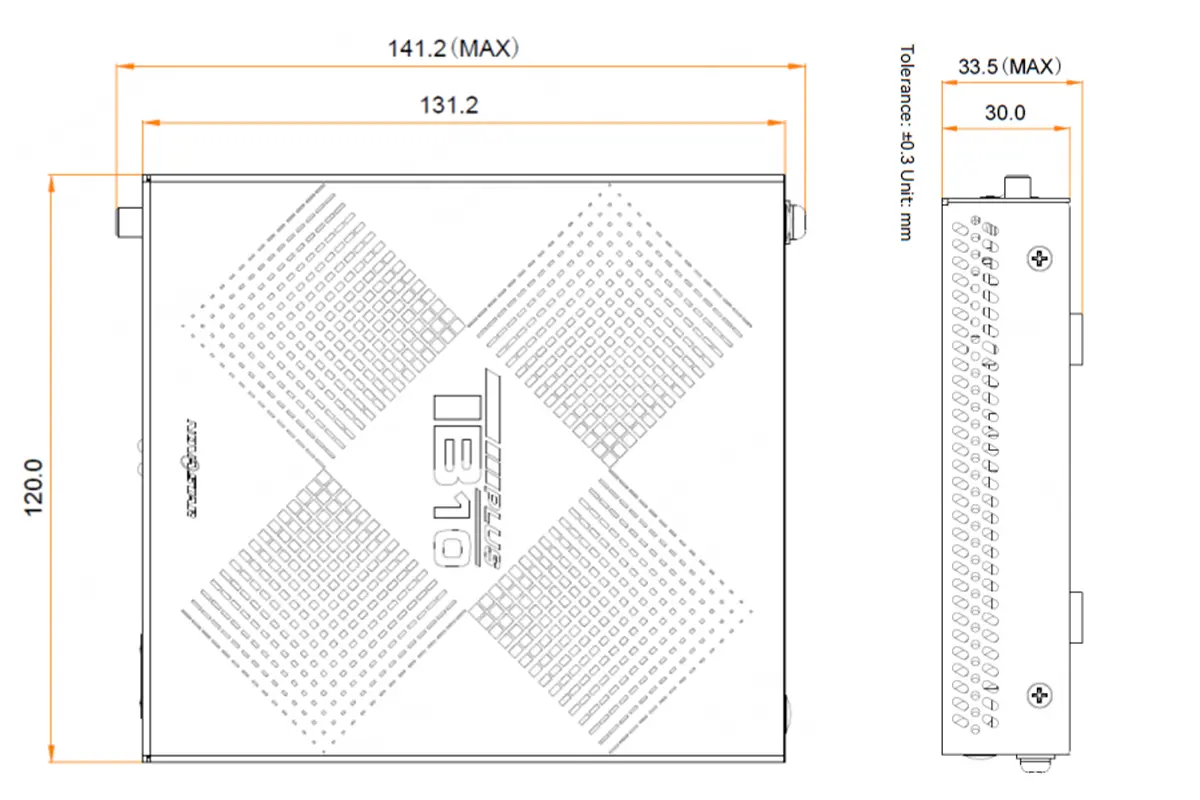
| Physical size | 141.2 × 120.0 × 33.5 mm; net weight 465.6 g | Allow extra room for connectors, antennas and service access. |
These values come from the official specification, Output and Specifications sections. Do not infer an outdoor enclosure rating from the operating temperature range. The player can support an outdoor sign while remaining inside a suitably protected equipment compartment.
01. Check the Document Version Before Copying Settings
The NovaStar TB10 Plus V1.0.3 document lists playback of one 4K, two 1080p, four 720p, four 480p or twenty 360p videos. These are alternative capability descriptions, not allowances that can be added together. Earlier documentation listed different multi-video counts, so a distributor’s old specification table may be misleading.
The NovaStar TB10 Plus also has revised USB guidance: V1.0.3 lists FAT32 or NTFS, a drive capacity of 2–128 GB, and individual files greater than zero and smaller than 4 GB. Check the document matching the installed firmware rather than assuming that every storage format or any large file will work.
3. NovaStar TB10 Plus Connectivity and Synchronization Features
01. Choose the Correct Publishing Connection
The NovaStar TB10 Plus offers several control paths, but the connectors serve different purposes. Establish one reliable local connection first, then add remote management. This makes it easier to separate a network problem from a receiving-card configuration problem when the screen does not show the expected program.
| Connection | Use | Check before deployment |
|---|---|---|
| LED OUT | Sends display data to compatible receiving cards. | Connect the screen chain, not the office router. |
| ETHERNET | Connects a control computer or management network. | Confirm addressing, routing and access to required services. |
| USB Type-B | Local computer publishing and screen control. | Use compatible NovaStar software and a suitable data cable. |
| USB Type-A | USB playback, firmware upgrade and storage expansion. | Check filesystem, drive size, file size and program preparation. |
| Wi-Fi AP / Station | Direct hotspot access and connection to a site Wi-Fi network. | 2.4 GHz support; both modes can operate together. |
| Optional 4G | Remote networking where site connectivity is unsuitable. | Module is purchased separately; verify carrier, SIM and coverage. |
| AUDIO OUT | 3.5 mm output with fixed 48 kHz sampling. | Three-pole jack supported; this connector is not audio input. |
For the NovaStar TB10 Plus, the documented network priority is wired network, then Wi-Fi, then 4G when several networks are available. Do not interpret that priority as a guarantee of uninterrupted cloud access. Test the actual installation’s routing and reconnection behavior before relying on remote changes during a campaign.
The NovaStar TB10 Plus Wi-Fi hotspot name is described in the current document as the model plus the last eight digits of the serial number. Read the device’s SSID label for its password. Follow site credential policies, record the device identity and confirm which account will own remote access at handover.
02. Plan Synchronization and Optional Hardware
The NovaStar TB10 Plus supports NTP, GPS and RF time synchronization. NTP uses network time; GPS requires the specified 4G module, and RF requires the specified RF module. An antenna connector alone does not mean that the necessary module is already installed. Confirm the accessory list with the supplier.
NovaStar explicitly states that enabling synchronous playback halves decoding capability. For the NovaStar TB10 Plus, this changes media planning, even when the screen itself remains below 650,000 pixels. Test the final playlist with synchronization enabled; a successful unsynchronized test does not validate the synchronized workload. See the Functionality section of the current specification.
4. How the NovaStar TB10 Plus Handles Display Performance
01. Calculate Pixels Before Choosing the Player
For a rectangular screen, multiply its native pixel width by its native pixel height. A NovaStar TB10 Plus selection must pass both the total-load check and the applicable dimensional limits. Physical width in meters is insufficient because different pixel pitches produce different native resolutions on the same-sized sign.
| Native resolution | Total pixels | Capacity assessment |
|---|---|---|
| 960 × 540 | 518,400 | Below 650,000; normal width and height limits also pass. |
| 1280 × 480 | 614,400 | Below the load limit; verify the receiving-card layout. |
| 1920 × 360 | 691,200 | Exceeds the load limit despite fitting individual dimension limits. |
| 4096 × 128 | 524,288 | Within total capacity; needs the ultra-long-screen workflow. |
| 8192 × 80 | 655,360 | Exceeds the load limit; maximum width does not waive capacity. |
| 3840 × 2160 | 8,294,400 | Cannot be driven as a native full UHD screen by this player. |
A NovaStar TB10 Plus driving 1280 × 480 pixels uses approximately 94.5% of the stated pixel allowance. That calculation describes capacity utilization only; it is not a performance benchmark or a guarantee of a valid cable map. Confirm module dimensions, receiving-card parameters, cabinet order and the intended operating settings with the screen supplier.
For an ultra-wide NovaStar TB10 Plus installation, obtain the manufacturer’s ultra-long-screen configuration instructions through the official Taurus product and download page. The long-screen solution is a specific layout workflow, not permission to enter any width and height combination.
02. Separate 4K Decoding from LED Output
The NovaStar TB10 Plus can decode supported 4K files without driving a 4K-resolution LED wall. Source decoding describes the video the player can process; LED output capacity describes the physical pixels it can address. Prepare artwork for the actual screen canvas so text, logos and important image regions remain readable after scaling or layout conversion.
The current NovaStar TB10 Plus media table lists H.264 up to 4096 × 2304 at 30 fps and H.265/HEVC at the same maximum dimensions up to 60 fps. Their ideal-case maximum bitrates are 60 Mbps and 100 Mbps respectively. These are documented limits, not recommended export targets for every composition.
A file extension is not a codec guarantee. Two MP4 files may use different encoding settings and behave differently. Start with one simple test video, then test the real composition, audio and schedule. The official Media Decoding Specifications list compatible containers separately for each codec.
03. Treat Brightness and Reliability as System Tasks
The NovaStar TB10 Plus supports brightness sensors and temperature/humidity sensors, but useful automatic control requires compatible hardware and configuration. Set appropriate brightness limits for the location and check the resulting image on the installed screen. A sensor connection alone does not establish a suitable brightness schedule.
No NovaStar TB10 Plus specification guarantees crash-free operation for every program or environment. Keep ventilation clear, maintain a known-good configuration backup and verify restart behavior after commissioning. The player’s temperature rating applies to its operating environment, including the temperature inside the equipment compartment.
5. How to Use the TB10 Plus as an LED Display Controller
01. Commission the Screen and Publish a Test Program
Prepare the NovaStar TB10 Plus with the screen supplier’s receiving-card configuration, native resolution and cabinet connection map. Use NovaStar software and instructions compatible with the player’s firmware. The following sequence is a commissioning checklist; menu names may vary between software releases.
- Record the hardware. Note the model, serial number, firmware and installed accessories. Confirm the power adapter and receiving system.
- Connect the display chain. Route LED OUT to the receiving-card system and connect power according to the equipment documentation.
- Establish local control. Use the documented USB Type-B, Ethernet or Wi-Fi method. Verify that the selected device matches the label.
- Load the correct screen configuration. Check pixel dimensions and cabinet order. Do not overwrite receiving-card settings with an unrelated project file.
- Publish a simple program. Begin with a still image or short supported video sized for the screen. Inspect edges, orientation and cabinet transitions.
- Add the production schedule. Check time, time zone, program dates and playback windows, then confirm that the intended content actually appears.
- Validate remote operation. Configure the network and cloud association if required. Confirm a successful update and a clear ownership handover.
When commissioning a NovaStar TB10 Plus for a branch location, name the device after the site and screen position. Keep a record of which playlist belongs to which display. This simple operational discipline reduces the chance of publishing a valid program to the wrong screen.
02. Diagnose Problems Before Resetting
If a NovaStar TB10 Plus appears online but shows no image, separate cloud connectivity, program playback and LED output. A network connection does not prove that a program is active or that receiving cards are configured correctly. Read the indicator state before changing multiple settings.
| Symptom | First checks | Relevant distinction |
|---|---|---|
| No image | Power, active program, LED OUT cable and receiving-card configuration. | RUN blinking every 4 seconds means the FPGA has no video source. |
| Internet works; cloud control does not | Account association, service access and CLOUD indicator. | Steady CLOUD means Internet access; a 2-second blink indicates VNNOX connection. |
| USB media is not accepted | Drive format, 2–128 GB capacity, file size and supported media encoding. | V1.0.3 lists FAT32/NTFS and individual files smaller than 4 GB. |
| Playback slows after synchronization | Video count, media resolution and synchronized-mode workload. | Synchronization halves decoding capability. |
| Image is cropped or cabinets are misplaced | Canvas size, cabinet map and ultra-long layout settings. | A valid pixel total does not establish a correct mapping. |
| Cannot show a laptop through HDMI | Recheck the required signal workflow. | This model has no documented physical HDMI input. |
The NovaStar TB10 Plus indicator descriptions and reset behavior are documented in the Appearance and Indicators sections. Holding RESET for five seconds restores factory settings. Back up the configuration and record access details first; use reset only when the recovery procedure calls for it.
6. NovaStar TB10 Plus Multimedia Player Applications
01. Retail, Shelf and Entrance Displays
A NovaStar TB10 Plus fits scheduled retail messaging when the screen is within capacity and content can be prepared ahead of time. Typical examples include entrance promotions, shelf displays and narrow storefront signs. Design text for the real viewing distance rather than filling a small canvas with a full desktop-style advertisement.
For chain stores, a NovaStar TB10 Plus can support a repeatable publishing process: prepare approved material, assign the correct site playlist, check schedules and confirm delivery. The digital retail signage guide covers the wider display use case. Connectivity and account ownership should be part of the rollout plan.
02. Outdoor Signs and Public Information Displays
A NovaStar TB10 Plus can serve a compatible outdoor LED sign when installed inside appropriate protection. Its IP20 rating is not weatherproofing. Evaluate the equipment compartment’s temperature, ventilation, condensation control and service access, as well as the LED cabinets themselves.
For a NovaStar TB10 Plus at a site without suitable wired access, optional 4G may provide the management connection. Check coverage and module compatibility before ordering. Public information deployments also need an approval workflow and a defined fallback message; hardware networking does not replace editorial control over what appears.
03. Events, Interactive Projects and the Buying Checklist
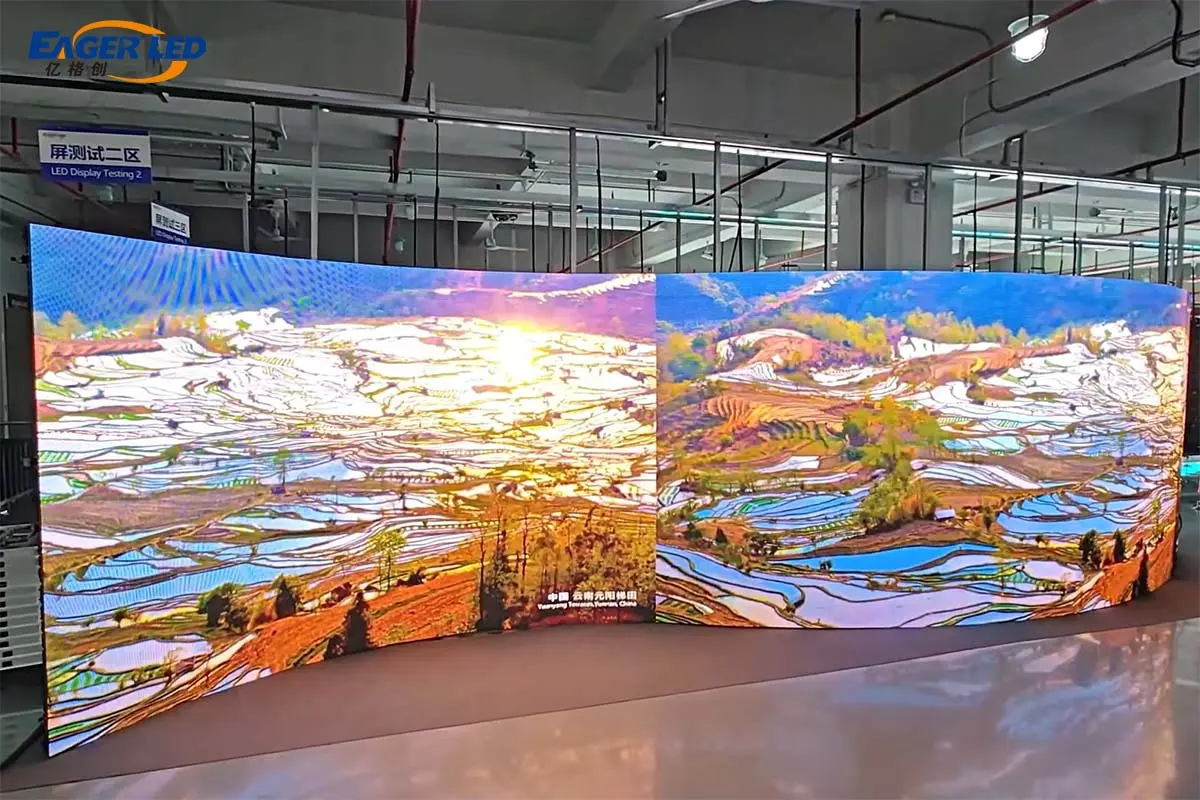
The NovaStar TB10 Plus can play prepared event signage, but a live camera feed or presenter laptop requires a different input workflow. Likewise, touchscreen interaction is not established by the standard interface list. Specify the complete interactive system and obtain a demonstrated supported solution rather than assuming touchscreen compatibility.
Before buying a NovaStar TB10 Plus, send the supplier the exact screen resolution, receiving-card model, cabinet map, media examples and connectivity plan. Add requirements for audio, synchronization, sensors and cellular access. Request a quote identifying the player, optional modules, software/service arrangements and commissioning scope; a bare hardware price does not describe the installed system.
7. FAQs
01. Can I add HDMI to the NovaStar TB10 Plus?
No supported HDMI expansion method is documented for this model. Its standard panel list has no HDMI input, and the USB ports are documented for publishing, playback, upgrades and storage functions. For live laptop or camera content, choose equipment with a documented video input.
02. Can the NovaStar TB10 Plus drive a full 4K LED screen?
No. Its load limit is 650,000 pixels, while a 3840 × 2160 screen contains 8,294,400 pixels. The 4K specification describes supported source-video decoding, not native full-4K LED output capacity.
03. Can the NovaStar TB10 Plus control multiple screens?
It has one LED output. Any supported layout connected to that output must remain within its total capacity and configuration limits. Separate players can use supported synchronization methods across multiple screens, but synchronized playback halves decoding capability and may require optional hardware.
04. Which USB drives and videos are supported?
The current specification lists 2–128 GB USB drives using FAT32 or NTFS, with each file greater than zero and smaller than 4 GB. Video support depends on codec, resolution, frame rate, bitrate and container. Check the current media table and test the actual files before deployment.
05. How do I update NovaStar TB10 Plus firmware?
Obtain the correct package and instructions for the exact model and installed release from NovaStar or your supplier. Back up settings, maintain stable power and follow the documented upgrade process. USB Type-A supports firmware upgrades, but do not use firmware intended for another player or interrupt an upgrade.
06. Can I control the NovaStar TB10 Plus remotely?
Yes, remote publishing and monitoring are supported through the compatible cloud workflow with an available network connection. The documented priority is wired network, Wi-Fi and then optional 4G. Confirm cloud association, credentials and service availability during commissioning.
8. Conclusion
The NovaStar TB10 Plus is a practical candidate for scheduled LED signage within 650,000 pixels when its media and connection limits match the project. Make the decision from native screen resolution, publishing workflow and installed accessories. Verify 4K decoding separately from output capacity, plan around the synchronization trade-off and choose documented video-input hardware for live sources.
For a configuration check, provide your screen’s pixel dimensions, receiving-card details and sample content with your inquiry. Those inputs allow a useful compatibility discussion before equipment is ordered. Keep the current official specification with the project records so future operators can distinguish verified limits from assumptions.
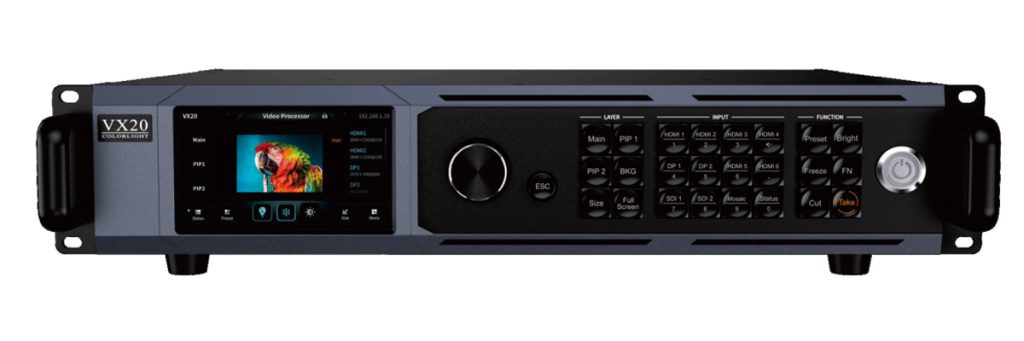 Colorlight VX20: 4K Specs, Pixel Capacity & Setup Guide
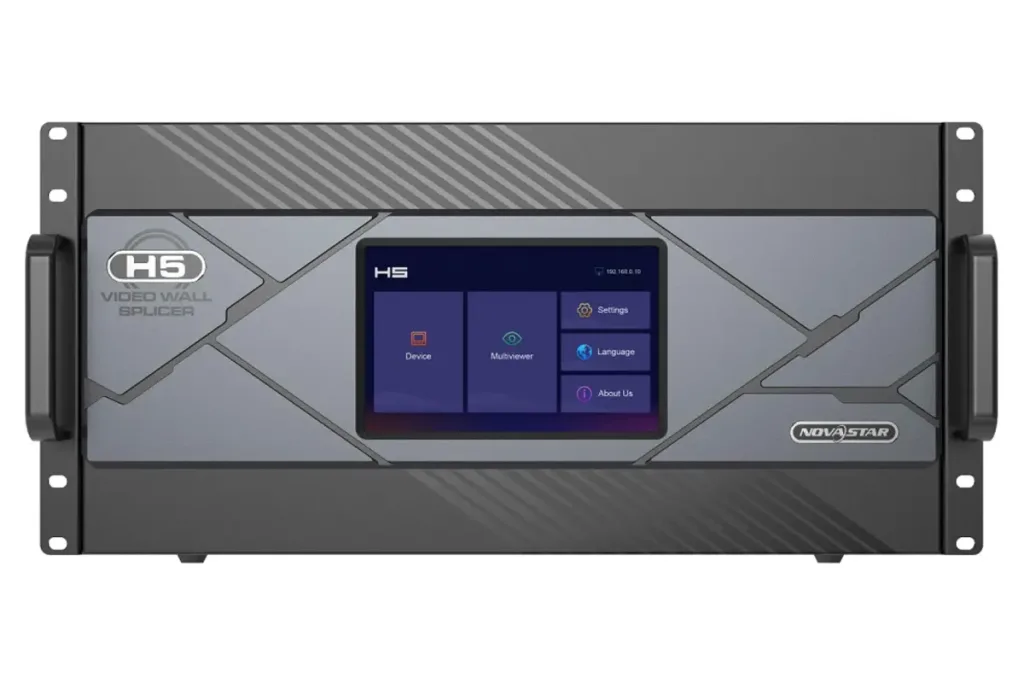 NovaStar H5 Video Wall Splicer: Specs & Setup Guide