The Colorlight VX20 is a 4K LED video processor and sender with 20 Gigabit LED output ports, four 10G fiber ports, and a published maximum load of 13.1 million pixels at 8-bit/60Hz. It combines scaling, three video layers, preview/program control, and backup functions for rental stages and fixed LED installations. Input resolution, output capacity, and receiving-card compatibility must be checked separately.
This guide explains how to size, connect, and configure the Colorlight VX20 using the manufacturer’s Colorlight VX20 Specification V1.20. Higher output frame rates or 10-bit output reduce capacity. HDR support also depends on the input interface; it is not available on every HDMI connector.
Key takeaways: use HDMI 1/2 or DP for suitable 4K60 sources; connect cabinets to PORT 1–20, not LAN1/LAN2; calculate the wall and each cable run before commissioning; test backup behavior before an event.
Contents
1. What is the Colorlight VX20 Video Wall Processor?
The Colorlight VX20 sits between video sources and compatible LED receiving cards. A media server, presentation computer, or camera system supplies the picture; the processor scales and positions it, then sends mapped display data toward the cabinets. This combination is useful when a project needs both image processing and LED sending in one device.
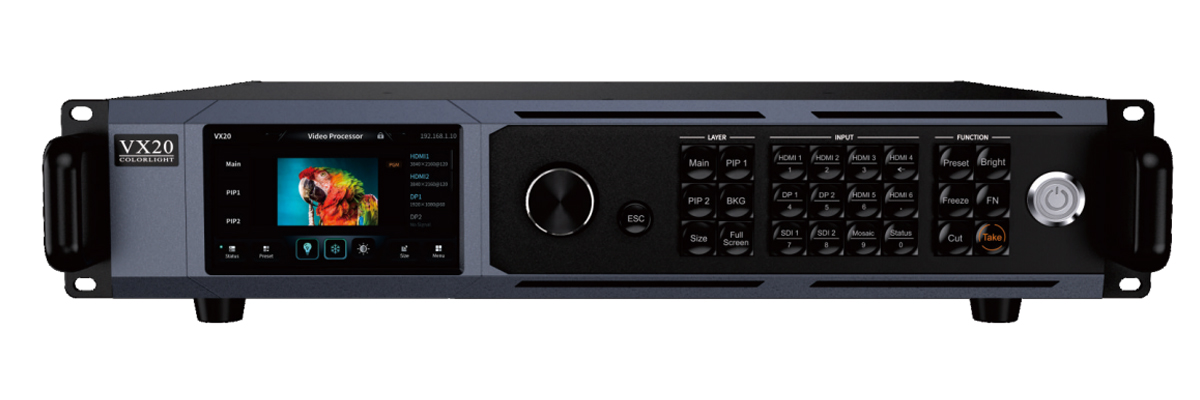
A video wall processor and LED controller perform related but different jobs. Processing changes the picture; sending assigns pixels to the display’s receiving-card network. The Colorlight VX20 can perform both in Video Processor mode, act as a sender in Bypass mode, or serve as a fiber receiver in Fiber Optic Transceiver mode.
Choose the mode from the required signal path. A stage with presentation slides and a camera inset needs processing and layers. A precomposed media-server canvas may suit bypass. A remote cabinet location may call for fiber transport. These choices affect cabling, available processing, and latency; they are not interchangeable presets for the same workflow.
2. VX20 Video Wall Processor Specifications Analysis
The Colorlight VX20 specification should be read as a set of operating limits. The following table separates capacity, image processing, and physical installation requirements. Published maxima are conditional: the maximum width and height do not describe a fully populated rectangular wall that the unit can drive simultaneously.
| Item | Published specification | Planning implication |
|---|---|---|
| Maximum load | 13.1 million pixels at 8-bit/60Hz | Reduce the budget for higher frame rate or 10-bit output. |
| Maximum dimensions | 16,384 pixels wide; 8,192 pixels high | Independent dimension limits; total pixel budget still applies. |
| LED output | 20 Gigabit Ethernet ports; four 10G fiber ports | Fiber groups and backup ports do not add independent capacity. |
| Video layers | Three 4K layers in processing mode | Plan source composition and preview/program operation. |
| Input / output depth | Up to 8/10/12-bit input; 8/10-bit output | Input depth is interface-specific; output depth affects load. |
| Dynamic range | HDR10/HLG on HDMI 2.0 and DP 1.2 | HDMI 1.4 does not support HDR. |
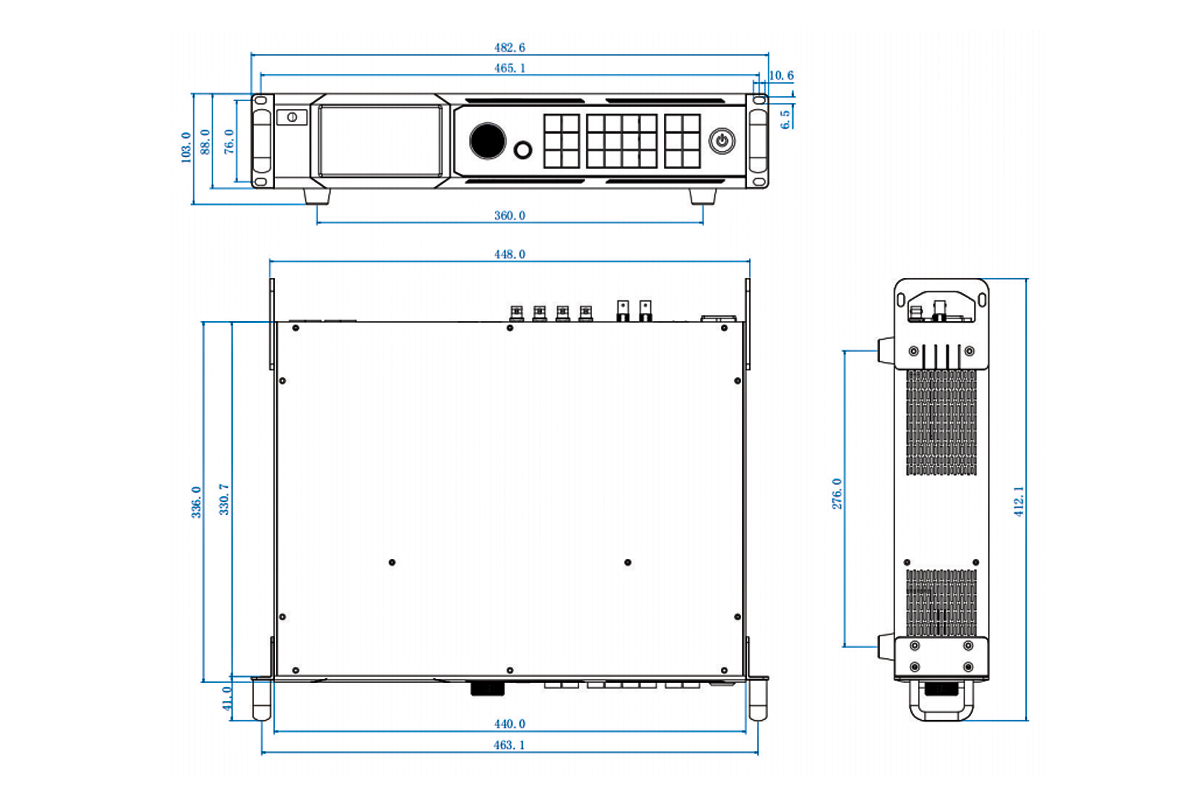
| Chassis | 2U; 482.6 × 88.0 × 412.1 mm | Reserve rear connector clearance and ventilation. |
| Power / weight | AC 100–240V, 50/60Hz; 92W; 5.65 kg net | Size rack support and electrical provision separately from cabinets. |
01. What This Means in Practice:
For the Colorlight VX20, 4K input describes an incoming video format, while 13.1 million pixels describes a maximum sending load under a particular output setting. Neither number tells you how many cabinets will fit without knowing cabinet resolution. A long, shallow wall can reach a large width while remaining below the total pixel budget.
Use the manufacturer’s frame-rate/bit-depth table and the per-port limit together. V1.20 lists 650,000 pixels per port at 8-bit/60Hz; use that published figure for conservative initial planning rather than assuming 655,360. The same document rounds the overall capacity to 13.1 million. For a design near either limit, have the complete port map checked before purchase.
3. Key Features of the Colorlight VX20 Processor
The Colorlight VX20 combines source handling, LED sending, and operator monitoring in a 2U chassis. Its useful features are best understood through the decisions they support: whether to process a source, how to rehearse changes, and how to recover from a defined failure.
01. Three Operating Modes
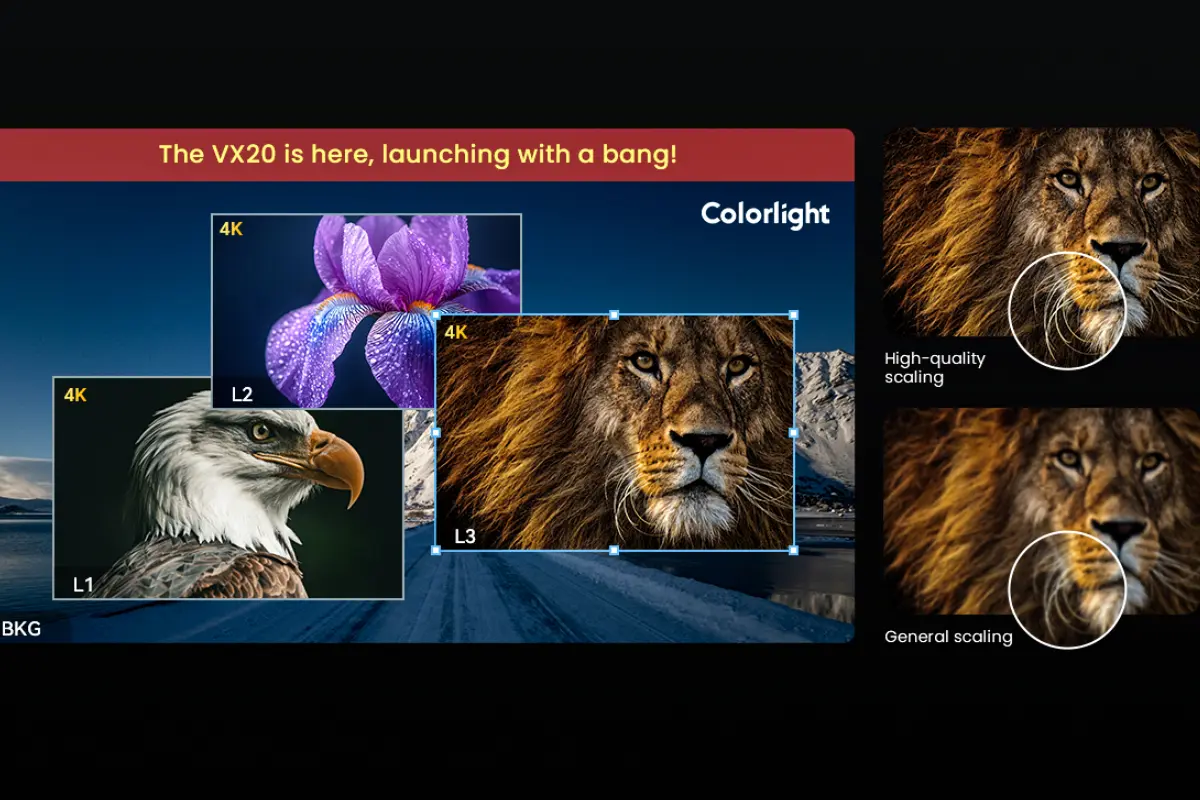
In Video Processor mode, the Colorlight VX20 supports three video inputs for output, with a published one-frame processing delay. Main, PIP1, and PIP2 provide layer selection for composition, scaling, and cropping. This is the practical starting point for a presentation with an inset camera feed.
In Bypass mode, one video input is sent to receiving cards with a published zero-frame processing delay. That is a device-mode specification, not a guarantee of zero camera-to-screen latency: cameras, converters, receiving cards, and display scanning still contribute delay. Measure the complete chain for image magnification or other timing-sensitive work.
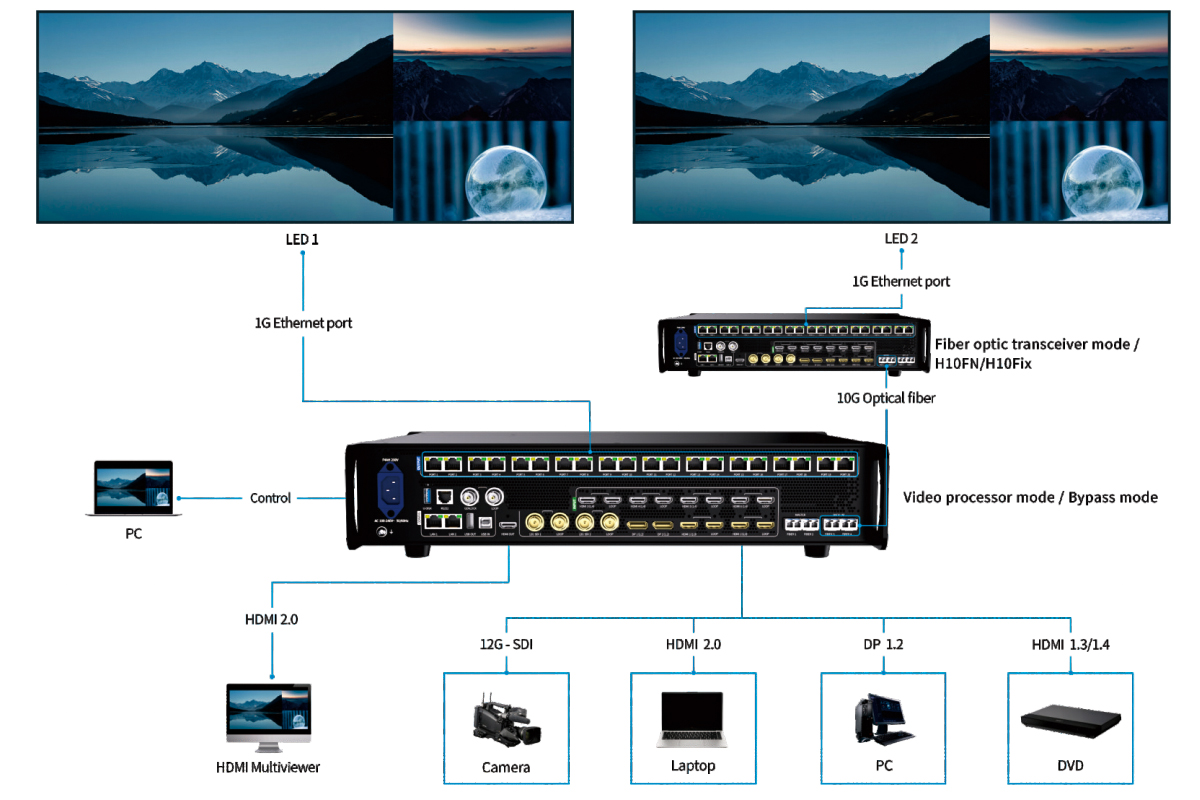
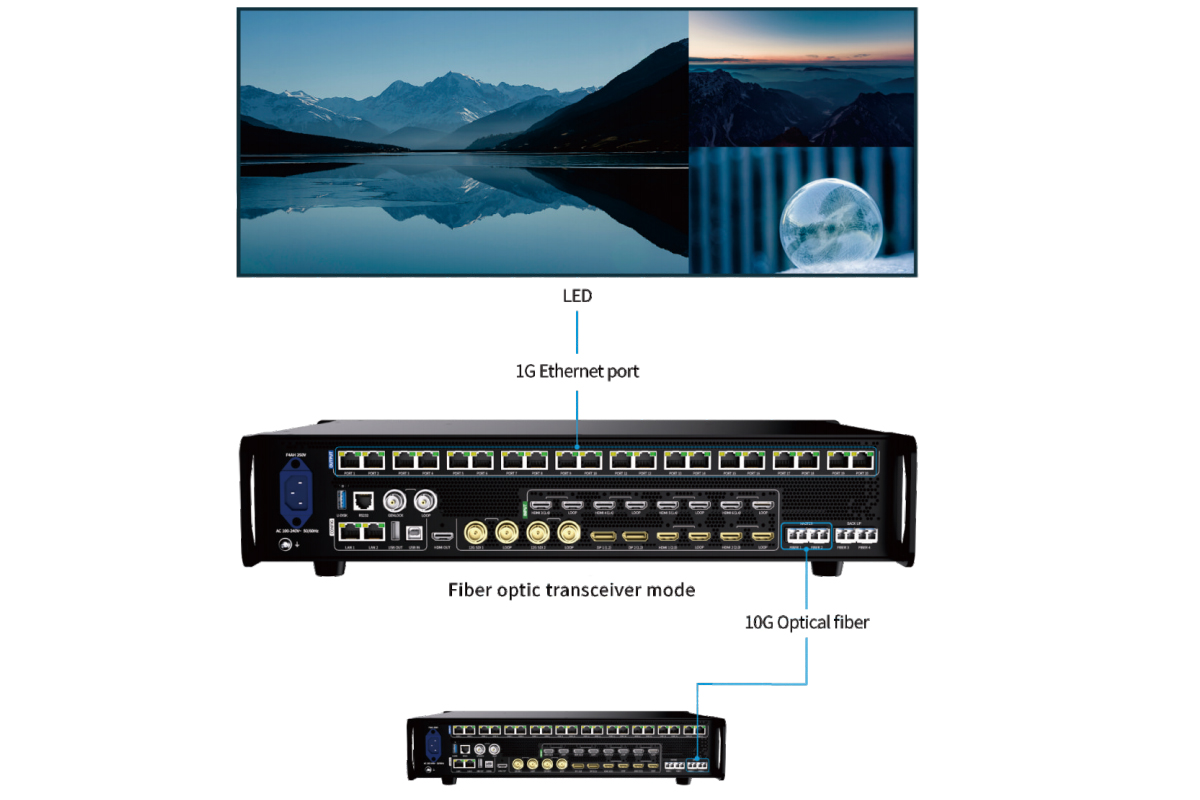
In Fiber Optic Transceiver mode, the Colorlight VX20 receives data through FIBER 1/2 and feeds its 20 Ethernet output ports. Confirm the upstream device, optical modules, fiber type, and mapping as one transport system. Changing to this mode changes the direction and role of the primary fiber connections.
02. Built-in Redundancy
The Colorlight VX20 supports input hot backup, Ethernet loop redundancy, fiber backup, processor redundancy, and configuration data backup. Each protects against a different problem. An alternate input addresses a source failure; an alternate cable route addresses a link failure; a second processor addresses a processor failure.
Do not assume that connecting two cables automatically creates working redundancy. Configure the intended relationship, document which fault it covers, and perform a controlled failure test. Shared power, shared upstream equipment, or a damaged cabinet can still interrupt the picture even when a backup processor is available.
03. Web-Based Control
Operators can control the Colorlight VX20 from the front-panel touchscreen, the web app, or iSet. The manufacturer lists Windows, macOS, and Linux compatibility for browser control. Use the control LAN interface and read the configured address from the device rather than relying on an unverified default IP.
For software selection, see the Colorlight software guide and confirm the version against the device firmware. Keep control-network access limited to the production team so that an unintended live change does not disrupt the display.
04. Background & OSD Management
Background, on-screen display text, and logo functions let the Colorlight VX20 maintain a planned visual identity around video layers. The specification lists four background presets, four OSD presets, and ten logo presets. These functions do not consume the three video layers.
Prepare a standby image and check its aspect ratio and readability on the actual wall. Use logo assets with appropriate transparency, and rehearse the return from a standby state to program. A prepared background is an operational tool; it does not replace source backup or guarantee an automatic fallback for every fault.
05. HDMI Monitoring Output
The Colorlight VX20 provides a rear-panel HDMI 2.0 monitoring output for 2K/4K monitoring according to the attached monitor. It can show preview/program content, inputs, or presets. PVW means Preview, where a composition can be prepared; PGM means Program, the output intended for the screen.
Check both the monitor and the LED wall during commissioning. A correct program view verifies the composed image, but it cannot prove that every downstream cable, receiving card, and cabinet is mapped correctly. The last verification point is always the physical display.
4. How the VX20 Video Wall Processor Enhances Your Video Wall Setup
For a rental stage or exhibition, the Colorlight VX20 is useful when several production tasks must be handled at one control position. Its value depends on matching features to the show’s requirements rather than choosing it solely because a source is labeled 4K.
01. Enables True 4K Input for Large-Scale Walls
A 3840 × 2160 source contains 8,294,400 pixels. The Colorlight VX20 can accept suitable UHD sources, but a lower-resolution physical wall still has fewer pixels. Scaling preserves the intended composition; it cannot add physical detail to the LED modules. Create slides and graphics for the actual display canvas, especially when small text matters.
02. Reduces On-Site Complexity
Three video layers can combine a main presentation with supporting feeds inside the Colorlight VX20. That can reduce the need for separate composition hardware in a straightforward show. It does not replace every function of a broadcast production switcher, audio console, or media server. List the required transitions, source count, and audio workflow before simplifying equipment.
03. Designs Backup Around Specific Failures
Use a failure map instead of a general promise that the Colorlight VX20 eliminates downtime. Identify the source, processor, optical link, Ethernet run, receiving card, and power path. Decide which must continue after a fault and which need a documented recovery procedure. Test primary-to-backup transitions with the actual show sources, not only a static test image.
04. Speeds Up Troubleshooting and Control
The Colorlight VX20 monitoring tools help locate a fault by stage. If an input is absent, inspect the source and cable first. If the input is present but program is wrong, inspect composition settings. If program is correct but cabinets are wrong, inspect output routing and the receiving-card map. This sequence avoids changing several unrelated settings at once.
05. Supports Clean Standby and Branding
A planned standby scene can display event identity while a speaker changes laptops or the production team checks a source. Build that scene on the Colorlight VX20 before doors open. Confirm that logos, text, and backgrounds stay inside the visible canvas and that the operator knows the correct preset to restore normal program.
06. Checks Receiving-Card Compatibility
The Colorlight VX20 requires a compatible receiving-card system and suitable configuration files. HUB75 describes a module-side interface; it is not a guarantee that any receiving card works with this sender. Ask the cabinet supplier to confirm the card model, firmware, module scan configuration, calibration data, and supported output modes together.
5. VX20 Video Wall Processor Installation: Step-by-Step Guide
Commission the Colorlight VX20 in a controlled sequence: establish a known source, verify one cabinet, build the complete map, and then add production features. The workflow below is a planning guide, not a substitute for the cabinet supplier’s receiving-card configuration or the manufacturer’s firmware-specific instructions.
01. Preparation Checklist
Prepare the Colorlight VX20, compatible cabinets, tested source cables, labeled output cables, a control computer, and the correct receiving-card parameter file. For fiber, specify optical modules and a compatible remote endpoint. Keep a monitoring display and a known-good spare video cable available.
Record cabinet pixel dimensions, the number of rows and columns, and the order in which data cables enter each cabinet. Back up an existing working configuration before altering it. A photograph of the cable labels and a simple port-map drawing can save substantial troubleshooting time during installation.
02. Mount and Power the Unit
Mount the Colorlight VX20 in a suitable 19-inch rack with 2U space and adequate ventilation. Published dimensions are 482.6 × 88.0 × 412.1 mm without rubber feet, with a net weight of 5.65 kg. Allow additional space for rear connectors and cable bends.
The unit accepts AC 100–240V at 50/60Hz; the specification lists 92W power consumption. Use the appropriate power cord and installation practice for the venue. The processor’s power requirement does not include the LED cabinets, which need their own electrical design.
03. Connect Video Input
Connect a known-good progressive source to the chosen Colorlight VX20 input. HDMI 1/2 are HDMI 2.0; HDMI 3–6 belong to the HDMI 1.4 group. Select a supported resolution, frame rate, color format, and bit depth, then verify that the input is detected before adding additional feeds.
Start with a simple test image containing a border, grid, and readable labels. If a laptop is used, check its active output mode rather than assuming the desktop setting equals the transmitted signal. Adapters and docking stations must also support the selected timing.
04. Link to LED Receiving Cards
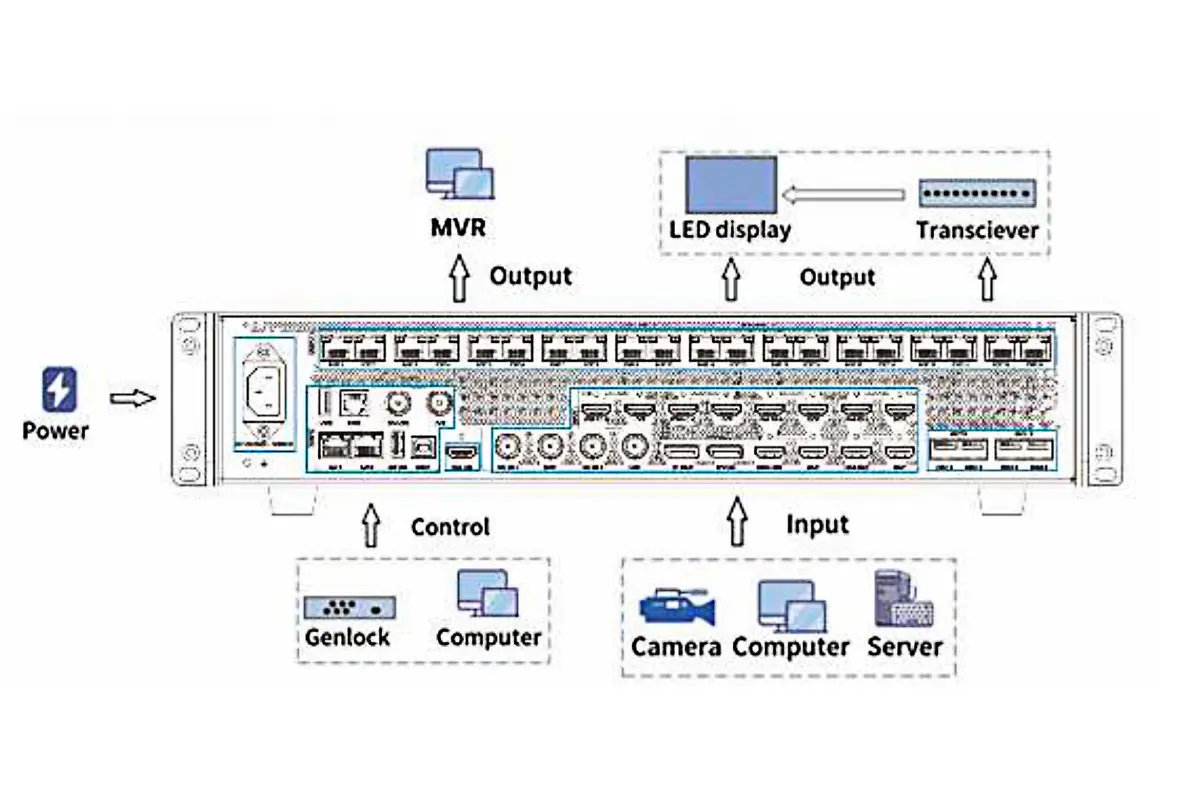
Connect cabinet data runs to the Colorlight VX20 LED outputs labeled PORT 1–20. LAN1/LAN2 are for configuration and control, not the cabinet data map. Follow the supplier’s receiving-card wiring order and ensure that each port remains within its allowed load.
For optical transport, confirm the FIBER 1-to-ports 1–10 and FIBER 2-to-ports 11–20 grouping. The specification gives fiber priority over corresponding Ethernet output when used together. Do not count the optical connections as additional independent pixel capacity beyond the device limit.
05. Access the Web Interface
Read the Colorlight VX20 network settings from its front panel and connect the control computer appropriately. Open the displayed device address in a browser. Check addressing and network reachability if the interface does not load; do not begin by guessing credentials or resetting an otherwise working display.
The browser interface supports configuration and management, while iSet offers another supported control route. Keep the device manual available for menu names because firmware revisions can change the screen layout. Use a documented configuration process for permanent installations so that future technicians can recover access.
06. Configure Output Layout
Set the Colorlight VX20 canvas to the physical wall’s pixel dimensions, then map the cabinets and output ports in their actual cable sequence. Load only the receiving-card parameters approved for those modules. A file for a similar cabinet is not necessarily correct.
Verify cabinet position, orientation, color, grayscale, and boundary alignment with test patterns. Save the confirmed configuration before adjusting creative layers. This separates hardware mapping problems from source scaling problems and provides a known working point to restore.
07. Select and Preview Sources
Use PVW&PGM on the Colorlight VX20 when changes must be checked before going live. Assign the required sources to Main, PIP1, and PIP2; adjust cropping, size, and position in preview; then use Take or Cut when ready. In PGM Only mode, layer changes affect the screen directly.
Name presets by their purpose, such as presentation, camera inset, and standby. Rehearse transitions with the final sources and confirm that text remains readable from the audience position. Save the production configuration after all layers and routes have been checked.
08. Enable Redundancy (Optional but Recommended)
Configure the required Colorlight VX20 backup functions and test them one at a time in a controlled commissioning window. Disconnect a primary input or data path only when the team is ready to observe the result. Confirm both the takeover and the return to the intended normal state.
Keep a record of the tested fault, the surviving path, and the operator action required. Preserve configuration backups separately from the processor. A stored file helps restore settings, but it is not the same as a live spare that can continue the show.
6. Supported Signal Formats and Connectivity Options
The Colorlight VX20 has ten physical video inputs across four interface groups. Their capabilities differ, so a generic statement such as “all HDMI inputs support 4K60 HDR” is incorrect. The following input comparison follows the manufacturer’s interface specifications.
For HDMI 3–6, the manufacturer specifies simultaneous input as two HDMI 1.4 sources or four HDMI 1.3 sources. Four physical sockets do not promise four simultaneous maximum-bandwidth HDMI 1.4 feeds. Confirm the combination before allocating a source to each connector.
| Input group | Quantity | Example maximum format | Important limitation |
|---|---|---|---|
| HDMI 2.0 (HDMI 1/2) | 2 | 4096 × 2160@60Hz or 8192 × 1080@60Hz | HDR10/HLG; check sampling and bit-depth timing combinations. |
| DP 1.2 | 2 | 4096 × 2160@60Hz or 8192 × 1080@60Hz | HDR10/HLG; progressive input; embedded audio listed. |
| 12G-SDI | 2 | 4096 × 2160@60Hz | YCbCr422; SDI 1 supports de-interlace processing. |
| HDMI 1.4 (HDMI 3–6) | 4 | 4096 × 1080@60Hz or 4096 × 2160@30Hz | 8-bit; no HDR; simultaneous input limitation applies. |
01. Supported Signal Characteristics
The Colorlight VX20 supports 8/10/12-bit input on HDMI 2.0 and DP 1.2, while HDMI 1.4 input is 8-bit. HDR10 and HLG are listed for HDMI 2.0 and DP; the HDMI 1.4 group does not support HDR. SDI has its own signal-format table and must be checked separately.
Maximum timing, bit depth, and color sampling cannot always be combined. For example, the published HDMI 2.0 reference table lists UHD RGB/YCbCr444 10-bit through 50Hz, while suitable YCbCr422 formats include 60Hz. Select the exact supported combination instead of assuming “4K60” describes every color mode.
HDMI and DP do not accept interlaced input. However, the specification lists de-interlace processing on SDI 1 and includes 1080i reference formats. The earlier blanket claim that all interlaced video is unsupported would therefore be misleading.
02. Genlock & Synchronization
The Colorlight VX20 includes GENLOCK input and loop-through connections for supported reference signals, with the specification listing 23.98–60Hz and blackburst, bi-level, and tri-level sync. Use an appropriate house reference where the production design requires synchronization.
Genlock does not repair a wrong cabinet map or guarantee that every camera exposure will be free of artifacts. Video frame rate and LED refresh rate are different parameters; the LED refresh-rate guide explains the latter. Camera shutter settings and receiving-card behavior still need on-site checks.
03. Output & Control Interfaces
| Connection | Role | Avoid this mistake |
|---|---|---|
| PORT 1–20 | LED receiving-card data output | Do not wire cabinets to control LAN ports. |
| FIBER 1/2 | Ports 1–10 / 11–20 grouping; input in transceiver mode | Do not assume fiber always operates as an output. |
| FIBER 3/4 | Backup or copy of FIBER 1/2 | Do not count these as another independent wall capacity. |
| LAN1/LAN2 | PC control and supported device bridging | Do not treat these as two LED sending ports. |
| HDMI OUT | 2K/4K preview/program and source monitoring | A correct monitor image does not prove cabinet mapping. |
| USB IN/OUT; RS-232 | Configuration/cascading; central control | Confirm connection purpose and supported control integration. |
Keep the Colorlight VX20 control, video-input, monitoring, and LED-output paths clearly labeled. In particular, HDMI OUT is a monitoring connection, and the control LAN ports do not replace PORT 1–20. Fiber modules are optional; transmission distance depends on the selected module and fiber system.
Audio capabilities are also interface-specific. V1.20 lists embedded audio for DP and HDMI 3 within the HDMI 1.4 group, plus monitoring audio selection. Verify the actual source-to-monitor route before relying on it; an LED processor is not a substitute for a dedicated event audio system.
7. Optimizing Performance: How to Set Up the VX20 for 4K Video Walls
Size the Colorlight VX20 from physical pixels first: wall width equals cabinet columns multiplied by cabinet pixel width; wall height equals cabinet rows multiplied by cabinet pixel height. Multiply those totals for the overall load, then calculate every output run. Use the frame rate and output bit depth that the production actually requires.
For example, a hypothetical wall using 256 × 256-pixel cabinets in a 15-column by 8-row arrangement measures 3840 × 2048 pixels. Its 120 cabinets contain 7,864,320 pixels. At an initial 8-bit/60Hz planning limit of 650,000 pixels per port, nine such cabinets occupy 589,824 pixels, while ten occupy 655,360 and exceed that published figure.
Fourteen runs could distribute those 120 cabinets within the arithmetic limit, but this is a planning example, not an approved wiring diagram. Cabinet chaining rules, receiver limits, available connectors, and redundancy can change the final map. The Colorlight VX20 must be checked against all of them.
| Output frame rate | 8-bit maximum load | 10-bit maximum load |
|---|---|---|
| 60Hz | 13.1 million pixels | 9.8 million pixels |
| 120Hz | 6.55 million pixels | 4.9 million pixels |
| 240Hz | 4.9 million pixels | 2.45 million pixels |
A UHD 3840 × 2160 wall contains 8.2944 million pixels. It falls below the listed 8-bit/60Hz and 10-bit/60Hz total capacities, but exceeds the listed 8-bit/120Hz capacity. The Colorlight VX20 therefore cannot be selected from the 13.1-million headline alone when high-frame-rate output is required.
During commissioning, use the following sequence: verify an input test pattern; inspect preview/program composition; confirm output mode and port loads; walk the cabinet boundaries; then check the final content and backup paths. If only one run fails, inspect that cable chain before changing global processing settings. If every run is wrong, review the source, canvas, and device mode first.
For a purchase specification, provide the supplier with wall resolution, cabinet model, receiving-card model, input formats, required layers, output bit depth/frame rate, cable distances, and backup requirements. Ask for confirmation of the complete Colorlight VX20 design, including optical modules and the approved software/firmware combination.
8. FAQs
9. Conclusion
Choose the Colorlight VX20 when its verified input options, three-layer processing, and conditional output capacity match the LED wall. Plan the physical pixels and cable runs first, then select processing mode, monitoring, and redundancy around the event workflow. The most useful specification is the one confirmed for the complete system.
For project support, send your cabinet resolution, receiving-card model, source list, and wiring distances through our contact page. Request a port map and compatibility check before ordering. This guide uses published specifications and calculated planning examples; it does not claim a hands-on performance test.
Technical sources: Colorlight VX20 Specification V1.20 (dated March 29, 2025) and the official Colorlight VX20 download page. Check the documentation supplied with the actual unit for firmware and hardware revisions.
 Comprehensive Review Of NovaStar VX1000 Pro Video Wall Controller
 NovaStar TB10 Plus: Specs, HDMI Limits & Setup Guide