The NovaStar MBOX600 Pro is an industrial PC and LED sending controller in one unit, designed for fixed advertising screens and unattended installations. It drives up to 2,600,000 pixels through four LED outputs, accepts an external HDMI source, and provides browser-based configuration and monitoring. Choose it when local computing, screen control and remote maintenance need to share one device.
This guide explains the NovaStar MBOX600 Pro specifications, pixel limits, wiring, login, brightness control and recovery workflow. It uses NovaStar’s Specifications V1.0.2 and User Manual V1.1.0. Planning examples below are calculations, not measured performance tests.
1. What Is the NovaStar MBOX600 Pro Industrial Controller?
The NovaStar MBOX600 Pro combines an Intel-based computer with LED sending capability. The computer runs the selected operating system and playback software; the sending side delivers the image to compatible receiving cards inside LED cabinets. Integrating these functions can remove a separate playback computer from the installation, although the screen still needs receiving cards, cabinet power and correct configuration.
Searches for “mbox600 pro” or “mbox 600 pro” refer to the Pro model covered here. A search for “mbox600” is less specific: confirm the full product name and model label before using a manual, firmware package or quotation. Do not transfer specifications from another MBOX model simply because the names look similar.
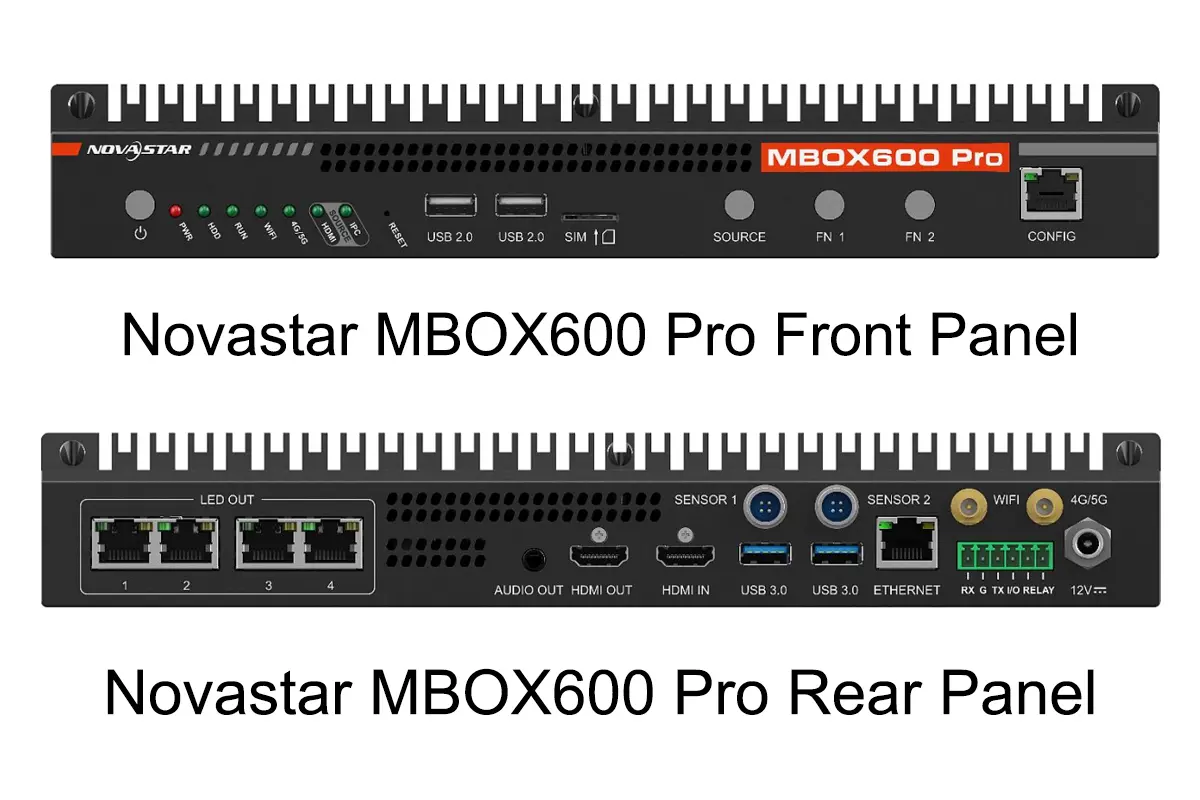
01. Verified specifications and ordering options
The NovaStar MBOX600 Pro specification separates input timing, output dimensions and total pixel capacity. These are different limits. The following table adds the purchasing or installation consequence beside each number so that a spec sheet becomes a useful selection checklist.
| Item | Documented specification | What to check |
|---|---|---|
| LED sending capacity | 4 Gigabit Ethernet outputs; up to 2,600,000 pixels total | Check total screen pixels and the load assigned to each output. |
| Scaled output dimensions | Width 64–4096 pixels; height 64–1920 pixels; total ≤2,600,000 pixels | Maximum width and height cannot both be used at once. |
| External video input | 1 HDMI 1.3 input; maximum specified resolution 2048×1152 at 60 Hz | Confirm the source timing; a 4K connector setting is not appropriate. |
| Computer | Intel Processor N97; 4 cores / 4 threads; up to 3.6 GHz turbo | Test actual playback files and applications before deployment. |
| Memory and storage | 4 GB or 8 GB RAM; 128 GB or 256 GB SSD | Specify the supplied configuration, not just the family name. |
| Operating system | Linux, Windows 10 and Windows 11 variants listed | Confirm the ordered OS, licensing and software compatibility. |
| Networking | CONFIG and ETHERNET management ports; Wi-Fi support; optional 4G/5G module | Cellular module, service and network compatibility require separate checks. |
| Power and environment | DC 12 V, 3 A; rated consumption 34 W; −20°C to +60°C; 0–80% RH, non-condensing | Provide suitable power, ventilation and enclosure protection. |
Source: NovaStar specifications, input/output, performance and model tables. The NovaStar MBOX600 Pro ships without a cellular module. RS232, I/O, relay and FN-button functions are marked for future implementation in this specification; do not promise those functions without firmware-specific confirmation.
02. Pixel capacity: calculate before selecting hardware
For the NovaStar MBOX600 Pro, multiply the screen’s physical pixel width by its physical pixel height. Then check width, height and port allocation separately. A wide banner can fit the total capacity while a taller screen with the same width cannot. Physical dimensions in metres alone do not establish controller compatibility.
| Screen canvas | Calculated pixels | Initial assessment |
|---|---|---|
| 1920×1080 | 2,073,600 | Within total capacity and stated dimension limits. |
| 2048×1152 | 2,359,296 | Within total capacity; still check cabinet and port mapping. |
| 3840×600 | 2,304,000 | Within scaled-output limits; not a claim of 3840-pixel HDMI input support. |
| 2560×1080 | 2,764,800 | Exceeds 2,600,000 pixels; select another control architecture. |
| 4096×1920 | 7,864,320 | Exceeds total capacity despite using the separate dimension maxima. |
The NovaStar MBOX600 Pro manual gives a broader custom zoom dimension range than the specification. This guide uses the more conservative specification limit of 1920 pixels in height. Obtain written confirmation for unusual canvases and validate them on the supplied firmware. Our LED screen resolution guide explains how cabinet pixels determine the final canvas.
2. Why Choose the MBOX600 Pro for Your LED Display?
01. Local computing with fewer separate devices
The NovaStar MBOX600 Pro is useful when an installation needs a local application or playback computer alongside LED output. One enclosure reduces the number of independent boxes to mount, power and service. It does not remove the need to test codecs, application startup, operating-system maintenance or recovery after a power interruption.
For a NovaStar MBOX600 Pro quotation, specify the software workload as well as RAM and SSD. A dashboard, browser presentation and local video playlist can place different demands on the computer. Ask the integrator to demonstrate your actual content, including transitions and any network dependencies, instead of accepting an unsupported promise of “lag-free” playback.
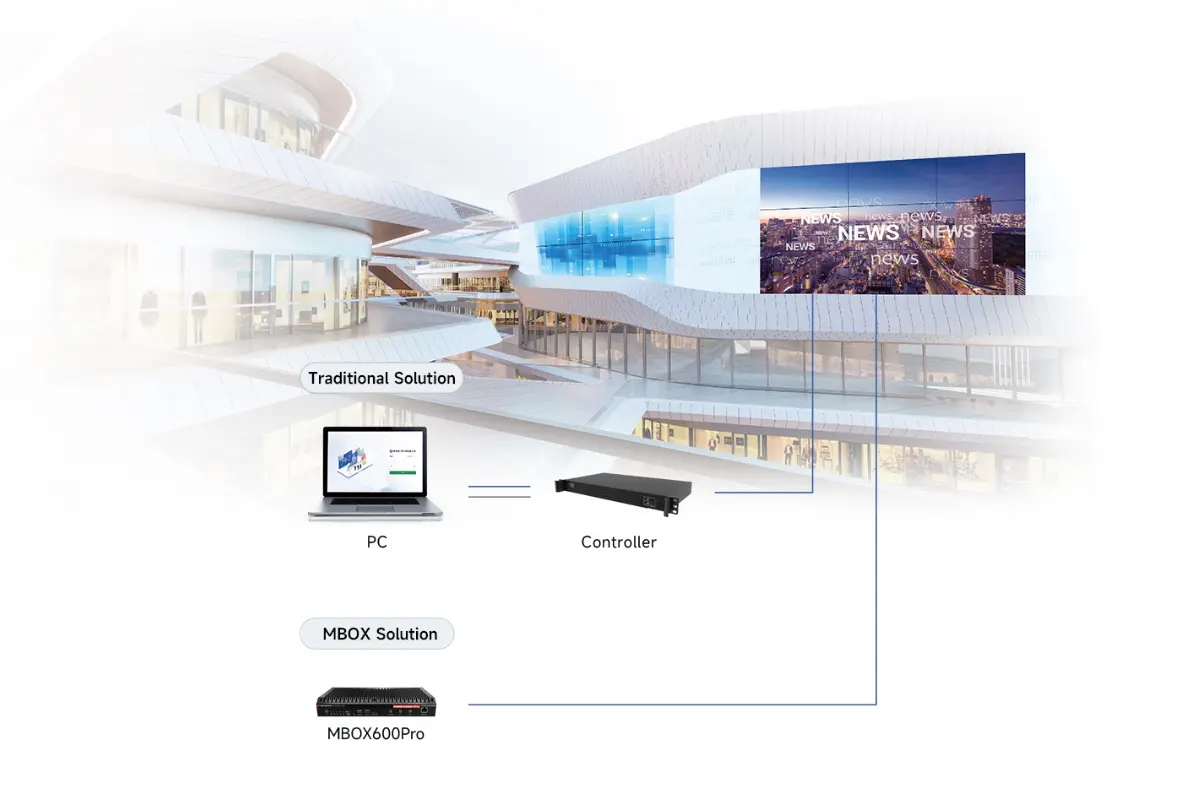
02. Browser control and operational visibility
The NovaStar MBOX600 Pro web application brings source selection, screen connection, brightness policies and maintenance into one interface. SNMP means Simple Network Management Protocol: it allows compatible monitoring systems to retrieve supported management information. The exact monitored values depend on the controller, receiving cards and attached equipment.
Plan remote access as part of the installation. Assign responsibility for the network, credentials, alert review and configuration backups. A controller connected to Wi-Fi or a mobile network is not automatically a complete content-management service. Confirm the chosen publishing application, any cloud account and the remote support method separately.
3. How Does the MBOX600 Pro Industrial Controller Work?
01. Follow the signal from source to cabinet
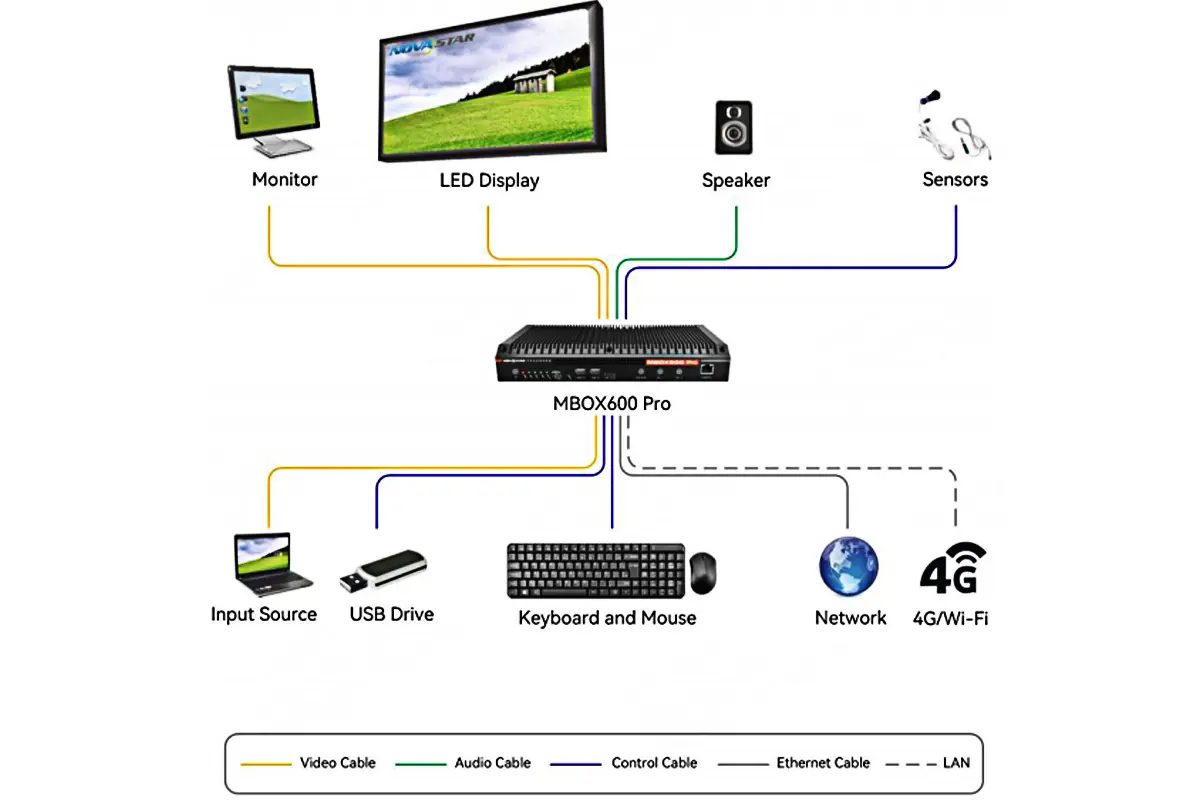
The NovaStar MBOX600 Pro selects either its internal IPC source or an external HDMI source. IPC means the integrated industrial computer. An external player connects to HDMI IN; locally running content uses the internal source. The front SOURCE button and the source setting in the web interface control the same selection.
The NovaStar MBOX600 Pro then maps the selected image to the configured LED canvas. Scaling changes the image size; cabinet mapping assigns image regions to the physical receiving cards. Neither action creates extra physical pixels. Content with a different aspect ratio may stretch or need a deliberately designed layout.
Finally, LED OUT carries display data to the receiving cards. HDMI OUT provides a monitor connection for checking playback, installing software and configuration. A monitor showing an image confirms only part of the chain: the LED cabinets can still remain dark because of mapping, cable, receiving-card or screen-power problems.
02. Use the correct connector
| Connector | Connect to | Purpose or common mistake |
|---|---|---|
| LED OUT 1–4 | Compatible LED receiving-card chains | Display data outputs; do not treat them as ordinary management LAN ports. |
| Front CONFIG | Commissioning computer | Debugging interface with documented static IP 192.168.0.10. |
| Rear ETHERNET | Router or management network | Networking for publishing and screen control; check the actual network configuration. |
| HDMI IN / HDMI OUT | External source / local monitor | Input and output are directional and cannot be exchanged. |
| USB 2.0 / USB 3.0 | Keyboard, mouse or USB storage | Two ports of each type support local peripherals. |
| SENSOR 1 / SENSOR 2 | Supported light sensor | Used for ambient brightness control; verify the sensor model. |
| AUDIO OUT | Suitable audio equipment | 3.5 mm stereo output; not a microphone input. |
Source: NovaStar front/rear panel descriptions. Label both ends of every cable during installation. The NovaStar MBOX600 Pro has several RJ45 connectors with different jobs, so connector shape alone is not a reliable wiring guide.
4. MBOX600 Pro Installation and Usage Process
01. Prepare the hardware and log in
Before powering the NovaStar MBOX600 Pro, record the receiving-card model, cabinet resolution, cabinet count and cable path. Obtain the correct screen configuration from the display supplier. Connect the supplied power adapter, a monitor through HDMI OUT, and a keyboard and mouse. Connect the screen chains to the planned LED OUT ports.
- For local operation on the integrated computer, open 127.0.0.1 in its browser.
- For a direct external-PC connection, connect to front CONFIG and use a compatible 192.168.0.xxx address that does not duplicate the controller address.
- Open 192.168.0.10 for the documented CONFIG login. For routed access, verify the actual addressing and network reachability.
- Use the device credentials supplied for commissioning. The manual lists factory credentials as admin and SN2008@+; an already commissioned device may have different credentials.
The NovaStar MBOX600 Pro manual recommends a current Chrome browser and notes that another login with the same account disconnects the existing user. Coordinate maintenance sessions. Use controlled network access and replace factory credentials through the supported account workflow where available; do not expose the management interface directly to the public Internet.
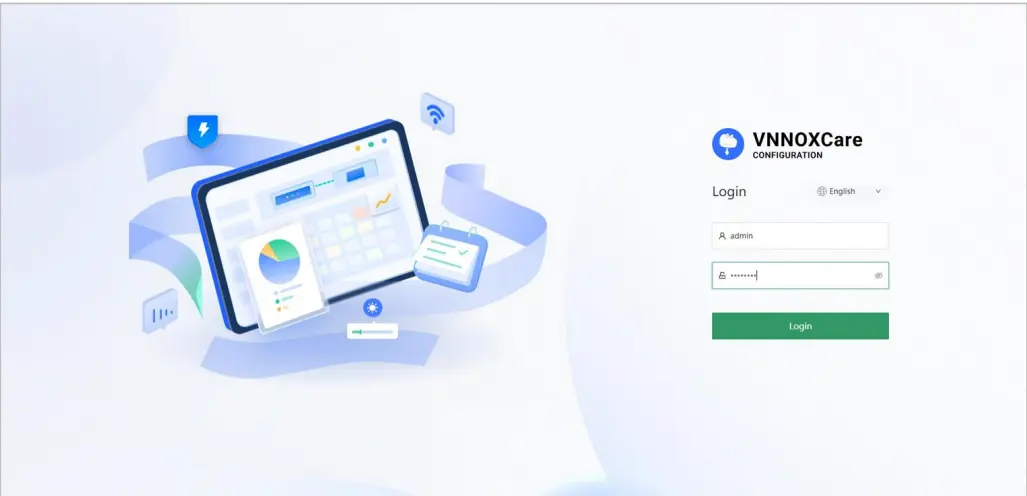
Source: User Manual, Login and Home. The NovaStar MBOX600 Pro requires time to retain parameter changes: the manual says to avoid power cycling or restarting within 30 seconds after issuing commands.
02. Configure source, cabinet mapping and scaling
On the NovaStar MBOX600 Pro, open Screen Configuration → Device Configuration. Select IPC or HDMI, then configure EDID and zoom if needed. EDID is the display capability information presented to the video source. Begin with a documented common timing such as 1920×1080 at 60 Hz to simplify initial troubleshooting.
Next, open Screen Connection, enable Mapping and reproduce the physical cabinet layout. Select each output and add its connected cabinets in their actual cable order. Confirm the receiving cards are online, all cabinets remain inside the canvas, and no port shows overload. Use the receiving-card guide to understand the separate role of cabinet-level configuration.
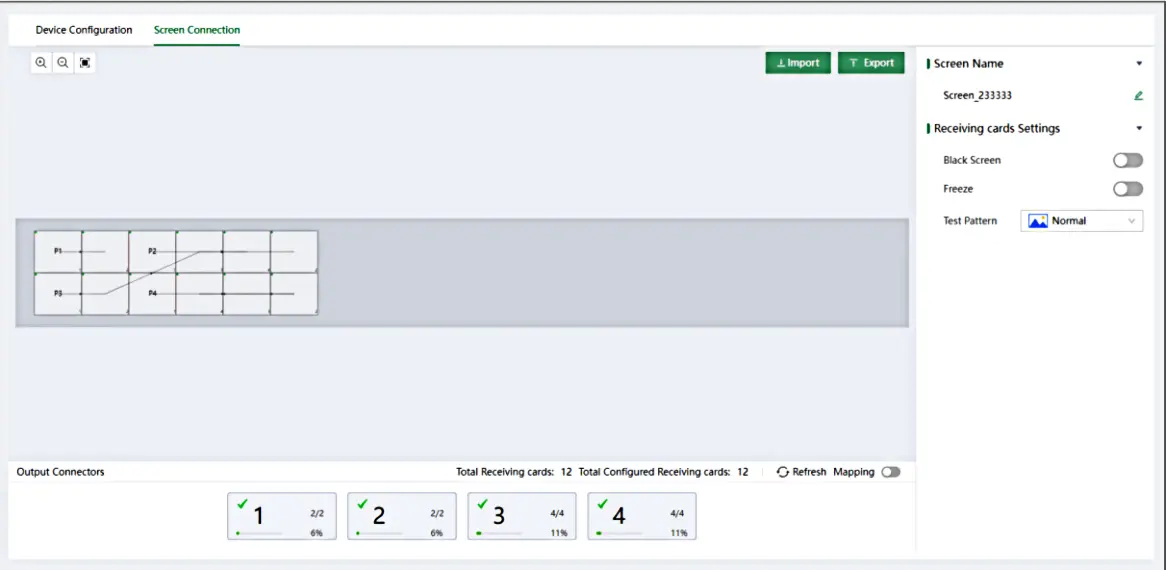
For NovaStar MBOX600 Pro commissioning, test solid colours, a grid, readable text and moving content. A grid reveals swapped cabinet order and offsets that a photograph can hide. If NovaLCT Lite is needed for receiving-card parameters, follow the manual’s restart sequence when switching between that tool and web configuration; mapping alone cannot correct an incompatible module configuration.
03. Set brightness policies and monitoring
The NovaStar MBOX600 Pro offers manual brightness and automatic policies. Start with a conservative manual value and assess the real screen at its intended viewing position. A percentage slider is not a measurement in nits, and the appropriate setting depends on the LED hardware and installation conditions.
For ambient control, the NovaStar MBOX600 Pro manual names ALP050 and NS060 light sensors connected to SENSOR1 or SENSOR2. Configure the reporting interval, brightness mapping and fallback brightness if the sensor fails. For scheduled brightness, specify the start times and values. The manual allows up to 30 automatic brightness rules.
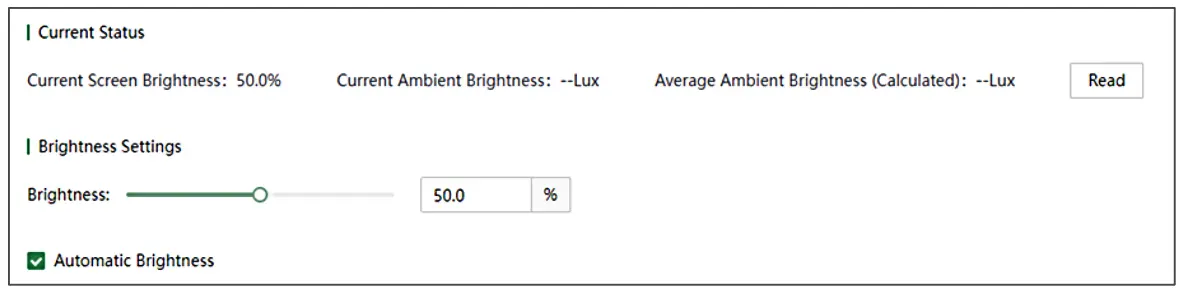
In Rule Configuration → Monitoring Refresh Interval, enable Automatic Refresh; the documented interval is 1–10 minutes. NovaStar notes that leaving it disabled affects SNMP. Configure alarm thresholds for the actual receiving-card hardware, then verify that new readings and alerts reach the responsible operator.
The NovaStar MBOX600 Pro also supports temperature-based Monitoring Control. According to the manual’s Brightness Control and Rule Configuration sections, a temperature policy can override normal brightness control while active. Check this policy before assuming an unresponsive brightness slider indicates a fault.
04. Back up, update and troubleshoot methodically
Export a NovaStar MBOX600 Pro project through Toolbox after commissioning. The .mprj import requires a matching device model and a web-interface version no earlier than the version recorded in the file. Keep the backup, wiring diagram and software versions together so a replacement unit can be checked against a known configuration.
For NovaStar MBOX600 Pro firmware maintenance, obtain the package for the installed operating system. The manual specifies .exe update files for Windows and .deb for Linux. Back up first, arrange a maintenance window, and do not power off, restart or refresh the browser during the update. Confirm normal output and monitoring afterwards.
| Symptom | First checks | Next action |
|---|---|---|
| Login page unavailable | Correct CONFIG/ETHERNET port, addressing and cable link | Try documented direct CONFIG access before investigating remote routing. |
| Monitor works, LED screen is black | Screen power, LED OUT chain, selected source, Black Screen setting | Use receiving-card test patterns to separate output problems from source problems. |
| Cabinets show misplaced sections | Physical cable order versus Screen Connection mapping | Correct topology and offsets; recheck with a grid. |
| Image is frozen | Freeze setting and source playback | Disable Freeze and test moving content; Freeze and Black Screen outrank test patterns. |
| SNMP information is stale | Automatic Refresh and management-network access | Enable the supported refresh interval and verify updated readings. |
| Brightness changes unexpectedly | Scheduled, ambient and temperature policies | Identify the active policy and verify sensor readings and fallback values. |
Do not factory-reset the NovaStar MBOX600 Pro as the first troubleshooting step. The specification says a 10-second RESET clears sending-card web configurations without erasing industrial-PC data. Export what is recoverable and understand that distinction before using reset. For update errors, follow the official maintenance procedure and collect logs for support.
5. Applications and Redundancy Planning
01. Fixed advertising and information screens
The NovaStar MBOX600 Pro suits fixed advertising screens where a local computer and remote maintenance are useful. Examples include retail signage, building information displays and outdoor fixed screens inside an appropriately engineered installation. Match content publishing, connectivity and maintenance access to the site rather than selecting solely by pixel capacity.
An outdoor LED cabinet does not make the NovaStar MBOX600 Pro itself weatherproof. Plan a protected equipment location, non-condensing conditions, ventilation, power and antenna placement. The specified temperature range is an equipment operating limit, not a guarantee that any sealed outdoor enclosure will keep the controller within it.
02. Redundancy is a configured system feature
The NovaStar MBOX600 Pro manual describes master/backup Ethernet output relationships under Device Configuration. It recommends setting redundancy before cabinet connection and using a loop connection for the cabinets. A backup port consumes an output resource; do not count all four outputs as independent primary loads while assigning some as backups.
Validate the NovaStar MBOX600 Pro backup arrangement with the actual receiving cards and wiring. During a planned acceptance test, interrupt the intended primary signal path, confirm the supported takeover, restore the connection and inspect status. Ethernet backup does not automatically provide protection against controller power loss, computer failure or every upstream source failure.
For applications needing several simultaneous live sources, extensive layering or a larger canvas, evaluate a suitable video-processing system instead. State the required behavior first, then select the controller. The official NovaStar product page provides current downloads for checking the supplied model and firmware.
6. NovaStar MBOX600 Pro FAQs
01. What is the maximum pixel capacity?
The NovaStar MBOX600 Pro supports up to 2,600,000 pixels across four LED outputs. Check total pixels, output dimensions and individual port loading together. A 1920×1080 screen totals 2,073,600 pixels, but cabinet topology and backup allocation still need validation before the configuration is approved.
02. Does it support a 4K HDMI input?
The NovaStar MBOX600 Pro specification lists HDMI 1.3 input up to 2048×1152 at 60 Hz. A wide scaled output such as 3840×600 does not mean it accepts a 3840×2160 input. Set the source to a documented compatible timing and validate any custom timing with the supplier.
03. Are 4G and 5G included?
No. The NovaStar MBOX600 Pro supports optional 4G/5G modules, but the specification says the unit ships without one. Confirm module compatibility, antennas, SIM service, carrier coverage and the remote-access arrangement. Wi-Fi support is separate from cellular hardware and does not establish mobile-network availability.
04. Which operating systems and configurations are available?
For the NovaStar MBOX600 Pro, NovaStar lists Linux, Windows 10 and Windows 11 variants, with 4 GB or 8 GB RAM and 128 GB or 256 GB SSD options across the family. Confirm the exact combination offered for your region. Software support and firmware packages must match the supplied operating system.
05. How do I access the web interface?
For NovaStar MBOX600 Pro local login, use 127.0.0.1 in a browser running on the integrated computer. For direct commissioning from another PC, connect to CONFIG, use a compatible 192.168.0.xxx address, and open 192.168.0.10. Check the supplied credentials; existing installations may differ from the factory defaults documented in the manual.
06. Can it adjust brightness automatically?
Yes. Automatic control supports scheduled brightness and ambient-light policies. The manual names ALP050 and NS060 sensors and describes a sensor-failure fallback value. Temperature-based Monitoring Control can also affect brightness. Test the policies on the installed display instead of assuming a slider percentage corresponds to a fixed luminance.
07. Can I update firmware remotely and restore settings?
The NovaStar MBOX600 Pro web application supports device firmware updates and .mprj configuration import/export. Use the correct operating-system package, a stable connection and a maintenance window. Keep a local backup and observe the matching-model and version requirements. Do not interrupt power or refresh the page while an update is running.
08. Does Ethernet backup protect against every failure?
No. Configured output redundancy provides an alternative supported signal path through the cabinet wiring. It does not make the controller computer, power supply or source fully redundant. Define the failure to be covered, reserve the required backup outputs and test that exact failure scenario before accepting the system.
7. Conclusion and Project Checklist
Choose the NovaStar MBOX600 Pro when its integrated computer, four-output sending system and web management match the installation. The strongest selection evidence is a verified pixel map, an agreed software configuration and a commissioning test using the actual content. Specifications establish boundaries; the complete system determines the result.
Before requesting a NovaStar MBOX600 Pro quote, prepare screen width and height in pixels, cabinet layout, receiving-card model, source type, operating-system preference, memory/storage requirements and networking method. Include any need for a light sensor, cellular module, backup wiring or remote support. Confirm accessories, warranty terms and regional supply details in writing.
Send that project information through the inquiry form on this page to check controller fit and the required accessories. Keep the final configuration backup and acceptance checklist with the installation documentation for future maintenance.
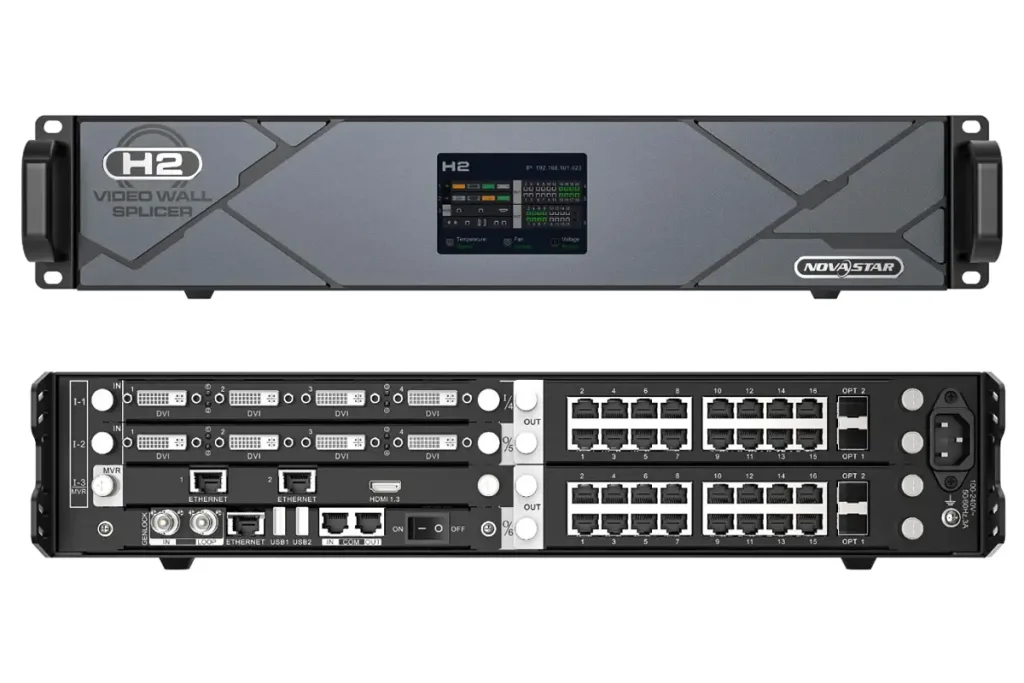 NovaStar H2 Video Wall Splicer: Specs & Setup Guide
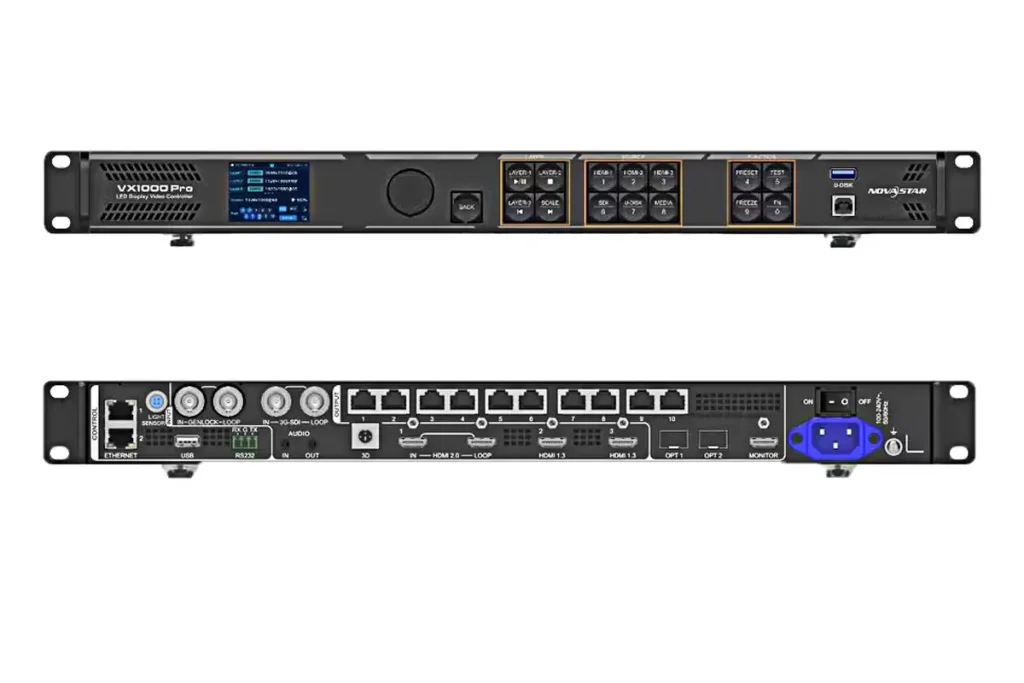 Comprehensive Review Of NovaStar VX1000 Pro Video Wall Controller