NovaStar H2 is a modular 2U video wall splicer that combines video processing and LED control when fitted with LED sending cards, or works as a processor with video output cards. Choose its configuration by screen pixels, input formats, layer requirements and backup needs—not by the chassis name alone. This guide explains specifications, card selection, wiring, web login, NovaLCT setup and practical troubleshooting.
Quick answer: NovaStar H2 supports up to four input cards and two output cards. The latest published specification lists configuration-dependent loading capacities from 20.8 million to 52 million pixels. Those are maximum chassis configurations, not the capacity of every unit. Higher bit depth, output modes and receiving-card compatibility must be checked separately.
Technical reference: NovaStar H2 Specifications V1.17.0, released May 30, 2026. The examples below are planning calculations, not field-test results.
Request an H2 and LED wall configuration quote
On this page: H2 cards, software, setup and buying checks
1. What Is the NovaStar H2 Video Wall Splicer?
A video wall splicer scales, positions and combines source images across a display canvas. NovaStar H2 adds modular input and output choices, so a meeting-room LED wall and an LCD monitoring wall can use different configurations of the same platform. An input card receives video; an output card delivers the composed image; LED receiving cards still control the modules inside the cabinets.
For terminology and system boundaries, see our video wall processor versus controller guide. NovaStar H2 can cover both processing and sending functions only when the installed hardware supports that signal path. A bare chassis is not a ready-to-use LED control system.
01. Appearance and chassis specifications
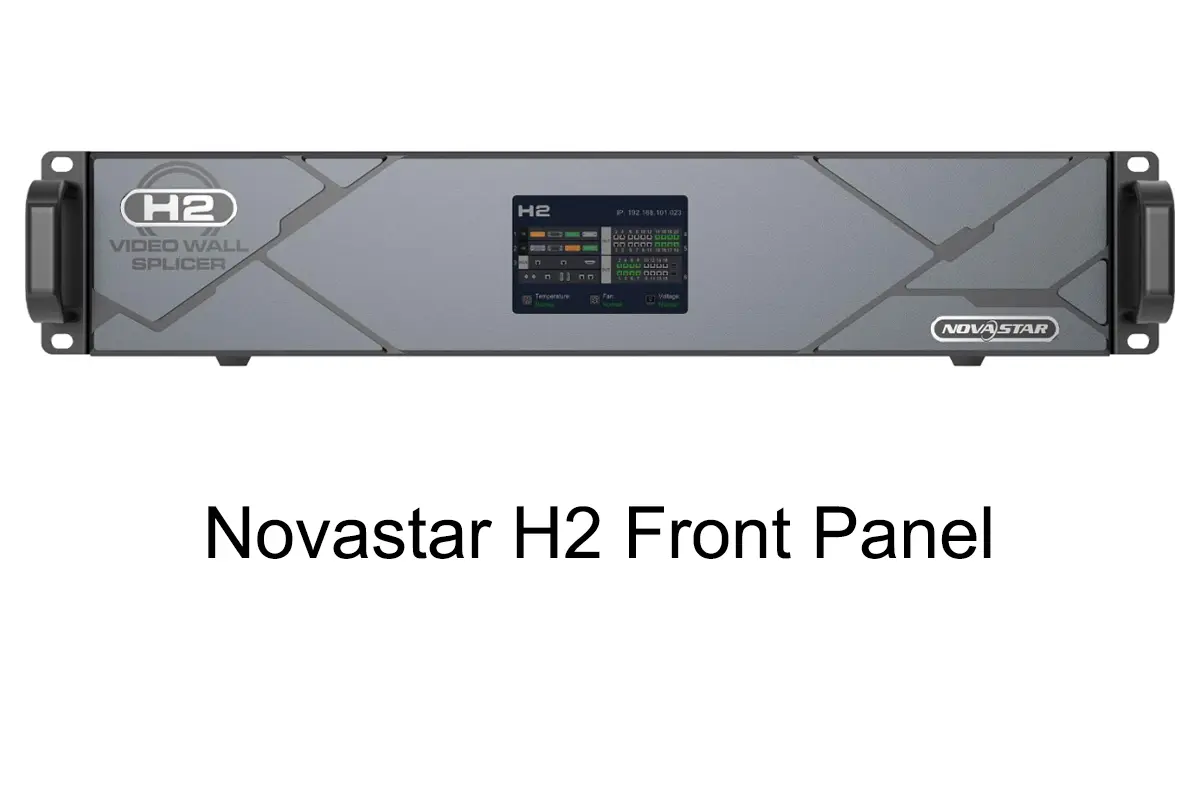
The front panel provides local status and control, while the rear identifies installed cards and connections. Before ordering a NovaStar H2, compare the quotation against an actual rear-panel card list. Similar-looking systems may have different input standards, sending capacity or monitoring capabilities.
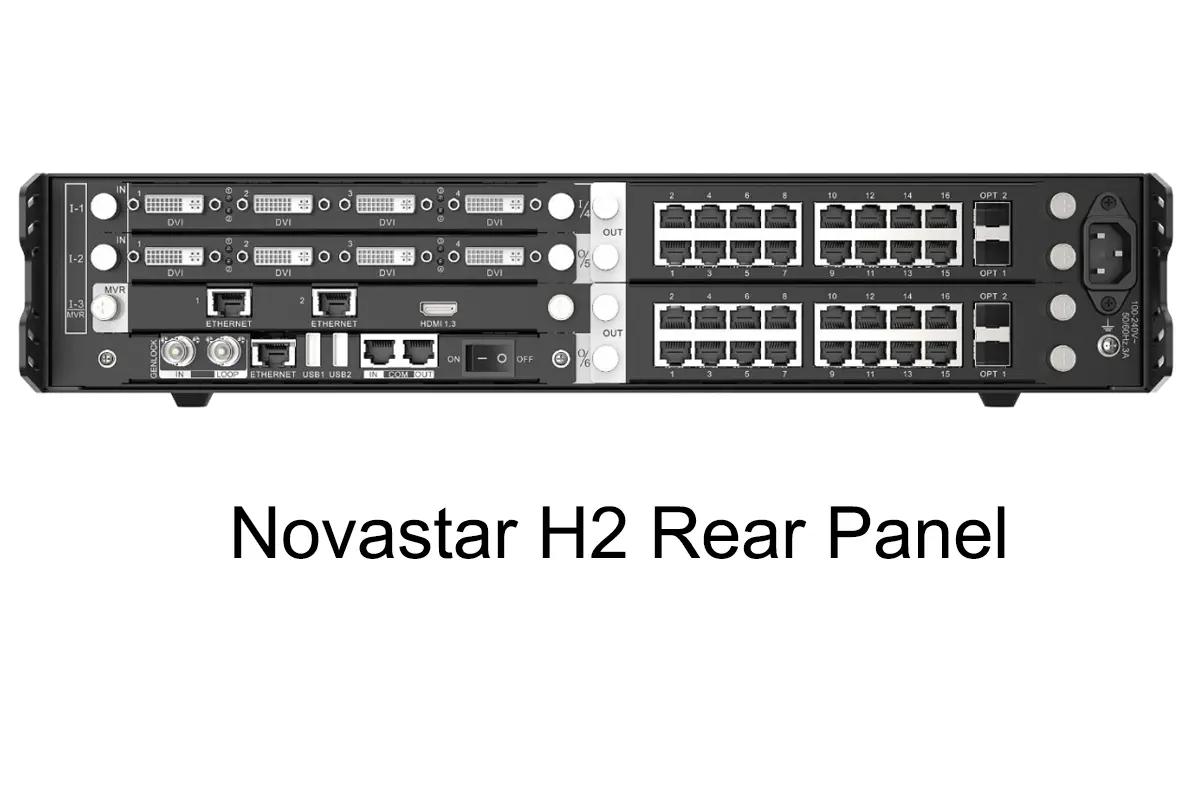
| Item | Published specification | What to check |
|---|---|---|
| Chassis | 2U; 482.6 × 529.8 × 88.1 mm | Rack depth, cable clearance and airflow |
| Inputs | Up to 4 cards; 16 input channels | Card type determines connector count and bandwidth |
| Outputs | Up to 2 cards; 8 video output channels | Video channels are not LED Ethernet-port counts |
| Layers | Maximum 32 | Actual resources depend on connector capacity and operating mode |
| Electrical | 100–240 V AC, 50/60 Hz; listed consumption 210 W | Grounding and installation power provision |
| Environment | 0–45°C; 0–80% RH, non-condensing | Rack temperature under the intended workload |
| Weight | 11 kg, chassis net weight | Installed cards and packaging change handling weight |
These values come from the official chassis specification table. Do not interpret “16 channels” as sixteen simultaneous 4K sources: the individual card and connector capabilities determine that.
02. Features and output capacity
NovaStar H2 offers multi-screen layouts, source cropping, backgrounds, on-screen text, presets and browser control. Its processing platform supports HDR10, HLG and 10-bit video, but the complete source-to-screen chain must support the chosen format. Start with the output-card family because it determines cabling and much of the capacity calculation.
| Sending card | Per card | H2 maximum configuration | Planning limitation |
|---|---|---|---|
| H_16xRJ45+2xfiber | 10.4 million pixels | 20.8 million pixels | Fiber ports copy Ethernet outputs; they do not add independent pixels |
| H_20xRJ45 | 13 million pixels | 26 million pixels | 20 Ethernet outputs per card; recheck capacity for 10-bit operation |
| H_4xfiber | 20.8 million pixels | 41.6 million pixels | Independent, copy and backup modes; maximum is not retained as unique content in every mode |
| H_4xfiber (enhanced) | 26 million pixels | 52 million pixels | Four primary and four backup/copy optical ports; requires compatible downstream hardware |
For NovaStar H2 planning, these are specification ceilings, not guaranteed capacity at every bit depth and refresh rate. The sending-card sections give the applicable port limits. Fiber sending cards cannot be mixed with the RJ45 sending-card families to load the same screen; standard and enhanced fiber cards also cannot share one screen.
03. Price and what a quotation should include
There is no verified universal NovaStar H2 price in the manufacturer specification. Request an itemized quotation covering the chassis, every input/output card, preview option, optical modules, converters, cables, software compatibility and support. Confirm currency, delivery terms, warranty and whether taxes are included.
A low chassis-only price is not comparable with a populated NovaStar H2 system. Supply the wall resolution, cabinet map, source list and redundancy requirements so the supplier can quote a working configuration. Avoid paying for unused interfaces while leaving necessary fiber converters or receiving-card compatibility unresolved.
2. NovaStar H2 Function Analysis
01. Modular design and input selection
NovaStar H2 accepts different H-series input cards, including HDMI, DisplayPort, DVI, SDI and selected network-video options. Choose a card by the exact source resolution, frame rate, color format and bit depth. “HDMI input” alone is insufficient: HDMI 1.3, 2.0 and 2.1 cards have different capabilities.
The current documentation includes newer high-bandwidth cards, so older descriptions that stop at 4K do not describe every available configuration. For example, the listed HDMI 2.1 input capability includes 8192 × 4320 at 30 Hz. Verify the installed card and firmware rather than assuming an older NovaStar H2 can accept that signal unchanged.
02. Image quality, layers and latency
Input resolution, screen loading and layer count are separate limits. NovaStar H2 may accept a high-resolution source yet need scaling to fit a smaller canvas. Conversely, a large output canvas does not create extra source detail. Keep small text at an appropriate native resolution and inspect a test grid before applying decorative layouts.
The specification describes per-card layer resources of up to sixteen 2K, eight DL, four 4K or two 8K layers. Connector capacity determines resource usage: a 1080p source connected through a connector configured for 4K can consume a 4K layer resource. Check connector settings before assuming the layer budget is exhausted.
NovaStar H2 low latency is specified as “as low as 1 frame” from input source to receiving card. At 60 Hz, one frame is approximately 16.7 ms; that is a timing conversion, not a measured end-to-end result. Cameras, converters, scaling and display scanning can add delay. Test the complete chain for live-camera or interactive work.
03. Multi-screen layouts and preset limits
NovaStar H2 manages multiple screens with their own output resolutions. Name screens by location, and keep source labels consistent with cable labels. Background images do not consume the ordinary layer resources, while OSD adds text or other information. Presets store repeatable arrangements so operators can recall a presentation layout without rebuilding it.
The published maximum is 2,000 presets, not 2,000 simultaneously visible windows. Fade transitions also have resource and card restrictions: the standard H_4xfiber sending card does not support screen fade transitions, while the enhanced model supports them subject to other limits. Consult the current limitations and card descriptions before promising an effect.
04. Browser control and monitoring
NovaStar H2 uses a browser/server architecture for cross-platform operation. The control computer connects to the control network; it does not need to supply the video being displayed. Keep operator access separate from public visitor networks, change initial credentials, and record the device IP address for the handover.
Input/output preview depends on the monitoring hardware and its connections. A working web login does not prove that the preview-card network is configured correctly. Check card status and source detection first, then test the actual screen. Preview is useful for diagnosis, but it is not a replacement for checking output mapping on the wall.
3. Step-by-Step Hardware Setup and Connections
01. Connect and label input sources
Before powering the installation, inventory the NovaStar H2 card models and label every signal cable. Connect the presentation computer, media player or camera feed to the matching input. Begin with one known-good source and a supported timing, then introduce additional sources after the basic path works.
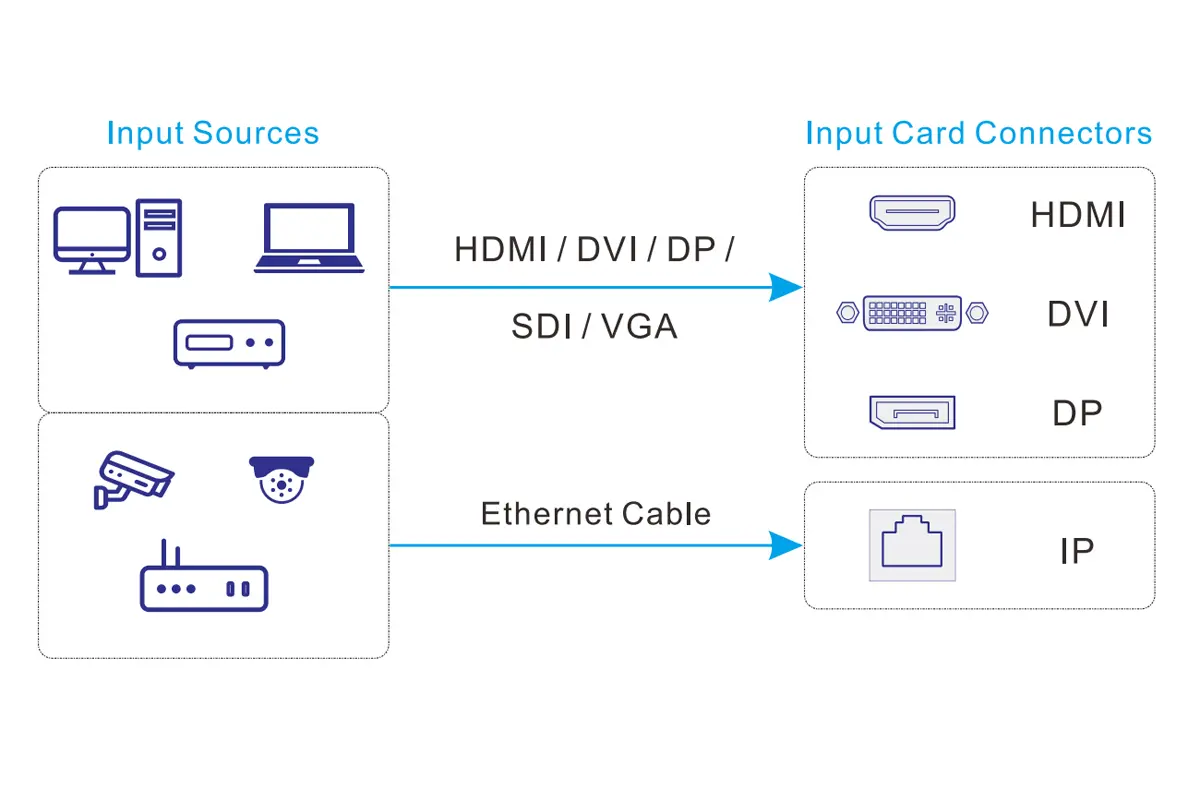
| Signal path | Connection | Acceptance check |
|---|---|---|
| Local video source | Source to the matching HDMI, DP, DVI or SDI input | Detected timing matches the intended format |
| IP camera source | Camera network to compatible IP input card | Supported stream, credentials and network reachability |
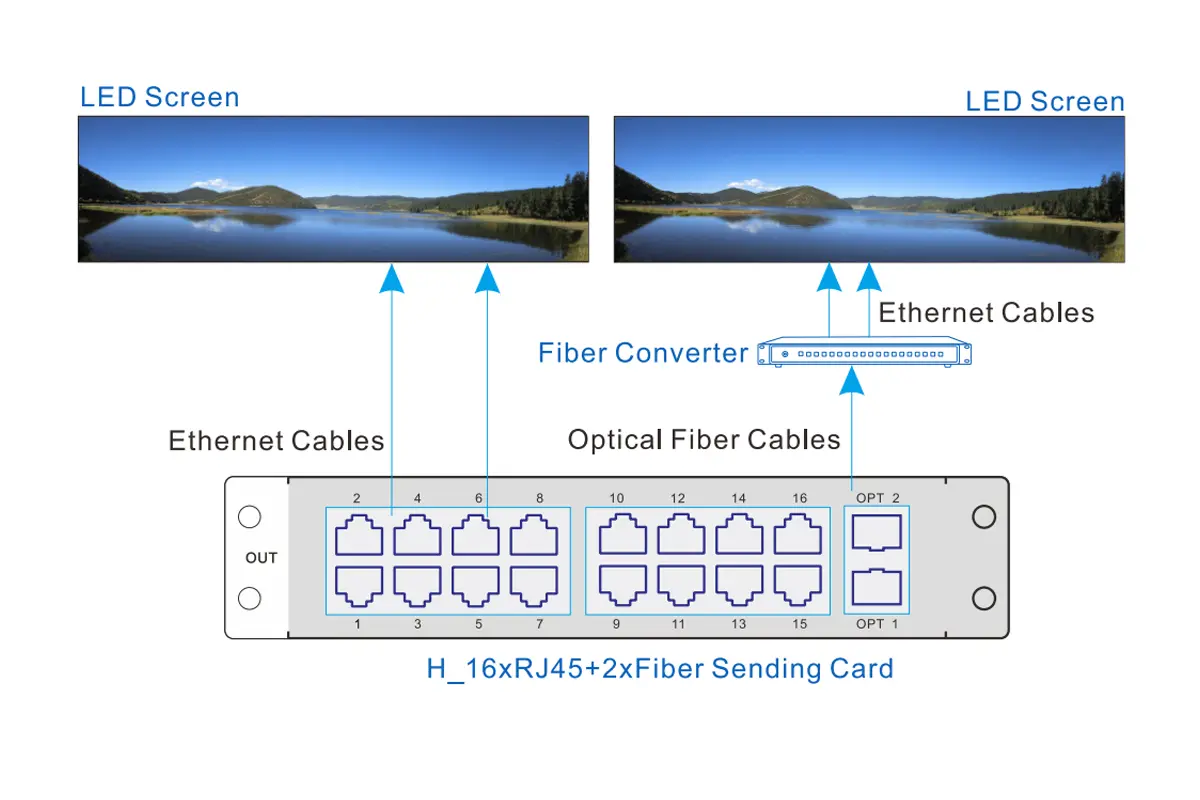
| Direct LED output | RJ45 sending outputs to cabinet receiving-card chains | Port labels match the physical cabinet order |
| Fiber LED output | Sending OPT ports through compatible conversion equipment | Optical type, mode and downstream port mapping agree |
| LCD/video output | Video output card to display input | Panel timing, position and bezel compensation verified |
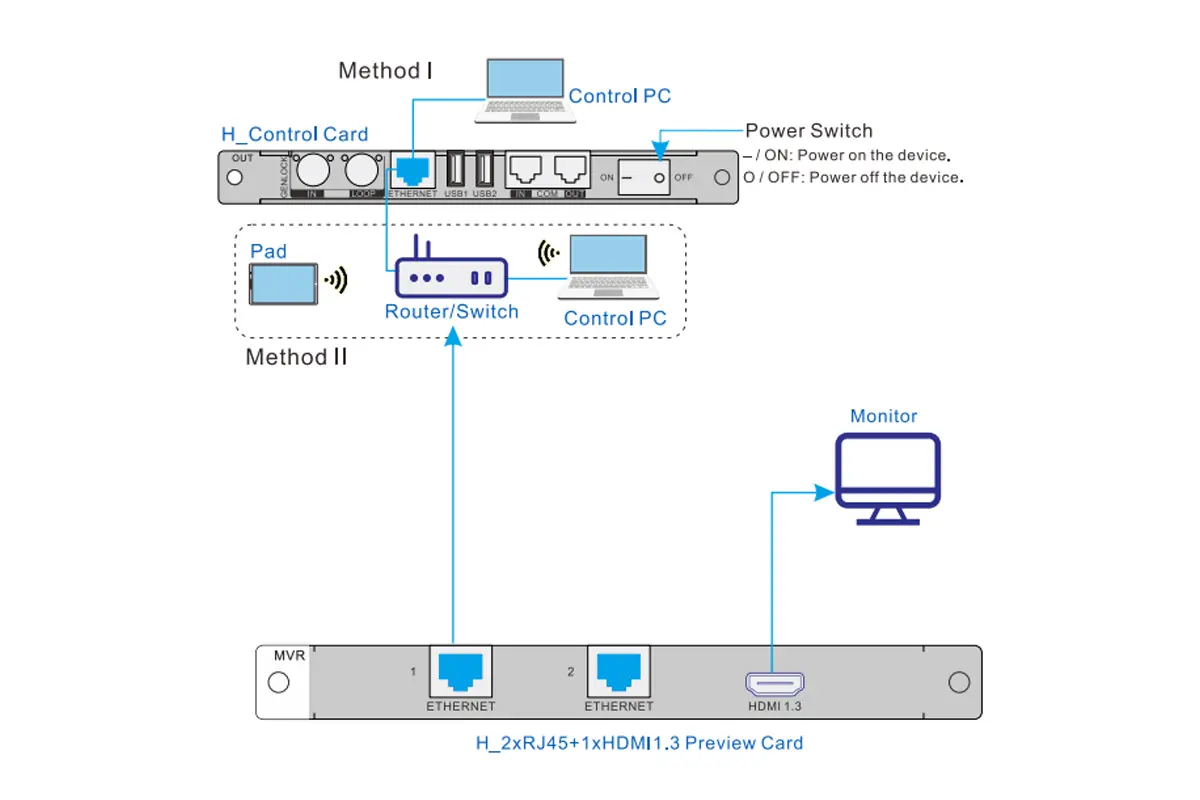
| Control | Control-card Ethernet to PC or managed local network | Unique IP address and browser login work |
| Monitoring | Preview-card network and/or HDMI monitor | Preview agrees with the physical output |
02. Choose the correct output path
For a directly connected LED wall, NovaStar H2 RJ45 sending outputs connect to the LED receiving-card system. These output ports carry display data; they are not interchangeable with the control-card Ethernet port. For fiber installations, confirm the specified converter, optical-module type and cable type before connection.
NovaStar H2 video output cards instead deliver video to LCD panels or another compatible downstream device. A cable adapter cannot turn a conventional HDMI output into a direct LED receiving-card data link. For broader component selection, review our LED control system overview.
03. Power, grounding and rack access
Install NovaStar H2 within the manufacturer’s temperature and power limits, with ventilation and service access around the chassis. Use the specified grounding provision and suitable power distribution. Although the platform supports hot-swappable input/output cards, card replacement should follow the manufacturer’s procedure and the site’s maintenance plan; it can still interrupt the live signal path.
04. Control and preview connections
Connect the NovaStar H2 control card directly to the setup computer or to the approved local network. The H Series User Manual explains direct and network connections. Where DHCP is used, it requires a functioning DHCP service; an unmanaged switch alone does not assign IP addresses.
For network preview, connect the preview and control interfaces as the manual specifies. Where HDMI monitoring is fitted, connect a monitor to the preview card. Keep a cable schedule showing source, card, connector and destination so another operator can trace a fault without disconnecting unrelated equipment.
4. Initial Configuration: Screen Setup and Web Login
01. Power on and log in
Power on NovaStar H2 and read its current IP address from the front-panel home screen. The manual documents 192.168.0.10 as the default, but previously configured units may use another address. For a direct connection, give the computer a different address in the same subnet and avoid address conflicts.
Open that address in a browser. The documented initial username and password are both admin; use the actual credentials if they have been changed. After first access, change the password and record authorized accounts. NovaStar H2 does not need public internet exposure for ordinary local control.
02. Define the LED screen in the web interface
For NovaStar H2 RJ45 sending cards, set the required output resolution and frame rate under Settings > EDID Management > Output. For fiber cards, configure the connector working mode on the Device page first. EDID describes supported signal timings; an incorrect setting can cause scaling or source-format problems.
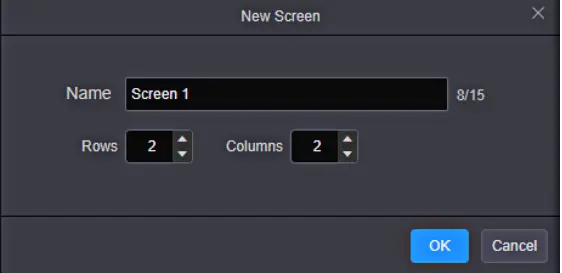
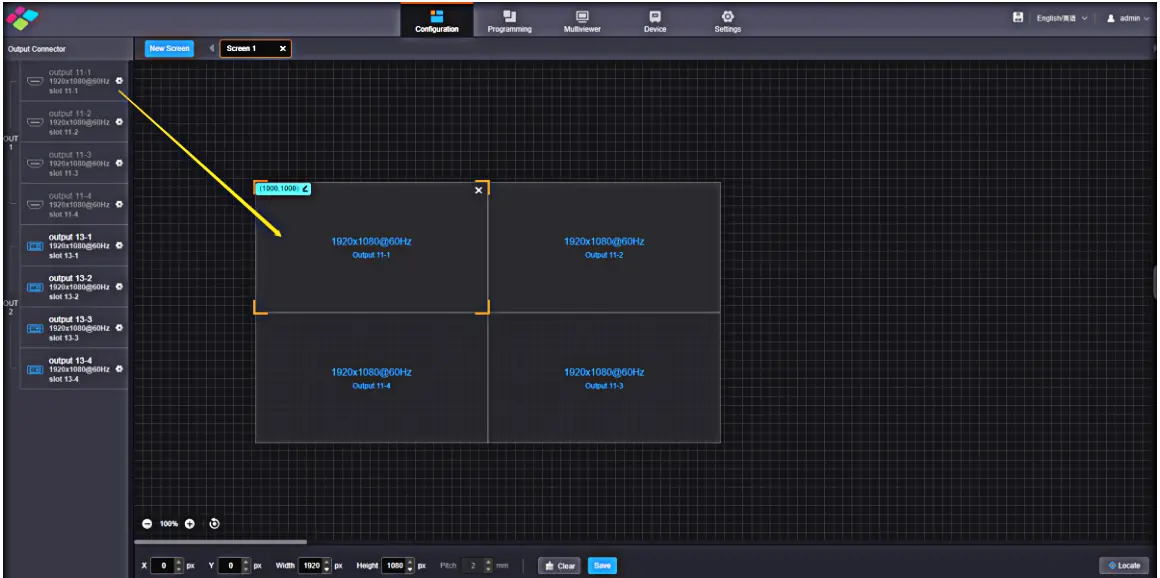
- Open Configuration and choose New Screen.
- Select Screen, enter a descriptive name and define the required layout.
- Assign the correct output card or connector to the screen.
- Check the canvas dimensions and connector allocation.
- Save the screen configuration and test a simple full-screen source.
Follow the manual’s LED screen procedure for the installed card family. A connector already assigned to one screen cannot simply be reused as a second independent output.
03. Map receiving cards in NovaLCT
Web layout configuration does not replace cabinet mapping. For NovaStar H2 sending-card installations, use the applicable NovaLCT procedure to define receiving-card dimensions and the actual cable sequence. The standard fiber card requires NovaLCT V5.4.8 or later; the enhanced fiber card requires V5.8.0 or later according to the current specification.
- Open NovaLCT and use User > Advanced Synchronous System User Login.
- Go to Settings > Screen Configuration and select the communication port.
- Confirm the sending-card input settings.
- In Screen Connection, set receiving-card rows, columns and pixel dimensions.
- Select each Ethernet output and draw cabinet connections in physical wiring order.
- Send the configuration to hardware, verify the wall and retain a configuration backup.
As a planning example, a 3840 × 2160 wall contains 8,294,400 pixels. Using the H_20xRJ45 published limit of 650,000 pixels per port at 8-bit gives a mathematical minimum of 13 ports. At its 325,000-pixel 10-bit limit, the minimum becomes 26 ports. Cabinet grouping may require more; one 20-port card is therefore insufficient for that 10-bit example.
This NovaStar H2 calculation excludes backup ports and assumes the operating conditions behind the documented port limits. Confirm frame rate and receiving-card compatibility before finalizing the map. Our LED receiving-card guide explains the downstream hardware role.
04. Configure LCD panels and save layouts
For LCD use, assign the NovaStar H2 video outputs to the panel layout and verify positions with the Locate function. Enable LCD Bezel Compensation only when required, then set horizontal and vertical spacing to suit the physical panel borders. This compensates image geometry; it does not remove the visible bezels.
Add sources as layers, set crop and size, and save clearly named presets. Test transitions with the actual card combination. NovaStar H2 commissioning should include a controlled restart and preset recall so the handover does not rely on a layout that existed only during setup.
05. Troubleshoot by signal stage
When NovaStar H2 shows an unexpected result, locate the failing stage before resetting the system. First check source detection, then the composed layout, then output assignment, and finally cabinet mapping. Change one variable at a time and keep a known-good source available.
| Symptom | First check | Next action |
|---|---|---|
| Web page cannot open | Front-panel IP, subnet and control port | Test a direct connection; resolve conflicting addresses |
| Input is missing | Source output, cable and supported card timing | Try a known-good source at a documented format |
| Input visible, wall black | Screen assignment, layer, FTB and output link | Check receiving-card configuration and data path |
| Cabinets show scrambled sections | Cabinet dimensions and physical wiring order | Correct the NovaLCT port map and resend |
| Unexpected scaling or cropping | Input EDID, canvas size and layer crop | Compare a native-resolution test grid |
| Fewer layers or no fade | Connector capacity, card family and preset resource use | Reduce resource usage or use a supported transition |
5. NovaStar H2 Common Applications and Use Cases
01. Command and control centers
NovaStar H2 suits installations that need several source windows and repeatable monitoring layouts. Specify the simultaneous source count at the required resolution, not just the total number of connected cameras. Test backup behavior with a controlled failure; the latest specification excludes NDI and IPC sources from input backup relationships.
02. Corporate and education spaces
In a conference-room display, NovaStar H2 can combine presentation, conferencing and supporting content. Prepare a simple meeting preset and a full-screen presentation preset. Verify laptop reconnection, small text readability and audio routing so daily operation does not require rebuilding the screen.
03. Broadcast and live events
For live-camera applications, NovaStar H2 selection should begin with supported SDI or HDMI timing, synchronization requirements and measured system delay. Rehearse every preset with the real sources. HDR and 3D are configuration-dependent features, not reasons to assume every installed signal chain is ready for those formats.
04. Digital signage and retail
NovaStar H2 preset playlists can automate layout changes. Distinguish switching stored screen arrangements from operating a complete media-content management system. Identify which external player supplies each video and who updates it, then document restart behavior, operating hours and the preset to use if a source becomes unavailable.
05. Build an itemized procurement brief
For a screen engineer or rental company, the useful purchase is a tested configuration. Send the supplier your cabinet pixel dimensions and port plan, source list and simultaneous window requirements. Describe whether the same equipment will be rebuilt into different wall layouts or stay in a fixed installation.
| Quotation item | Information to include | Acceptance evidence |
|---|---|---|
| Chassis and cards | Exact input, output and sending-card model numbers | Bill of materials and rear-panel configuration match the supplied unit |
| LED receiving system | Cabinet pixel dimensions, receiving cards and actual data chain | Port map, saved configuration and a grid test on the complete wall |
| Optical transport | Converter, module and cable requirements for each link | All proposed accessories listed; actual link tested at the site distance |
| Backup scope | Power and signal backup hardware, routing and operator action | Controlled failover and recovery demonstration under the agreed configuration |
| Handover and support | Configuration files, versions, training and service responsibilities | Known-good preset, documented files and named support contact |
Compare quotations against the same bill of materials. Confirm installation, freight, commissioning and service exclusions in writing; do not infer them from a chassis price. For a rental fleet, also request a repeatable labeling and recovery procedure so a technician can rebuild the accepted configuration at the next event.
Request an H2 and LED wall configuration quote
6. FAQs
01. What is the maximum pixel capacity of NovaStar H2?
The current specification lists H2 chassis maxima of 20.8 million pixels with H_16xRJ45+2xfiber cards, 26 million with H_20xRJ45, 41.6 million with standard fiber cards and 52 million with enhanced fiber cards. These require the corresponding populated configuration; bit depth, output mode and downstream hardware affect usable capacity.
02. Does NovaStar H2 support 4K at 60 Hz?
Yes, compatible input cards support 4K-class signals at 60 Hz. The permitted resolution also depends on color sampling and bit depth. For example, the specification lists HDMI 2.0 at 4096 × 2160 at 60 Hz for 8-bit RGB 4:4:4; do not assume the same timing applies to every 10-bit format.
03. Which software is needed for NovaStar H2 configuration?
Use the browser interface for screen layouts, sources and presets, and the applicable NovaLCT workflow for LED receiving-card mapping. The standard H_4xfiber card requires NovaLCT V5.4.8 or later, while the enhanced fiber card requires V5.8.0 or later. Match software and firmware to the installed hardware.
04. What are the default IP address and login?
The H Series manual documents 192.168.0.10 and admin/admin as initial settings. Read the actual address on the front panel because an installed system may have been changed. Put the control computer in the appropriate subnet and use the site's current credentials.
05. Can NovaStar H2 mix different sending cards on one screen?
The manual allows H_16xRJ45+2xfiber and H_20xRJ45 cards on the same screen when their frame rates match. Fiber sending cards cannot share a screen with those RJ45 families. Standard and enhanced fiber sending cards also cannot be combined to load the same screen.
06. Why does a 1080p source use a 4K layer resource?
Layer allocation follows the input connector capacity, not only the incoming image resolution. A connector configured for 4K can consume a 4K resource even with a 1080p source. Review its capacity setting on the Device page before reducing the number of windows.
07. Why is there no single fixed NovaStar H2 price?
Quotes can cover different combinations of chassis, input cards, sending cards, preview hardware, converters and support. Request an itemized bill of materials and compare equivalent configurations. A bare chassis price does not establish the cost of a complete working installation.
08. Where can I download the manual and specifications?
Use the H2 entry on NovaStar's official H Series downloads page. This guide references H2 Specifications V1.17.0 and the H Series User Manual V1.15.0. Confirm compatibility with the installed card models and firmware before applying features described in a newer document.
09. What details are needed for a NovaStar H2 quotation?
Provide the wall pixel dimensions, cabinet layout, receiving-card model, source connector types and timings, simultaneous windows, signal distances and backup requirements. Ask the supplier to itemize the chassis, cards, converters, optical accessories and commissioning scope.
10. What should an H2 system handover include?
Request the accepted bill of materials, firmware and software versions, cabinet and port map, receiving-card file, saved layouts or presets, test results and an operator recovery note. Confirm which settings are stored in the H2 and which remain in the LED receiving system.
7. Conclusion
Choose NovaStar H2 by the complete signal path: source formats, populated cards, screen pixels, bit depth, layers, receiving hardware and backup allocation. Commission one working source first, then build the full layout and verify presets. This approach produces a configuration that operators can understand and maintain.
Before requesting a NovaStar H2 quotation, prepare the cabinet map, native resolution, source list and cable distances. Use the official H Series downloads to confirm the current specification and manual for the supplied hardware. A written configuration list is more useful than an unsupported universal price or capacity claim.
 Video Wall Processor vs. Controller: Your Pre-Buying Guide
 NovaStar MBOX600 Pro: Specs, Setup & LED Control Guide