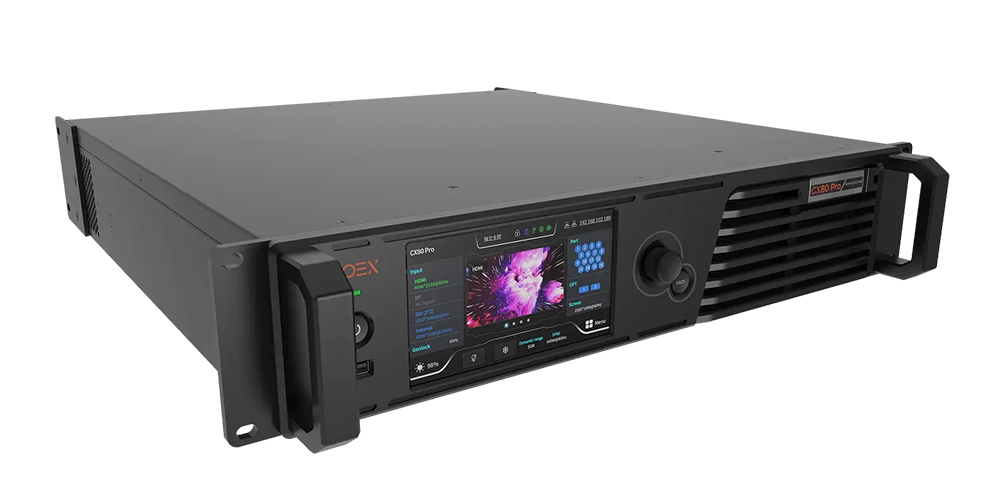
The NovaStar CX80 Pro is an 8K LED display controller in NovaStar’s COEX series, with 16 × 5Gbps Ethernet outputs, two 40Gbps optical outputs and VMP software control. Its published maximum device capacity is 35,389,440 pixels. The usable capacity depends on frame rate, bit depth, receiving cards and the screen’s port layout.
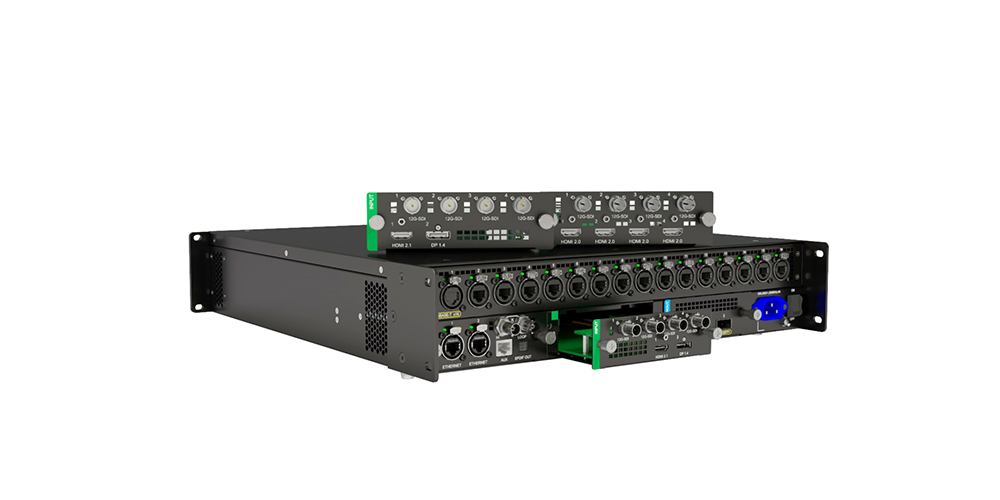
For buyers, the first decision is the input card: one configuration provides HDMI 2.1 and DP 1.4 for specified 8K signals; another provides four HDMI 2.0 inputs for individual or mosaicked sources. This guide explains how to specify the NovaStar CX80 Pro, calculate a realistic port budget and prepare an installation without confusing input resolution with output capacity.
Technical basis: NovaStar’s CX80 Pro Specifications V1.1.2, dated July 4, 2023, reviewed for this guide on September 9, 2026. Limits below refer to that document; confirm the supplied hardware and firmware before ordering. Calculations are planning examples, not measurements from a customer installation.
1. What the NovaStar CX80 Pro Is
The NovaStar CX80 Pro receives video from a media server, workstation or production system and distributes the image to compatible LED receiving equipment. It combines sending with image processing in All-In-One Controller mode. In Send-Only Controller mode, upstream equipment must provide the required image arrangement because the controller’s scaling function is unavailable.
COEX identifies NovaStar’s control-system platform; VMP means Vision Management Platform, the software used to configure and manage the system. A controller, receiving card and cabinet configuration form one working chain. A familiar connector or the NovaStar brand alone does not prove that an existing cabinet supports every CX80 feature.
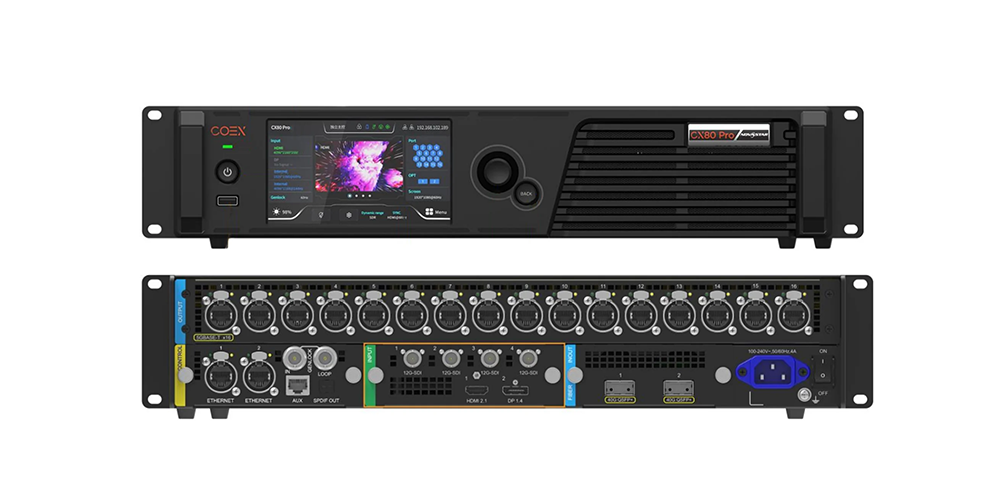
The NovaStar CX80 Pro specifications below provide a procurement baseline. They describe different kinds of limits, so they should not be combined into a single unrestricted operating claim.
| Item | Published specification | Planning implication |
|---|---|---|
| Device capacity | 35,389,440 pixels maximum | Check the device total and each output port separately. |
| LED outputs | 16 × 5Gbps Ethernet | Match receiving equipment, cables and cabinet routes. |
| Optical outputs | 2 × 40Gbps | Port 1 corresponds to Ethernet 1–8; port 2 to Ethernet 9–16. |
| Operator interface | 5.5-inch 1080p touch LCD and VMP | Provide local access and a documented control network. |
| Power | AC 100–240V, 50/60Hz; listed consumption 170W | Budget controller power separately from LED cabinet power. |
| Size and weight | 482.6 × 95.1 × 528mm; 10.5kg net | Check rack depth, support and service clearance. |
| Environment | −10°C to +45°C; IP20 | Keep the controller dry and within its operating conditions. |
Source: NovaStar CX80 Pro Specifications V1.1.2, output and product-specification sections. The optical connections carry the corresponding Ethernet groups; they are not an additional independent 16-port pixel budget.
Start a NovaStar CX80 Pro design with the actual cabinet resolution. Physical width and pixel pitch help determine pixel count, but the cabinet’s documented pixel matrix is the more reliable purchasing input. Our LED screen resolution guide explains how display dimensions relate to the content canvas.
2. Key Features of the NovaStar CX80 Pro
01. Configuration and Setup
The NovaStar CX80 Pro uses replaceable input cards. Specify the installed card on the quotation and compare it with the source device’s actual output timing, color format and bit depth. “8K compatible” is insufficient: a connector can support 8K while accepting only particular resolutions and frame rates.
| Configuration | Connectors | Important limits in V1.1.2 |
|---|---|---|
| Input card 1 | 1 × HDMI 2.1, 1 × DP 1.4, 4 × 12G-SDI | HDMI and DP accept only 7680 × 4320 inputs in the documented standard configuration. |
| Card 1 HDMI | HDMI 2.1 | Up to 8K at 60Hz; 10/12-bit RGB or 4:4:4 is limited to 30Hz in the listed combinations. |
| Card 1 DisplayPort | DP 1.4 | Listed 8K timings are 30, 25 and 24Hz; do not assume 8K60. |
| Input card 2 | 4 × HDMI 2.0, 4 × 12G-SDI | HDMI supports custom input resolutions and mosaic; confirm bit-depth limits. |
| Card 2 HDMI | Individual or mosaic inputs | 8-bit maximum 4096 × 2160 at 60Hz per connector; listed 10/12-bit RGB/4:4:4 maximum is 4096 × 1080 at 60Hz. |
| 12G-SDI on either card | 4 inputs | Up to 4096 × 2160 at 60Hz per connector; supports input mosaic. |
These limits come from the manufacturer’s input and video-source tables. For a NovaStar CX80 Pro driven by a laptop or custom media server, check EDID and GPU output settings before selecting the card. Input widths for HDMI and DP must be multiples of eight under this specification.
02. Interaction and Control
The NovaStar CX80 Pro offers a front touchscreen for local operation and two Gigabit Ethernet control ports for VMP. Keep these management ports distinct from the sixteen 5Gbps LED outputs. Label the management cable and cabinet-output cables differently so another technician can trace the system without disconnecting working links.
Record device names, network settings, firmware versions and the approved project file. A repeatable configuration is more useful than an undocumented successful setup. When several controllers share a project, establish which device feeds each screen region and which workstation holds the current configuration.
03. Playback and Signal Handling
The NovaStar CX80 Pro processes live video signals; its front USB port is documented for exporting diagnostic results, not USB media playback. Plan an external playback device when the project requires playlists, scheduling or stored content. This distinction prevents a purchasing mistake that a generic “playback support” description could cause.
Image tools include custom scaling, pixel-to-pixel display, 14-channel color correction, RGBW curves and 17 × 17 × 17 .cube 3D LUT support. HDR10 and HLG are listed, but source format, receiving hardware and available bandwidth still matter. A NovaStar CX80 Pro cannot recover detail already lost in the source or correct an unsuitable cabinet configuration automatically.
04. Monitoring and Status Awareness
Device and screen monitoring help identify faults and alarms. With the NovaStar CX80 Pro, establish a normal baseline during commissioning: expected devices online, stable input timing and the correct cabinet map. Export diagnostic information before changing several settings during fault investigation.
Monitoring is not a replacement for a visual test. Check dark gradients, solid colors, fine text and moving content because a system can report connected equipment while displaying an incorrect crop or cabinet order. Save the tested settings so troubleshooting starts from a known configuration.
05. Integration With LED Display Systems
Advanced NovaStar CX80 Pro functions have explicit dependencies. V1.1.2 lists CA50E, CA50C and XA50 receiving cards for Dynamic Booster, Full Grayscale Calibration and Frame Rate Adaptive; individual functions require additional preparation. Frame Rate Adaptive also depends on supported driver ICs and a Cabinet Tool .ncp file.
Full Grayscale Calibration requires a C3200 camera; Dynamic Booster requires prior brightness and color-gamut correction using specified measurement equipment. Ask the cabinet supplier which functions are commissioned and supported. The function-limitations table is the reference for checking those claims.
3. NovaStar CX80 Pro Price and Purchasing Notes
A useful NovaStar CX80 Pro price comparison must identify the input card, included accessories, tax treatment, delivery terms and technical support. This guide does not provide a universal selling price: quotations from different regions or for different packages are not directly comparable. Request a dated, itemized offer for the required configuration.
When requesting a NovaStar CX80 Pro quotation, send the cabinet matrix, receiving-card model, source format, cable distances and backup requirement. Include the expected operating frame rate and bit depth. Those details let the supplier check the whole signal path and reduce the risk of an inexpensive quote omitting necessary equipment.
| Quotation line | What to request | Why it affects the decision |
|---|---|---|
| Controller and input card | Exact model, installed card and hardware condition | Different input combinations serve different sources. |
| Optical transport | Compatible conversion equipment, modules and fiber specification | An optical port does not mean every required link accessory is included. |
| Receiving system | Card model, firmware and supported image functions | Feature availability depends on cabinet-side equipment. |
| Commissioning | Mapping, source setup, calibration scope and operator handover | Basic connection and full system acceptance are different services. |
| Commercial terms | Currency, taxes, freight, lead time and quotation validity | Compare the delivered cost on the same basis. |
| After-sales support | Written warranty, repair process, spare strategy and support contact | Clarifies responsibility when the system needs service. |
For a NovaStar CX80 Pro replacement, request confirmation that existing cabinet files and receiving hardware remain supported. Avoid treating a used unit as equivalent to a commissioned system. Inspect its installed card, physical connectors and documented operating condition, then test it with the intended source before accepting it.
Send EagerLED your display specification for a configuration review and project quotation. Ask for the proposed wiring diagram with the offer; it makes the equipment list and support scope easier to verify.
4. Where the NovaStar CX80 Pro Fits Best
The NovaStar CX80 Pro is most relevant where high pixel counts, 5Gbps distribution, optical transport or detailed image control justify the system complexity. Typical candidates include large presentation walls, event screens and installations with demanding source formats. Small displays can use it, but unused capacity alone does not make it the most economical choice.
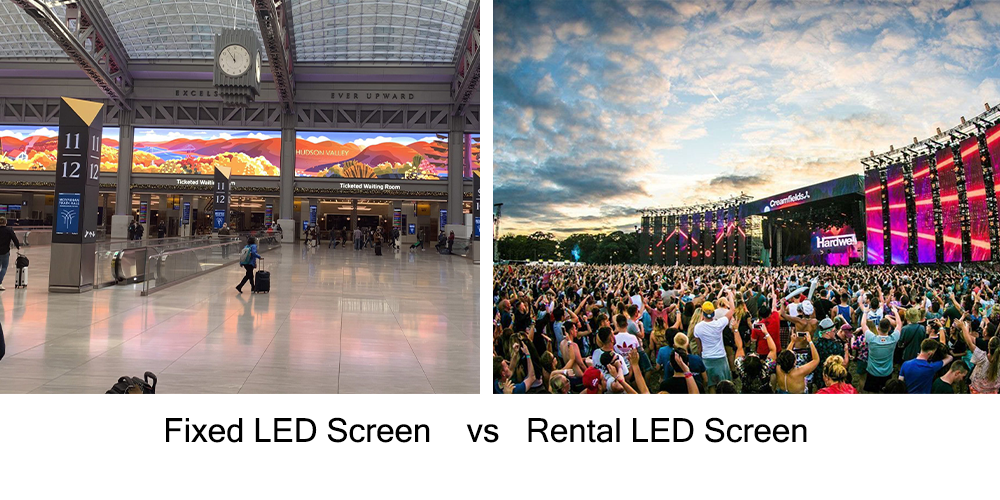
For rental LED screen projects, evaluate repeatable mapping, transport protection and source changes between shows. For an indoor LED installation, prioritize readable content, service access and an operator handover. The NovaStar CX80 Pro belongs inside a dry, suitable equipment environment even when it controls an outdoor screen.
01. Calculate Pixels and Port Capacity
Calculate screen pixels as horizontal pixels multiplied by vertical pixels. Then divide the required pixels by the applicable per-port limit and round upward. This gives an arithmetic minimum, not an approved wiring plan. Cabinet grouping, output dimensions and feature restrictions can require additional ports on the NovaStar CX80 Pro.
| Output setting | Published pixels per 5Gbps port | Minimum ports for 33,177,600 pixels | Initial result |
|---|---|---|---|
| 8-bit, 60Hz | 2,592,000 | 13 | Within 16 ports; validate cabinet mapping. |
| 10-bit, 60Hz | 2,073,000 | 17 | Exceeds one controller’s 16 ports. |
| 12-bit, 60Hz | 1,728,000 | 20 | Exceeds one controller’s 16 ports. |
| 8-bit, 120Hz | 1,296,000 | 26 | Exceeds one controller’s 16 ports; input support is a separate check. |
Source limits: Ethernet Port Load Capacity, V1.1.2, for CA50E, CA50C and XA50 receiving cards. Port counts are calculated examples. They exclude additional restrictions from HDR, redundancy and cabinet routing, and do not assert support for every corresponding input format.
This shows why “8K controller” is not a promise of an unrestricted 8K output at every setting. At 8-bit and 60Hz, the example fits the NovaStar CX80 Pro device maximum and the arithmetic port budget. At 10-bit and 60Hz, sixteen ports total only 33,168,000 pixels, slightly below the 33,177,600-pixel screen.
02. Match Image Priorities to the Installation
Choose the required visual outcome before reducing bit depth or frame rate to fit a port budget. Fine gradients, camera capture and motion can make those compromises visible. If the NovaStar CX80 Pro configuration cannot meet the requirement, revise the screen segmentation or controller design with the supplier rather than quietly accepting lower quality.
5. NovaStar CX80 Pro: Basic Implementation and Configuration Process
Commission the NovaStar CX80 Pro from a documented signal plan. The following sequence is a planning workflow; use the manual and software version supplied with the device for exact menus. Keep the approved configuration available before making changes to an existing installation.
01. Prepare and Connect the System
- Confirm the bill of materials. Check the installed input card, receiving cards, cabinet pixel matrix and firmware compatibility against the project specification.
- Plan cabinet routes. Assign every cabinet to an output, calculate each route’s load and record its physical connection order. Include any backup arrangement in the budget.
- Install the hardware correctly. Follow the manufacturer’s mounting, ventilation and earthing instructions. Keep the IP20 unit protected from water; do not use the outdoor screen’s rating as the controller’s rating.
- Connect management and video separately. Connect the VMP workstation to a control Ethernet port, the source to the correct input and cabinet paths to LED outputs or compatible optical transport.
For optical distribution, verify the conversion equipment and fiber arrangement with the supplier. Label both ends and record the relationship between optical ports and Ethernet groups. The NovaStar CX80 Pro optical outputs do not eliminate the need to check the final cabinet route and receiving-card compatibility.
02. Configure the Source and Screen
- Discover and identify the device in VMP. Confirm you are configuring the intended controller and screen region before applying cabinet settings.
- Validate the input. Set a supported resolution, frame rate, bit depth and color format. Check the actual detected timing rather than relying only on the source application’s canvas size.
- Map the cabinets. Use the supplier-approved cabinet configuration and match the physical cable sequence. Check orientation, screen coordinates and the first and last cabinet of each route.
- Select the working mode. Use All-In-One when controller scaling is required. Use Send-Only when the upstream source already provides the needed image and the design benefits from its latency behavior.
With a NovaStar CX80 Pro, test pixel-to-pixel content before adjusting image enhancement. A one-pixel grid, labeled cabinet pattern and edge markers expose scaling or mapping mistakes quickly. Correct geometry first, then adjust brightness, color and any supported HDR settings.
03. Test, Document and Hand Over
The manufacturer’s latency section lists less than 1ms at the controller in low-latency Send-Only mode and one frame in All-In-One mode. These are controller figures, not total camera-to-screen latency. Low Latency and Genlock are mutually exclusive in this revision, and low latency requires vertical cabinet loading with the same Y coordinate across Ethernet ports.
| Check | Test content or action | Record |
|---|---|---|
| Geometry | Grid, cabinet labels and full-screen edge markers | Correct position, orientation and crop |
| Image quality | Grayscale ramps, primary colors and fine text | Approved brightness, color and scaling settings |
| Motion and timing | Moving footage and the real camera path if applicable | Frame rate, synchronization choice and observed behavior |
| Source recovery | Controlled source reconnect and source-format changes | Expected recovery sequence and any operator action |
| Operational handover | Export project and diagnostic information | Firmware versions, cable map, support contact and backup location |
Run the NovaStar CX80 Pro with the actual show or installation content before sign-off. When a fault appears, isolate the stage: check source detection, output mapping, link status and cabinet configuration in that order. Changing all four simultaneously makes it harder to identify the cause and reproduce the fix.
6. Why Does the NovaStar CX80 Pro Stand Out Among Similar Controllers?
The NovaStar CX80 Pro stands out through its combination of modular inputs, 16 high-bandwidth LED outputs and two 40Gbps optical outputs. Those capabilities matter when they simplify a verified system design. They do not make it automatically preferable to every smaller controller or every newer COEX model.
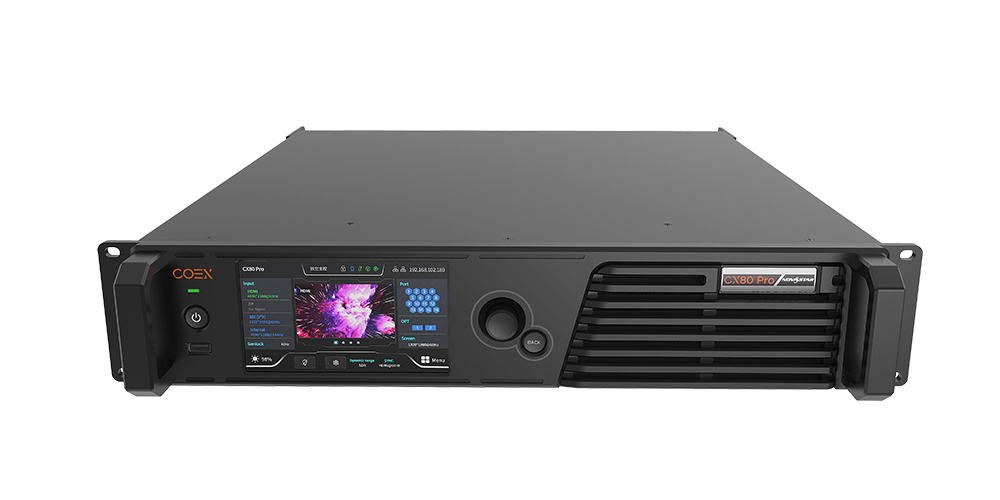
For a practical NovaStar CX80 Pro comparison, separate controller capacity from connector count and workflow. A model with more output sockets can still use a different link speed, and a familiar software name does not prove cabinet compatibility. Compare the exact models using their own current specifications.
| Decision factor | CX80 Pro | CX40 Pro |
|---|---|---|
| Product positioning | 8K controller | 4K controller |
| Input arrangement | Two documented pluggable input-card choices | 2 × HDMI 2.0, 1 × DP 1.2, 2 × 12G-SDI |
| 5Gbps Ethernet outputs | 16 | 6 |
| 40Gbps optical outputs | 2 | 1 |
| Local interface and software | 5.5-inch touch LCD; VMP | 5.5-inch touch LCD; VMP |
Comparison source: A.C. Entertainment Technologies’ CX80 Pro / CX40 Pro listing. This is a hardware comparison, not a claim that their features or working limits are identical. Select the NovaStar CX80 Pro when the actual input and output requirements justify it; otherwise, assess the smaller model’s complete specification and total installed cost.
7. FAQ
01. Is the NovaStar CX80 Pro only for large installations?
No. The NovaStar CX80 Pro can serve smaller screens, but the purchase should be justified by source compatibility, output distribution or required image functions. A small pixel count alone does not require this controller; compare an appropriately sized alternative using the same acceptance criteria.
02. Does the NovaStar CX80 Pro handle monitoring as well as control?
Yes. The published specification includes device-status and screen-status monitoring with fault and alarm reporting. Establish a normal operating baseline and keep diagnostic exports. Visual image checks are still necessary because correct communication does not guarantee correct mapping, cropping or color.
03. Is NovaStar CX80 Pro setup difficult?
The main work is validating the complete system: input format, receiving hardware, cabinet configuration and port mapping. VMP and the front touchscreen provide control, but neither replaces an accurate wiring plan. Prepare the cabinet matrix and supported source timing before commissioning.
04. Is the NovaStar CX80 Pro suitable for rental or event work?
It can be suitable when the screen and source requirements match its supported configuration. Check repeatable mapping, transport protection, operating conditions and the chosen synchronization mode. Test the real production source and recovery procedure before the event rather than relying on a static test image.
05. What kind of user is the NovaStar CX80 Pro aimed at?
The controller is relevant to LED system integrators, rental technicians and installation operators who need high-capacity video distribution and detailed image control. Procurement teams should request the exact input-card specification and a cabinet compatibility check from the technical team before comparing quotations.
06. Can the NovaStar CX80 Pro play videos from a USB drive?
The front USB 2.0 port is documented for exporting device diagnostic results to an NTFS or FAT32 drive. It is not specified as a media-playback input. Use a suitable external playback source for stored videos, playlists or scheduled content.
07. Can one NovaStar CX80 Pro run an 8K LED screen at every bit depth?
No. A 7680 × 4320 screen contains 33,177,600 pixels. At the documented 60Hz per-port limits, the arithmetic requirement is 13 ports at 8-bit, 17 at 10-bit and 20 at 12-bit. The unit has 16 Ethernet outputs, and additional feature and mapping restrictions must also be checked.
8. Conclusion
Choose the NovaStar CX80 Pro by checking five things together: source timing, installed input card, receiving-card compatibility, port load and operating workflow. Its documented 8K capabilities, 5Gbps outputs and VMP control provide a strong starting point, but the project succeeds only when those parts match the screen.
Before ordering a NovaStar CX80 Pro, prepare the cabinet pixel matrix, target frame rate and bit depth, cable distances and required image functions. Request a verified equipment list and acceptance plan. This turns a controller purchase into a system that can be configured, tested and handed over with clear responsibilities.
 LED Screen Supplier UK: 15 Companies Reviewed (2026)
 Fixed vs Rental LED Screens: Buying & Hire Compared