
An LED screen startup image is a stored picture that compatible control hardware can display while the system starts. Depending on the receiving card and configuration, a stored picture may also appear when video is unavailable or a data cable is disconnected. Confirm each trigger separately: a logo at power-up does not prove the same response will occur after signal loss.
For an AV integrator handing over a fixed installation, the useful question is what the audience should see before normal playback becomes available. Agree on the image, its placement, and the return to live content with the client. Then test those choices on the supplied hardware rather than approving only a laptop preview.
1. Separate Startup from Signal-Loss Behavior
Several different states can produce a picture that looks like a startup logo. The media player may be playing an opening slide, the processor may be holding a frame, or a receiving card may be displaying stored artwork. Identify where the picture originates before changing settings. The same visible logo can conceal very different control paths.
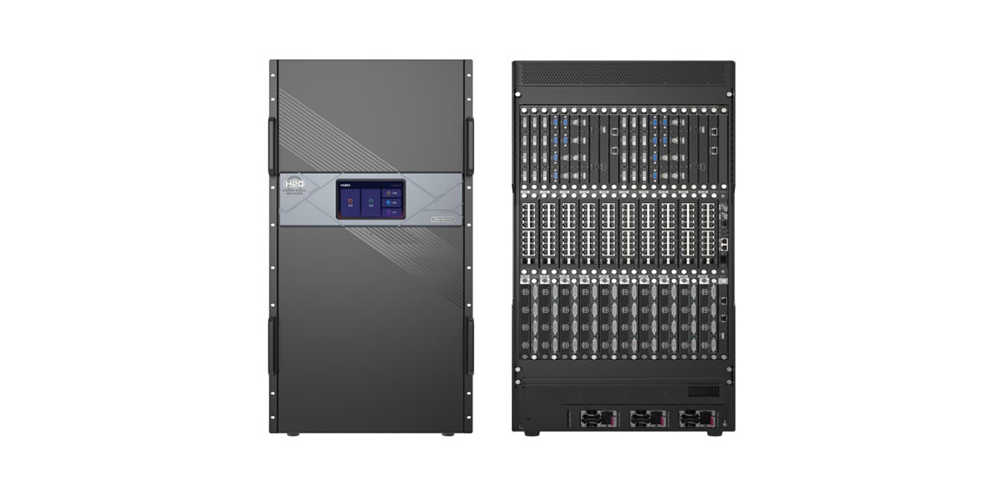
The LED display signal-flow guide explains the roles of the source, processing and sending hardware, receiving cards, and modules. The diagram below is a functional reference. Some functions share a device, and a particular installation may use a different arrangement.
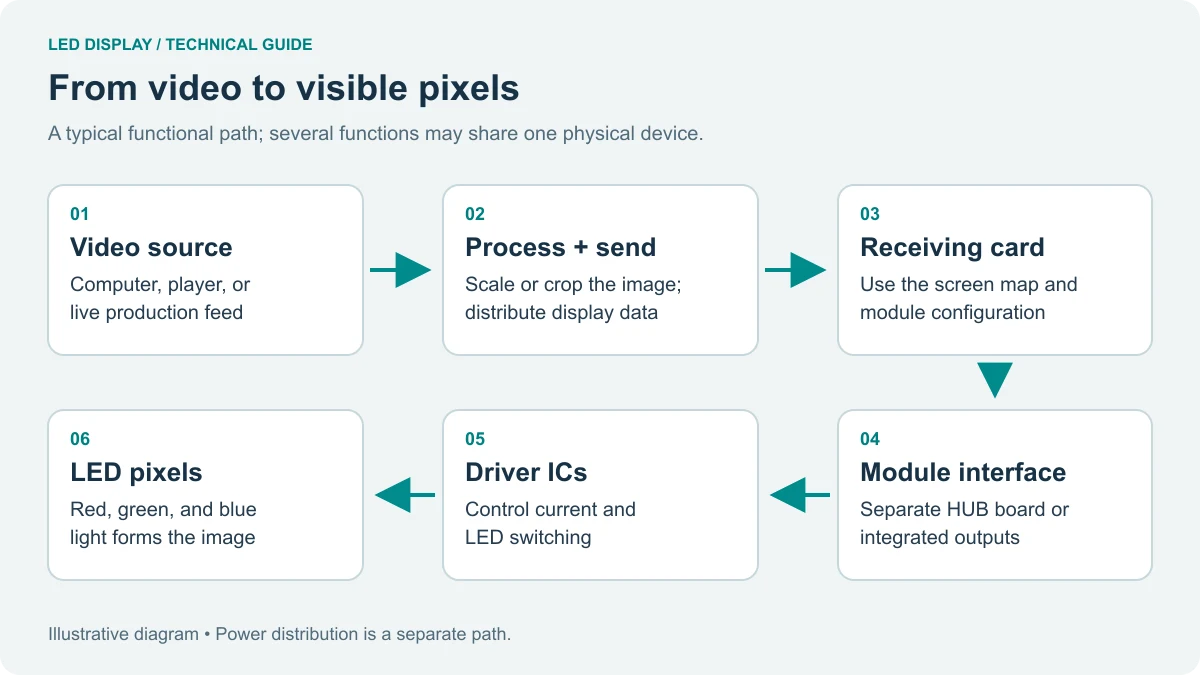
Write the expected response for each operating condition. During startup, the client might want approved branding until playback is ready. During an interrupted presentation, the preferred response might instead be black or a neutral holding image. These are project decisions, subject to the functions supported by the actual system.
An LED screen startup image is not a redundant video source. It cannot continue a live presentation or replace failed content delivery. A still picture may make an interruption less visually abrupt, but it does not establish that the program is healthy. Keep fault reporting and operator checks separate from the audience-facing image.
| Condition | Decision to approve | Evidence to retain |
|---|---|---|
| Normal system startup | Whether artwork is shown and for how long | Startup sequence and observed transition |
| Upstream video becomes unavailable | Black, a held frame, or stored artwork where supported | Exact signal interruption and resulting output |
| A display data connection is interrupted | Response of affected cabinets and any backup path | Connection location, affected area, and recovery |
| Normal video returns | Expected return to program content | Operator action required and final playback state |
Consider a meeting-room wall that starts before its presentation computer. The owner may accept a logo during that short interval but prefer a blank screen if a presenter disconnects halfway through a session. This hypothetical example needs two acceptance observations. Demonstrating the first condition cannot settle the second, even when both conditions use the same stored file.
2. Confirm LED Screen Startup Image Support
Identify the receiving-card model, controller model, firmware versions, and configuration software before promising customization. Support is a system property, not something established by the screen’s pixel pitch or cabinet dimensions. Ask for the relevant manual and confirmation for the supplied combination.
For example, NovaStar’s A8s-N specifications V1.3.0 describe customizable stored images for startup, disconnected Ethernet, and absent video. That is a documented feature of that card and its supported configuration. It should not be treated as approval for an unidentified receiver or for every operating mode.
The receiving-card photo below illustrates why an exact model label matters. It shows a DH7508-S, not the A8s-N example above. Use the label to request the correct documentation; the photograph itself establishes neither startup-image support nor compatibility with another card’s settings.
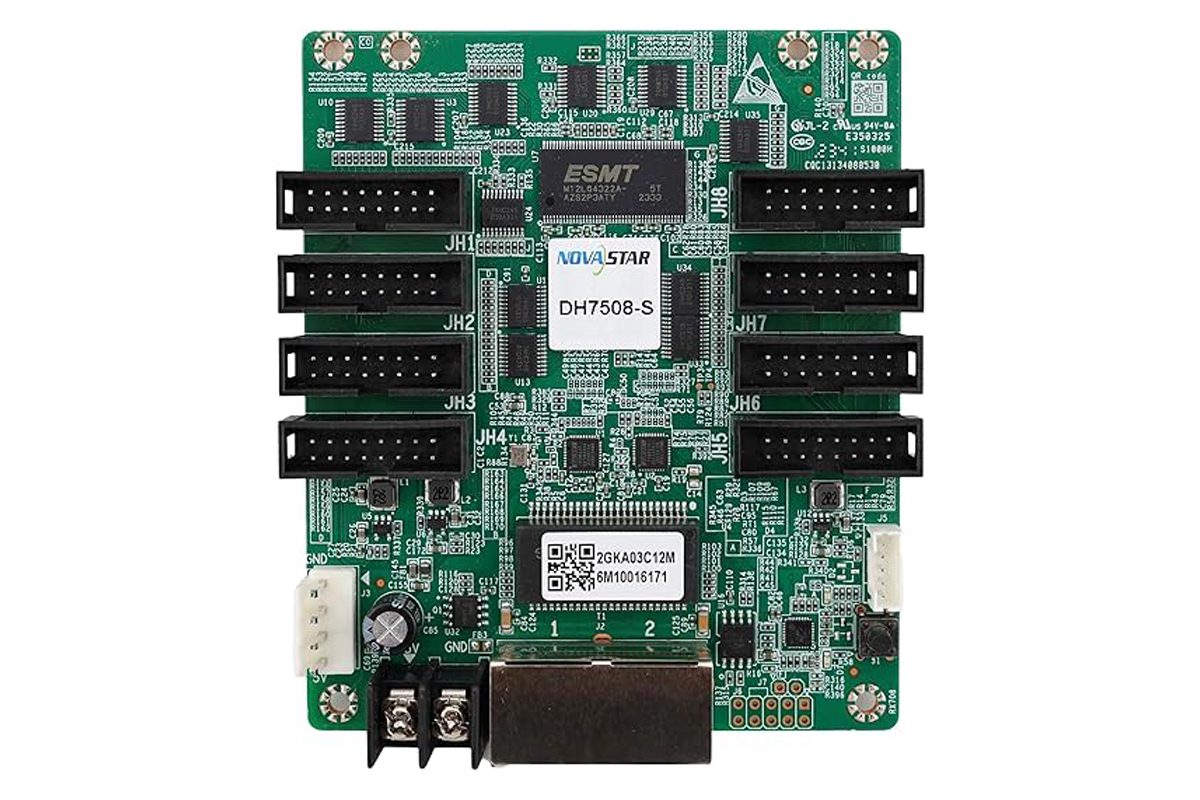
Our receiving-card selection guide covers identification and replacement considerations. For software and matching documents, use the NovaStar download page. Preserve the working configuration before making changes, and keep the previous approved artwork available for rollback.
Do not replace a receiver or upgrade firmware solely because a menu looks different from an online tutorial. Have the supplier establish whether the required function exists in the installed release and what procedure applies. A branding change should not become an unplanned change to the screen’s basic configuration.
3. Prepare Artwork for the Actual Pixel Canvas
Prepare the LED screen startup image against the native display canvas and the chosen placement method. Confirm the total pixel width and height from the approved configuration. Physical dimensions and pixel dimensions describe different things; an artwork file sized for a conventional presentation slide may not fit an unusually wide wall.
NovaLCT’s synchronous-system manual V5.8.0 lists BMP, JPG, and PNG as prepared-picture formats for its Prestore Screen function. The V5.4.8 manual describes screen-wide and single-cabinet effects, including stretched, tiled, or centered placement. Check the matching manual for the installed release before selecting an effect or assuming the same interface.
A whole-screen logo and a logo repeated on every cabinet are visibly different outcomes. Review whether the artwork should span the full wall, sit within a defined area, or repeat. For a nonrectangular arrangement, identify any unused regions and check the actual appearance rather than inferring it from a rectangular file preview.
Keep text brief and allow room around important elements. Thin lettering and small legal text may be difficult to read at the intended viewing distance. Review the proposed LED screen startup image from the normal audience position. Use approved brand artwork instead of copying a compressed logo from a website screenshot.
Avoid artwork that falsely suggests normal operation. A still image containing a clock, live score, or current-status message can become misleading when it stops updating. For an interruption state, ask the owner whether neutral branding communicates the situation better than a frozen image containing time-sensitive information.
Give the artwork a project-specific filename and revision so support staff can identify it without opening several similar files. Record who approved the design and which wall it belongs to. When multiple screens share a control room, check the destination before sending the picture. A correct file on the wrong wall is still an unacceptable result.
4. Test the Saved Image and Recovery
Preview the LED screen startup image on the actual wall during an agreed maintenance period. Keep the current configuration and a recovery route available. The commissioning technician should follow the model-specific procedure; this article does not provide a universal sequence for interrupting power or disconnecting installed equipment.
In the NovaLCT V5.4.8 workflow, Test Effect previews placement, Save to HW stores the picture, and Check Stored Picture checks the stored artwork. The manual also separates sending the behavior settings from saving them to hardware. A successful preview alone therefore does not prove that the intended startup response has been retained.
Repeat the agreed normal startup procedure after saving. Observe the entire wall for missing sections, repeated artwork, stretching, or old images. Record what happens before the source is ready and after valid content becomes available. Test the real startup order used by the venue, not just the order convenient for a demonstration.
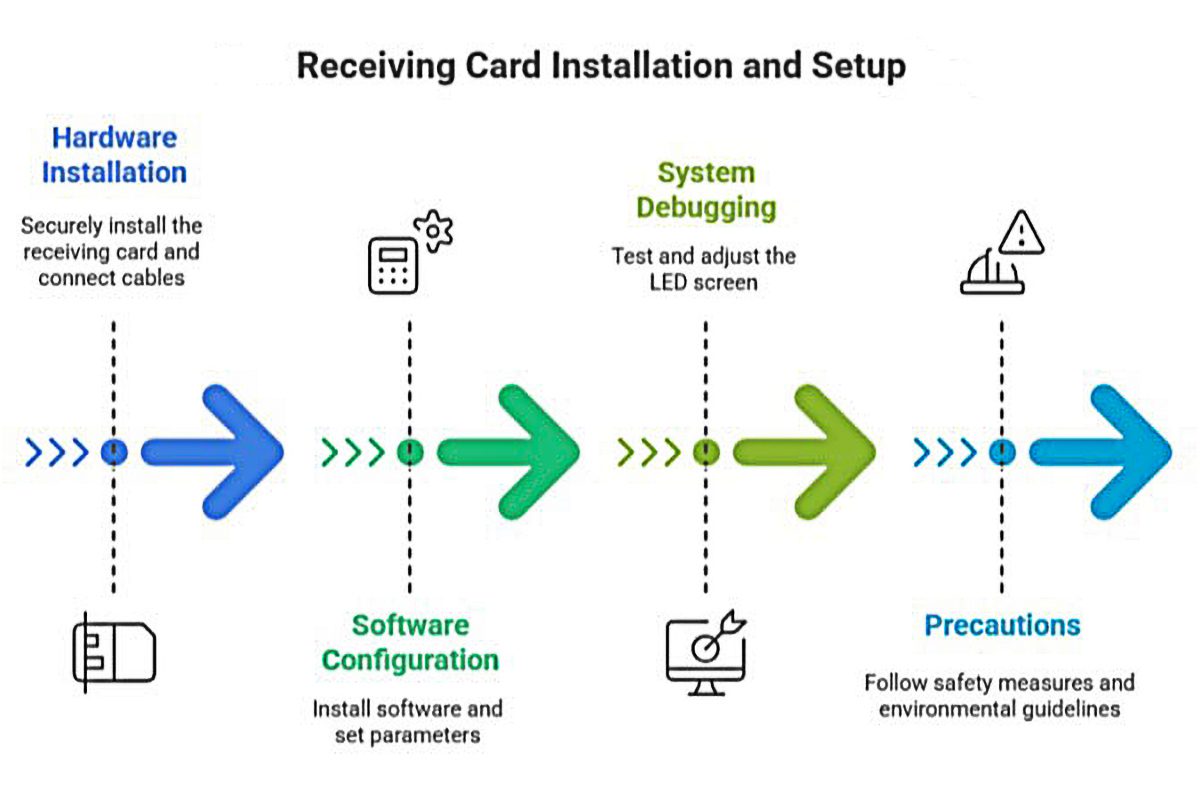
Test signal-loss conditions separately under the approved service plan. Removing the source signal and interrupting a downstream connection are different tests. An active backup path may also change the observed result. Record the actual change made so another technician can repeat the observation without guessing.
After restoring normal connections, check live playback and the expected operator controls. Save the accepted image, configuration reference, test date, and responsible technician in the handover pack. Following a receiving-card replacement or layout change, reassess the LED screen startup image because the stored content and its placement may need verification again.
Include the replacement scenario in the maintenance instructions. If one cabinet later shows a different logo, record its position and recent service history before overwriting the whole wall. Compare the affected hardware and stored settings with the accepted record. This gives support a narrower question than a general report that the display looks wrong.
Assign ownership of future changes as well. The client should know who may update branding, who can alter interruption behavior, and where the accepted files are kept. Close the commissioning record only when the agreed observations are complete. If a test must wait for venue access, retain it as an outstanding item with a responsible person.
5. Frequently Asked Questions
01. Can a startup logo replace emergency information?
Do not assign that role through a branding setting alone. Emergency communication requires its own approved system behavior, priority, and acceptance process. Ask the project team how any required override interacts with normal display control.
02. Will a stored picture appear when cabinet power is off?
No. Unpowered LED modules cannot emit the picture. A stored image concerns the output of functioning, powered hardware under its supported conditions; it is not a remedy for loss of cabinet power.
03. Should the installer keep the original artwork file?
Yes. Retain the approved source file and exported display file with their revision and project reference. This lets a later technician distinguish a requested branding update from an old or incorrectly sized replacement.
04. Can the same artwork be reused after enlarging the wall?
Review it again against the revised pixel canvas and mapping. Reusing the source design may be reasonable, but the previous export and placement settings should not be assumed correct for the new arrangement.
6. Approve the Handover Settings
Approve the LED screen startup image together with its trigger conditions, placement, saved state, and return to normal playback. To review a proposed installation, send EagerLED your display requirements, including the native pixel canvas, controller and receiver models, software versions, and the audience-facing behavior you want during startup and signal interruption.
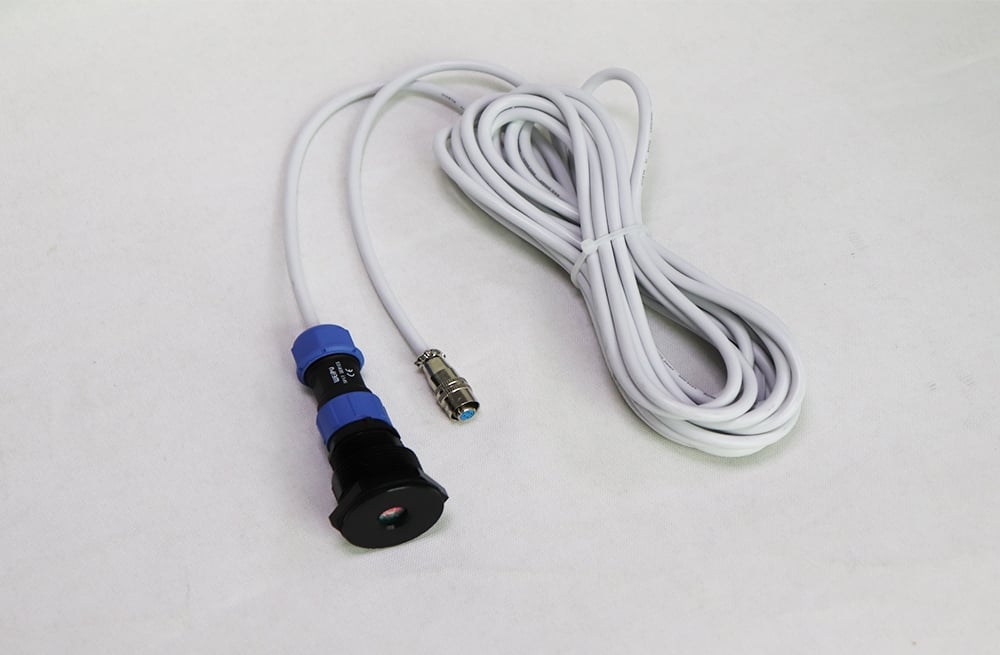 LED Light Sensor Placement: Make Automatic Dimming Work