
NovaStar VX1000 Pro combines video processing and LED sending, with ten Ethernet outputs and up to 6.5 million output pixels. It suits projects that need compatible 4K inputs, flexible source layouts and configured backup. Size the LED wall by its native pixels and port map; 4K input capability does not mean one unit can drive every 4K-resolution wall.
- Total wall pixels, per-port loading and receiving-card compatibility.
- Input connector timing and the layer resources needed simultaneously.
- Working mode, optical path and backup arrangement.
- Tested settings, presets and recovery files included in handover.
On this page
What Is the NovaStar VX1000 Pro?
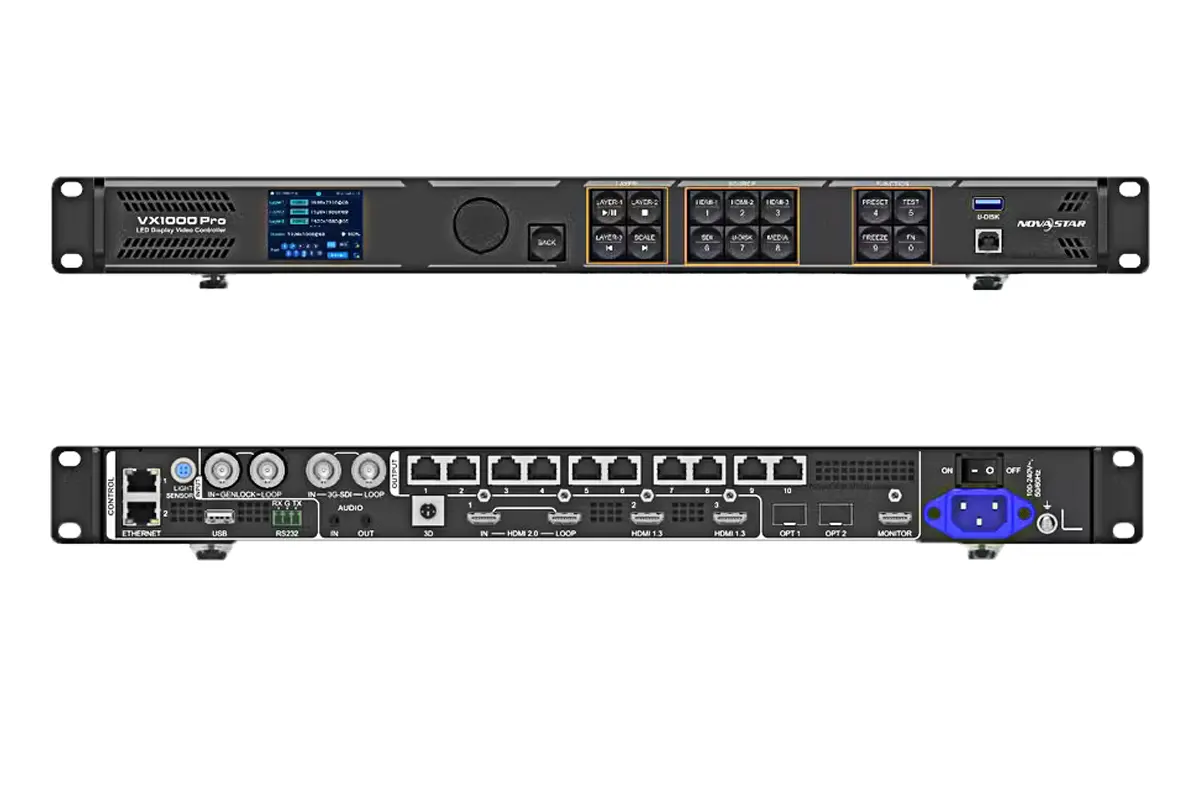
The NovaStar VX1000 Pro integrates a video processor, multi-format switcher and LED sending controller. It accepts modern HDMI and SDI sources, scales content to the canvas and distributes data through ten Gigabit Ethernet outputs or optical links. The controller supports Video Controller, Fiber Converter and ByPass modes. ByPass can reduce latency for live camera work, while Video Controller mode provides layered composition and scaling.
Maximum output width and maximum output height are separate limits, not a promise of a 10,240-by-8,192-pixel wall. Total output remains subject to the 6.5-million-pixel capacity and the permitted per-port mapping. Confirm bit depth, frame rate, mode, redundancy and receiving-card requirements for the actual design.
NovaStar VX1000 Pro Technical Specifications
| Feature | VX1000 Pro specification | Planning meaning |
|---|---|---|
| Pixel capacity | Up to 6.5 million pixels | Match total cabinet pixels and refresh needs |
| Maximum canvas | Maximum width 10,240 pixels or height 8,192 pixels, within total loading limits | Large control-room or panoramic layouts |
| Inputs | HDMI 2.0, 2× HDMI 1.3, 3G-SDI, 10G optical, USB 3.0 | Supports presentation, camera and media sources |
| Outputs | 10× Gigabit Ethernet, 2× optical, HDMI monitor | Distribute data with copper or fiber |
| Layers | Six 2K-equivalent layer resources; larger layers consume more resources | Compose multiple sources independently |
| Presets | 256 programmable presets | Recall show scenes quickly |
| Power | Confirm the current specification and supplied configuration | Allow headroom for installation power design |
| Operating temperature | 0–50°C | Provide ventilation and environmental control |
01. Capacity and resolution
Input resolution, output canvas and pixel capacity are separate specifications. A 4K source can be accepted while the LED wall uses a different native resolution. Calculate the wall from cabinet width, cabinet height and pixel pitch, then reserve capacity for scaling, monitoring and redundancy.
02. Connectivity and audio
HDMI carries embedded audio, and dedicated 3.5 mm input and output connectors support independent audio routing. Optical ports can be configured for input, output or loop depending on the system design. Keep signal paths labelled so operators can identify the active source during an event.
Key Features and Upgrades
01. Six-layer composition
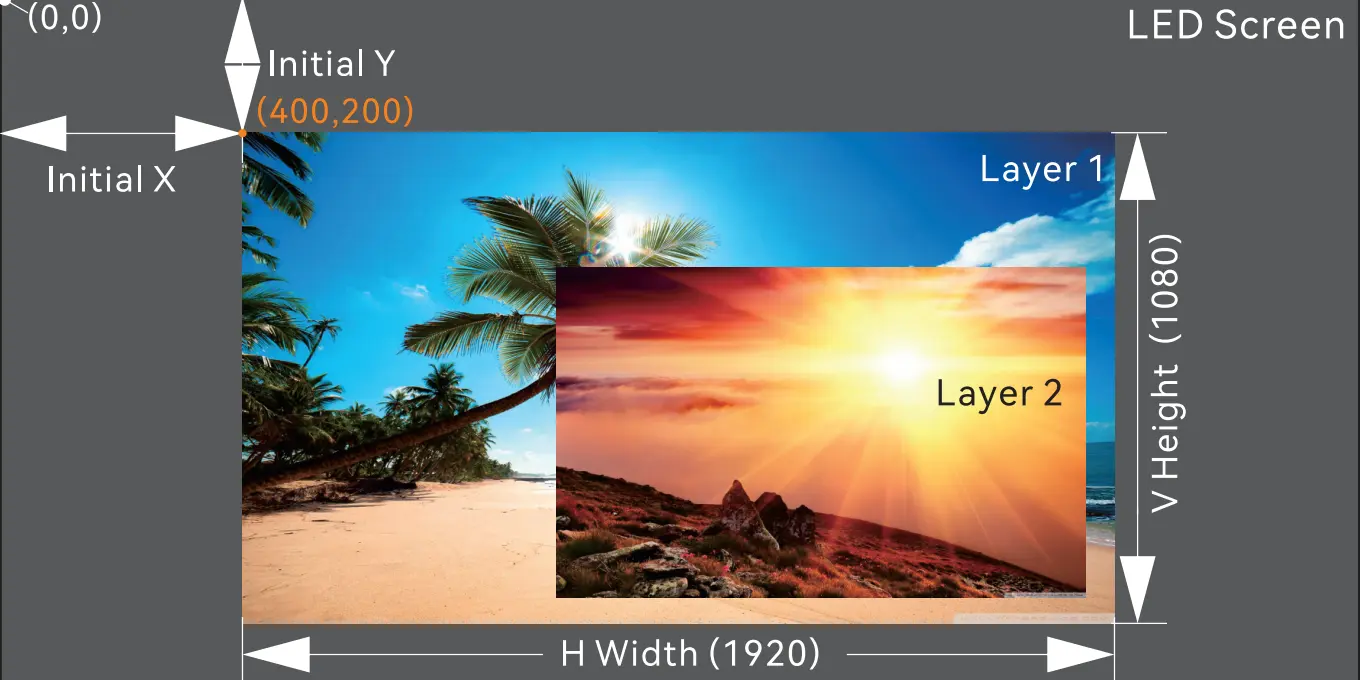
The six-layer headline describes six 2K-equivalent resources. A 4K-class layer uses four resources and a 4K-by-1K layer uses two, depending on the input connector capacity selected for that layer. Plan the simultaneous layout before ordering; six arbitrary high-resolution sources are not guaranteed. Position, scale and priority settings then define the accepted composition.
02. Low latency and 3D
ByPass mode can deliver near zero-frame delay when the cabinet loading direction and configuration meet the requirements. The controller also supports 3D workflows with compatible emitters; 3D operation reduces available output capacity, so calculate the project with that reduction included.
03. Backup and presets
Device backup, input backup and Ethernet-port backup help keep an LED display online. Save a tested preset after every commissioning milestone. Presets reduce operator error and make rental deployments repeatable across venues.
VX1000 Pro vs VX1000
| Decision point | NovaStar VX1000 | NovaStar VX1000 Pro |
|---|---|---|
| Maximum input | 3840×1080@60Hz | 4096×2160@60Hz |
| Layers | 3 | 6 |
| User presets | 10 | 256 |
| HDMI | Check the standard VX1000 input specification | HDMI 2.0 |
| USB playback | Unavailable | Available up to 3840×2160@60Hz |
| Audio I/O | No independent jacks | Independent 3.5 mm input/output |
| Optical mode | Basic | Self-adaptive input/output with loop |
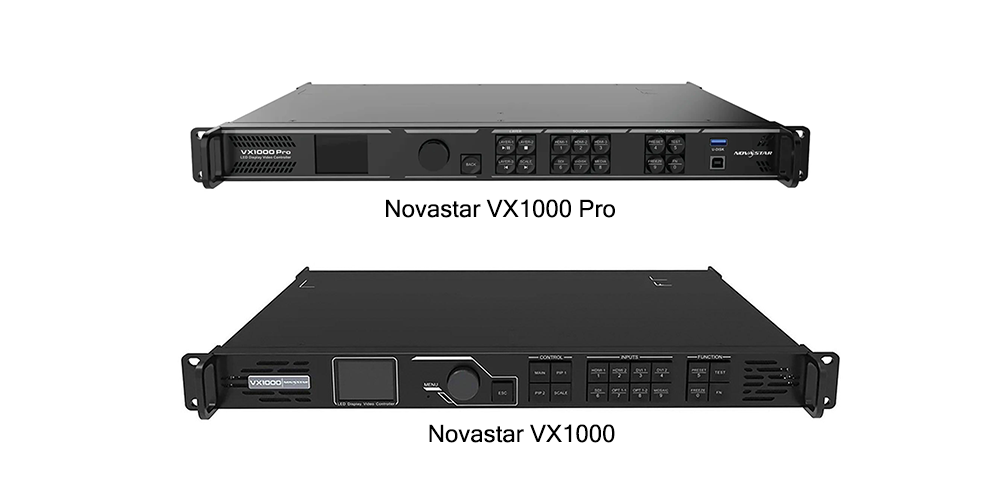
Choose the NovaStar VX1000 Pro when the project needs true 4K input, more layers, frequent scene recall, USB playback or stronger redundancy. The original VX1000 may remain suitable when its inputs, composition and control functions meet the project. Both models require a separately checked output loading plan.
Applications and Buying Guidance
| Application | Why VX1000 Pro fits | Check before ordering |
|---|---|---|
| Broadcast and live events | Low latency, SDI, backup and presets | Camera shutter, genlock and redundancy test |
| Corporate and retail | 4K presentation and six-layer layouts | Viewing distance, brightness and color calibration |
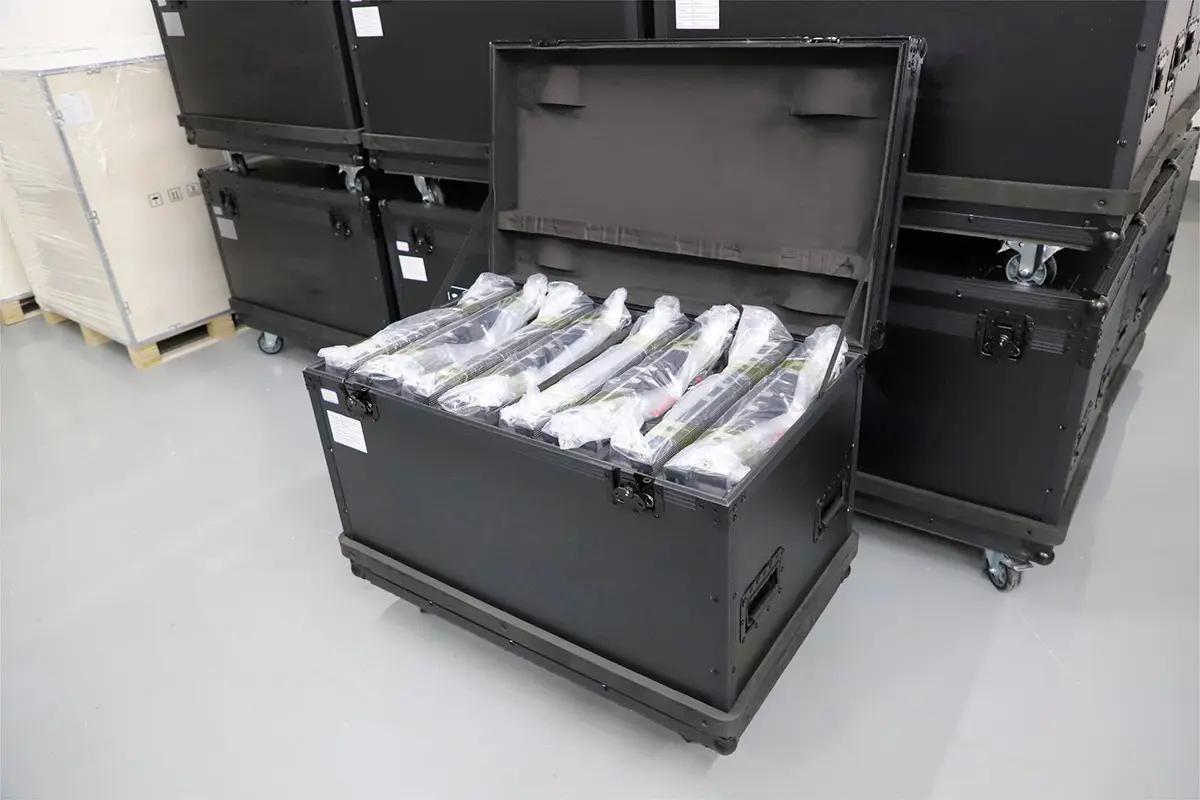
| Rental and staging | Fast scene recall and flexible I/O | Transport cases, spare cables and venue power |
| Control rooms | Large canvas, mosaic sources and uptime features | 24/7 thermal plan and dual-controller design |
Before requesting a quotation, provide screen width and height, pixel pitch, cabinet model, nearest viewing distance, indoor or outdoor environment, source formats, frame rate, camera requirements, service access and destination power standard. A supplier can then calculate native resolution, receiving-card count, Ethernet loading and a complete bill of materials.
NovaStar VX1000 Pro Setup Guide
01. Connect the system
Connect power, source inputs, monitor output, Ethernet or optical outputs and the control computer. Use labelled cables and keep the source frame rate consistent. Confirm that the LED wall is powered and that receiving cards report normal status.
02. Configure the screen
Open Menu → Screen Config → Quick Config. Enter cabinet rows, columns, port quantity and data flow. Verify the virtual cabinet map against the physical wall. Incorrect data flow can create reversed images, blank columns or repeated modules.
03. Build layers and presets
Use the front panel or web interface to select a source, create a layer and set its position and scale. Save a preset for the normal show, a backup source and a safe black-screen state. Export configuration files after commissioning.
Troubleshooting and Maintenance
If there is no image, check screen configuration, data flow, output freeze and receiving-card power. If there is no signal, test the source cable, input selection and HDCP status. If web control cannot connect, place the PC and controller on the same subnet and verify the IP address. For flicker or camera scan lines, test refresh, PWM, shutter speed and cabinet loading direction together. Keep vents clear, record firmware versions and inspect optical links before every event.
Pixel loading and quotation checklist
A 3,840 × 1,080 wall contains 4,147,200 pixels, while a 3,840 × 2,160 wall contains 8,294,400. The latter exceeds the stated 6.5-million-pixel device ceiling even though the controller can accept a compatible 4K input. Scaling a source to a smaller wall and loading a full native 4K wall are different tasks.
| Provide with your enquiry | Ask the supplier to return |
|---|---|
| Cabinet pixel dimensions and layout | Total loading calculation and a port-by-port cabinet map for the intended settings. |
| Source formats and simultaneous windows | Input timing confirmation and a feasible layer-resource allocation. |
| Optical distances and backup requirement | Supported converters, optical accessories and an explicit primary/backup signal diagram. |
| Operator and service needs | Included commissioning, saved presets, cabinet files, firmware record and recovery procedure. |
Compare quotations for the same operating mode and bill of materials. A processor-only price may exclude optical conversion, transport protection, cabling, a second controller or commissioning. Do not count a copied optical output as additional pixel capacity, and do not assume spare Ethernet ports automatically establish a tested backup system.
Before acceptance, use the real sources to check mapping, scaled content, the agreed simultaneous layers and any required low-latency or backup behaviour. Retain the accepted settings and verify that they return after an agreed restart. For rental jobs, label the saved layout and cable plan so another operator can rebuild the same screen.
FAQs
01. What is the maximum resolution of the VX1000 Pro?
The total output ceiling is 6.5 million pixels, with separate maximum width and height limits of 10,240 and 8,192 pixels. Those dimensions cannot be multiplied into a supported full rectangular canvas. Check the intended mode, frame rate, bit depth and cabinet map.
02. Can the VX1000 Pro drive a 3D LED display?
Yes, with a compatible 3D emitter or EMT200 workflow. 3D mode reduces output capacity, so recalculate the wall before commissioning.
03. How many Ethernet ports are available?
There are ten Gigabit Ethernet outputs, plus two optical ports that can be assigned according to the selected mode and loop design.
04. What is the main advantage over VX1000?
The Pro model adds six layers, 4K×2K input at 60 Hz, 256 presets, HDMI 2.0, USB playback, independent audio and broader backup options.
 NovaStar MBOX600 Pro: Specs, Setup & LED Control Guide
 Colorlight VX20: 4K Specs, Pixel Capacity & Setup Guide