
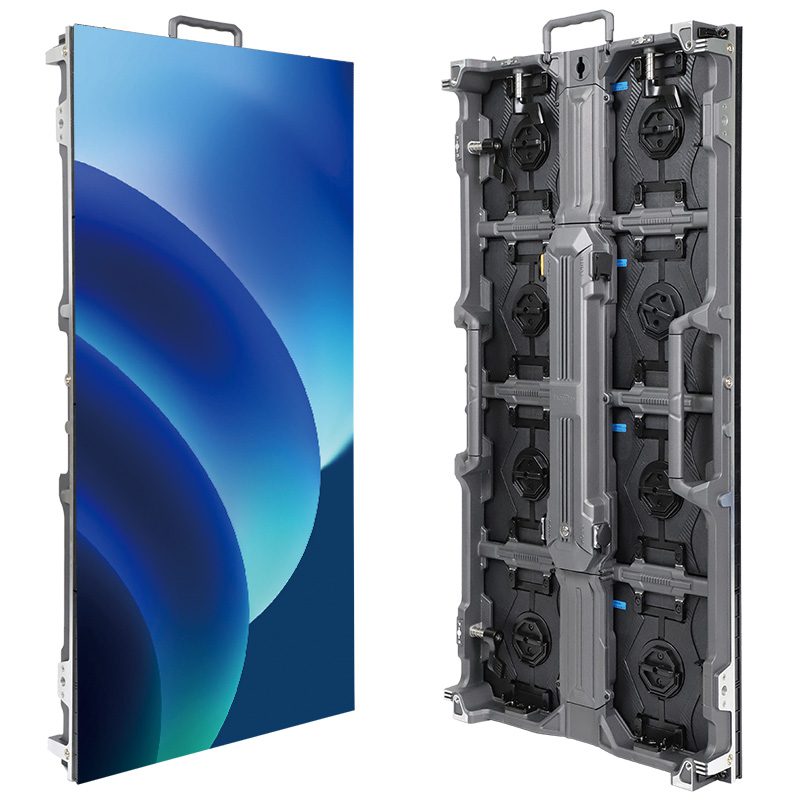
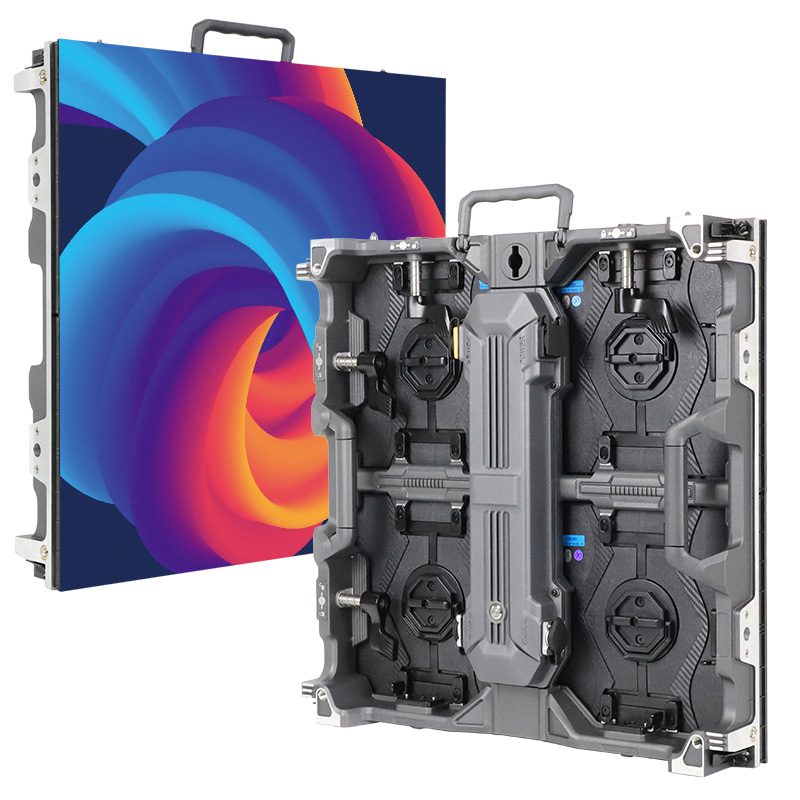
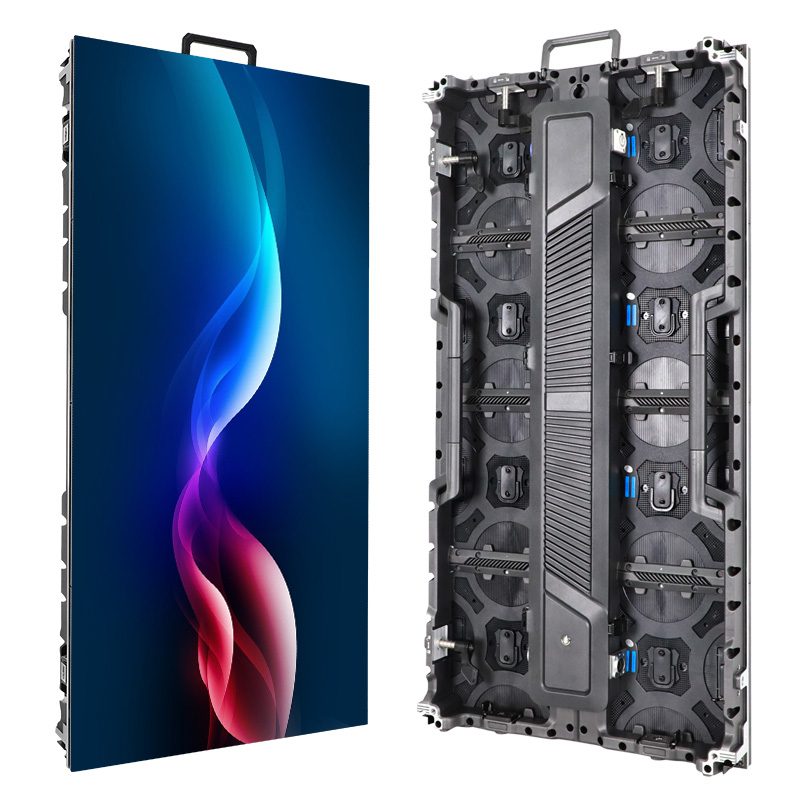
A programmable LED screen is an LED display whose messages, graphics, or video can be changed through compatible control software and hardware. For commercial signage, “programmable” usually means creating and publishing content without replacing the physical sign. It does not, by itself, promise live video, remote access, automatic data feeds, or the ability to run your own code.
For a buyer defining a first commercial sign, that distinction prevents a common mismatch: ordering panels that look right while leaving the daily update process unresolved. Start with who changes the message, how the update reaches the display, and what should appear when the connection is unavailable. Then match the screen and control package to that requirement.
1. What Does a Programmable LED Screen Actually Do?
01. A Changeable Digital Message
The useful promise is a changeable digital message. A small scrolling sign might provide text fields, fonts, and a few animation effects. A modular full-color display can reproduce more complex imagery when its controller, pixel resolution, and media support permit it. Both may be sold under the same broad description.
Consequently, a programmable LED screen is a category description rather than a complete specification. Ask the seller to demonstrate your intended message. A moving logo does not prove that small price labels will remain readable, and a stored promotional video does not establish that a live camera can connect.
02. Publishing vs. Custom Development
Most signage staff do not need software development skills to publish an approved playlist. They use the tools supplied for the chosen control system. Custom integrations are different: a stock feed, booking database, or third-party application may require compatible software, permissions, licenses, and development work. Include those requirements explicitly rather than assuming that “programmable” includes them.
A programmable LED screen also should not be assumed to behave like a general-purpose tablet. An operating system listed in a player’s specification does not automatically establish permission or support for installing arbitrary applications. If your project depends on a particular app, browser page, or external service, ask for written compatibility confirmation and a demonstration of that exact use. An exported video may reproduce the appearance of an application without reproducing its interactive functions.
2. What Makes the Display Work?
01. Screen Hardware and the Content Source
A commercial programmable LED screen normally brings together the visible LED modules, a compatible receiving system, sending or processing hardware, and a source of content. Some devices combine content storage, playback, and sending; other installations distribute those functions across separate equipment.
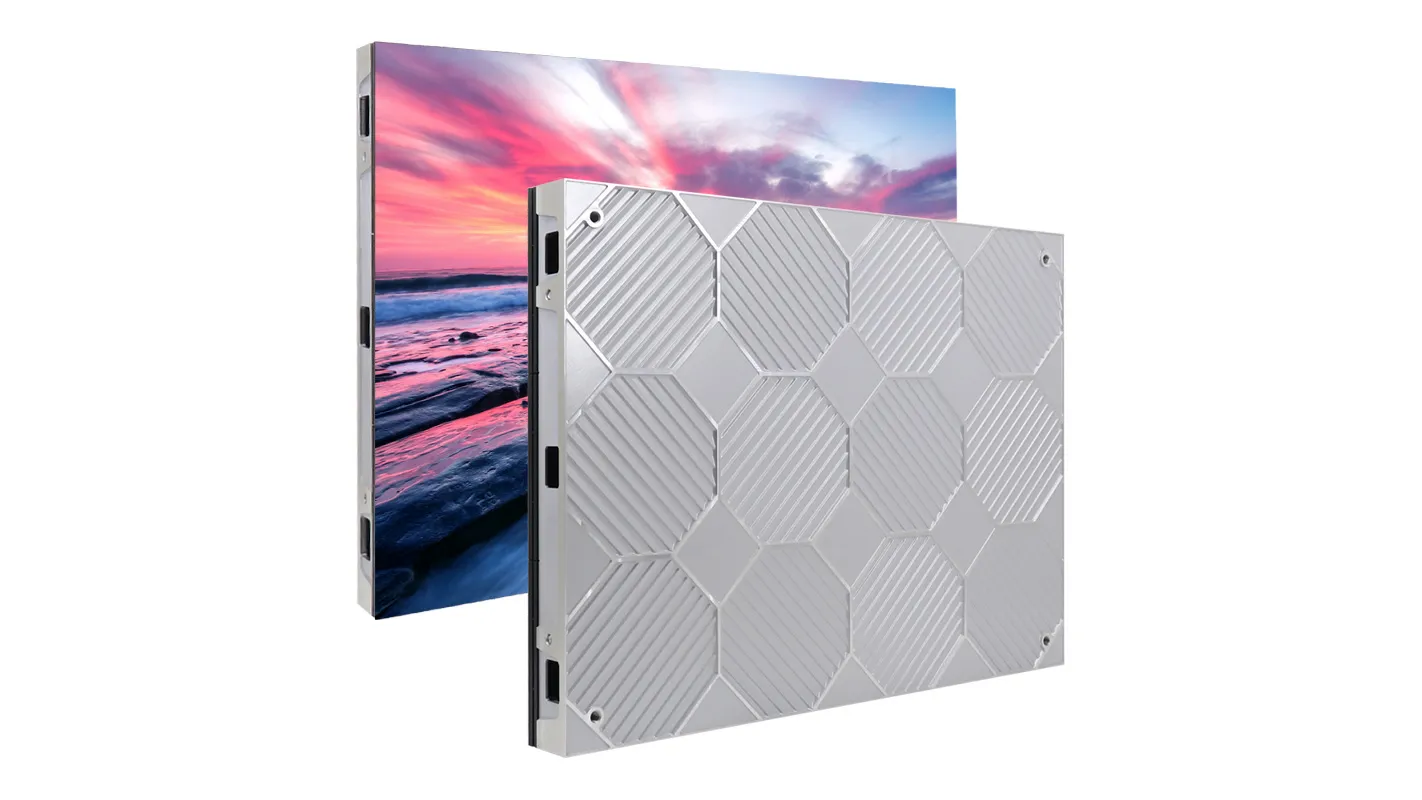
The EA640F2 indoor cabinet, for example, describes the display hardware. It does not independently define which staff member can publish a message or whether a cloud service is included. Those decisions belong to the specified control package. Confirm the complete equipment list and compatible configuration before comparing offers.
02. Data Connections and Configuration
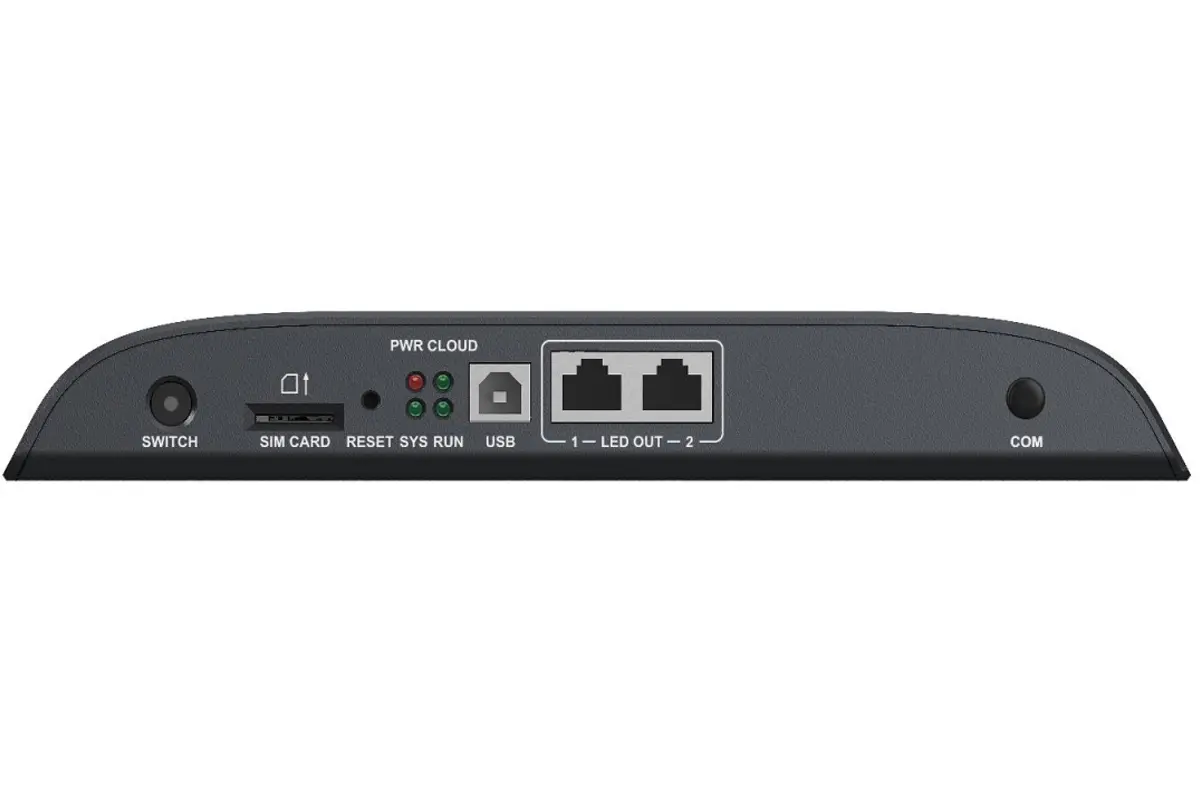
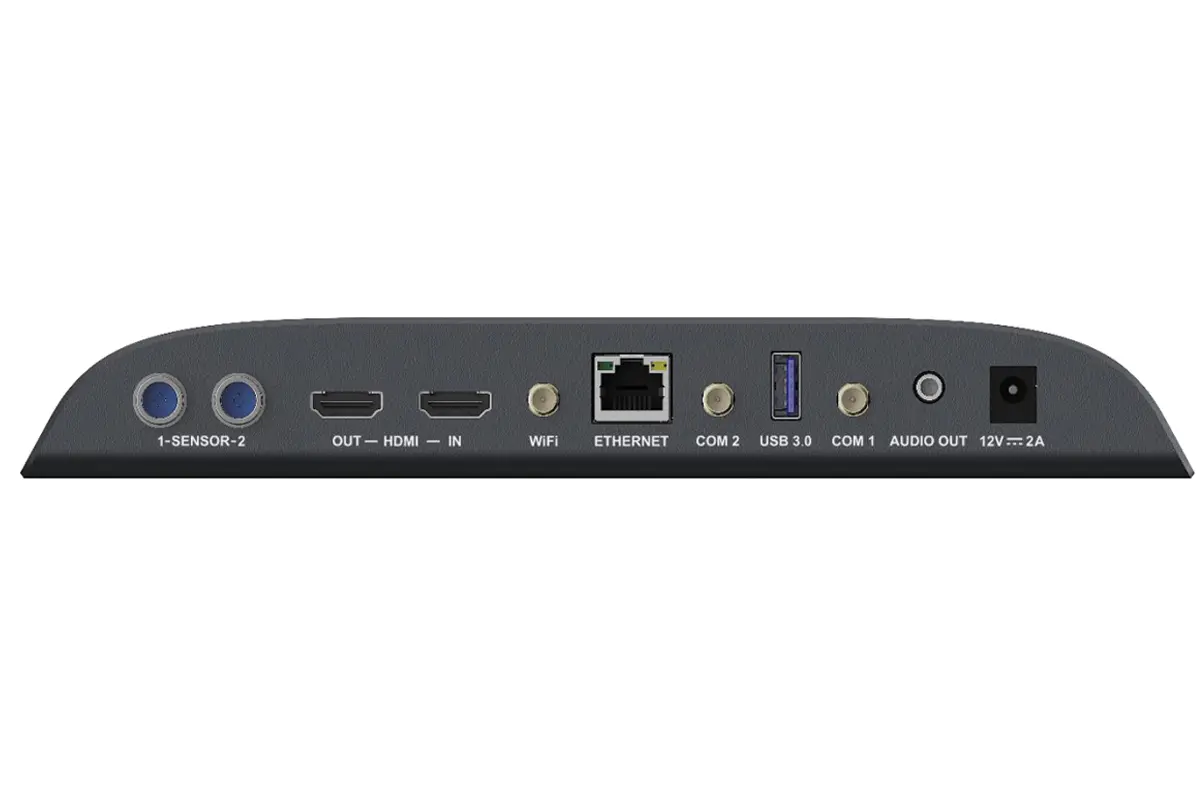
Power and signal distribution also remain necessary. A network connector on a player may serve device management, while a similar-looking LED output carries data to receiving cards. Follow the exact equipment documentation and the approved wiring plan. Content software cannot compensate for incompatible receivers or an incorrect cabinet map.
The TB40 front panel shows the LED output connections. Compare these with the separately labeled management and source connections on the rear panel.
The TB40 rear panel provides a concrete example: HDMI input, the ETHERNET management connection, and the DC power input have separate roles. Check the labels and supplied documentation before connecting the player.
The EagerLED overview below shows the TB40 hardware and introduces its content publishing and cloud management functions. Use it as a player reference; confirm the supplied software, accounts, network connection, and supported mode for your installation.
Watch the official EagerLED TB40 video on YouTube.
3. Stored Playback or a Live Source?
01. Match the Playback Workflow
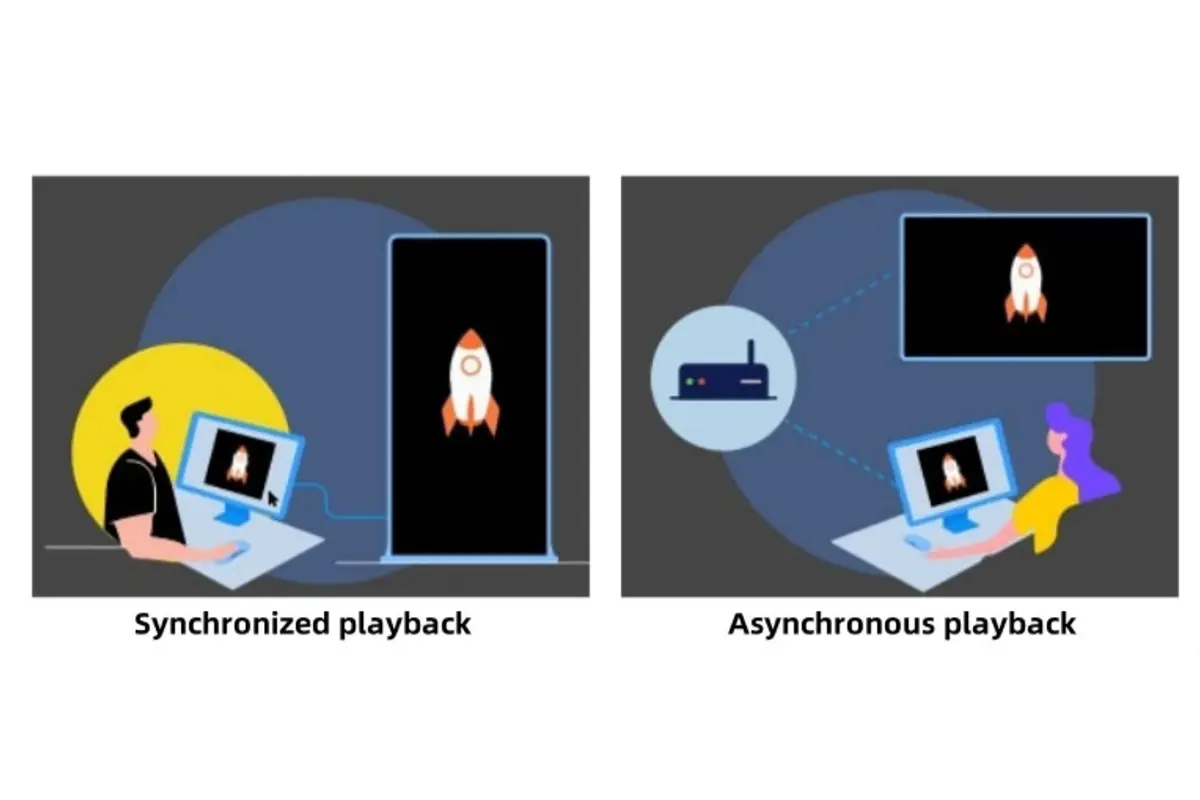
Stored playback runs a prepared program from local storage on supported equipment. A live-source workflow displays an external signal while that source remains available. A programmable LED screen can support either approach, or both, depending on the actual devices and operating mode.
EagerLED’s Taurus multimedia player guide explains this distinction and the separate constraints on media decoding and LED output. Use it for model-specific checks after defining the workflow; a general product-family name is insufficient to approve a configuration.
| Requirement | Workflow to discuss | Demonstration to request |
|---|---|---|
| Repeat an approved promotion each day | Stored content with a supported schedule | Publish the program, disconnect its update link, and observe playback |
| Show a presentation or live camera | Compatible live input and processing | Connect the actual source and test timing, scaling, and visible delay |
| Change several branches remotely | Supported central publishing platform | Approve an update and confirm delivery to the intended devices |
| Show changing external information | Supported feed or custom integration | Interrupt the feed and check the agreed stale-data behavior |
02. Plan for an Unavailable Connection
A remote upload is not the same as continuous streaming. A locally stored playlist may continue after an internet interruption, while new uploads, monitoring, or online information stop working. Test the proposed programmable LED screen under the actual failure condition. A successful upload while everything is connected answers only part of the question.
Also distinguish switching modes from automatic recovery. A device may support stored and live content without automatically choosing the desired fallback when a source fails. Ask which behavior is documented, which requires configuration, and which must be demonstrated before acceptance.
4. Why Pixel Resolution Still Matters
01. Confirm the Native Pixel Canvas
Changing content cannot add physical pixels. A programmable LED screen needs enough addressable detail for the message and the intended viewing positions. Screen dimensions, pixel pitch, and cabinet arrangement determine the available canvas; software then places content within it.
For a hypothetical 2 m by 1 m display, approximately 6.6 by 3.3 ft, an exact 4 mm pitch would produce a 500 by 250 pixel canvas. This is a calculation example, not an available EagerLED configuration. Real dimensions must follow the selected modules and cabinets. A full-HD file does not turn that hypothetical canvas into a full-HD display.
Test the smallest essential text on the proposed raster from realistic audience positions. Check currency symbols, punctuation, long product names, and the amount of information shown at once. Scrolling can fit additional text over time, but readers still need enough time to understand the message. A still image with fewer words may communicate more reliably.
Controller capacity needs separate confirmation. Total pixels, output allocation, dimension limits, and supported media formats can each constrain a design. Do not treat a video-decoding label as an LED output specification. Ask the supplier to approve the final pixel map and a representative content file together.
02. Keep an Approved Visual Reference
Keep an approved reference file for that test. Include one ordinary promotional layout, the longest expected message, and the smallest essential text. Ask the supplier to show the file without substituting a more flattering demonstration. Record the content dimensions and the viewing position used for approval, along with any scaling or cropping. If the cabinet arrangement changes later, repeat the check against the revised pixel canvas. This gives the buyer and installer a shared visual reference when discussing readability; it does not replace the separate checks for brightness, environmental suitability, or electrical and structural design.
5. What an Update Should Change
01. Separate Messages from Screen Settings
Routine publishing should change the message while leaving the commissioned screen configuration under controlled access. For a programmable LED screen, the staff task may be replacing an image or assigning a playlist; it should not require guessing module parameters or rewriting the cabinet map.
02. Assign Publishing Responsibilities
Agree on publishing ownership before installation. Identify who prepares content, who approves it, and who can change device settings. Request a handover that includes supported file requirements, the final screen resolution, account responsibilities, and a way to restore the last approved program. Record any subscription or optional communication equipment separately.
Then rehearse one ordinary change with the future operator. Use an actual message, publish it through the agreed route, and verify the displayed result. Confirm that the correct device received the update and that the operator can recover from a mistaken content selection. This is more useful than a demonstration performed only from the installer’s own computer.
For timed promotions, include a transition in that exercise. Check the device’s date, time zone, and approved schedule, then watch the screen before and after the change. Ask what happens to expired material and whether a missed update leaves the previous program running. These are questions to verify on the proposed equipment, not capabilities guaranteed by the word “programmable.” Keep the approved content files and schedule record with the handover documents so future staff can identify what should be on screen.
6. Prepare and Verify a Content Update
01. Build the Layout for the Actual Screen
For a programmable LED screen, prepare a reusable layout at the agreed pixel dimensions. Give essential information, such as a price or opening time, a clear position and enough space. Preview the longest message as well as the shortest. A layout that works for a landscape photograph may crop a portrait promotion or leave small text unreadable.
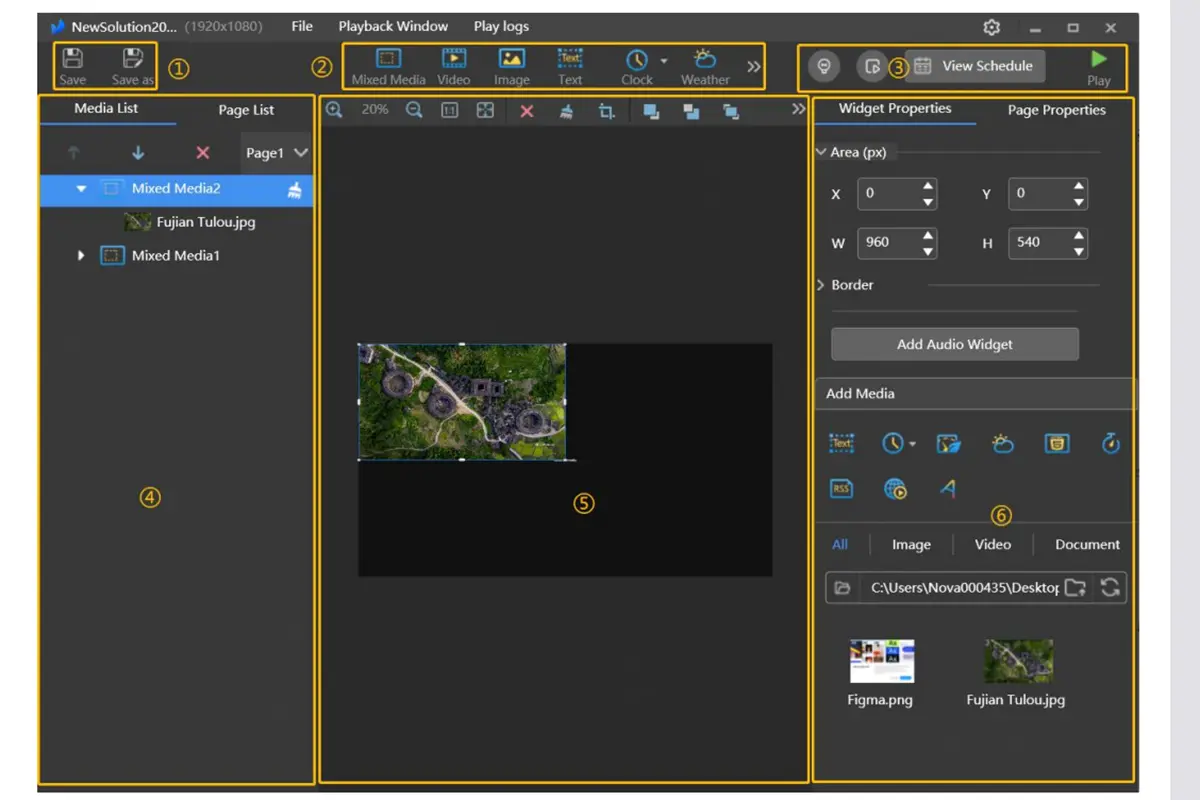
The ViPlex editing example below separates the media list, canvas, and item properties. It illustrates how content is arranged within a program; the exact controls depend on the installed software version and operating mode. Use the ViPlex Express workflow guide alongside the documentation supplied for your player.
02. Publish to the Correct Device and Check the Result
Before sending an update, confirm the destination device and program name. Preview the page order, image proportions, and display duration. A completed transfer confirms delivery, but the operator should still observe the real screen. Check the first item, a full loop, and any scheduled transition relevant to the promotion.
This EagerLED tutorial demonstrates program creation and publishing in ViPlex Express for TU15 Pro and TU20 Pro equipment. It is a workflow example, not a claim that every TB player uses identical menus or supports every demonstrated function. Match the instructions to the supplied device and software release.
03. Keep a Recoverable Handover Package
Keep the approved media files, editable program, screen dimensions, schedule, and equipment versions together. Record the last accepted program name and a supported way to restore it. This lets a new operator distinguish an outdated promotion from a connection or configuration problem. Ask the installer to demonstrate recovery using the owner’s authorized account before the system is handed over.
7. FAQs
01. Can the display show languages other than English?
That depends on the authoring tool, fonts, and rendering workflow. Test the required scripts, accents, symbols, and text direction. An exported image can preserve a layout, but the display still needs enough resolution for its smallest characters.
02. Does phone control mean anyone nearby can change the sign?
No. Supported connections still need appropriate access controls. Have the installer demonstrate the authorized publishing route and explain how device access and account ownership are handed over. Do not assume that the presence of Wi-Fi establishes either public access or secure commissioning.
03. Can new control hardware make an existing indoor panel suitable outdoors?
No. Weather exposure concerns the complete display assembly, connections, power distribution, and installation. A different player does not change the panel’s environmental suitability. Request a configuration documented for the proposed location.
04. Does every programmable LED screen need a permanent computer?
No. A compatible player can run stored content without a continuously connected PC. A live computer source must remain available while it supplies the picture. Confirm the quoted workflow and test startup after a planned power interruption.
05. Can I reuse my existing control equipment?
Only after checking the receiving cards, cabinet map, output capacity, connections, and supported operating mode. Matching connector shapes is insufficient. Give the supplier the existing equipment model, firmware version, and screen pixel dimensions before approving reuse.
06. Is cellular connectivity included in the price?
Do not assume so. Request separate confirmation of the compatible cellular module, antenna, SIM, data service, and any cloud subscription. Ask who owns and renews each account, and verify coverage at the installation site.
8. Conclusion
Describe the message first: content examples, smallest text, viewing positions, update frequency, and whether operation must continue offline. Add the available dimensions, installation environment, and the person who will publish updates. These details let a supplier distinguish a simple message sign from a modular video-display project.
To specify an EagerLED programmable LED screen, send your display and content requirements. Request separate confirmation of the screen hardware, player or processor, publishing software, optional services, and handover scope. For practical equipment demonstrations, the EagerLED factory channel provides an additional starting point; confirm the exact proposed configuration in your quotation.
 Rolling LED Screen Price: Compare the Complete Quote
 Vertical LED Screen: Portrait Does Not Mean 9:16