When buying a Wi-Fi controlled LED poster display, specify whether you need local updates, remote management or stored playback without a network connection. Require the supplier to demonstrate each promised workflow on the quoted player and software. A Wi-Fi label or a list of ports cannot establish all three.
1. Choose the update workflow before the hardware
A Wi-Fi controlled LED poster display should be selected around how your team publishes content. Do you need a staff member to update one nearby screen, a head office to manage several locations, or a display that keeps showing stored media when the venue network is unavailable? Put that workflow into the quotation.
Wireless connection, Internet access and content playback are separate functions. A “Wi-Fi control” label does not establish cloud management, live wireless video or offline continuity. Ask for the exact player, firmware and software package that will be supplied.
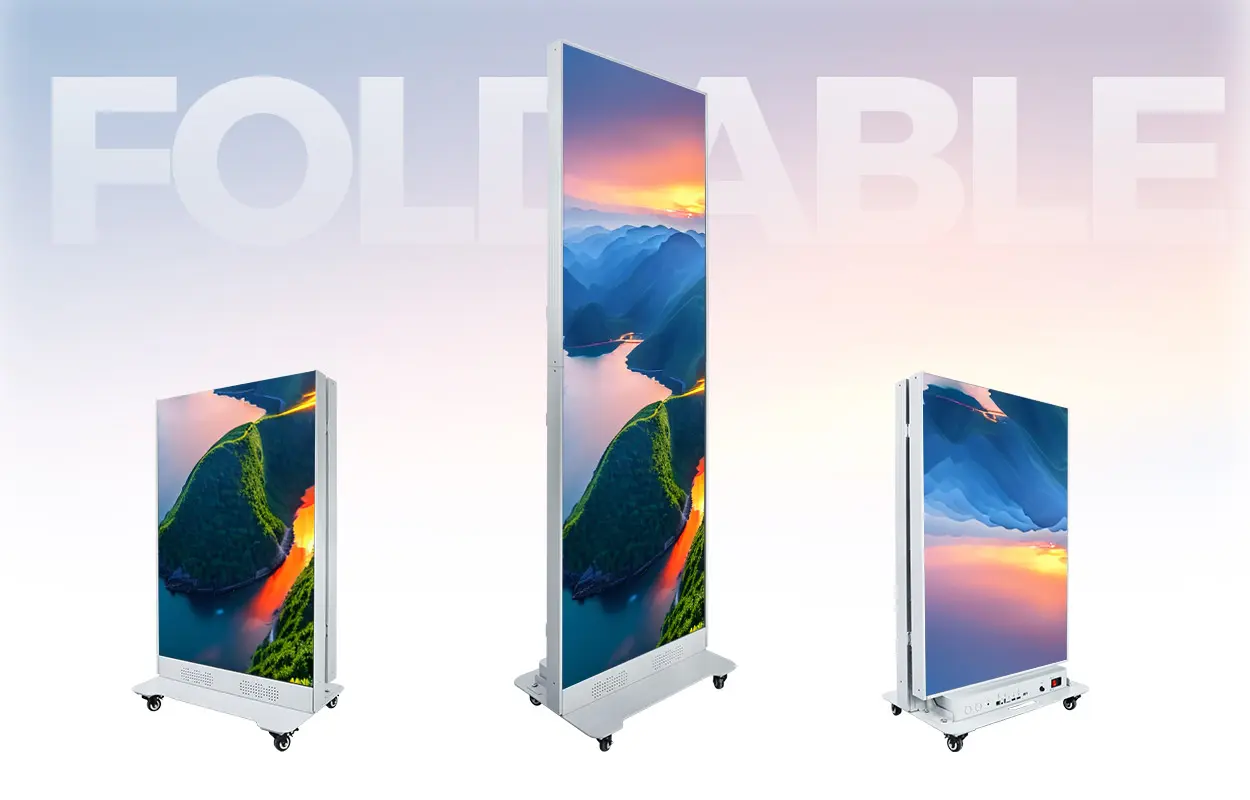
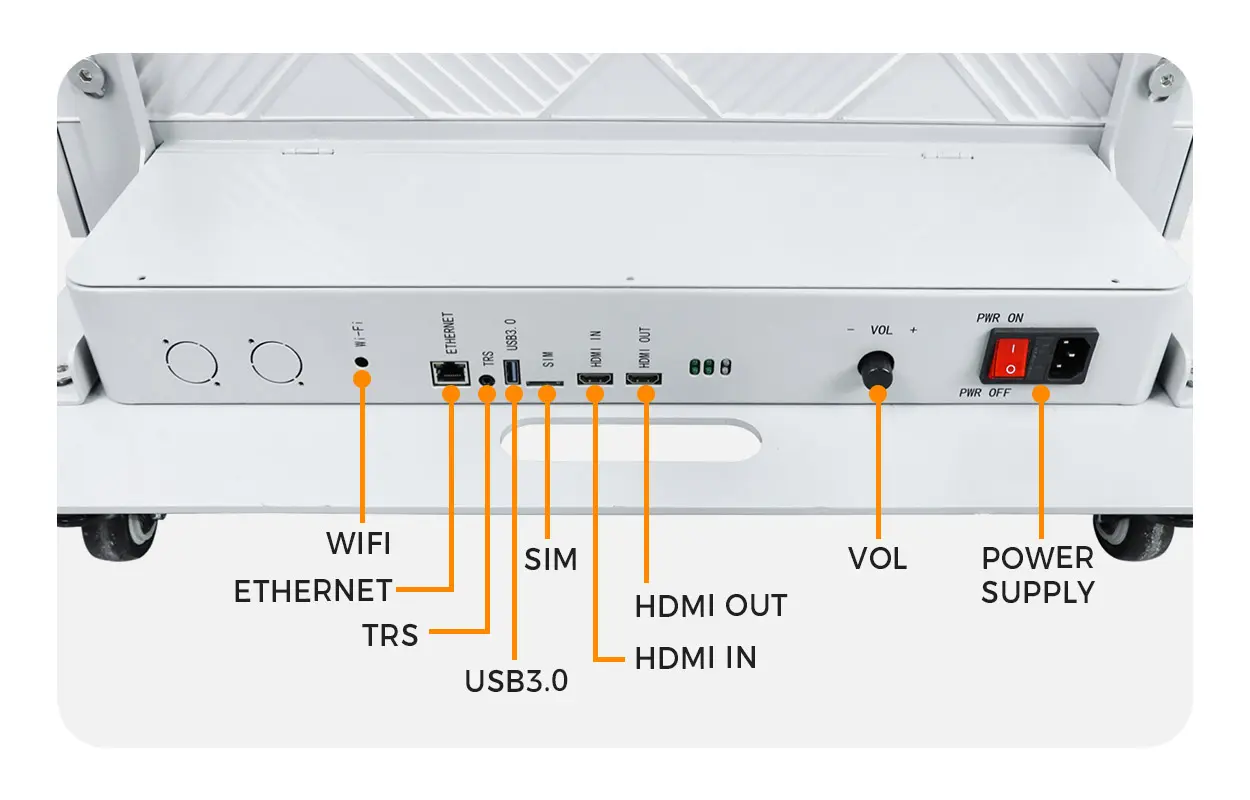
The EA1920iP5 indoor LED poster lists Wi-Fi, SIM, Ethernet, HDMI and USB connectivity. Its published description makes the available publishing and playback functions dependent on the selected controller and software. Use that distinction when comparing configurations.
2. Distinguish a local hotspot from venue Wi-Fi
Access-point mode lets an operator connect a phone or computer to the player’s own wireless network. This can support nearby configuration or content publishing when the supplied software provides it. Connecting to that hotspot is not proof that the screen has an Internet connection.
Station mode means the player joins an existing wireless network. Whether it can reach a remote management platform then depends on that network’s Internet access and the approved software setup. Ask the venue’s IT team whether its network suits the proposed device and login method.
As one controller-specific example, NovaStar’s TB40 documentation distinguishes Wi-Fi AP and station operation. That does not mean every poster uses a TB40 or offers the same functions. For a quoted NovaStar system, confirm the model and version against the Taurus player comparison guide and the supplier’s current documentation.
Ask about the supported wireless band, network authentication and any guest-network restrictions. A phone connecting successfully to hotel Wi-Fi does not prove an unattended display can use the same network. Get a demonstration with the intended venue arrangement, including any login portal or device-registration requirement.
3. Require an offline-playback demonstration
If continuity matters, ask the supplier to show that the approved playlist is stored and plays on the selected system without relying on a live network stream. Separate the network connection used to deliver a file from the media source used during playback.
- Publish your own sample playlist and confirm that the complete transfer succeeds.
- Start playback in the intended stored-content mode.
- Disconnect the network under the supplier’s approved test procedure and observe the screen.
- Restore the connection and check whether the device is reachable again.
- Restart the player using the documented procedure and confirm the expected playlist, orientation and schedule.
Record the actual result. Do not assume that all Wi-Fi posters retain content, resume automatically or preserve a schedule after a power interruption. The promised behavior should be demonstrated on the delivered controller and software version.
Also ask what happens if an update is interrupted. The supplier should show the failed-transfer indication and the approved recovery process. A progress bar on the operator’s phone is not sufficient evidence that the new playlist is playing correctly.
4. Define remote-management ownership and costs
For several branches, ask who owns the management account, who may publish, and how each screen is assigned to its location. Demonstrate one update to a specified screen and confirm that other screens keep their approved content. Device naming and location records help prevent a campaign reaching the wrong branch.
Request an itemized software scope: supported operator devices, account requirements, scheduling functions, monitoring features and any recurring license or service charges. Ask whether those features require the screen to remain online and what information is available when it is offline.
For a system using NovaStar software, the ViPlex Express guide can support the software discussion. Use the version appropriate to the delivered player rather than assuming that the newest app supports every installed controller.
Keep network and account credentials out of public handover documents. Have authorized staff retain the access details and documented recovery process privately. Changing site Wi-Fi credentials later should have a planned reconfiguration method.
5. Compare configurations with the same acceptance sheet
On mobile, swipe within the table to see all columns.
| Requirement | Demonstration | Record at handover |
|---|---|---|
| Nearby updates | Connect an approved operator device and publish a sample | Player, software version and local connection method |
| Venue network | Join the actual or representative approved network | Supported band, authentication and IT requirements |
| Offline continuity | Observe stored playback with the network disconnected | Actual supported behavior and recovery procedure |
| Remote branches | Update one named screen from the management account | Account ownership, device mapping and user roles |
| Power restart | Restart and check playlist, orientation and schedule | Expected startup behavior and time configuration |
| Alternative input | Test the quoted USB or HDMI workflow if required | Mode selection, file limits and supplied accessories |
Wi-Fi publishing is not automatically wireless HDMI mirroring. If you need a live presentation, specify the live source and latency requirements separately and demonstrate the proposed input mode. Likewise, a SIM slot is not evidence that a cellular modem, suitable SIM plan or service coverage is included.
6. Approve the native poster canvas
Send artwork at the native pixel dimensions confirmed for the complete display. Check orientation, cropping, text and any QR code from the planned viewing position. Physical poster dimensions do not by themselves identify the native resolution; the module map and pitch also matter.
If several posters will form one large canvas, require a demonstration of the combined layout, synchronization and mapping. If each poster is independent, test its own schedule and device selection. These are different control requirements and should not be left to interpretation after delivery.
For an overview of local connection methods, see the existing LED poster connection tutorial. This buying checklist supplements that tutorial with workflow and acceptance requirements.
7. Frequently asked questions
Does Wi-Fi control require Internet access?
A supported local hotspot workflow can connect an operator directly to a player. Internet-based remote management is a separate requirement. Confirm both for the supplied system.
Will the poster keep playing if Wi-Fi disconnects?
Require a demonstration in the intended playback mode. Stored-content behavior and live-stream behavior can differ; do not assume continuity from the Wi-Fi label.
Can I control it from any phone or tablet?
Ask for the supported operating systems, app and player versions. Test the operator device you intend to use.
Is cellular connectivity included when a SIM slot is shown?
Confirm the modem, antenna, supported service and data plan in the quotation. A visible slot alone does not establish what is supplied.
8. Request a poster control configuration
Send your screen quantity, country, indoor environment, viewing distance and purchase timeline. Tell us whether updates are made nearby or remotely, what network is available, and whether offline playback or live input is required.
Product and controller documentation reviewed on October 14, 2026. Available functions depend on the ordered hardware, firmware and software. Demonstration steps are buyer acceptance requests, not a claim that every poster supports them.
 Modular LED Screens: Plan Future Expansion Before Buying
 Interactive LED Floor: Sensor & Service Buying Checks