
Related Posts
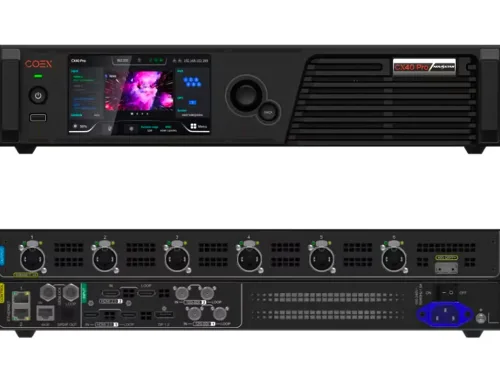
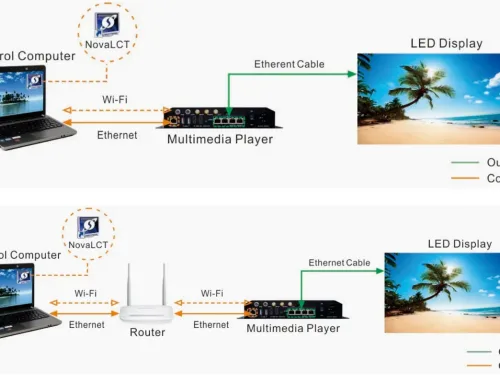
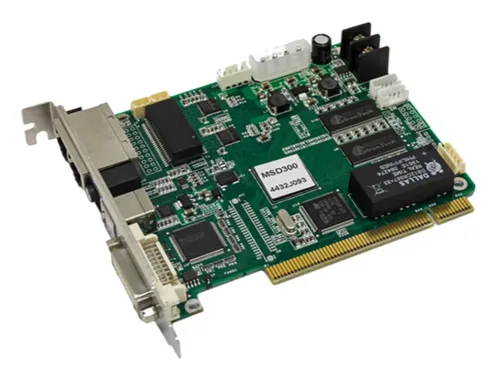
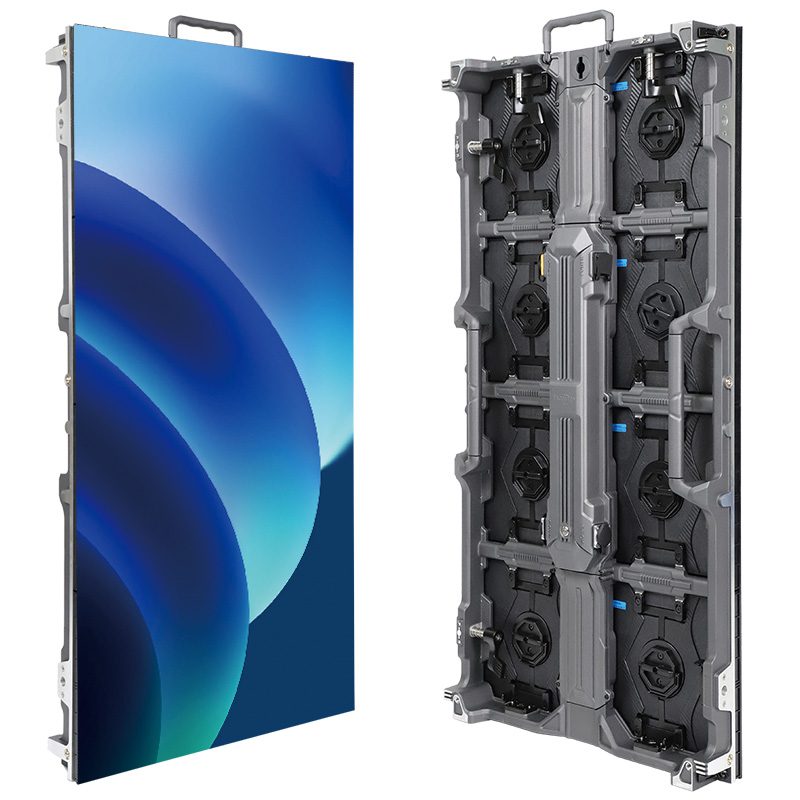
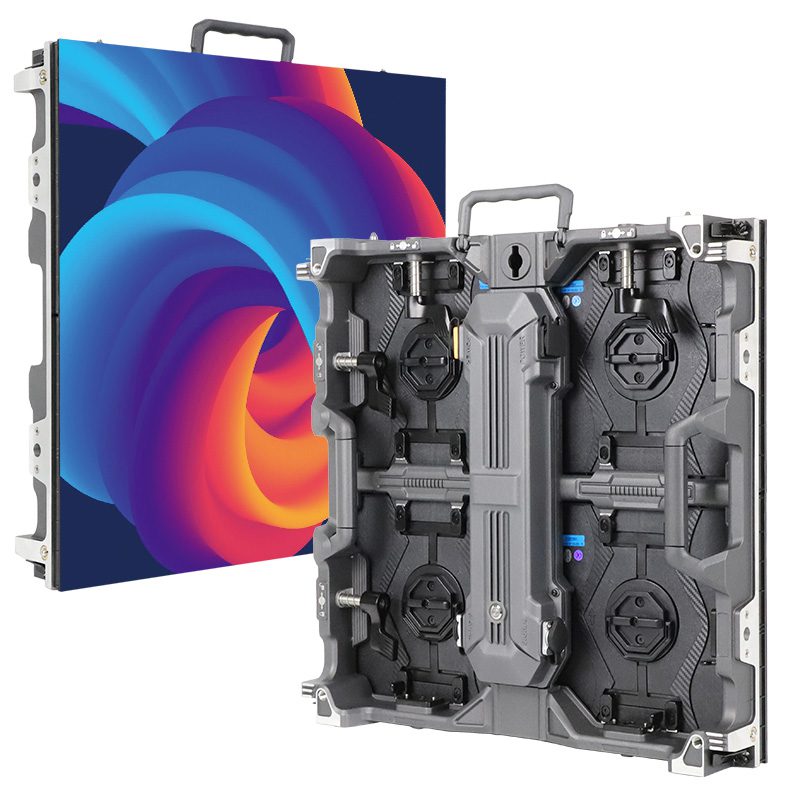
If you’re looking for a controller for your LED display in a conference room, stage, or showroom, chances are the Novastar VX600 has already caught your attention. This all in one controller is one of the most popular options on the market right now.
But just because it’s popular doesn’t mean it’s automatically the best fit for you. It is best to understand all aspects of the equipment before purchasing.To help you figure that out, I’ve put together a clear, practical guide to the Novastar VX600 all in one controller covering Setup, Software, and Pricing. Hopefully, this will make your decision easier.
catalogue
1. What is the Novastar VX600?
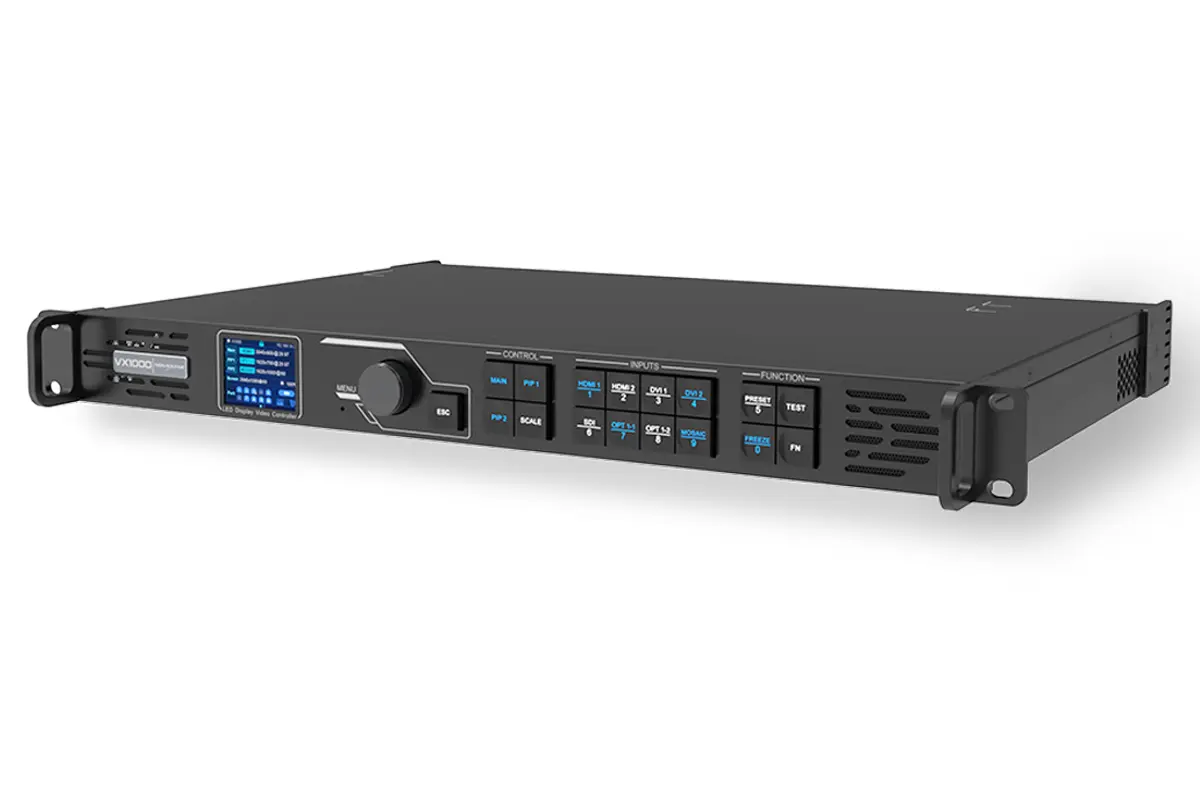
Simply put, the VX600 is an all in one controller that combines the functions of a video processor and an LED display controller. It’s designed specifically for LED display systems, so you can’t use it with non-LED screens. Known for being simple and efficient, it’s widely used for rental events, stage performances, advertising displays, and is especially good at handling ultra-wide or ultra-tall screens.
1.1 Novastar VX600 Basic Information
A common question people have is whether the Novastar VX600 is a processor or an LED controller. The answer is — it’s both.
In a traditional LED display setup, you might need a video processor to handle image quality, a separate LED controller to send data to the LED display, and maybe even a switch in between. The VX600 combines all of these functions into a single device.
There are two versions of the Novastar VX600:
- VX600 Standard – covers the basic processing and control functions.
- VX600 Pro – a more powerful version designed for higher-end applications.
1.2 VX600 Function Introduction
The Novastar VX600 all in one controller packs both video processing and control into one device, making it easier to set up and manage your LED display system. Here’s what you need to know about its key specs and functions:
- Combined Video Processing & Control – no need for a separate video processor and LED controller.
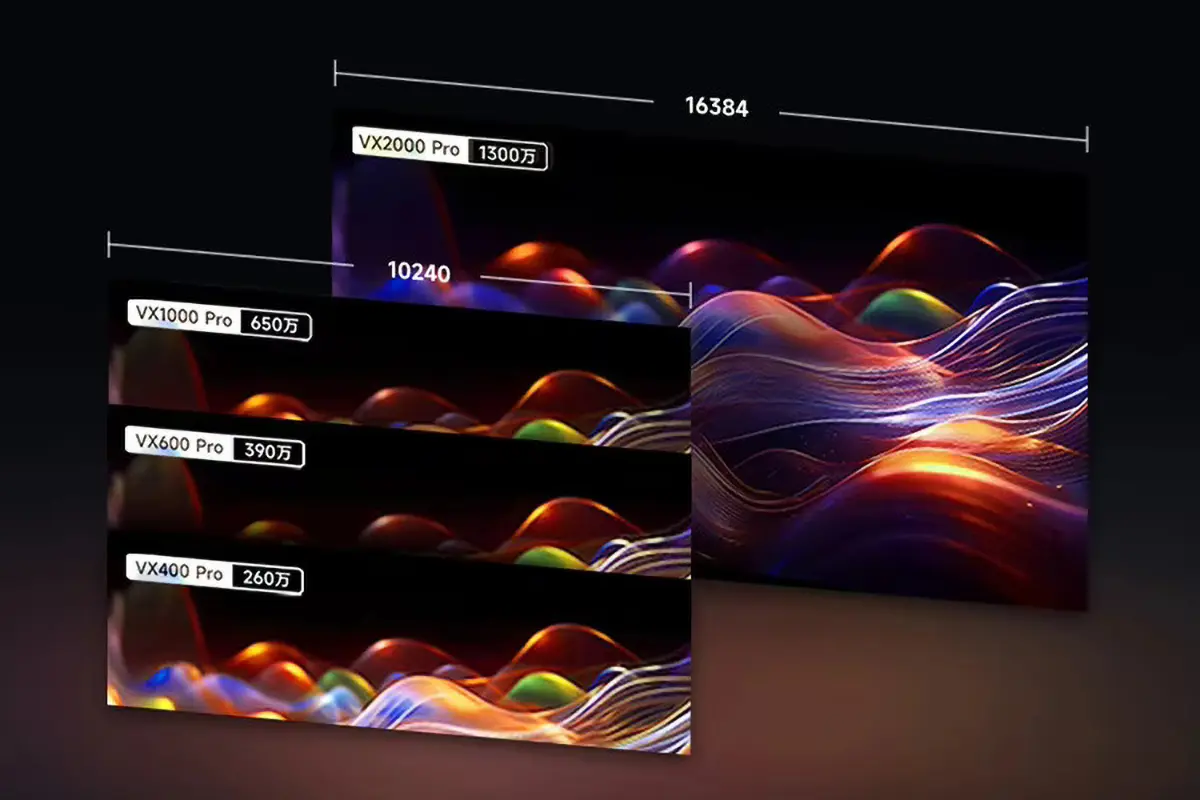
- Maximum Loading Capacity: 3.9 million pixels.
- Max Input Resolution: 1920 × 1200 (customizable width and height).
- Ethernet Ports: 6
- Flexible Modes: Can work as a video controller, fiber converter, or in bypass mode.
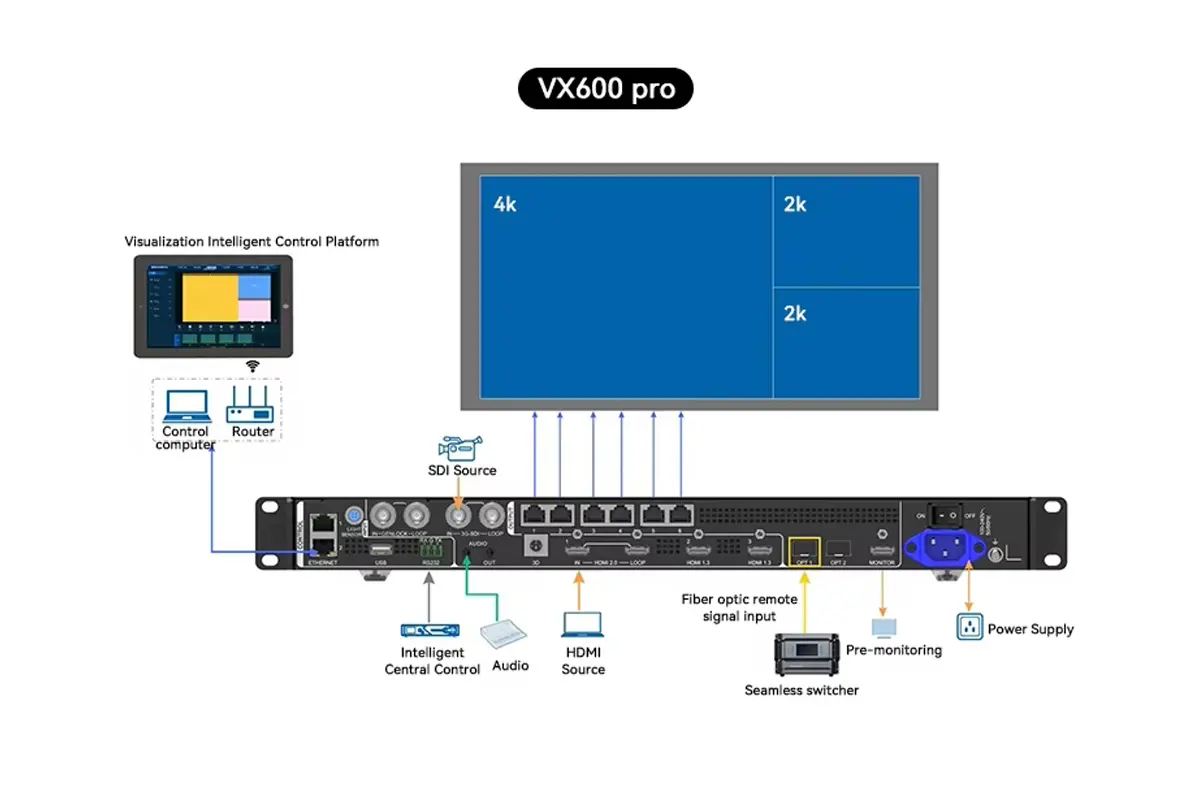
Video Outputs:HDMI 1.3 (Loop): 1,HDMI (PVW/MVR): 1,Single-link DVI (Loop): 1,3G-SDI (Loop): 1.
Video Inputs:HDMI 1.3: 2,Single-link DVI: 1,3G-SDI: 1.
Control Options:Ethernet, USB.
Power & Size:
AC 100–240V, 50/60Hz
- Power Consumption: 28W
- Dimensions: 483.6 × 351.2 × 50.1 mm (W × D × H)
1.3 What Can the VX600 Do?
Signal Processing (like a video processor):
The VX600 takes your input signals — from a computer, camera, or other sources — and optimizes them. It improves color, brightness, and clarity so that your video looks its best on a large LED screen.
Display Control (like an LED controller):
After processing, it sends the image data quickly and precisely to every corner of the LED display, controlling each tiny LED to make sure the image shows up exactly as intended.
1.4 Why Choose an All in One Controller?
- No more complicated wiring between multiple devices — one box does it all.
- Fewer cables and connections mean fewer chances for errors and easier operation.
- Even though a single device might cost more upfront, you save on buying extra equipment, cabling, and maintenance.
1.5 VX600 Main Advantages
3-in-1 Integrated Design:
The VX600 combines a video processor, sending card, and switch into a single device. It supports three working modes:
- Video Control: The most common and feature-rich mode. It processes the video signal — optimizing colors, sharpening the image, and scaling the content to perfectly fit the screen size.
- Optical Conversion: Turns OPT1 and OPT2 into fiber input ports, converting optical signals into Ethernet output. Perfect for long-distance video transmission, like outdoor screens, concerts, or exhibitions.
- ByPass Mode: Outputs raw pixel-level images with ultra-low latency, making it ideal for real-time applications like video conferencing or live broadcasts.
Rich Input Options:
Equipped with HDMI, DVI, 3G-SDI, and fiber inputs, it can connect to regular PCs, older playback devices, professional broadcast cameras, and optical signal sources without extra converters.
Dual Fiber Backup:
It has two fiber outputs (OPT1, OPT2), and OPT2 supports hot backup. This means both fibers transmit the same data — if the main line fails, the backup takes over instantly with no black screen or flicker.
Ultra-Low Latency ByPass Mode:
When ByPass is enabled, signal delay is reduced to as low as 20 lines. Regular controllers take longer to process signals, causing video to lag behind the audio, but VX600’s near real-time transmission keeps them in sync.
Powerful Image Processing Engine (SuperView III):
Built-in Novastar image processing technology supports seamless scaling, cropping, and color management. This isn’t just simple resizing — it keeps images sharp and colors accurate. Even if your video source has a lower resolution, it can still look surprisingly good on a 4K or large-format LED display.
2. Where Can the Novastar VX600 Be Used?
As a high-performance all in one controller built specifically for LED displays, the Novastar VX600 is known for its integration, reliability, and powerful features. It can be flexibly used in almost any indoor or outdoor setting where you need high-quality visual performance.
Indoor Applications
Conference Rooms & Auditoriums:
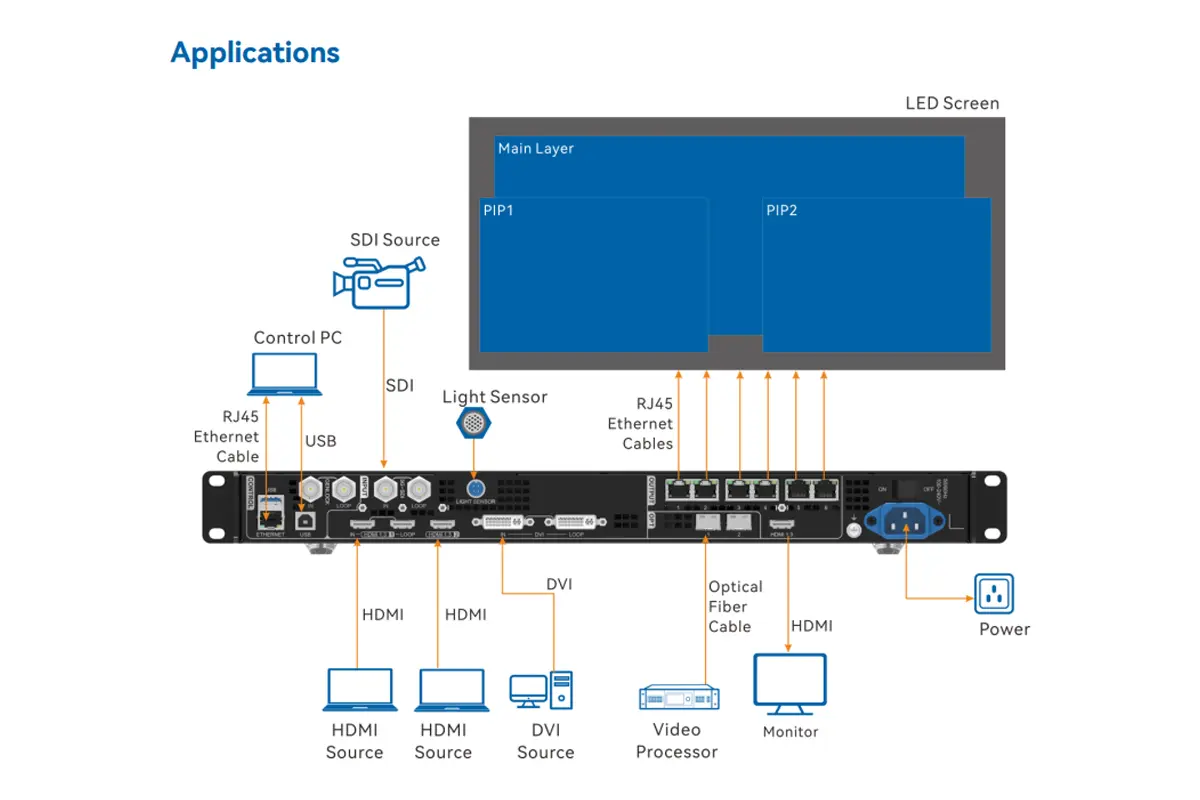
Perfect for driving high-definition conference screens. Its low-latency performance ensures smooth video calls, and it supports picture-in-picture layouts to display multiple data sources at the same time — a real productivity booster for meetings.
Broadcast Studios:
With its ultra-low latency, the VX600 keeps the presenter’s speech perfectly in sync with the background display — no noticeable delay on screen.
Shopping Malls & Retail Stores:
Ideal for controlling advertising screens and product display walls. Its image processing engine keeps ads vivid and crystal-clear, making products look more appealing.
Showrooms & Museums:
Provides stable, high-quality visuals for exhibitions and art displays, helping you recreate accurate colors and fine details.
Outdoor Applications
When used outdoors, the VX600 should be installed in a weatherproof, dustproof, and well-ventilated cabinet or control room to protect it from rain, dust, and extreme temperatures.
Outdoor Advertising Screens:
Supports long-distance signal transmission via fiber optics. The dual hot-backup function ensures uninterrupted ad playback, minimizing the risk of black screens.
Sports Stadiums:
Controls scoreboards or replay screens with extremely low latency, ensuring that key moments appear live, with no visible delay or ghosting for the audience.
3. How to Set Up Your Novastar VX600
Setting up the Novastar VX600 all in one controller isn’t complicated. Even if you’re not a tech expert, you can get it running quickly. Here’s a simple guide to the hardware requirements and installation steps so your LED display works smoothly.
3.1 Novastar VX600 Setup
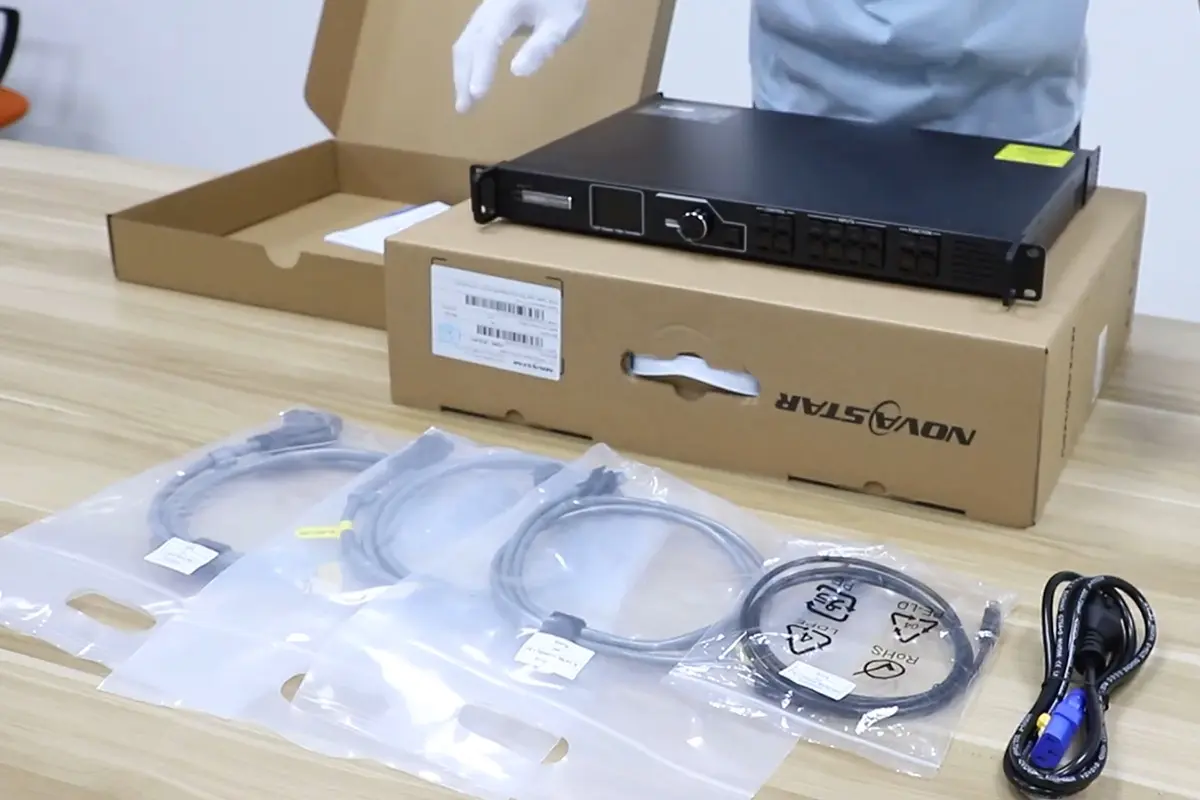
Required Hardware:
- VX600 controller with its power cable
- Video source device, such as a laptop or media player
- LED display (with receiving card)
- Input cables (choose one based on your source):
HDMI: most common, for connecting laptops, Blu-ray players, etc.
DVI: for some desktops or older devices
SDI: for professional cameras or broadcast equipment
Fiber optic: for long-distance signal transmission
- Output cables:
Gigabit Ethernet cable (CAT5e/6): to connect the VX600’s network port to the LED display’s receiving card
A Windows PC: for installing and running the configuration software
Quick Setup Steps:
Step 1: Connect the cables
Use your chosen video cable (HDMI/DVI/SDI) to connect your computer or media player to the VX600’s INPUT port on the back panel.
Use a network cable to connect any of the VX600’s Gigabit Ethernet ports (GEOUT) to the LED display’s receiving card.
Step 2: Power on the devices
Turn on devices in order: LED display → VX600 → video source
Step 3: Configure the software
- Download and install the latest NovaLCT software from Novastar’s official website.
- Set up your screen parameters in the software.
- Once all settings are complete, click “Send to Hardware” in the software.
- If everything is correct, your LED display should now show your computer desktop properly.
3.2 Novastar VX600 Firmware and Updates
What is “Firmware”?
Firmware is like the internal “operating system” of a device — it controls how the hardware works. For the Novastar VX600 all in one controller, firmware determines the device’s functions, performance, and stability. Updating the firmware can bring higher refresh rates, better compatibility, or fix known issues.
How to Update the Novastar VX600 Firmware:
- Go to Novastar’s official website and download the latest VX600 firmware file.
- Open V-Can or NovaLCT software and upload the firmware file.
- Click the “Update” button to start the firmware update process.
3.3 Novastar VX600 Software Download
Besides the basic settings and operations you can do using the buttons and knobs on the device itself, the Novastar VX600 can also be controlled through software for more precise configuration.
Control Methods for the VX600:
- Software Control: For advanced configurations such as complex settings, firmware updates, and fine-tuning parameters. Requires a connected PC.
- Device Buttons & Knobs: For basic operations like input switching, layer management, and preview presets.
- Web Control (e.g., Unico Web): Ideal for remote control via a web browser.
- Mobile App: Offers flexible control and monitoring via smartphone or tablet for simple operations.
Essential Software:
- NovaLCT: The official recommended configuration and control software for Windows. Supports device setup, screen splicing, input/output settings, layer management, backup & restore, and more.
- V-Can: Another official tool, mainly for firmware updates and device management. Supports remote control, firmware upgrades, and backup/restore. Works on Windows and macOS.
- Smart LCT: A new-generation screen configuration tool with a user-friendly interface, suitable for complex screen layouts, batch brightness calibration, and more. Supports Windows and macOS.
4. Novastar VX600 Price & Buying Guide
The Novastar VX600 price can vary slightly across different platforms, but overall, the differences aren’t huge.
4.1 VX600 Price Range
Novastar VX600 (Standard):
- Estimated price range: $1,099–$1,500 USD
- Official price: $1,444 USD
- In Europe, NovaStar Shop lists it around €1,329
- Some other channels show a typical price around $1,500 USD
- Estimated price range: $950–$1,500 USD
- Official price (SquareV): $1,444 USD
- In Europe, NovaStar Shop lists it around €1,280
- eBay price: roughly $1,500 USD
Some channels show as low as $950 USD, but authenticity cannot be guaranteed
Buying from EagerLED, a long-term Novastar partner, can help you get better pricing while ensuring genuine factory-original products:
4.2 Purchase Notes
Always buy from official authorized channels (like certified dealers or official online stores) to guarantee a brand-new, genuine product with full official warranty and technical support. Buying from unofficial sources risks refurbished or second-hand units.
Although VX600 and VX600 Pro look similar, their features differ slightly. Make sure you need the Pro version’s advanced functions (like 4K input, 6 layers, or richer control options) before purchasing.
Confirm the supplier provides the latest official NovaLCT software along with a valid license.
Check if the quoted price includes technical support, installation guidance, or on-site setup services.
5. What Should I Do If Novastar VX600 Shows “No Signal”?
If your Novastar VX600 all in one controller shows a “No Signal” message on the connected LED display, it usually means the display isn’t receiving a valid video signal from the controller — it doesn’t necessarily mean your device is broken.
Here’s how you can troubleshoot the issue:
Basic Checks
- Power: Make sure the power cables are securely connected and that the VX600 and LED display power indicators are on.
- Cables: Check that your HDMI/DP cables are properly plugged in. Try replacing the cable to see if that fixes the issue.
- Signal Source: Confirm that your computer or media player is powered on.
Device Settings
- Select the Right Input: Switch the input source on the VX600 menu or remote (e.g., HDMI 1, HDMI 2) to match the port you’re using.
- Restart Devices: Turn off the VX600, the LED display, and the signal source. Wait for 1 minute, then power them on in this order: Display → VX600 → Signal Source.
Seek Help
If none of the above works, there might be a hardware issue (e.g., a damaged port). Contact Novastar official technical support or your equipment supplier for assistance.
6. What Will Novastar VX600 Bring to Your LED Display?
The Novastar VX600 is a powerful all in one controller that can significantly enhance the performance and visual experience of your LED display.
Stronger Driving Capability: A single VX600 can drive very large or high-resolution screens, making images more detailed and supporting grander display projects.
Better Image Quality: With advanced image processing technology, it delivers precise color and brightness uniformity, reduces latency, and makes the overall visual experience sharper, smoother, and more lifelike.
More Flexible Display Effects: Supports multiple layered content, making it easy to create picture-in-picture, overlay scrolling text, dynamic backgrounds, and other complex effects for richer information presentation.
Wider Compatibility: Offers multiple input interfaces, allowing you to easily connect computers, cameras, Blu-ray players, and other video sources.
More Reliable Stability: With network and device redundancy features, it greatly reduces the risk of system failure, ensuring your display keeps running smoothly during critical events.
More Efficient Control: You can manage and adjust the LED display via software, the front panel, or web interface, making daily operation and maintenance faster and easier.
7. FAQs
8. Conclusion
When you get a Novastar VX600 all in one controller, you’ll find it’s more than “just another controller.” It makes your LED display look truly professional, stable, and visually impressive.
Before choosing an LED controller, ask yourself:Do I need support for ultra-high resolutions?Do I need low latency?Do I need backup options to prevent unexpected issues?If your answer is mostly “yes,” the VX600 is very likely the right choice for you.