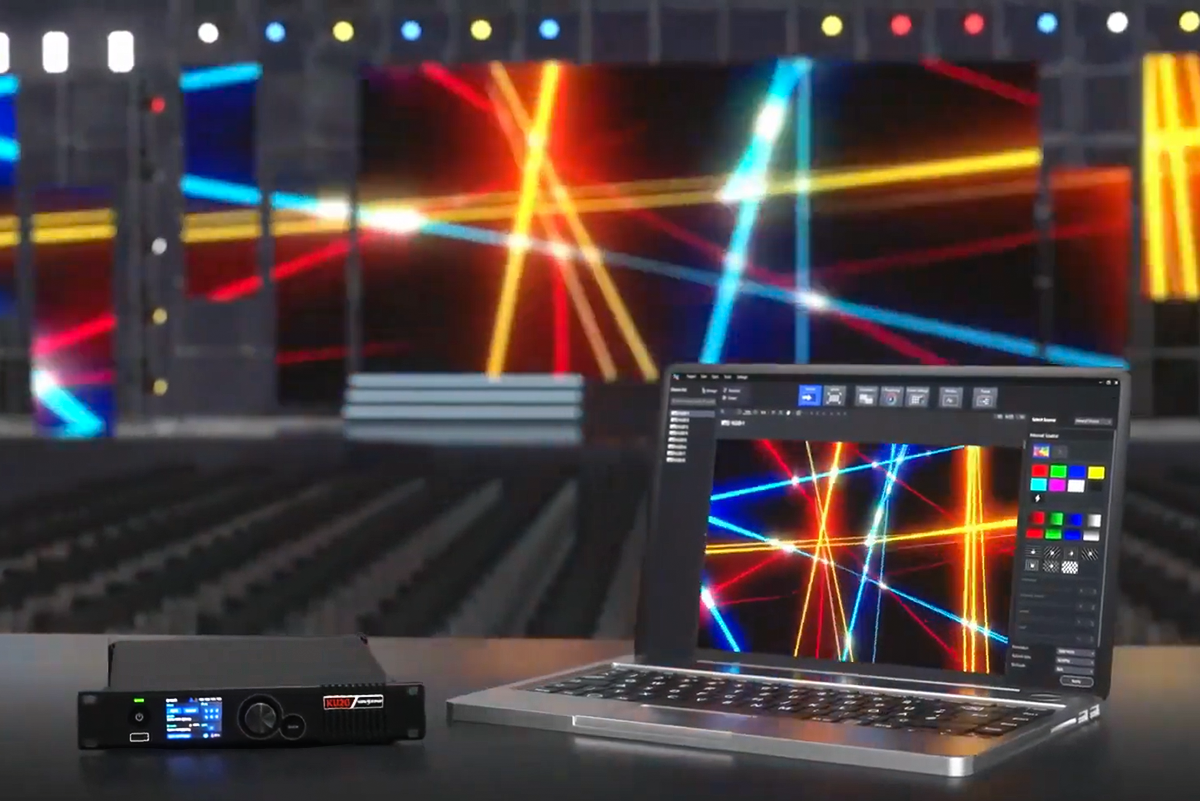

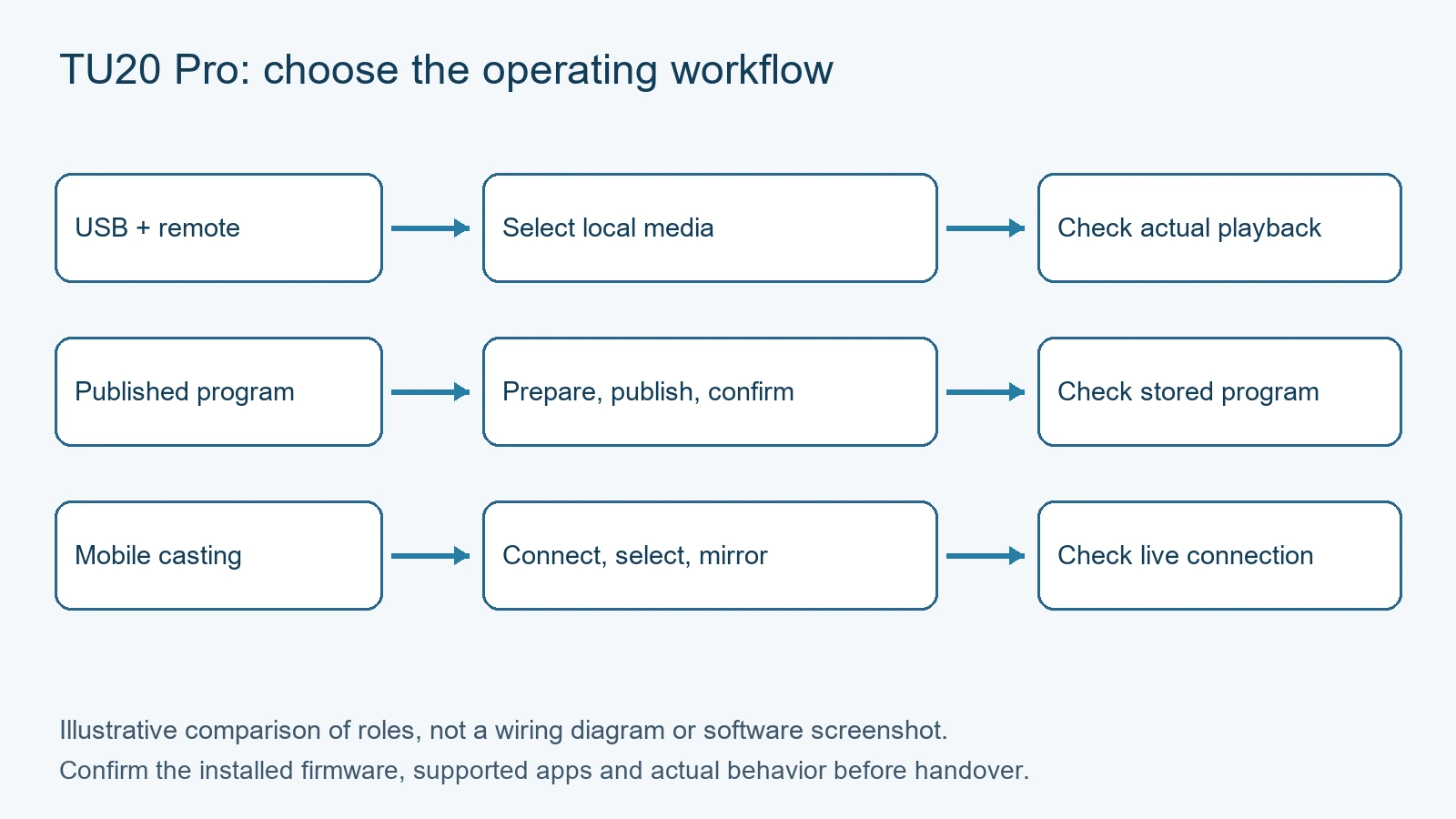
The three demonstrated ways to use Novastar Processor TU20Pro are USB media selected with the remote, a program published from compatible ViPlex software, and mobile screen sharing. Choose according to whether the content should play locally or depend on a live presenting device.
This guide follows EagerLED’s original demonstration for signage operators, meeting-room integrators and equipment rental teams. The video shows a historical interface. Confirm the installed firmware and supported application before following a menu; a successful demonstration does not guarantee identical behavior on every software release.
- USB playback, published programs and live casting are different operating tasks.
- Check the destination device and the actual LED screen after sending content.
- Mobile casting is not proof of unattended cloud playback.
- Keep an accepted project and a documented fallback for the venue.
On this page
Compare the Ways to Use Novastar Processor TU20Pro
| Workflow | Operator prepares | Acceptance check |
|---|---|---|
| USB and remote | Supported media on a readable drive; usable remote | Correct file opens on the LED screen; check the intended USB behavior |
| Published program | Compatible software, project layout and target connection | Publishing finishes and the intended stored program plays |
| Mobile sharing | Supported phone/app combination and a working local connection | The intended content appears; check orientation and what happens when sharing stops |
Prepare the Controller and Content
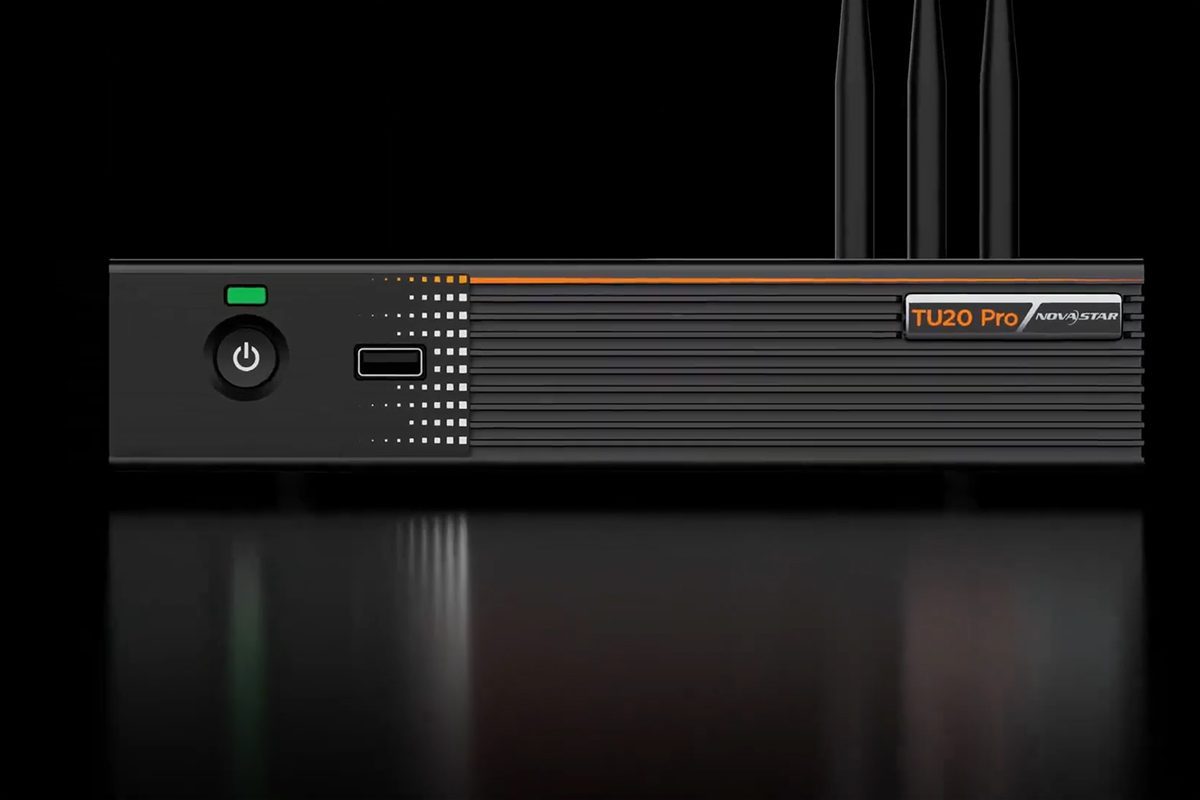
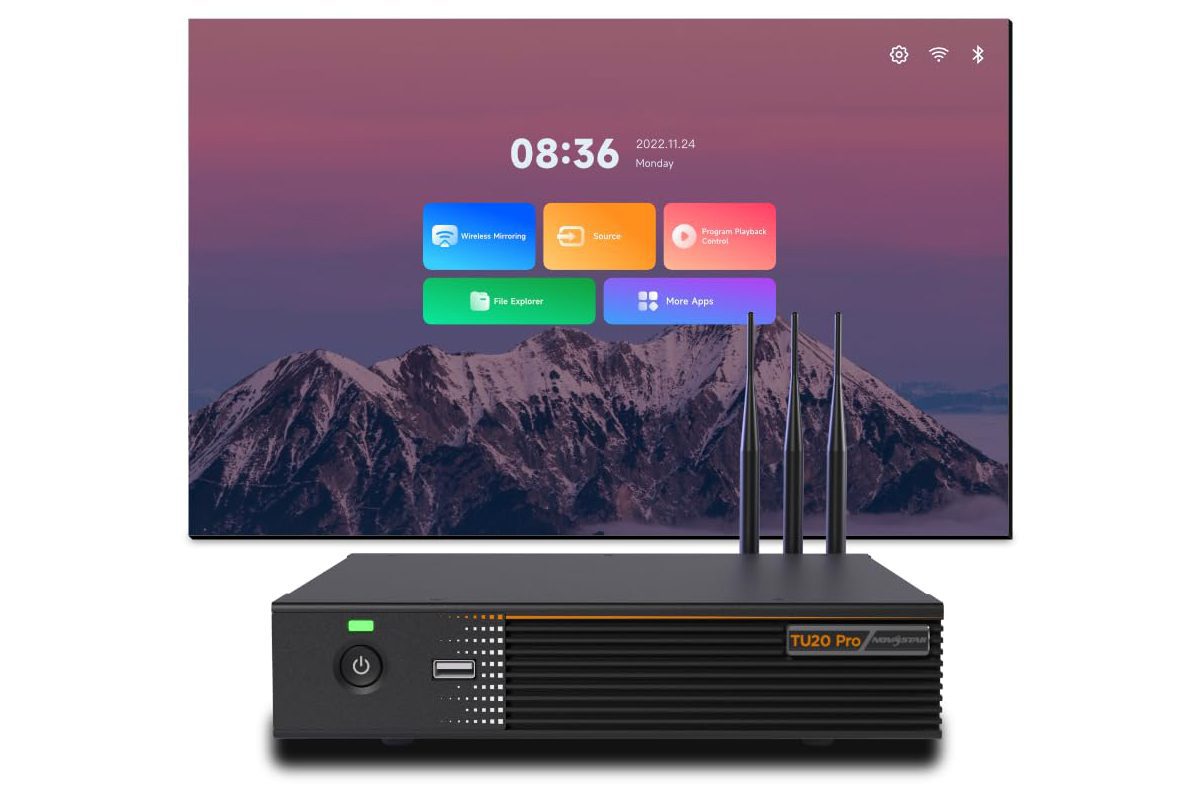
Read the device label and record its firmware before changing an existing installation. Verify that it is the intended TU20 Pro rather than another processor with a similar name. Retain the accepted screen configuration and a working content project. A routine playlist update should not begin with replacing receiving-card settings.
Prepare media for the active screen layout. Check the picture orientation, readable text and whether the source is intended to fit the whole display or a defined window. Keep the original file names recognizable so the operator can distinguish the accepted playlist from a test clip.
For a rental handover, agree who will update content during the event and which device they will use. A presenter bringing a phone has different requirements from an operator loading a fixed promotional loop. Choose the workflow before rehearsing rather than changing applications while the audience is waiting.
Method 1: USB Drive and Remote
The original video demonstrates selecting media from a USB drive using the remote. Prepare a drive and files supported by the installed system, insert it into the appropriate data port, and select the intended file through the device interface. Check the actual screen instead of treating the presence of a drive as evidence that playback has started.
Remote operation is a way to navigate the player; it is not an additional video source. Confirm that the remote works from the operator’s position and that the person receiving the equipment can return to the intended playback view. Keep the venue’s accepted instructions with the remote so another operator can repeat the procedure.
Do not assume that viewing a file from USB means it has been copied into internal storage. Confirm whether the chosen operation reads the connected drive or imports content, and test the required behavior before handover. Avoid removing a drive during an unfinished copy operation.
Method 2: Publish a Prepared Program
The video shows a PC workflow in ViPlex using asynchronous playback: prepare a program, choose its media and publish to the connected player. Treat that as a demonstration of preparing and delivering a program, not a universal sequence of menu names for every current software version.
Match the application version to the installed system. Confirm the target identity, project dimensions, media order and any intended schedule before publishing. A preview on the computer checks the prepared layout; it does not prove the correct processor has received it.
Wait for the publishing result and inspect the LED screen. If an older program remains visible, check the chosen target and playback selection before repeatedly resending. Record which project was accepted, and keep it available for a later update or recovery.
For a display expected to run without a presenter’s device, include that operating condition in the acceptance test. Confirm what happens after the publishing computer disconnects and at the next planned startup. Discuss the required result explicitly rather than assuming that every successful connection provides unattended operation.
Method 3: Mobile Sharing and Application Versions
The historical video demonstrates a phone-sharing workflow using tranScreen. The old article’s spelling “Trabscreen” was incorrect. NovaStar’s later TU-series documentation also describes ViPlex Handy for mobile interaction and mirroring. Follow the instructions that match the installed system and phone platform; do not install an arbitrary similarly named app.
Check the local connection, choose the correct target and start the supported sharing function. Verify the displayed orientation, the intended content and any required audio. Rehearse with the actual phone rather than assuming that another platform will expose identical controls.
A live phone-sharing demonstration does not establish cloud storage or access from another location. If the requirement is a permanent advertising loop, check whether a published local program is more appropriate. If it is an interactive presentation, test how to stop sharing and restore the agreed fallback screen.
Acceptance and Handover
For an equipment proposal, describe the ways to use Novastar Processor TU20Pro that your staff actually need. Ask who supplies the supported software, prepares the accepted project and provides operator instructions. Identify any required accessories separately, and agree the demonstration to be completed before the equipment is handed over.
If you are documenting several controller types, keep separate instructions in the LED display operation tutorial library. Similar-looking menus do not establish interchangeable settings. The available ways to use Novastar Processor TU20Pro should be tested with your chosen content and source devices, rather than inferred from another processor’s demonstration.
Compare the ways to use Novastar Processor TU20Pro against the venue’s real task. Confirm the correct device, the accepted content and how playback ends or resumes. Use a short recognizable test clip first, then run the intended material long enough to inspect the full layout and any audio requirements.
Keep a handover note with the firmware, supported app version, accepted project, chosen workflow and observed result. For broader setup context, see the existing TU15 Pro and TU20 Pro operation tutorial. Hardware selection and content operation should be checked together, without turning an ordinary media update into an unplanned screen reconfiguration.
Frequently Asked Questions
Which of these ways to use Novastar Processor TU20Pro is best?
Choose by the task. USB can serve local file selection, a published program serves prepared content, and mobile sharing serves a presenting device. Verify the required behavior on the actual system.
Is phone mirroring the same as publishing a program?
No. Mirroring depends on an active sharing session. Publishing prepares and delivers a program to the target. Test the intended behavior after the presenting or publishing device disconnects.
Should I follow the old app name and menus exactly?
Only if they match the installed version. The original video is retained as historical evidence. Use the supported app and instructions for the actual firmware and phone platform.
Discuss Your Configuration
Share the LED wall dimensions, cabinet pixel layout, source devices, content update frequency and intended operating method. Explain whether content must run unattended or be presented live. Ask for the controller, accessories, software support and handover scope to be identified in the proposal.