
Related Posts


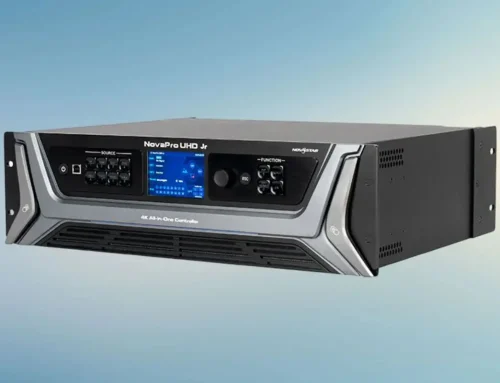

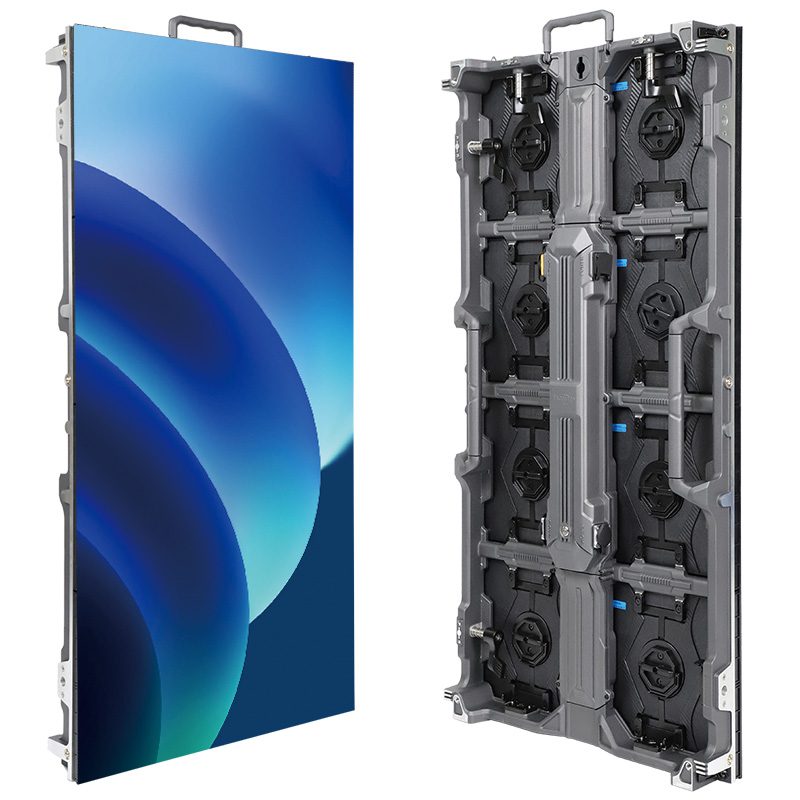
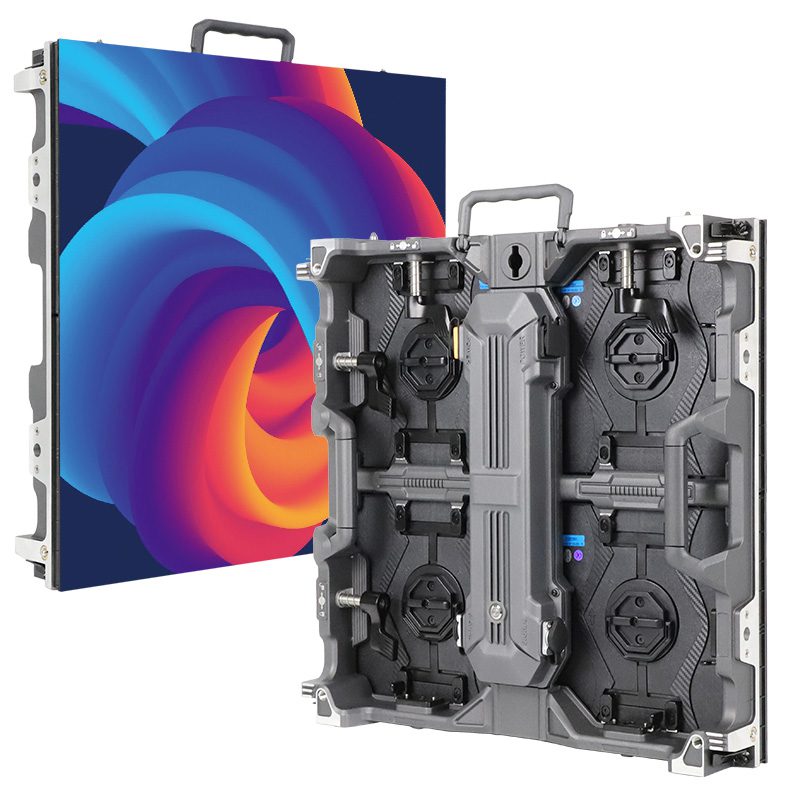
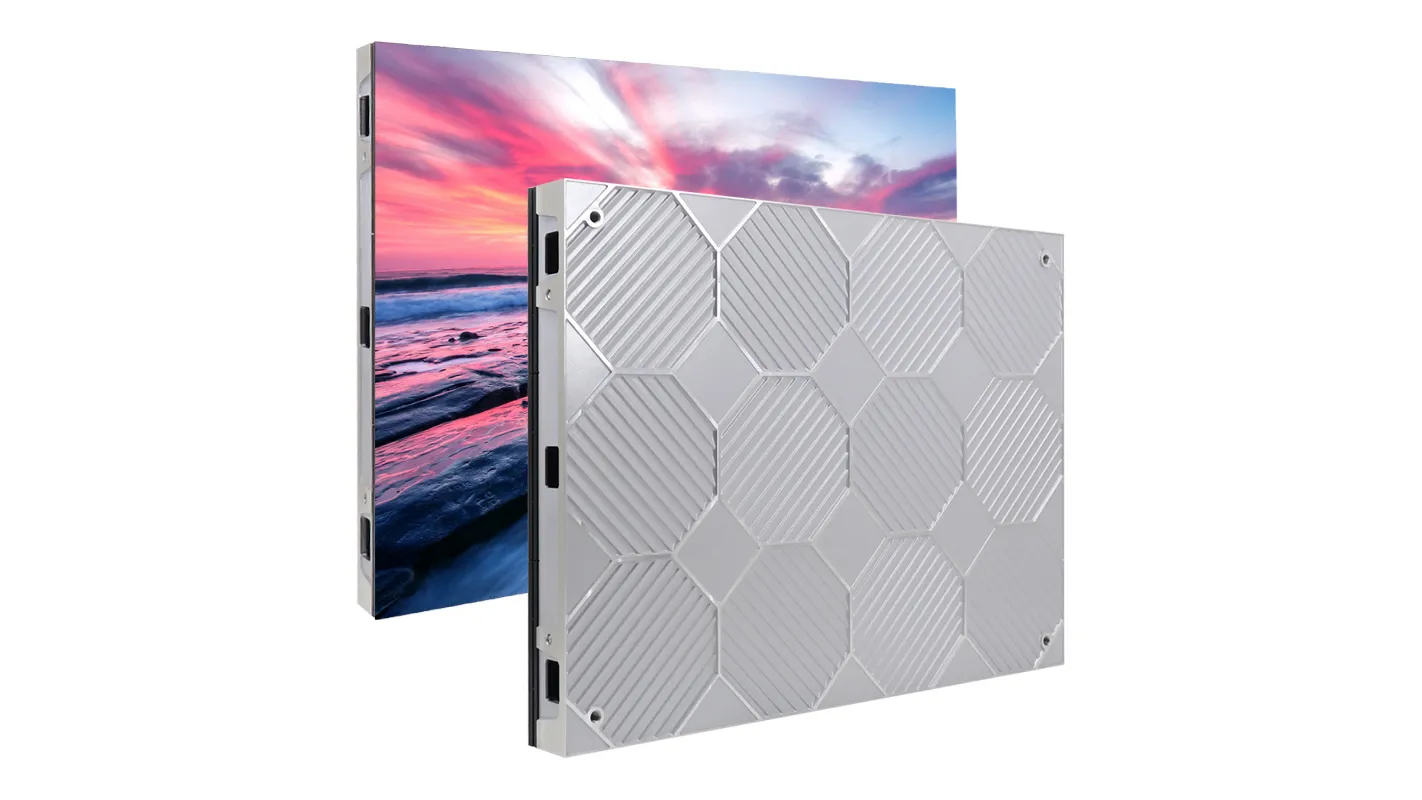
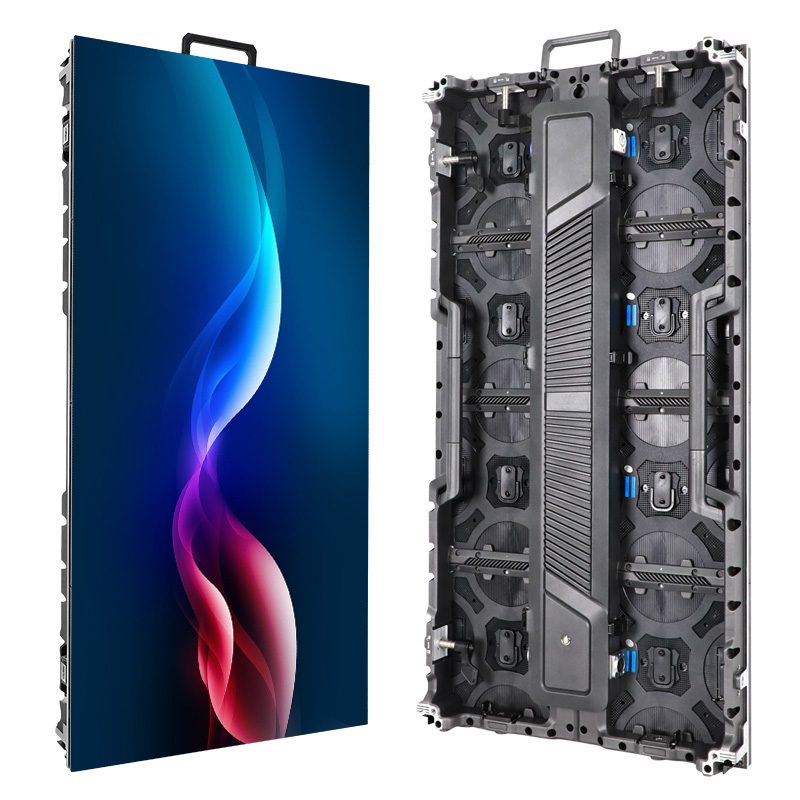
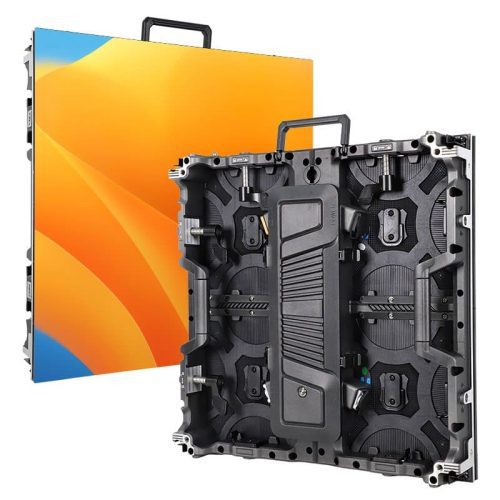
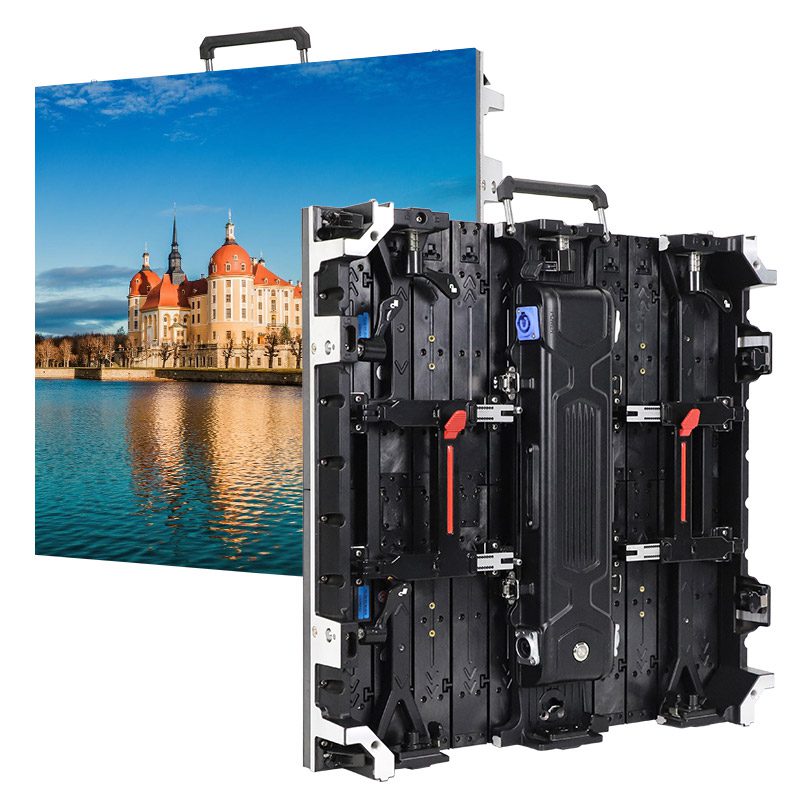
As the next-generation all-in-one controller from Novastar, the VX400 Pro delivers higher resolution support, lower latency, and more flexible layer management than previous models for your LED screen.This guide walks you through everything you need to know about Novastar VX400 Pro—from unboxing to advanced layer management—in plain, actionable language.
catalogue
1.What Is the Novastar VX400 Pro and What Does It Do?
Novastar VX400 Pro is not just a sending card—it’s a complete video processing and control system in a single unit. It receives video signals from multiple sources (HDMI, SDI, fiber, USB), processes them with real-time scaling and color calibration, and outputs synchronized data to LED cabinets via Ethernet or optical fiber.
Unlike traditional setups that require separate processors, scalers, and controllers, the VX400 Pro integrates all these functions into one compact device, reducing cabling, cost, and points of failure. It’s ideal for applications requiring high reliability, low latency, and dynamic content switching—such as concerts, corporate lobbies, or control rooms.
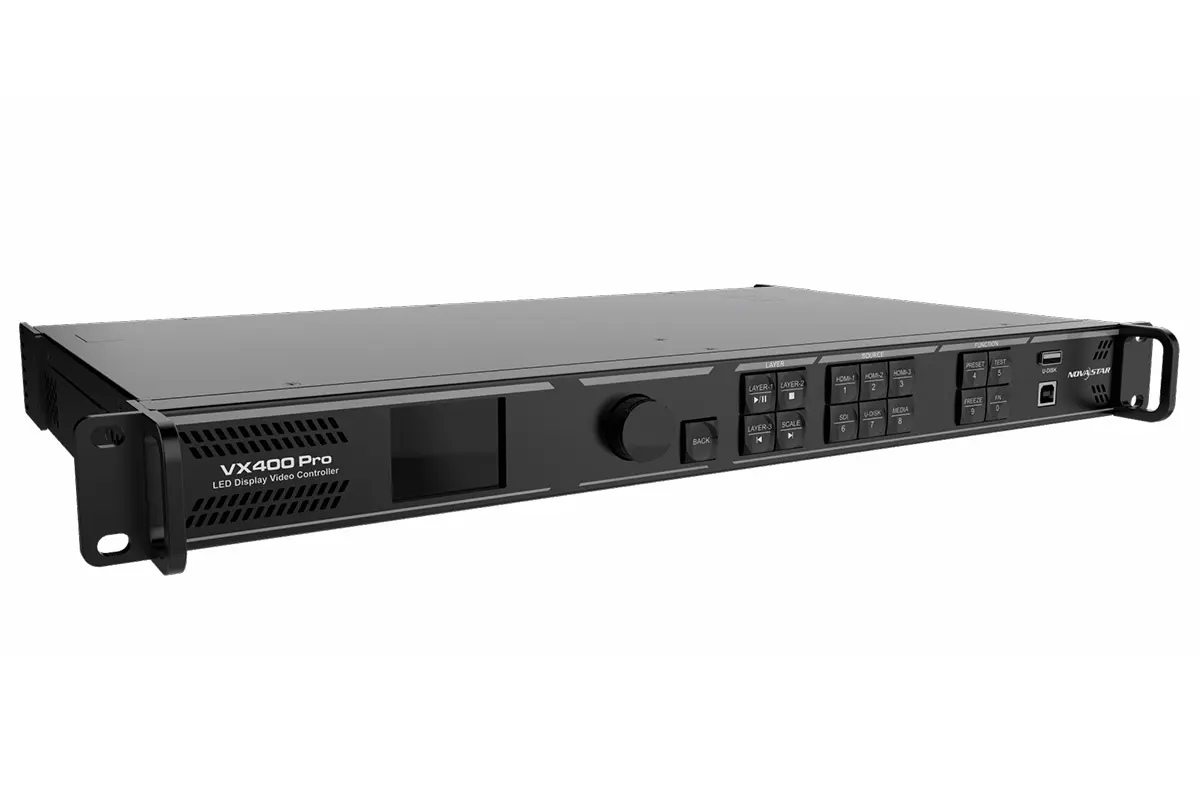
2.Key Features and Full Technical Specifications of the VX400 Pro
VX400 Pro professional-grade capabilities:
Multi-source inputs: 1× HDMI 2.0 (with loop-out), 2× HDMI 1.3, 1× 3G-SDI (with loop-out), 1× 10G optical fiber input (OPT 1), and 1× USB 3.0 for media playback.
Ultra-high output resolution: Supports canvas sizes up to 10,240 × 8,192 pixels—enough for massive video walls.
Up to 6 independent layers: Create picture-in-picture, overlays, or multi-source compositions with full Z-order control.
Zero-frame latency in Bypass mode: Critical for live camera feeds or real-time interaction.
Pixel-level calibration: Works with NovaLCT software to ensure uniform brightness and color across every LED module.
Multiple control methods: Use the front panel knob, the Unico web interface, the VICP mobile app, or NovaLCT software—whichever suits your workflow.
Here’s a quick reference of the VX400 Pro’s core specs:
| Feature | Specification |
|---|---|
| Max Output Resolution | 10,240 × 8,192 pixels |
| Max Input Resolution | 4K×2K@60Hz |
| Layers Supported | Up to 6 layers |
| Scan Support | Compatible with high-scan fine-pitch cabinets |
| Latency | As low as 0 frames (Bypass mode) |
| Control Interfaces | Front panel, NovaLCT, Unico Web, VICP App |
| Media Playback | USB playback with playlist support |
| Certifications | CE, FCC, UL, RoHS |
| Fiber Ports | Dual 10G SFP+ (OPT 1–4) |
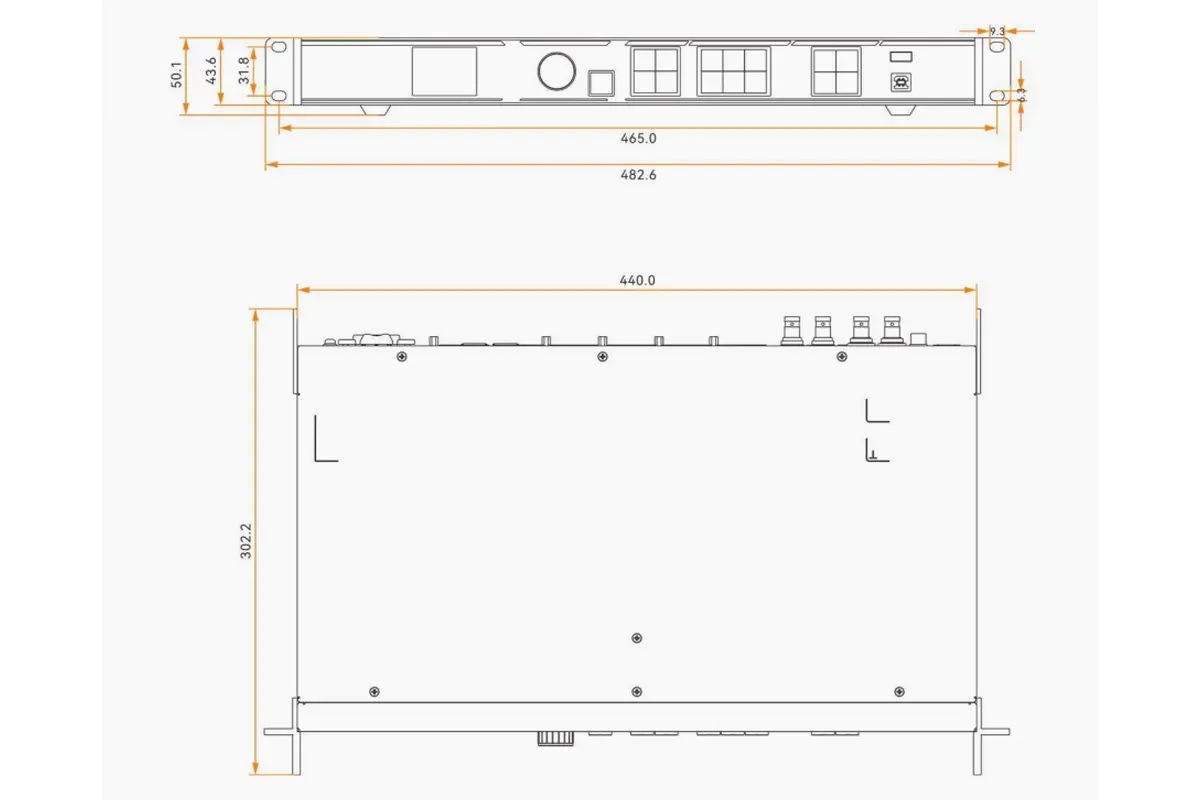
3.How do I connect video sources like HDMI, SDI, or fiber to the VX400 Pro?
Connecting video sources to the VX400 Pro is straightforward thanks to its comprehensive range of input connectors. Here’s how to get started:
HDMI: Plug your laptop, media player, or switcher into any HDMI port. The HDMI 2.0 port supports 4K@60Hz and includes a loop-out for daisy-chaining.
3G-SDI: Ideal for broadcast cameras. Connect directly to the SDI IN port; the loop-out allows signal distribution to other devices.
Optical Fiber (OPT 1): Use this for long-distance transmission (up to 10 km with single-mode fiber). Insert a compatible SFP+ module, then connect to a fiber extender or another Novastar device.
USB Media Playback: Insert a USB drive with supported files. The controller will auto-detect content and allow playlist creation via the front menu.
Always verify signal format compatibility—especially for SDI (max 1920×1080@60Hz)—to avoid blank screens.
4.How can I configure my LED screen layout using the front panel or web interface?
Via the Front Panel (Quick Setup):
Power on the device, press the knob to enter the menu, go to Screen Configuration > Quick Configuration, and enter:
- Number of cabinet rows and columns
- Cabinets per Ethernet port (Port 1 must handle the most)
- Data flow direction (e.g., left-to-right, top-to-bottom)
- The screen updates in real time—adjust until the image appears correctly, then save.
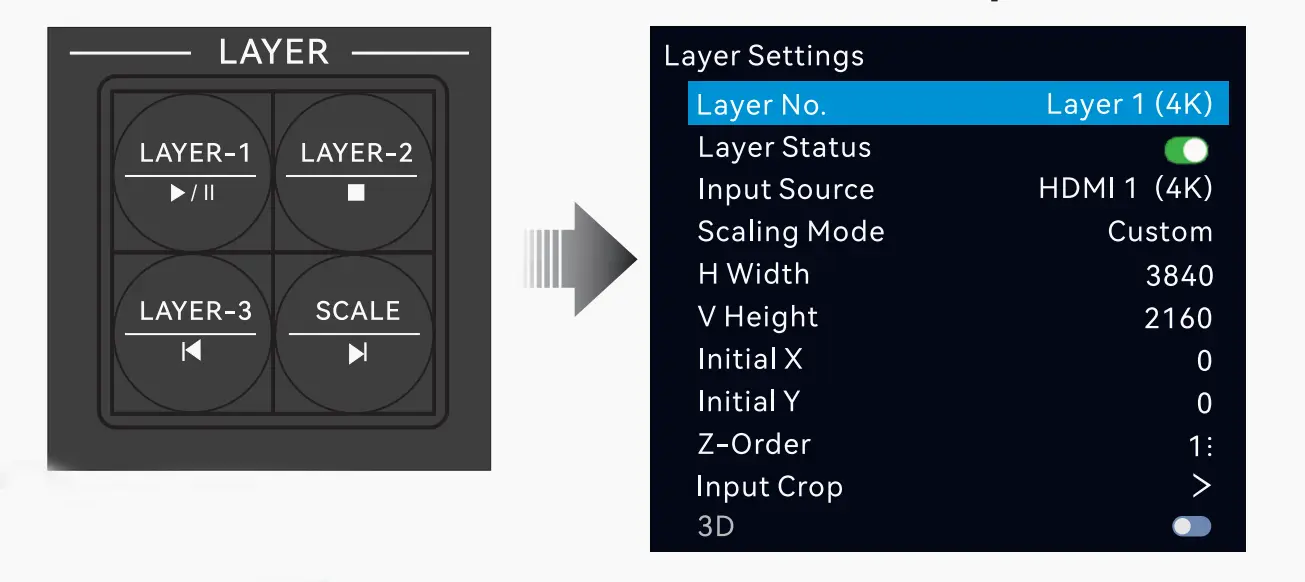
Via the Unico Web Interface:
Connect your PC to the same network, open a browser, and enter the VX400 Pro’s IP address. In the Screen tab, drag and drop virtual cabinets onto a canvas to match your physical layout. You can fine-tune position, rotation (0°/90°/180°/270°), and size for irregular setups.
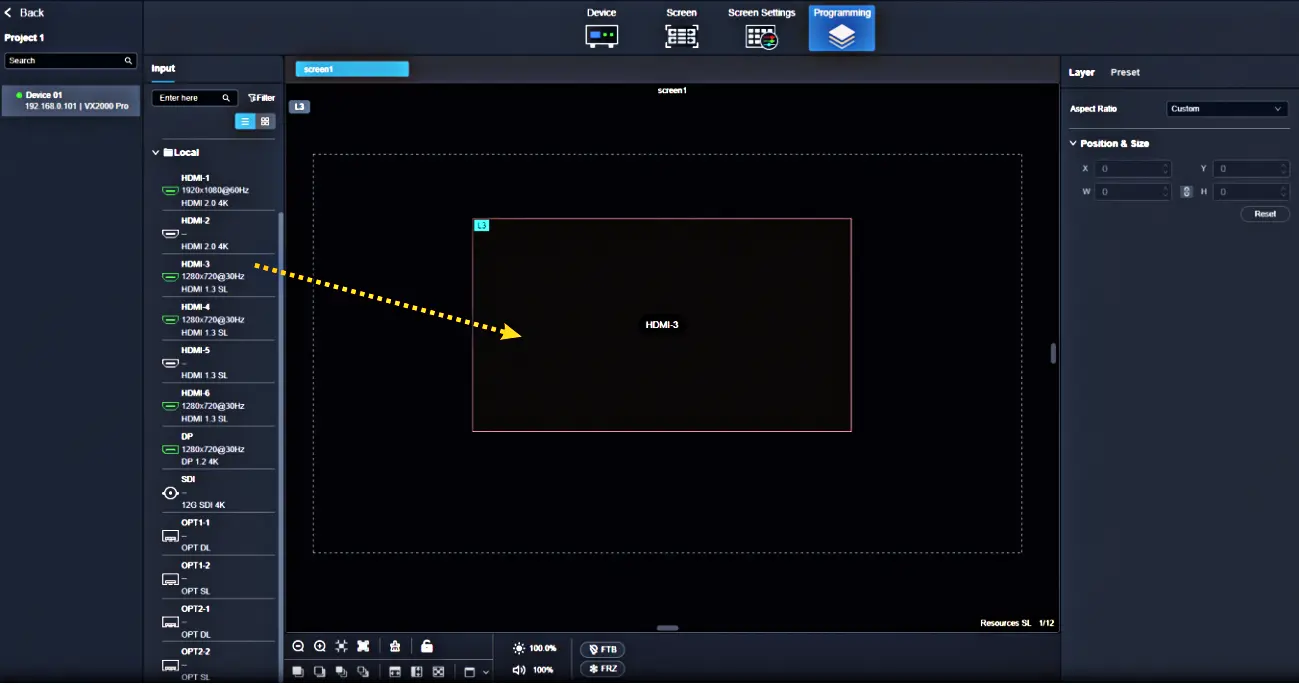
Both methods sync directly with the hardware—no extra software needed.
5.Can I run multiple layers or picture-in-picture on the VX400 Pro?
Yes—and it’s one of the VX400 Pro’s strongest features. You can overlay up to six independent video layers, each with its own source, size, position, and priority.
To add a layer:
- Press the LAYER button on the front panel (or go to Layer Settings in the menu).
- Select “Add Layer” and choose an input (e.g., HDMI 1, USB, or fiber).
- Set dimensions (64–32,768 pixels), X/Y coordinates (from –250,000 to +248,080), and scaling mode (Full Screen, Pixel-to-Pixel, or Custom).
- Adjust Priority (1 = bottom, 6 = top) to control which layer appears on top.
This is perfect for adding logos, lower-thirds, or live camera insets over a background video.
Layer Properties
| Property | Description | Range/Options |
|---|---|---|
| Size (W/H) | Dimensions of the layer | 64–32768 pixels |
| Position (X/Y) | Starting coordinates of the layer | -250000 to 248080 pixels |
| Priority | Z-order of the layer | 1 (lowest) to 6 (highest) |
| Scaling Mode | Adjusts how the layer fits on the screen | Full Screen, Pixel-to-Pixel, Custom |
6.How do I switch between scenes or recall saved presets quickly?
The VX400 Pro lets you save up to 256 user-defined presets, each storing layer layouts, input sources, and screen settings.
- To save: Go to Preset Settings, select an empty slot (e.g., Preset 1), and choose “Save.”
- To recall: Press the PRESET button on the front panel, then enter the preset number (e.g., “01”) using the numeric keypad. The change takes effect instantly—ideal for live shows.
- To manage: Rename or delete presets via the menu to keep your library organized.
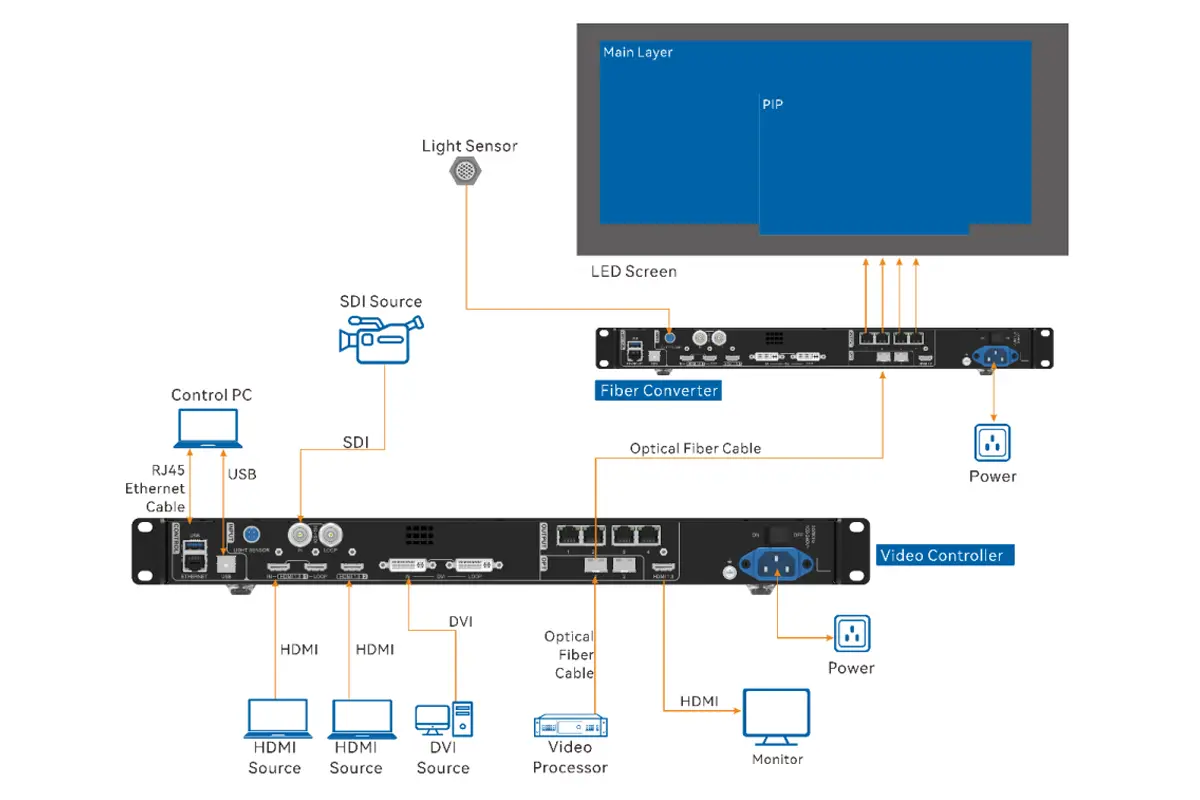
6.What’s the difference between Video Controller, Bypass, and Fiber Converter modes?
The VX400 Pro offers three operating modes, selectable via the front panel or Unico:
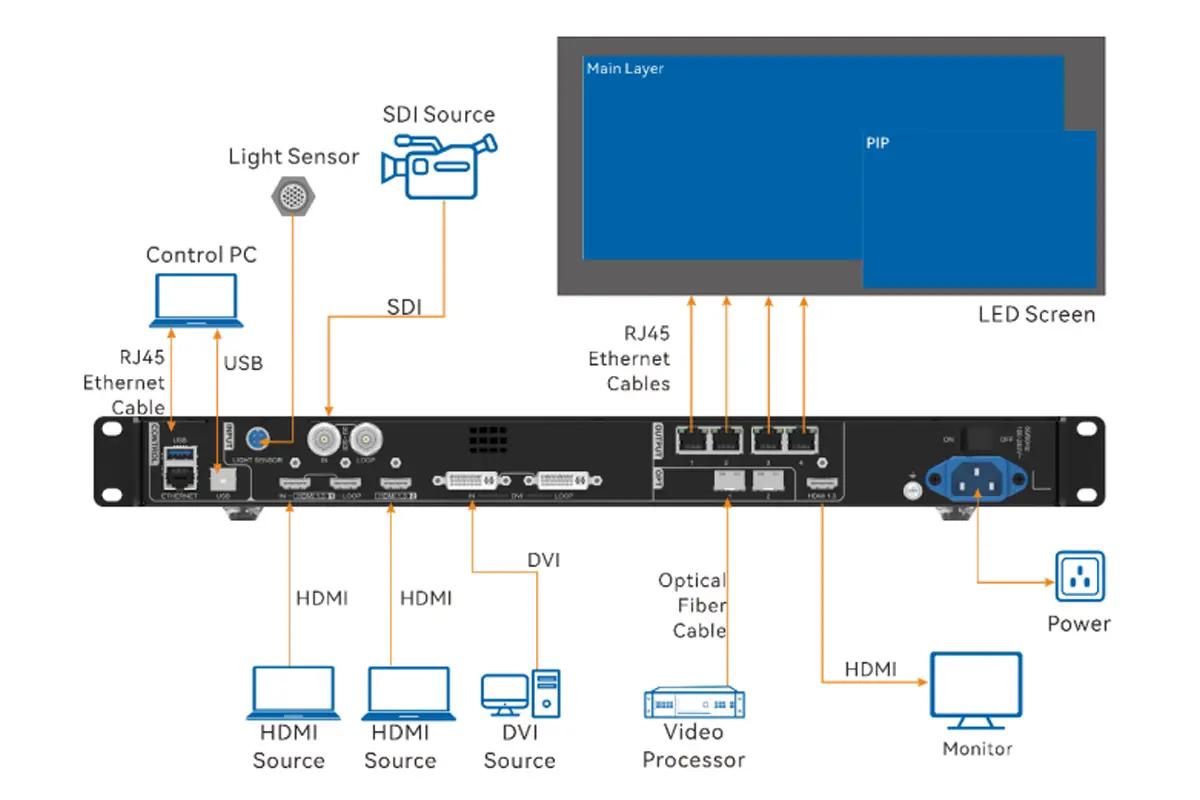
- Video Controller (Default): Full processing mode. Handles scaling, layering, color correction, and output to LED screens. Use this for most applications.
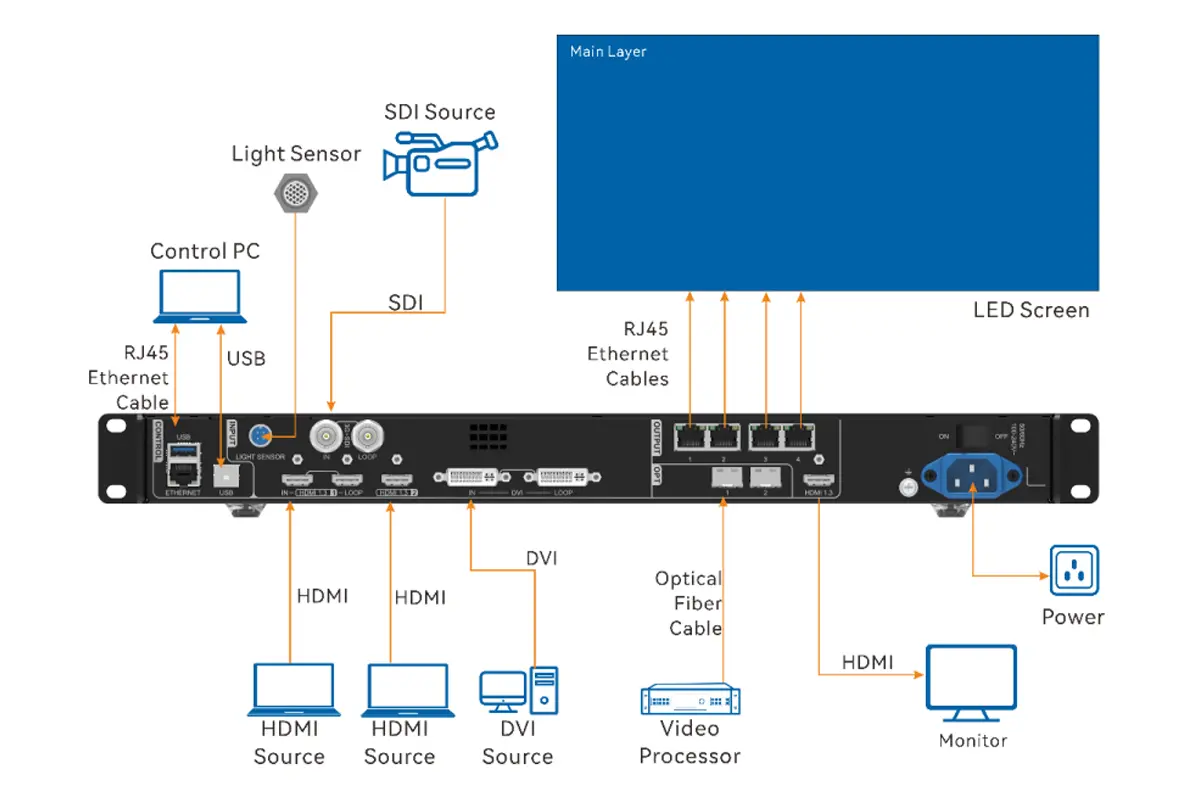
- Bypass Mode: Sends the input signal directly to output with zero processing and near-zero latency. Best for pixel-perfect passthrough (e.g., camera monitoring).
- Fiber Converter Mode: Converts electrical signals to optical for long-distance transmission. The Ethernet ports become outputs, while fiber ports relay the signal—useful for extending control over hundreds of meters.
Work as a video controller
Work in Bypass mode
Work as a fiber convert for long-distance transmission
7.Is the VX400 Pro Compatible with Mac, HDR, and 4K Sources?
Absolutely—but some settings help ensure smooth operation:
Mac Compatibility: Enable “Compatible with Mac” in Advanced Settings > Input Settings. This adjusts EDID handshake behavior to prevent black screens from macOS devices.
HDR Support: The VX400 Pro accepts 10-bit/12-bit HDR signals. For best results, set Output Bit Depth to 10-bit in screen settings.
4K Sources: Fully supports 4K×2K@60Hz via HDMI 2.0. If you encounter issues, export the display’s EDID file, save it to a USB drive, and import it into the VX400 Pro under EDID Management.
8.FAQs
9.Conclusion
Your VX400 Pro is now ready for real-world use. Before going live, save your current setup as a preset, verify signal stability across all cabinets, and test Bypass mode if you’re using live camera feeds. For firmware updates, calibration tools, or advanced cascade setups, visit novastar.tech or consult your system integrator.