
Related Posts
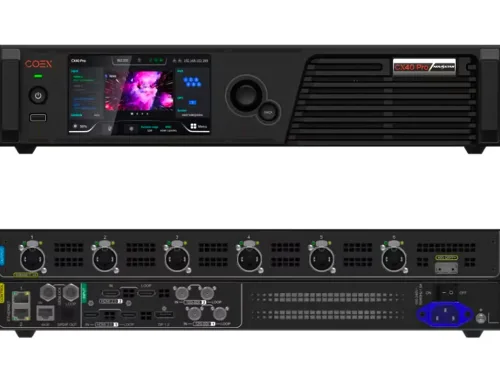
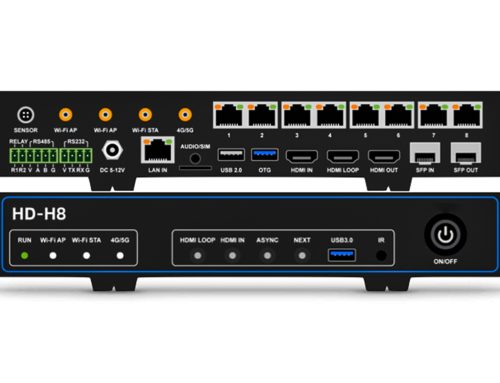
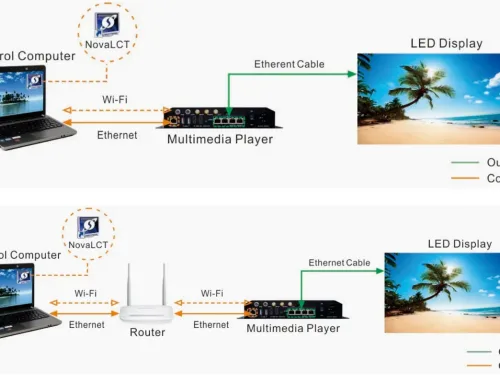
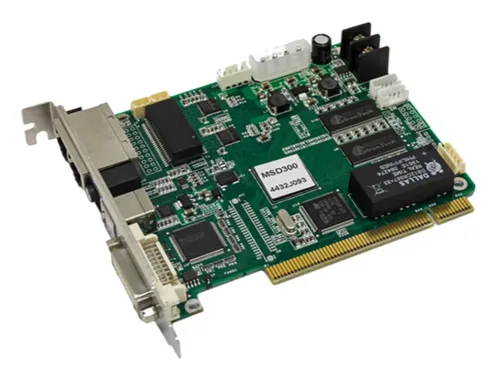
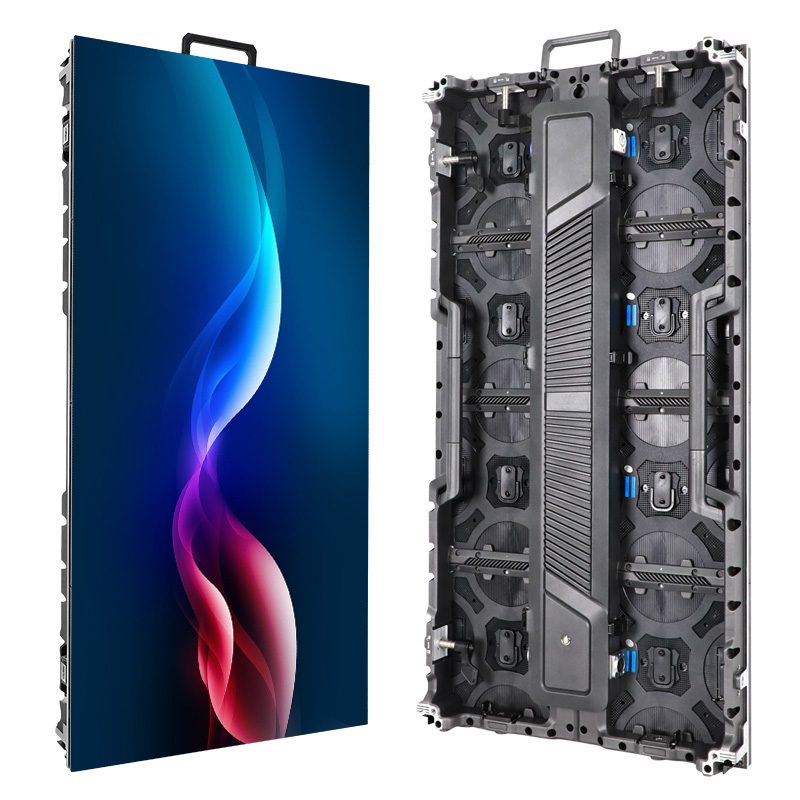
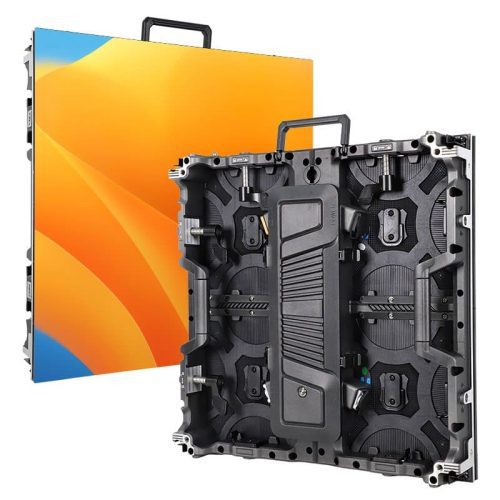
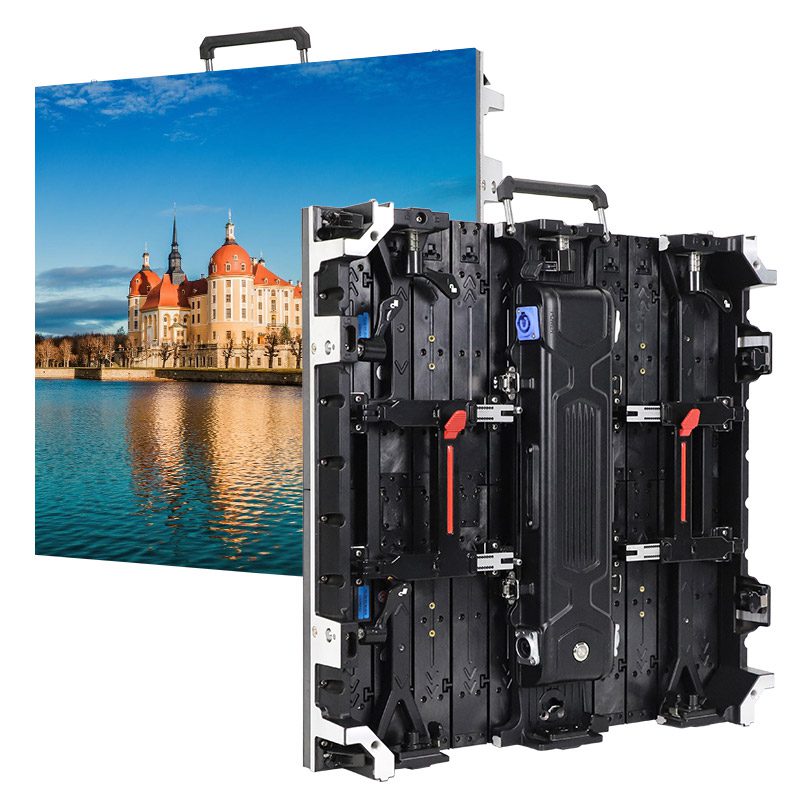
If you are looking for a NovaStar ViPlex Express download and user guide, this article is for you. We will explain what ViPlex Express is, how to download and install it, and how to use it to control your LED screen. At the end of the article, we also provide links to other commonly used NovaStar software downloads and answer frequently asked questions.
catalogue
1. What ViPlex Express Can Do for Your LED screen?
ViPlex Express helps your LED screen run and manage more efficiently. It allows you to quickly adjust display settings, upload content, monitor screen status, synchronize multiple screens, and receive alerts if there are any issues, keeping your screen always at its best performance.
1.1 What is NovaStar ViPlex Express?
ViPlex Express is part of the NovaStar software series. It integrates video splicing, scaling, switching, and image processing into one tool. It is mainly used to control LED screens, seamlessly combining multiple input sources and outputting them to large or complex LED video walls, achieving multi-window, ultra-high-definition display effects.
1.2 Essential Functions for LED Displays
With ViPlex Express, you can achieve the following key functions:
- Display Setting Management: Adjust brightness, contrast, color temperature, and refresh rate of the LED screen.
- Screen Status Monitoring: Check real-time screen operation, including temperature, voltage, and signal quality.
- Program and Content Management: Quickly upload videos, images, or text content to play on the screen.
- Multi-Screen Synchronized Control: Manage and play the same or different content on multiple screens simultaneously.
- Fault Diagnosis and Alerts: Automatically detect screen issues and provide notifications, reducing maintenance costs.
2. How to download ViPlex Express
You can download NovaStar software from the official website’s download center, or use the links below. We have organized multiple versions for you. The following ViPlex Express download resources are all official and completely free.
2.1 ViPlex Express Free Software
The latest version of ViPlex Express download:
ViPlex Express V3.0.5.1501
Architecture: X64 (64-bit)
Features: This is the latest major version (V3.x), with many updated functions and a more modern UI.
Recommended for: Windows 64-bit users (Win10/11 are recommended).
Click on the link in the table below to download
Old versions of ViPlex Express download
ViPlex Express 64 Bit Download (V2.3.0.0701)
Architecture: 64-bit
Features: One major version below V3, a stable version still used in some old projects.
Recommended for: Older controllers.
ViPlex Express 64 Bit Download (V2.26.0.0701)
Architecture: 64-bit
Features: A newer version in the V2 series, slightly more stable and with more functions than V2.3.
Recommended for: Old projects, but more updated than V2.3.
ViPlex Express 32 Bit Download (V2.26.0.0701)
Architecture: 32-bit
Features: Same functions as the 64-bit version, but for 32-bit Windows systems.
Recommended for: Older computers (especially Windows 7, 32-bit). Not recommended for modern PCs.
2.2 Computer Requirements for ViPlex Express Download
To run ViPlex Express, your computer should meet the following requirements:
- OS: Windows 7 SP1 64-bit or above
- CPU: Intel i5
- RAM: 4 GB
- HDD: 60 GB or more
2.3 ViPlex Express Download and Installation Process
Install .NET Framework 4.6.x or higher
Before installing ViPlex Express, make sure your computer has .NET Framework 4.6.x or higher installed. Without it, the software will not run properly.
Download link: https://www.ledscreenboard.com/novastar-led-control-software-download/
Download ViPlex Express (X64)
Click the link below to download the compressed file ViPlex Express V3.0.4.2001 Update (X64) to a folder on your computer.
- Extract and Install the Software
Extract the downloaded compressed file.
Double-click ViPlex Express V3.0.4.2001 Setup.exe.
Follow the installation wizard to complete the installation.
3.How to use ViPlex Express
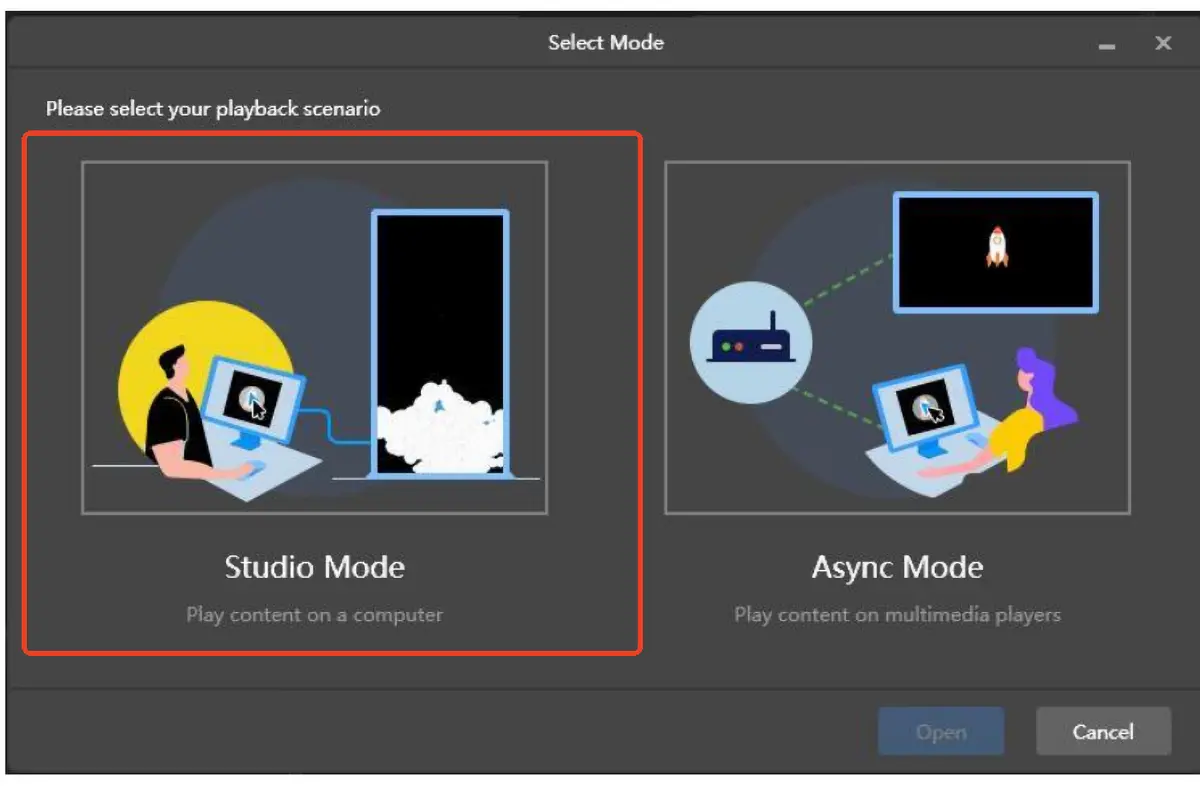
There are two working modes in ViPlex Express:
- Local Playback: ViPlex Express plays the content directly, and the LED screen displays it in real time.
- Async Playback: ViPlex Express sends the content to a media player. The media player stores the content locally and plays it according to the scheduled plan.
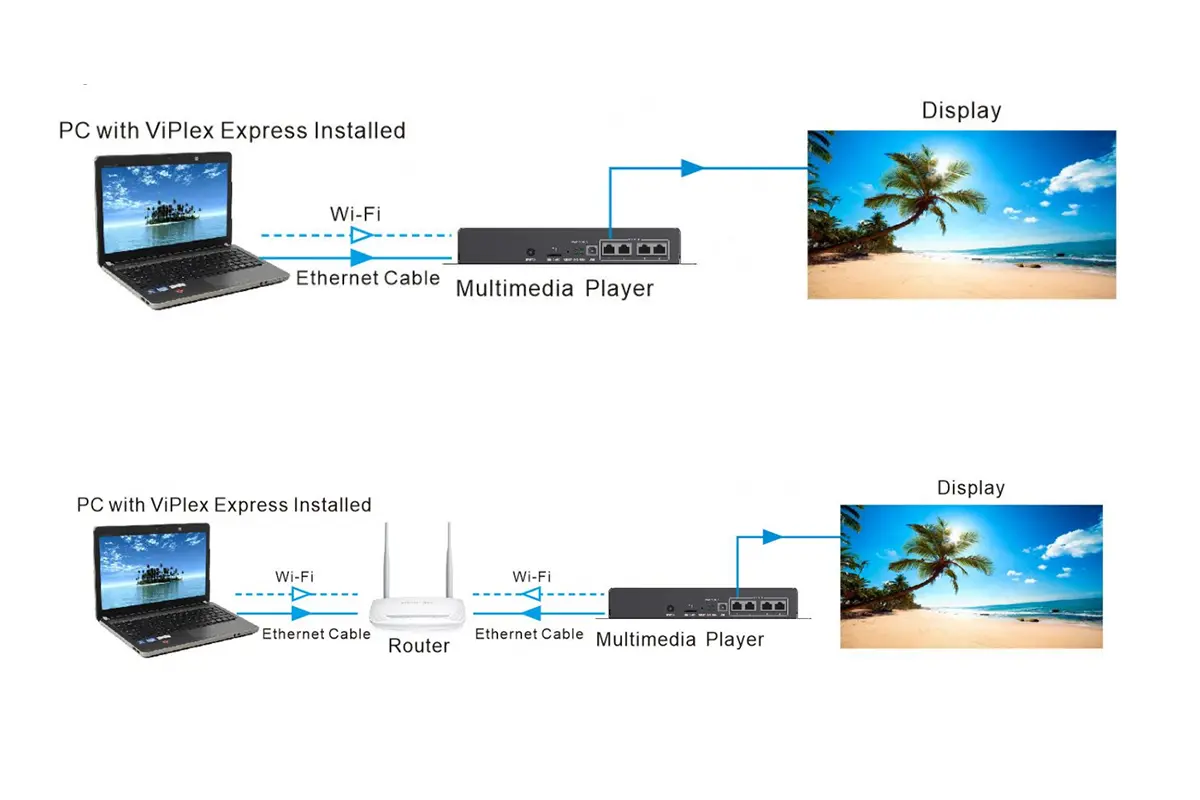
3.2 Connecting the LED Screen
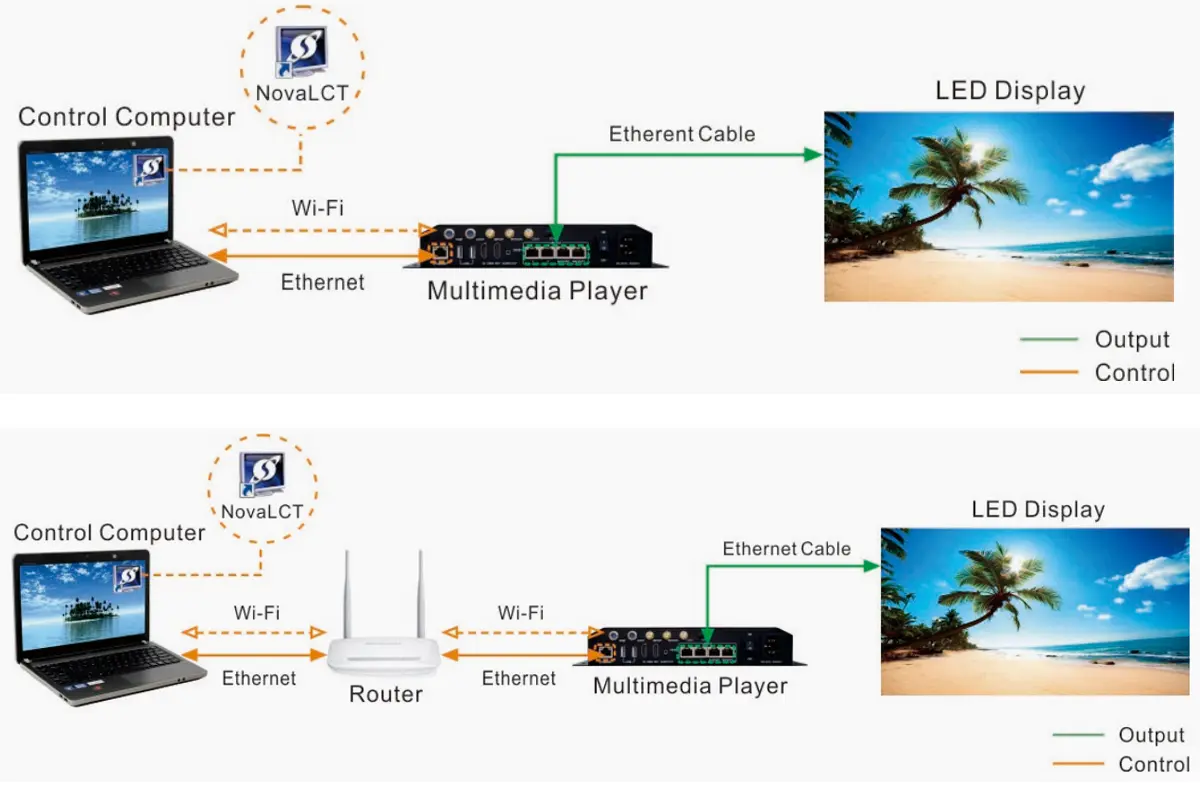
Connection Method 1: PC → Sending Card → LED Screen
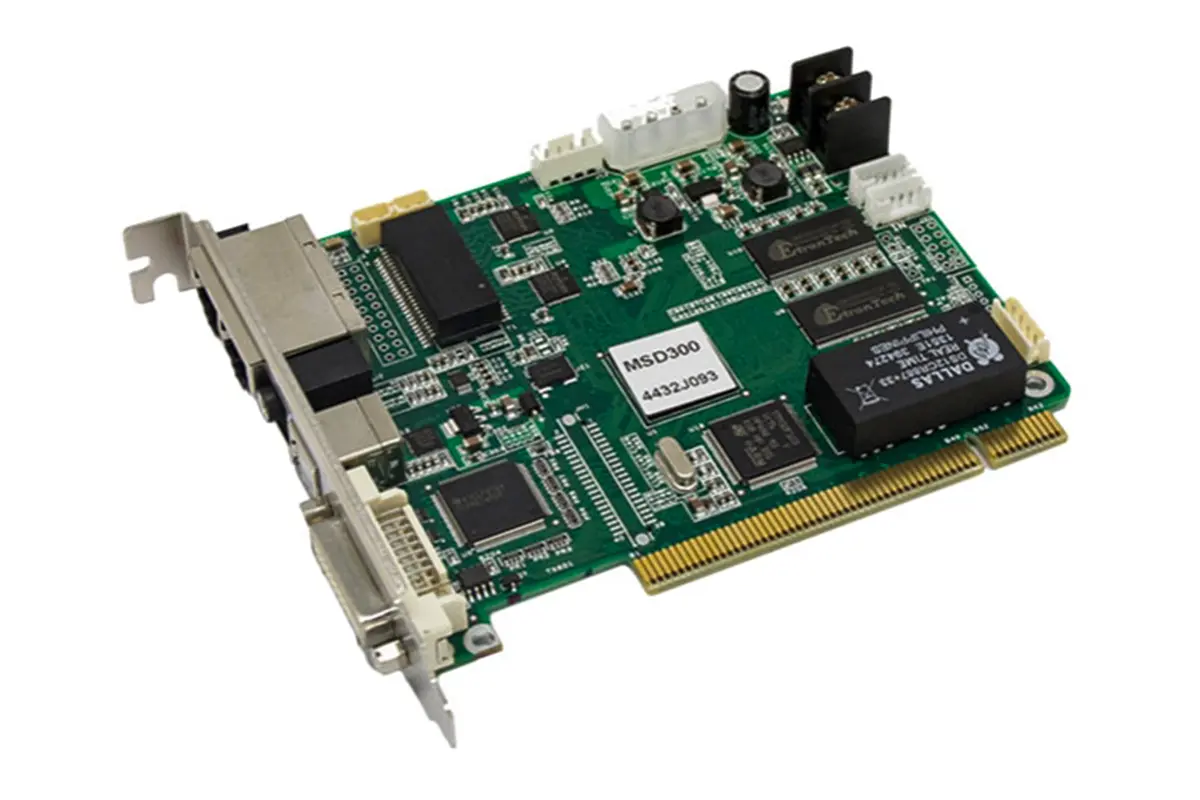
After installing the software on your computer, connect the PC to the LED screen sending card via a network cable (or other supported interface). The sending card converts the video signal into a format the LED screen can recognize and outputs it to the LED modules.
Features:
- Suitable for full-color LED screens (indoor/outdoor large screens)
- Can control hardware parameters such as resolution, refresh rate, and grayscale
- Supports multi-screen splicing and synchronized playback
- Video processed through the sending card ensures higher compatibility and stability
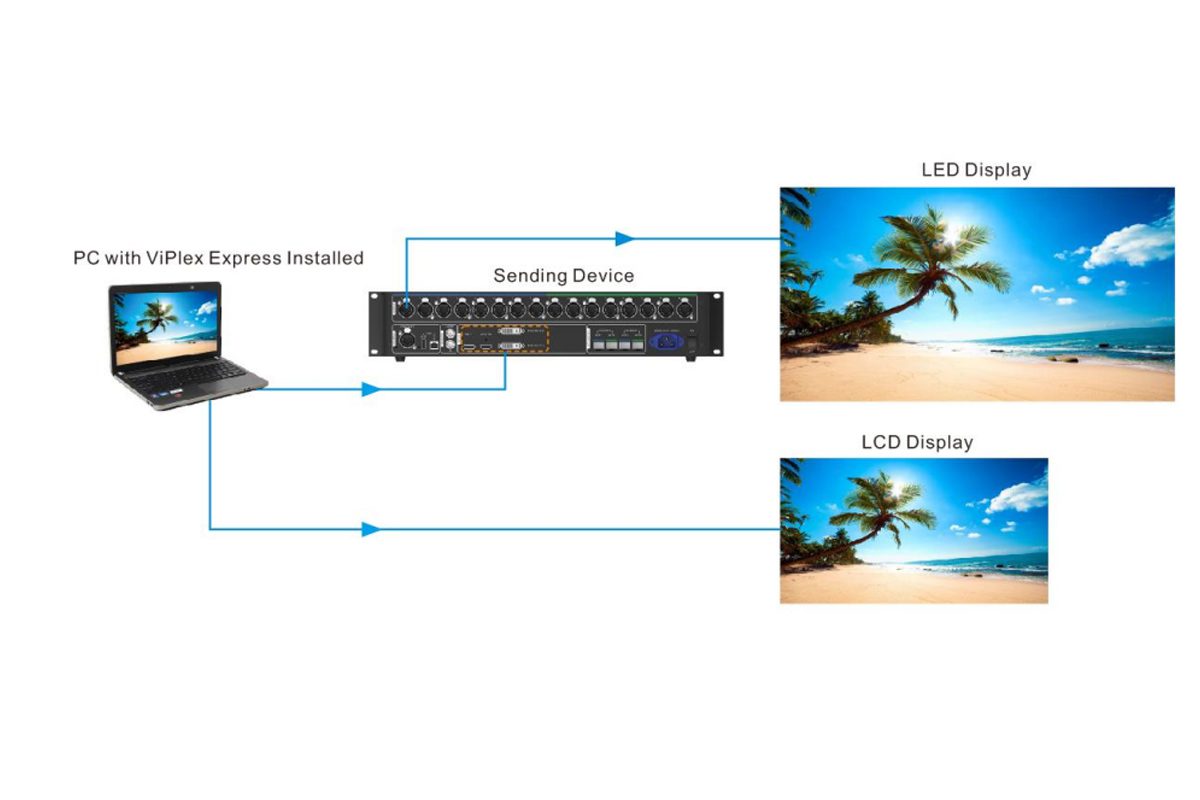
Connection Method 2: PC → LCD Screen
After installing ViPlex Express on your computer, connect the PC directly to the LCD screen using HDMI, DP, or VGA interfaces. The LCD screen will display the video signal directly from the computer output.
Features:
- Suitable for LCD screens or small screens
- The signal is not processed through a sending card; it displays directly from the computer
- Cannot perform multi-screen splicing or adjust complex hardware parameters
- Simple installation, ideal for conference rooms, shops, or small LCD displays
3.2 How to Create Content for Your LED Screen Using NovaStar ViPlex Express
3.2.1 Local Mode
- Open ViPlex Express and select Local Mode to enter the content creation interface.
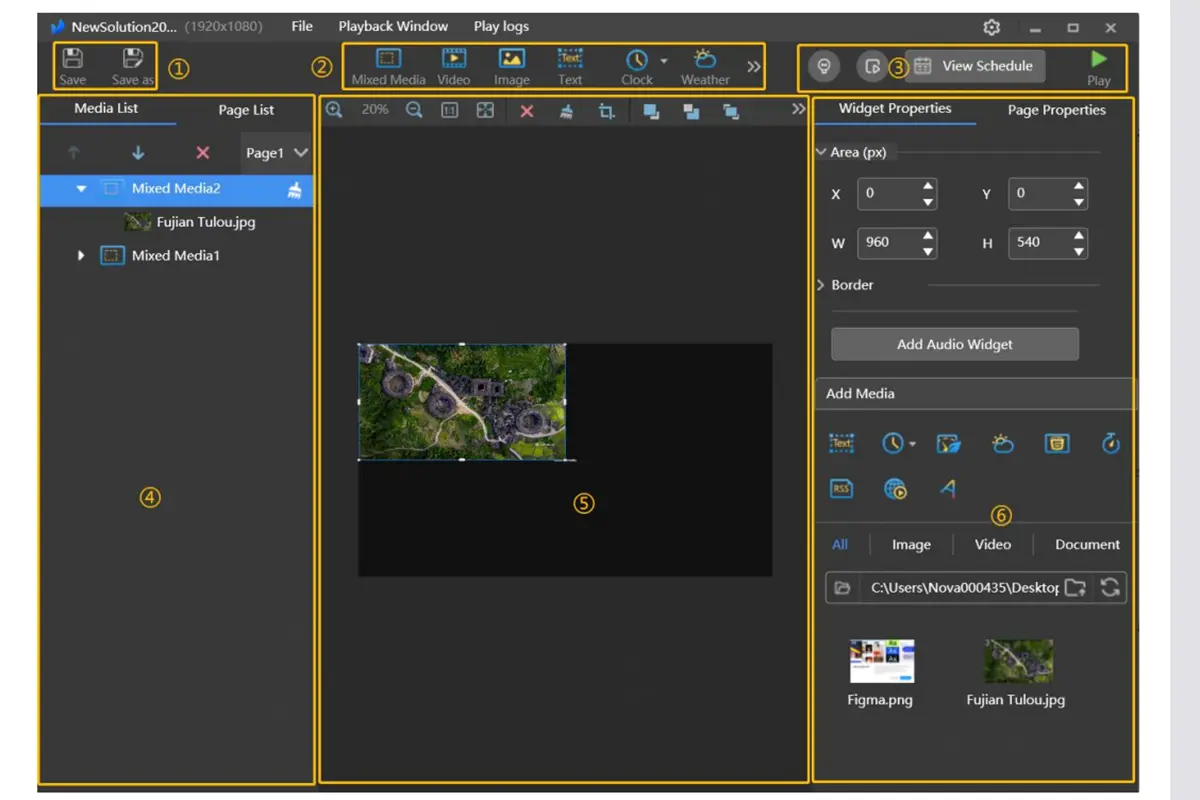
- In the menu bar, go to Play Window > Play Window Settings to adjust the coordinates, size, and top-most rules of the playback window.
- To play in full screen, check Same as Desktop, and the window will match the desktop size.
- Create a new program to enter the editing interface. Add playback areas and insert images, videos, text, or other materials. Adjust the size and position as needed. You can set multiple playback windows to play different content simultaneously.
- After saving, click the Play button on the toolbar, and the LED screen will display the content immediately.
- For more detailed operations, please refer to the user manual.
Program Management:
- In the Program Management interface, you can manage your created programs:
- Edit: Re-enter the editing interface to adjust content.
- Rename: Easily distinguish different programs.
- Delete: Remove unwanted programs.
- Copy: Quickly create a similar program to save production time.
- Change Order: Adjust the playback sequence of programs.
3.2.2 Async Mode
Login to the LED Screen
- First, enter Local Mode. The software will automatically search for available screens.
- Select the screen you want to control and click Connect. Only after a successful connection can you push content to the screen.
- Supports multiple connection methods: wired network, Wi-Fi, USB/4G, VPN, etc.
- If no screen is found automatically, you can manually enter the controller’s IP address to connect.
Create Content
- Click New Program to enter the editing interface.
- Set the playback window’s coordinates, size, and top-most rules. You can also check Same as Desktop for full-screen playback.
- Add playback areas in the program and insert videos, images, text, or other materials. Adjust the playback order as needed.
Publish Content
- After creating the program, click Publish, select the target screen, and confirm.
- You can choose to publish immediately or schedule it for a later time. Loop playback can also be set.
Playback and Preview
Once published, the program will play immediately on the LED screen. You can preview or stop playback in real time through the software.
3.3 Check for Software Updates
- Select Check for Updates. In the pop-up dialog, see if a new version is available.
- If an update is available, click Download Update to perform an online update of the software.
4. Related NovaStar Software Downloads
ViPlex Handy 3.0.2.0501_364
Platform: Mobile (iOS / Android)
Function: Create and publish programs on mobile devices. Supports remote login to controllers, uploading content, and switching programs—ideal for on-site debugging and quick content release.
NovaLCT
Platform: PC
Function: LED screen debugging and configuration. Used for setting parameters of sending and receiving cards, calibration, brightness adjustment, and screen configuration. Essential tool for installation and commissioning.
Download Links:
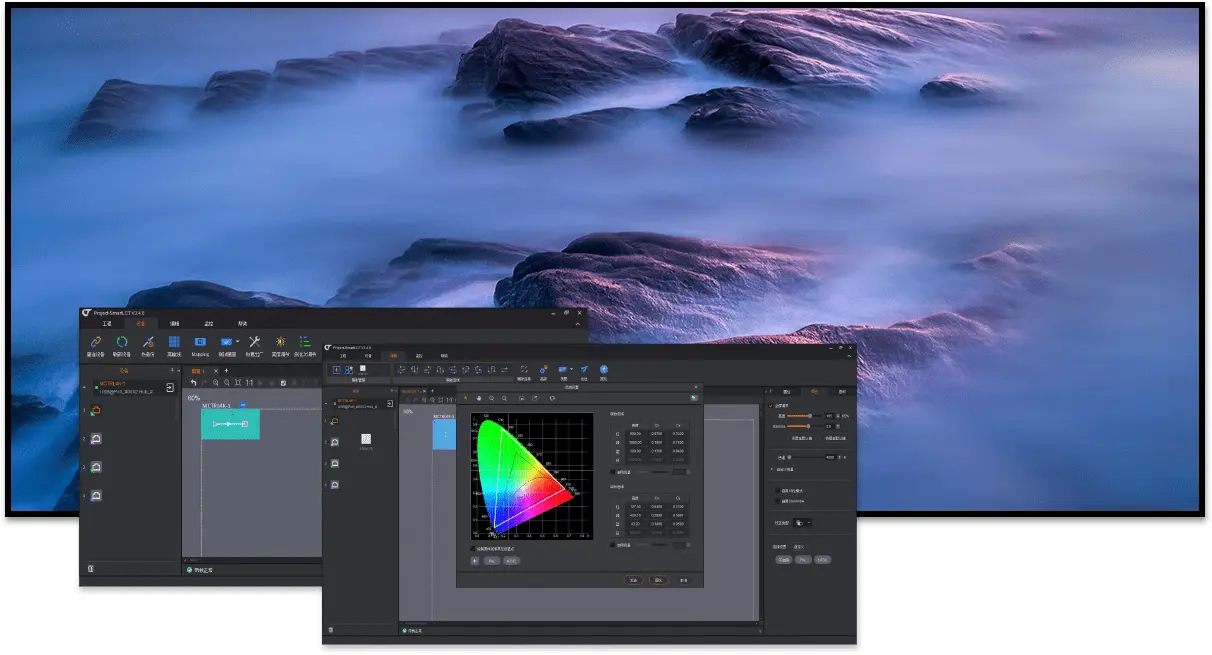
NovaStar SmartLCT
Platform: PC
Function: Smart configuration tool for large and complex splicing screens. Automatically detects screen connection relationships and simplifies the splicing configuration process.
Download Links:
5. FAQs about ViPlex Express
6. Conclusion
After reading the above content, if you still have trouble using NovaStar ViPlex Express, you can refer to the official user manual for detailed installation, setup, and usage instructions. You can also contact us through our website—we provide one-on-one guidance, answer your questions, and help you quickly master NovaStar software for your LED screen.