
Related Posts



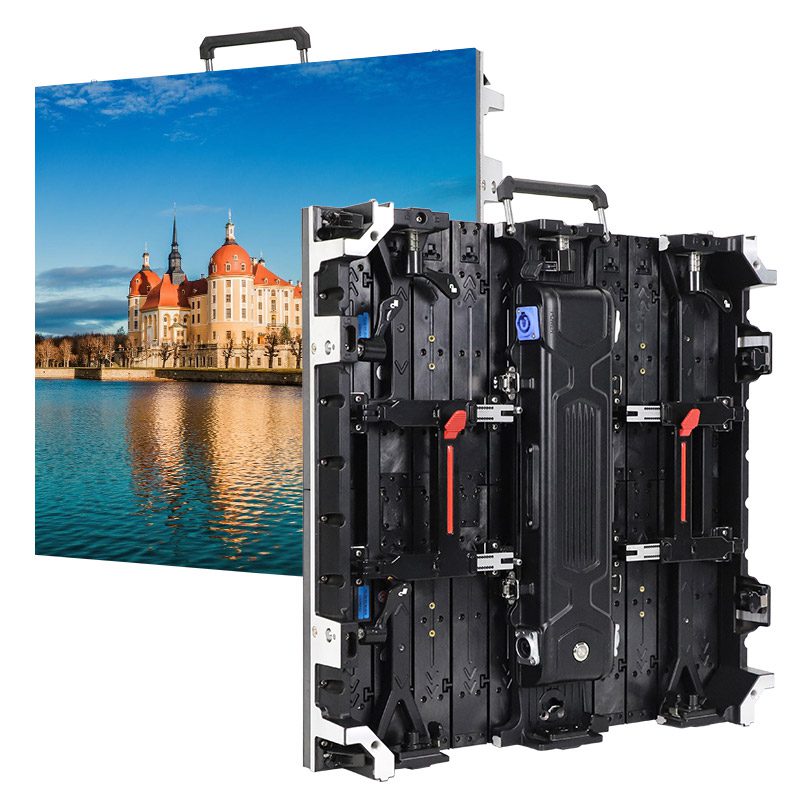
This guide covers the essential setup and operation steps for using the Novastar H9 video wall splicer with both LED screen and LCD screen. It focuses on real-world tasks—installation, configuration, layout control, and monitoring—based on the device’s built-in web interface. Follow this guide to deploy and manage mixed-display systems efficiently in professional environments.
catalogue
1.Novastar H9 video wall splicer overview
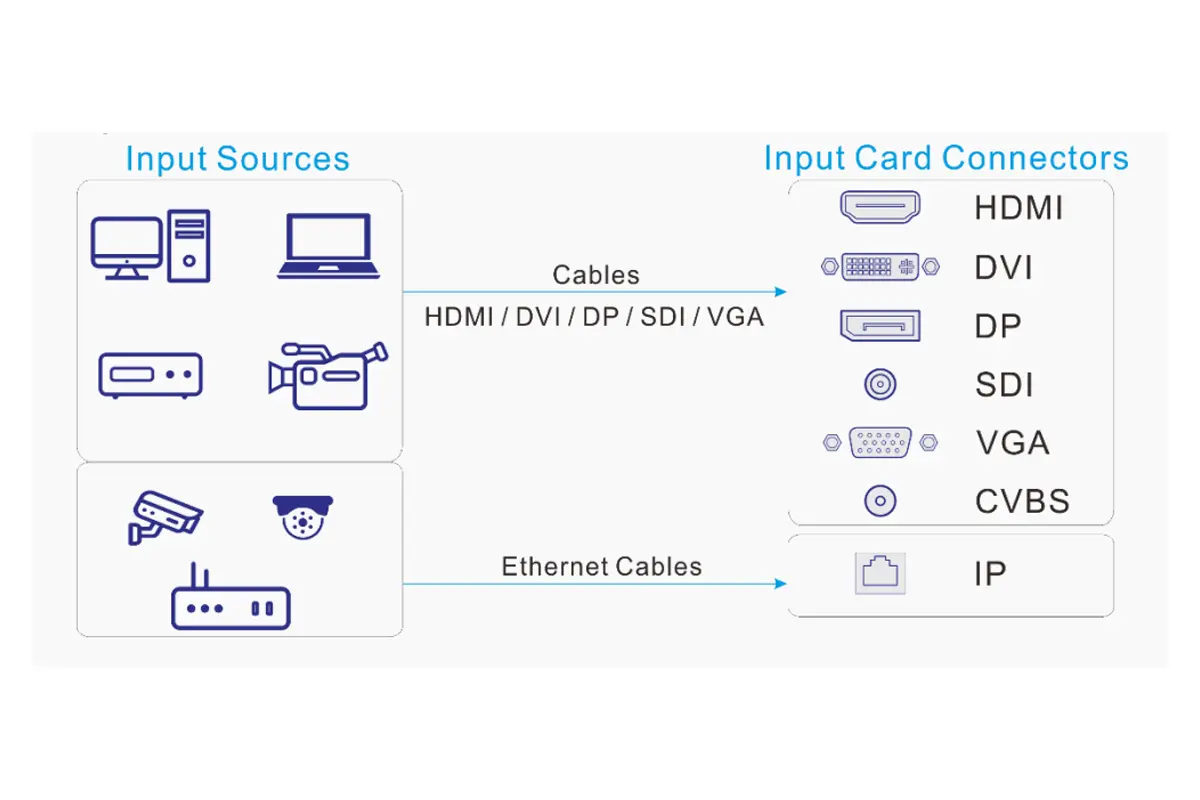
Novastar H9 is a powerful video wall processor that integrates both video processing and video control capabilities into one compact unit. It supports a wide range of input sources (HDMI, DP, DVI, SDI, fiber, etc.) and outputs them seamlessly to either LED sending cards or directly to LCD screens. Its modular design allows users to configure it based on specific project requirements, making it highly versatile.
Key Features of the Novastar H9:
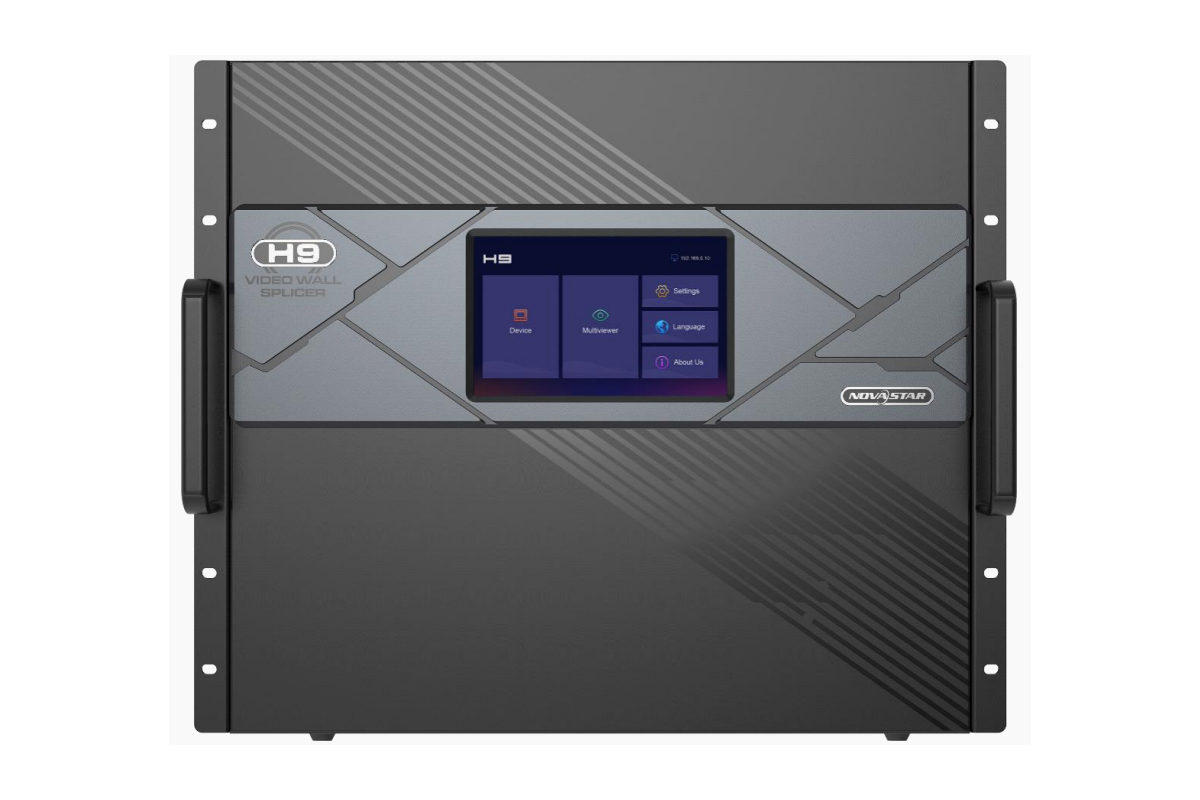

- Modular Design: Hot-swappable input and output cards allow for flexible configurations.
- High Resolution Support: Handles up to 4K@60Hz inputs and outputs, with support for HDR10 and HLG processing.
- Multi-Screen Management: Manage multiple screens with independent resolutions and layouts.
- Web-Based Control: Operate the system via any browser without installing additional software.
- Backup Functionality: Supports backup between devices and LED 4K sending cards for uninterrupted operation.
- Low Latency: Reduces delay from input source to receiving card to as low as 1 frame.
| Feature | Specification |
|---|---|
| Input Channels | Up to 60 (via input boards) |
| Output Channels | Up to 40 (via output boards) |
| Max Pixel Capacity | 208 million pixels (with H_4xFiber sending card) |
| Layer Support | Up to 80 layers per sending card |
| Preset Switching | Less than 60ms |
| Supported Input Sources | HDMI, DP, DVI, SDI, Fiber, NDI, IP cameras |
| Web Interface Compatibility | Chrome, Edge, Safari, etc. |
2.Novastar H9 function for LED screen and LCD screen
Novastar H9 video wall processor excels in handling both LED video walls and LCD video walls, offering tailored functionality for each type of display.
For LED Screens:
- Pixel Mapping: The H9 video wall processor works with Novastar’s LED sending cards (e.g., H_16xRJ45+2xfiber, H_20xRJ45, H_4xfiber) to map pixel-perfect content onto fine-pitch LED panels.
- Layer Composition: Combine multiple video feeds, graphics, and text overlays into a single cohesive layout.
- HDR and Color Adjustment: Fine-tune brightness, contrast, saturation, gamma, and color temperature for stunning visuals.
- 3D Integration: Use the Novastar H9 with NovaStar’s EMT200 emitter for immersive 3D experiences.
For LCD Screens:
- Direct Output: Connect the H9 video wall processor’s output cards (e.g., HDMI, DVI) directly to LCD splicing screens for plug-and-play functionality.
- Bezel Compensation: Adjust for bezel gaps to ensure smooth transitions between adjacent LCD panels.
- Custom Resolutions: Set unique resolutions for individual screens within a video wall setup.

3.How to Install and Log In to the Novastar H9
Proper installation and login are critical steps to getting started with the Novastar H9 video wall controller.
Novastar H9 Installation Steps:
Mount the unit
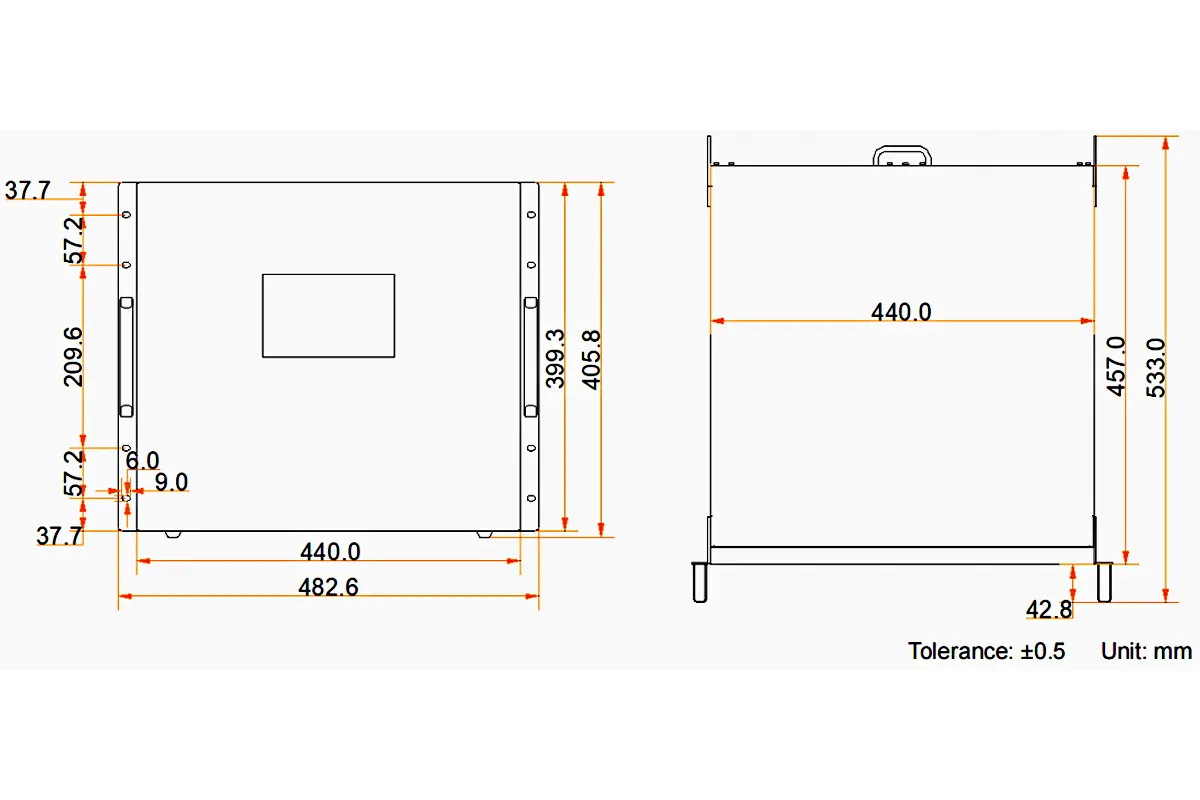
Place the H9 horizontally in a standard 19-inch rack. Leave at least 10 cm of space on all sides for ventilation.
Insert cards
Install input cards (e.g., HDMI, DisplayPort) and output cards (e.g., DVI-D, HDMI) into the chassis based on your sources and displays.
Connect power and network
Attach both power cables (for redundancy) and connect an Ethernet cable to the “LAN” port.
Connect displays:
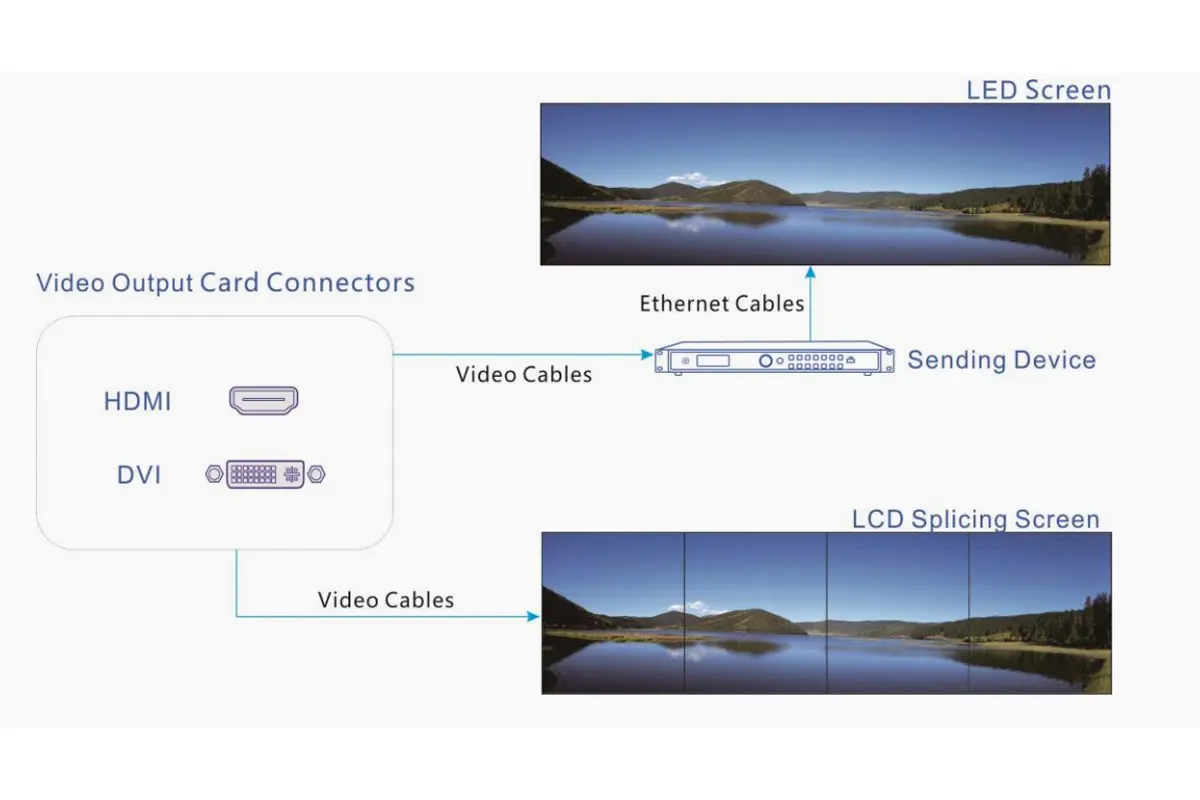
- For LED video walls: Connect the H9’s DVI or fiber output to a Novastar sending card (e.g., VX4S, MCTRL660) using Cat6 or fiber cable.
- For LCD video walls: Connect the H9 LED video wall controller’s HDMI or DisplayPort output to an external LCD video wall controller.
Power on
Flip the power switch to “ON”. The front panel will show the current IP address after boot-up.
Logging In:
- Connect a PC to the same network as the Novastar H9.
- Open a web browser and enter the H9’s IP address (default: http://192.168.0.100).
- → If this fails, check the IP displayed on the H9 LED video wall controller’s front panel during startup.
- Log in with:
Username: admin
Password: admin
- (Optional) Change the IP under Settings > Communication to match your network.
4.How to Configure an LED Video Wall with the Novastar H9
After completing the hardware connection, configuring the LED screen through software is the crucial step to bring your video wall to life. The Novastar H9 video wall splicer offers a streamlined workflow, combining its built-in Web Configuration interface for logical screen setup and the professional NovaLCT software for detailed physical mapping.
You can configure your LED wall using one of two primary methods, depending on your needs and the sending card used.
Method 1: Web Configuration
Step 1: Access the Configuration Page
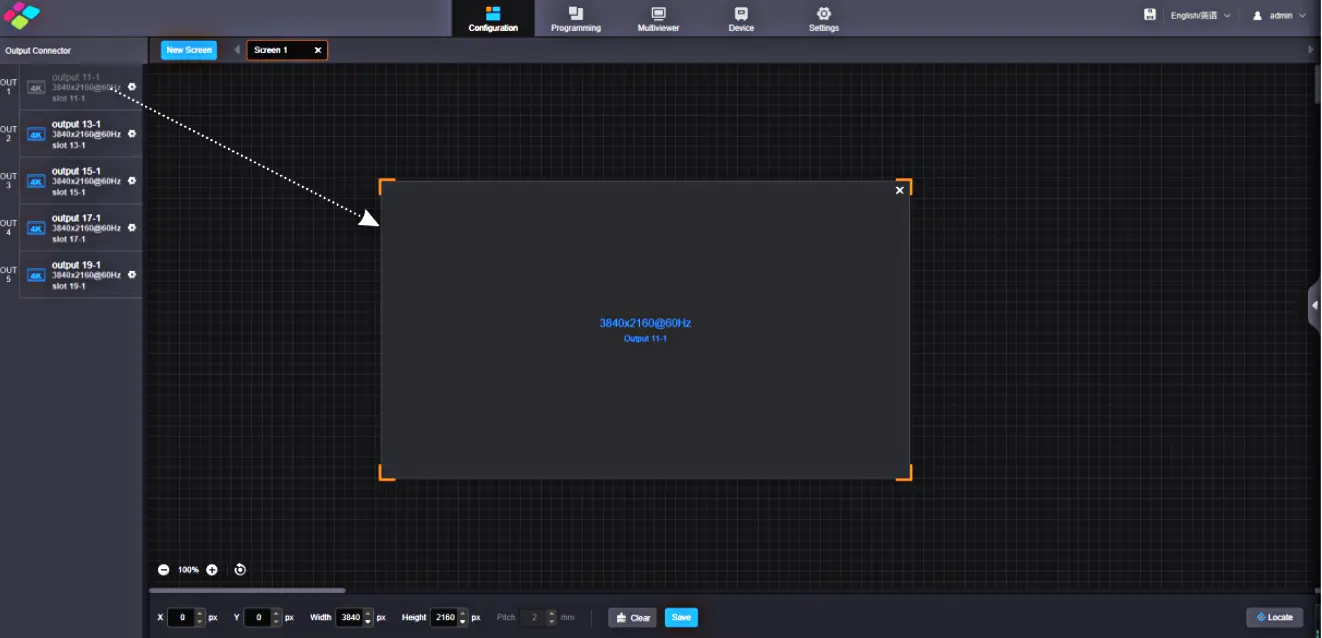
Log into the H9’s web interface. Click on the “Configuration” tab at the top to enter the screen management page.
Step 2: Create a New Screen
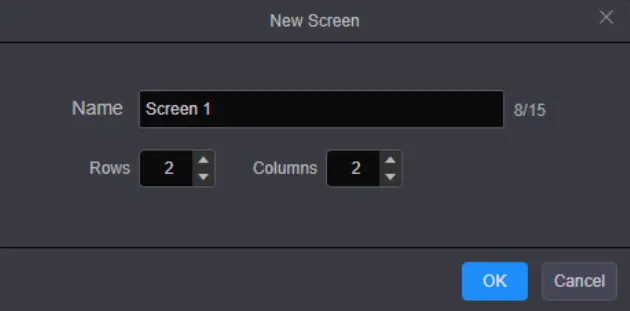
Click the “New Screen” button. In the pop-up window:
- Name: Give your screen a descriptive name (e.g., “Main_Lobby_Wall”).
- Rows/Columns: Define the logical layout based on your physical display’s grid (e.g., 3×3, 4×4, 2×5).
Step 3: Assign an Output Card
On the left panel, you will see icons representing your installed output cards.
- H_16xRJ45+2xfiber card appears as a virtual 4K output.
- H_20xRJ45 card also appears as a virtual 4K output.
- H_4xfiber card has a distinct sender icon.
Click and drag the appropriate card icon onto the screen grid you just created. This action associates the physical output card with this logical screen.

Step 4: Save the Configuration
Click “Save”. The associated output connectors will now appear in gray on the left panel, indicating they are in use.
Method 2: NovaLCT Configuration
This step is mandatory when using any of the LED 4K sending cards. NovaLCT software handles the physical mapping—defining how the data streams connect to each individual LED cabinet and receiving card to ensure every pixel lights up correctly.
Step 1: Launch and Log into NovaLCT
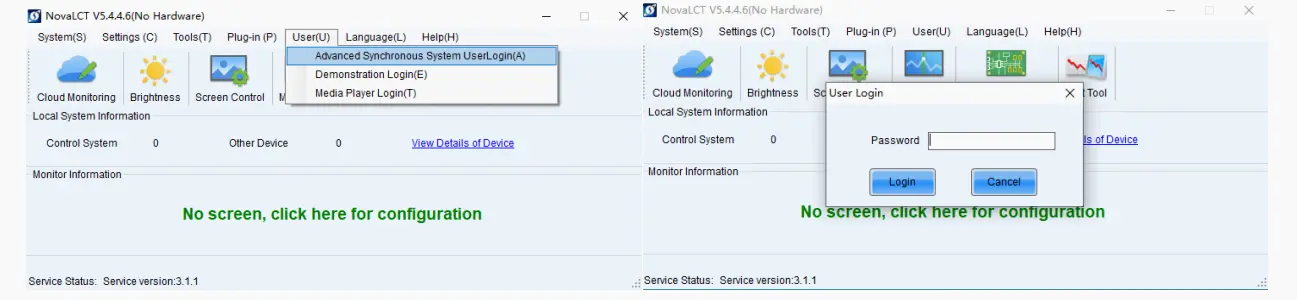
Open NovaLCT software on your control PC. Navigate to User > Advanced Synchronous System User Login. Enter the password (default is admin) and click Login.
Step 2: Enter Screen Configuration
From the menu bar, go to Settings > Screen Configuration.
Step 3: Select Communication Port
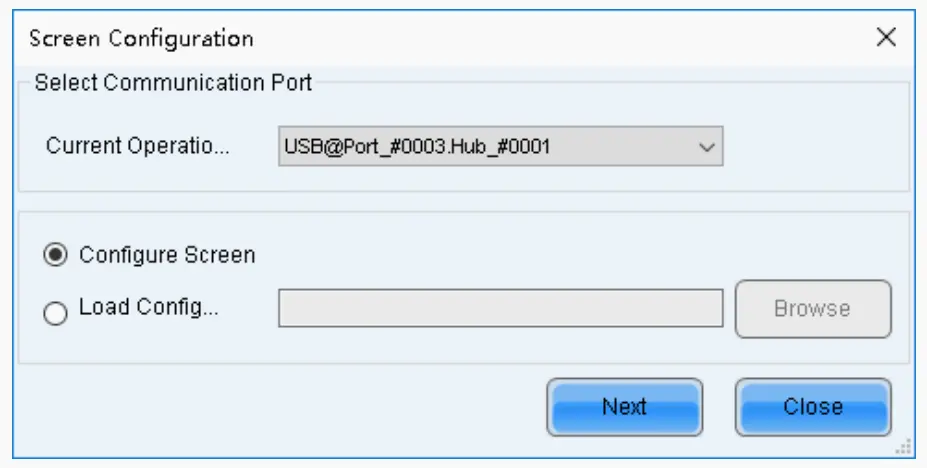
Choose the correct communication port for your H9 device and click Next.
Step 4: Configure Sending Card & Screen Connection
- In the “Screen Connection” tab, you will define the physical layout.
- Sending Card Number: Select the number corresponding to the physical slot your sending card occupies in the Novastar H9 video wall splicer chassis (numbered from left to right).
- Screen Structure: Set the number of receiving card columns and rows in your LED wall.
- Receiving Card Size: Define the pixel dimensions (e.g., 128×128) of each individual receiving card/module.
- Connection Mapping: Visually draw lines on the grid to map each Ethernet Port No. from the sending card to the corresponding cabinet position in your screen layout. This step precisely dictates the data flow.
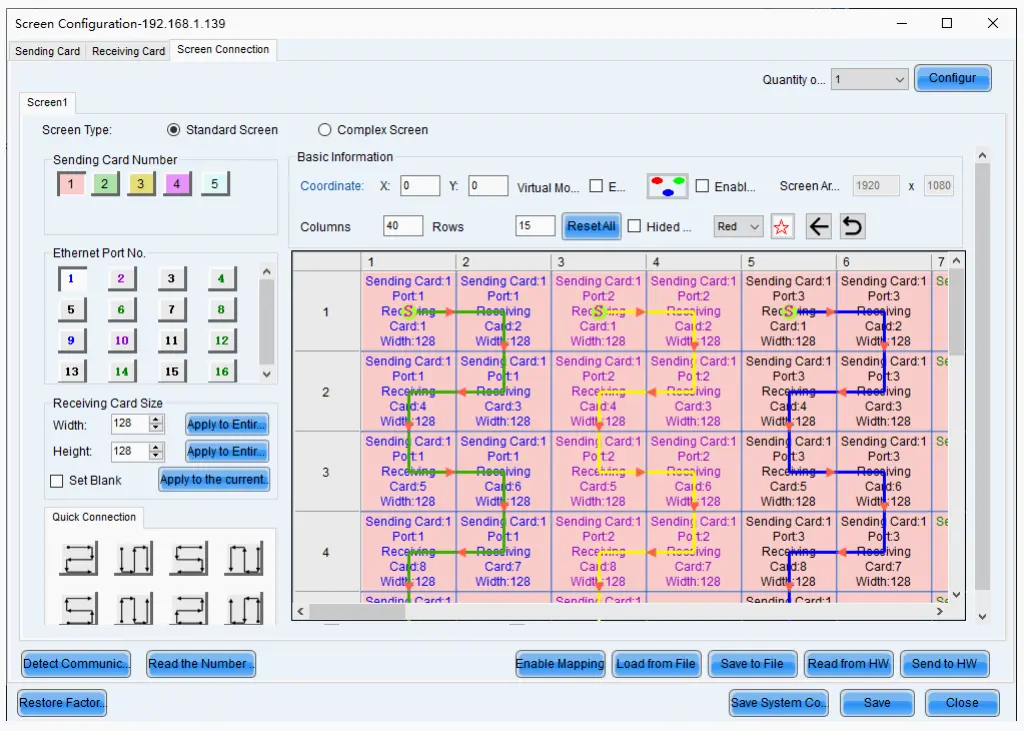
Step 5: Send Configuration to Hardware
Once all physical connections are mapped correctly, click “Send to HW”. This uploads the configuration to the H9’s sending card and the connected LED receiving cards, completing the setup.
5.How to Configure an LCD Video Wall with the Novastar H9
Configuring an LCD (or Direct-View) video wall with the H9 is a more straightforward process compared to LED walls, as it does not require the use of external NovaLCT software for low-level mapping. The entire setup is managed within the H9’s intuitive web interface.
Create the Logical Screen
In the Configuration tab of the web interface, click New Screen. Name your LCD wall (e.g., “Conference_LCD_Wall”) and set its Rows and Columns to match the physical grid of LCD panels (e.g., 2×2, 3×3).
Assign Physical Outputs
From the hardware list on the left, click and drag the specific video output card (e.g., an H_4xHDMI output card) onto the screen grid. You can assign individual connectors or, for a simplified setup, drag the entire card to auto-map outputs to the screen layout.

Apply Bezel Compensation
This is the key step for a seamless LCD video wall.
- Select your configured screen, and expand the properties pane on the right.
- Enable LCD Bezel Compensation.
- Enter the H Spacing (Horizontal) and V Spacing (Vertical) values in pixels. These values should account for the physical bezel width of the LCD panels plus half of any intentional gap between them.
6.How to Switch Between LED and LCD Layouts with One Preset
One of the standout features of the Novastar H9 is its ability to store and recall presets, allowing you to toggle between LED and LCD configurations effortlessly.
Steps to Create a Preset
Arrange your desired layout for either LED or LCD.Click Save Preset and give it a descriptive name (e.g., “LED Mode” or “LCD Mode”).Repeat for the alternate configuration.
Switching Layouts
From the Programming tab, select the saved preset corresponding to your target display type.
The transition occurs instantly, ensuring minimal downtime during format changes.
7.How to Monitor Both LED and LCD Outputs Using Multiview
The Multiviewer function lets you monitor all active inputs and outputs simultaneously, regardless of whether you’re driving LED or LCD screens.
- Navigate to the Multiviewer tab.
- Drag input sources or screen sections into the monitoring grid.
- Customize the layout using predefined templates (2×2, 3×3, etc.) or create custom arrangements.
- View the multiview feed on an external monitor connected to the H9’s HDMI preview port.
- This feature is invaluable for troubleshooting and real-time monitoring during live events.
8.FAQs
9.Conclusion
Novastar H9 video wall splicer is a versatile and reliable solution for managing complex video wall setups. Whether you’re configuring an LED video wall for a command center or an LCD video wall for a corporate presentation, the H9 offers unparalleled flexibility and ease of use.To learn more about the H9’s capabilities or download tools like NovaLCT, visit www.novastar.tech. For technical support, contact NovaStar at support@novastar.tech.