
Related Posts


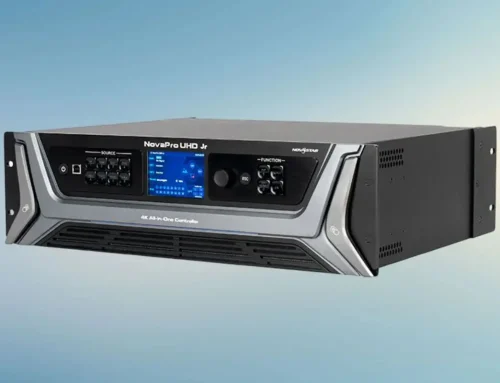

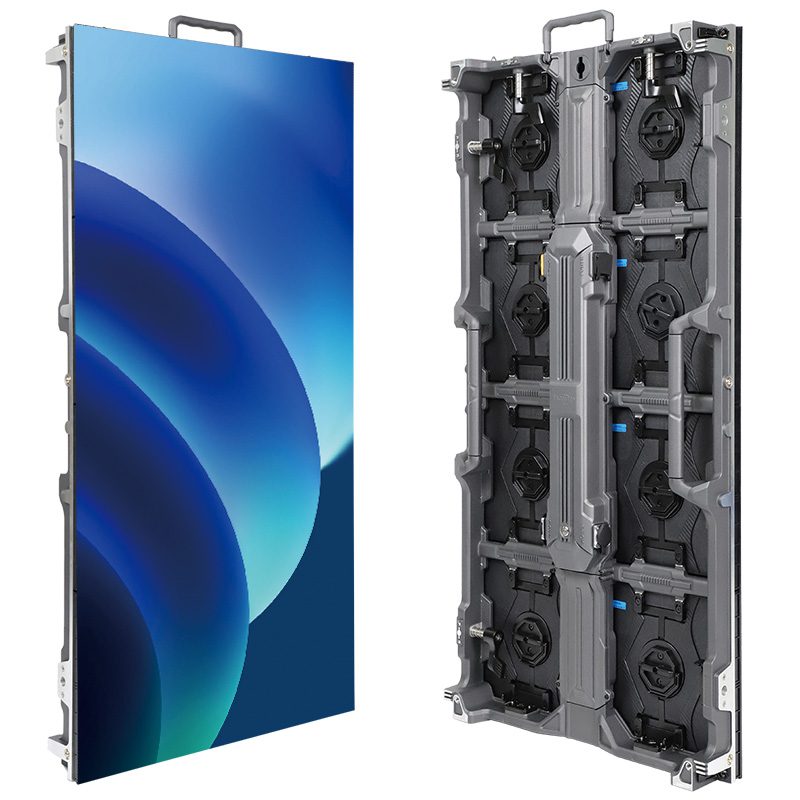
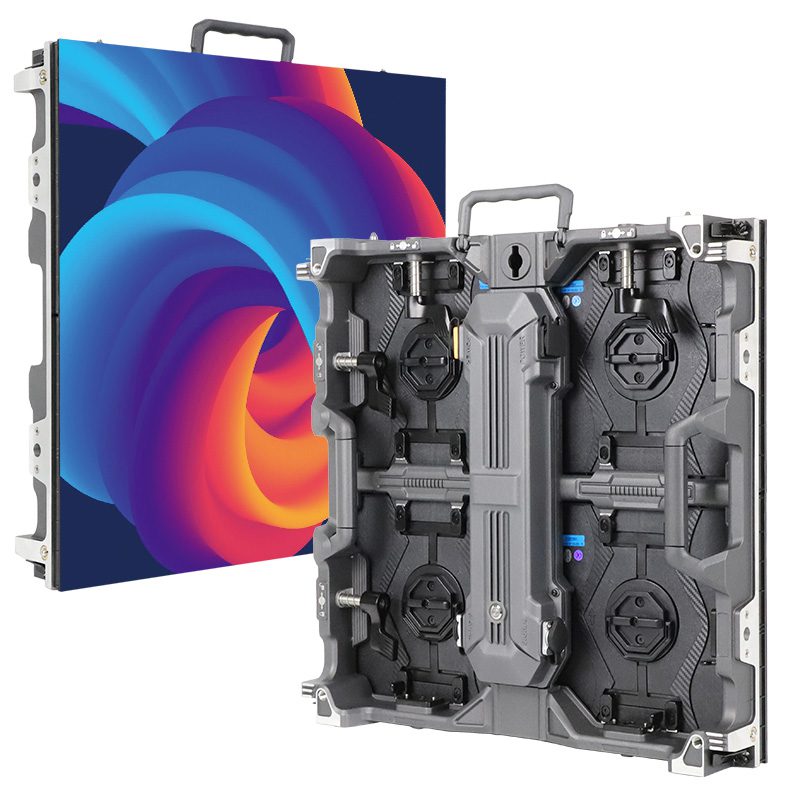
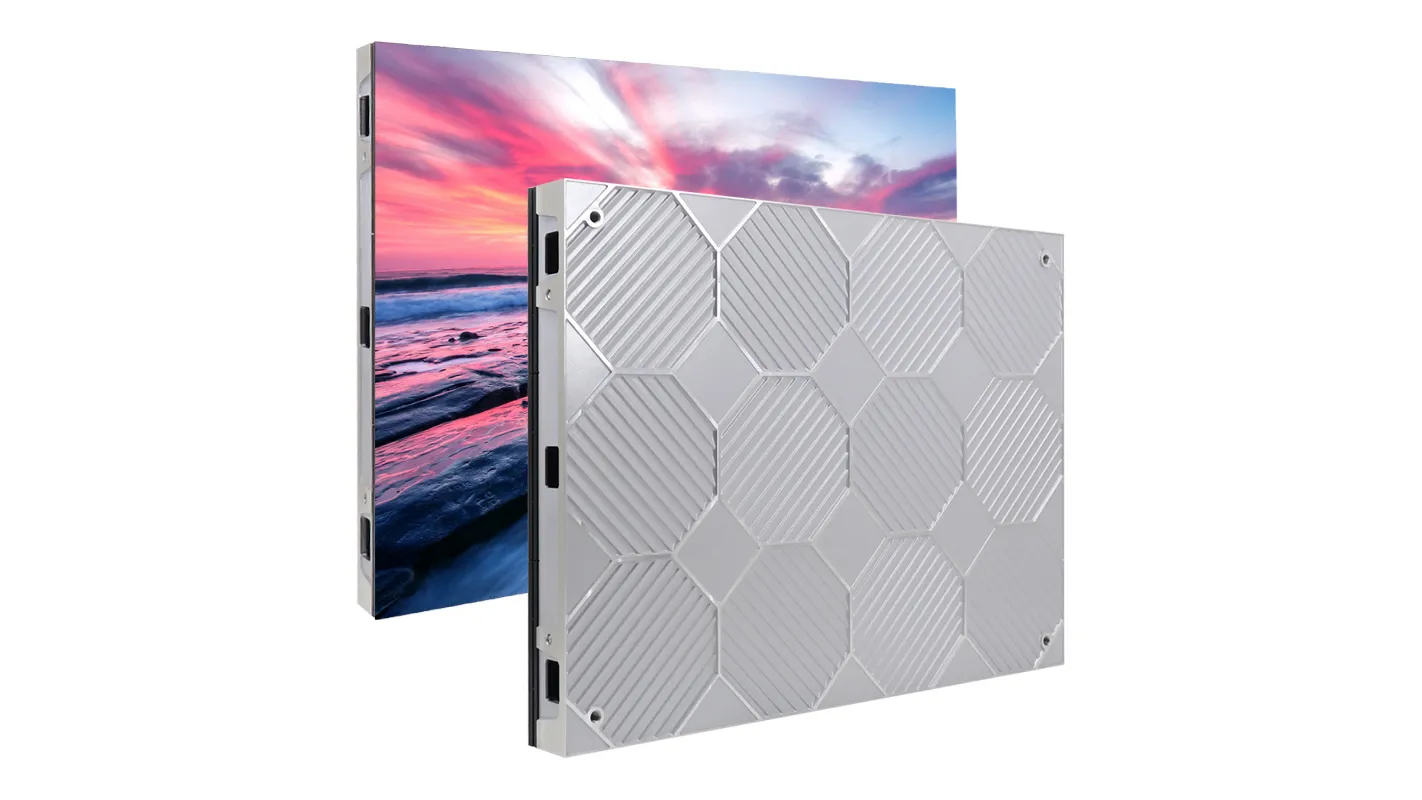
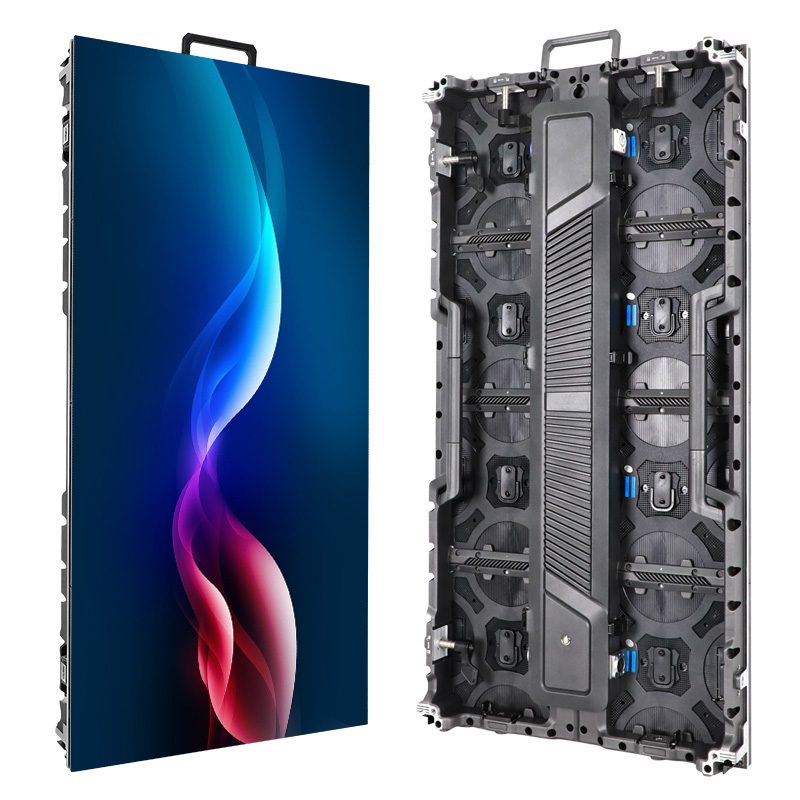
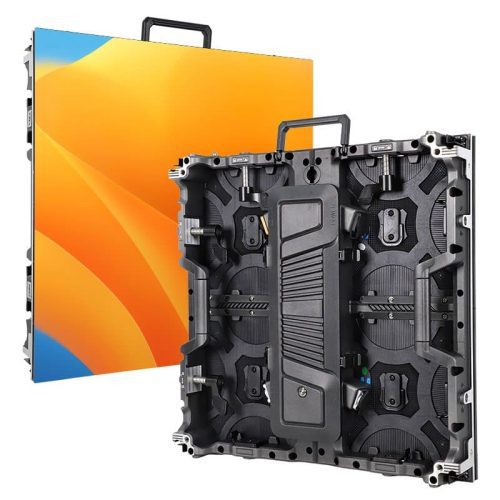
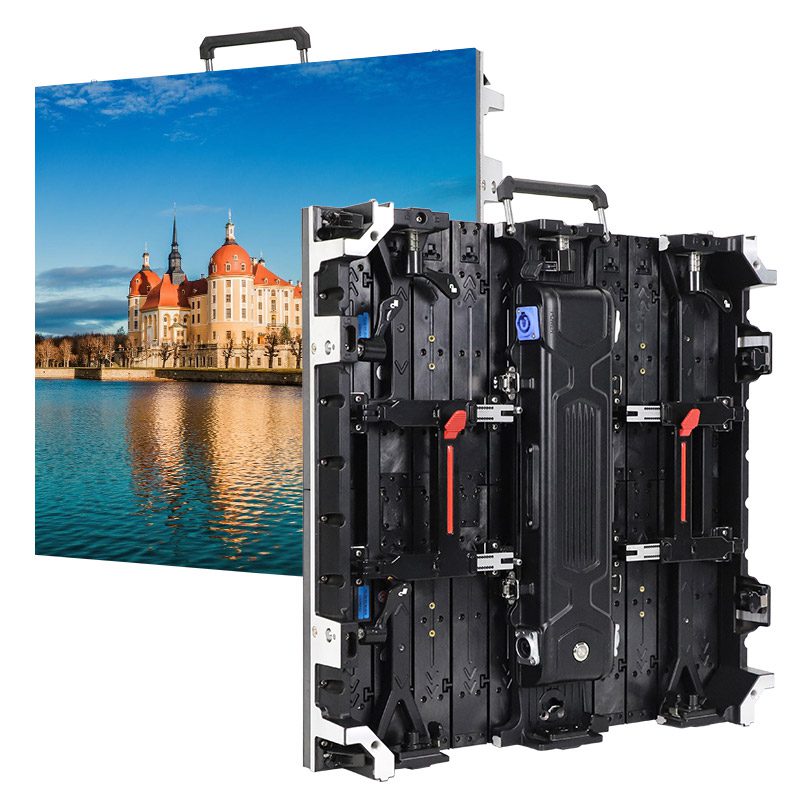
MCTRL R5 LED Display Controller offers powerful features for optimizing and managing LED displays. This guide focuses on helping you set up and configure your system, adjust image quality, and ensure your display runs smoothly. Learn how to make the most of its key features, including input sources, screen calibration, and advanced configuration options, to achieve a top-notch visual experience every time.
catalogue
1.What is the MCTRL R5 LED Display Controller?
MCTRL R5 LED Display Controller, developed by NovaStar Tech Co., Ltd., is a high-performance, professional-grade Novastar controller engineered for demanding visual applications. As NovaStar’s first controller to support image rotation at any angle, the MCTRL R5 delivers exceptional flexibility for creative LED installations.
At its core, the MCTRL R5 supports a maximum output resolution of 3840×1080@60Hz, enabling seamless handling of both ultra-long and ultra-tall LED configurations. It accepts input from multiple sources—including HDMI 1.4, Dual-Link DVI, and 6G-SDI—and works in tandem with NovaStar’s advanced A8s or A10s Pro receiving cards to unlock powerful features like arbitrary-angle screen rotation via SmartLCT software.
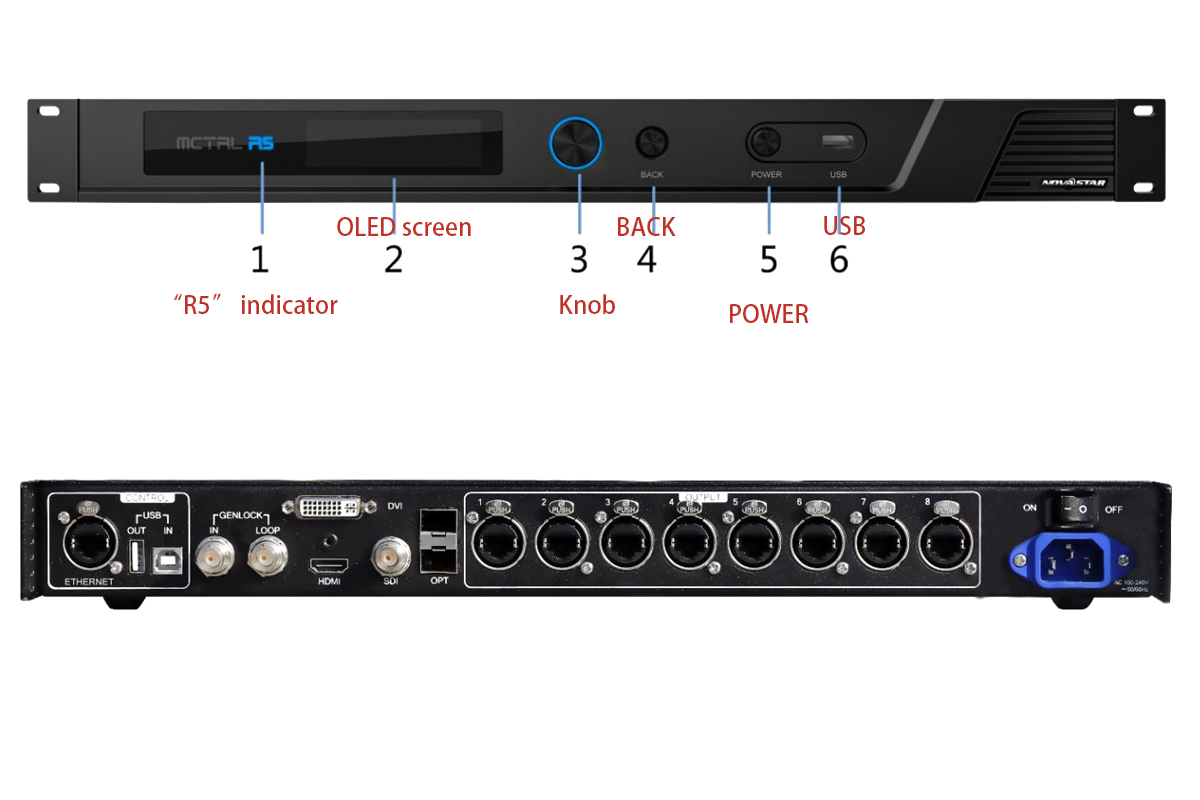
MCTRL R5 Key highlights include:
- Custom resolution support: Configure any resolution within the 3840×1080@60Hz envelope to match your unique screen layout.
- Pixel-level calibration: Achieve uniform brightness and color accuracy across the entire display through high-precision chroma and brightness calibration (when used with NovaLCT and NovaCLB).
- Robust connectivity: Equipped with 8 Gigabit Ethernet outputs and 2×10G optical ports, the MCTRL R5 ensures stable, high-bandwidth signal distribution—even across large-scale setups.
- User-friendly operation: On-device configuration via an intuitive OLED interface and front-panel knob, plus PC-based control through NovaLCT or SmartLCT.
Designed for both fixed installations and rental environments, the MCTRL R5 combines reliability, versatility, and cutting-edge image processing—making it a trusted choice among system integrators and AV professionals seeking a true LED display controller that performs under pressure.
2.Key Features of the MCTRL R5: Input, Output, and Image Rotation
As a next-generation LED display controller, the MCTRL R5 from NovaStar excels not only in raw performance but also in its intelligent handling of signal input, output distribution, and creative image manipulation—most notably, arbitrary-angle image rotation. These capabilities make it a standout choice among professional Novastar controllers for both fixed and touring LED installations.
Flexible Input Options
MCTRL R5 supports multiple high-bandwidth video inputs, ensuring compatibility with a wide range of source equipment:

| Connector Type | Description |
|---|---|
| 6G-SDI | Maximum resolution: 3840×1080@60Hz. Does not support interlaced signals. |
| HDMI 1.4 | Supports resolutions up to 3840×1080@60Hz and custom resolutions. |
| DL-DVI | Matches HDMI 1.4 specifications for maximum flexibility. |
All inputs are processed internally with low latency and high fidelity, ensuring crisp, synchronized visuals across large-format displays.
High-Density Output Architecture
The controller features 8 Gigabit Ethernet ports plus dual 10G optical outputs, enabling efficient signal distribution to hundreds of receiving cards. This robust output design ensures stable data transmission even in complex, high-pixel-count setups—such as wraparound stages or multi-screen command centers.
True Arbitrary-Angle Image Rotation
One of the Novastar controller MCTRL R5’s most innovative features is its ability to rotate the entire display image at any angle—a game-changer for vertical signage, circular LED columns, or diagonal stage backdrops.
To enable rotation:
- Use NovaStar’s SmartLCT software (v3.0 or later).
- Pair the controller with compatible receiving cards such as the A8s or A10s Pro.
- Complete your screen layout configuration first, then apply the desired rotation angle.

3.How to Set Up the Novastar controller MCTRL R5 for Your LED Display
Setting up the NovaStar controller MCTRL R5 is a straightforward process designed to help users light up an LED display quickly and accurately. The basic setup can be completed directly on the controller using the front panel, without connecting to a PC at the beginning.
Step 1: Select the Input Source
- After powering on the MCTRL R5, connect your video source to the controller using HDMI, DVI, or 6G-SDI.
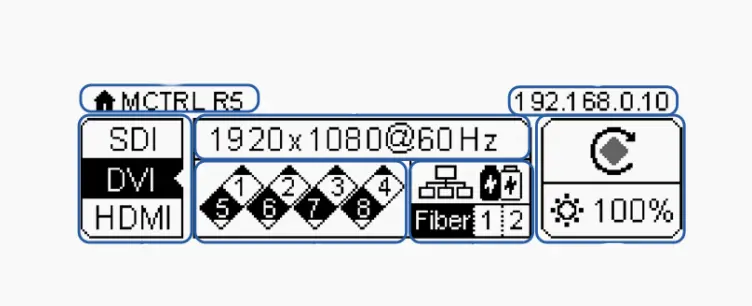
- From the home screen, enter the menu and select the corresponding input source. Only one input source can be enabled at a time.
- For SDI input, resolution settings are not available. HDMI and DVI inputs allow further resolution configuration in the next step.
Step 2: Set the Input Resolution
- For HDMI or DVI sources, the input resolution can be set using preset resolutions or custom resolution settings.
- Preset resolutions cover most common LED display configurations, while custom resolution allows users to define the exact width, height, and refresh rate based on the actual screen size.
- Once the resolution is applied, the controller outputs the full image to the LED screen loading area.

Step 3: Quickly Configure the LED Screen
- After the input signal is confirmed, use Quick Configuration to set up the LED screen layout.
- In this step, users define the number of cabinet rows and columns, as well as the cabinet quantity loaded by each Ethernet port. The MCTRL R5 automatically calculates data flow based on these parameters, allowing the LED screen to display the complete image correctly.
- Quick Configuration is suitable for regular LED screens. For irregular layouts or complex cabinet arrangements, software configuration is required.
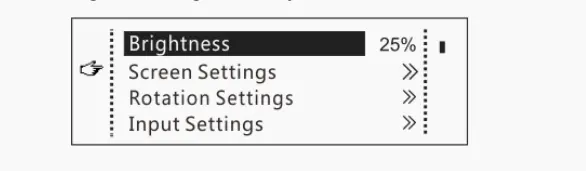
Step 4: Adjust Screen Brightness
- Once the LED display is lit, screen brightness can be adjusted directly from the front panel.
- Brightness changes take effect in real time, allowing users to quickly set a comfortable and practical brightness level for the LED display.
4.Novastar controller MCTRL R5 Device Connections and Cascade Setup
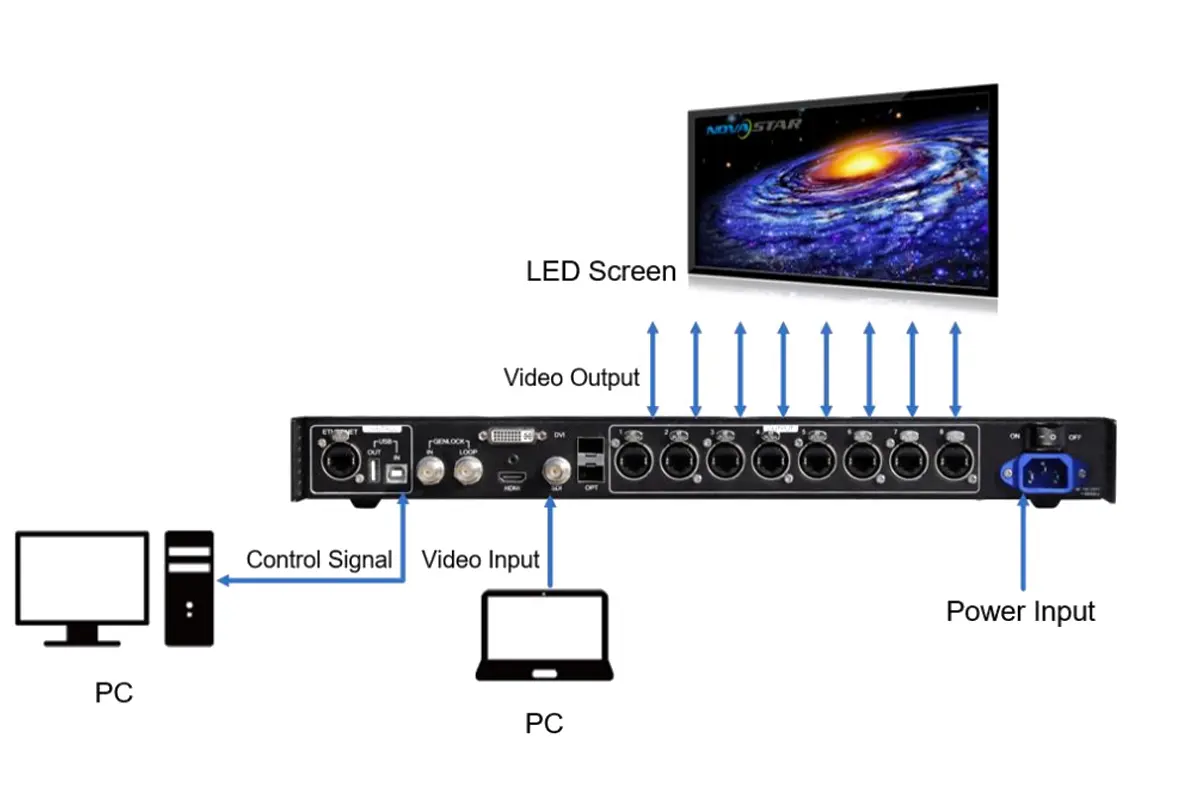
NovaStar controller MCTRL R5 provides flexible connection options for both signal input and LED screen output, making it suitable for single-screen and multi-controller LED display systems.
Signal Input Connections
The MCTRL R5 supports three common video input types: HDMI 1.4, Dual-link DVI, and 6G-SDI. Only one input source can be active at a time. After connecting the video source, users can select the corresponding input directly from the front panel menu or via software.
For HDMI and DVI inputs, preset or custom input resolutions can be configured. SDI input uses a fixed resolution and does not support resolution adjustment.
LED Screen Output Connections
For LED screen output, the MCTRL R5 LED Display Controller is equipped with 8 Gigabit Ethernet ports, each capable of loading LED cabinets according to the input bit depth. These ports connect directly to receiving cards such as A8s or A10s Pro, forming the basic LED control system.
The controller also supports Ethernet port redundancy, which helps improve system stability in fixed installations and rental applications.
Optical Fiber Output for Long-Distance Transmission
In addition to Ethernet ports, the MCTRL R5 includes 2 × 10G optical ports. The optical ports mirror the data from Ethernet ports 1–8 and are typically used for long-distance signal transmission or complex installation environments where copper cables are not practical.
Cascade Setup for Multiple Controllers
When a single MCTRL R5 LED Display Controller cannot cover the required resolution or screen size, multiple controllers can be cascaded.
Cascade connection is done using the USB IN and USB OUT ports on the rear panel. Up to 8 MCTRL R5 units can be cascaded together. After cascading, all devices can be managed and configured from a single control PC using NovaLCT or SmartLCT, which simplifies system control for large LED displays.
5.MCTRL R5 LED Display Controller Advanced Configuration
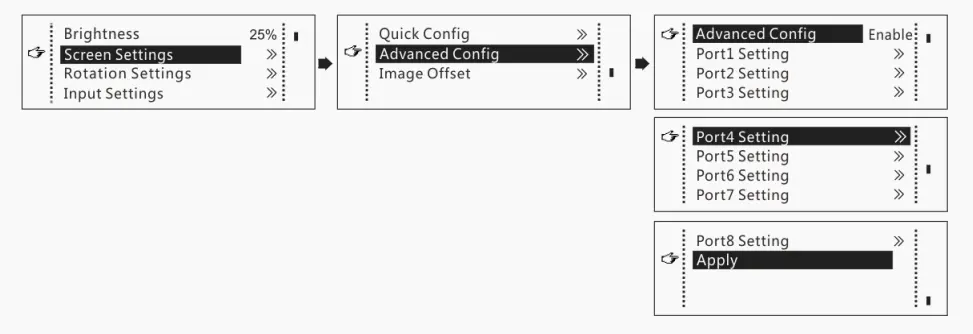
Advanced Configuration on the MCTRL R5 is used when Quick Configuration cannot meet the actual layout or wiring requirements of an LED display. This mode allows users to control each Ethernet port independently, making it suitable for complex cabinet arrangements and non-standard screen layouts.
When Advanced Configuration Is Required
Advanced Configuration is commonly used in the following situations:
- The LED screen uses uneven cabinet distribution across Ethernet ports
- The physical cabinet wiring does not follow a simple left-to-right or top-to-bottom pattern
- Precise control of port loading areas and image position is needed
- Once Advanced Configuration is enabled, Quick Configuration is automatically disabled.
Per-Port Screen Configuration
In Advanced Configuration, each Ethernet port can be configured separately.
For every port, users can define:
- Cabinet row quantity
- Cabinet column quantity
- Horizontal offset (Start X)
- Vertical offset (Start Y)
- Data flow direction
This allows the controller to map the input image accurately to the physical cabinet layout, ensuring the LED display shows a complete and correctly positioned image.
Image Offset Adjustment
- After the screen layout is configured, image offset can be adjusted to fine-tune the display position.
- By modifying the horizontal and vertical offsets, users can move the displayed image without changing the physical wiring or cabinet layout. This is especially useful when the image appears slightly shifted after initial configuration.

Important Configuration Notes
- Advanced Configuration and Quick Configuration cannot be used at the same time
- If the screen has already been configured using NovaLCT, on-device configuration should not be used again
- For irregular LED screens, software configuration is recommended instead of front-panel setup
6.How to Calibrate and Adjust Image Quality on the MCTRL R5
Novastar controller MCTRL R5 provides several image adjustment and calibration options that help improve visual consistency and overall display quality. These functions can be accessed directly from the front panel or through control software, depending on the adjustment type.
Pixel-Level Brightness and Chroma Calibration
- MCTRL R5 supports pixel-level brightness and chroma calibration when working with compatible receiving cards and calibration systems.
- Calibration is used to reduce visible brightness and color differences between cabinets, which commonly appear after long-term use or cabinet replacement.
- When calibration is enabled, some image adjustment functions are temporarily unavailable to ensure calibration accuracy.
Image Settings Adjustment
For daily image optimization, the MCTRL R5 LED Display Controller allows users to adjust key image parameters, including:
- Color temperature
- Red, green, and blue brightness levels
- Gamma value
These settings help fine-tune the displayed image to match the actual viewing environment and content type. Image adjustments take effect immediately, allowing users to see changes in real time.
Screen Brightness Control
- Screen brightness can be adjusted directly from the front panel.
- This function is typically used after the LED screen is fully configured, allowing users to set an appropriate brightness level without affecting color balance or screen layout.
Image Offset and Display Control
- If the displayed image appears slightly misaligned, horizontal and vertical image offset settings can be used to reposition the image without modifying cabinet configuration.
- The MCTRL R5 also supports basic display control modes such as normal display, freeze, blackout, and test patterns, which are useful for checking image uniformity and screen status during setup or maintenance.
7.Understanding the MCTRL R5’s Compatibility with Different Video Sources
The Novastar controller MCTRL R5 supports a wide range of video sources, ensuring compatibility with various devices. Below is a summary of supported formats:
| Video Source | Bit Depth | Sampling Format | Max Resolution |
|---|---|---|---|
| HDMI 1.4 | 8-bit | RGB 4:4:4 | 3840×1080@60Hz |
| HDMI 1.4 | 10-bit | YCbCr 4:2:2 | 2048×1152@60Hz |
| DL-DVI | 8-bit | RGB 4:4:4 | 3840×1080@60Hz |
| 6G-SDI | N/A | N/A | 3840×1080@60Hz |