

Behind every LED display solution that delivers a stunning visual experience lies a precise control system. As an industry-leading control solution, Novastar software is the “intelligent brain” that illuminates the screen and unleashes its full potential. This page provides you with the latest and most comprehensive official Novastar software download resources. Click the form below to download it, completely free of charge.
catalogue
1.Novastar Software Download
NovaLCT Basics Beginners Tutorial
What is NovaLCT software?
NovaLCT is a professional LED display control software that works on both Windows and Mac systems, designed for setting up and managing LED displays.
Key features of NovaLCT include:
- Display Configuration and Adjustment: One of NovaLCT’s core features is helping you set up and fine-tune various parameters of your LED display. For example, it allows you to adjust brightness, color, and other settings to ensure the best display quality. Additionally, the software uses automatic calibration technology to optimize the display, ensuring sharp images and accurate colors.
- Brightness and Color Control: NovaLCT provides tools to manage brightness and color settings, ensuring optimal visual performance.
- Hardware Monitoring and Status Check: NovaLCT continuously monitors the status of the LED display, including important data like temperature, humidity, smoke detection, and power voltage, to keep track of the display’s condition.
- Fault Detection and Maintenance: The software features a point-checking function, making it easy to quickly locate and troubleshoot any faulty LED pixels.
- Program Scheduling: NovaLCT allows you to preset programs, enabling your display to automatically show scheduled content based on a set timeline.
How do I install Nova LCT?
The installation process of NovaLCT follows the standard Windows software installation steps. Here’s a general guide:
- Download the installer: Obtain the official NovaLCT installation program.
- Run the installer: Double-click the downloaded file (usually an .exe) to launch the installation wizard.
- Follow the wizard steps: Follow the on-screen instructions, such as selecting the installation language, agreeing to the license agreement, and choosing the installation path.
- Install necessary components: During installation, the software may automatically install required libraries, like WinPcap (a network driver) or Microsoft Visual C++ Redistributable. Follow the prompts to install these components.
- Handle security software warnings: If your firewall or antivirus software alerts you during installation, choose “Allow” or “Unblock” to ensure all features of the software work properly.
- Finish installation: After the installation completes, you should be able to find and run NovaLCT from the desktop or Start menu.
| ViPlex Handy Download | ViPlex Express Download | Novastar VPlayer Download |
|---|---|---|
| ViPlex Handy User Manual | ViPlex Express Software V2.6.2(x64) | VPlayer V3.9.2 (x64) |
| ViPlex Handy APP for Android | ViPlex Express Software V2.6.2(x32) | Novastar VPlayer V3.9.2 (x86) |
| ViPlex Handy APP for iOS | ViPlex Express V3.0.5.1510 | VPlayer V3.8.4 (Android ) |
| Viplex Handy_3.0.2.0501_364 |
What is the ViPlex Express?
The core function of ViPlex Express is to help you send content from your computer to an LED display and manage it. It achieves this through two main modes:
Studio Mode: This is a real-time, synchronized mode that allows you to project content from your computer screen directly onto the LED display. In this mode, you can edit your content and instantly preview how it will appear on the screen.
Asynchronous Mode: Primarily designed for Nova’s Taurus series multimedia players, this mode allows you to pre-load playlists, videos, images, and other content onto the player. Once uploaded, the player can operate independently from the computer, continuously playing the pre-set content.
What is the ViPlex Handy?
ViPlex Handy is a mobile control app designed to manage and control the Taurus series multimedia players and connected LED displays from your smartphone or tablet.
With the app, you can easily create and send playlists containing videos, images, text, and other content. It also allows you to monitor the screen’s brightness, temperature, and other settings in real-time, while providing quick adjustments and parameter tuning for efficient mobile management.
What is the difference between ViPlex Handy and ViPlex Express?
ViPlex Handy is a remote control app for smartphones, designed to quickly manage LED screens and send content over a local area network. It’s perfect for mobile work and temporary operations.
ViPlex Express, on the other hand, is a professional control software for computers with comprehensive features. It supports both real-time screen mirroring and in-depth system configuration, making it ideal for complex operations and large-scale management in professional settings.
| NovaCLB Cabinet Download | NovaCLB Screen Download | Other Download |
|---|---|---|
| Novastar NovaCLB Cabinet V4.1.2 | Novastar NovaCLB Screen V6.0 | PlutoManager V5.1.1 |
| Novastar NovaCLB Cabinet V4.1.1 | NovaCLB Screen Quick Start Guide V6.0 | PCalCube MiniLED V2.3 |
| Authorization lock drive | Camera ID Reader V1.1.0 |
What is NovaCLB?
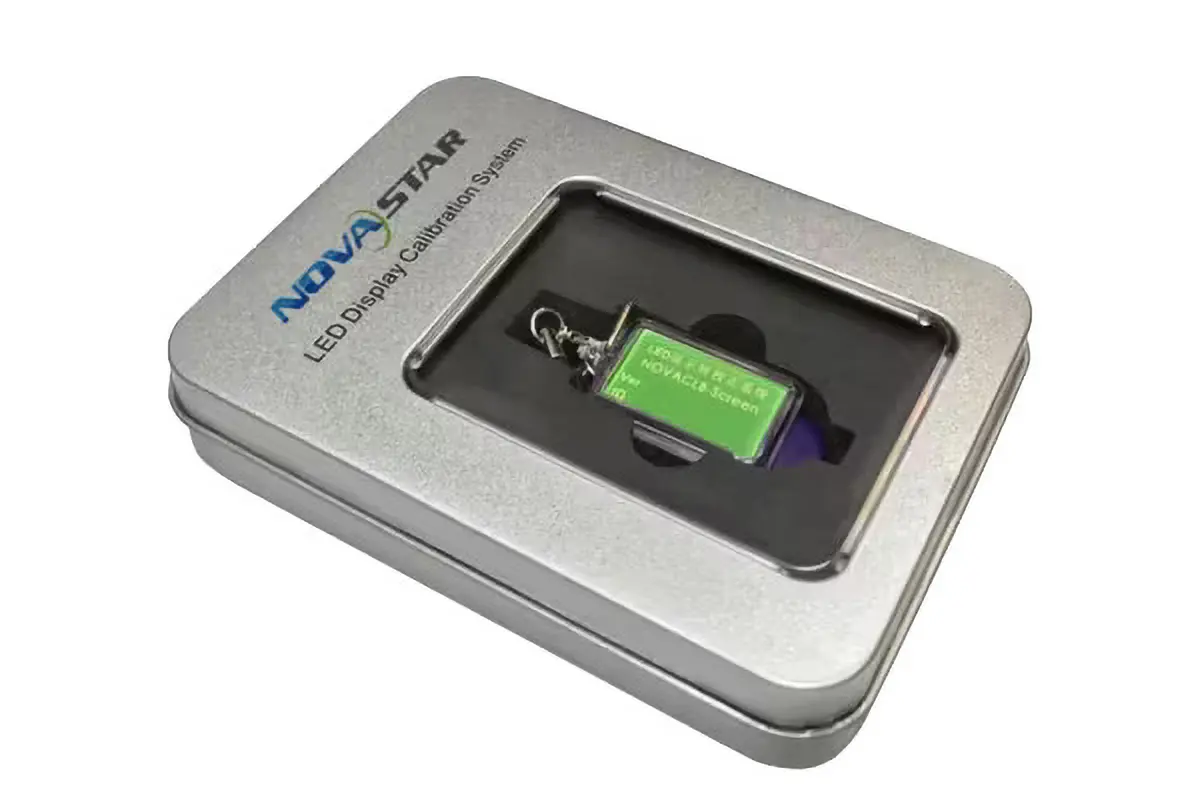
NovaCLB is a professional pixel-level calibration software. Its core function is to address the common issue of brightness and color inconsistency in LED displays.
NovaCLB works by connecting to a professional camera to capture the brightness and color data of each individual LED pixel on the screen. It then calculates a unique correction coefficient for each pixel and uploads it to the control system. As a result, during normal operation, the system uses these coefficients to fine-tune each pixel, ensuring the brightness and color across the entire display are highly uniform.
This technology is primarily used in two scenarios: first, for pre-shipment calibration of individual cabinets on the production line, and second, for calibration of large displays during installation on-site.
| COEX Download | VICP Download | Kompass download |
|---|---|---|
| COEX VMP Win 1.5.0 | VICP iOS | Kompass FX3 Windows V3.13.0 |
| COEX VMP Mac 1.5.0 | VICP APP | Kompass FX2 Windows V3.13.0 |
| COEX VMP Win 1.4.0 | VICP-User-Manual-V11.1.1.pdf | Kompass FX3 Pro V2.3.0 |
| COEX VMP Mac 1.4.0 |
What is VMP software?
What is VMP Software?
COEX VMP stands for Vision Management Platform. It is a powerful, all-in-one software used for configuring, controlling, managing, and maintaining LED displays.
What does COEX VMP do?
Centralized Management: It allows you to manage multiple LED controllers (like Novastar’s MX, CX, KU series, etc.) and peripheral devices (such as 3D emitters, multifunction cards, and brightness sensors) both online and offline.
Screen Configuration: The software supports multiple input sources and layer management, letting you define canvas resolution freely. You can also position, crop, and overlay layers to meet complex display requirements.
Professional Display Calibration: VMP offers seam correction and multi-batch color consistency features to eliminate bright and dark lines or color differences between cabinets or modules. It includes built-in tools like color replacement, 14-channel color calibration, and 3D LUT for precise adjustments.
Comprehensive System Monitoring: The platform provides an overview of system health, allowing real-time 24/7 monitoring of key parameters like controller, cabinet temperature, voltage, humidity, power status, and signal links.
What is VICP Software?
VICP stands for Visual Intelligent Control Platform. It is a centralized control software designed for end users, used to manage and control large screen displays, multimedia playback, audio systems, and environmental devices (like lights and curtains). The software provides an intuitive “what you see is what you get” operation through a graphical interface.
What does VICP do?
Large Screen Control: On a spliced screen, you can open, move, and zoom multiple signal windows just like using a mobile phone. These windows can also be overlapped. For example, you can simultaneously display a laptop’s PPT, video conference screen, and real-time data dashboard, with the ability to save and recall different screen layouts with one click.
Multimedia Playback Control: It allows direct control over the playback, pause, and switching of videos, images, PPTs, websites, and online streams. You can also overlay floating information such as text, time, and weather on the screen, meeting the needs of information release and display.
Audio Control: It enables unified adjustment of volume and mute for the entire space, and allows for audio matrix setup to flexibly assign specific sounds to specific areas, enabling zone management.
Environmental Control: One-click control of lights, curtains, projection screens, and other devices. For instance, by clicking “Meeting Mode,” lights automatically turn on, curtains drop, and volume adjusts to prepare the environment quickly for a meeting.
Reverse Control: Once a computer signal is connected to the large screen, you can remotely operate the computer’s desktop from the control tablet, such as opening files or browsing the web, without needing to move back and forth.
Monitoring Management: It supports network cameras, allowing real-time viewing of surveillance footage within the software. You can also control camera rotation and zoom, providing full control over the monitoring area.
| Calibration Software download | ||
|---|---|---|
| NovaCLB Screen V5.1.2 | ||
| NovaCLB Screen V6.0 | ||
| CalCube MiniLED V2.0.B0 (C3200) | ||
| CalCube MiniLED V2.4.2 |
2.Novastar User Manual Download
NovaStar Software Manual Download
NovaStar Video Controller Manual Download
| Video Controller | Switcher and Console | H Series Video Splicing Processor | Video Processor | Other User Manuals |
|---|---|---|---|---|
| VX1000 Manual | C1 User Manual | H Series Manual | HDR Master 4K Manual | MG Series User Manual |
| VX600 Manual | N9 Manual | Vunit 3000 User Manual | ||
| VX400 Manual | J6 Manual | ET1S-G Quick Start Guide | ||
| VX6s Manual | ||||
| VX4 Manual | ||||
| VX4s Manual | ||||
| VX2U Manual | ||||
| VX4U Manual | ||||
| VX16s Manual | ||||
| NovaPro UHD Jr Manual | ||||
| NovaPro UHD Jr Web Manual | ||||
| NovaPro UHD Manual |
NovaStar LED Display Controller Manual Download
| MCTRL Series controller | MX Series Controller |
|---|---|
| MCTRL 4K Manual | MX6000 Pro Manual |
| MCTRL R5 Manual | MX2000 Pro Manual |
| MCTRL660 PRO Manual | CX80 Pro Manual |
| MCTRL660 Manual | CX40 Pro User Manual |
| MCTRL500 | MX30 Manual |
| MCTRL300 | MX40 Pro Manual |
| MCTRL700 | MX20 Manual |
| MSD300 | KU20 Manual |
| MSD600 |
NovaStar Nova Cloud Manual Download
3.NovaStar Specifications Download
NovaStar Video Controller Specifications
| Video Controller | H Series Video Splicing Processor | Switcher and Console | Video Processor | AV over IP System | Media Server |
|---|---|---|---|---|---|
| VX1000 Specifications | H2 Specifications | C1 Specifications | HDR Master 4K Specifications | 2K Distributed Processors Specifications | ET1S-G Specifications |
| VX600 Specifications | H5 Specifications | N9 Specifications | Vunit 3000 Specifications | 4K Distributed Processors Specifications | ET2S-G Specifications |
| VX400 Specifications | H9 Specifications | J6 Specifications | ET4S-G Specifications | ||
| VX6s Specifications | H15 Specifications | ET16S-G Specifications | |||
| VX4 Specifications | H20 Specifications | ||||
| VX4s Specifications | |||||
| VX4s-N Specifications | |||||
| VX2U Specifications | |||||
| VX4U Specifications | |||||
| VX16s Specifications | |||||
| NovaPro UHD Jr Specifications | |||||
NovaStar LED Display Controller Specifications
| MCTRL Series | MX Series Controller | Sending Card |
|---|---|---|
| MCTRL 4K Specifications | MX6000 Pro Specification | MSD300 Sending Card Specifications |
| MCTRL R5 Specifications | MX2000 Pro Specification | MSD300-1 Sending Card Specifications |
| MCTRL660 PRO Specifications | CX80 Pro Specification | MSD600 Sending Card Specification |
| MCTRL660 Specifications | CX40 Pro Specification | MSD600-1 Sending Card Specification |
| MCTRL500 Specifications | MX30 Specification | |
| MCTRL300 Specifications | MX40 Pro Specification | |
| MCTRL700 Specifications | MX20 Specification | |
| MCTRL600 Specifications | KU20 Specification |
NovaStar Receiving Card Specifications
| Armor Series | MRV Series | AT Series | DH Series | CA Series |
|---|---|---|---|---|
| A4s Specifications | MRV 570-1 Specifications | AT20 Specifications | DH7516-S Specifications | CA50E Specifications |
| A5s Specifications | MRV 532 V.1.2.0.0 Specifications | AT30 Specifications | DH7512-S Specifications | |
| A5s Plus Specifications | MRV 532 V.1.2.0.3 Specifications | AT32 Specifications | DH7508-S Specifications | |
| A7s Plus Specifications | MRV 432 Specifications | DH7516-S Specifications | ||
| A8s Specifications | MRV 416 Specifications | DH7512-S Specifications | ||
| A8s-N Specifications | MRV 412 Specifications | DH7508-S Specifications | ||
| A8s Pro Specifications | MRV 366 Specifications | CA50E Specifications | ||
| A9s Specifications | MRV 336 Specifications | |||
| A10s-Plus-N Specifications | MRV328 Specifications | |||
| A10s Plus Specifications | MRV300 Specifications | |||
| A10s Pro Specifications | MRV266 Specifications | |||
| MRV216 Specifications | ||||
| MRV210 Specifications | ||||
| MRV208 Specifications |
NovaStar Nova Cloud Specifications
| Taurus Ultra Series | LCB Series | Taurus Series | MBOXSeries | T Series |
|---|---|---|---|---|
| TU20 Pro Specifications | LCB2K Specifications | TB30 Specifications | MBOX600 Specifications | T30 Specifications |
| TU15 Pro Specifications | LCB4K Specifications | TB40 Specifications | MBOX600 Pro Specifications | T50 Specifications |
| TU40 Pro Specifications | TB50 Specifications | T60 Specifications | ||
| TB60 Specifications | TCC70G Specifications | |||
| TB1-4G Specifications | TCC160 Specifications | |||
| T30 Specifications | ||||
| T50 Specifications |
NovaStar Accessories Specifications
4.NovaStar Firmware Download
Video Controller Firmware
| Video Controller | H Series Video Splicing Processor | Switcher and Console | Video Processor | others |
|---|---|---|---|---|
| VX1000 Firmware | NovaStar H Series Firmware | NovaStar C1 Firmware | NovaStar HDR Master 4K Firmware | MG Series Firmware |
| VX600 Firmware | NovaStar N9 Firmware | ET1S-G Firmware | ||
| VX400 Firmware | NovaStar J6 Firmware | Vunit 3000 Firmware | ||
| VX6s Firmware | ||||
| VX4 Firmware | ||||
| VX4s Firmware | ||||
| VX4s-N Firmware | ||||
| VX2U Firmware | ||||
| VX4U Firmware | ||||
| VX16s Firmware | ||||
| NovaPro UHD Jr Firmware | ||||
NovaStar LED Display Controller Firmware
| MCTRL Series | MX Series Controller | Sending Card |
|---|---|---|
| MCTRL 4K Firmware | CX80 Pro Firmware | None |
| MCTRL R5 Firmware | CX40 Pro Firmware | |
| MCTRL660 PRO Firmware | MX30 Firmware | |
| MCTRL660 Firmware | MX40 Pro Firmware 1.5.0 | |
| MCTRL600 Firmware | MX40 Pro Firmware 1.4.0 | |
| MCTRL500 Firmware | MX20 Firmware | |
| MCTRL300 Firmware | KU20 Firmware | |
| MCTRL700 Firmware |
NovaStar Receiving Card Firmware
| Armor Series | MRV Series | AT Series | DH Series | CA Series |
|---|---|---|---|---|
| A4 Firmware | MRV 570 Firmware | AT20 Firmware | DH7508-S, DH7512-S, DH7516-S DATA_RV-S_V1.3.3.0 | None |
| A4s Firmware | MRV 560 Firmware | AT30 Firmware | DH7508-S, DH7512-S, DH7516-S Group HUB75E | |
| A5 Firmware | MRV 532 V.1.2.0.0 Firmware | AT32 Firmware | ||
| A5s Firmware | MRV 532 V.1.2.0.3 Firmware | |||
| A5s Plus Firmware | MRV 432 Firmware | |||
| A7 Firmware | MRV 420 Firmware | |||
| A7s Plus Firmware | MRV 416 Firmware | |||
| A8 Firmware | MRV 412 Firmware | |||
| A8s Firmware | MRV 410 Firmware | |||
| A8s-N Firmware | MRV 366 Firmware | |||
| A8s Pro Firmware | MRV 360 Firmware | |||
| A9s Firmware | MRV 336 Firmware | |||
| A10s Plus-N Firmware | MRV 330 Firmware | |||
| A10s Plus Firmware | MRV 328 Firmware | |||
| A10s Pro Firmware_V1.1.3.70 | MRV 320 Firmware | |||
| A10s Pro Firmware_V1.1.4.89 | MRV 300 Firmware | |||
| MRV 266 Firmware | ||||
| MRV 220 Firmware | ||||
| MRV 216 Firmware | ||||
| MRV 210 Firmware | ||||
| MRV 208 Firmware | ||||
| MRV 200 Firmware |
